Quotes
A quote is a priced proposal for service work — the "R 12 340 for a new IDS panel and 8 PIR sensors, valid for 30 days" document you send the customer before booking the job. CleverOps quotes are built from catalog items and — for recurring services like monitoring or armed response — from your billing plans, delivered to customers by email, and can be shared as a public link the customer can view without signing in.
The Quotes list updates in real time — new quotes and status changes (draft → sent → accepted/declined, including customer responses from a public share link) appear without refreshing the page.
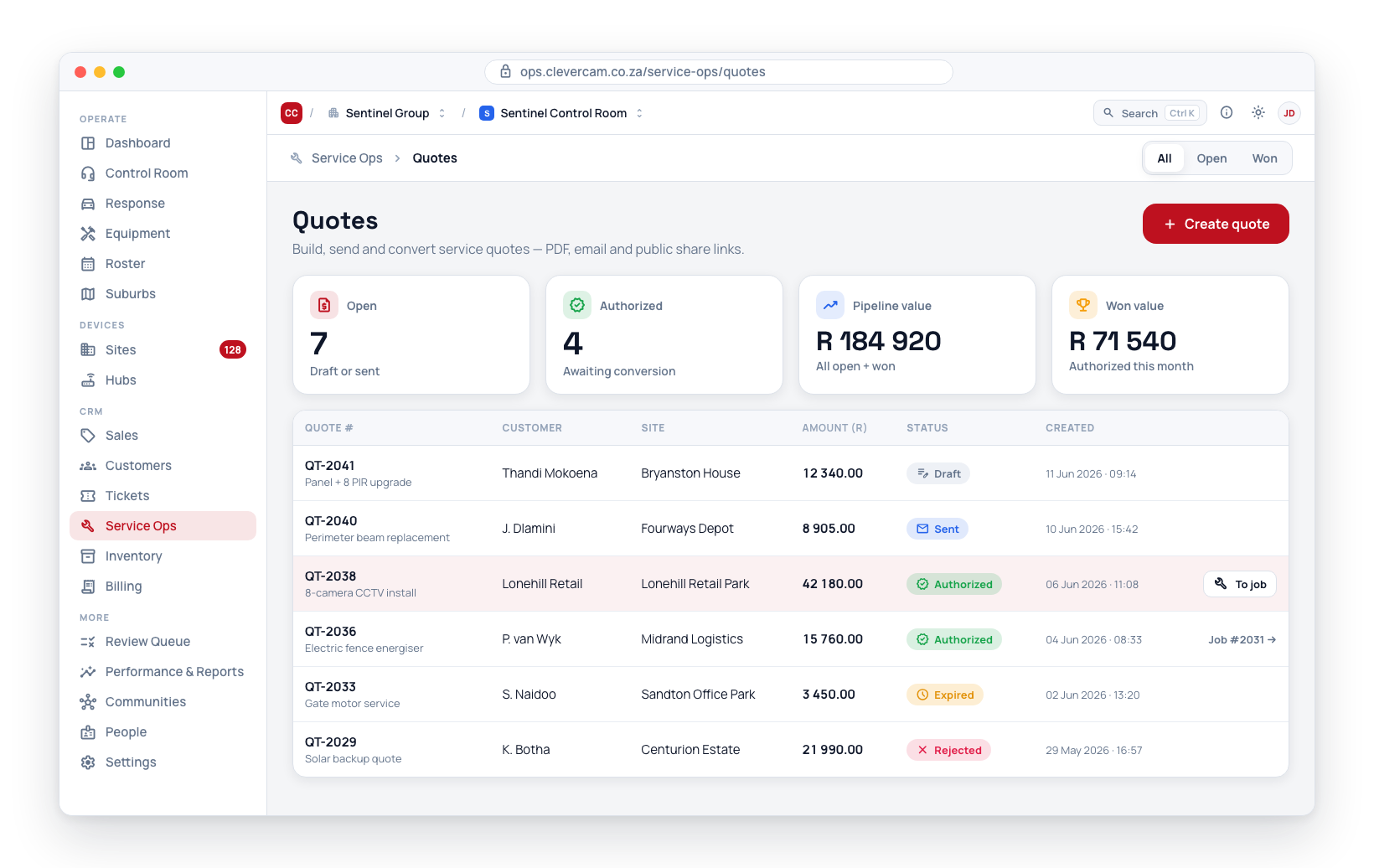
Where the Quotes page sits
Quotes is one area of Sales, and the row along the top of the page switches between them: Overview, Leads, Quotes and — where the module is on — Onboarding. Opening Quotes lands you straight on the working list of every quote in the control room; there is no per-page overview any more.
A second row appears under it only when your control room requires quote approval and you personally hold Approve quotes for sending — anyone else would get a tab that is permanently empty or permanently unactionable:
- All quotes — the list described below.
- Awaiting approval — the drafts blocked on an approver, with a count beside the label.
The funnel numbers live on Sales → Overview, one page for the whole acquisition funnel rather than one dashboard per area. It answers where is the pipeline and what needs a nudge? with New this week, Open pipeline, Win rate, Won this month and Reminders due across the top, the lead pipeline by stage, In onboarding and Live (30d) where the Onboarding module is on, and a needs-attention row — Customer info to review, Unassigned leads, Quote reminders due and Deals needing attention. Every figure deep-links into the working screen it counts.
Won this month counts the deals won since the 1st by the day they were won, and the pipeline's Won bar counts every won deal (all time) — both reach into the Leads archive, because won deals move there by themselves. The tile opens the Leads table on exactly those deals.
Where quotes live
Quotes are linked to a site, a customer, and/or a service job. You will find the Quotes section in:
- Site Details → Service tab → Quotes — for quotes related to a specific site.
- Customer edit form → Quotes — for quotes that span multiple sites.
- Job form → Optional quotes (Billing band) — quotes for extra work raised from a job (see Raise a quote from a job).
Out of the box the list shows the subject, quote number, status, item count, total and next follow-up date. Ten more columns — customer, site, the dates it was raised, sent, accepted and expires, revision, job, who raised it, project — can be switched on, and every column heading sorts and filters; see Choosing your columns below. The same list, with the same columns and menus, is what you get inside a site, customer or job.
Finding and filtering
Above the list sits a single row: a search box, then quote type, a date window, and a status dropdown, with Columns ▾ and Export CSV at the right-hand end. The three filters combine — narrowing one never clears another. Search is different, and the difference matters: it is the one control that looks past the date window.
Everything here — the search, the filters, the sort and the paging — is done by the database, fifty quotes at a time. The list never downloads the whole book to your browser, so a control room with years of quotes pages and sorts as quickly as one with a dozen.
Search
Type into the search box and the list becomes the quotes that match, drawn from every quote the control room has ever raised — no date window, no status limit. The matching is done by the database, not in your browser, so it does not matter how big the book is or how far back the quote goes.
It matches on the quote number, the heading, the reason for quote, the rep, and the customer, site or site address the quote is for. A plain number is also tried as the quote's id. Two characters is the minimum.
While a search is running:
- A line under the filter row says how many quotes matched — e.g. "37 matching quotes, across every quote ever raised."
- The Raised window control is hidden, because search already ignores it. Clear the search box and it comes back exactly as you left it.
- The quote type, stage, status and column filters still apply, and the count on that line is the count after them — the line says so when any are set. The empty state distinguishes "nothing matches the words" from "matches exist but the filters exclude them".
- The matches are sorted and paged like the rest of the list, fifty at a time — there is no cap on how many a search can find.
Searching inside a site, customer or job quotes panel stays inside that account.
Date window ("Raised")
A control room that has been running for a while accumulates years of quotes, and on a list sorted newest-first the old ones still make up most of the rows. The Raised control — 30 days, 90 days, 1 year, All — limits the list to quotes raised recently.
- It filters on when the quote was raised (its creation date) — not its valid-until date. Expiry is a separate question, answered by the Expiring soon figure on the Overview.
- An open quote is never hidden by the date window. Anything still Draft or Sent stays in the list however old it is, because an old quote awaiting a decision is exactly the work you need to see. The window only trims quotes that have already been settled — accepted, declined, expired or withdrawn.
- All quotes opens on 1 year by default. The quotes panels embedded on a site, customer or job are that account's full history instead — they show everything and have no date window.
- Clicking a figure on the Overview opens the list on All, so the list you land on holds the same quotes the number you clicked counted.
Status
The All statuses dropdown narrows the list to one status: Draft, Sent, Accepted, Declined, Expired, or Withdrawn. These are the same six outcomes described under Quote statuses — Accepted covers both an internal approval and a customer's online acceptance, and Declined covers both an internal rejection and a customer's decline. The same six choices are offered from the Status column heading's menu, and the quote-type segment from the Subject heading's, so a filter is never further away than the column it applies to.
Status is deliberately separate from the filter chip that appears when you arrive from the Overview (Open, Accepted, Awaiting conversion, Expiring soon, Awaiting approval). Those chips are stages of the pipeline and can span more than one status — Open means draft and sent — so they are shown and cleared separately from the status dropdown.
What the figures count
The Total / Open / Accepted / Pipeline value / Accepted value figures above the filters follow the date window only. The type, stage, status and column filters narrow the list underneath without changing those numbers, and a line under the figures says which set they describe (e.g. "Counting quotes raised in the last year, plus every open quote regardless of age"). To read the figures for your whole book, set Raised to All. The two money figures are on your control room's VAT display axis, and the label says which.
While a search is running the figures describe the matches instead, and the caption is replaced by the match count.
Choosing your columns
The list does not show every column at once. Columns ▾, at the right of the filter row, is where you decide which ones it shows — tick a column to bring it in, untick it to hide it. The button says how many are currently hidden, so a column somebody switched off is never a mystery. Subject is listed too, ticked and greyed with always beside it: it cannot go, and the list says so rather than leaving it out.
Put them in the order you read them. The ↑ and ↓ beside each column in Columns ▾ move it one place; a column heading's own menu (the small ▾ that appears when you hover a heading) has Move left and Move right for the same thing. Subject stays where the list put it, but other columns may move past it.
Your choice is yours alone and it follows you. Columns, their order and the sort are saved against your login, not the browser, so the list looks the same on the control-room machine and on your laptop, and changing it does not touch what your colleagues see. Reset to default view puts everything back. The quotes panels inside a site, customer or job share the same saved view.
The default set is the six the list has always had — Subject, Quote #, Status, Items, Total and Follow-up. Every other column starts switched off:
| Column | What the cell shows |
|---|---|
| Subject (always) | The heading, a Technical chip on an internal scope quote, and the reason for the quote alongside it |
| Quote # | The quote number, rev N on a later revision, and From Xero on a quote mirrored from the accounting package |
| Status | The status pill (or Superseded on an old revision), the Awaiting approval / Approved to send note where the control room gates sending, and the Viewed N× stamp |
| Items | How many lines are on the quote |
| Total | The once-off total on the VAT axis — recurring lines and options the customer did not take stay out, so it is the same figure the quote itself shows |
| Follow-up | The next due date set on the quote |
| Customer | The customer the quote is for, as a link — or the deal, while a prospect has no customer yet |
| Site | The site, as a link |
| Raised | When the quote was created (date and time) |
| Sent | When the quote first went to the customer — its first Draft → Sent step. Blank on a quote that was never sent, or was marked sent before the activity log existed |
| Valid until | The expiry date |
| Accepted on | When the customer accepted online, or staff approved it internally |
| Revision | rev N, with superseded on a version a newer revision replaced |
| Job | The job the quote was converted into — or From … the job it was raised from, when it has not been converted |
| Raised by | Who created the quote, by name |
| Project | The project the quote belongs to, as a link |
Switching a column on fetches the data behind it; the default set costs what it always did.
Sorting the list
Click a column heading to sort by it; click it again to reverse. An arrow marks the column the list is sorted on. The heading's ▾ menu offers the two directions by name — A → Z / Z → A for text, Newest first / Oldest first for dates, Largest first / Smallest first for the total — so you never have to click twice to get the one you meant.
These headings sort: Quote # (the default, newest first), Subject, Status, Items, Total, Follow-up, Customer, Site, Raised, Sent, Valid until (soonest first) and Accepted on. Revision, Job, Raised by and Project do not; their menu says so.
The sort is done by the database across the whole list — the window, or the whole book while you search — not just the page on screen, so sorting by total and paging forward really does walk down from the largest quote. Like your columns, the sort is saved against your login.
Filtering from a column
A column's ▾ menu is also where its filter lives. Pick a value and the whole list is filtered; the heading's ▾ turns solid while a filter is set, and a chip naming the filter appears in the filter row — even if you later hide the column — with × to clear it. Four columns carry a filter of their own:
- Follow-up — Overdue (an open quote whose follow-up date has passed), Due within 7 days, or No follow-up date
- Valid until — Expiring within 7 days (sent, and the date is inside the next week) or Expired (status Expired, or sent with the date already passed)
- Revision — Original, never revised, A later revision (rev 2+), or Superseded versions (the frozen old copies)
- Job — Converted to a job, Not converted, Raised from a job, or Billed directly (an invoice was raised straight from the quote)
The Subject and Status headings reach the same quote-type and status filters as the controls in the filter row. Column filters are session-scoped — they clear when you leave the page — and, like the type, stage and status filters, they narrow the list without changing the figures above it.
Exporting the list
Export CSV, at the right of the filter row, downloads every quote the current filters match — the whole window or the whole search, not the fifty rows on screen — with the columns you have showing, in your order, Subject first. Totals are plain numbers on your VAT axis so a spreadsheet can sum them; dates are written year-month-day so they sort. The file is named quotes-YYYY-MM-DD.csv.
Create a quote
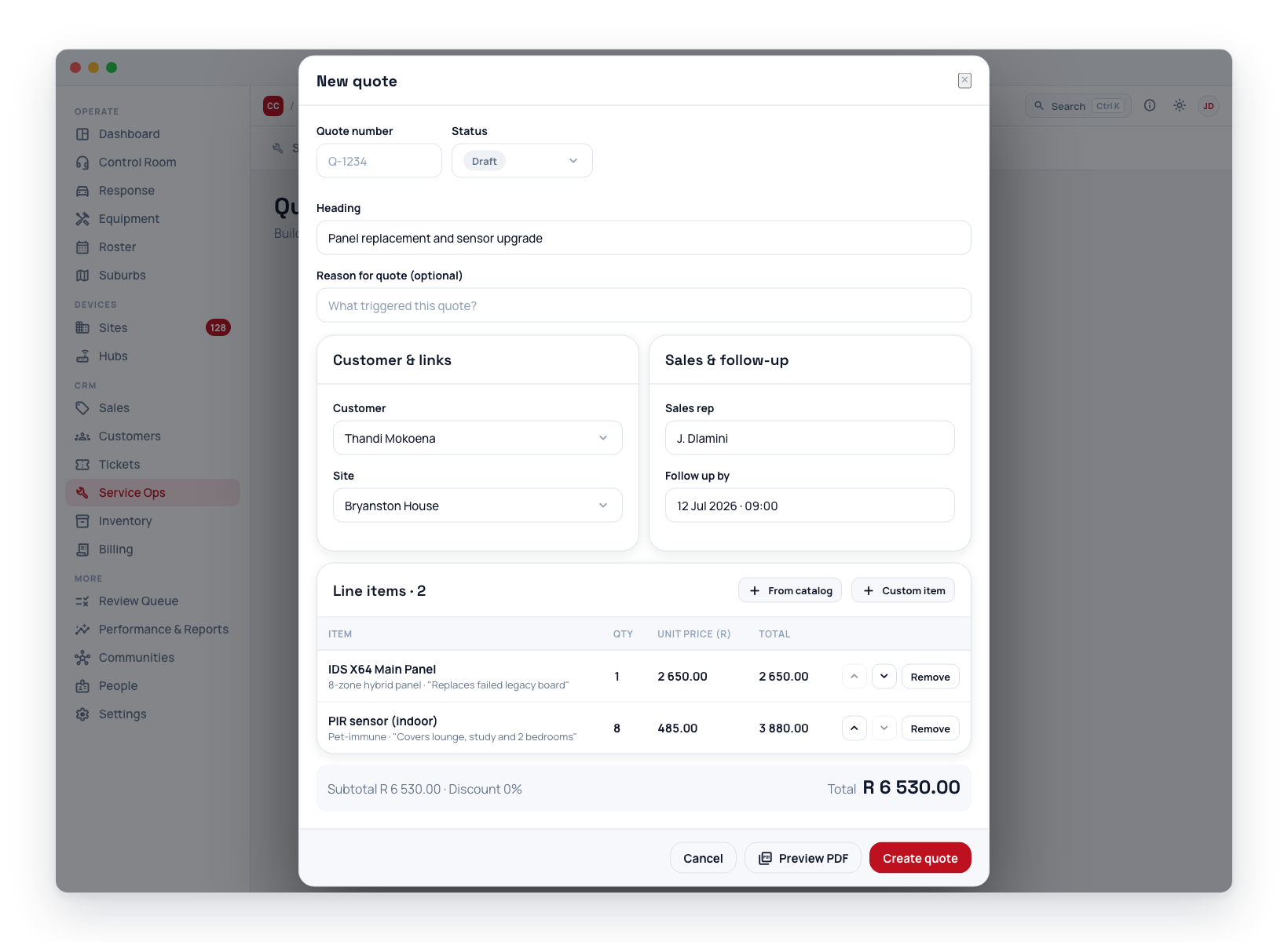
Creating a quote is two steps: who it is for, then what is on it.
Step 1 — Who is this quote for?
Clicking New quote opens on the recipient, because that one answer settles the pricing, the VAT entity and who the document is addressed to. Three routes:
- Existing customer — pick the customer, and optionally which of their sites the work is at. Choosing the customer first narrows the Site list to that customer's sites (plus sites with no customer of yours).
- A site — start from the property when that's what you're holding. Its owning customer is picked up automatically — unless it is a site you share with another control room that belongs to one of their customers. Then no customer is picked up and the hint under the picker says so; to quote one of your own customers there, start from Existing customer and pick the site under them.
- A prospect — for someone who isn't a customer yet. Pick the open deal from the Leads board, or click New deal and create it right here (name, company, contact, email, phone, source) without abandoning the quote. A deal created this way is born at the Quoted stage, because the quote you're about to write is the reason it exists.
All three pickers search the whole book on the server and show the fifty best matches. The customer search matches the name, account number, legal name, VAT/registration number, contact names, phone numbers (typed with +27 or 0, any spacing), emails, the billing address and the customer's site names and addresses — and each result row shows the account number, the primary contact and phone, and the customer's sites, with the part that matched highlighted. The site search matches the site name, full address, the owning customer's name or account number and the site's contacts; a site whose customer belongs to another control room reads customer of another control room instead of a name. A quote can only carry one of your control room's customers — saving another room's is refused. The deal search matches the deal name, company, contact name, phone and email — every word you type has to match somewhere on the row, so "witbank pieter" narrows to the one deal.
Skip for now goes straight to the document if you'd rather address it later. If you opened the quote from a job, a site or a deal, the answer is already known and this step is skipped for you.
Step 2 — The document
The recipient is stated in one line at the top (Change goes back to step 1). Fill in:
- Heading — the customer-facing title, e.g. "Panel replacement and sensor upgrade". On a new quote it's pre-filled from the linked customer or site (e.g. Quote for Acme Foods) so you don't retype it every time — overwrite it with something more specific when you want to. (The quote number is assigned automatically on save.)
- Valid until — the date the quote expires.
- Sales rep (in the Sales & follow-up card, below the line items) — the rep who prepared the quote, picked from the sales-role members on People. The rep's name appears on the quote PDF.
- Next due date — the next time you want a reminder about this quote on the Needs attention tab.
- Notes — internal notes not shown to the customer.
Then add line items — Add item opens one searchable list of everything you sell, filtered by type (All / Products / Services / Labour / Plans) from Products & Services. Picking a Plan adds a recurring subscription line (see below); anything else adds a once-off line. Clicking Add on a row closes the list and highlights the new line in the table so you can see where it landed; the list keeps your search, so reopening it to add a similar item carries on where you left off. Close it without adding with the ✕ in its header or Esc. Custom item enters a freeform line. Each line has a quantity, unit price, and optional per-line discount, with optional motivation text that appears on the PDF. Finally click Create quote.
Saving does not close the form. The quote stays open and switches into the quote workspace — the button becomes Save changes, and Send to customer, Preview PDF, Convert to job and Bill directly all become available, because those actions need a saved quote to act on. You carry straight on instead of finding the new row in the list and re-opening it. Close it with the × when you're done; it's already saved.
Typing amounts: clicking into a unit price, quantity or discount % box selects what's already there, so you can type straight over it. Either separator works — 1500,50, 1500.50 and 1 500,50 all mean the same thing — and the box tidies itself up when you leave it (1 500,50). Arrow keys nudge a price by R1, or a quantity or discount by 1 (hold Shift for ten). A discount above 100% is pulled back to 100 as you type.
Quote numbers are assigned automatically and sequentially when you leave the number field blank (Q-00001, Q-00002, …), so no two quotes ever share a number. The field stays editable — type your own value in the number box before saving to override the automatic one. (Service job numbers work the same way.)
The quote workspace (editing)
Opening a saved quote opens the full-screen quote workspace, titled with the quote's number (e.g. Q-00012 · rev 2) — the same treatment service jobs, deals, and onboarding journeys get:
- Hero — the heading (edit it in place), the chips row (number, status, type, revision — and, on a control room with multiple billing entities, an Issued by selector for the legal entity this quote and its invoice go out under; it locks once the quote is sent), and a pipeline rail: Draft → Sent → Accepted → Converted, with the quote's real dates under reached steps. Accepted covers both a customer's online acceptance and an internal authorization; Converted lights up once a job, a draft invoice, or subscriptions have been raised from the quote. A dead quote (declined, rejected, expired, withdrawn) or a superseded revision shows no current step — its banner or record card explains the exit. On the right sit the quote's actions: Send to customer (or Send a copy once won), Convert to job, Bill directly, New revision, and a Documents menu (Preview PDF). Once a quote is accepted or authorized, Convert to job becomes the highlighted action.
- Context rail (left, sticky) — the Summary totals card (items, subtotal, the quote-level Discount %, total, any deposit, a per-section breakdown when the quote has sections, recurring cycle totals, and Start subscriptions when applicable), the Customer & links card, the Sales & follow-up card, and a Customer engagement card showing whether the email was opened and whether the customer has viewed the quote.
- Tabs — Quote (the editable document: context line, the acceptance/decline record, line items and their sections, Extra info on quote, and Document options), Document (the finished quote as a page), Files (attachments), and Activity (the notes-and-audit timeline).
There are no footer buttons. Edit anything and a sticky save bar appears — Unsaved changes · Discard · Save changes — whatever tab you are on (on a locked quote the save button is a disabled Locked explaining why; Discard still works to undo stray edits). The send-approval gate, when your control room uses it, appears as a banner under the hero with Approve now / Undo approval in place.
Creating a quote keeps the full builder dialog above — a new quote needs its line items immediately, so nothing is hidden behind tabs until the quote exists.
Raise a quote from a job
A service job that is itself just a call-out and labour often surfaces extra, optional work on site — add two cameras here, replace those beams. Quote that work separately, linked to the job, without touching the job's own billing:
- From the job form (office): open the job → Billing band → Optional quotes card → New quote. The quote form opens with the job, its customer, and its site already linked — build and send it as usual. Raise as many separate quotes from one job as you need; the card lists them all with live status and totals. See Optional quotes on the job form.
- From the CleverTech app (technician on site): on the job, tap Quote extra work — heading, notes for the office, and optional catalog/freeform line items (catalog lines price themselves at the ex-VAT catalog price; an unpriced freeform line comes through at R 0 for the office to price). It needs a connection, and lands as a Draft quote linked to the job with the technician as rep — the office reviews, prices, and sends it.
A job-linked quote behaves like any other quote from there: email it, let the customer accept online, and if it's won, convert it to its own job. In the Quotes list, its row links back to the source job.
The technician can follow what happens next. CleverTech has a read-only My quotes tracker (the quote icon on the My jobs screen): every quote the technician raised — or that names them as rep, or that came from one of their jobs — grouped In play / Won / Closed, each with its line items, total and live status (Draft — with office, Approved to send, Sent to customer, Accepted, Declined, Expired). The job's own Job tab also lists the quotes raised from it and shows the quote the job was converted from, and its Site tab lists every live quote at the site (see the job screen). The technician can never accept, approve or edit a quote from the app — pricing, approval and sending stay office-side — but they can see where the work they motivated for stands, which is what matters when commission rides on it.
Sections and options
A long quote is rarely one flat list. Add section groups the lines into named blocks, each of which totals itself — on the editor, on the PDF and on the customer's page.
Pick what kind of block you want from the Add section ▾ menu:
| Kind | What it does |
|---|---|
| Section | A portion of the project. Always counted. Use it to split a job into parts — "PCs and screens", "Perimeter, LPR and general-view cameras" — each closing with its own total before the document's Subtotal / VAT / Total. |
| Optional add-on | Priced separately and off by default. It's in the quote total only when it's ticked. |
| Option (one of a choice) | One of a set of alternatives. Exactly one is quoted; picking one drops the others. |
Each block has its own Add and Custom line buttons, so a line lands where you're working, plus ↑ / ↓ to move the block and Remove to take it away. Move a line between blocks with the In dropdown on the line; the line's own ↑ / ↓ buttons reorder it within its own block only — a line can't wander out of an option and quietly become something the customer is paying for. Remove on a line takes it off the quote.
Alternatives are grouped by the choice name (the small box next to the section type, "Options" by default). Sections sharing that name are alternatives to each other, and the radio button picks which one is quoted. So "inside alarm" versus "inside plus outside" is one quote: the shared inside work goes in an always-included Section, and the two coverage levels are two Options in the same choice.
An option that isn't selected is dimmed in the editor, its subtotal reads "— not in the quote total", and the Summary rail lists it as "— if taken" so you can answer "and what if they want the outside beams too?" without adding anything up.
Deleting a section never deletes the work in it: its lines fall back into the body of the quote, where they count again.
What the customer sees
Every block prints, including the options not taken — a choice you can't see the price of isn't a choice. Unselected blocks print muted and labelled. On the public quote page the options appear as cards above the totals, and if Let the customer pick the options is on (Document options, below), the customer can switch between them before accepting — the totals update as they choose. Turning it off means the selection you set is what they get.
Options can only be changed while the quote is still open. Once it's accepted, declined or superseded, the selection is frozen: the accepted quote is the binding record of what was agreed.
Document options
The Document options card controls how the quote is presented, as opposed to what's on it:
- Show unit prices — on by default. Turn it off to print Description / Qty / Total only. On a 32-camera line the line total is the figure that matters, and some control rooms would rather not publish the per-unit price at all.
- Let the customer pick the options — only shown once the quote has options. See above.
- Deposit — a percentage of the VAT-inclusive total (what the customer actually transfers). Anything above 0 prints a deposit line under the total, with your own wording or the default "X% deposit due before work starts", and the form shows what it comes to in rand. Leave it at 0 for no deposit. When the quote is won, CleverOps raises a pro-forma invoice for the deposit and sends it to the customer — see Taking the deposit.
These settings are customer-facing content, so like the line items they lock once the quote has been sent — change them with a new revision.
Subscription (recurring) lines
Alongside once-off equipment, a quote can offer a recurring service — monitoring, armed response, a camera rental — by picking an item of type Plan in the Add item list (filter to Plans to see only those). The plan's name, price, and billing cycle are snapshotted onto the line, which is tagged Subscription in the editor and shows its amount per cycle, e.g. R 550,00 /mo.
Recurring lines are kept apart from the once-off money everywhere the quote is shown:
- The summary shows the Once-off subtotal, then — when the issuing entity is VAT registered — a VAT (15%) row, then the Total (once-off), which is VAT-inclusive: the amount the customer will actually pay, matching the invoice the quote converts into to the cent. Each recurring cycle follows on its own row — Monthly recurring, Quarterly recurring, Annual recurring — also VAT-inclusive, with a note that recurring amounts are billed per cycle and not included in the once-off total. A non-VAT-registered entity shows no VAT anywhere. The PDF, the public share page, the customer portal, and the quote email all present it the same way.
- The quote-level discount % applies to the once-off subtotal only. To discount a recurring line, use its per-line discount.
- Convert to job and Bill directly copy once-off lines only — a recurring line never lands on a job or a once-off invoice, so it can't be double-billed when the subscription starts. Billing directly on a quote with only recurring lines is refused.
Start subscriptions from a won quote
Accepting a quote with subscription lines records which plan was quoted — billing starts when you click Start subscriptions, shown under the recurring totals in the quote editor once the quote is Accepted (by the customer or approved internally):
- Open the won quote — the recurring totals card in the sidebar shows Start subscriptions.
- Confirm. CleverOps creates one active site subscription per recurring line, on the quote's site, titled after the line, at the quoted per-cycle price (any per-line discount folded in) with the line's billing cycle — billing from today (30-day due terms by default; adjust on the Billing page afterwards).
- The card flips to "✓ Subscriptions started" with a link to Billing → Subscriptions, and each new subscription's notes and history record the quote it came from.
Each recurring line can only ever start one subscription — clicking again (or on a revision of an already-started quote) is refused, so there's no double-billing. The quote must have a site linked (subscriptions attach to a site); superseded revisions can't start subscriptions — use the latest one.
A plan whose cycle is once-off behaves like a normal once-off line (it's included in the once-off total).
Opening an onboarding journey when a quote is won
Winning a quote used to open an onboarding journey whatever the quote was for — which is how one data import produced 44 phantom onboardings. It is now a deliberate choice on each sales quote, in the Sales & follow-up card:
- Start onboarding when this quote is won — off by default. Left off, the card says so plainly: "Winning this quote won't open an onboarding journey." Leave it off for add-ons, repairs and re-links — you can still start a journey by hand from the Onboarding board.
- Ticked, two pickers appear and neither is pre-filled, because whether a won deal is a
takeover, a new install or an add-on is a judgement about the deal rather than something
the record can derive:
- Journey kind — Takeover, Alarm link, New install, CCTV + CCU, Panic only, Add-on, Reconnect, Relocation, Info request.
- Segment — Residential, Business or Estate. It stays disabled until a kind is picked, and a segment the new kind does not run is dropped rather than silently swapped.
- The quote will not save half-answered. Tick the box without naming both and the card turns red: "Name the journey to open, or untick this — the quote won't save until one or the other is true."
- With both named, the card spells out what winning starts: the customer gets their Getting Started link, the stall clock starts (3 days by default), day-2/7/30 check-ins follow, and the site is pre-staged for install.
Recording a verbal acceptance ("authorized") counts as the win, with no customer click — so the intent matters just as much on a quote you accept on the customer's behalf.
The control room can also hold every minted journey for approval — see Open onboarding on quote accept. A quote whose journey is held shows Held — awaiting approval on its Onboarding chip.
This is mirrored in the CleverSales app's quote builder, so a rep in the field answers the same question.
The Document tab
The Document tab shows the quote as the finished page, inside the workspace — the real PDF, not an impression of it. Edit on the Quote tab, switch to Document, and the page redraws with what you just typed. No new browser tab, and nothing to keep in your head between the form and the result.
It is the same render that reaches the customer: the file attached to their email, the one behind Download PDF on their share link, and the one Preview PDF opens. There is only one layout, so these cannot disagree.
- A saved quote with no unsaved edits draws from the stored record — exactly what the customer would receive right now.
- Unsaved edits draw from what is on screen, so you can check a change before saving or sending it.
- Refresh redraws on demand; Open in a tab and Download are the same actions as the Documents menu.
- Resizing the window re-fits the page without re-rendering it.
A sent quote opens here
Once a quote has been sent its customer-facing content is locked — there is nothing left to edit, and what matters is what the customer got. So opening a sent, accepted, declined, expired or withdrawn quote lands on Document rather than the form. Switch to Quote whenever you want the line items; it will not pull you back. A draft still opens on the form, and so does a quote you unlock with New revision.
Extra info on quote
The Extra info on quote card on the workspace's Quote tab is the one free-text block written for this quote that reaches the customer — scope notes, assumptions, access or delivery arrangements. Whatever you type prints on the quote PDF under the totals, and shows on the public share link and in the customer portal — the same words in all three places.
It is written in markdown, so the block can carry structure instead of one grey paragraph:
| You type | It prints as |
|---|---|
**50% deposit** | 50% deposit |
*within 30 days* | within 30 days |
- item on its own line | a bulleted list |
1. item on its own line | a numbered list — your numbers, never renumbered |
[accounts@you.co.za](mailto:accounts@you.co.za) | a clickable link |
> note | an indented aside |
--- | a horizontal rule |
The B, I, H, •, 1. and Link buttons above the box insert the markers for you, and Preview shows exactly what the customer will get. Every line you type is a line on the page — nothing is reflowed into a paragraph the way it would be elsewhere.
Retitling the block
By default the block prints under an EXTRA INFO ON QUOTE label. Open the text with a heading and that heading replaces the label, so a quote whose block is really a scope note can say so:
## Scope of work

We work around your trading hours — the team is on site from 06:00.
prints as Scope of work, with no Extra info on quote above it. Only a heading on the first line does this — bold, lists and links anywhere in the text leave the label alone, and text with no markdown at all prints exactly as it always has.
This block is written afresh for each quote. Your standing terms and conditions — the sentence or list that should appear on every quote you issue — belong in the quote document footer (Settings → Branding → Document footers), which prints on every quote automatically and takes the same markdown. Retyping them into each quote is how they end up out of date on half your book.
Like the rest of the quote's customer-facing content, this block locks once the quote is sent — change it with a new revision.
Attachments
A quote can carry supporting files — spec sheets, site photos, a scope document — on the quote workspace's Files tab (available once the quote has been saved). Upload images or PDFs; they show as a thumbnail grid and open in a new tab.
Attachments are internal: they are stored privately, are not sent with the quote email, and do not appear on the public share page. Use them to keep the working evidence behind a proposal with the proposal itself.
Technical quotes: cost & margin
On a quote whose type is Technical (the internal scope/BOM document), the line table gains two extra columns:
- Cost (R) — the ex-VAT unit cost, pre-filled from the catalog item's cost price and editable per line.
- Margin — the line's discounted total minus its cost, with the margin percentage; shown in red when negative.
The summary adds Cost and Margin rows, with margin taken against the post-discount total so a quote-level discount correctly eats into it.
Cost and margin appear only on technical quotes — never on a sales quote, the customer PDF, or the public share page.
Quoting a deal (lead-linked quotes)
A quote can be attached to a sales deal from the Leads board — either by picking one in the quote form's Sales deal / lead field, or by starting the quote from the lead itself with its Create quote action (which pre-links the deal and prefills the heading from the deal name). A deal already linked to an existing customer quotes that customer directly.
While the deal has no customer yet, the lead's contact details stand in for the customer everywhere:
- The Customer & links summary shows a Lead contact chip with the contact's name and email.
- The PDF and the public share page render the lead's company/contact name, email, and phone under Prepared for.
- Send to customer defaults the email recipient to the lead's contact email (and offers the lead's contact number for the WhatsApp/SMS side), and the email greets the lead contact by name.
The link survives lead → customer conversion, so the proposal history stays attached to the account it becomes.
Accepting the quote wins the deal. When a sales quote linked to a deal becomes Accepted — by the customer from the share link, approved internally, or converted to a job — the deal is marked Won, linked to the customer the deal or this quote names, and moved to the Leads archive; its activity log names the quote. No customer is created for a deal that has none. A superseded revision or a technical quote never wins a deal. See When the quote is accepted.
Where the deal goes when the quote is won. With the Onboarding module on, acceptance doesn't just mark the quote won — it starts (or advances) the deal's onboarding journey automatically, on the Onboarding board rather than here. The quote editor makes that visible instead of leaving you to guess:
- The Customer & links summary carries an Onboarding chip once a journey exists for the quote or its deal, naming the journey's current stage (e.g. Onboarding, Prepare) — or Held — awaiting approval when the company's Open onboarding on quote accept gate is on Staff approve and the journey is waiting for someone to press Open onboarding. Click it to open that journey on the board.
- The moment an acceptance lands — you setting the status to Accepted (approved internally), or a customer acceptance from the share link arriving while you have the quote open — a toast announces the journey ("Onboarding journey #N opened", or the held-for-approval wording); clicking the toast jumps straight to it.
No toast or chip appears for companies without the Onboarding module — acceptance there behaves exactly as before.
Quote statuses
| Status | Meaning |
|---|---|
| Draft | Still being built — not yet sent to the customer |
| Sent | Emailed or shared with the customer |
| Accepted | The quote is won. The editor distinguishes where the acceptance came from — approved internally (staff recorded the go-ahead) or by customer (accepted online from the public share page) |
| Declined | The quote was turned down — likewise distinguished as rejected internally (staff) or by customer (declined from the public share page) |
| Expired | The valid-until date passed without acceptance — a Sent quote with a valid-until date is expired automatically overnight once that date passes |
| Withdrawn | Pulled from the workflow before a decision |
Everywhere quotes are shown, the won and lost outcomes display as Accepted and Declined; where the origin matters (the quote editor), a hint next to the status says which it was — e.g. Accepted — approved internally or Accepted — by customer.
Require approval before sending (opt-in)
By default, anyone with sales or service management access can send a quote the moment it's built. A control room that wants a second pair of eyes on quotes first can turn on Require approval before a quote can be sent in Settings → Sales & CRM → Quotes. It is off by default, so nothing changes until you switch it on, and it applies to that control room's quotes only.
With it on, a draft quote can't be emailed, texted, or marked Sent until it's approved — but whether you are held up depends on whether you can approve:
- If you can approve (owners, supervisors, or anyone granted the permission), the approval is never a separate step: just send the quote as usual with Send to customer — and it's approved automatically as it goes out, stamped with your name. There's also an Approve now button if you'd rather clear a colleague's draft so a rep sends it later, without sending it yourself.
- If you can't approve, the draft shows Awaiting approval and the send buttons stay hidden until someone approves it. In the Quotes list, each unapproved draft carries an Awaiting approval badge so approvers can see what's waiting.
- Approval is tied to the quote as it stood when it was approved. Editing the line items or customer-facing content of an approved draft withdraws the approval — it must be approved again before it can go out, so a cheap quote can't be approved and then swapped for an expensive one before sending. An approver can also Undo an approval any time before the quote has been sent.
- Give the reviewer the Technical coordinator role, on their Roles & access tab — that is the role that carries Approve quotes for sending. Access is roles only, so the permission cannot be granted on its own; see Roles and Permissions. Owners and Administrators hold it already.
The gate is enforced end-to-end, not just on the screen: an unapproved quote cannot have a customer share link created for it by any route. Once a quote has moved past draft (sent or won), the gate no longer applies — re-sending a copy of an already-sent quote is unaffected.
Finding what's waiting
With the gate on, approvers get two ways to see the queue without going looking for it:
- Quotes → Awaiting approval — a sub-tab beside All quotes, listing only drafts that are blocked. It appears only if your control room requires approval and you hold the Approve quotes for sending permission, so it never shows a tab you can't act on.
- A count on Sales in the sidebar — the same number as a red badge on the Sales nav item. It counts only quotes you can clear, so a rep who can't approve never sees it.
Telling the approver (opt-in)
Turning the gate on stops an unapproved quote going out, but on its own it doesn't tell anyone. Switch on Email someone when a quote is waiting for approval in Settings → Sales & CRM → Quotes, under the approval switch, and add the addresses that should be notified. It is off by default and lists nobody until you add them — with it on and no addresses, nothing is sent.
How it behaves:
- Sent within five minutes, not instantly. Quotes are usually built over several saves, and mailing the first one would send "R 0,00, 0 items". The delay lets the quote settle, and the email is written from the quote as it stands when it goes out.
- A quote that stops needing approval inside that window is never mailed at all — if the person who raised it turns out to be able to approve it, or it's withdrawn, the alert is dropped.
- Each recipient gets their own link, valid for 72 hours and usable once. It opens a page showing the live quote — the current line items and total, not the figures baked into the email — with Approve for sending and Send back. No CleverOps login is needed, so an approver can clear a quote from their phone.
- The first decision wins. If two people are on the list and one approves, the other's link says Already handled.
- Send back asks for a reason and files it as a task against the quote, so whoever raised it learns what to change. The quote stays an unapproved draft. Once they edit it, a fresh approval request goes out.
- If a quote is approved and then edited (which withdraws the approval, as above), that counts as a new request and the approvers are told again.
Anyone on this list can approve a quote from the email without signing in to CleverOps. Only add addresses you trust to authorise pricing. To have someone approve inside the app instead, don't list them here — give them the Technical coordinator role from People → Roles & access, which carries Approve quotes for sending.
Send a quote
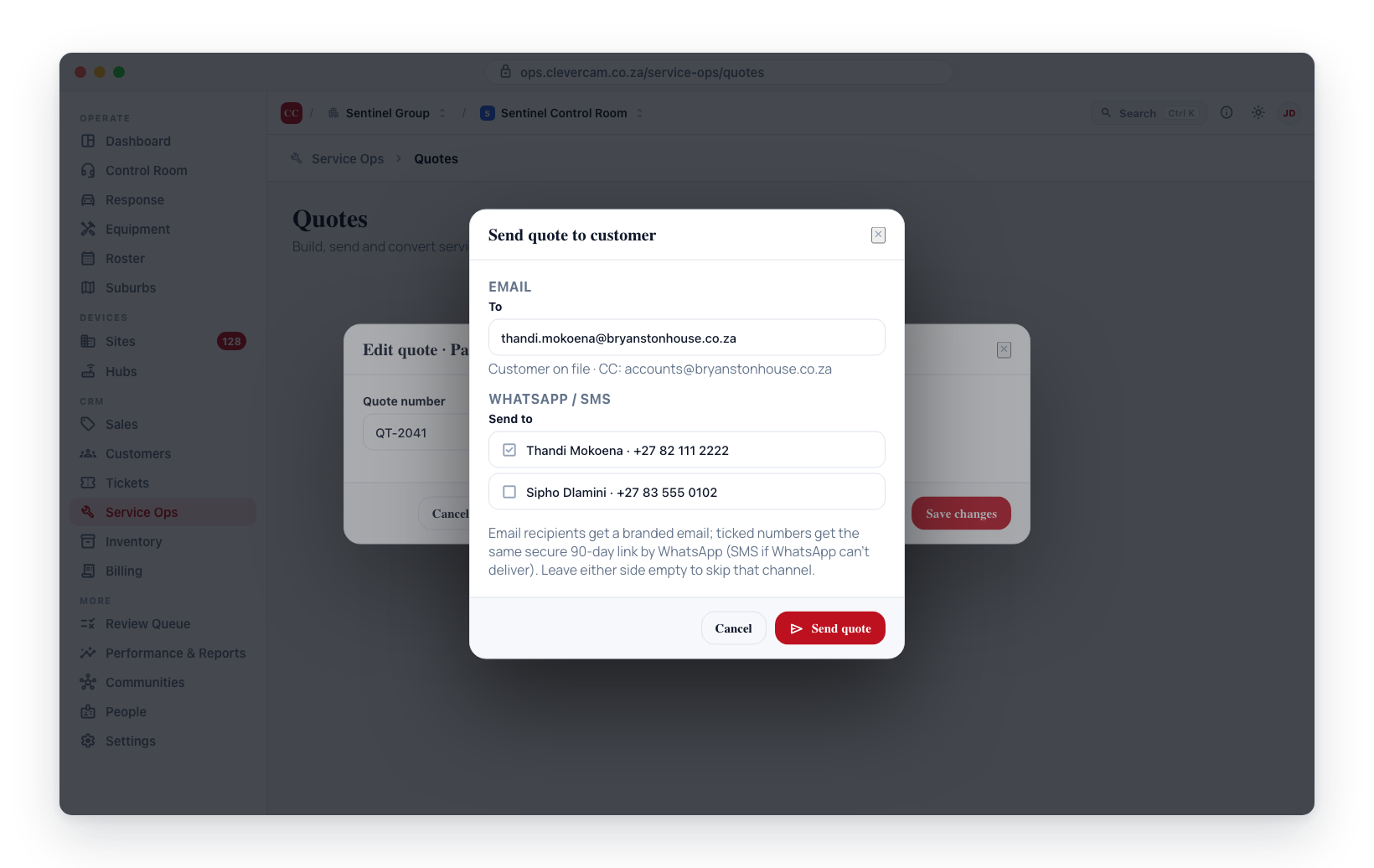
From the quote workspace:
- Check the quote on the Document tab — the finished page, inside the workspace. (Preview PDF in the Documents menu opens the same render in a browser tab if you would rather have it full-screen.) On a saved quote this is exactly the document the customer will receive; with unsaved edits it shows those instead, so you can check your changes before sending.
- Click Send to customer in the header. One dialog covers both channels — fill in either side or both, and a single Send quote click sends everything at once (leaving a side empty just skips that channel):
- Email — a branded email goes out with the quote PDF attached and a secure 90-day link. To defaults to the customer's billing email; on a lead-linked quote with no customer yet, it defaults to the lead's contact email instead. You can always type a different address. Clicking To on a suggested address marks it To ✓; clicking that again clears it, so a recipient picked by mistake can be un-picked without emptying the box by hand. CC offers one-click suggestions — the billing email on file, the customer's contacts, and CleverAlert app users connected to the customer's sites. Contacts tagged for quote emails are pre-ticked as CC, and the Always button on a contact row saves that tag for future sends and quote follow-up reminders. To send to one person only — the caller who asked for it — click Only on their row: it makes them the To and clears every CC in one go. Clear (next to To) and Clear all (next to CC) empty either side by hand. See Sending to one person only. To keep a copy for yourself, use the You row under Your address at the bottom of the suggestions — click CC on it rather than typing your own address. An address that is not a real email address (for example
name@company.co.a) is refused as you add it, and if one still reaches the send, nothing goes out and the dialog names the address and the field it is in so you can fix it. - WhatsApp / SMS — tick any of the mobile numbers on file (billing number, contacts, connected CleverAlert app users; anyone tagged for quote texts is pre-ticked), or type another number. On a lead-linked quote the lead's own contact number is offered instead. Each ticked number receives the same secure 90-day link — WhatsApp is tried first and SMS is the fallback, so a number that isn't on WhatsApp simply gets the SMS. A text cannot carry a file, so the link (which opens the quote on the portal, PDF download and accept/decline included) is the whole mechanism — not a lesser version of the email. Anyone who has replied STOP appears greyed out and cannot be messaged. Only on a row narrows the send to that number alone; Clear all next to Send to empties the checklist.
- Email — a branded email goes out with the quote PDF attached and a secure 90-day link. To defaults to the customer's billing email; on a lead-linked quote with no customer yet, it defaults to the lead's contact email instead. You can always type a different address. Clicking To on a suggested address marks it To ✓; clicking that again clears it, so a recipient picked by mistake can be un-picked without emptying the box by hand. CC offers one-click suggestions — the billing email on file, the customer's contacts, and CleverAlert app users connected to the customer's sites. Contacts tagged for quote emails are pre-ticked as CC, and the Always button on a contact row saves that tag for future sends and quote follow-up reminders. To send to one person only — the caller who asked for it — click Only on their row: it makes them the To and clears every CC in one go. Clear (next to To) and Clear all (next to CC) empty either side by hand. See Sending to one person only. To keep a copy for yourself, use the You row under Your address at the bottom of the suggestions — click CC on it rather than typing your own address. An address that is not a real email address (for example
- The quote is marked Sent the moment any recipient receives it — email and text count equally. A draft flips to Sent on the pipeline rail whether it went out by email, by WhatsApp/SMS, or both.
- Afterwards the dialog reports what went where, lists anyone who could not be reached (with the reason — no number on file, replied STOP, provider error), and shows the public link so you can copy and share it manually too.
The public share page has a Download PDF button that gives the customer the identical branded quote — the same document you previewed and the same one attached to their email.
The text message quotes the once-off total. On a quote made only of subscription lines it quotes the recurring amount instead — e.g. "R 1,100.00 / month" — since a once-off total of zero would misrepresent the proposal.
You can still send a quote after it's won — on an Accepted quote (approved internally or by the customer) the button reads Send a copy, so you can send the customer their record without changing the quote's status. (Sending is only unavailable on dead quotes — declined, expired, withdrawn — on superseded revisions, and on internal technical quotes.)
Public share link
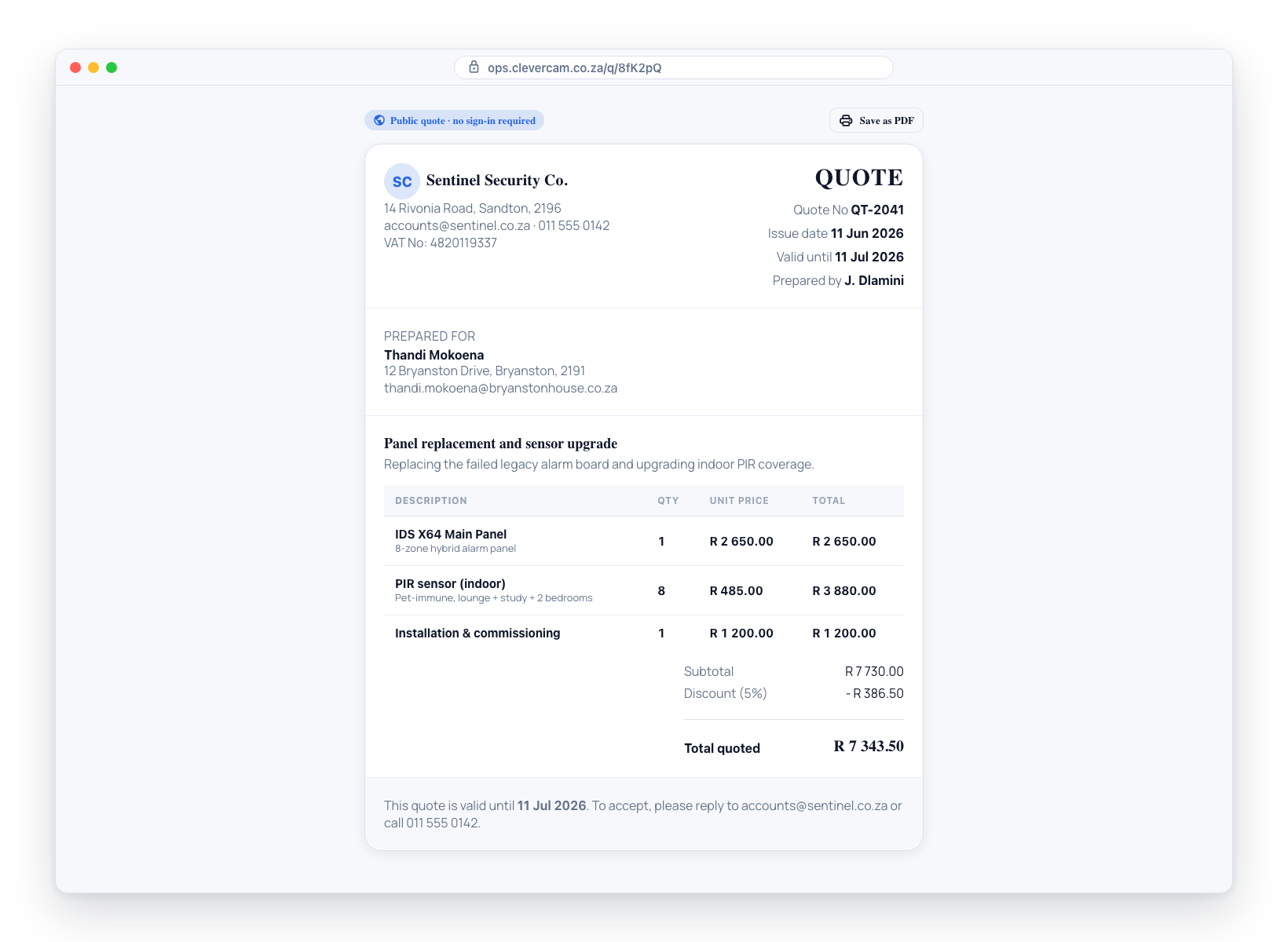
The share link uses a short random code so the URL is compact and easy to share. Customers who open the link can only see the specific quote it points to — they cannot browse other quotes. Share links expire after 90 days by default. Generating a new link for the same quote resets the expiry window.
From this page the customer can also accept or decline a sales quote online without signing in — see Accepting online.
The list updates itself
The Quotes list is live. A quote another colleague creates or deletes, a status moving to Sent, a customer accepting or declining on the share link, and the Viewed N× indicator ticking up when the customer opens the quote all appear on their own within a second or two — you never have to reload the page to see where a quote actually stands. The same applies to the quotes panels embedded on a customer, site, or job.
Accepting a quote internally (staff approval)
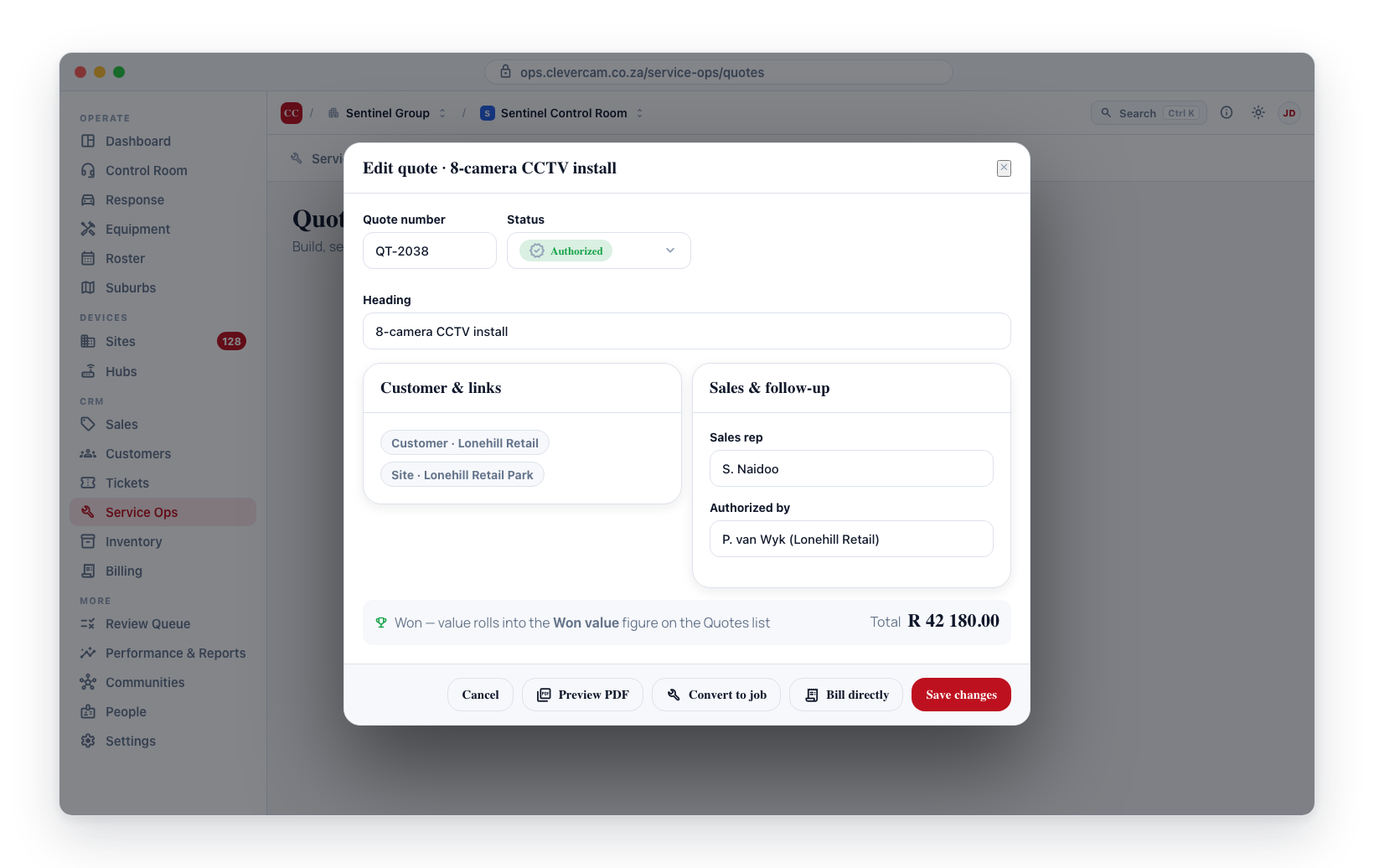
When the customer approves a quote verbally or offline, set its Status to Accepted (approved internally) in the quote edit form and optionally record who signed off in Authorized by. This marks the quote as won — its value rolls into the Accepted value figure at the top of the Quotes list, and it stops appearing in the Quotes awaiting a reply block.
Internal approval is for verbal or offline go-aheads. When you send the customer a public share link, they can accept it themselves — see Accepting online below. Both paths display as Accepted; the editor's status hint says which one it was.
Accepting online
A sales quote opened from its public share link shows Accept quote and Decline as the primary action at the bottom of the page. (These buttons never appear on the downloaded PDF, and are hidden if the customer prints the page.)
If the quote carries options and Let the customer pick the options is on, the customer chooses between them first — the option cards sit above the totals, and the totals update as they pick. Their choice is saved as they make it and is what the quote is accepted at.
To accept, the customer:
- Clicks Accept quote.
- Types their full name — confirming they're authorised to approve on the customer's behalf.
- Draws a signature on the signature pad — optional by default. Ticking Require a signature to accept online on the quote (in the Sales & follow-up card) makes it mandatory: the pad is labelled required and the acceptance is refused without a drawn signature. Use it for high-value quotes where you want a signed record; leave it off for one-click acceptance.
- Clicks Confirm acceptance.
The quote immediately flips to Accepted (shown in the editor as Accepted — by customer): this counts as won exactly like an internal approval, and CleverOps records the name they accepted with, the date and time, and the signature. The acceptance name and date are stamped from this action — not from the staff Authorized by field — and are preserved even if a staff member later edits and saves the quote.
Back in the quote edit form, an accepted quote shows a Customer acceptance panel with the accepting name, the timestamp, and the captured signature. The signature is stored privately and only loaded over a short-lived secure link when staff open the quote. The same signature is printed on the quote PDF from then on, in its Acceptance block — so the copy you download or email after acceptance is the signed one.
To decline, the customer clicks Decline, optionally adds a reason, and confirms. The quote flips to Declined, and the edit form shows a Customer decline panel with the date and the customer's reason. In the Quotes list, hovering a declined quote's status pill shows the customer's reason.
Your team is told either way. When a customer accepts or declines from the public link, CleverOps automatically files a follow-up ticket linked to the quote — "Quote Q-00012 accepted by customer" or "Quote Q-00012 declined by customer" with the decline reason in the body — due immediately, so it appears in the Tickets due block of Needs attention → Reminders without anyone having to watch the Quotes list.
Once a quote has been accepted or declined from the link, the buttons are replaced by a short confirmation and the quote can't be actioned again through that link. An accepted quote is also locked in the edit form — it is the binding record of what the customer agreed to. To revise and resend, create a new revision instead.
Taking the deposit
A sales quote with a Deposit above 0 (under Document options) asks for that money the moment it is won — accepted by the customer on the quote link, or set to Accepted (approved internally) by your team, including when you convert it to a job straight from Sent. You do not need the Deposits & payment gates policy switched on for this: the deposit on the quote is the instruction.
What is raised. A pro-forma invoice (numbered PF-…) for the deposit: the deposit %
of the quote's VAT-inclusive once-off total, counting only the options the customer chose.
Monthly, quarterly and annual subscription lines are not part of it. A pro-forma is not a tax
invoice — it has no due date and stays out of your overdue lists — and it carries the banking
details from Billing → Config → Banking (the account that customer is routed to, else your
default account).
What the customer gets.
- If they accepted online, the quote page goes straight on to Deposit due: R … with a View pro-forma & pay button.
- They are also sent the request — by email, and by WhatsApp or SMS to contacts who opted in to texts — within about a minute of it being raised.
- The pro-forma's own page shows the amount, your banking details with the pro-forma number as the payment reference, a Pay online button when that company has Netcash Pay Now set up, and Upload proof of payment (amount and reference already filled in). A proof sent in there is filed against the pro-forma and lands in Billing → Payments → Payment proofs, with an Accounts ticket, exactly like one from the customer portal.
Following it from the quote. A won quote's Quote tab shows a Deposit card: the amount, the pro-forma (click through to it), what is still owed, when the request was sent to the customer, and a status — Awaiting payment, Proof of payment to review, Part paid, Paid or Waived. To mark it paid from a proof of payment, Accept the proof with Record a payment ticked; a payment captured any other way against the pro-forma counts the same.
When it could not go out on its own, the card says why and offers Raise deposit pro-forma:
- The quote has no customer yet (a quote to a deal contact). Link a customer — or a site that has one — and save: the deposit is raised then.
- The quote was won before 23 September 2026, when this started. Nothing is raised for those until someone presses the button.
It is raised once per quote. Editing the quote afterwards does not raise another, and a deposit you cancelled or waived is not brought back automatically.
What happens to the money.
- Converted to a job — the deposit moves onto the job: the job card's deposit chip shows it, and when the job is invoiced the paid deposit comes off the bill (the payment moves onto the tax invoice and the pro-forma is voided, so VAT is declared once). If your deposit policy had already lined up an unsent deposit on that job, the quote's own figure replaces it.
- Billed directly — a deposit already paid comes off the invoice the same way. A deposit still unpaid when you bill directly stays open on its pro-forma; void the pro-forma if the customer should pay the full invoice instead. Billing a quote directly from Sent raises no deposit at all: it is invoiced in full.
The deposit reminders chase deposits on jobs. A quote's deposit is not chased automatically until the quote becomes a job — follow it up from the Deposit card. If your deposit policy has Ask the customer for it the moment it's raised switched off, the request is not sent automatically either; send the pro-forma from its invoice with Email to customer.
Revisions (changing a quote the customer has seen)
Editing a quote's content changes what the customer sees at their existing share link — with no record of what it said before. So once a quote has been sent (or gone further), its customer-facing content is locked: the line items, pricing, discount, validity, terms and the signature rule become read-only, the workspace shows a Sent — content locked banner, and New revision in the header is the way to change the quote itself. (Internal details — sales rep, follow-up date, auto-reminders, and the customer/site/deal links — stay editable in place, and never appear on the customer's copy.)
- Open the quote and click New revision. (Available on any saved quote that isn't a draft and hasn't already been superseded. Unsaved edits are saved first so the copy matches what's on screen.)
- CleverOps copies the quote — heading, links, line items, sections and which options were selected, discount, validity, document options — into a fresh draft with the same quote number and the next revision number (shown as
Q-00012 · rev 2), and opens it for editing. The option selection carries over as your starting point, but the new revision doesn't claim the customer chose it: nobody has seen this version yet. - The old version is frozen: it can no longer be edited, emailed, converted, or billed, and its list row shows a Superseded badge. The customer's old link keeps working as a historical record, but shows "A newer version of this quote has been issued" and can no longer be accepted or declined.
- Edit the new revision and Send to customer as usual — it gets its own share link and its own lifecycle.
Two rules fall out of this:
- Sent locks the content; accepted locks entirely. A sent quote freezes its customer-facing content (above) but still takes internal edits. An accepted quote is the customer's binding action — the record of what they accepted never changes, so it locks completely (an Accepted — locked banner) and New revision is the only way to make any change.
- One live version at a time. Summary figures (Open, Accepted, Pipeline value, Accepted value) count only the latest revision of each quote, so a revised quote is never counted twice. Pipeline value counts quotes that can still land — declined, expired and withdrawn quotes are excluded.
Convert a quote to a job
Converting to a job, billing directly and starting subscriptions all copy only the lines in selected blocks — plus every line that isn't in a section at all. An unselected alternative is a price you offered, not work that was bought.
Once a customer has agreed, turn the quote straight into a service job — no re-keying. There are two ways:
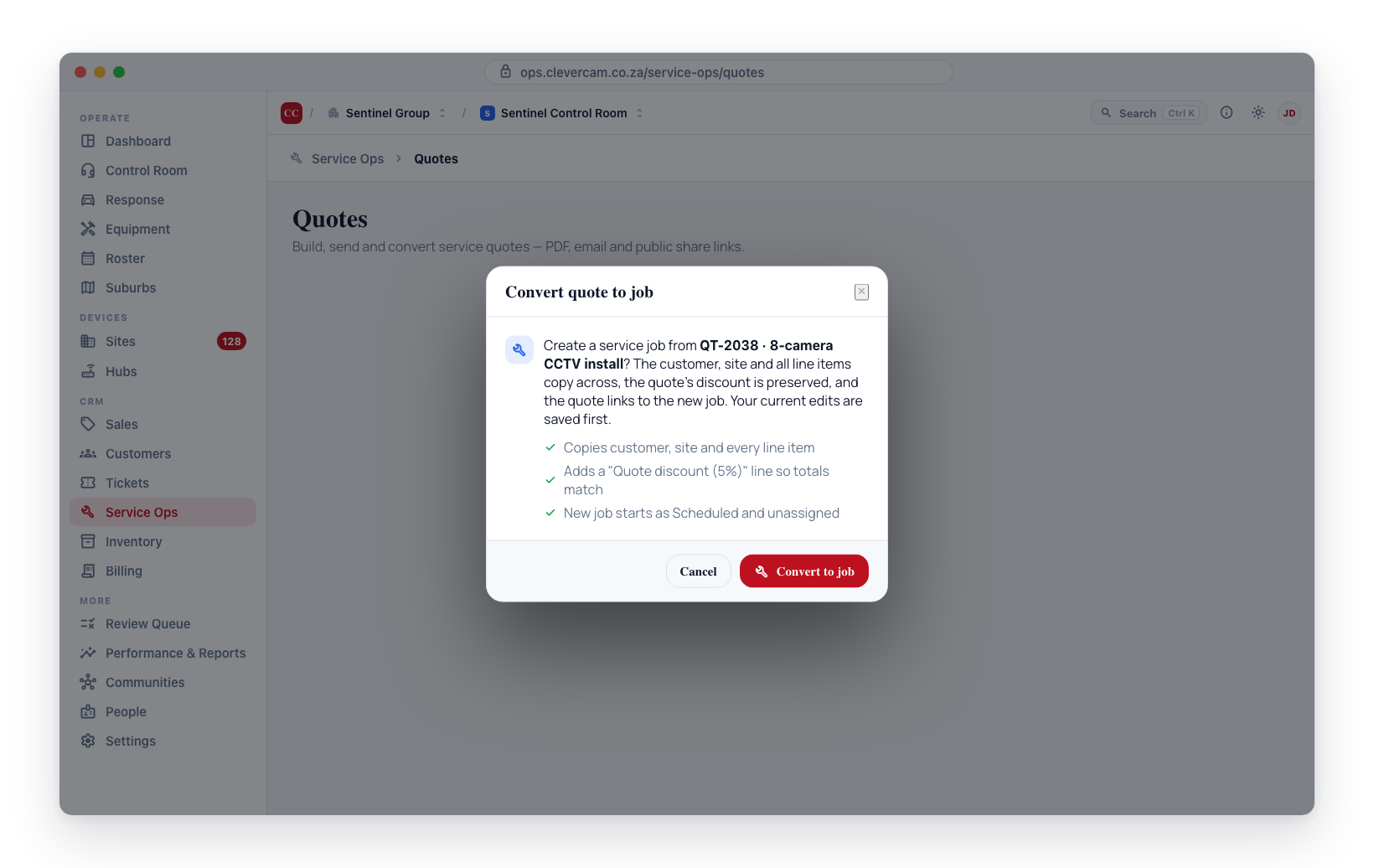
- In the quote edit form, click Convert to job. (Available for any saved quote that isn't already linked to a job and isn't declined, withdrawn, or expired. Your current edits are saved first so the job reflects exactly what's on screen.)
- From the Quotes list, click the To job button on an accepted quote's row.
Either way, CleverOps:
- Creates a new service job using the quote's heading as the job title and its reason as the description.
- Copies the customer and site across, and copies every once-off quote line item into job line items — keeping catalog links, quantities, prices, and motivation text. Recurring subscription lines stay on the quote; they are billed via a site subscription, not the job.
- Preserves the quote's discount: per-line discounts plus the quote-level discount percentage are added to the job as one explicit negative
Quote discountline so the job total — and the invoice eventually raised from it — matches the quoted once-off price exactly. - Links the quote to its new job (so the quote shows as Linked and can't be converted twice). A quote that has been converted to a job can also no longer be accepted from an old public link — the stale-link acceptance is refused.
The new job starts as Open and unassigned. Schedule it and assign a technician from the Schedule board; once the work is completed and approved it flows into billing like any other job.
A quote can be converted before it's formally accepted (e.g. after a verbal go-ahead) from the edit form — but the one-click To job shortcut in the list only appears once the quote is Accepted, to keep the list uncluttered.
Bill a quote directly
Some quotes don't need a technician visit at all — selling equipment over the counter, a deposit, an admin fee. For these, skip the job and invoice the quote straight away: in the quote edit form click Bill directly.
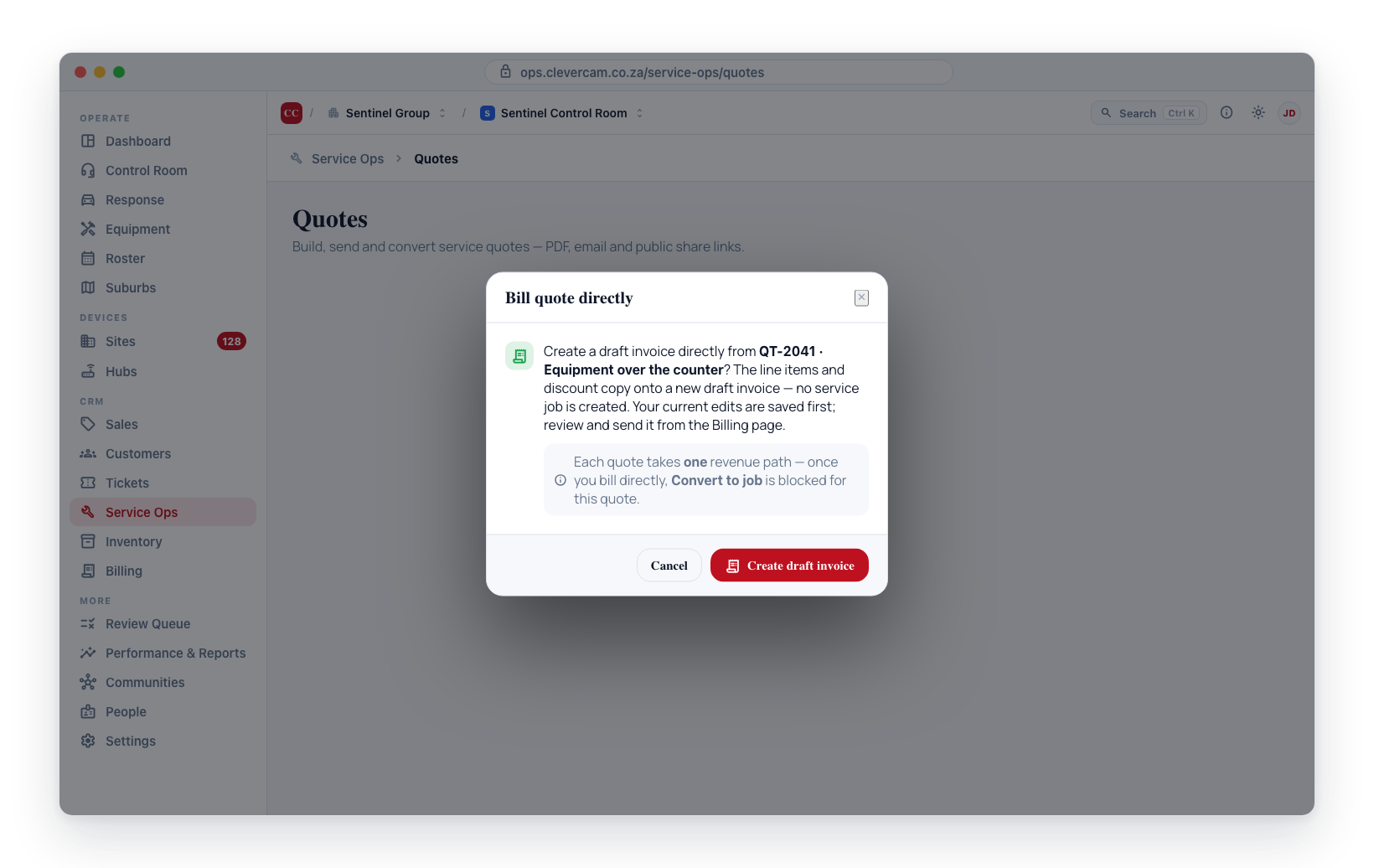
This raises a draft invoice from the quote:
- Every once-off quote line item becomes an invoice line, and the quote discount (per-line + quote-level) is carried over as a negative line so the invoice total matches the quoted once-off price (VAT applied on the discounted amount where your company is VAT-registered). Recurring subscription lines are excluded — bill those via a site subscription.
- The customer is taken from the quote, or from its site if the quote has no direct customer — provided that customer belongs to your control room. A site you share with another control room can be on their customer; Bill directly then refuses ("Cannot invoice: quote has no customer in this control room") until you link one of your own customers to the quote.
- The invoice opens in Draft on the Billing page — review and Email to customer from there.
Bill directly is available for a saved quote that has at least one once-off line item, isn't declined/withdrawn/expired, and hasn't been converted to a job. To avoid double-billing, CleverOps refuses if the quote was already converted to a job (invoice that job instead), already has an invoice, or contains only recurring subscription lines.
A quote leads to one revenue path — either Convert to job (work happens, then the job is invoiced) or Bill directly (invoice now, no job). Once you've taken one, the other is blocked for that quote.
Quote reminders
Set a Next due date on the quote. When that date passes without acceptance or rejection, the quote appears in the Quotes awaiting a reply block of the Needs attention → Reminders section. Clicking a row opens the quote edit form so you can follow up with the customer.
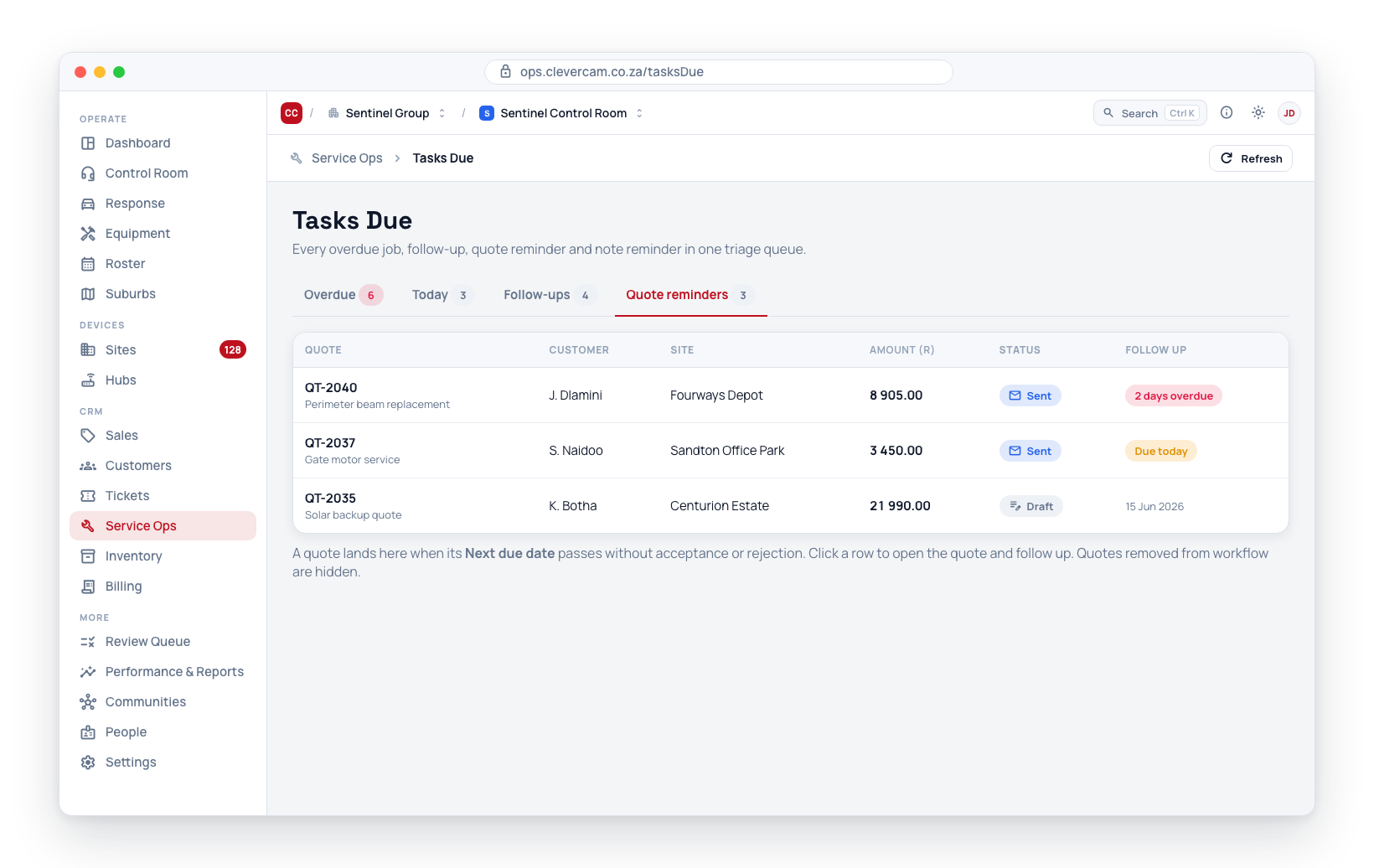
Quotes marked as removed from workflow are hidden from reminders — useful for quotes you are still negotiating but do not want showing up every day.
Automated follow-up emails
The Quotes awaiting a reply block above is your team's internal worklist. Separately, CleverOps can email the customer an automated follow-up on a sent sales quote that is still awaiting a decision — when its follow-up date passes, as it nears its valid-until date, or after it has sat unanswered for a few days. Follow-ups reuse the same branded quote email and secure link, run on a cadence you control, and stop automatically once the quote is accepted, declined, expired, or withdrawn (or a reminder cap is reached). This is opt-in per VCR — see Billing → Automated reminders to switch it on and set the schedule. Each quote also has an Auto-reminders control (Use VCR setting / Always remind / Never remind) beside Follow up by to override the default for that one quote.
The Total shown in a follow-up email is the quote's once-off total — VAT-inclusive when the issuing entity is VAT registered, matching the quote PDF exactly. A quote consisting only of recurring subscription lines is skipped by automated follow-ups — chase those manually for now.
Activity & notes
Open a saved quote and the Activity & notes timeline lives on the workspace's Activity tab. It is the quote's whole story — what people wrote about it, and everything that happened to it — newest first:
- Notes — type a note (a call with the customer, a change they asked for, the next step) and click Add note; each is stamped with your name and the time. Press ⌘/Ctrl + Enter to post quickly. Type @ to mention a colleague — they are emailed a link to the note and asked to acknowledge it.
- Everything that happens to the quote — recorded by itself, without anyone typing it:
- Building it — created (and from which job, or as which revision); edits, naming what changed (Edited: title, discount 0% → 10%); line items changed (while it is a draft, one line per person per 10 minutes; after it has been sent, every change with the old and new quantity or price); attachments added or removed; the sales rep, follow-up date and expiry date changing.
- Sending it — send approval granted, undone, or cleared because the quote changed (control rooms that require approval); every status move (Status: Draft → Sent); every email — who sent it and to whom, when the customer opened it, and if it bounced; WhatsApp/SMS links — who sent them and who they reached; automatic reminders.
- The customer — opening the quote link or viewing it in their portal, choosing between options, accepting (their name, and whether they signed) or declining (with their reason).
- What it became — the job it was converted to, the invoice it was billed on, subscriptions started, the onboarding journey it opened, deposits requested, paid or waived, the newer revision that replaced it, and tickets opened about it.
Each line says who did it: a colleague's name, the customer (by name where they gave one) for what they did through their link, or System for what runs by itself — reminders, expiry. A line that names another record (the job, the invoice, the journey, a ticket) links straight to it.
Use the All · Notes · Updates chips above the timeline to read only what people wrote, or only what happened. The timeline updates by itself while the quote is open — the customer opening the email appears without reloading.
The log is append-only — entries can be added but never edited or deleted, so the history stays trustworthy. It's the same universal timeline used on jobs, leads and tickets. Adding notes needs sales or service management access; anyone who can open the quote can read it.
The full trail started on 14 September 2026. For quotes older than that, the timeline was filled in from what CleverOps had already recorded: emails and when they were opened or bounced, automatic reminders, portal views, send approvals, revisions, conversions to jobs, direct invoices, subscriptions, onboarding journeys, deposits, and — for quotes created in CleverOps — acceptances and declines. Lines copied in from a record that never kept a name show no name. Edits, line-item changes and rep or date changes were not recorded before then, so they appear only from that date on. Quotes imported from ServCraft show only what happened after the import.
Permissions
- Viewing quotes: any team member with access to your company.
- Creating, editing, generating PDFs, sending, New revision, and Start subscriptions: Service operations or Sales & leads (the Sales role).
- A person with Sales & leads but not Service operations works sales quotes only — the same rights as the CleverSales app:
- The Sales / Technical picker is fixed on Sales.
- A technical quote opens read-only, with a Technical quote — read only banner. It can be read but not saved, revised or started.
- Convert to job (in the quote and the list's To job button) and Bill directly are not offered. They stay with service.
- Converting to jobs and billing directly: requires Service operations.
- Approving a quote for sending (only when the control room has Require approval before sending switched on): requires the Approve quotes for sending permission. Owners and supervisors have it by default; it can be delegated to a specific person on its own.