Standby Roster
Most alarm companies run an on-call (standby) roster so there is always someone reachable for after-hours faults and emergencies. In practice that is rarely one person: there is a first-call technician with a second call behind them, a manager on duty, an office contact, and often a CCTV contact — each rotating on its own schedule.
The standby roster models exactly that. You define a line for each of those ladders once, and CleverOps generates the calendar forward from it.
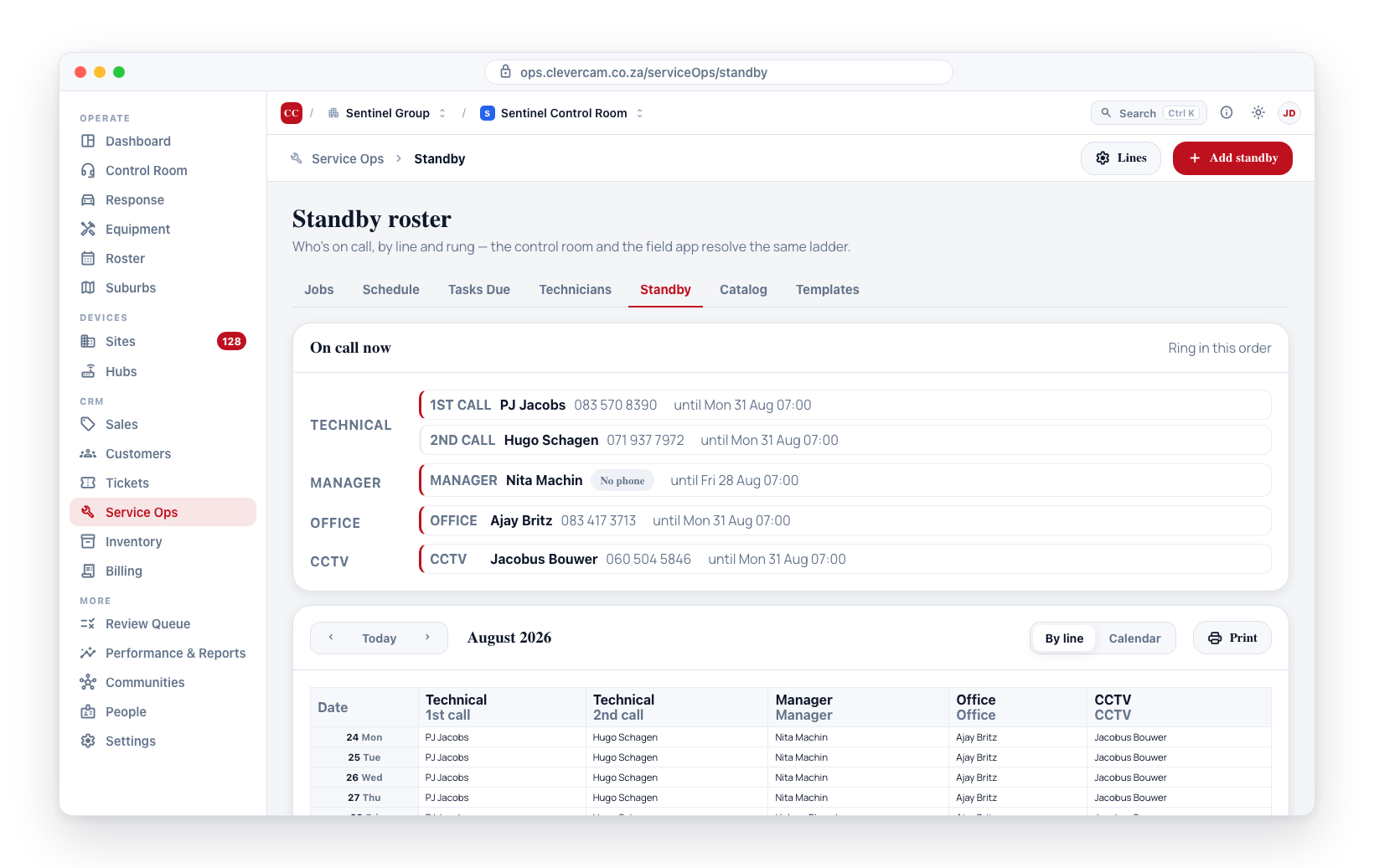
Open Service Ops → Standby — one of the primary tabs at the top of every Service Ops page.
Lines and rungs
A line is one escalation ladder — Technical, Manager, Office, CCTV. Each line has:
- Rungs — the ordered steps, named however you like: 1st call, 2nd call, and so on. A line can have a single rung (a manager on duty) or several (first and second call).
- A pool — the people who rotate through it, in order.
- A handover day and time — for example every Monday at 07:00, or every Friday at 07:00 for a manager line. Handover is a moment, not a date, so a 06:45 callout on changeover morning still has one clear owner.
- A rotation start — the week the first person in the pool holds the first rung.
Rungs rotate off the same pool with a one-week offset, which is the way these rosters are almost always run on paper: the person on second call this week is on first call next week. Their backup week is their warm-up week.
Click Lines to add or edit them.
Generating the roster
Inside a line, set a date under Generate through and click:
- Generate — fills any uncovered weeks forward from today up to that date. Running it twice is safe: it only fills gaps, so nothing is duplicated.
- Re-apply rotation — after you change the pool or its order, this rebuilds future generated windows so the new order takes effect.
Neither button ever touches a window a person has edited by hand (see Overrides below).
A line that is switched off, or has an empty pool, generates nothing.
On call now
The top panel shows the resolved ladder at this moment, grouped by line and ordered by rung — who to ring first, who is behind them. Each entry shows the person, their phone number, and when their window ends.
Two things are flagged here because they make a rung unreachable or unreliable:
- No phone — nobody has a number on file for that person, so that rung cannot actually be called.
- Time-off clash — that person is on call while booked off.
The field app resolves this same ladder, so the "call the on-call coordinator" action in CleverTech rings whoever holds the first rung of the top line. A line's ladder position controls that order.
What the field sees
Technicians read the same roster from CleverTech → Schedule → Standby, and they see it company-wide — every line, every rung, everybody — not only their own weeks. A technician who can only see their own row still has to phone the office to find out who to phone.
That tab shows three things, in the order the question actually gets asked:
- On call now — the resolved ladder, line by line, rung by rung. Tapping a rung dials that person. A rung with nobody's number on file says No phone rather than failing silently.
- Your standby — the technician's own current window and what is coming next.
- The roster — the next eight weeks, one card per line, each week showing who holds each rung. The current week is marked NOW, a hand-edited window is marked SWAP, and a line filter narrows a long roster to one ladder.
The roster is read live and then kept on the phone, so a technician standing at a gate with no signal still has the numbers — the screen says how old its copy is rather than pretending it is current.
The month views
Two views of the same data, switched top-right:
- By line (the default once a VCR has lines) — a table with one row per day and one column per rung. This is the shape of the roster people are used to reading off a wall.
- Calendar — a month grid with a chip per person per day. Best for seeing one person's month, and for ad-hoc cover that belongs to no line.
Navigate months with the ‹ / › buttons, or jump back with Today. The current day is outlined.
Print produces the by-line table on its own, without the app around it — the wall copy.
Gaps
Above the table, CleverOps lists any future stretch in the visible month where a rung has nobody on it, naming the line, the rung and the dates. Past gaps are not listed — they cannot be fixed.
Add or change standby
Click Add standby, or the + on any empty cell or day.
| Field | Notes |
|---|---|
| Technician (required) | Who is on call. The list shows staff with the Technician duty; tick Show everyone, not only technicians to put a coordinator or manager on call instead |
| Line | Which ladder this window belongs to, or Ad hoc — not on a line |
| Rung | Which step of that line. Only offered when the line has more than one rung |
| Covers | Company-wide (the default) or a specific suburb |
| From / To | The date range, inclusive of both days |
| Note | Optional, e.g. "after-hours only" or a swap reminder |
CleverOps checks for clashes as you fill the form:
- Already on that rung over those dates — a duplicate; the save is blocked and points you at the existing entry. (For an ad-hoc window, the same rule applies per suburb.)
- Already on standby elsewhere over those dates — allowed, with a heads-up. One person covering two lines is normal in a small company.
- Time off overlapping the window — a warning only. Rostering someone despite booked time off is a deliberate call, so it is never blocked.
Click any cell or chip to edit or Remove that window.
Overrides
A window created by Generate belongs to the rotation. The moment you edit one — swap the person, shift the dates — it becomes an override: your edit stands, and Re-apply rotation will never overwrite it. The form tells you when a save is about to do this, and overrides are marked in the by-line table.
This is what makes the roster safe to regenerate: a one-off swap survives a pool reshuffle.
"Covers" is independent of lines. If a suburb has its own on-call person for a date, they are used for that suburb; a line with no suburb cover falls back to its company-wide person.
Standby pay
Standby is not assumed to be extra money. For a lot of staff it is a condition of the job, already priced into the monthly package — so every line starts on Included in salary, and a line only produces a payable amount when someone deliberately switches it.
In the Lines editor, each line has a Standby pay setting:
- Included in salary — no extra allowance (the default). The pay report still lists the days that person carried; the amount is zero.
- Allowance — pay per day on standby. Three per-day rates appear: weekday, weekend and public holiday. A flat weekly allowance is simply the same rate in all three.
South African public holidays are recognised automatically, and a public holiday outranks a weekend. There is also an optional pay note carried onto the report — useful for recording which package already covers a line.
A report that assumed every night on call earns an allowance would invent money nobody agreed to pay. Showing the days with a zero amount is the honest version: management still sees who carried the load.
The report
Click Pay on the Standby page. Pick a date range (it opens on the month you are viewing) and you get one row per person per line:
| Column | What it means |
|---|---|
| Weekday / Weekend / Holiday | Days on call of each kind |
| Days | Total days on call |
| Call-outs | Out-of-hours jobs raised while they held that rung |
| Amount | Zero for a line included in salary, otherwise days × rates |
A day belongs to whoever held it at midday — the same rule the by-line table paints with, so the report and the roster on screen can never disagree about who had the 25th.
Export CSV hands the whole table to payroll, amounts as plain numbers so the column sums.
About "Call-outs"
This counts out-of-hours jobs created while that person held that rung — before 07:00, from 17:00, or any weekend or public holiday. It is deliberately not "calls answered": a phone call is not something CleverOps can see. It exists because days-on-call and work-actually-done are different questions, and a quiet week and a brutal one look identical on a day count.
Telling people they are on standby
Also off by default, and for the same reason: most standby people have no app account, so the only rung that reaches them is SMS — it costs money and it lands on a personal phone.
Each line has two independent settings in the Lines editor:
- Tell them in advance — a day, two days, three days or a week before their window starts. Far enough ahead to arrange a swap, which is the roster's own rule: if you cannot cover, tell management and the control room beforehand.
- Nudge at handover — an hour or two before, or the evening before.
Both default to Don't notify, and while both are off nothing is ever sent.
When a notice is due it goes to CleverTech — the technician's own app — and by SMS otherwise. The message names the line and rung, the dates, and who is behind them on the next rung. Each window is only ever notified once.
It also lands in the technician's app inbox, whether or not a push could be delivered. Somebody who is signed out, or has never installed the app, still finds the notice waiting the next time they sign in, and the coordinator can see that it was never pushed rather than assuming it arrived.
Control-room handoff
Standby is stored as structured data, so the control room and the field app look the ladder up automatically rather than phoning around. The resolver returns every line's rungs in order, with phone numbers, and is readable by both management and field staff.
Permissions
Managing the standby roster and its lines — adding windows, editing lines, generating, the pay report — requires service management access.
Reading it is deliberately wider: any technician on the company can see the whole roster from the CleverTech app. Being on call is not confidential within a company, and an escalation ladder only works if the person at the bottom of it can see the rungs above them.