Products & Services
The catalog is your reusable price list of everything you install, sell, or charge labour for. It feeds quote line items, job line items, and installed equipment records. When you add a catalog item to a quote or job, the item's details are copied into that document at that point in time — so if you update the catalog later, historical quotes and invoices are not affected.
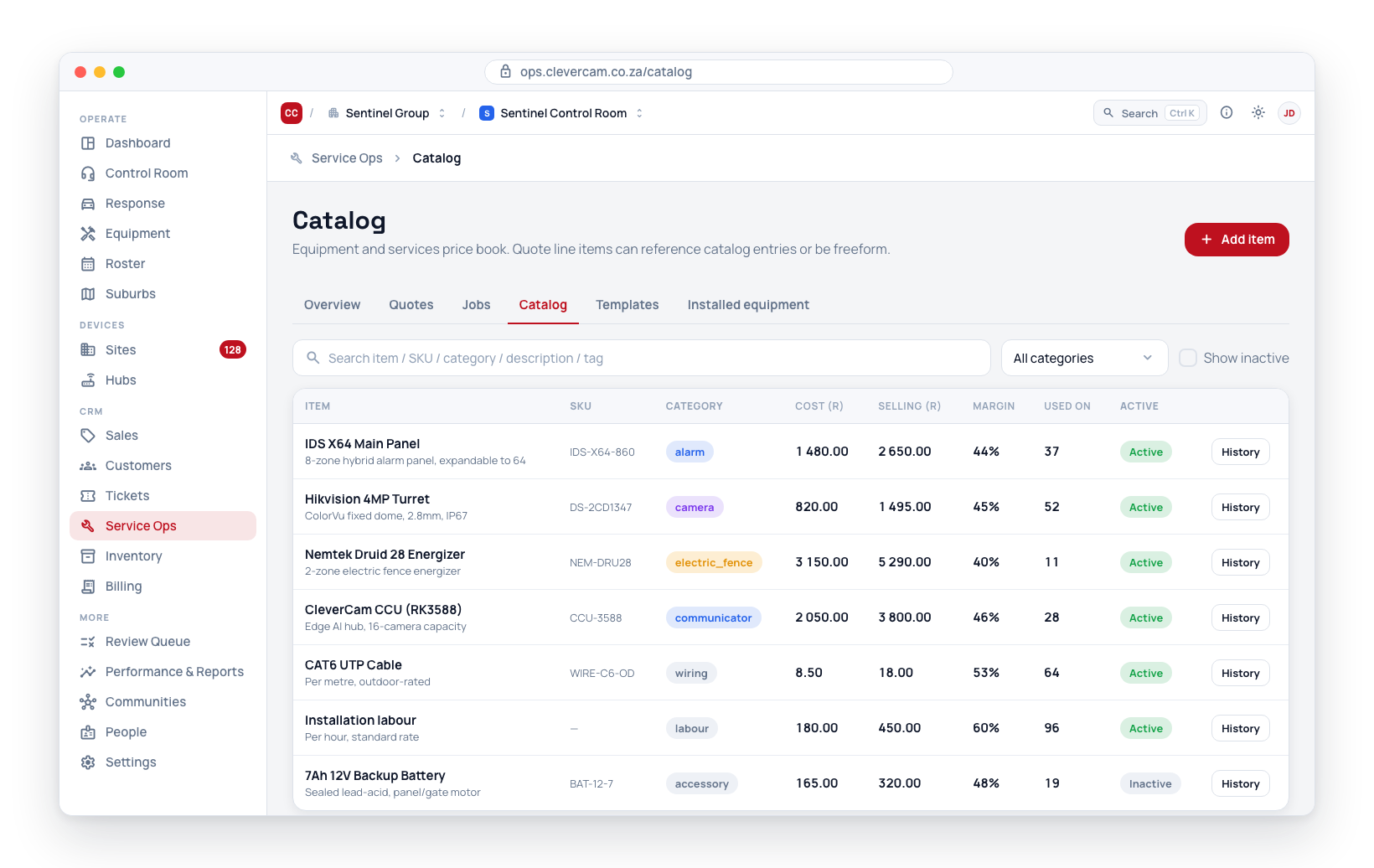
Navigate to Inventory → Catalog in the sidebar.
Catalog item fields
| Field | Purpose |
|---|---|
| Item (required) | Display name, e.g. "IDS X64 Main Panel" |
| Description | A longer description used on quotes |
| SKU | Your stock-keeping or part number |
| Type | Product, Service, Labour or Plan (recurring) — see Item types |
| Commission | How this item pays a rep or technician — see Commission |
| Category | A grouping label — used for filtering and reporting |
| Unit cost | Your cost price (excluding VAT) — used for margin tracking |
| Unit price | The default customer price, VAT inclusive — used as the starting value when adding to a quote |
| Stock on hand | Read-only here — derived from the Stock ledger. Book stock in, transfer, or adjust on the Stock page |
| Reorder level | Low-stock threshold — when on hand plus on order falls to or below it, the row shows a Low / Out badge and the item appears on the buying desk |
| Reorder quantity | How many the buying desk suggests when the item runs low. Leave it blank and the desk tops the item back up to twice the reorder level |
| Tracking | Quantity only, Batch / lot numbers, or Serial numbers — serial items capture one serial per unit at goods-in |
| Shelf address | Binned (the default — the item is expected to have a home bin wherever the warehouse has bins; save the item, then set the bin on the Position tab), Not binned (bulk or floor stock kept loose on purpose), or Special order only (bought per job, never shelved). The last two never appear on the Still unbinned list in the Bins drawer. A home bin can still be set on any of them |
| Barcode (EAN/UPC) | The supplier's barcode on the box. Scanning resolves serial → SKU → barcode |
| Warranty (months) | Stamped onto the site's installed-equipment record automatically when a unit is installed |
| Supplier part no | The supplier's own catalogue code, shown on purchase orders |
| Is active | Untick to hide retired items without deleting them |
Unit price is the anchor — it is what a customer pays. If your control room is VAT registered (set under Billing entities), CleverOps derives the ex-VAT price from it, and that ex-VAT figure is what drives the Margin column, quote line items, and the price pushed to your accounting package.
So a VAT-registered control room selling a R5,499 item at R3,100 cost shows a 35% margin, not 44% — the margin is measured against the R4,781.74 you actually keep, not the R5,499 the customer pays. Turning VAT registration on or off re-derives every item's ex-VAT price automatically.
Add a catalog item
- Navigate to Inventory → Catalog.
- Click Add item in the top-right.
- Fill in the fields above.
- Click Save.
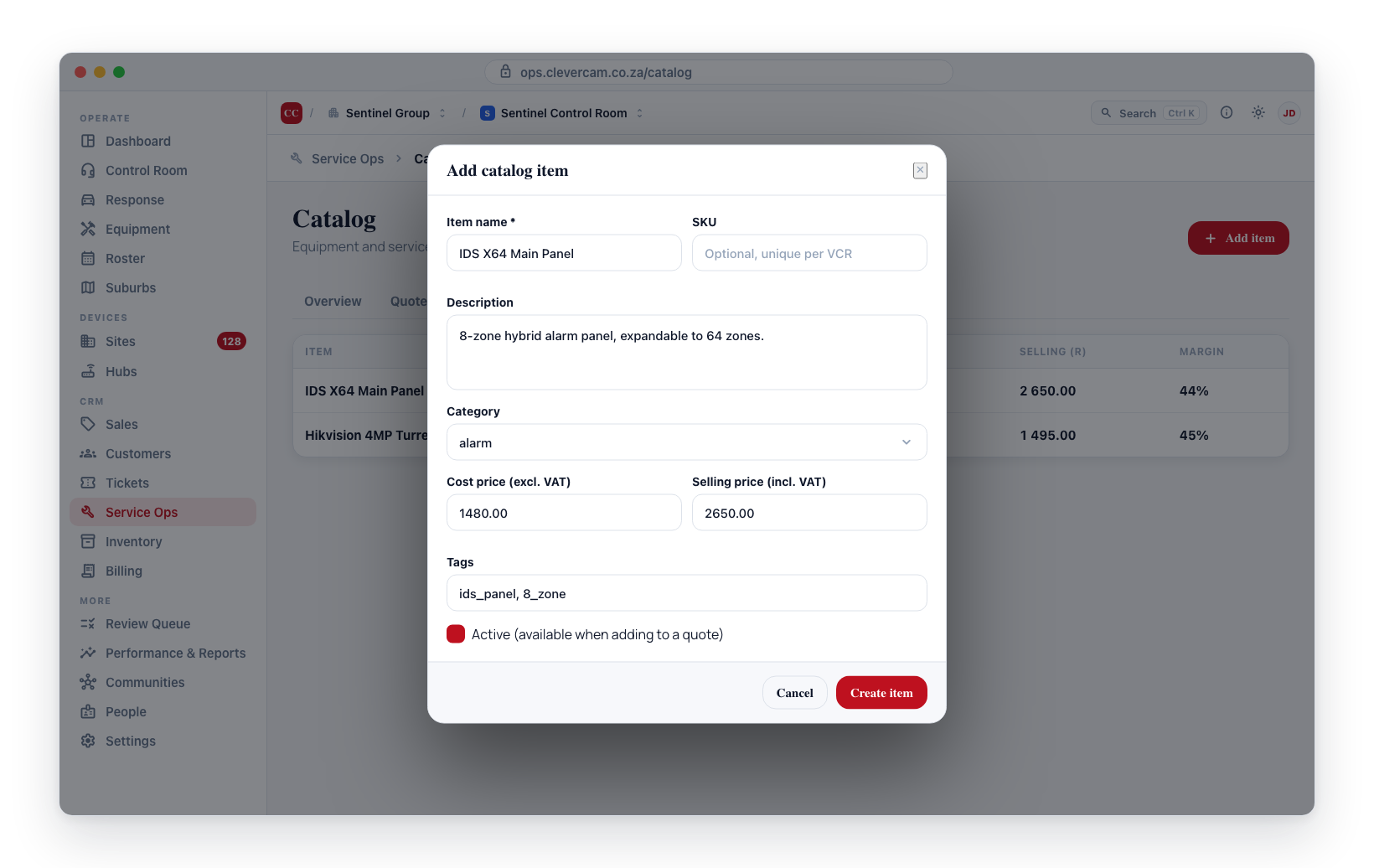
Open an item
Click any row to open the item workspace — the whole story of that item on one screen. See The item workspace below.
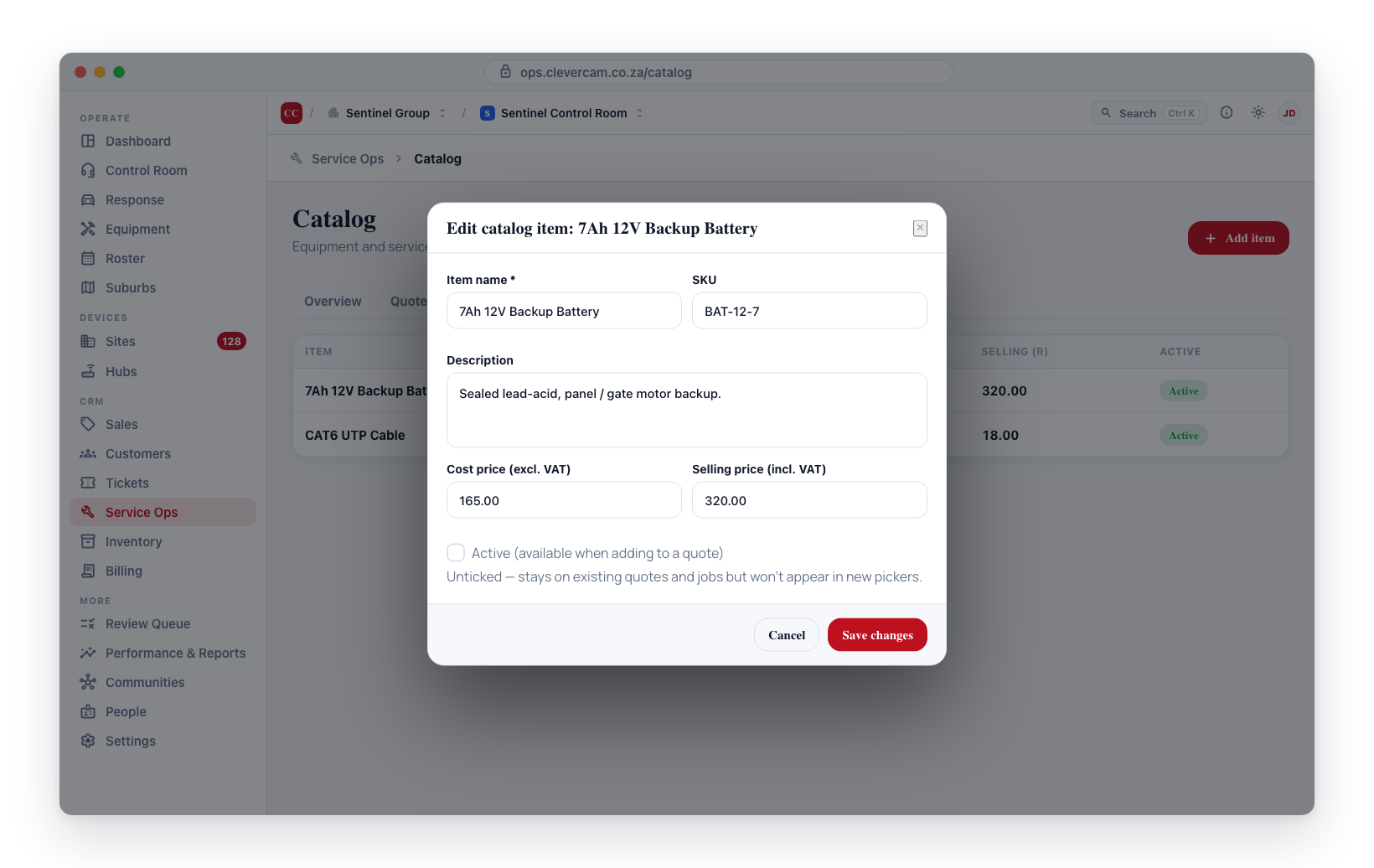
Edit or deactivate
Edit item in the workspace opens the catalog form. To retire an item, untick Is active — it stays in the system and remains visible on existing quotes, jobs, and installed equipment records, but it no longer appears in catalog pickers when creating new documents.
How the catalog is used
Three places pull from the catalog:
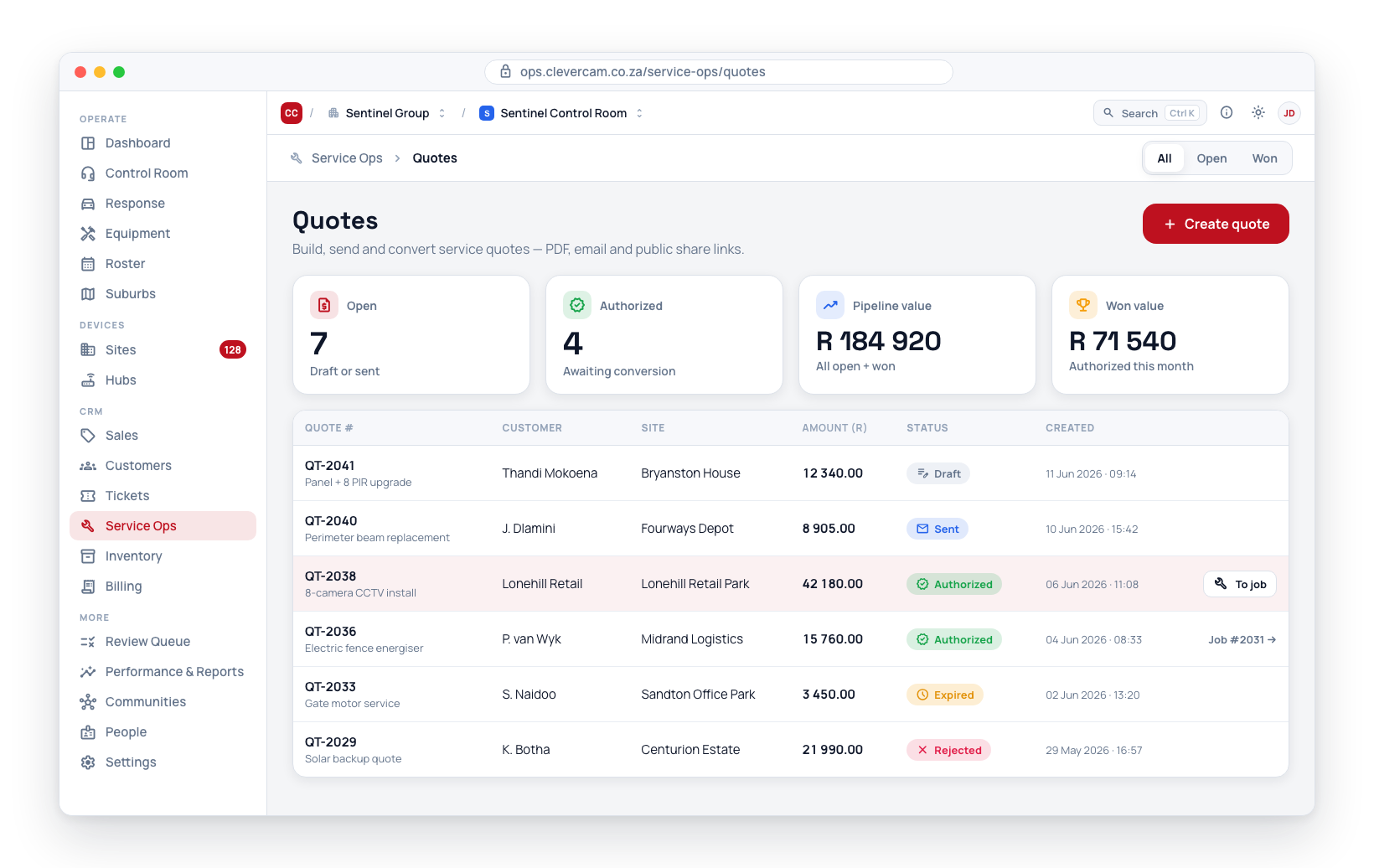
Quote line items
When building a quote, the line editor's Catalog item dropdown shows all active catalog entries. Selecting one copies the item's name, description, SKU, and unit price into that line. Once copied, you can adjust the line freely — changing the line's price does not affect the catalog, and future catalog changes do not update existing quotes.
Job line items
The same applies to job line items. The item's details are copied at the time of selection, keeping the job's record stable.
Installed equipment
On Installed equipment records, selecting a catalog item copies the name, description, and SKU — but not prices. Installed equipment is an operational record of what is physically at a site, not a billing document, so pricing is not included.
Item types
Every catalog item has a Type, which decides what the rest of the fields mean:
| Type | What it is | Stock | Recurring |
|---|---|---|---|
| Product | A physical good you buy and sell — a panel, a camera, a battery | Yes, once booked in | No |
| Service | Work sold at a price — a call-out, a site survey | No | No |
| Labour | Time, usually charged per hour | No | No |
| Plan (recurring) | A subscription billed on a cycle — armed response, camera monitoring, a maintenance plan | No | Yes |
Plans live here too. Recurring plans used to be a separate "Billing plans" list; they are now catalog items with the type Plan, so there is one place to look up anything you sell. A plan carries a billing cycle, a pricing model (flat, per camera, per hub, per unit) and a minimum quantity in place of a stock quantity. Existing subscriptions, quotes and billing runs were migrated across and are unaffected.
Commission
Each item decides how it pays a rep or technician. The setting cascades: an item either uses the default for its type (set once per control room) or overrides it.
Set the per-type defaults with Commission defaults in the top-right of this page — one row each for Products, Services, Labour and Plans. Until you do, every item's default of Use the default for this type resolves to no commission, so this is the first thing to configure.
| Mode | Pays on |
|---|---|
| % of margin | What you keep — the sell price minus what the item cost you |
| % of revenue | The ex-VAT sell price, regardless of cost |
| Fixed amount per unit | A flat rand amount for every unit sold |
| No commission | Nothing |
Why % of margin is usually the right default for products. A battery you buy at R80 and sell at R100 and a call-out that costs you R50 and sells for R450 are very different pieces of business. At a single 10% margin rate the battery earns R2 and the call-out earns R40 — automatically, with one rate to maintain instead of a rate per item.
Plans usually want % of revenue at a higher rate. A plan has no cost price, so a margin rate would earn nothing on it; and the standard trap in this industry is that a flat rate makes people chase a large once-off installation over the recurring income that is worth far more over a customer's life. Setting the Plan default noticeably higher than the Product default is the usual correction.
Commission is never earned on VAT — every calculation uses ex-VAT figures.
When commission becomes payable
Commission accrues when the invoice is issued and becomes payable as the customer actually pays:
- Nothing is payable while the invoice is unpaid.
- A part-payment releases the same proportion of the commission. Pay half, half becomes payable.
- Only cleared payments count — a payment still marked pending releases nothing.
- A credit note reduces what was earned, pro-rata, and the payable amount is capped so a credited invoice can never over-pay.
Nothing is ever deleted; the figures simply recalculate, so the history of what was earned, credited and released stays readable.
Seeing what is owed
Billing → Commission shows four totals — earned, payable now, awaiting payment, and clawed back — then a per-person breakdown and every individual line with the rate it used and the invoice it came from.
A person shown as Unassigned means the job had no commission rep and no assigned technician, so nobody can be paid for it. Set a rep on the job to fix it.
Overriding a job
Commission is calculated per line, but a job can carry a single commission amount that supersedes the whole calculation — for when a deal was discounted and the rep keeps the original, or a figure was agreed by hand.
Set it on the job along with a short reason. The job form shows the calculated figure next to it so you can see what you are overriding. On the statement the line is flagged as an override and carries your reason, rather than silently replacing the arithmetic. Leave the amount blank to use the calculated figure.
The item workspace
Clicking a catalog row opens a full-screen workspace for that item. It answers, in one place, the question a stock item exists to answer: can I promise this to a customer today?
The position strip
Across the top sit five numbers, read left to right:
| Number | What it counts |
|---|---|
| On hand | The ledger total across every location — warehouse, vans, technicians |
| On order | Outstanding quantity on purchase orders that are approved, sent or partially received, net of whatever has already been received or cancelled on each line. A draft, or an order awaiting approval, does not count — see Purchasing |
| Committed | Quantity listed on jobs that are still scheduled, in progress or on hold — stock already spoken for |
| Quoted out | Quantity on quotes that are still draft or sent. Underneath it, quantity on quotes already won but not yet turned into a job — demand that is all but certain |
| Available | On hand plus what is inbound minus what is promised |
Pastel computes availability as stock on hand less sales orders, because it does not own your purchasing. CleverOps does, so inbound purchase orders count towards what you can promise. Where Pastel would tell you an item is short, CleverOps can tell you it is short until Thursday.
On hand and Available carry the same reorder test as the reorder report — on hand plus on order, against the reorder level. An item whose replacement delivery is already booked is not flagged as needing reordering.
A negative balance is called out separately in red. A negative is not a shortage, it is a broken count — something was consumed that was never booked in. Those items want a physical stocktake, not a purchase order.
The tabs
- Position — where the stock physically is, one row per location, with the date each was last counted, followed by Home bin: first the Shelf address policy (Binned, Not binned, Special order only — the same field as on the item form, changed here without opening it), then the shelf address this item is picked and counted at, one row per location that has bins, changed straight from a picker here.
- Demand — the purchase orders bringing it in (approved, sent or partially received), the open jobs it is promised to, and the live quotes it sits on. Every row clicks through to that order, job or quote.
- Sales — what has actually been invoiced: quantity and value over the last twelve months and all time, the number of invoices, and the most recent lines. Credit and reversal lines subtract, so the quantity is the net.
- Movements — the last 25 ledger entries for the item.
- Serials — a per-status tally, shown only for serial-tracked items.
The side rail
Identity (SKU, barcode, unit, category, supplier code, warranty), Pricing (cost, weighted-average cost, selling price on your VAT axis, margin), Valuation (on hand × cost) and Sold (last twelve months and all time).
An item with no cost price on file shows a note saying so — it values at R 0.00 in the stock valuation until a cost is captured, either by hand or from a supplier price list.
Where the sales figure comes from
Invoice lines carry a link to the catalog item they sold. New invoices set it as they are raised; free-text lines typed on the invoice form pick it up automatically when the line begins with a SKU. Historic invoices were matched back to the catalog where the match could be proven exactly — so an imported book of invoices contributes to these figures without anyone re-keying anything.
Lines that could not be matched with certainty are simply left unlinked rather than guessed at, so an item's sales figure never includes something that was not it.
Stock on hand
The Stock on hand figure is derived from the Stock ledger — the sum of the item's quantities across every location (warehouse, vans, technicians). It is not typed in directly:
- To start tracking an item, open it for editing and use Set opening stock on the catalog form. Enter how many you have now and CleverOps records an opening balance in your main warehouse (creating that warehouse the first time). This is the quickest way in — you do not have to learn the Stock page first.
- The shortcut is offered only for items with Tracking set to None. Serial- and batch-tracked items must be booked in on the Stock page so their serial numbers or lot number are captured.
- Once an item is tracked, the field becomes read-only and all further changes are movements: book stock in on the Stock page, receive against a purchase order, transfer, or adjust. Items with no ledger history stay price-book only and show no stock figure.
- When a tracked item is used on a service job, an issue movement posts automatically from the assigned technician's stock (falling back to the main warehouse), and the figure updates. Editing or removing the job line posts the matching reversal.
- Set a Reorder level for the Low / Out badge and to put the item on the buying desk when it runs low.
- The list's Stock column shows the ledger figure, with what is on order, committed and quoted underneath it when any of those is non-zero — so a thin item that already has a delivery booked is obvious without opening it.
- To correct a count, post an Adjustment or run a stocktake — the correction is itself a ledger movement, so the audit trail stays complete.
Price history
Each row has a History button. It opens the item's full price timeline:
- how far the cost has drifted, and over what period
- every supplier who prices this item, cheapest first, with the preferred one marked — and a warning if a cheaper supplier is available
- every change to cost and selling price, with the date, amount, percentage and source (a supplier price list, a hand edit, a goods-received note, Xero, or a markup rule)
History is append-only — a correction is a new entry, never a rewrite.
Selling prices can be worked out automatically from cost using markup rules rather than typed in. An item whose price is a deliberate figure can be marked pinned so repricing always skips it. See Pricing & price lists.
Search and filter
The filter bar above the table narrows the list. The top row narrows what you are looking at; the second row controls how it is ordered and shown.
- Search — matches item name, SKU, category, description, and any of the item's tags.
- Category — narrows to one category. It offers every category in your book (with how many items each holds), not only the ones on the page you are looking at.
- Type — Products, Services, Labour or Plans. Useful when a number looks wrong: only products can hold stock, so filtering to Products is how you confirm that a stock figure isn't being inflated by service or subscription lines.
- Stock level — In stock, Out of stock, At / below reorder, Negative balance, or Not tracked.
- Pricing — No selling price (these land on a quote or job line at R0.00), No cost price (the line books zero cost, so it reads as 100% margin), Selling below cost (every sale loses money), or Fully priced.
- Inactive — includes retired items when you need to find something old.
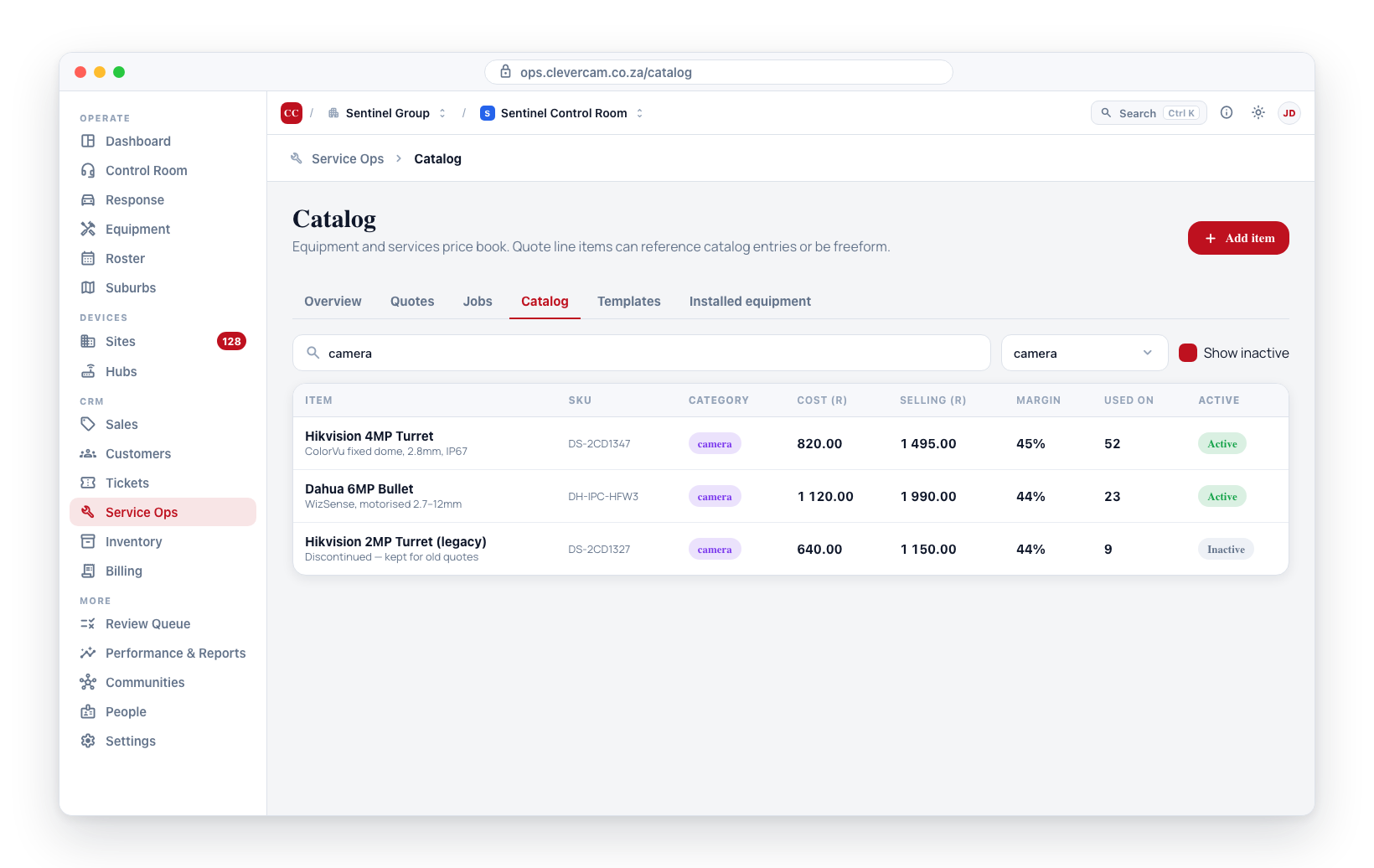
Whatever is currently narrowing the list is listed as removable chips under the bar, with a Clear all when more than one is on — so a filtered list never looks like an empty book.
Every one of these is applied by the server across your whole price book, so a search reaches an item on page 40 just as easily as one on page 1, and the counts describe the entire book rather than whatever happened to load.
Stock value (qty × cost), sorted highest first, is the fastest way to check that your stock valuation is believable. A single item with an impossible quantity — a placeholder row carried in from a legacy accounting import, say — will sit at the top and account for most of the total. The Negative balance filter finds the opposite problem: items where more has been booked out than was ever booked in, which means a stocktake is owed.
Sorting
Eight of the table's columns sort: Item, Type, SKU, Category, Cost, Selling, Margin and Stock. Click a column heading to sort by it; click the same heading again to reverse it. The heading you are sorting by is shown in full-strength text with its arrow filled in.
The Sort dropdown in the filter bar does the same job and adds two orderings that are not columns:
- Stock value (qty × cost) — what each line is actually worth.
- Last updated — what changed most recently.
The button beside it flips the direction, reading Highest first / Lowest first for numbers and A to Z / Z to A for text. Numeric sorts start at highest-first, text sorts at A–Z. Items missing the value you are sorting by go to the end in both directions, since a blank price is missing information rather than the cheapest item.
Sorting, like filtering, runs across the whole book — sorting by stock value orders all 5,500 items and shows you the top 50, not the 50 that happened to be loaded.
Two columns do not sort: Used on and Active.
Paging through the catalog
The table shows 50 items at a time, with Prev / Next and a "Showing 1–50 of 5 500" line beneath it. Short catalogues show no pagination at all.
Turning a page returns you to the top of the list, so you start reading the new page at its first row rather than in the middle of it. Changing the search or any filter takes you back to page one, since a page number from the previous result set no longer means anything. The rows already on screen stay put while the next page loads, so the table does not blink between pages.
The three tiles above the table — Active items, At / below reorder and Stock value — always describe the whole book, not the page.
Manage categories
Categories aren't a separate list you maintain — they come from the items themselves, and are normalised on save (lower case, underscores, common plurals folded) so Camera, cameras and CAMERA can't fragment into three.
What that normalisation can't fix is a typo. Manage categories (at the end of the filter bar) lists every category in use with how many items carry it, and lets you Rename one:
- Renaming updates every item using that category in a single step.
- Renaming onto a name that already exists merges the two — this is how you fold camrea back into camera.
- Renaming to a blank value clears the category on those items.
The confirmation tells you exactly how many items will move before anything changes.
Permissions
Creating, editing, and deactivating catalog items requires service management access. Team members without this access can view the catalog but cannot edit it.
Next steps
- Pricing & price lists — supplier price lists, markup rules, and price history.
- Create a quote — use catalog items to build line items.
- Installed equipment — log what has been deployed at a site.