Billing Overview
Billing is where your recurring monthly fees turn into invoices, get paid, and show up on customer statements. The module is built around the South African armed-response industry's monthly cycle — R 550 per month for armed response, R 300 per month for camera monitoring, and so on — but it is flexible enough to handle once-off service charges, quarterly contracts, or custom pricing per site.
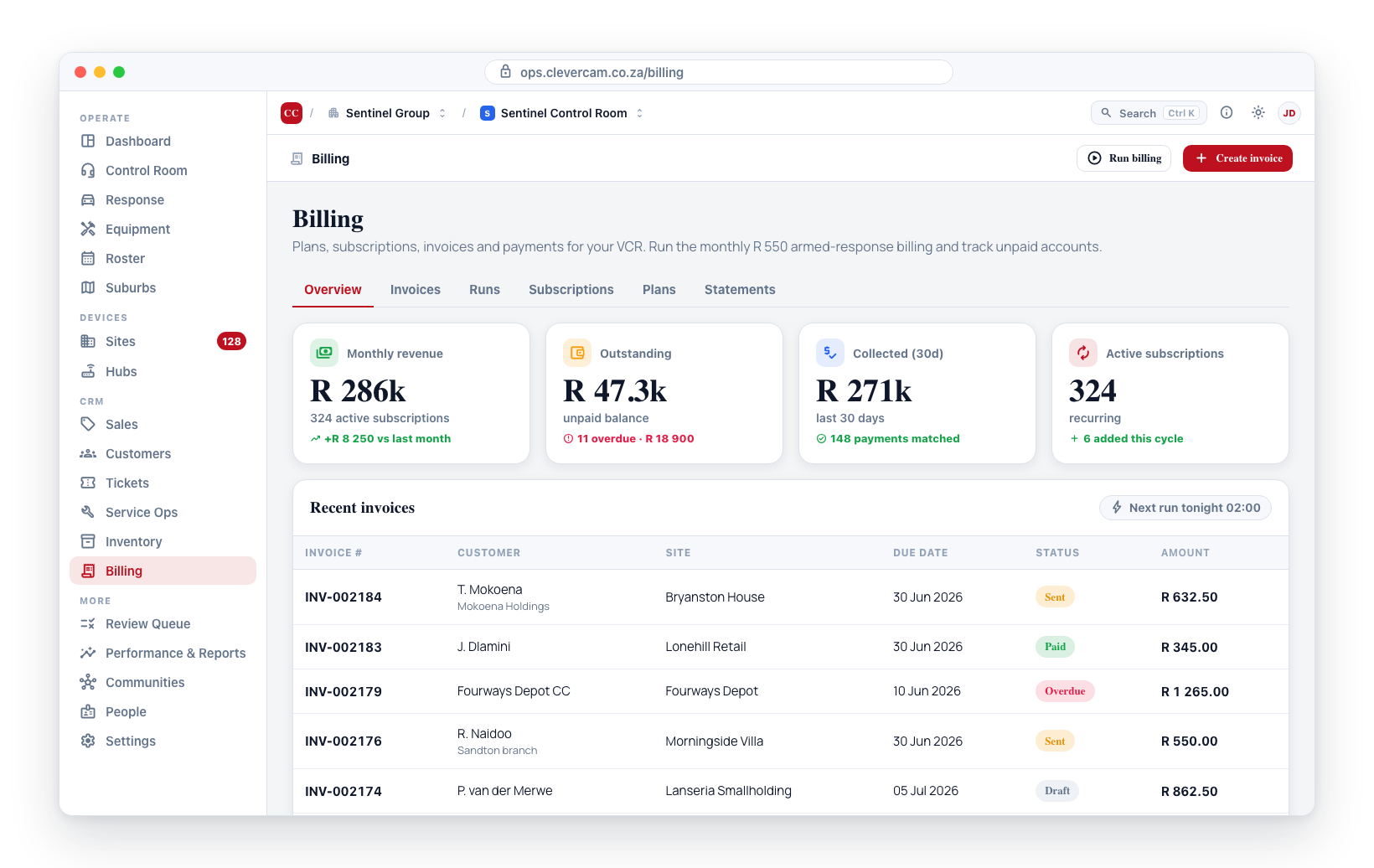
The Overview dashboard
Navigate to Billing in the sidebar and it lands on an Overview dashboard — the money command centre, where every figure is a shortcut into the tab that works it.
- Money KPIs — Outstanding receivables, Overdue (unpaid and past its due date — its issue date when it has none; see Statuses), Collected this month, Recurring / mo (MRR from active subscriptions, using the same quantity maths as the billing run), Unpaid invoice count, and Draft invoices.
- Invoiced vs collected — an 8-week trend of money billed against cash received.
- Receivables by age — an aging strip bucketing unpaid invoices 0–30 / 31–60 / 61–90 / 90+ days past due.
- Top debtors — the customers who owe the most net: their open invoices less any money or credit sitting on their account (an unallocated payment, credit Xero still holds as an unallocated overpayment, the unused part of a credit note) — the same figure the customer's page shows as Owing. A customer who is square or in credit is not listed, even with invoices still open. Click through to the customer.
- Payment mix — how customers actually pay (EFT, card, cash, debit order, account credit).
The overdue and draft tiles open the Invoices tab pre-filtered to that status. The KPI band above the other tabs counts Overdue by the same rule, so the two figures agree.
The tabs
Beside the Overview sit six working tabs. Most group related views behind a small toggle at the top of the panel, so the tab bar reads as the billing lifecycle — subscriptions (with their plan catalogue) → documents → money in → money out → engine room → configuration:
| Tab | Views inside | What it does |
|---|---|---|
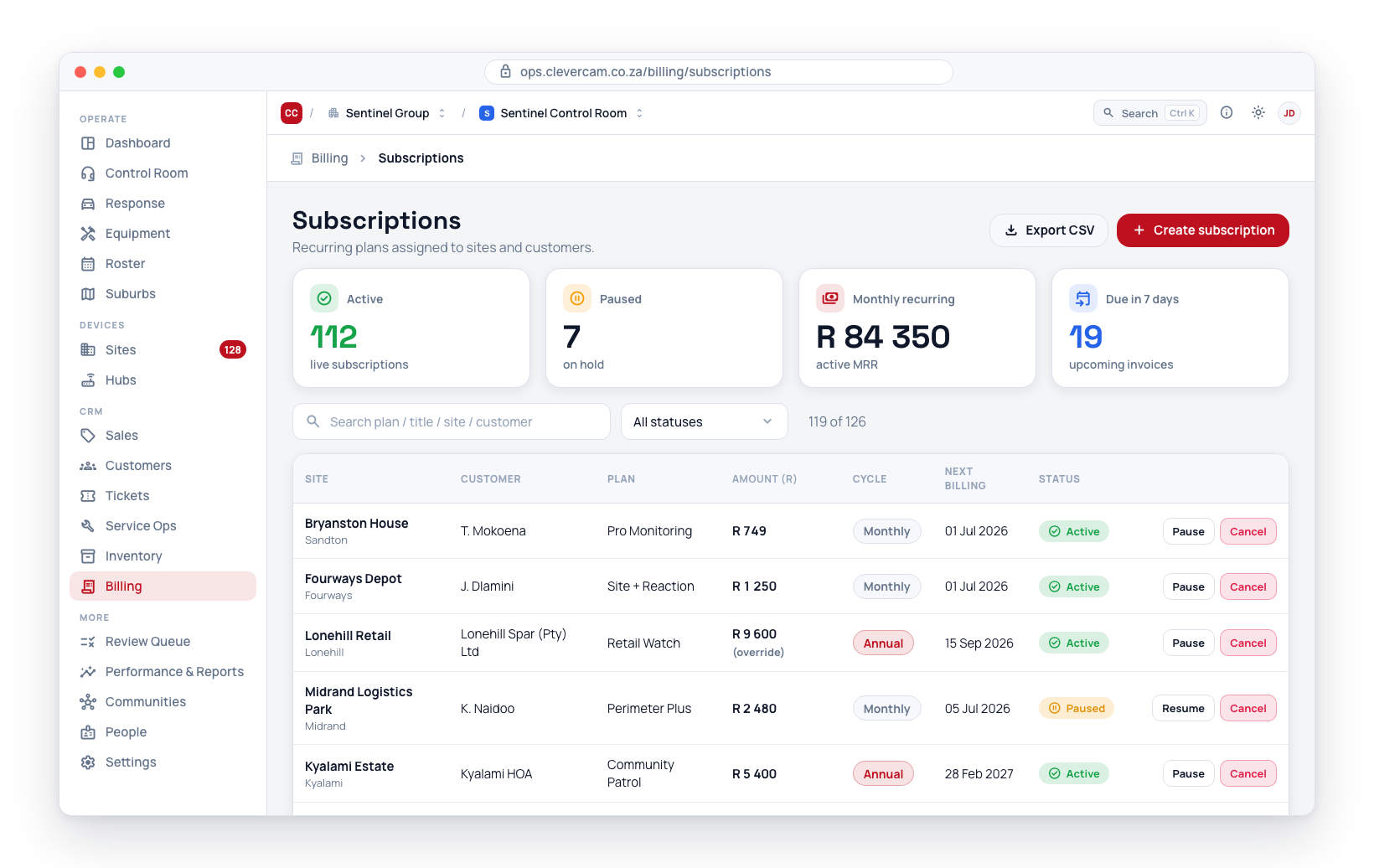
| Subscriptions | Subscriptions · Plans | Attach plans to sites (or directly to a customer) with custom pricing, pinned quantities, pauses and end dates — and, in the Plans view, define the plans themselves (pricing basis, default price, cycle, VAT) |
| Invoices | Invoices · Ad-hoc charges · Statements · Supplier bills | Every invoice ever generated (with status filters and PDF/email actions), the pending ledger of per-dispatch, distance-band, per-km and hourly work still waiting to be invoiced, per-customer statements with a running balance, and a read-only list of your Xero supplier bills |
| Payments | Payments · Bank recon · Payment proofs | Log payments received and match them to invoices, reconcile bank statements, and review proof-of-payment uploads from the customer portal |
| Commission | Sales commission · Technician commission | What each rep has earned on the invoices you raise and how much of it is payable now — see Commission below — and what a field crew has earned on the jobs they worked, with their performance bonus — see Technician commission |
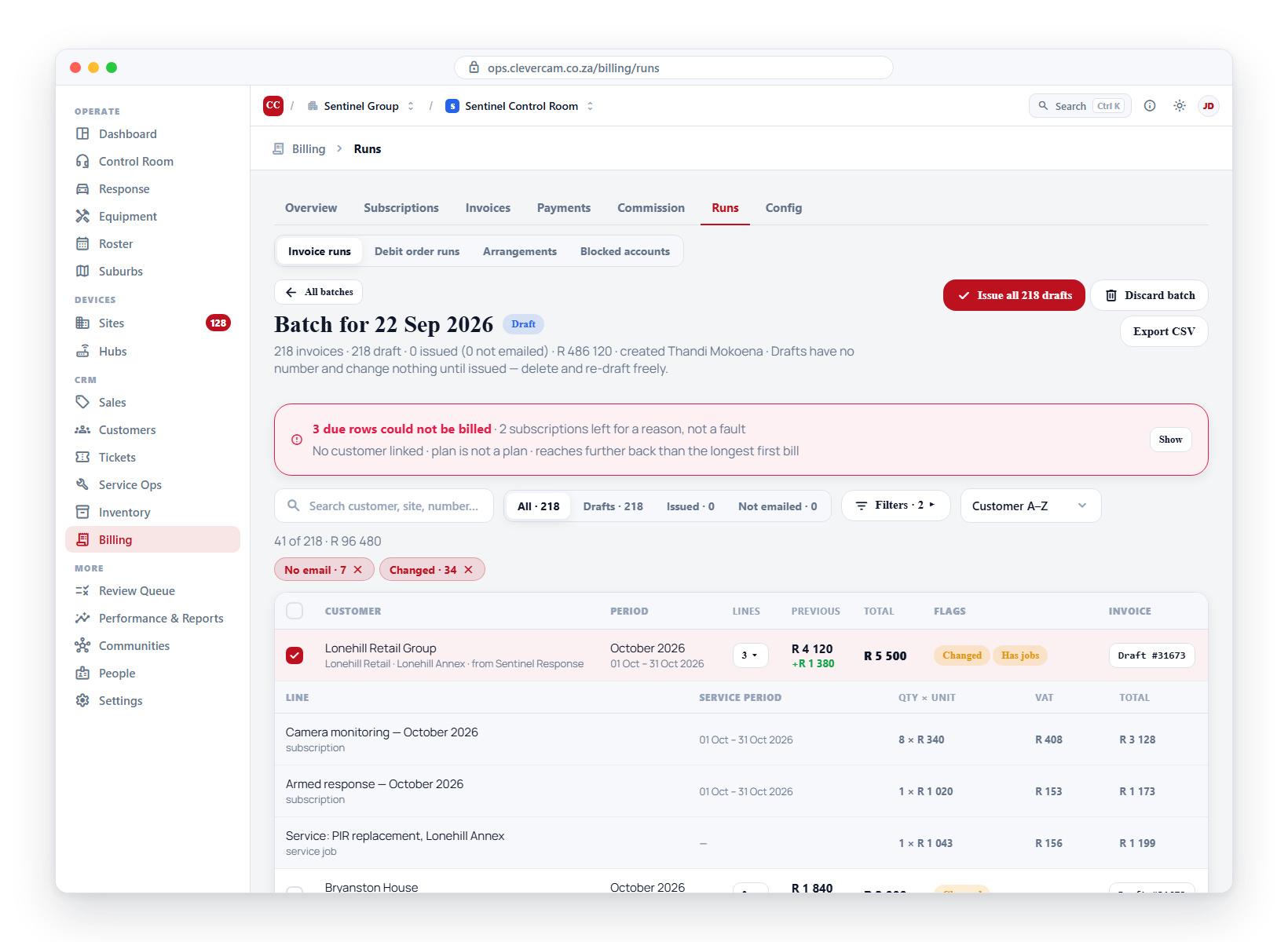
| Runs | Invoice runs · Debit order runs · Blocked accounts | Draft, simulate, review and issue invoice batches; run the debit-order collection batches; and manage the accounts the run leaves out |
| Config | — | Back-office catalogues — departments, discount templates, the service agreement, reminders, and accounting sync |
Each area is covered on its own page:
- Plans
- Subscriptions
- Invoices
- Ad-hoc charges
- Monthly billing run
- Debit orders
- Statements
- Technician commission
- Config
The monthly run bills the subscriptions; the ad-hoc ledger bills the exceptions — a call-out, a tower run priced by distance band, an hour of standby. Nothing on that ledger is ever invoiced automatically: a person ticks the charges to bill, and one draft invoice is raised per customer.
Beyond the tabs, Automated reminders is a background job that emails customers a follow-up for overdue invoices and outstanding quotes on a cadence you control.
The lists update themselves
Billing is worked by several people and by machines at the same time — a colleague capturing a receipt, the monthly run raising invoices, a debit-order batch landing, the accounting sync pulling from Xero, a customer opening an invoice or uploading proof of payment. Every list on this page (Invoices, Payments, Payment proofs, Subscriptions, Supplier bills) refreshes on its own within a second or two when any of that happens, including the KPI band above it. You do not have to reload the page to see current numbers.
That covers everything a row can do — raised, edited, paid, viewed, and deleted. A row someone else deletes disappears from your screen too, so you can never act on something that is no longer there.
How billing flows
A typical billing cycle looks like this:
- Define plans once — for example, "Armed Response Monthly · R 550", "Camera Monitoring · R 50 per camera (minimum 4)", "Hub Rental · R 150 per hub".
- Attach subscriptions — for each site, choose a plan (and optionally set a custom price for that site or customer). Set a start date and a first billing date. Per-camera and per-hub plans count the site's devices automatically at every run.
- Wait for the monthly run — every night at 02:00, CleverOps automatically creates draft invoices for every subscription that is due to be billed.
- Review and send invoices — open the Invoices tab, review the drafts, generate PDFs, and send them to your customers.
- Record payments — when EFTs, card settlements, or cash arrive, record them on the Payments tab and match them to invoices.
- Customer queries their statement — share a PDF statement or a public statement link with the customer.
Currency and VAT
All amounts in CleverOps are displayed in South African Rands. VAT is charged per invoice line at your company's VAT rate (15% by default) — but only when your company is VAT-registered. If it isn't, lines default to 0% VAT. The billing run applies VAT to a subscription line when its plan has VAT enabled and the company is registered; new lines you add to an invoice by hand default to the company's rate (0% when not registered) and can still be edited per line. Each invoice line shows the subtotal (excluding VAT), the VAT amount, and the total (including VAT).
Prices agreed VAT-inclusive
A subscription can record the price the customer actually agreed, VAT included. When it does, that figure is the line total on the invoice and VAT is worked back out of it, rather than added on top of an excluding-VAT price.
This matters because a price expressed in whole cents excluding VAT cannot represent every inclusive price. At 15%, R249.56 grosses up to R286.99 and R249.57 to R287.01 — R287.00 is not reachable at all, and about one in eight whole-rand inclusive prices has the same problem. Adding VAT on top of an excluding-VAT price therefore put some recurring totals a cent out from what the customer was quoted. Holding the agreed inclusive figure removes that: the total is exactly the agreed price, and the subtotal plus VAT always add back up to it.
When your control room shows prices including VAT, the price you type on a subscription is stored exactly as typed. When it shows prices excluding VAT, the inclusive figure is worked out from what you typed. Either way the two stay in step, so a price change always takes effect. Amounts on screen match the invoice to the cent.
Which way round it reads is one control-room-wide setting: Settings → Workspace → Billing entities → Show prices including VAT, on by default. It decides how prices are shown and typed on quotes, jobs, plans, subscriptions and the catalogue — and how the invoice PDF sets out its line prices and totals block, described under What the invoice PDF says about paying. It changes nothing about what anyone is charged: the totals, the documents and the accounting exports are identical either way.
Invoice numbering
Invoice numbers are assigned automatically and sequentially, so no two invoices ever share a number. Each billing entity numbers its own invoices — the default entity keeps its existing series (INV-1-00042), and a new entity starts its own from 00001 under a prefix you choose on its record (e.g. INV-TECH-), or an automatic one if you leave it blank. The counter is padded to five digits and simply grows wider past 99 999.
Only your own control room's customers
Every money record is on a customer of your control room. That covers invoices (drafts from the monthly run included), credit notes, payments, proofs of payment, job deposits, debit-order mandates, run lines and run answers, payment arrangements, bank statement lines, credit transfers, online card checkouts, customer payment options and deposit rules. The customer pickers on these screens only list your own customers.
CleverOps refuses to save any of these records on a customer that belongs to another control room, whoever or whatever is saving it: a person, the accounting sync, the customer portal, or an integration writing to CleverOps directly. The refusal reads:
CUSTOMER_OTHER_VCR: customer 18577 belongs to another control room, so it can't be stored on this invoices (customer_id)
The customer number, the kind of record and the field change with what was being saved. A credit transfer names from_customer_id or to_customer_id. On screen it shows wherever that screen shows a failed save, either in the form or as a pop-up notice. The accounting sync logs it against the document it could not bring in (see Accounting sync → Day to day).
Some screens check the customer before they save anything and show their own message instead, such as That customer is not in this control room. These are the till, bank reconciliation, credit transfers, credit notes raised on the account, Adjust balance, and payment arrangements.
A site you share with another control room can be on their customer. Bill work on such a site to one of your own customers instead. This check never gets in the way of an ordinary edit: changing a status, a date, an amount or a note on an existing record doesn't re-check its customer.
Permissions
Managing billing requires billing management access. Any team member can view invoices and statements in read-only mode. Triggering a manual billing run and sending invoice emails also requires super-admin access as an additional safety measure.
Consistent document layout
Every form across Billing and Service Ops — Quotes, Invoices, Payments, Subscriptions, Plans, Service Jobs, Sign-off, Installed Equipment, Customers — uses the same consistent layout:
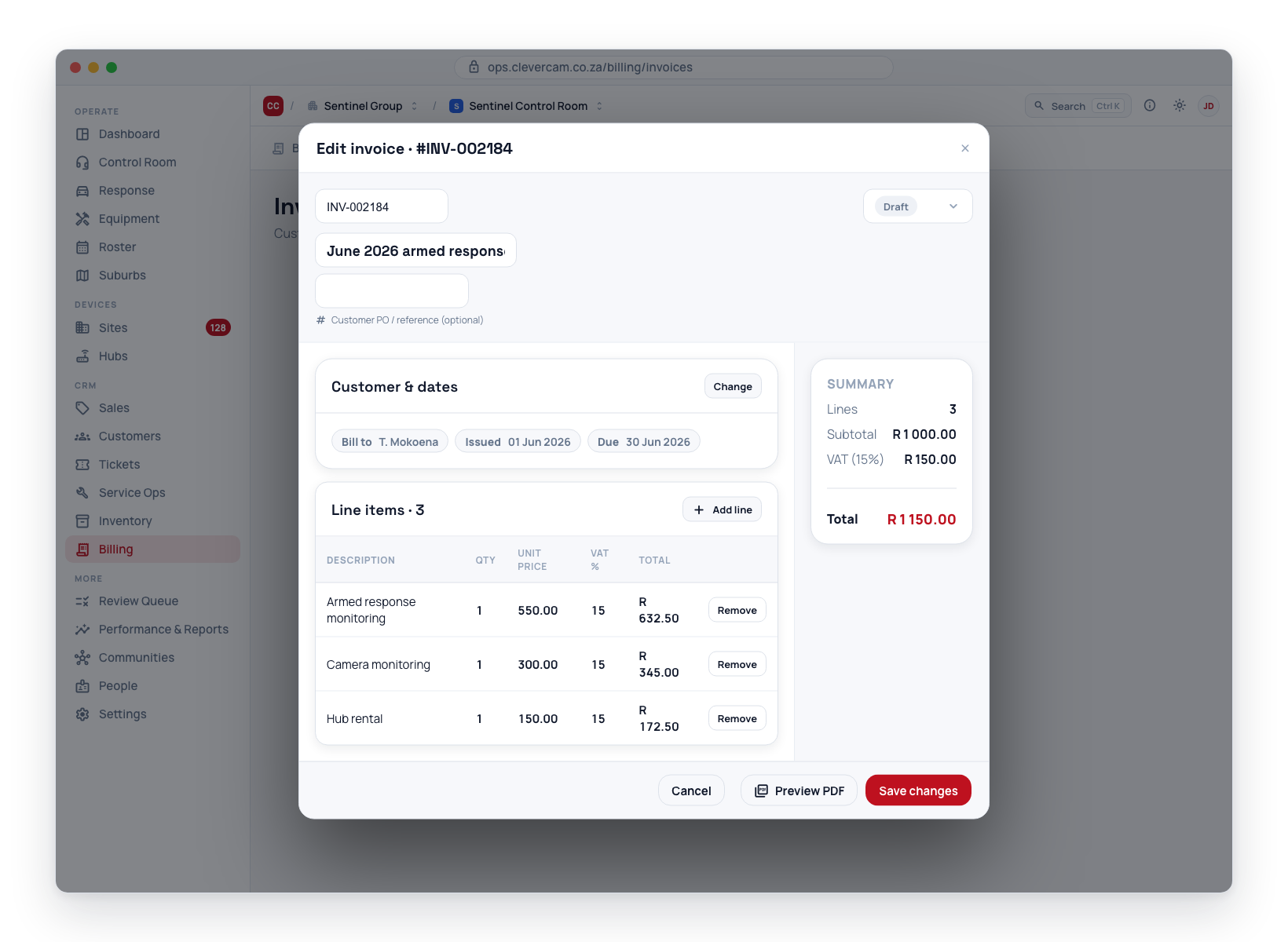
- A header at the top shows the document number, a status badge, and key details such as customer, site, and billing cycle.
- A two-column body has the edit fields on the left and a summary card on the right showing totals, status, and the next key date.
- A footer with Cancel, Preview PDF, and Save buttons.
Once you have learned how one form works, you will find the same controls in the same places across every document type.
Shared PDF template
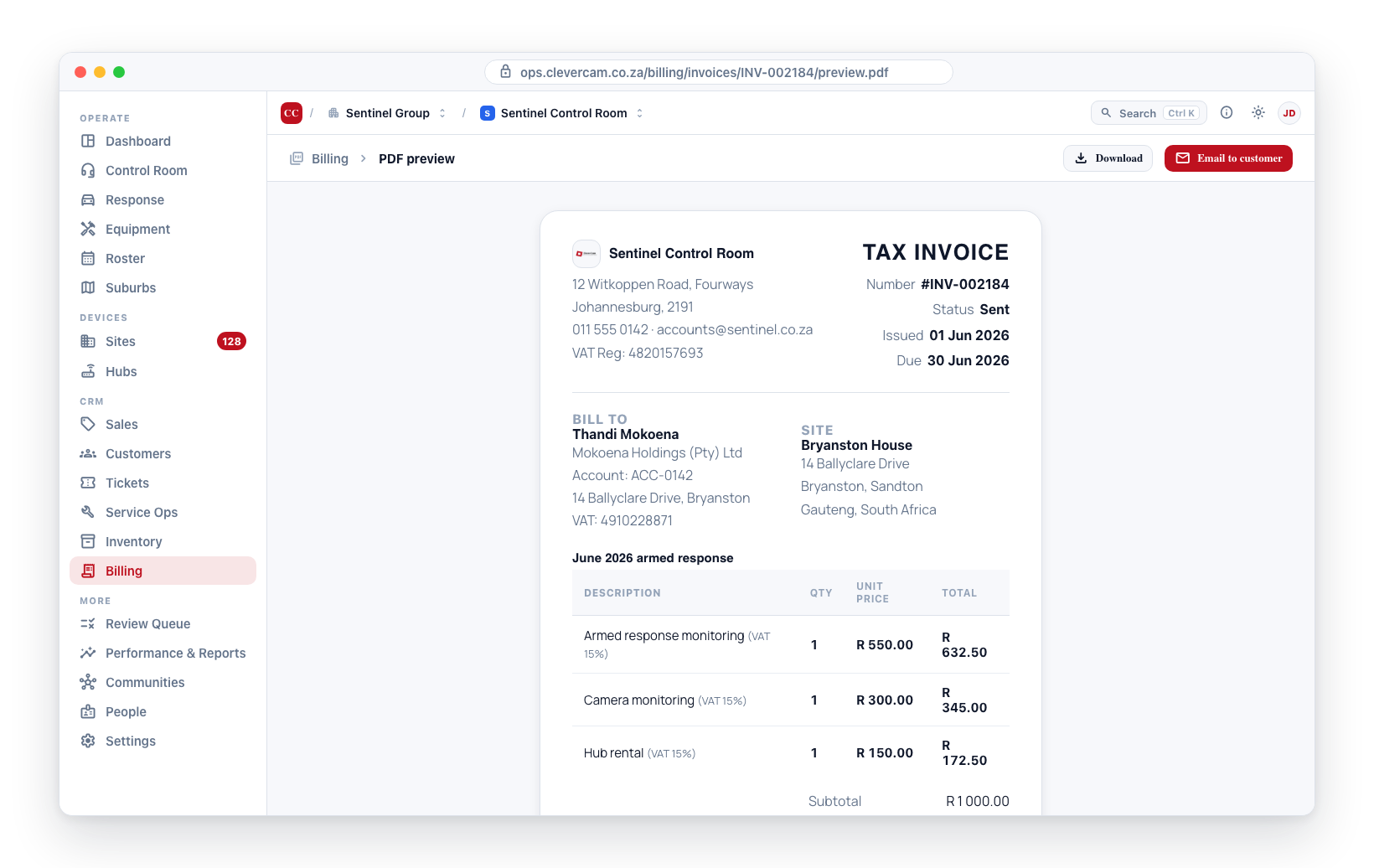
All PDFs — quotes, invoices, receipts, statements, and service job reports — use the same branded template. They share the same header (your logo, address, and VAT number), the same layout for the company and customer details, the same line-item table style, and the same footer. This means all your customer-facing documents look consistent.
| Document | Where to preview | Heading |
|---|---|---|
| Quote | Quote edit form → Preview PDF | QUOTATION |
| Invoice | Invoice view → Preview PDF | TAX INVOICE |
| Receipt | Payment form → Preview PDF | RECEIPT |
| Statement | Billing → Invoices → Statements view → Preview PDF | STATEMENT |
| Service job report | Service job form → Preview PDF | SERVICE JOB REPORT |
| Daily schedule | Schedule Board → Print today | DAILY SCHEDULE |
| Range schedule | Schedule Board → Print range | SCHEDULE |
Commission
The Commission tab has two views. Sales commission, described here, tracks what your reps have earned on the invoices you raise. Technician commission pays a field crew a share of each job they worked, at a rate that depends on each technician's tier and who else was on the job — it has its own page.
Commission accrues when an invoice is issued, calculated per line from the rate set on each catalog item, and becomes payable as the customer actually pays — a part-payment releases the same proportion, only cleared payments count, and a credit note claws it back pro-rata.
The Sales commission view shows four totals (earned, payable now, awaiting payment, clawed back), a per-person breakdown, and every line with the rate it used and the invoice it came from.
Rates are set per item type under Products & Services → Commission defaults. Until they are set, nothing accrues.
Next steps
- Plans — define the products you bill for.
- Subscriptions — attach plans to your sites.
- Monthly billing run — how the nightly billing process works.
- Products & Services — item types and commission rates.