Needs attention
Needs attention is the supervisor's triage screen — one stacked queue, top to bottom: overdue jobs, completed work awaiting invoice approval, reminders to chase, and technicians asking for help. Instead of clicking through several separate tabs to find what is slipping, everything that needs a look scrolls past on one page — and a section with nothing in it simply doesn't render, so a quiet day looks quiet.
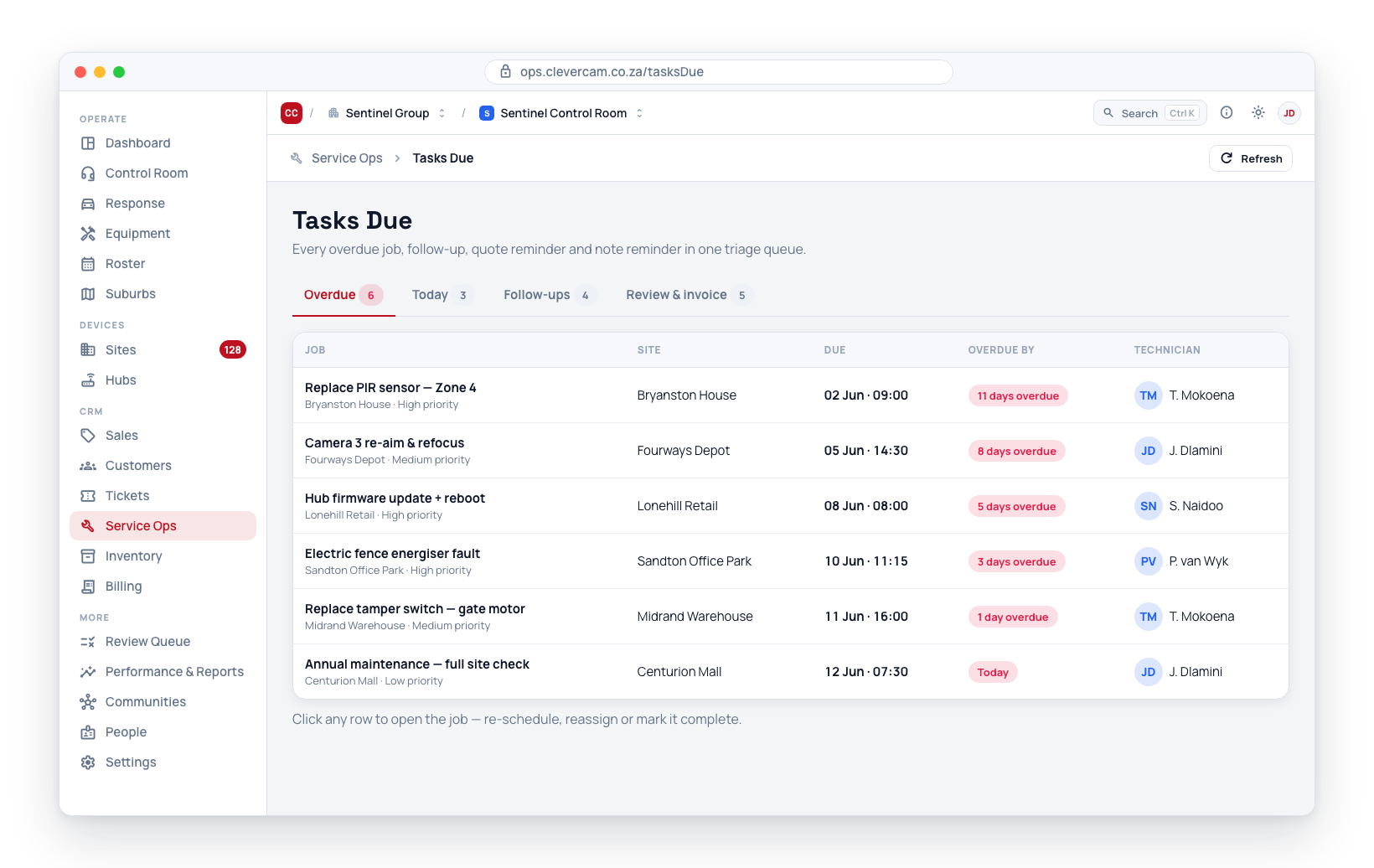
Since September 2026 the job buckets on this page — Overdue jobs, Review & invoice and job Follow-ups — also live on the Jobs page as one-click filters on its Needs attention strip, and the Needs attention tab is gone from the Service Ops tab row. This page stays for the work that is not a job row: technician Assistance, Quote and Ticket reminders, and Field integrity. Reach it from the dashed Assistance, Quote & ticket reminders and Field integrity chips at the end of the Jobs page's strip, or from the Overview dashboard's Needs help, Quote reminders and Ticket reminders tiles; the dashboard's Overdue jobs, Review & invoice and Follow-ups due tiles now open the Jobs table instead. (The screen is labelled Needs attention in the app; "Tasks Due" is its older name. Its address is /serviceOps/needs-attention — old /tasksDue bookmarks redirect there automatically, keeping any tab parameters intact.)
One queue, five sections
The page used to be six separate tabs. It is a single stacked queue now, in this order:
- Overdue jobs — scheduled in the past, still open.
- Review & invoice — completed work waiting for a supervisor sign-off before invoicing.
- Reminders — three things worth chasing, merged into one section: Job follow-ups, Quotes awaiting a reply, and Tickets due.
- Assistance — technician help requests from the field.
Mine vs Everyone
Above the count pills sits a Mine / Everyone switch, each with its own total — Mine (3) beside Everyone (41), so filtering to your own work never looks like an empty queue. Your choice is remembered per browser.
Mine covers all four sections, which is less obvious than it sounds: this page merges work that records its owner two different ways. A ticket carries the team member who owns it; a job or a quote points at a staff record. Mine matches both, by looking up your staff record from your login.
| Work | Counts as yours when |
|---|---|
| Overdue jobs, Review & invoice, Job follow-ups | You are the technician the job is assigned to |
| Quotes awaiting a reply | You are the quote's rep — or you raised it and nobody else was named |
| Tickets due | The ticket is assigned to you |
If you have no staff record in this control room you still get the switch, because you can still own tickets — jobs and quotes simply won't match you, and the switch says so on hover.
When Mine is on and you have nothing, the page says so and tells you how much is waiting for everybody else, rather than claiming the queue is clear.
The count-pill strip
A count-pill strip at the top of the page has one pill per section — click a pill to jump-scroll straight to it. A pill shows ! instead of a number if that section's query failed to load, so a bad count is never mistaken for a clean zero.
Sections with nothing in them don't render at all — no empty "Overdue jobs: 0" table taking up space. When every section is empty, the page shows a single All clear state instead of four empty headings.
The screen's previous six tabs — overdue, review, followUps, quotes, tickets, assistance — are still valid ?tab= deep links. followUps, quotes and tickets all now scroll to the same merged Reminders section; the other three land on their own section as before.
The Service Ops sidebar badge also counts jobs where the customer has asked to move an appointment and nobody has moved it yet. Those jobs carry a red Change requested chip on the job card and in List view, and their appointment reminders stay paused until you reschedule.
Overdue jobs
Jobs that were scheduled but not yet completed or cancelled. Columns: Title, Site, Customer, Priority, Status, Assigned, Scheduled, Overdue by.
The Overdue by column shows Today, 1 day overdue, or N days overdue as a red badge -- so you can spot the worst offenders immediately.
Click any row to open the job, where you can re-schedule, reassign, or mark it complete.
Review & invoice
This section is the approval step between a technician finishing work and an invoice being sent to the client. It shows completed jobs that require a supervisor sign-off before invoicing can proceed.
The review drawer
Click a job's title to open the review drawer — a side panel that shows all the evidence the approve decision needs, with the actions right there, so you never have to open the full job form just to review it:
- Header — the job's state (Awaiting review / Approved), a Waiting N days chip showing how long the completed job has sat unbilled (amber from 3 days, red from 7), a Sign-off override chip when one was recorded (hover for the reason), and the job number, site, customer, technician, and completion time. If the job was previously sent back for rework, the last rejection reason is shown here too. When no customer resolves for the job — none at all, or only another control room's through its site (see Readiness) — a note here says why it can't be approved, and Approve stays disabled.
- Billing — the job's line items and total. When the job has line items the amount is read-only here (it is derived from the items — open the full job to edit them); when it has none, the job amount can be edited and saved directly in the drawer. When the parts changed after the customer signed, an amber Parts changed after the customer signed note sits above the line items: one row per line with its net change (2 → 1, removed (was 30), added, 2, or a price move ex VAT), who made it (technician or office) and when. Technicians can correct their own signed job's parts in CleverTech until you approve it (see After the customer signs), so read it before approving. A line changed and changed back is not listed, and the note is absent when nothing changed. A job signed off without a customer signature says Parts changed after sign-off instead.
- Invoice preview — exactly what Send to invoice will bill, line for line: descriptions, VAT, and any paid deposit netted off. On a control room with multiple billing entities an Issued by (legal entity) picker sits here too — choose which of your entities the invoice goes out under. The pick saves onto the job immediately, so bulk Send to invoice and the monthly billing run honour it as well. When the job came from a quote the picker is not shown: the quote's issuing entity is legally fixed and the invoice inherits it (the preview says so).
- Checklist — every step with its captured answer: pass/fail answers (Yes / No / N-A), readings with their healthy range, text answers, technician notes, and any photos attached to a step. Failed steps are highlighted in red.
- Photos — every job photo as a thumbnail grid; click one to view it full-size. Other files (PDFs etc.) are listed below and open in a new tab.
- Technician notes — the free-text notes the technician logged on site from the CleverTech app's Notes tab, oldest first with the time each was written. These are the technician's own running commentary on the job, separate from the notes attached to individual checklist steps.
- Customer review — leads the drawer body: whether the customer has been asked how the job went and, if so, what they said (see Customer review below). Request review / Send again open the request dialog from here; Mark handled appears on an issue or call-me reply. The header also carries a Customer: … chip with the same state.
- Visits & sign-off — each technician visit with its work summary, minutes on site, equipment/materials notes, and the client signature image itself.
- Recent activity — the job's latest timeline entries, including past send-backs.
The footer carries the actions — Approve, Reject, Send to invoice (once approved), and Open full job — plus previous/next buttons with your position in the queue ("2 of 5 · 3 awaiting").
Approve-and-next: after you approve or reject, the drawer automatically advances to the next job still awaiting review, so a queue can be cleared without touching the table. When a rejected or invoiced job was the last one awaiting, the drawer closes.
Keyboard: the whole flow works one-handed — A approve, R reject, J/K (or the arrow keys) next/previous job, Esc close (closes the photo viewer first if one is open).
Bulk approval
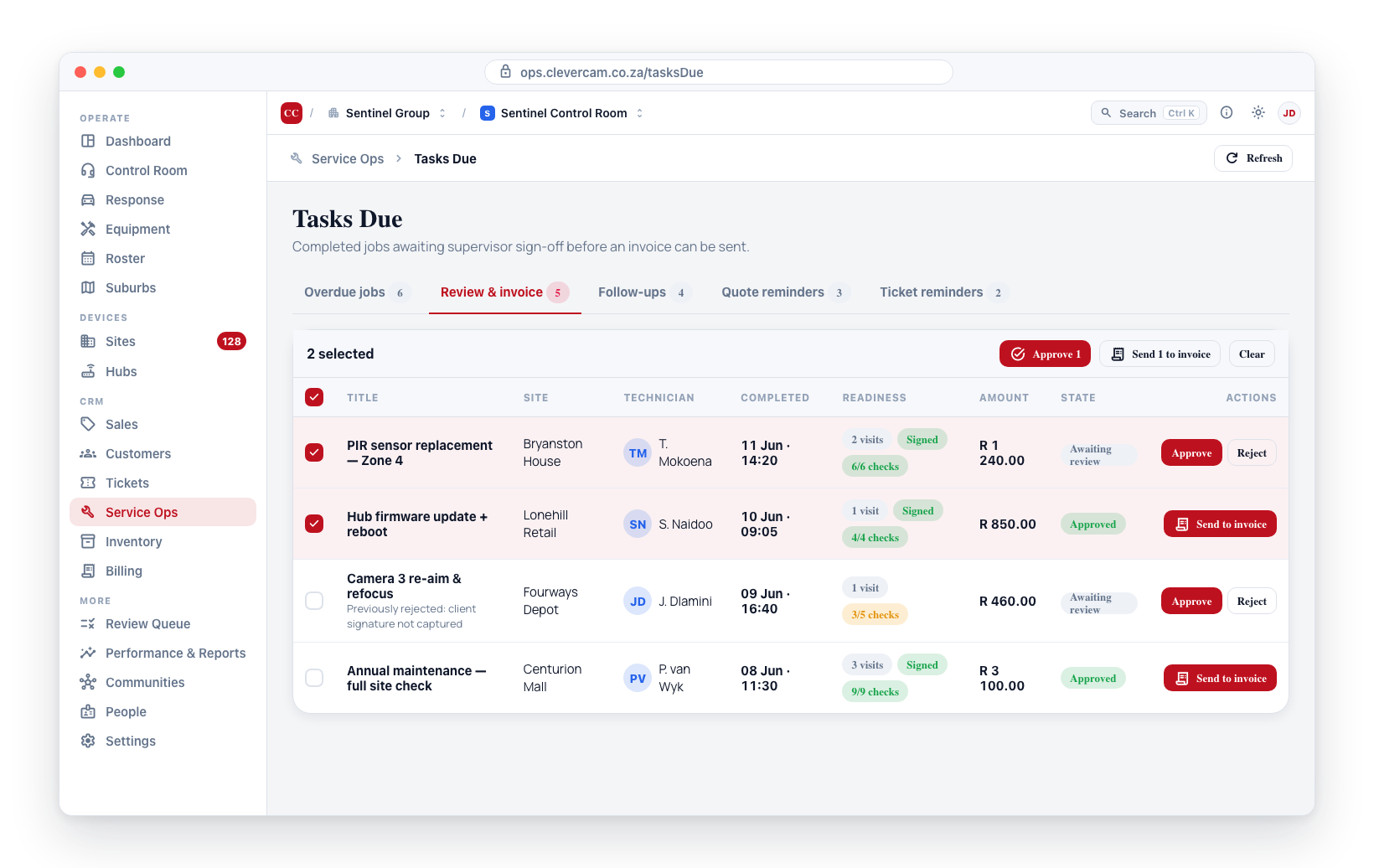
Because one coordinator often clears a high volume of completed jobs, the Review & invoice section supports bulk actions. Tick the checkbox on each row (or the header checkbox to select all), then use the bar at the top of the section:
- Approve N — approves every selected job that is awaiting review, in one step. Jobs that aren't ready are skipped rather than stopping the batch, and the confirmation says how many were skipped and why — for example 2 jobs approved for invoicing · skipped 1 not signed off, 1 whose site's customer belongs to another control room.
- Send N to invoice — creates draft invoices for every selected job that is already approved.
- Clear — clears the selection.
A mixed selection is handled — the bar shows how many of each action applies.
Readiness
Each row shows a Readiness column so you can approve a batch with confidence without opening every job:
- N visits (or no visits) — how many technician visits were logged.
- Signed — a client signature was captured on at least one visit.
- x/y checks — checklist progress; green when every required step is done, amber when required steps are still open.
- N photos needed (amber) — photo-required steps (including a failed step whose settings demand a photo) still missing their photo.
- N failed checks (red) — checklist steps that failed: a No answer on a pass/fail step, or a reading outside its healthy range. A failed check doesn't block approval by itself — it's the signal to read the technician's notes and consider a follow-up job.
- N notes needed (amber) — failed checks whose settings demand a technician note that hasn't been captured.
- Override (amber) — the job was completed without a full sign-off; hover to read the recorded reason.
- Not signed off (amber) — the required checklist, required photos/notes, and/or client signature are missing, so the job cannot be approved yet.
- No customer (amber) — neither the job nor its site has a customer in your control room, so the job cannot be approved yet.
- Customer of another control room (amber) — the job has no customer of its own and its site is on another control room's customer, so it cannot be approved until you link one of your own customers to it.
A job can only be approved once it is signed off (required checklist done, every demanded photo/note captured, and a client signature) or has a recorded override. Jobs flagged Not signed off have their Approve button disabled, and bulk approve skips them rather than failing the whole batch — open such a job to finish the sign-off (or record an override), or send it back for rework.
A job must also be linked to a customer before it can be approved — either set directly on the job, or inherited from the site the job is on, provided the site's customer belongs to your control room. The customer is who the resulting invoice is billed to, so a job with no customer on either has nothing to invoice against. Such a job is flagged No customer, its Approve button is disabled (hover it for why), and bulk approve skips it just like an unsigned-off job. Attach a customer to the job (or to its site) and it becomes approvable. This is what guarantees an approved job can always be billed: it can never get stranded, un-invoiceable, in a billing run.
A site you share with another control room can be on their customer. A job there with no customer of its own has no customer in your control room: it is flagged Customer of another control room, its Approve button is disabled ("Can't approve — its site's customer belongs to another control room, so this job has no customer here…"), and bulk approve skips it — the rest of the selection is still approved, and the confirmation counts it among the skipped. Link one of your own customers to the job to approve it.
Customer review
Some companies want to hear from the customer before they close a job off — and a quick "how did we do?" also saves a phone call for everyone who's happy. The Customer review column shows where each job stands with the customer, and lets you ask right from the row.
Asking. Click Request review (or Send again on a job that was asked but hasn't answered) to open the request dialog. It has two ways in, switched at the top — Ask the customer (below) and Log their answer (further down, for when you phoned them).
Under Ask the customer, one dialog covers every channel:
- Email — the same recipient picker the quote and invoice sends use (the billing email, tagged contacts, app users on the customer's sites, or a typed address, with CC). Email recipients get a branded email with the three answers as one-tap buttons plus a Rate your service button.
- WhatsApp / SMS — tick numbers from the same contact list or type one. WhatsApp is tried first and anyone without it gets the SMS. Ticked numbers get the review link in a short text; the dialog shows roughly how long the SMS will be.
- Message — a standard message is pre-filled and fully editable (Reset to the standard message puts it back). The review link is added automatically — type
{link}to place it yourself. - Include a link to the service report — adds the job's service report link (what was done, by whom, and who signed) to the message and email.
Either side alone is a valid send. The result screen says who was reached, lists any number that could not be (opted out, no number, budget reached), and shows the review link so you can copy it and share it by hand if a message doesn't arrive — the answer lands on the job either way. Every send is noted on the job's Activity & notes timeline and appears in the job's Customer comms log.
Asking a whole batch. Tick several jobs and the bulk bar offers Request review N. Each customer gets the standard message on their own link, sent to the contacts already set up for job notices — no picker, twenty times. Choose Email only or Email + WhatsApp/SMS (texting spends messaging budget, so it is a separate button rather than a default). Jobs that already answered are left out of the count; asked-but-unanswered ones are asked again on the same link. Any customer with no address and no tagged number is named in the result rather than silently skipped.
Answering. The customer lands on a branded page on the customer portal and taps one of three answers — All good, Please call me or Something's not right — with an optional star rating and a note (a note is asked for on Something's not right). The page shows the job, the technician's first name and the work done, so they know exactly what they're rating. Links live for 14 days from the last send; Send again re-arms the same link, so the customer never holds two live links to the same question.
Answers arrive on their own: the column, the drawer and the job workspace update as soon as the customer taps, with no refresh — which is the point when the answer is Please call me.
When you phone them instead. Plenty of companies ring the customer rather than wait for a tap. Switch the dialog to Log their answer, pick what they said, quote their words, optionally add stars, and record how they told you — Phone call, In person, WhatsApp reply or Email reply. It counts exactly like a tapped answer: same column, same follow-up ticket, same reporting. The job's timeline and the panel both say a person wrote it down ("Taken 16 Aug via a phone call") so a written-down answer is never mistaken for the customer's own tap. It lands on the request already out with the customer (so the link stops asking); logging a second answer later replaces the first, and both stay on the timeline.
What the column shows (hover a chip for the customer's words):
- Request review — nobody has asked yet.
- Awaiting reply · Nd — asked, no answer yet; Send again re-sends the same link.
- No reply — the link expired without an answer; Send again re-arms it.
- All good ★★★★★ (green) — happy, with their rating if they gave one.
- Issue raised (red) / Call requested (amber) — the customer wants a person. Each files a follow-up ticket on the job (assigned to whoever asked, due now, so it shows under Tickets due) and shows a Mark handled button; marking it handled closes the ticket and turns the chip grey. Approving is still your call — the answer is information, not a gate.
- Rated ★★★☆☆ — an answer from the older stars-only feedback link (the completion email's "How did we do?" and automation feedback requests share the same rail, so those answers show here too).
Mark handled also stays on offer when a customer who raised an issue later says all good — the ticket they opened is still open, and hiding it behind a green chip would strand it.
A rating also counts towards the company's Reviews reporting under Performance & Reports.
Per-row actions
The same actions are also available directly on each table row (the drawer and the row buttons do the same thing — use whichever is quicker):
When awaiting review
- Approve -- marks the job as approved for invoicing and records who approved it. The job is then eligible for the next billing run. Requires the job to be signed off (see Readiness) and linked to a customer — approval is refused otherwise.
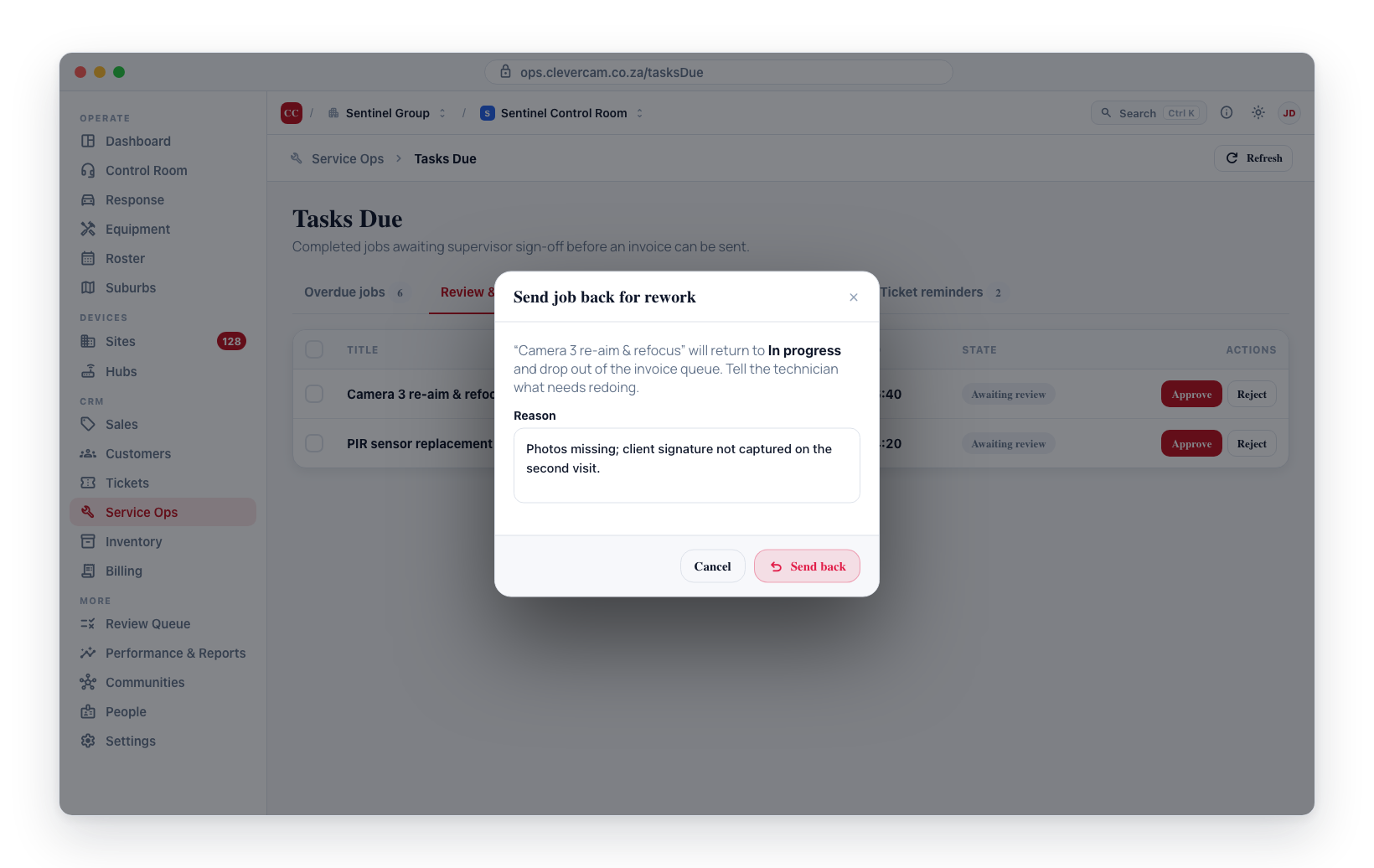
- Reject -- prompts you for a rejection reason (required). The job is returned to in-progress status and the technician can see the reason in their app. Any sign-off override is cleared, so the job must be signed off again before it can be re-completed.
When already approved
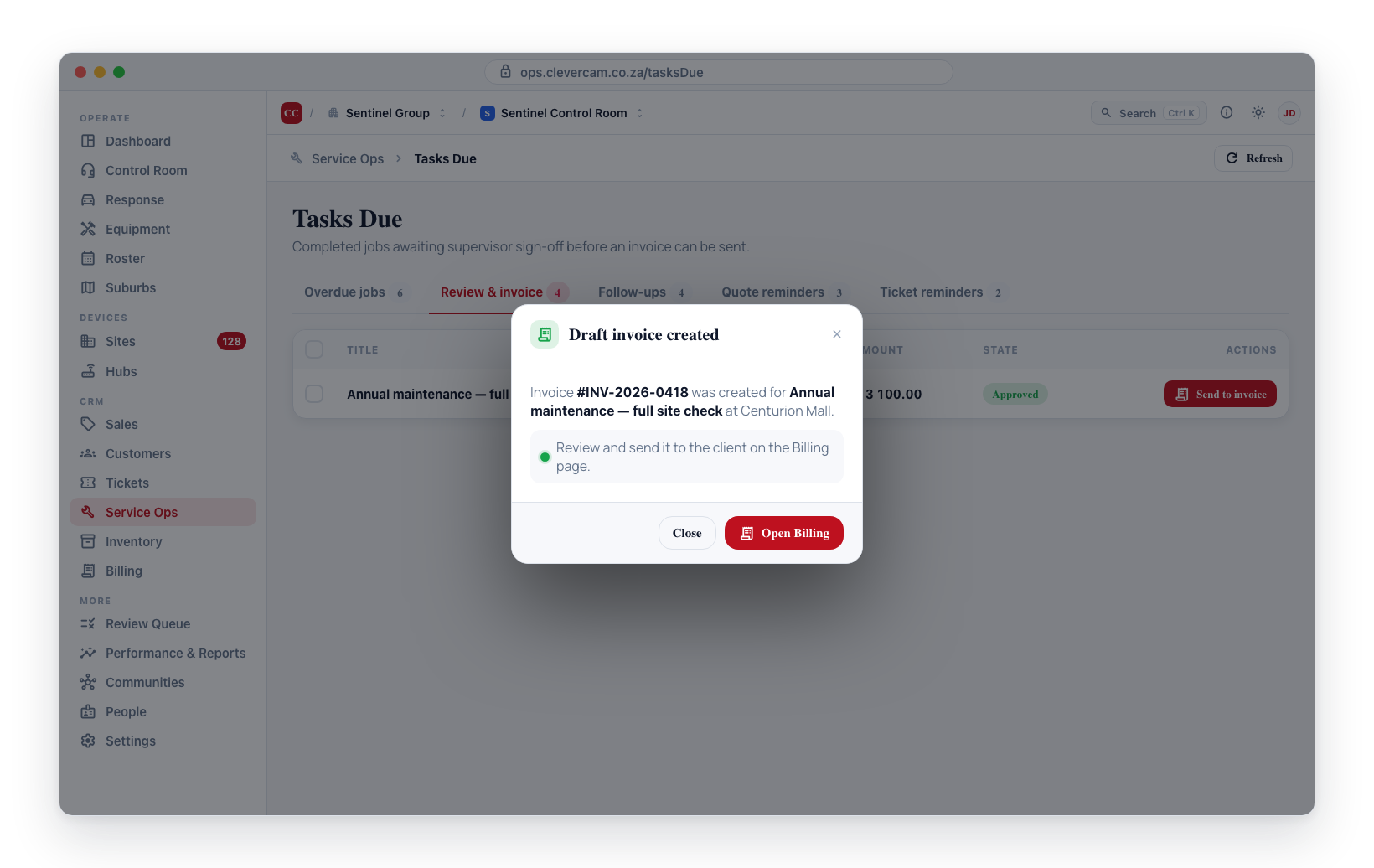
- Send to invoice -- immediately creates a draft invoice. A confirmation dialog appears with the new invoice number. Open the Billing page to review and send it to the client.
The State column shows:
- Awaiting review -- not yet approved.
- Approved (amber badge) -- approved but not yet invoiced.
Rejected jobs show the last rejection reason below the title so you know why they came back without having to open the job. The reason is also posted to the job's Activity & notes timeline, so the history of every send-back survives even after the next rejection overwrites the badge.
Reminders
The Reminders section merges three separate queues — three different kinds of "chase someone" — into one section, each in its own labelled block. The section (and its count-pill) shows the combined total; each block below shows and hides independently, so a day with quotes due but no overdue tickets shows only the quotes block.
Job follow-ups
Jobs whose scheduled follow-up date has passed. Use follow-ups when the work is scheduled but you want a reminder to check back -- for example, "call the customer in 2 weeks to confirm the panel is stable."
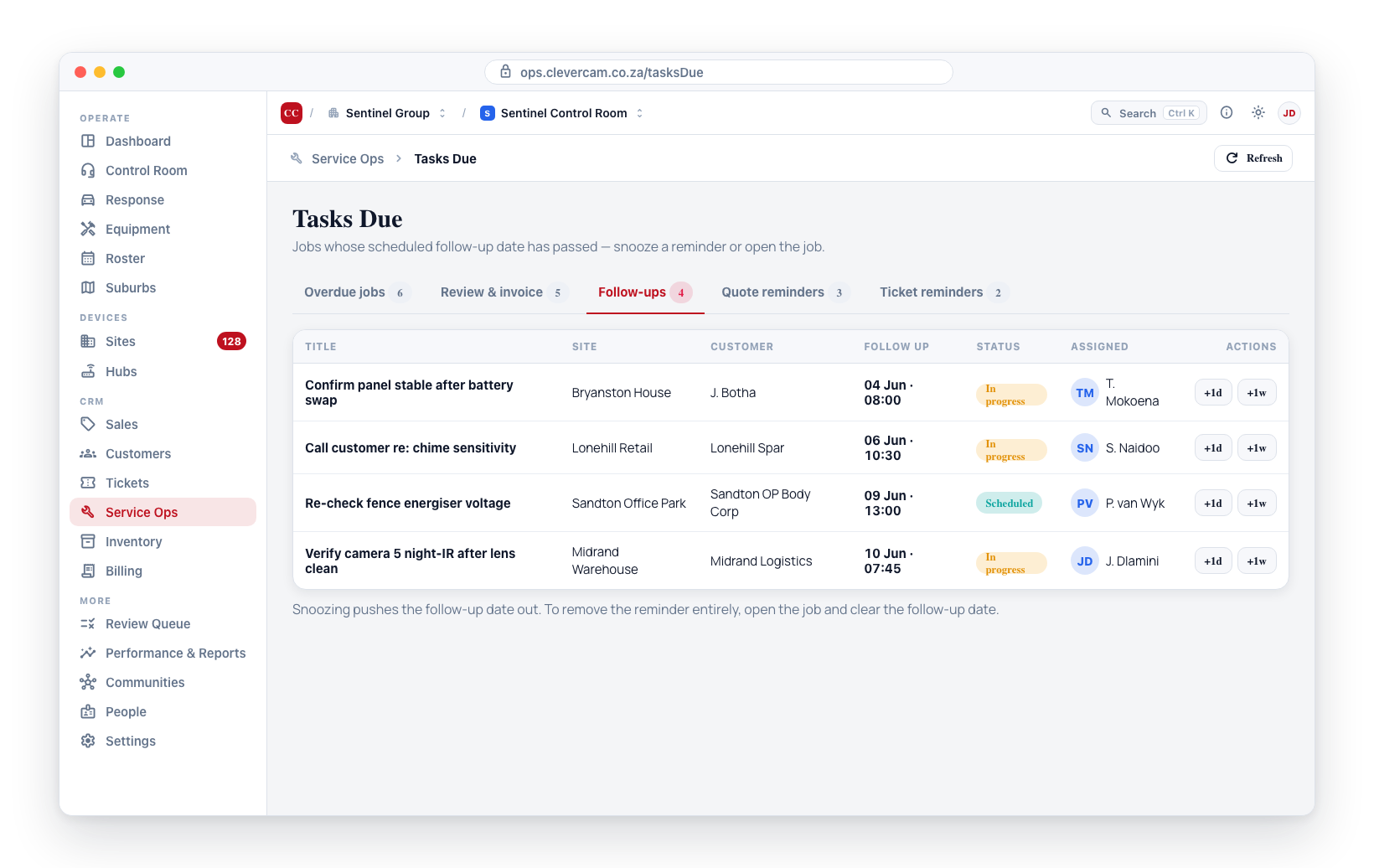
Per-row buttons:
- Snooze 1 day -- snooze the follow-up by one day.
- Snooze 1 week -- snooze by one week.
Snoozing pushes the follow-up date out by the selected amount. To remove the reminder entirely, open the job and clear the follow-up date.
Quotes awaiting a reply
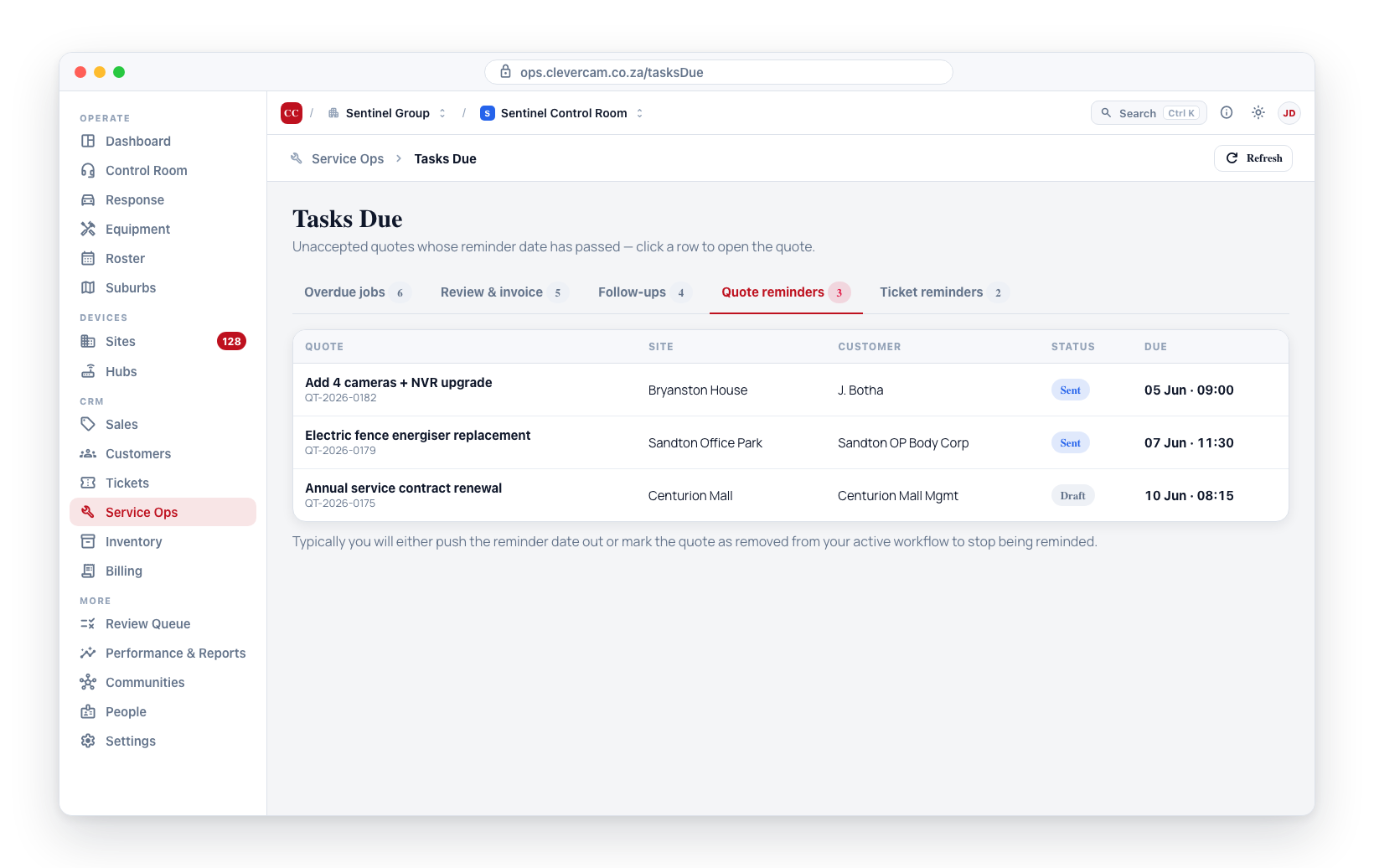
Sent quotes that have not been accepted and are due a chase. Click a row to open the quote — typically you will either push the follow-up date out or mark the quote as removed from your active workflow to stop being reminded.
A quote lands here in one of two ways, and the Due column says which:
- A date passed — someone set a follow-up date on the quote and it has come round. The column shows that date.
- No reply in N days — nobody set a date, and the quote has sat untouched for your control room's follow-up window (Settings → Billing → Reminders, 3 days by default).
That second case matters: CleverOps emails the customer automatically on exactly the same rule, so a quote with no date set is already being chased on your behalf. This list shows the same quotes the emails go to, rather than only the ones with a date — otherwise the screen would report nothing to do while the system was busy chasing.
Quotes that have been superseded by a newer revision, withdrawn from the workflow, declined, or whose validity has lapsed never appear — none of them are actionable.
The Auto-chase column says whether the automatic email can still do this for you:
- Automatic — the reminder emails are still running; this row is a heads-up, not a task.
- No customer linked — there is no customer on the quote, so no address to send to. The automatic follow-up can never go out. Chase it yourself, or link a customer.
- Auto-chase used up (3/3) — every reminder your control room permits has been sent and the automation has stopped. Anything further is a phone call.
This is the part worth watching. The automation stops in both of those cases and says nothing, so a quote can sit out with a customer for weeks with no one chasing it and no sign that anything is wrong. Those are exactly the rows a person needs to pick up.
Tickets due
Open tickets with a due date in the past. Each row has:
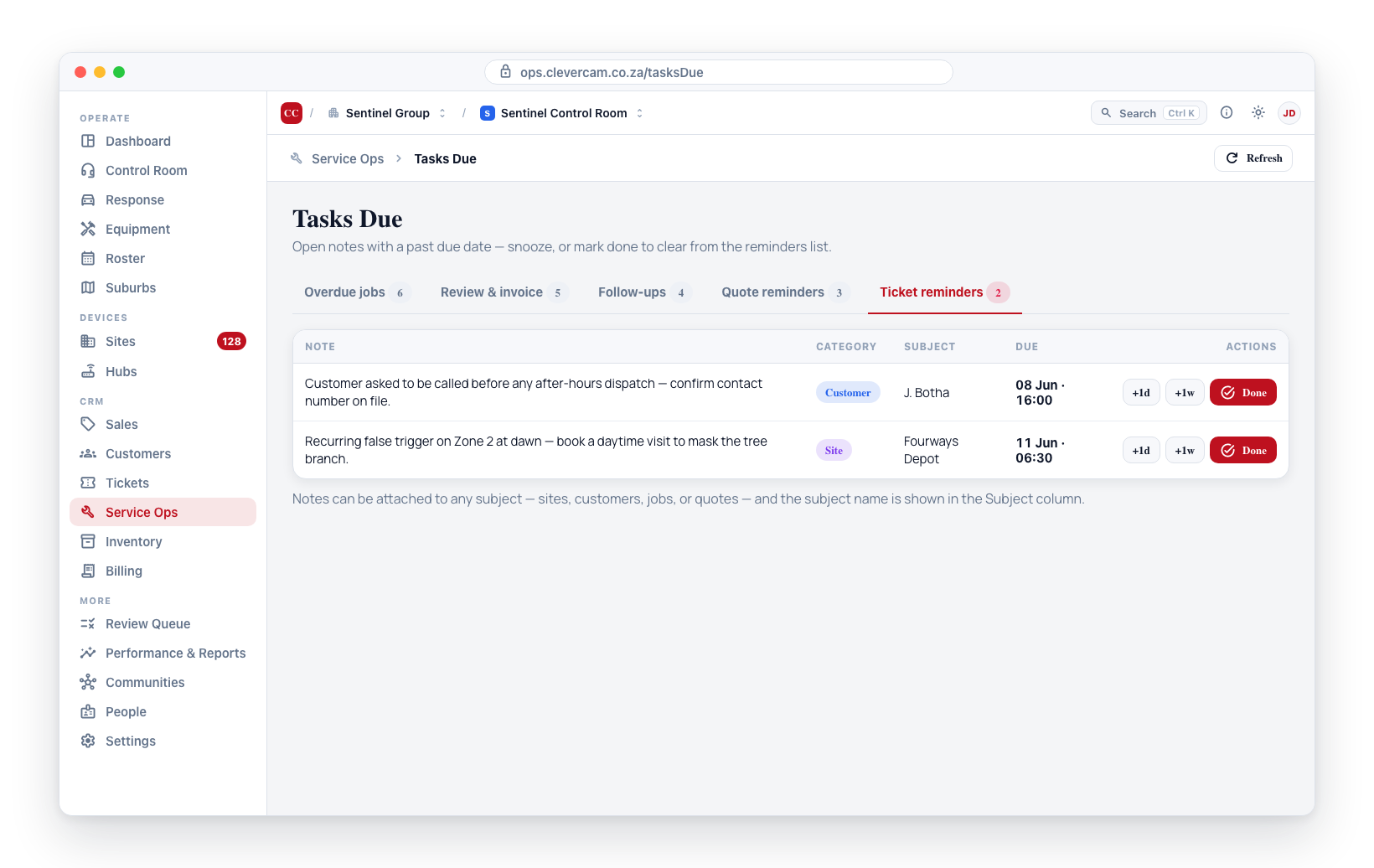
- Snooze 1 day / Snooze 1 week -- snooze the ticket.
- Done -- mark the ticket as done and remove it from the reminders list.
Tickets here can be attached to any subject -- sites, customers, jobs, or quotes -- and the subject name is shown in the Subject column.
Customer and system signals land here automatically: tickets submitted from the customer portal or the CleverAlert app, and auto-filed tickets (quote accepted/declined, proof of payment submitted, low service rating, new web lead, bounced debit orders, service-health alerts) are all created due immediately, so they appear in this block the moment they happen.
Assistance
Help requests raised by technicians from the CleverTech field app — for example "please phone the client, is anyone home to let me in?". This section carries a live count so urgent field requests surface during your normal triage sweep, and it updates in real time without a refresh. Acknowledge, reply, and resolve requests inline. See Assistance Requests for the full workflow.
Field integrity
The fifth section catches work that stopped being true — a job the technician thinks is finished but isn't, an action logged too far from the site to have happened there, or a visit started and abandoned. It also names any technician the system can't reach, because a push with nowhere to land is a silent failure.
Full detail — including what is and isn't counted as off-site — is in Where the work was logged.
Refresh button
The top-right Refresh button reloads the overdue-jobs, review, and reminders queries at once. Those do not update automatically in the background -- use Refresh to get the latest state whenever you need it. The Assistance section is the exception: it streams updates live.
Permissions
Viewing Needs attention is available to any control room member. The action buttons (Approve, Reject, Send to invoice, snooze, mark done) require the appropriate supervisor or coordinator role depending on the action.