Maintenance plans
A maintenance plan is a recurring service visit. Instead of remembering to book the quarterly battery check or the annual alarm service for every site, you define the plan once. Each time it falls due, CleverOps either files a ticket asking the office to book the visit with the customer, or books the job itself for the morning of the due date. Either way the visit becomes an ordinary service job, so it flows through the normal schedule → complete → approve → invoice pipeline.
Maintenance plans cover the recurring visit. Recurring billing (monthly monitoring fees, etc.) is handled separately by billing subscriptions. A site can have both — a subscription that invoices monthly and a plan that books a service visit each quarter.
Where plans live
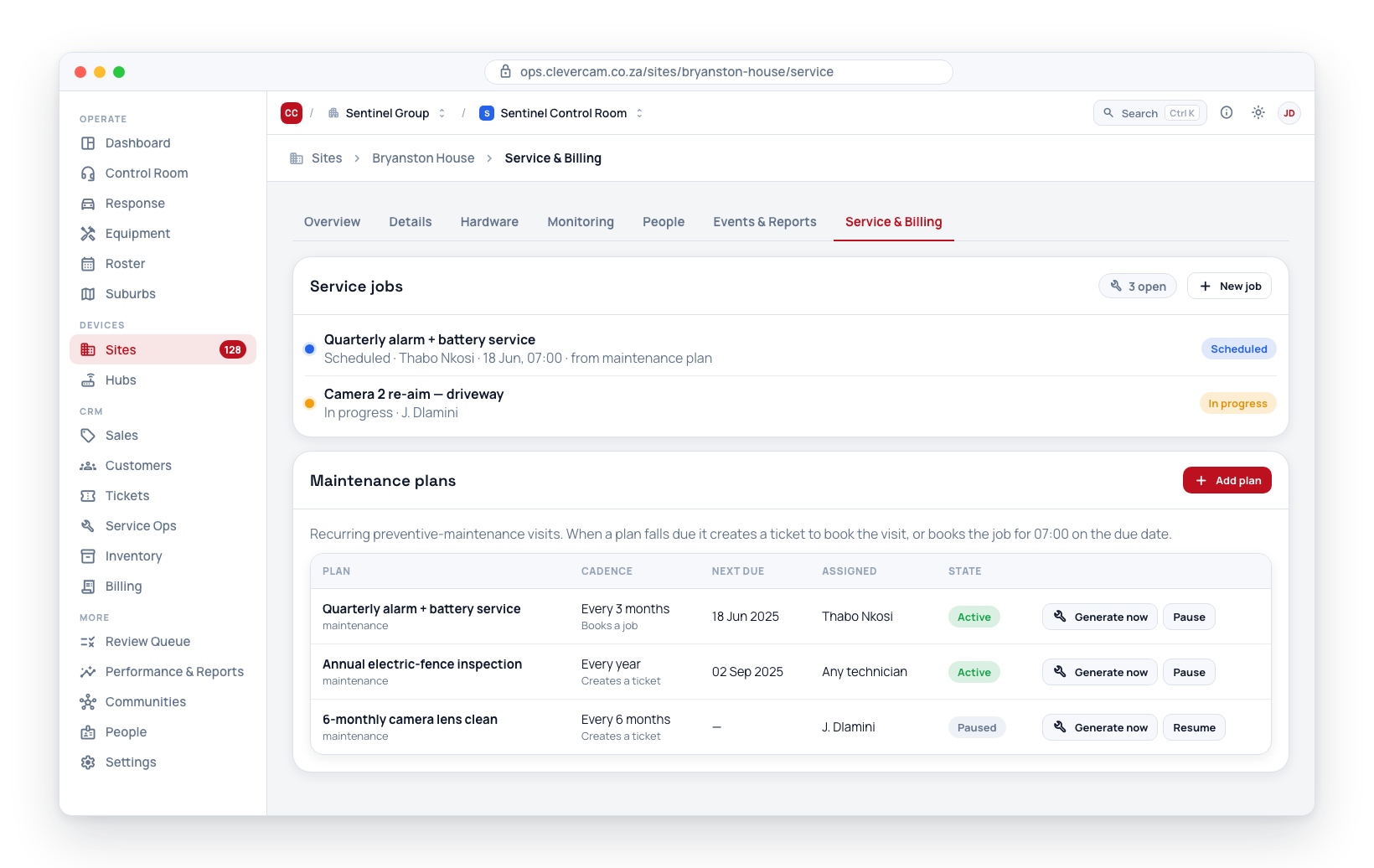
Open Site Details → Service & Billing tab → Maintenance plans, just below Service jobs. The list shows each plan's title, cadence (with what the plan makes underneath — Creates a ticket or Books a job), next due date, assigned technician, and whether it is active or paused.
Create a plan
- Click Add plan.
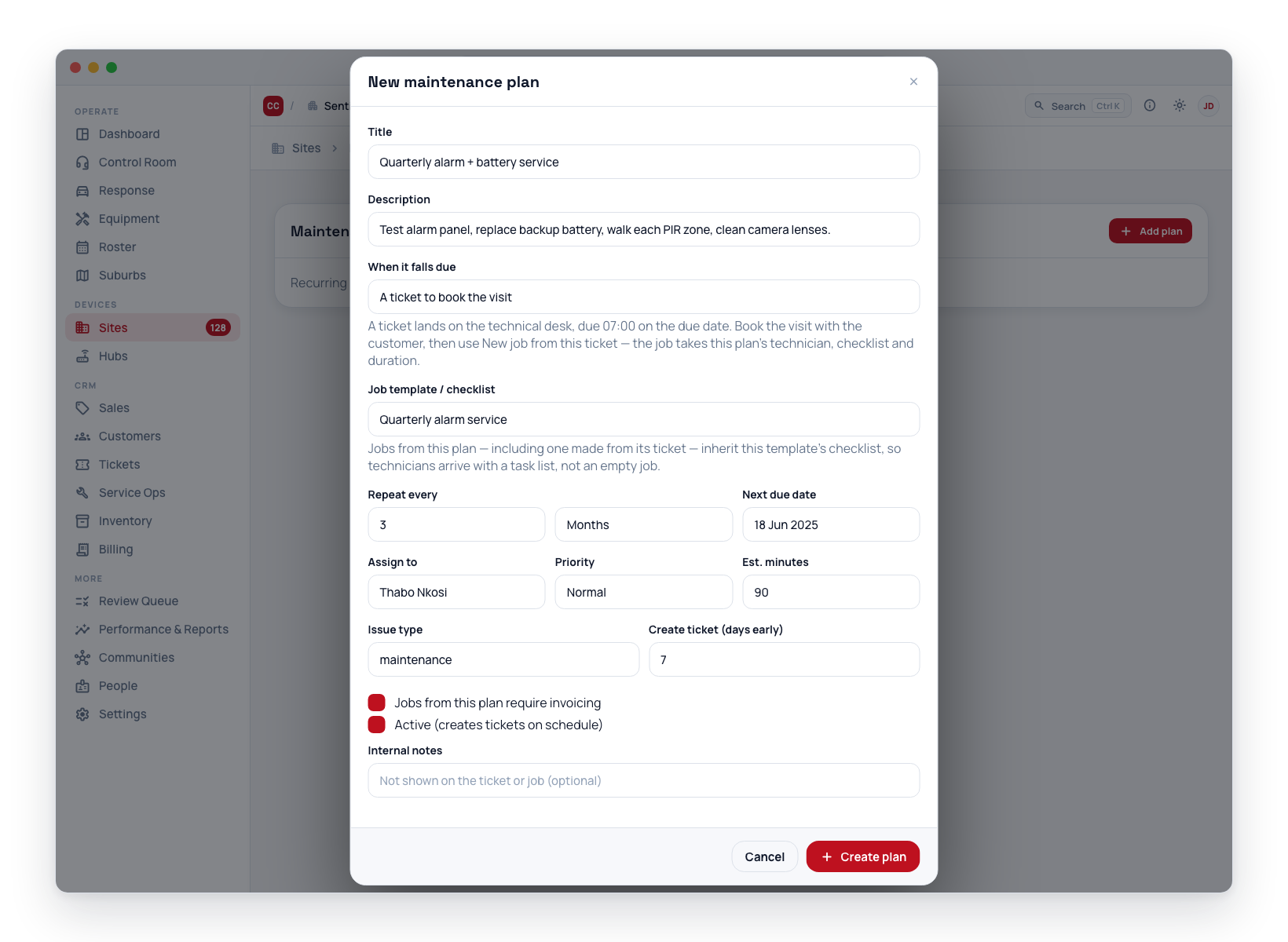
- Fill in:
- Title — becomes the ticket's subject and the job's title, e.g. "Quarterly alarm + battery service".
- Description — what the technician should do on each visit (copied onto every job, and into the ticket).
- When it falls due — what the plan makes (see What happens when a plan falls due):
- A ticket to book the visit — the default for a new plan.
- The job, booked for the morning.
- Job template / checklist — the template whose checklist every job from this plan starts with, including a job made from the plan's ticket. Choose No template — generate a bare job to skip it.
- Repeat every — a number and a unit (weeks / months / years). "3 months" = quarterly, "1 year" = annual.
- Next due date — when the next visit is due. After each run this rolls forward automatically.
- Assign to — a default technician for the job, or leave as Any technician to assign later.
- Priority and Est. minutes — carried onto the job.
- Issue type — defaults to
maintenance. - Create ticket (days early) / Create job (days early) — how many days before the due date the ticket or job is created, so there is time to arrange the visit. Leave at 0 to create it on the due date.
- Jobs from this plan require invoicing — tick if each visit should be billable.
- Active — untick to pause the plan without deleting it.
- Click Create plan.
Plans that existed before tickets were an option keep booking jobs. To switch one, open it and change When it falls due.
What happens when a plan falls due
A scheduled task runs once a day. For every active plan whose next due date has arrived (allowing for the days-early lead time), it makes the plan's ticket or job and rolls the plan's Next due date forward to the next occurrence.
A ticket to book the visit
The ticket asks the office to arrange the visit before anyone is sent:
- It is a Task on the Technical desk, attached to the site, with the plan's title as its subject and a Plan source chip.
- It is due at 07:00 on the due date, so it sits in the open tickets until then and turns overdue on the day if nobody has booked the visit.
- Its body names the due date and repeats the plan's description.
Book the visit with the customer, then use Convert ▾ → New job from this ticket. For a plan's ticket, the new job is built from the plan: its title, description, technician, duration, invoicing setting and template checklist all come across, and the job stays linked to the plan. The job lands in the ticket's due slot. The customer hears only the part of the day — morning before 12:00, afternoon until 17:00, evening after — never the o'clock, because a ticket's due time is not an agreed appointment. The job opens straight away so you can set the real time. See Convert or link from a ticket.
If the plan has since been deleted, New job from this ticket works as it does for any other ticket.
The job, booked for the morning
The job is created Scheduled for 07:00 on the due date, with How firm is this time? set to Morning:
- The office sees 07:00 in Service jobs, on the Schedule board and in CleverTech.
- The customer is told "morning", never the time — in appointment reminders, schedule notices, automation messages and the CleverAlert app.
The plan's technician, checklist, duration and invoicing setting are copied onto the job. Move it like any other job when you agree a time with the customer.
Missed cycles and duplicates
If a plan has been paused or dormant for a long time, the task makes a single catch-up ticket or job and resyncs the next due date to the next future occurrence — it never floods the board with one per missed cycle. It also never makes a second ticket or job for a due date that already has one, even if you switch the plan between tickets and jobs.
Generate a visit now
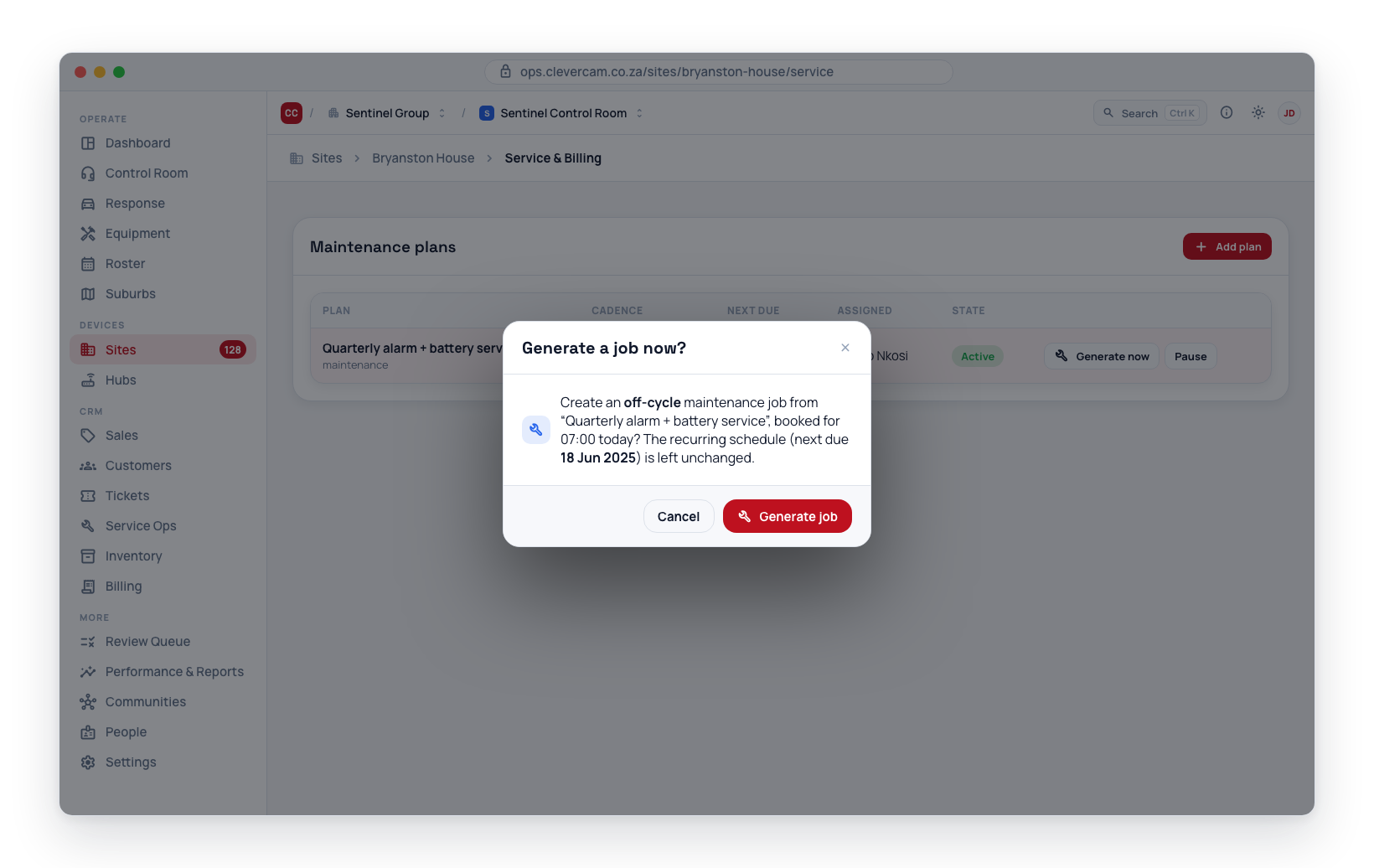
Need an off-cycle visit? Click Generate now on a plan's row. It makes the plan's ticket or job for today — a ticket due at 07:00 today, or a job booked for 07:00 today with the customer told "morning" — without changing the recurring schedule. The next scheduled visit still lands on its normal date.
Pause, resume, delete
- Pause / Resume — toggles whether the daily task makes tickets or jobs for the plan. Paused plans stay in the list.
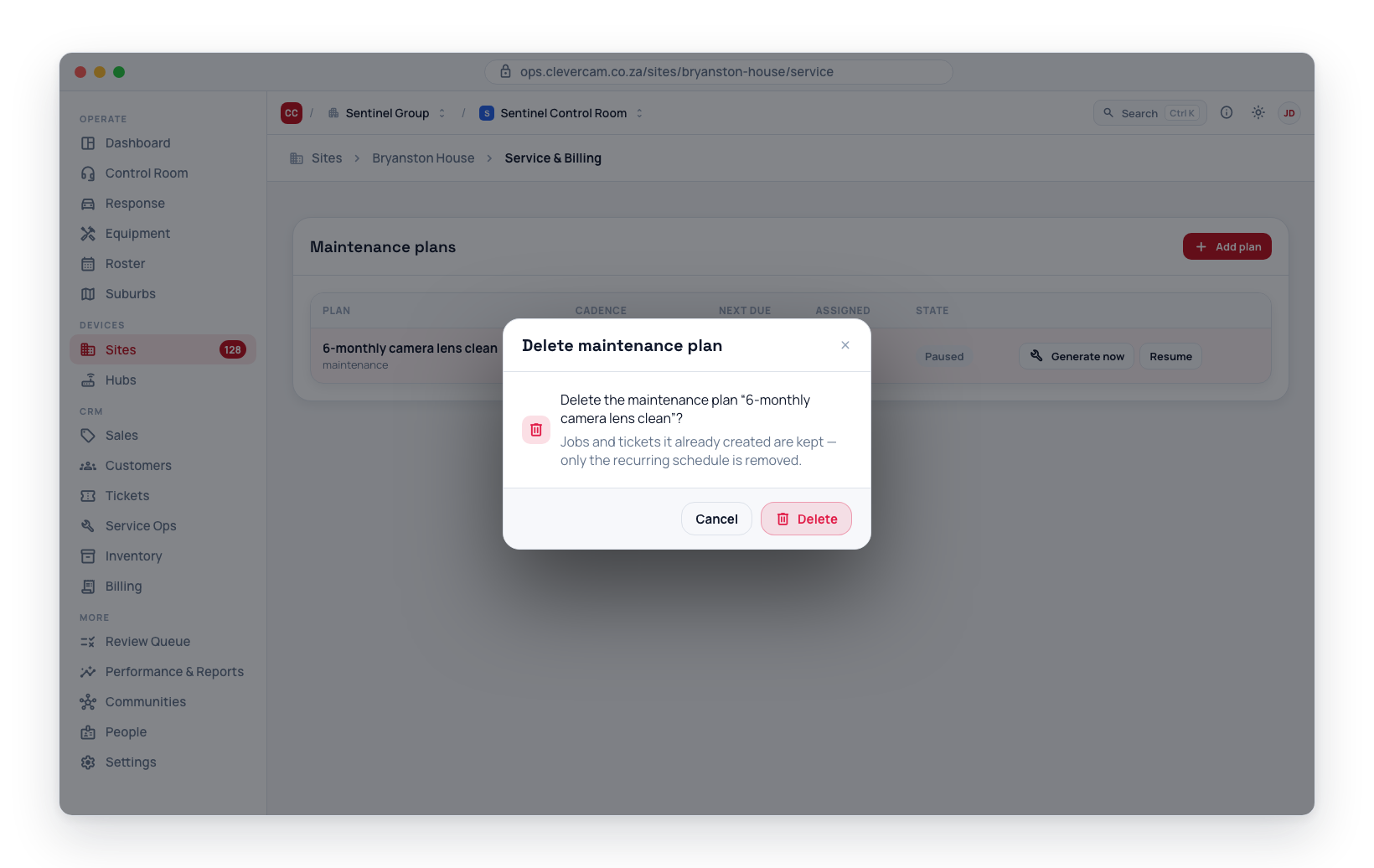
- Delete — open the plan (click its row) and use Delete plan in the Danger zone at the bottom. It removes the plan; jobs and tickets it already created are kept.
Permissions
- Viewing plans: any team member with access to your company.
- Creating, editing, pausing, generating, and deleting plans: requires service management access.