Subscriptions
A subscription links a plan to a site (the primary attachment) — or directly to a customer with no site — with per-site pricing, a billing schedule, and a lifecycle status. The monthly billing run works through every active subscription and generates invoice charges from it.
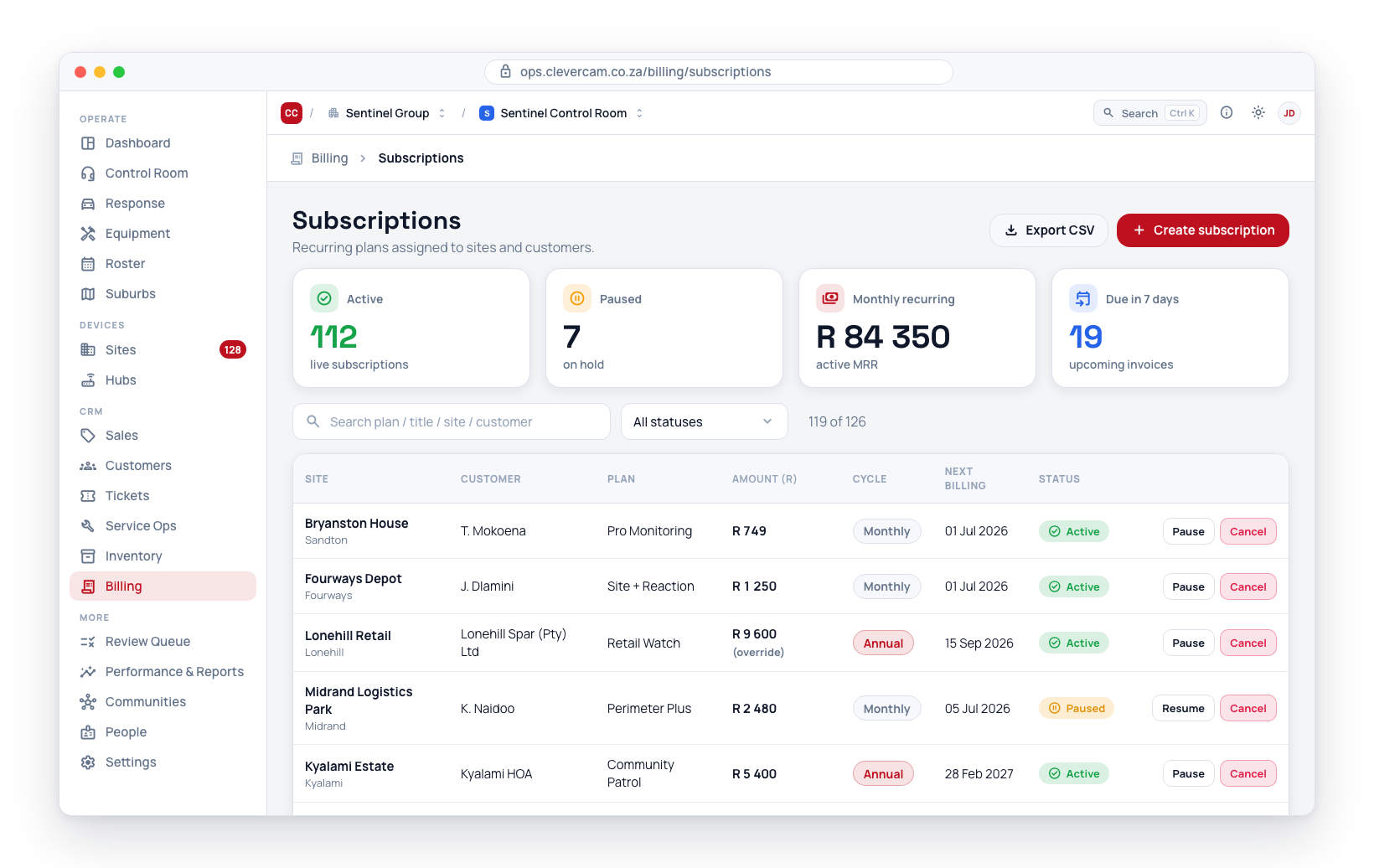
Navigate to Billing → Subscriptions. Subscriptions also appear on each site's Service tab and each customer's Billing tab, where a Quick add strip lets you attach a plan in two clicks — see Create a subscription.
A subscription can carry a recurring Discount (%) (in Pricing & cycle) that the monthly billing run applies to every invoice line it generates. See Billing → Config.
Subscription fields
| Field | Purpose |
|---|---|
| Site (primary) | Which site this subscription covers — search matches the site name or address. Leave empty (with a customer selected) for a customer-level subscription billed to the account with no site scope |
| Customer | The party being billed — adopted automatically from the site's owning customer when that customer belongs to your control room (a site you share with another control room can be on their customer, which is never picked up, and a subscription carrying another control room's customer won't save). Picking a customer first narrows the Site list to that customer's sites (plus sites with no customer of yours). Required when no site is selected. To bill a different party, link the site to that customer on the customer's record first. A site subscription saved with no customer bills the site's customer at each run — only when that customer belongs to your control room (how a batch is built). |
| Plan | Which billing plan applies (required) — the picker shows each plan's price basis, e.g. "R 50.00 / camera (min 4) · Monthly" |
| Title | Optional custom description for this line on generated invoices |
| Override price | A custom price for this site, overriding the plan's default price. For per-camera / per-hub / per-unit plans this overrides the per-unit price. The label says whether you are typing incl. or excl. VAT, following your control room's VAT display setting — and when it says incl., the amount you type is what the customer is billed, to the cent |
| Billed quantity | Non-flat plans only — leave blank to count cameras/hubs live at every billing run, or set a number to pin the quantity (a pinned quantity beats both the live count and the plan minimum) |
| Cycle | Override the plan's billing cycle for this subscription only |
| Status | Active / Paused / Cancelled |
| Start date | When the subscription began |
| Next invoice date | The next date this subscription will be included in a billing batch. When the control room has a billing day (Config → Billing run) the form fills this with the next billing day on or after the start date, and the time from the start date to the first full period is billed on that first invoice; type a date to override |
| Billing timing | Which period each bill is for — Control room default, In advance (the period ahead) or In arrears (the period behind). Printed on the invoice line ("October 2026") |
| Last invoice date | The date this subscription was last included in a billing run (updated automatically) |
| Ends after (cycles) | Bill this many cycles, then complete automatically (the form shows "Billed X of N" while it runs). Pre-filled from the plan's own term when the plan defines one; blank = runs until cancelled |
| End date | When the subscription ends. The last invoice is the one for the period this date falls in; the subscription then completes on its own, exactly like Ends after (cycles). Periods bill whole — an end date part-way through one does not pro-rata it down, and the Subscription endings card is where you settle the over-billed part with a credit note. In arrears the invoice raised on 1 October covers September, so an end date of 30 September still bills it |
| Pause until | A temporary pause — the subscription automatically becomes active again on this date |
| Yearly increase % | An annual price increase applied on each anniversary of the start date — defaults to 0 |
| Collection day of month | The day the debit order collects — see Debit orders. It does not move the invoice date |
| Invoice due days | How many days after issue the invoice is due (default 30) |
| First invoice | How the partial period between the start date and the first full period is charged — full / pro-rata / free. Defaults to the control room's onboarding policy; set here to override for this one account |
| Payment method | Preferred method: EFT / Card / Cash / Debit order / Account credit |
| Notes | Internal notes |
Statuses
| Status | Billing behaviour |
|---|---|
| Active | Included in a billing batch when the next invoice date is on or before the batch date |
| Paused | Skipped in billing runs. Set a Pause until date to resume automatically |
| Cancelled | Permanently skipped. Kept for your records — do not delete cancelled subscriptions |
Create a subscription
The fast way — Quick add from a site or customer. Open the site's Service tab (or the customer's Billing tab). Above the subscriptions list, a Quick add strip shows every active plan the site/customer doesn't have yet, with its price basis (e.g. "+ Camera monitoring · R 50.00 / camera (min 4) · Monthly"). Click a chip — the form opens pre-filled with the plan, today's dates, and the site plus its owning customer if it is one of yours (from a site page) or the customer (from a customer page). Review, then click Create subscription. Two clicks total.
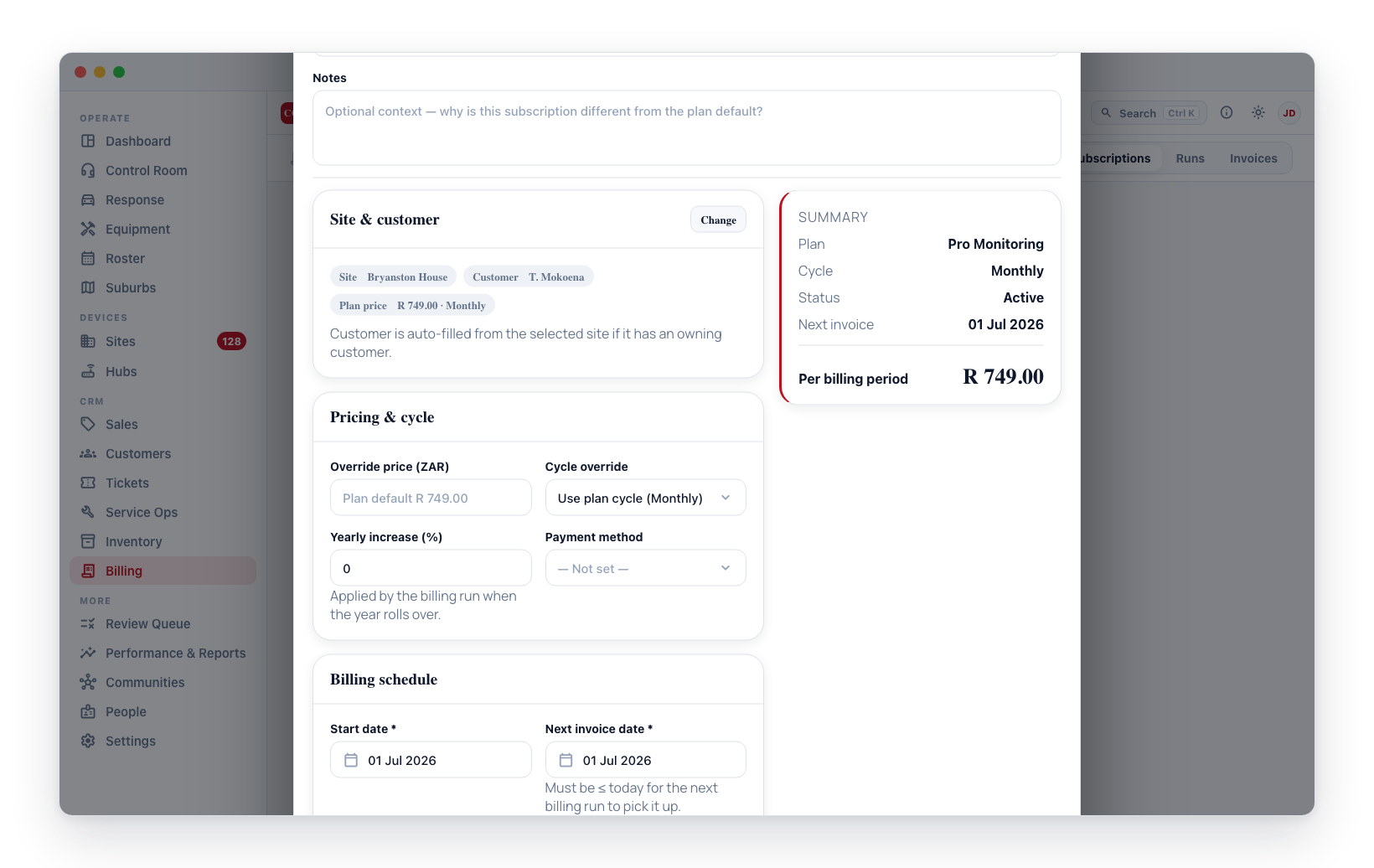
The full form — from Billing → Subscriptions:
- Navigate to Billing → Subscriptions.
- Click Add subscription in the top-right. The Plan, Site and Customer pickers are all visible immediately.
- Pick a Plan — the picker shows each plan's price and basis.
- Pick a Site — you can search by site name, full address or the owning customer's name/account number; each result shows the full address and the owning customer, and picking one fills the customer in automatically from the site record. A shared site that belongs to another control room's customer reads customer of another control room and fills in nothing — pick your own customer for it. (Picking the customer first works too — the site list then narrows to that customer's sites. The customer search also matches account numbers, contact names, phone numbers and emails.) For a customer-level subscription, leave the site empty and pick just the customer.
- For per-camera / per-hub plans the form shows the live device count — e.g. "9 cameras detected at this site → billing 9 cameras × R 50.00" — and a Billed quantity field to pin an exact quantity if you don't want the automatic count.
- Optionally set a custom price and/or a different billing cycle.
- Set the Start date. The Next invoice date follows it onto the control room's billing day (or equals it when the control room bills on anniversaries); change it by hand if you need to.
- Optionally set the billing timing, a collection day and invoice due days.
- Click Create subscription — the summary card on the right shows the exact per-period amount (quantity × unit price, less any discount).
To see what will be charged before the billing day, create a draft batch on the Billing → Runs tab — drafts have no number and change nothing until issued.
Billed quantity
For plans with a non-flat billing basis, the charge is quantity × unit price:
- Automatic (default) — the billing run counts the site's enabled cameras (or linked hubs) live at run time, and never bills fewer than the plan's minimum. Cameras added or removed are picked up at the next run with no subscription edit.
- Customer-level subscriptions count devices across all the customer's sites.
- Pinned — set the subscription's Billed quantity to charge an exact number regardless of the live count or minimum. The subscriptions list marks these "(pinned)".
The subscriptions list shows the effective amount with its breakdown (e.g. "R 450.00 — 9 cameras × R 50.00"), and the invoice line records the quantity and unit price, so the customer sees exactly what was counted.
Edit a subscription
Click any row. Every change is recorded in the subscription's history, including what changed, who made the change, and an optional note explaining why.
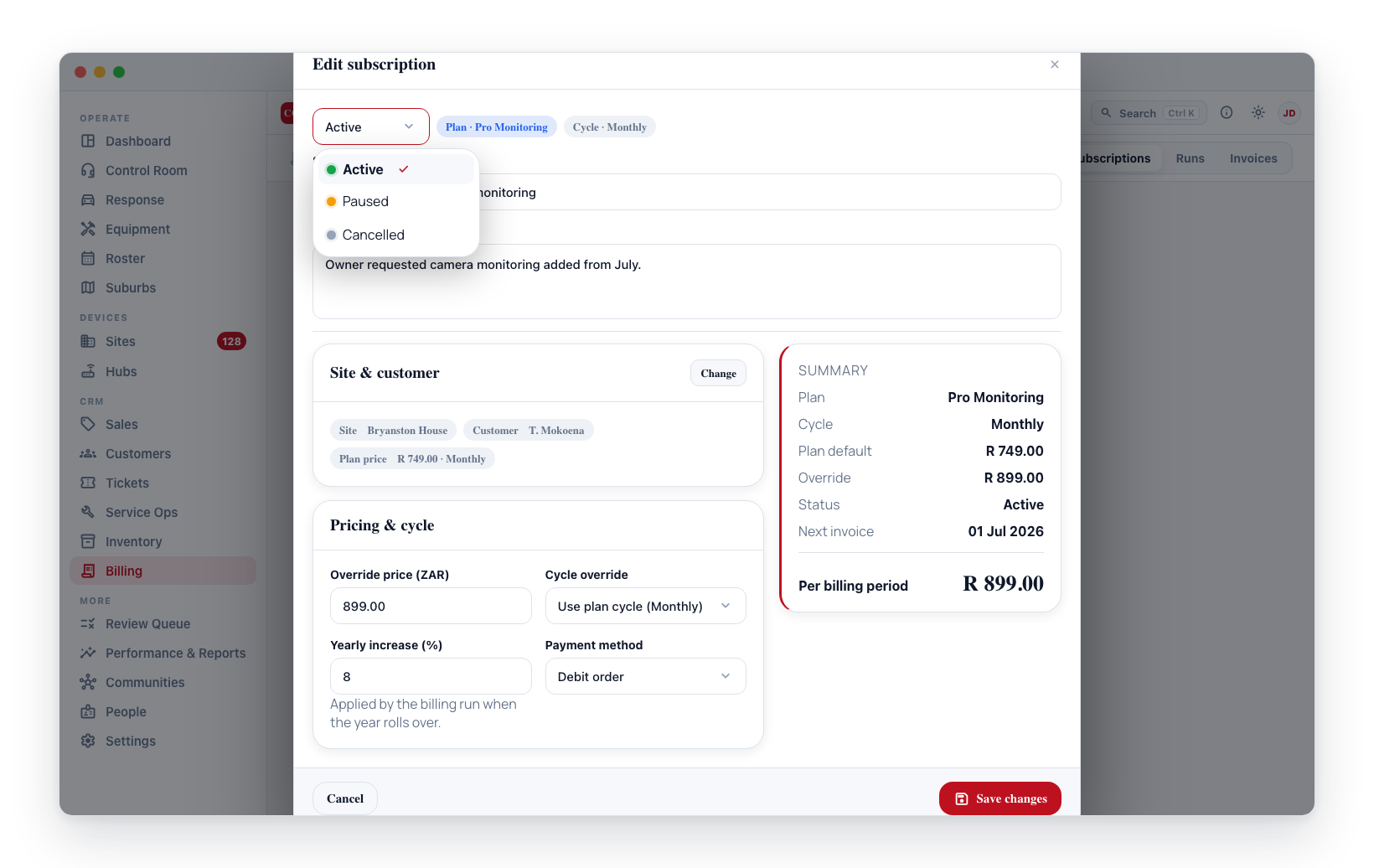
View the full history by opening the subscription's edit form and scrolling to the History tab at the bottom.
Pause and resume
To pause a subscription:
- Open the subscription.
- Set Status to Paused.
- Optionally set a Pause until date — when that date passes, the subscription automatically becomes active again.
If you leave Pause until blank, the pause stays in effect until you manually resume it.
Cancel
Set Status to Cancelled and optionally set an End date. Cancellation is permanent — if there is a chance you will resume, use Paused instead. Cancelled subscriptions keep all their history and are simply skipped in future billing runs.
Yearly price increase
Set a Yearly increase % on the subscription. On each anniversary of the start date, the charge for that billing cycle is increased by that percentage. For example:
- An 8% increase on a R 550 subscription gives R 594 after year one, then R 641.52 after year two, and so on.
The increase is applied when the invoice is generated, not on the anniversary date itself.
The subscriptions list
The tab opens on your Active subscriptions, sorted by their title, fifty to a page. The four tiles above the list (Active, Paused, Monthly recurring, Due in 7 days) count the whole book whatever the list is filtered to; clicking Active or Paused filters the list to that status.
Search matches the title a row shows (the custom title, else the plan's name), the site name and the customer name — so typing a customer's name finds every subscription billed to them, and typing a plan's name finds every subscription on that plan even where no custom title was ever set. The status and plan dropdowns narrow the list further. Searching, filtering, sorting and paging are all done by the server across your whole book, not the fifty rows on screen.
Choosing your columns
Columns ▾, in the filter bar, is where you decide which columns the list shows — tick a column to bring it in, untick it to hide it. The button says how many are currently hidden. Plan / Title is listed too, ticked and greyed with always beside it: it cannot go.
Put them in the order you read them. The ↑ and ↓ beside each column in Columns ▾ move it one place; a heading's own menu (the small ▾ that appears when you hover a heading) has Move left and Move right for the same thing.
Your choice is yours alone and it follows you. Columns, their order and the sort are saved against your login, not the browser, so the list looks the same on the control-room machine and on your laptop, and changing it does not touch what your colleagues see. Reset to default view puts everything back.
The list starts with these columns on:
- Plan / Title — the custom title, with the plan's name beside it when the two differ; the plan's name alone when no title was set (always shown)
- Customer — the account being billed
- Site — the site the subscription covers, or Customer-level for one billed to the account with no site
- Amount — the per-period amount the billing run charges, on your control room's VAT axis (the heading says incl. or excl.); per-device plans show the breakdown ("9 cameras × R 50.00", "(pinned)" when the quantity is fixed), and a flat plan with a custom price says "(custom)"
- Cycle — Monthly, Quarterly, Annual or Once-off (the subscription's own, else the plan's)
- Status — Active, Paused or Cancelled
- Next invoice — the next date a billing run will include it
- Start — when the subscription began
Every other column starts switched off:
- End — the end date, or Open-ended
- Last invoice — the date a billing run last included it, or Never
- Created — when the subscription record was created
- Plan — the plan on its own, apart from any custom title
- Price — Plan when the row bills the plan's default price, Custom when a price was set on the subscription
- Discount — the recurring discount percentage, when there is one
- Payment method — the preferred method on the subscription (EFT, Card, Cash, Debit order, Account credit)
- Notes — the internal notes, on one line; hover for the whole text
Sorting the list
Click a column heading to sort by it; click it again to reverse. An arrow marks the column the list is sorted on. The heading's ▾ menu offers the two directions by name — A → Z / Z → A for text, Largest first / Smallest first for the amount, Newest first / Oldest first for past dates and Soonest first / Furthest first for dates ahead — so you never have to click twice to get the one you meant.
These headings sort: Plan / Title (the default), Customer, Site, Amount, Cycle, Status, Next invoice, Start, End, Last invoice, Created and Plan. The amount sort orders on the ex-VAT figure the billing run charges (quantity × unit price, less the discount), which is the same order as the figure on screen. Like your columns, the sort is saved against your login.
Price, Discount, Payment method and Notes are not sortable; their menu says so.
Filtering from a column
A column's ▾ menu is also where its filter lives. Pick a value and the whole book is filtered; the heading's ▾ turns solid while a filter is set, and a chip naming the filter appears in the filter bar — even if you later hide the column — with × to clear it. Clear filters clears these along with the search and the plan dropdown (the status choice stays, since the tiles set it).
- Site — Attached to a site or Customer-level (no site)
- Cycle — Monthly, Quarterly, Annual or Once-off
- End — Ends within 30 days, Has an end date or Open-ended
- Last invoice — Invoiced this month, Last invoiced before this month or Never invoiced
- Price — Plan price or Custom price
- Payment method — one of the five methods, or Not set
The Status column reaches the same filter as the status dropdown, and the Plan / Title and Plan columns reach the plan dropdown, from their heading. Column filters are session-scoped — they clear when you leave the page.
Export CSV
Export CSV, at the top of the tab, downloads every subscription matching the current search, filters and sort — not just the page on screen — with the columns you have showing, in your order (Plan / Title is always first). The Amount column exports as three spreadsheet columns — unit price, quantity and amount — as plain numbers so they can be summed; dates are ISO. A very large export stops at 20 000 rows and says so; narrow the filters to export the rest.
Bulk actions
Tick the checkbox on one or more subscription rows to reveal a bulk action bar above the list (billing management access required). The header checkbox selects or clears every subscription on the current page, and the selection clears when you change a filter or move to another page — so a bulk action only ever applies to subscriptions you can currently see. From the bar you can:
- Increase price — raise the price of the selected subscriptions by a percentage. This sets a custom (override) price on each — its current price plus the percentage — and does not change the underlying plan's default price. The increase is applied to the price on the axis it was agreed on, so a subscription priced including VAT stays on a clean inclusive figure afterwards.
- Pause / Resume / Cancel — change the status of the selected subscriptions in one step (Resume returns them to Active). Paused and cancelled subscriptions are skipped in billing runs.
Every bulk change is written to each subscription's history, just like an individual edit.
Export CSV (at the top of the tab) is separate from selection — see Export CSV above.
Service agreement (contract)
A customer's subscriptions are their contract: CleverOps has no separate contract record — the customer is the contracting party, and each active subscription is a service on the agreement. On a customer's Billing tab, the Subscriptions card has a Service agreement button (with a Download option beside it) that generates a branded PDF of the whole agreement from live data:
- a Schedule of Services — one line per active subscription, each showing its site (or "Account-wide"), cycle, billed quantity and the effective (discount-applied) price for its period;
- an indicative monthly value that normalises quarterly and annual services to a month and excludes once-off charges (each service still bills on its own cycle);
- your standing clauses — preamble, escalation, payment, cancellation/notice and general terms;
- a Schedule of Amendments — every change ever made to the services on the account, taken from the subscription history; and
- an acceptance / signature block.
Because the schedule is drawn from the live subscriptions at the moment you generate it, the printed agreement can never disagree with what the monthly billing run actually charges.
Send it to the customer. Next to the preview/download buttons is Send, which messages the customer a secure portal link (WhatsApp first, SMS fallback) to view and download their agreement — the same branded PDF, one tap away. The link is addressed to the customer and expires after 30 days.
Get it signed. The Sign button sends the customer a secure link to sign the agreement electronically: they read it, verify a one-time code, and sign. You get the signed PDF back with a certificate page (signer, verified contact, timestamp, IP and document hash). The customer signs a snapshot — the bytes are hashed and re-checked before signing, so a later subscription change can't alter what they agreed to.
By default the link and code go by email. To also allow SMS / WhatsApp signing (link and code to the customer's mobile), turn on Allow signing by SMS/WhatsApp under Billing → Config → Documents → Service agreement; the Sign dialog then shows a channel picker and offers the numbers on file. WhatsApp uses the same cascade and falls back to SMS until its template is approved.
Custom clauses. Beyond the six named clauses, add your own blocks under Billing → Config → Documents → Service agreement → Additional clauses — e.g. a + Netcash mandate debit-order clause with the exact wording your collection program requires. They print after the named clauses, with the same placeholders.
Annual escalations don't need re-signing. An agreed annual escalation (the subscription's yearly increase) is applied automatically by the monthly billing run on each anniversary — it's covered by the signed Escalation clause and needs no new signature. Use the Amend contract flow only for changes beyond the agreed escalation (a new service, a discretionary price change, a cancellation).
The clause wording is a per-VCR template you edit once under Billing → Config → Documents → Service agreement (preamble, escalation, payment, cancellation/notice, general terms and a signature note). It supports simple placeholders — {{customer_name}}, {{account_number}}, {{vcr_name}} — filled in per customer, and a Load SA default button drops in an editable South African armed-response starting point. Leave a clause blank to omit it; with no template set, the agreement still renders (just the schedule and amounts, no standing clauses). The Service agreement button appears only for accounts that have at least one subscription, and generating one requires billing management access.
Amend the contract (customer approval)
Adding a service directly with Add subscription takes effect immediately. When you want the customer to approve the change first — for example adding an SMS-notification bundle or an extra site's monitoring — use Amend contract on the customer's Subscriptions card instead.
- Click Amend contract. A quote opens already scoped to this customer, headed "Contract amendment".
- Add the changes as subscription lines. Each subscription line has an amendment action (shown only when the customer already has active subscriptions):
- New service — add a new subscription (linked to a plan, with a billing cycle).
- Change price of… — pick one of the customer's existing subscriptions; the line prefills with its current price, and the price you enter becomes the new one.
- Cancel… — pick an existing subscription to end (price and quantity are ignored).
- Send the quote to the customer the usual way. They review and accept it in the portal — the amendment does not touch the contract until they do.
- Once the quote is accepted, open it and use Start subscriptions — new-service lines become active subscriptions, change lines update the target's price/cycle, and cancel lines end their subscription. Every change is written to the subscription's history and appears in the Schedule of Amendments on the service agreement. Running it twice is safe — already-applied lines are skipped.
You can still make these changes directly on a subscription without a quote (see Edit a subscription and Cancel) when no customer sign-off is needed; the amendment lane is for when it is.
Permissions
All create, edit, and delete actions require billing management access.
Next steps
- Monthly billing run — how subscriptions turn into invoices.
- Invoices — review, edit, send, and mark invoices as paid.