Search
CleverOps has one search that covers the whole control room. You do not have to know which page a thing lives on, or even what kind of record it is — type what you remember and it finds the record.
It matches far more than names. A street, the account code off a bank statement, the phone number that just rang, an invoice or job number, a VAT number, a company reference — all of them find their record.
Two ways in
The quick switcher — press Ctrl+K (Cmd+K on Mac) anywhere, or click Search in the top bar. Best when you know roughly what you want and just need to get there: it shows the top few matches per type, plus every page you can open. Arrow keys move, Enter opens, Esc closes.
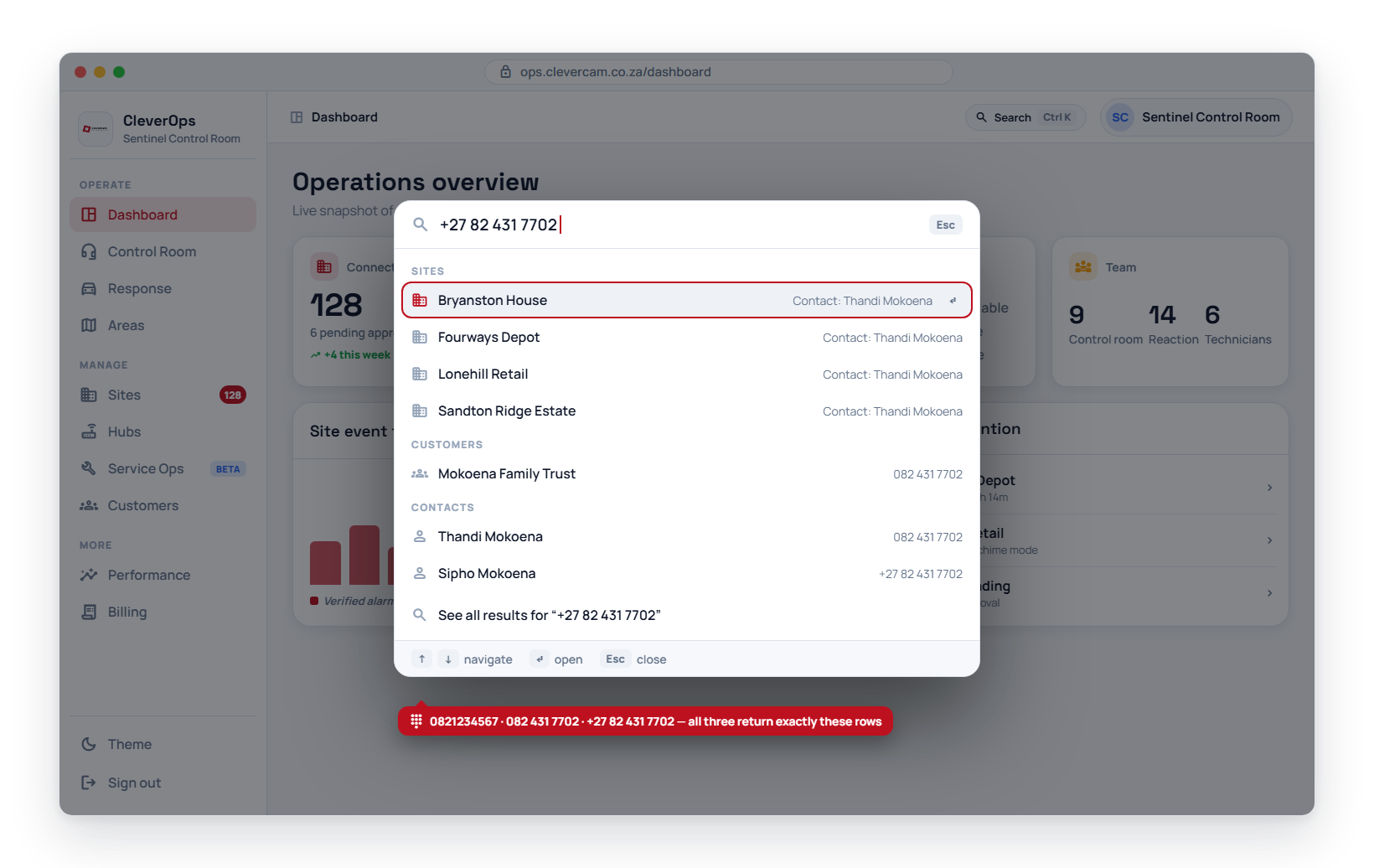
The Search page — the See all results row at the bottom of the quick switcher opens it, or go straight to it. Best when you want to see everything that mentions something. It shows up to 50 matches per type with filter chips across the top so you can narrow to just Sites, just Contacts, and so on.
What it searches
| Type | Matched on |
|---|---|
| Sites | Site name, full address, your company reference, monitoring / responder / site notes, and the names and phone numbers of the people connected to the site — app users and offline keyholders (their call-list name and number) |
| Customers | Name, legal name, account number, legacy customer code, billing contact, billing email, billing phone, billing address, VAT number, registration number, identity number |
| Contacts | Name, role, email, phone and alternate phone |
| Hubs | Serial, label, and any radio / panel identifier bound to the hub — the alarm account code (also Ajax and FOX account numbers), IMEI, Olarm UUID and similar device IDs. The result tag reads Account 8282 when the account code is what matched |
| Invoices | Invoice number, reference, description, customer name |
| Quotes | Quote number, heading, reason for quote, customer name |
| Jobs | Job number, title, description, customer name |
| Tickets | Subject, body, contact name, contact email |
| Leads | Name, company, contact name, contact email, contact phone — deals in the archive, won ones included, are left out |
Customers, contacts, invoices, quotes, jobs, tickets and leads only appear for control rooms with the CRM module enabled.
Phone numbers
Phone matching ignores formatting and country prefix — it compares the last nine digits. Typing 0821234567, +27 82 123 4567 or 82 123 4567 all find the same person. This is the fastest way to answer "who is calling me": type the number and the search returns the contact, their customer, and every site they are a keyholder on.
Identity numbers
A customer's identity number is searchable, but the search never displays it. A match on it is labelled simply ID number.
Why each result matched
Every result carries a small tag on the right saying why it came up — Address, Account GROB011, Contact: James Grobbelaar, Monitoring notes, Billing address. When a search returns something surprising, that tag explains it, so a wide search stays readable instead of feeling random.
Results with no tag matched on the obvious thing: the record's own name or number.
Permissions
Search only ever returns what you could already reach. Each record type is gated on the same permissions that decide whether its area shows in the sidebar, and CRM types additionally require the CRM module. A team member scoped to fewer areas simply sees fewer groups of results — never a denial message.
Limits
- Type at least two characters before records are searched.
- The quick switcher shows the top few matches per type; the Search page shows up to 50 per type. A type showing 50+ has more behind it — narrow the term to see them.
- Matching is "contains", not fuzzy:
malcolmfinds 314 Malcolm str, but a misspelling likemalcomwill not.