Create a Company
When you first sign up for CleverOps, you need to create a company profile before you can start managing sites and operations. The company is the top-level account that can have one or more Virtual Control Rooms (VCRs). This guide walks you through the initial setup process from sign-up to having a fully functional VCR ready for your team.
Prerequisites
Before you begin, make sure you have:
- A valid email address for account registration
- Your company name
- An idea of which South African provinces your operation covers
Step-by-Step Company Creation
1. Sign Up
- Navigate to the CleverOps sign-up page.
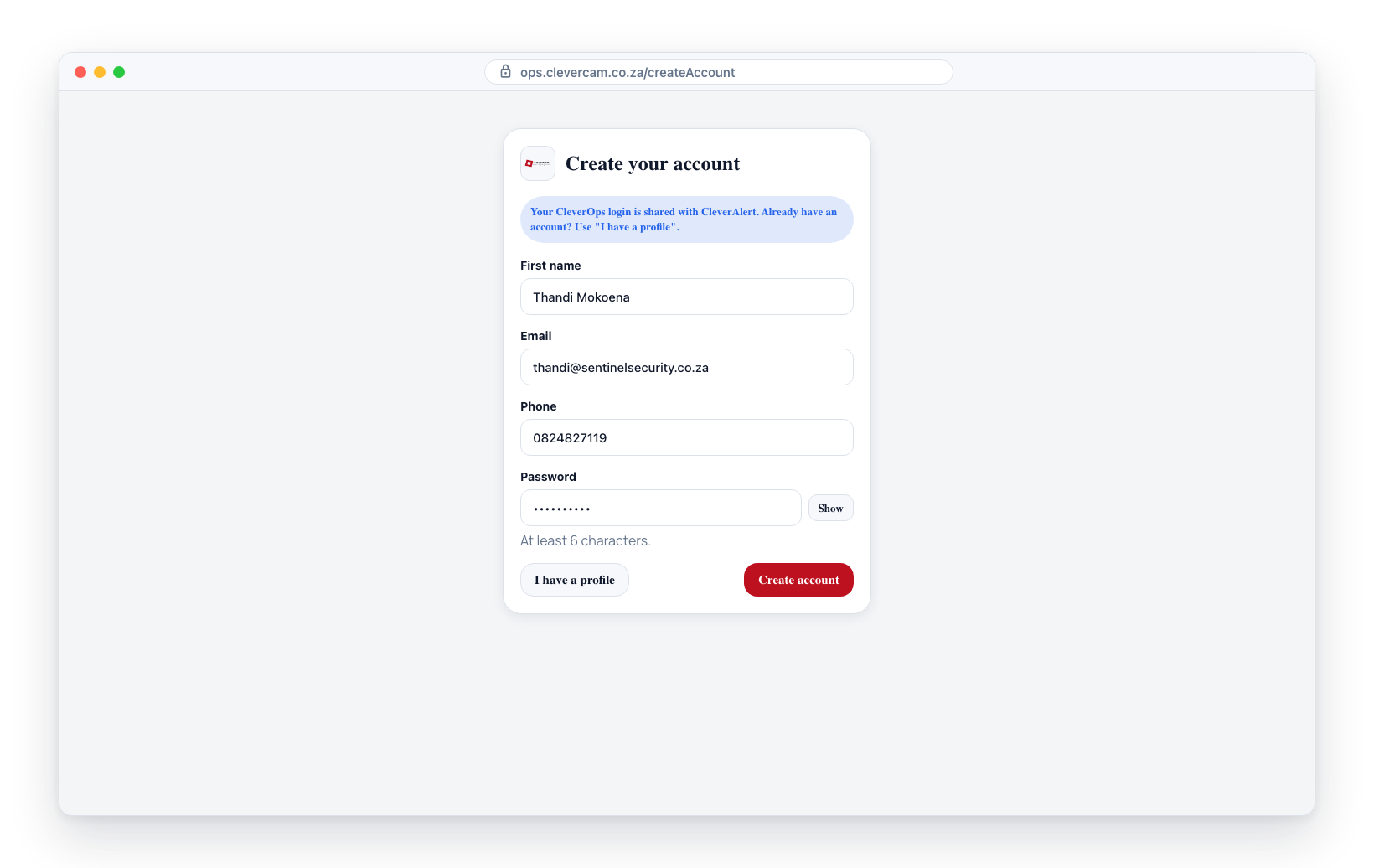
- Enter your first name, email address, phone number, and create a password. The phone field's country-code selector defaults to South Africa (+27) -- type your number with or without the leading 0 (it is dropped automatically, and the number is stored in international format).
- Click Create account. Your CleverOps login is shared with CleverAlert -- a banner on the page reads "Already use the CleverAlert app? Sign in with the same email and password." If you already have an account, click I already have an account to go to sign-in instead.
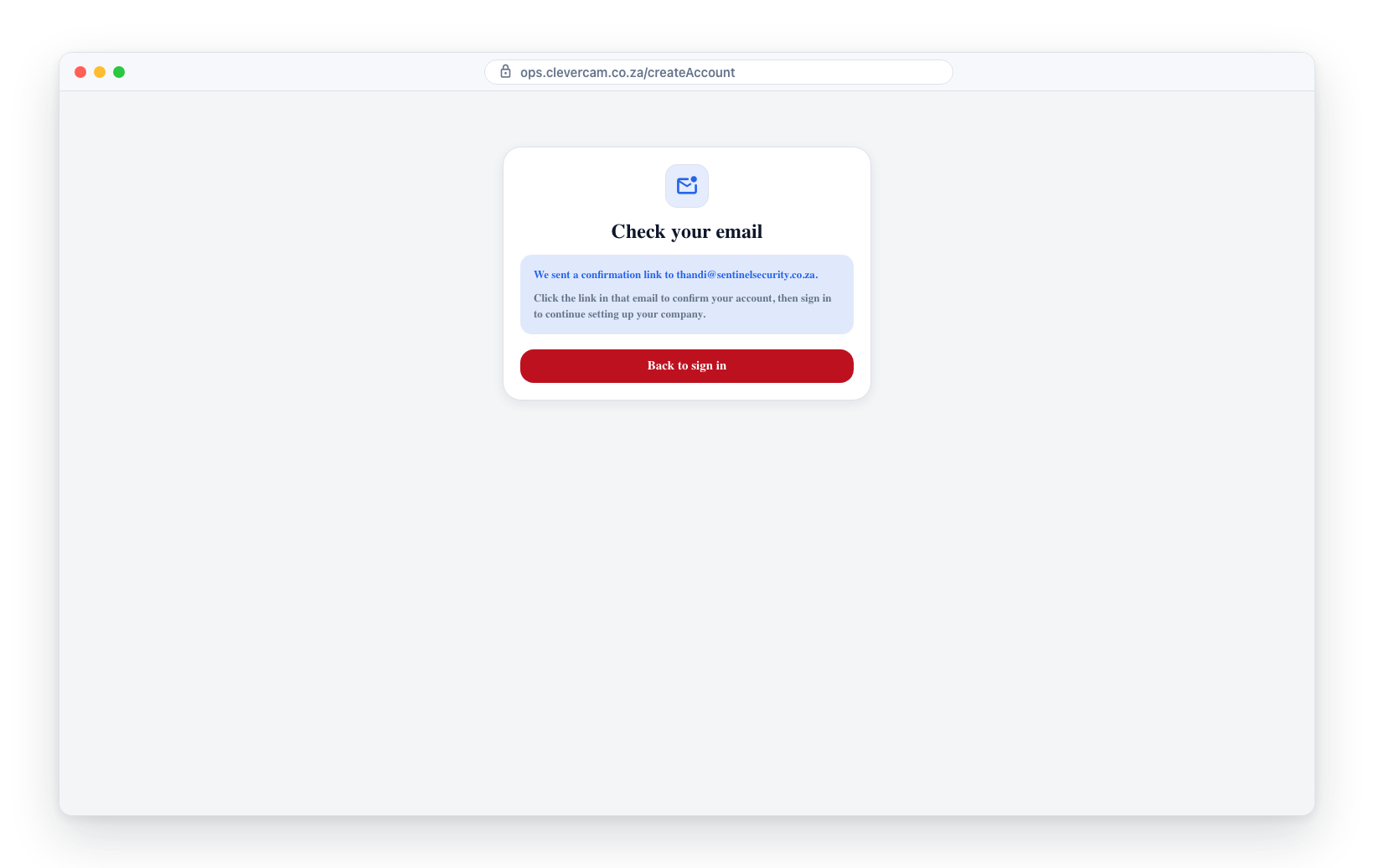
If your account requires email confirmation, CleverOps shows a Check your email screen instead of continuing straight to company setup. Open the confirmation link in your inbox, then return and sign in -- your company setup picks up from there. If you do not see the email, check your spam folder.
2. Create Your Company
After signing up, you are taken to the Create Company screen:
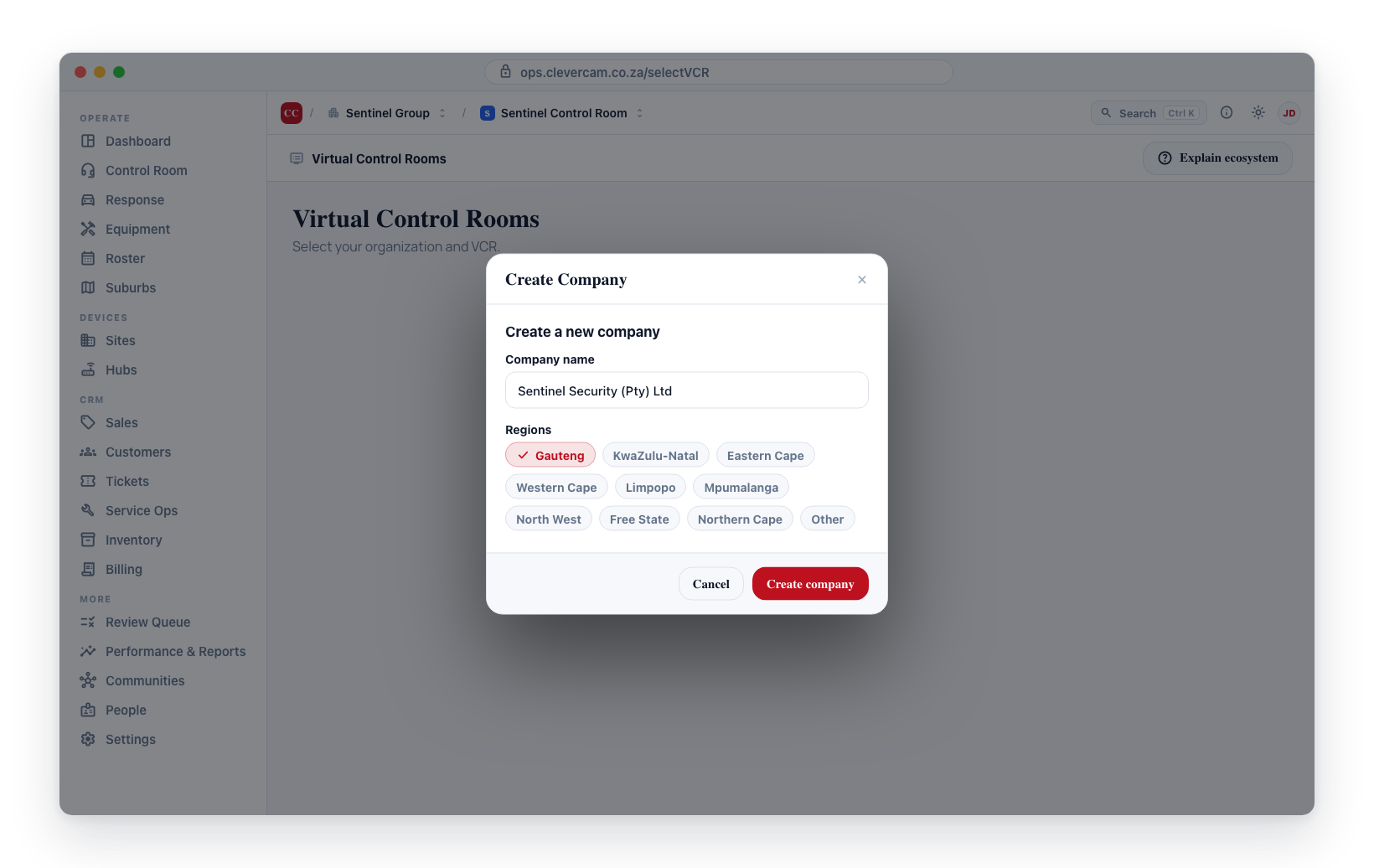
- Enter your company name -- this is the name of your security company.
- Select one or more provinces from the province chips (Gauteng, KwaZulu-Natal, Eastern Cape, Western Cape, Limpopo, Mpumalanga, North West, Free State, Northern Cape, or Other).
- Click Create company.
This automatically creates both your company and your first VCR (named after your company, set to the selected provinces). You are then taken to the VCR selection screen where you can select your new VCR and start working.
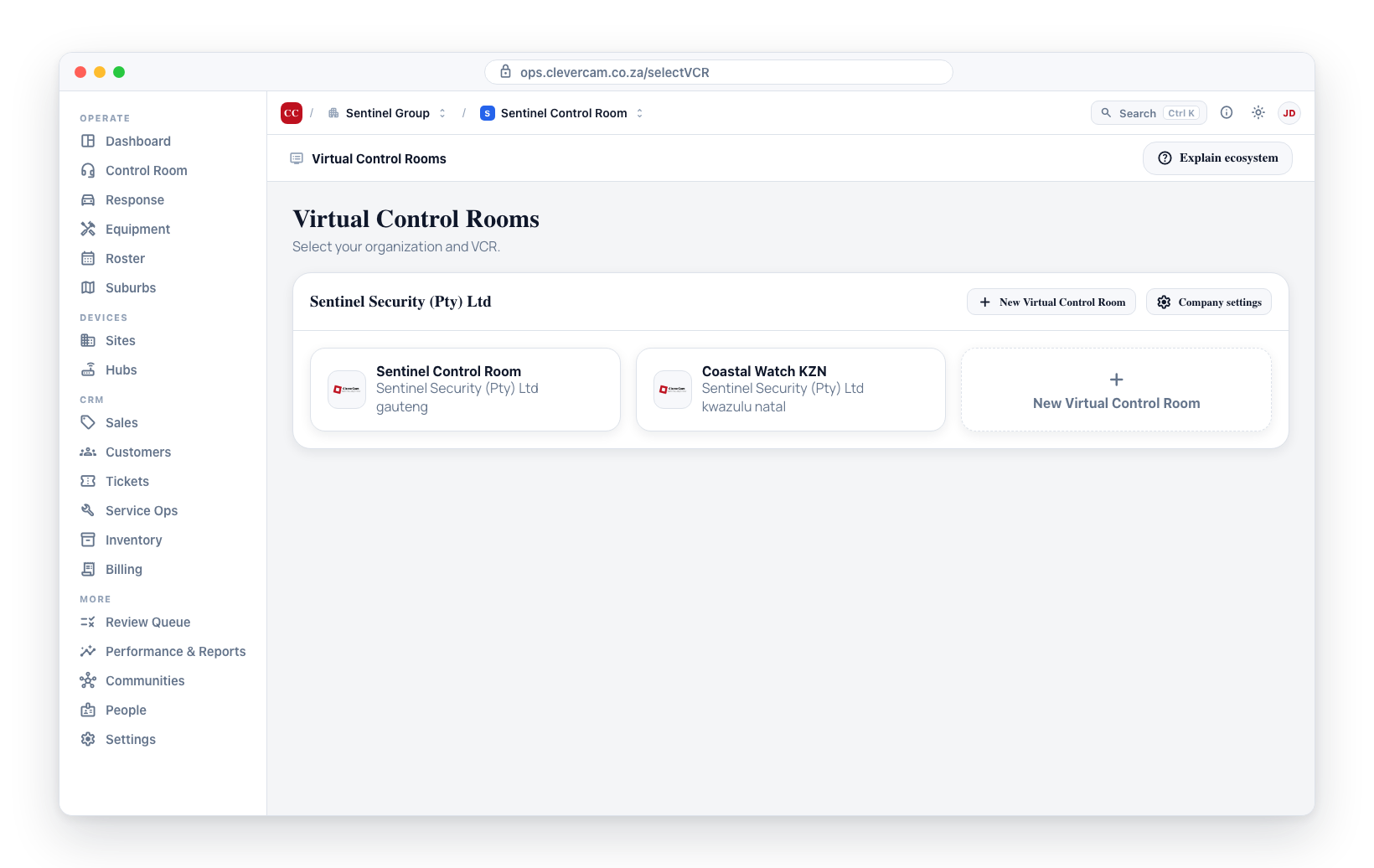
After completing the initial setup, you can start connecting sites, adding hubs, setting up your control room operators, and configuring response teams. See the Dashboard Overview to familiarize yourself with the main interface.
Multiple VCRs
As your company grows, you can create additional VCRs to represent separate operational units. Each VCR has its own independent set of sites, operators, response teams, and performance data. To add another VCR:
- Go to the Virtual Control Rooms screen (click the CleverOps logo or your company name in the top bar), or pick New Virtual Control Room directly from the VCR dropdown in the top bar. The screen explains: "A control room (VCR) is your monitoring workspace — one per control room or region."
- Click the New control room button next to the company you want to add it to.
- In the Create a control room dialog, enter the Control room name, pick its Provinces, and click Create control room.
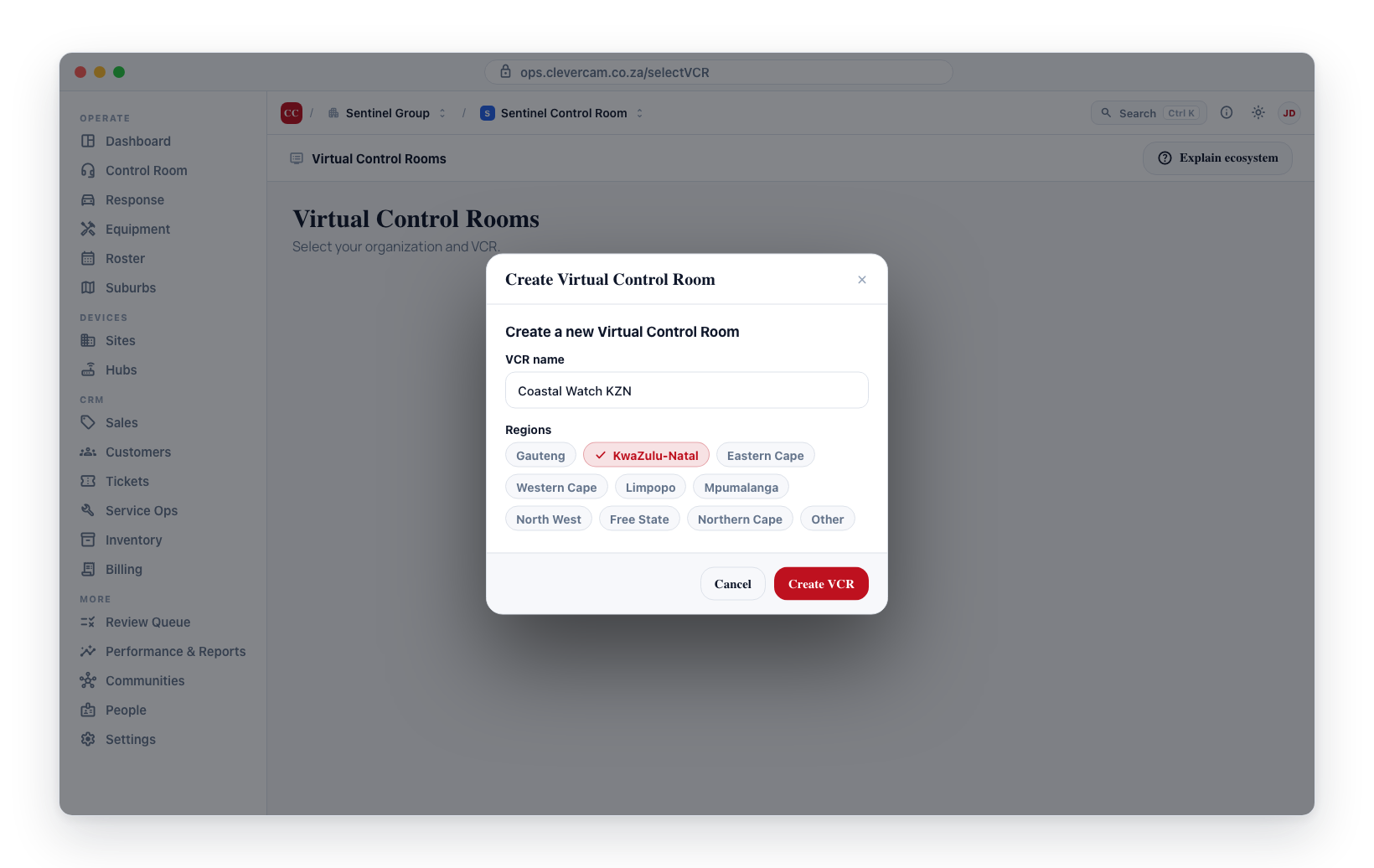
A common approach is to create one VCR per geographic region or per major client contract. This keeps operational data separated and allows you to assign dedicated teams to each VCR.