Tickets
Tickets are the universal "write something down" intake tool in CleverOps. Every time a customer calls in with a request, an operator spots something odd at a site, or a supervisor wants to follow up on a quote, it becomes a ticket. Tickets attach to a subject -- a site, a customer, a service job, or a quote -- so they surface wherever that record is being worked on. A ticket is the first touch-point for any issue: the tech coordinator then triages it into a service job or quote, or attaches it to existing work, so multiple inbound signals about the same thing don't spawn duplicate job cards.
Intake isn't desk-only, and neither is triage: every member of the field team has a Tickets door on the CleverTech app's landing screen, and behind it is this same Triage desk — the same queues, the same names, the same counts. Anybody can log a ticket from the field; coordinators get the whole book there, and everyone else gets the three queues that involve them.
The Overview dashboard
Opening Tickets lands on an Overview dashboard, with a Triage desk tab beside it for the working queue; the last-used tab is remembered per browser. The Overview reads the support load at a glance, and every figure opens the list filtered to those tickets.
- Load KPIs — Open (matches the sidebar badge), Overdue (open and past their due time), Due soon, Unassigned, Resolved this week, and open Auto-monitor health tickets.
- By category and By desk (issue domain) — where the open load sits. Tickets have no priority field, so these are the breakdowns that matter.
- Opened vs resolved — an 8-week trend; the resolved counts come from the ticket activity log.
- Backlog age — how long the open queue has been waiting (under a day through to over a week).
Every tile lands on the matching queue of the Triage desk — Open on All open, Overdue on Overdue, Due soon on Snoozed, Unassigned on Triage, Resolved on Done · recent, Auto-monitor on Auto-monitor, and a desk bar on that desk.
Where tickets live
Tickets appear in two places:
- Tickets page (sidebar → Tickets) -- lands on an Overview dashboard (support load, breakdowns, an opened-vs-resolved trend) with a Triage desk tab: every ticket across your Virtual Control Room, regardless of what it is attached to, worked as a set of queues with a detail pane beside them (see The Triage desk).
- Embedded inside records -- a compact ticket list (rows with their actions, no queue rail or detail pane) is embedded inside:
- Site Details → Tickets section
- Customer edit panel → Tickets section
- Service Job edit panel → Tickets tab (above the Activity log)
- Quote edit panel → Tickets section
When you open the tickets editor from inside a record, it is automatically scoped to that record -- you cannot accidentally attach a ticket to a different subject from there.
Which entry point to use
| You want to write a ticket about… | Open this |
|---|---|
| A site | Site Details → Tickets -- or create from the Tickets page and pick the site |
| A customer | Customer edit panel → Tickets -- or create from the Tickets page and pick the customer |
| A service job | Open the job from Service Ops → Tickets tab |
| A quote | Open the quote from the site or customer → Tickets section |
The standalone Tickets page lets you attach tickets to sites and customers directly. For service jobs and quotes, creating the ticket from inside the record is faster -- you already have the record open.
Live updates & new-ticket alerts
The Tickets list updates itself in real time -- you never have to refresh the page. When a ticket is created, snoozed, marked done, converted, or archived by anyone in your Virtual Control Room, every open Tickets list (the standalone page and any embedded ticket sections) reflects the change within a moment. The same live-refresh applies to the Leads, Quotes, and Service Jobs boards, so a tech coordinator can leave any of them open and trust that what they see is current.
Because a coordinator is usually working another screen when a ticket lands, an incoming ticket announces itself wherever you are in CleverOps:
- A pop-up toast -- "New ticket:" followed by the ticket's first line, in the corner. Click it to jump straight to the Tickets page.
- A short chime -- so a busy coordinator on the phone hears a ticket arrive without watching the screen.
The toast and chime fire for tickets you didn't create yourself (raising your own ticket doesn't ping you), and they stay quiet while you already have the Tickets page open -- the list simply updates there instead.
Separately, the Tickets item in the sidebar carries a live count badge -- a running tally of open tickets (unresolved and not archived) for the current control room, the same kind of persistent workload badge the Review Queue shows. A new ticket bumps it; closing, converting, or archiving a ticket brings it down. Unlike the toast and chime, it is not cleared by opening the Tickets page and it counts every open ticket (including your own) -- it always reflects the current open workload.
In a shared or open control room the sound can be turned off with the bell button in the Triage desk's list header (beside New ticket; it reads Sound on / Sound off on hover). The toast and the sidebar badge still appear -- only the sound is muted. The setting is remembered per browser.
Ticket fields
| Field | Purpose |
|---|---|
| Body (required) | The ticket text. Free-form, as long as needed |
| Category | Call-in / Observation / Follow-up / Reminder / Task -- how the ticket arrived |
| Issue domain | Technical / Operational / Accounts / Other (or Unclassified) -- what desk the issue belongs to, used at triage |
| Status | Open / Done / Dismissed / Promoted |
| Due at | Optional deadline. Uses the quick-schedule picker -- click the day, click the time, done. Overdue tickets appear in Needs attention |
| Owner | The team member who owns the ticket. Defaults to whoever is capturing it — a call-in you took is yours until you hand it on — and can be handed to anyone on the team who signs in to CleverOps or CleverTech, or left Unassigned. On the desk, Assign ▾ searches the whole team by name or email, grouped by what they do, and can instead give the ticket to a desk (see Assigning) |
| Subject | Site / Customer -- defaults to the record you opened the ticket from |
Categories
| Category | Use for |
|---|---|
| Call-in | Customer rang in with an issue or request -- the digital version of a log book entry |
| Observation | Operator noticed something worth recording (suspicious activity, equipment issue, environmental concern) |
| Follow-up | "Check back on this" -- usually paired with a due date |
| Reminder | Time-based ping for yourself or a teammate |
| Task | Small to-do that does not warrant a full service job |
Category is purely descriptive -- it helps with filtering but does not change how the ticket behaves. Use it to help find related tickets later.
Issue domain
Category tells you how a ticket arrived; Issue domain tells you which desk should pick it up. Tickets are the single intake point for every kind of issue, so the domain is what lets the tech coordinator triage the pile to just the work that is theirs.
| Domain | Use for |
|---|---|
| Technical | Equipment faults, installs, callouts -- anything that becomes a service job |
| Operational | Control-room / monitoring / procedural matters |
| Accounts | Billing, payments, statements, account queries |
| Other | Anything that does not fit the above |
Issue domain is optional -- a ticket left Unclassified still works exactly as before. Setting it puts the ticket in that desk's queue on the Triage desk, so the tech coordinator can work just Technical, and it is what giving a ticket to a desk sets (see Assigning). New tickets default to Unclassified, and every ticket created before this field existed shows as Unclassified until edited.
The desk shows as a coloured dot inside the category chip on every row and as a coloured chip in the detail pane (blue = Technical, amber = Accounts, green = Operational, grey = Other; a hollow ring = Unclassified) so you can scan the list at a glance.
Where tickets come from
Tickets can be raised internally by operators, submitted by customers from the account portal (source = portal), raised by app users from the CleverAlert app (source = app), auto-filed by the Service health monitor (source = auto_monitor), opened when a customer writes to the Service Desk WhatsApp number (source = whatsapp — a WhatsApp chip and a byline naming the sender, then "· WhatsApp to the Service Desk"; see WhatsApp conversation), or filed by a site's maintenance plan when a visit falls due (source = maintenance_plan). App submissions come in through the request options you configure in Settings → Ticket templates: each template routes to a desk via its issue domain and files a site-scoped ticket. Auto-filed tickets come from the opt-in monitoring detectors configured in Settings → Automations → Service health auto-tickets — they carry a violet Auto chip and the byline "Filed by the Service health monitor". Maintenance-plan tickets carry a Plan chip, sit on the Technical desk as a Task due at 07:00 on the visit's due date, and turn into the plan's job with New job from this ticket. From the tech coordinator's side they all triage exactly like any other ticket.
Statuses
| Status | Meaning |
|---|---|
| Open | Active -- appears in the default view and can trigger overdue reminders |
| Done | Completed -- kept for history |
| Dismissed | No longer relevant -- kept for history but clearly closed |
| Promoted | Turned into a service job -- the ticket links to that job |
The Triage desk
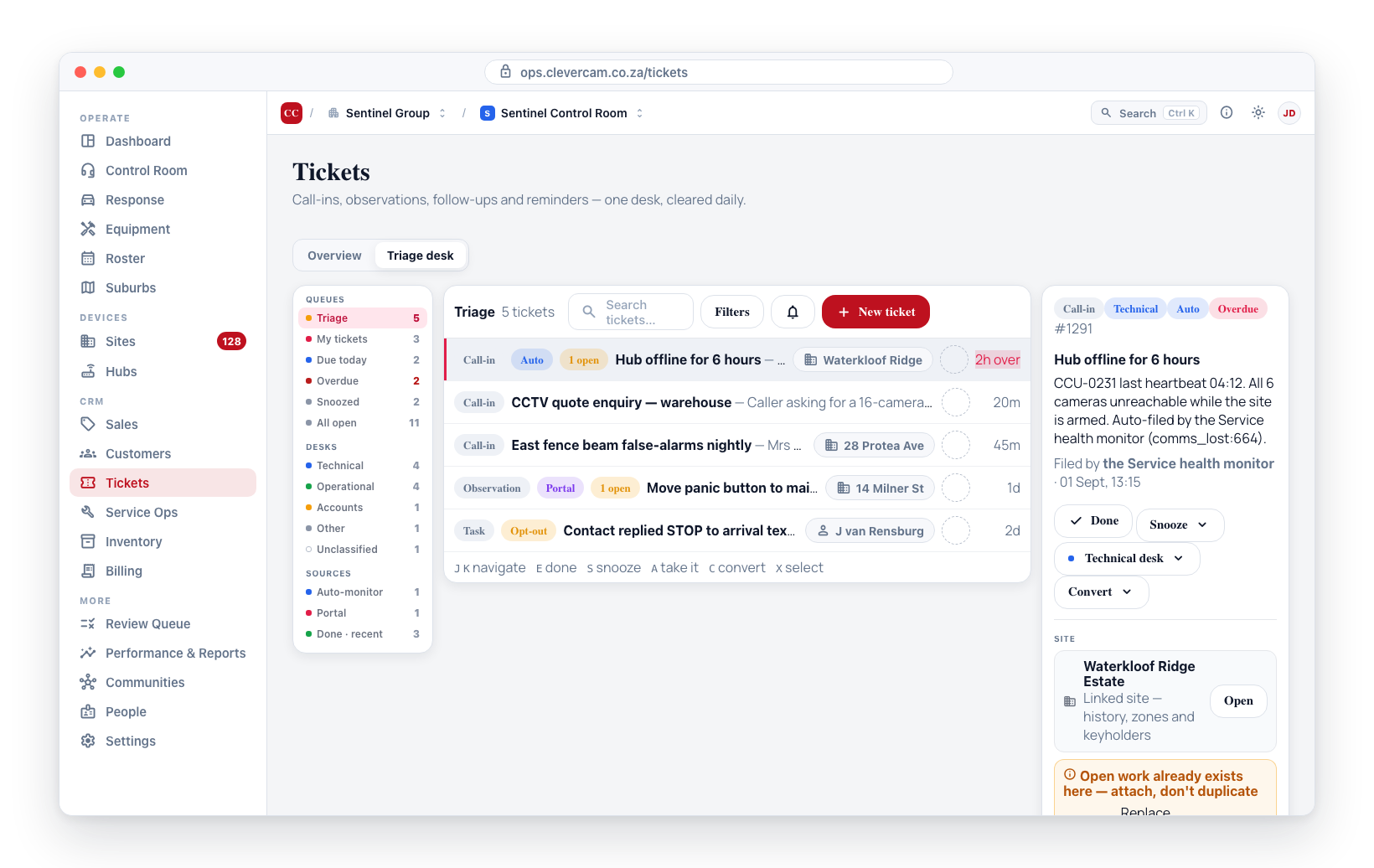
The Triage desk tab is an inbox you clear, not a list you filter. It has three panes:
- Queues (left) -- named views with live counts, each a preset over the same tickets. Queues: Triage (open, nobody owns it -- the front door), My tickets, Due today (due before the end of today, overdue included), Overdue, Snoozed (open with a due time still ahead), All open. Desks: Technical / Operational / Accounts / Other / Unclassified -- open tickets by issue domain. Sources: Auto-monitor, Portal, and Done · recent (everything done, dismissed or promoted). Triage's count shows amber and Overdue's red whenever they are not zero; those are the two numbers the desk exists to drive to nothing. Counts refresh live as tickets change.
- The list (middle) -- the queue's tickets, one line each, sorted the way the board always has been: due soonest first, then newest. The header names the queue and its match count, and holds search, Filters, the sound bell, Export CSV and New ticket.
- The detail pane (right) -- the selected ticket in full: its chips, subject and body, who filed it and how, its quick actions, the site or customer it is about with the open-work radar underneath, and the Activity & notes timeline. Select a row and it appears here; there is no dialog to open and close. On narrow screens the pane slides in over the list and has its own close button.
When a queue is empty the list says Queue clear with a line about what that means ("Every open ticket has an owner — the front door is clear."). If a search or filter is narrowing the queue, it says No matching tickets instead.
Keyboard
The desk is built to be worked without the mouse; the shortcuts are printed along the foot of the list.
| Key | Does |
|---|---|
| J / K | Move down / up the queue |
| E | Mark the selected ticket done |
| S | Open the snooze menu |
| A | Take the selected ticket yourself (press again to put it back in the pool) |
| C | Open the convert menu |
| X | Tick the selected ticket for bulk actions |
| N | New ticket |
| / | Jump to the search box |
Shortcuts are silent while you are typing in a field and while any dialog is open.
Undo instead of confirm
Done, snooze, assign, give-to-desk, archive and attach go through immediately -- no confirmation dialog -- and the toast that follows carries an Undo for six seconds that puts back exactly the fields the action touched. Bulk archive still asks first, because it acts on many tickets at once.
Search and filters
- Search -- free-text search across the ticket body, subject, portal contact name/email, author, category, and domain, within the current queue. It runs on the server across every ticket in scope, so a ticket that would sit on page 40 is found by typing a word from it; results appear a moment after you stop typing. Press / to jump to it.
- Filters -- opens a row of secondary filters that narrow the queue further: Category (All or one), Source (Any / Captured here / one entry per channel this control room actually receives -- the Service health monitor, the customer portal, the mobile app, maintenance plans, any migration import), Owner (Anyone / Mine / Unassigned / a named team member), and Show archived (N). The button shows how many are active; Clear resets them. The queue itself decides status, and its own owner / desk / source rule cannot be undone by these -- they only narrow.
- The count beside the queue name is how many tickets match, across every page. Archived tickets are not part of it until Show archived is on.
This is how you separate live work from a migration backlog: a book that has just absorbed another system's open queries can carry hundreds of long-overdue imported tickets, and with Source set to the import every count on the board is really counting those.
Paging through the board
The list shows 50 tickets at a time, with Prev / Next and a "Showing 1–50 of N" line beneath it. Short queues show no pagination at all. Turning a page returns you to the top of the list, and changing the queue, the search or any filter takes you back to page one. This matters most with Show archived on: one migrated control room carries 5 731 archived tickets against 23 live ones, and the board pages through them rather than loading them.
Add a ticket
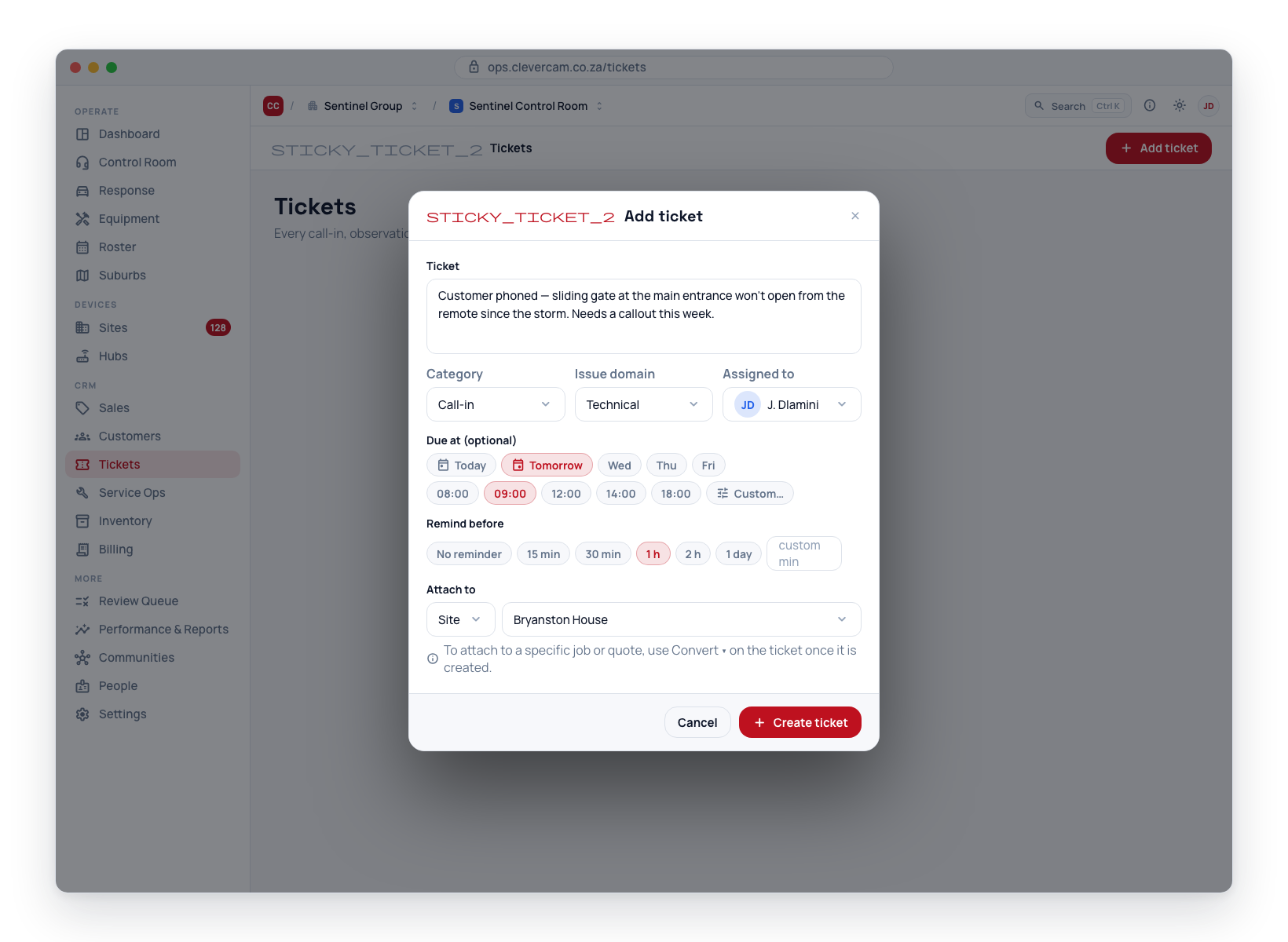
- Click New ticket in the Triage desk's list header (or press N). The dialog that opens is titled New ticket.
- Fill in:
- Ticket body (required) -- what happened, who called, what the follow-up is.
- Category, Issue domain, and Assigned to in a single row.
- Due at -- chip-based quick-schedule picker. Pick a day chip (Today / Tomorrow / Wed / …), a time chip, done. There are also manual date and time inputs for non-standard slots.
- Remind before -- chip presets (15 min to 1 day) or a custom minutes input.
- Attach to -- one search bar across all your sites and customers. Type a name, an address, a phone number, an email, or an account number -- results are ranked, each row carries a Site or Customer tag, and when the hit was on something other than the name (an address, a contact, a billing detail) that field is shown under the name with a kind badge (Address / Contact / Billing / Account #) and the matched text highlighted. Phone searches tolerate formatting --
0821234567finds+27 82 123 4567. Attaching to a specific job or quote is done from the Convert menu (see below).
- Click Create ticket.
If you opened the Tickets section from inside a site, customer, job, or quote, the attachment is set automatically -- you do not need to choose.
A ticket saved without a subject can be attached later: its detail pane shows Attach to a site or customer… under Context, which opens the same search. The ticket then shows on that record, and the open-work radar appears if there is already work there.
The ticket row
Each ticket is one line in the list -- the row tells, the detail pane shows. Left to right:
- A checkbox (appears on hover) for bulk actions.
- The category chip, with a coloured dot for the ticket's desk (hollow when Unclassified); then, when they apply, a source chip (Auto, Portal, WhatsApp, Opt-out, Budget, Plan, Imported), a → #N link chip for a ticket promoted to a job or a → QN chip for a quote, an Archived chip, and an amber N open chip when there is already other open work on the same site or customer (see Open-work radar).
- The subject and body on one line, followed by the site or customer it is attached to. When space is short the place gives way first, then the text is trimmed; hover for the full text.
- The owner as an initials bubble -- tinted for you, a dashed ring when nobody owns it (coloured by desk when the ticket has been given to a desk but not yet taken).
- The age -- how long the ticket has waited (
45m,3h,2d), or its due time when it has one:due 16:00in amber for today,due Thufor later, and a red2d overwhen it is overdue.
Click a row (or use J / K) to show it in the detail pane. Rows for done, dismissed and promoted tickets are dimmed.
If the ticket you have open drops out of the list while you are on it — a colleague closes it, reassigns it or moves it to another queue — the pane keeps it instead of jumping to another ticket, and marks it with an amber Not in this view pill; what it shows is the last copy loaded. A note or WhatsApp reply you were typing stays with that ticket. Changing the queue, filter, search or page yourself still moves to the first row of the new list when your ticket is not in it. The same pill shows on a ticket opened from a link that is not in the list beside it.
The detail pane
Under the chips, subject, body and byline sits the action row. On an open ticket:
| Button | What it does | Who sees it |
|---|---|---|
| Done (E) | Mark done. Undo from the toast. | Ticket author, supervisors, super-admins |
| Snooze ▾ (S) | Snooze menu -- see below. | Same as above |
| Assign ▾ (A takes it yourself) | Reads Assign when nobody owns the ticket, the owner's name when someone does, or Technical desk (and so on) when it has been given to a desk but not yet taken. Opens the assign picker -- see Assigning. | Anyone who can view the ticket |
| Convert ▾ (C) | Convert or link the ticket to a job, quote or deal -- see Convert or link. Once linked, the button reads Job #N ▾ or Quote #N ▾ instead. | Tech coordinators (and, for deals only, sales) |
| Journey | Opens the onboarding journey the ticket is about, straight to its workspace. Shown on any ticket whose text names one — which is every automated journey ticket in the table below. | Anyone who can view the ticket |
| ⋯ ▾ | Edit (the full edit panel -- category, desk, due date, subject, owner) and Archive / Restore. Archiving hides the ticket from the list but keeps it for the record, with a who/when audit entry -- tickets are never deleted. | Ticket author, supervisors |
On a done, dismissed or promoted ticket the row offers Reopen and, where linked, Open Job #N / Open Quote #N.
Below the actions: the Site or Customer card (with Open to jump to that record) and the open-work radar; for an open ticket with no subject, an Attach to a site or customer… control instead; on a WhatsApp ticket, the WhatsApp conversation; then Activity & notes.
WhatsApp conversation
A ticket with the WhatsApp chip is a customer's conversation with the Service Desk WhatsApp number (see Service Desk WhatsApp (Cleo)). The pane shows the whole conversation, oldest first and opened at the newest message: the customer's messages on the left, Cleo's automatic answers and your team's replies on the right, each with who sent it and when. New messages appear while the ticket is open. These messages are kept out of Activity & notes below so they are not listed twice.
On an open ticket you can answer in the box underneath — Send on WhatsApp (or Ctrl/⌘ + Enter). The reply goes from the Service Desk number, signed with your first name, and Cleo stays out of the chat for 20 minutes afterwards. WhatsApp only allows a reply within 24 hours of the customer's last message: the panel shows until when you can reply, and once that has passed it tells you to phone the customer instead. Replying needs the same access as editing the ticket, and nothing is sent while the control room's messaging is switched off.
Assigning to a person or a desk
Assign ▾ opens one searchable picker over the whole team:
- Give to a desk — no person yet -- Technical / Operational / Accounts / Other. The ticket's issue domain is set and its owner cleared: it shows in that desk's queue (and stays in Triage) with a desk-coloured dashed owner ring until someone on the desk takes it. Nothing new is stored -- a desk is the issue domain.
- People, grouped by what they do (Office, Control room, Reaction unit, Guards, Company for owners and company members who manage this control room but are not on its roster, and Team for CleverTech / CleverSales accounts with no roster seat), each with their email so the right person is unmistakable. Type a name, an email or a desk to narrow the list. Everyone is listed once, on the login they use for CleverOps and CleverTech -- someone who also holds a CleverCommand operating code is picked on their email login, so the ticket shows under their Mine. Two kinds of people appear greyed with the reason, because a ticket can only be given to someone who signs in to CleverOps or CleverTech: someone with no login yet, and someone who signs in to CleverCommand or CleverResponder only (neither app shows tickets). Add an email login for them under People and they become pickable.
- Unassign — back in the pool.
The same picker sits on the bulk bar as Assign…, so a batch can be handed to a person or a desk in one go.
A ticket given to someone's CleverCommand or CleverResponder login anyway -- by an older copy of the CleverTech app, for example -- is put on that person's email login instead, when they have one, and the timeline names them as usual.
Open-work radar
The radar is the "is someone already on this?" signal, shown before anyone converts anything:
- On the row -- every open ticket attached to a site or customer that already has other open work shows an amber N open chip.
- In the detail pane -- under the site or customer card, an amber block headed "Open work already exists here — attach, don't duplicate" lists that work: every open job (click to open the job) and every other open ticket (click to select it) on the same subject. If one of them covers the same issue, use Attach to existing job… from the Convert menu instead of spawning a duplicate.
- In the Add/Edit ticket form -- the moment you pick a site or customer that already has open work, an amber heads-up appears under the picker ("Open work already exists here -- 2 open jobs on this site, latest: #2041 Gate motor callout"), so even the person capturing the ticket knows a duplicate may be brewing.
The radar shows the same information the duplicate check at triage uses -- but hours earlier, at capture time, where it is cheapest to act on.
Snooze popover
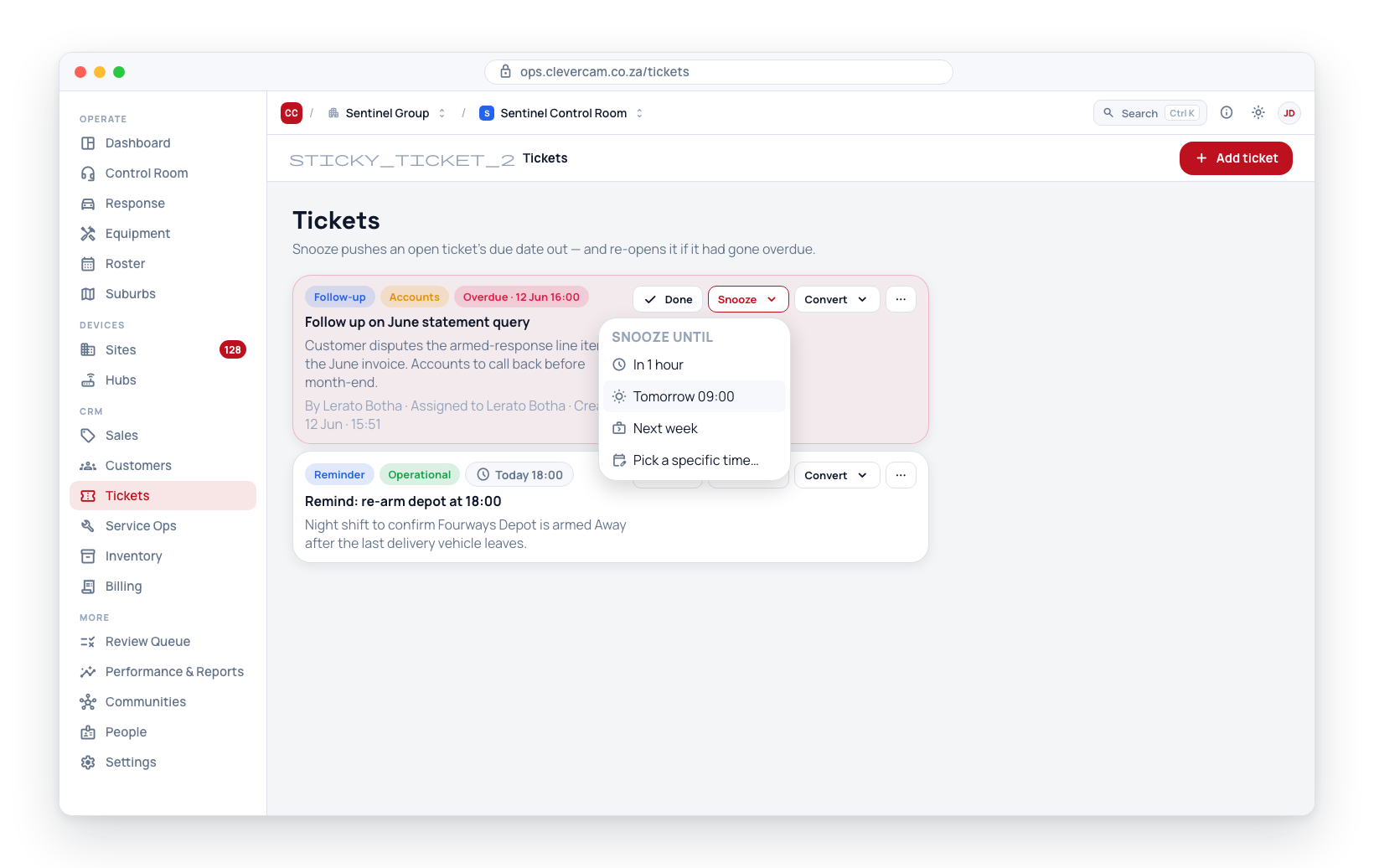
Click Snooze ▾ in the detail pane of an open ticket (or press S). Four options:
- In 1 hour -- pushes the due date to one hour from now.
- Tomorrow 09:00 -- sets the due date to the next calendar day at 09:00.
- Next week -- sets the due date to 7 days out at 09:00.
- Pick a specific time… -- opens the full edit panel so you can use the quick-schedule picker.
Snoozing also resets the ticket status to open, so an overdue ticket can be revived without a full edit. A snoozed ticket leaves the queue you are in (unless that queue is Snoozed or All open) and the toast offers Undo.
Working through tickets in bulk
Every row carries a checkbox (press X to tick the selected row), and one in the list header selects everything currently shown. Tick some and a bar appears at the foot of the list reading N tickets selected:
- Assign… — the same assign picker: a person, a desk, or Unassign.
- Mark done — closes the lot.
- Snooze to tomorrow — pushes every due date to tomorrow 09:00 and reopens them.
- Archive — asks first, then archives them (still kept for the record).
- Export CSV — a button above the list downloads every ticket the current filters match, not the fifty on screen. It pages the whole set before saving, so a filtered export of two thousand tickets is one file.
The selection is scoped to the page you are looking at and is pruned whenever the filters change, so narrowing a filter — or turning a page — can never leave a ticket ticked that you can no longer see.
Set Source to the import (for example Imported from ServCraft), Status to Open, select all, and either assign the batch to whoever is triaging it or mark the genuinely dead ones done. Doing this once makes every other count on the board mean something again.
Automatic tickets (customer and system signals)
Some things a customer or the system does need a human follow-up, and none of them should depend on someone happening to look at the right list. CleverOps files a ticket automatically — carrying an Auto chip and due immediately, so it lands in the Tickets due block of Needs attention → Reminders straight away — when:
- A customer accepts or declines a quote from its public share link (the decline reason is in the ticket body, linked to the quote).
- A customer submits a proof of payment from the portal (Accounts desk, linked to the customer).
- A customer leaves a low service rating (1–2 out of 5) on a completed job (Operational desk, linked to the job).
- A new lead arrives from your public web form (so inbound enquiries never sit unnoticed in the "new" column).
- A debit order run comes back with bounced debits (Accounts desk — one ticket per reconcile summarising the failed amount).
- The Service health monitor flags a site (repeated comms loss, mains failures, or camera noise).
Each signal is deduplicated — while its auto-filed ticket is still open, the same event will not file a second one. Every automatic ticket is attached to one record only — the most specific one the signal names: its service job, else its quote, else its customer, else its site. Tickets submitted by customers from the portal or by app users from the CleverAlert app are also due immediately, so they surface on Needs attention the moment they arrive.
Onboarding journey tickets
The Onboarding journey-orchestrator files its own family of auto tickets — every one carries the journey id in its body (Journey #N) so it can be searched straight back to the right journey's drawer, and every one is deduplicated per journey (and, where noted, per stage or per step) while it stays open.
| Ticket | Desk | Fires when |
|---|---|---|
| Onboarding awaiting approval | Operational | The Open onboarding on quote accept gate is on Staff approve and a quote is accepted. |
| Onboarding ready to schedule | Operational | A journey's blocking tasks all finish — regardless of the Schedule the install visit gate's mode; the body names the install job if one was auto-created, or asks staff to book it if not. |
| Credit vetting needed before scheduling | Accounts | A business-segment journey finishes its blocking tasks with the Credit vetting (business) gate on Staff approve. |
| Go-live awaiting approval | Operational | The Go live on install sign-off gate is on Staff approve and the install job is signed off. |
| Go-live refused — evidence missing | Operational | Go-live is attempted (either gate mode) but the evidence isn't there yet — no hub linked, no signal received, or a blocking paperwork item outstanding. Lists the missing items verbatim. |
| Go-live — start billing | Accounts | The Start billing at go-live gate is on Staff approve and the journey goes live. |
| Go-live billing needs a hand | Accounts | Automatic billing start failed when the journey went live (same dedupe key as the ticket above). |
| Mandate signed — activation needed | Accounts | The customer signs their debit-order mandate but it's created inactive — either the Activate mandate gate is on Staff approve, or the customer already had another active mandate. |
| Signed mandate is not collecting | Accounts | A daily check finds an active mandate whose subscriptions aren't flagged for debit-order collection, so a collection run would silently skip them. |
| DebiCheck mandate ready to submit (or needs completion*)* | Accounts | The customer captures DebiCheck banking details on their Getting Started page — ready to submit for DebiCheck from their Billing tab, or still missing something first. |
| Onboarding input needs review | Operational | The Verify customer inputs gate is on Staff approve and the customer submits a task; deduped per task, not just per journey. |
| Amendment signed — apply the changes | Accounts | An Add-on journey's amendment is signed with the Apply add-on amendments gate on Staff approve. |
| Signed amendment needs a hand | Accounts | Automatically applying a signed amendment's subscription changes failed. |
| Onboarding QA call — day 2 | Operational | Two days after go-live, every time — a prompt to call the customer, regardless of the messaging master switch. |
| Onboarding journey stalled | Operational | A journey sits in any pre-live stage past the company's Stalled after setting, worded for the stage it's stuck in. Automated customer nudges are tried first where the hold is genuinely on the customer — see Care cadence after go-live. |
| Onboarding automation failed | Operational | A background automation step errors out after 5 attempts and gives up; nothing moves until someone re-runs it from the board. |
Related, but on the Leads board rather than a specific journey: Lead waiting — nobody has made contact fires when a new lead sits in New past the Onboarding First-touch SLA setting.
Archiving tickets (never deleted)
Tickets are never permanently deleted -- the database itself blocks it. Instead you Archive a ticket you're finished with: ⋯ ▾ → Archive in the detail pane. It drops out of the active list but is kept in full, along with a record of who archived it and when; the toast offers Undo.
To see archived tickets, open Filters and use the Show archived (N) toggle. Archived tickets carry an Archived chip; ⋯ ▾ → Restore brings one back into the active list. Every archive and restore is written to the ticket's activity log.
Archived tickets aren't merely hidden — they are not loaded at all. The board asks the server for live tickets only, so the archive never crosses the wire until you click the toggle; the number on the button is a count, fetched without any of the rows behind it. This matters on a migrated queue, where the archive is most of the table: one control room carries 5 701 archived tickets against 2 live ones. Switching back is instant, because the live list stays cached.
Every queue, filter and search is applied by the server across the whole scope, so the count beside the queue name and the pages beneath it describe your entire board rather than a subset that happened to load.
Activity & notes
The Activity & notes timeline sits at the bottom of the detail pane (and of the edit panel). It does two jobs at once:
- Notes -- type a note (a call, an email, the next step) and click Add note; each is stamped with your name and the time. Press ⌘/Ctrl + Enter to post quickly. Type @ to mention a colleague -- they get an email with a link to the note and an Acknowledge button, and the note shows when they have seen it.
- Audit trail -- the same timeline records everything that happens to the ticket by itself: when it was created; its status changes (Status: Open → Done); who it was assigned to or reassigned to, by name; the due date and every snooze (Snoozed to Wed 16 Sep 09:00 (was Mon 14 Sep 09:00)); the desk it was given to; edits to its text, subject, category, reminder or contact; attaching it to or detaching it from a site or customer; linking it to a job or quote (naming the job or quote number, with a link) and unlinking it; and archiving or restoring it -- each stamped with who did it.
Use the All · Notes · Updates chips above the timeline to read only the notes or only what happened.
A ticket filed against a job, quote or site also puts a line on that record's own timeline (Ticket opened: …), and a job created from a ticket says so on the job.
The log is append-only: entries can be added but never edited or deleted, so the history stays trustworthy. It's the same universal activity timeline used on leads, quotes and jobs. Due-date, desk and edit lines start on 14 September 2026 -- they were not recorded before then. Names on the timeline, and the Owner and Filed by lines above it, are the person's own -- the staff profile name where one exists, otherwise the seat label, otherwise the account name -- and they stay after that person leaves the team.
Overdue styling
On the desk an overdue ticket's age reads in red (2d over) and its detail pane carries a red Overdue chip; the Overdue queue collects them and its count in the rail turns red. In the embedded lists inside records, overdue rows keep their red accent stripe on the left edge. Overdue tickets also appear in the Tickets due block of Needs attention → Reminders.
Permissions
| Permission | Who gets it |
|---|---|
| View all tickets | Any control room member |
| Create a ticket | Any control room member |
| Edit or archive a ticket | The ticket's author, supervisors, or super-admins |
| Add notes on a ticket | Anyone who can view the ticket |
| Mark done / snooze | Same as edit |
| Assign, or give to a desk | Anyone who can view the ticket |
| Convert to job or quote, attach to existing work, or unlink | Tech coordinators only |
Operators can freely add observations and notes. No one can delete a ticket -- they're archived instead, so nothing is ever lost. Supervisors can archive any ticket; authors can archive their own. Only the tech coordinator can turn a ticket into a service job or quote.
Convert or link from a ticket
Tickets are the intake point for CleverOps -- operators log call-ins, customer representatives capture requests, and site staff record observations. The tech coordinator then reviews the pile and decides what becomes scheduled work. This is why the convert and link actions are restricted to the tech coordinator role: one person owns the job list so it stays clean and accurate.
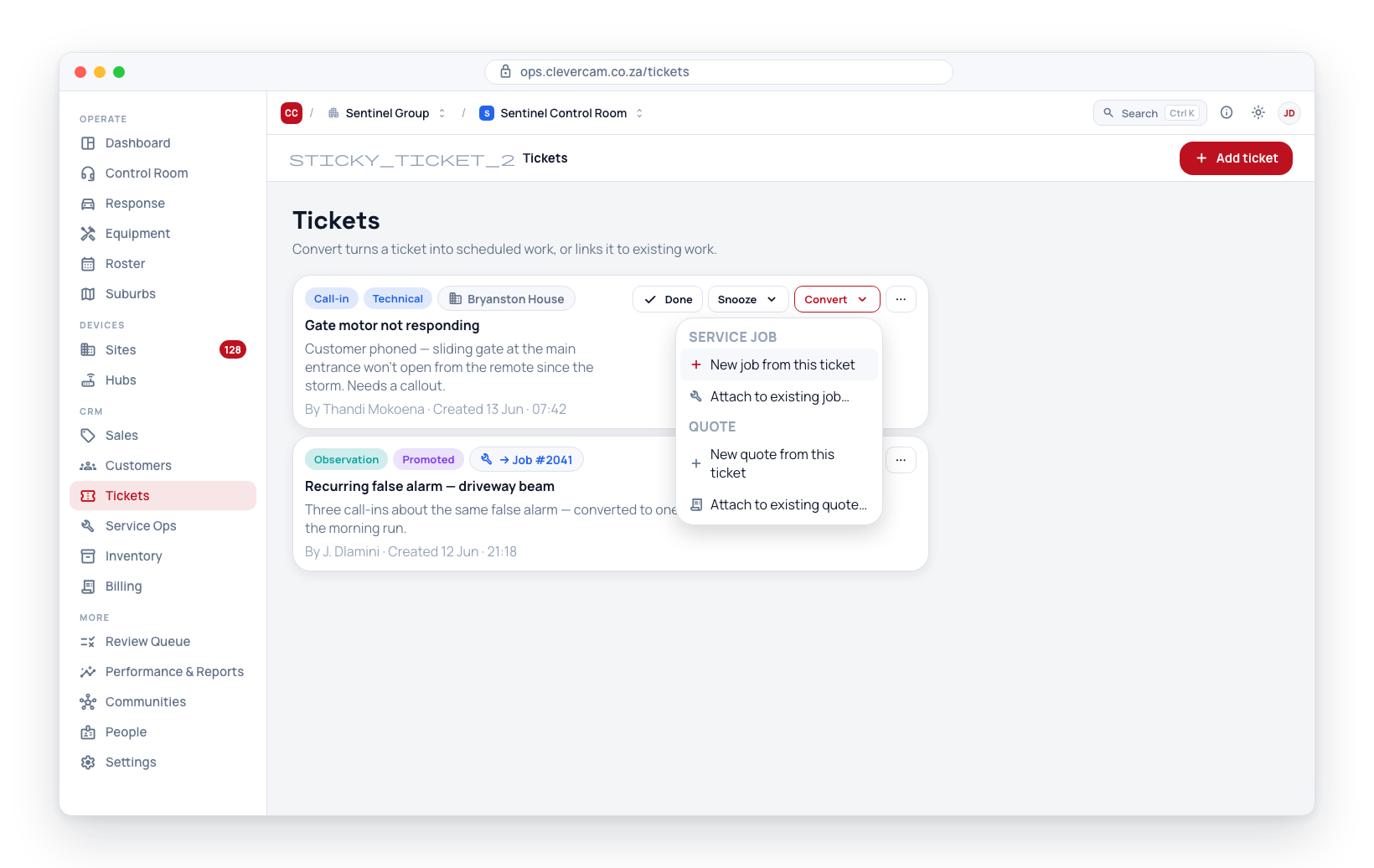
Click Convert ▾ in the detail pane (or press C) to open the Convert/Link options. On a ticket that is already linked, the same button reads Job #N ▾ or Quote #N ▾. Inside the records that embed a ticket list, the same menu sits on the ticket row.
When nothing is linked yet
Service job options:
-
New job from this ticket -- creates a new service job pre-filled with the ticket details (title, description, site, customer, and scheduled date if a due date was set). The ticket is marked Promoted and keeps its link to the new job while staying attached to its original site or customer, so the issue still shows in that site's ticket history. The job edit panel opens automatically so you can assign a technician, add line items, and refine the schedule.
A ticket filed by a maintenance plan becomes the plan's job instead: the plan's title, description, technician, duration, invoicing setting and template checklist come across and the job stays linked to the plan. It lands in the ticket's due slot with the time hidden from the customer, who hears the part of the day (morning, afternoon or evening). If the plan has been deleted, it converts like any other ticket.
Duplicate check at triageIf the ticket is attached to a site that already has open work, a confirmation appears listing those open jobs before a new one is created. This is the core triage step: prefer Attach to existing job… over spawning a duplicate. You can still choose Create new job anyway when the issue genuinely is separate. The same warning appears when you use New job in Service Ops for a site with open jobs.
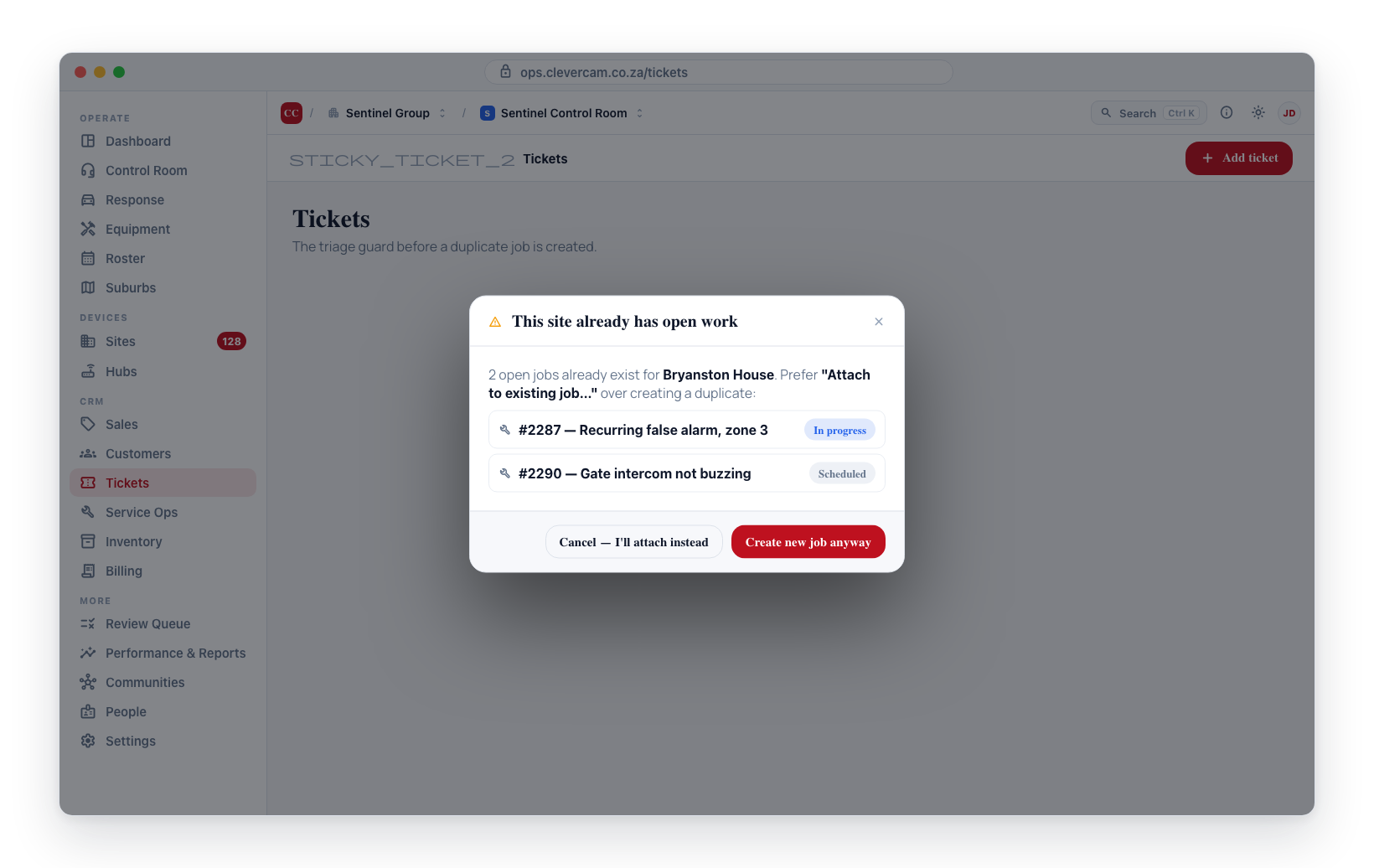
- Attach to existing job… -- opens a picker showing every currently open job. Click one to link this ticket to it. This is how multiple intake tickets pile onto the same piece of work -- three separate call-ins about the same false alarm can all attach to one callout job.
Quote options -- identical, but for quotes:
- New quote from this ticket -- creates a draft quote with the ticket's details. Opens the quote panel so you can add line items and totals.
- Attach to existing quote… -- picker of open draft or sent quotes.
Sales option, for a call-in that turns out to be new business:
-
New deal from this ticket -- creates a deal in the sales pipeline from the ticket, marks the ticket Promoted, and opens the deal so you can work it. The contact details come across, the ticket body becomes the deal summary, and the deal opens with a next step already booked for tomorrow — an enquiry someone bothered to log should not join the deals that go quiet. If the ticket was attached to a customer, the deal is linked to that account as an upsell; otherwise it stands alone as a new prospect. The ticket keeps its own site or customer, so the enquiry still shows in that record's history.
This one is gated on manage sales, not on the tech-coordinator role — see below.
When the ticket is already linked
The options collapse to:
- Open job / Open quote -- jump straight to that record's edit panel.
- Unlink -- removes the connection. If the ticket was only marked Promoted because of this link, it reverts to Open.
Why only the tech coordinator can convert tickets
Intake is open to everyone -- anyone can add a ticket. But turning a ticket into scheduled work is restricted to the tech coordinator so the job board stays accurate. No accidental duplicates, no half-specified jobs created by someone unfamiliar with the workflow.
Deals are the exception. Creating a deal from a ticket needs manage sales instead, and someone with only that permission still gets the Convert ▾ button — with just the Sales option inside. Gating the whole menu on the tech-coordinator role would have hidden the route into the pipeline from the only people who work the pipeline.
Two call-ins about the same false alarm? Create a job from the first ticket, then use Attach to existing job from the second. Both tickets now sit on the job's Tickets tab -- the full intake trail is preserved, without double-booking a technician.
Related
- Needs attention -- the Tickets due block surfaces overdue open tickets.
- Service Jobs -- jobs embed the Tickets editor for job-scoped intake.
- Quotes -- quotes also embed the Tickets editor.