Service Ops Overview
Service Ops is the job board that drives all technician work. Every callout, installation, inspection, and warranty visit lives here until it is closed and invoiced. This is where supervisors triage incoming jobs and where technicians find the work they have been assigned. The board updates in real time — as jobs change state (scheduled → in progress → done) anywhere in your company, the board stays current without a page refresh.
Navigating Service Ops
Service Ops is a single Service Ops entry in the sidebar (under the CRM group). Opening it lands on the Overview dashboard — the whole operation at a glance, where every number is a shortcut to the screen that works it. A row of tabs at the top of every Service Ops page switches between the working day's pages:
- Overview — the landing dashboard: triage counts, pipeline counts, today's schedule, team load, money in the pipeline, and an 8-week throughput chart (see below).
- Jobs — the pipeline board, the jobs table and the map of every service job. The Needs attention buckets (overdue, review & invoice, follow-ups due, and the rest) ride the top of this page as one-click filters — there is no separate Needs attention tab any more. The work that is not a job row (technician assistance, quote and ticket reminders, field integrity) keeps its own page, linked from the same strip (see Needs attention).
- Schedule — the drag-and-drop Schedule board, promoted from a view inside Jobs to a tab of its own.
- Projects — group many jobs, quotes and invoices (e.g. a large multi-site install) under one umbrella.
- Templates — the job types that pre-fill a new job and seed its checklist.
- Standby — who's on call, by date.
The configure-once surfaces that used to live behind a Service Ops Manage sub-tab row — the products & services catalog, stock, purchasing and pricing — moved out into their own Inventory entry in the sidebar, next to Service Ops. Job templates stayed here: they describe the work, not the stock. (The staff registry moved out too: technicians, sales and everyone else are on the one People list, under More in the sidebar — the old Team and Staff addresses now land there.)
(Service Ops appears in the sidebar only for control rooms with the Customer Relationship Manager module — there is no separate Service Ops switch. The same module carries Customers, Tickets, Sales, Inventory and Billing, which is why they sit together in the CRM group. See Company Settings → Modules.)
The Overview dashboard
The Overview tab is the suburb's landing page. It answers "where does the operation stand, and where do I go next?" without opening a single job. Everything on it is clickable — a tile or row always lands you on the exact screen (and tab or filter) that shows those items, so the count you click is the list you get. The page refreshes live as jobs and assistance requests change; Refresh re-pulls everything else. New job (top right) opens the same create-job form as the Jobs page.
Top to bottom:
- Needs attention — six tiles mirroring the Needs attention queue: Overdue jobs, Needs help (technician assistance requests), Review & invoice (with the Rand total waiting in the queue), Follow-ups due, Quote reminders, and Ticket reminders. The header shows the combined total — or All clear when it is genuinely zero. Overdue jobs, Review & invoice and Follow-ups due open the Jobs page on the table with that attention chip already on; Needs help, Quote reminders and Ticket reminders open the Needs attention page (the two reminder tiles land on its merged Reminders section). That same combined total also appears as a red badge on Service Ops in the sidebar, so you can see the queue building from any screen; it counts only what your permissions let you see, and it clears as the work is done rather than when you look at it.
- Pipeline — seven tiles mirroring the Jobs funnel: Unassigned (no technician yet), Unscheduled (need dispatch), Today, In progress, On hold, Ready to invoice (with the approved Rand total), and Accepted quotes (won quotes not yet converted to a job or billed directly — sold-but-not-started work that Service Ops can't otherwise see). Each of the first six tiles opens the Jobs page pre-filtered — a stage tile puts just that stage on the Stage chip, Today and Unassigned switch on the matching attention chip over the active pipeline; Accepted quotes opens the Quotes page instead.
- Today's schedule — today's jobs in time order with technician and status; unassigned jobs are flagged. Click a row to open the job, or jump to the full Schedule board.
- Team load — one row per active staff member with the Technician role: a load bar of open jobs (relative to the busiest tech), plus on site / today / open / done · 7d chips. Sales-only staff and hidden roster rows appear only while they actually carry job work. Click a row to see that technician's jobs on the board.
- Throughput — jobs created vs completed per week over the last 8 weeks. If completed keeps trailing created, the backlog is growing.
- Scorecard — the four numbers the business is actually run on, over the last 30 days: Job margin (what the priced lines earned above what the parts cost), On-time arrival (arrived within 15 minutes of the promised time — counted only on jobs booked to an exact time, since a job booked as "morning" can't be late at 11:00), First-time fix (completed visits that didn't need a return trip), and Customer rating (the average CSAT score you're already collecting). Underneath, average driving and on-site minutes read from the technicians' own tapped actions. A tile shows an em-dash with a plain reason rather than a number when there isn't enough to say yet — under five jobs is noise, not a metric.
- Money — service-job billing at a glance: Awaiting approval (Rand value and job count), Ready to invoice, Invoiced this month, and Unpaid job invoices, each linking to the review queue, the board, or Billing.
If one of the counts fails to load, its tile shows an em-dash and "couldn't load" rather than a misleading zero — hit Refresh to retry.
The Service Ops workspace
Open the Jobs tab. It is a workspace built around the job lifecycle — intake → schedule → on-site → sign-off → invoice — rather than a flat list. Top to bottom:
- Header — the title and a Board / List / Map view switch (top-right), plus New job.
- Toolbar — search, the Views menu (saved views), and on List the table's own Group, Columns and row-density controls, plus Export CSV.
- Needs attention strip — one count chip per triage bucket (Overdue, Today, Unassigned, Not seen by tech, Awaiting reply, Follow-up due, On hold, Review & invoice, Deposit owed, No invoice). Each is a one-click filter.
- Filter rail — the filters in force, as chips, with Add filter, Clear all and Reset stages.
- The working area — the Board (default), the List (a table), or the Map.
Everything here is live. Jobs, the schedule board, projects, quotes, stock and the products & services catalog all refresh on their own when someone else changes something — a technician updating a job from the field, a coordinator rebooking a slot, a second technician being assigned, leave being approved, parts being consumed on site, or a colleague repricing an item. You do not have to reload the page. Deletions travel too — a job, quote, or project someone else deletes disappears from your screen rather than lingering until you reload.
The Needs attention strip
The row of chips above the filters is the old Needs attention queue, folded into the Jobs page. Each chip names a bucket and carries its live count:
| Chip | Counts open jobs that are… |
|---|---|
| Overdue | Scheduled in the past and still open |
| Today | Booked for today and not yet finished |
| Unassigned | Without a technician |
| Not seen by tech | Assigned, but the technician has not opened the job in the app |
| Awaiting reply | Booked, and the customer has not confirmed the time — or has asked to move it |
| Follow-up due | Carrying a follow-up reminder that has come due |
| On hold | Parked |
| Review & invoice | Completed and waiting for approval, or approved and not yet invoiced — with the Rand total beside the count |
| Deposit owed | Waiting on a deposit before they can be booked or dispatched |
| No invoice | Closed without an invoice from CleverOps, with a recorded reason (a report over the Done archive) |
Every chip is a filter. Click one and its condition lands on the filter rail below; click it again to lift it. A chip's count is measured within the other filters you already have on — so with an assignee chip in place, Overdue 3 means three of that technician's jobs, not three in the whole company. A chip with nothing behind it hides itself, so a quiet day reads quiet, and the strip says All clear when every bucket is empty.
Chips that name a stage (On hold, Review & invoice, No invoice) replace the Stage chip while they are on, and hand the active pipeline back when you lift them.
At the end of the strip, after a divider, sit three dashed chips for the work that is not a job row and so cannot be a filter here: Assistance (technician help requests, with a live count), Quote & ticket reminders, and Field integrity. They open the Needs attention page at that section.
Filters
The filter rail shows every filter in force as a chip — Stage is Active pipeline, Assignee is Hugo Schagen, Nico Ludike, Priority is not Low — and applies to every view: on the Board the Stage chip decides which columns exist, on the List it decides which rows show, on the Map which pins. Because the rail is always on screen, a filter can never be applied invisibly.
- Add filter opens a picker: choose a field, then tick the values you want. Every value shows how many jobs (within the other chips) carry it, an is / is not switch inverts the match, and Apply lands the whole choice at once — turning six things on is one task, not six trips through a closing menu.
- Click a chip's value to re-open the picker on that field; the × removes the chip.
- Clear all removes every chip — closed jobs included, which loads the archive.
- Reset stages appears whenever the Stage chip has left the active pipeline and puts it back, leaving every other chip alone.
The fields on offer: Stage, Priority, Assignee (or Unassigned — which only ever means an open job still waiting for a technician: a completed or cancelled job with nobody on it, common on jobs migrated from another system, is never counted as unassigned, even when every stage is showing), Branch (only when your control room has named branches; a job's branch comes from its site, resolved the same way dispatch resolves it; includes My branches when you are allocated to some, and No branch), Scheduled (Today / This week / Overdue / Has a date / No date), Follow-up (Due now / Later / None set), Visits, Signed, Flags (the chips a row can carry: not seen by tech, awaiting reply, change requested, confirmed, deposit owed, no invoice, linked), Invoice (Required / Approved / Invoiced / Not required), Customer and Site.
Stage is a filter
The eight pipeline stages — Unscheduled, Scheduled, In progress, On hold, Awaiting review, Ready to invoice, Done, Cancelled — are values of the Stage chip. The page opens on the six active stages; that chip reads Active pipeline. Edit it to work a slice ("just the invoicing tail" is Awaiting review + Ready to invoice), or remove it to see everything.
Closed jobs are not loaded until you ask. The page fetches only the open pipeline; the archive crosses the wire when the Stage chip names Done or Cancelled, when the Invoice chip names Invoiced, when the No invoice flag is on, or when the Stage chip is removed altogether. Lifting the chip again is instant — the active pipeline stays cached.
Your view is remembered
The filters on the rail, the table's layout and the view you are on are saved against you, not the browser — the same home as the Sites and Customers lists — so the desk machine and the laptop show the same Jobs page. If you are allocated to branches on your own profile, your very first visit opens on My branches; after that the page is yours to keep.
Saved views
The Views menu bundles a filter set with a table layout under a name. Seven come built in — Active pipeline (the default), Today's run, Overdue jobs, Not seen by tech, Follow-ups due, Review & invoice, and Everything, closed included — and you can save your own: change anything and the button reads · edited; Save as new view… names it, Save changes overwrites one of yours, Discard changes goes back, Delete removes it. Built-in views cannot be overwritten or deleted. Views are personal.
A deep link into the page (an Overview tile, a link from the attention strip) is an instruction, not a preference: it applies for that visit and is only written back once you change something yourself.
The toolbar
- Search — see below. Unlike the filters, it searches every job your company has, closed ones included.
- Views — the saved views menu (above).
- Group, Columns and the row-density toggle — List only; see List view.
- Export CSV — downloads the jobs currently shown (after filters and search) as a spreadsheet, with the closed-without-invoice reasons and duplicate links included, which is what makes the No invoice chip a report rather than a view.
Search
The page deliberately loads only the open pipeline. Search is the way past that: it asks the database, and it asks about every job your company has — open, done and cancelled alike. You do not have to put Done on the Stage chip first, or guess which stage a job ended up in.
It matches on the job number, title, description, invoice number, on-site contact, and the customer, site, site address or assigned technician. A plain number is also tried as the job's id. Two characters is the minimum.
While a search is running:
- A line under the rail says how many jobs matched — e.g. "205 matching jobs, across every job, open or closed."
- The Stage chip and the attention strip are greyed out: search deliberately crosses every stage, so a chip that still looked pressable would be offering to narrow something it no longer governs. The Board grows a column for each stage that has a match, so nothing found is left with nowhere to render.
- Every other chip on the rail still applies on top of the matches.
- Large result sets are capped at the 200 most recent matches, and the line says so rather than pretending it is the whole answer.
Clear the box and the page returns to your filters, with no round trip.
Board view
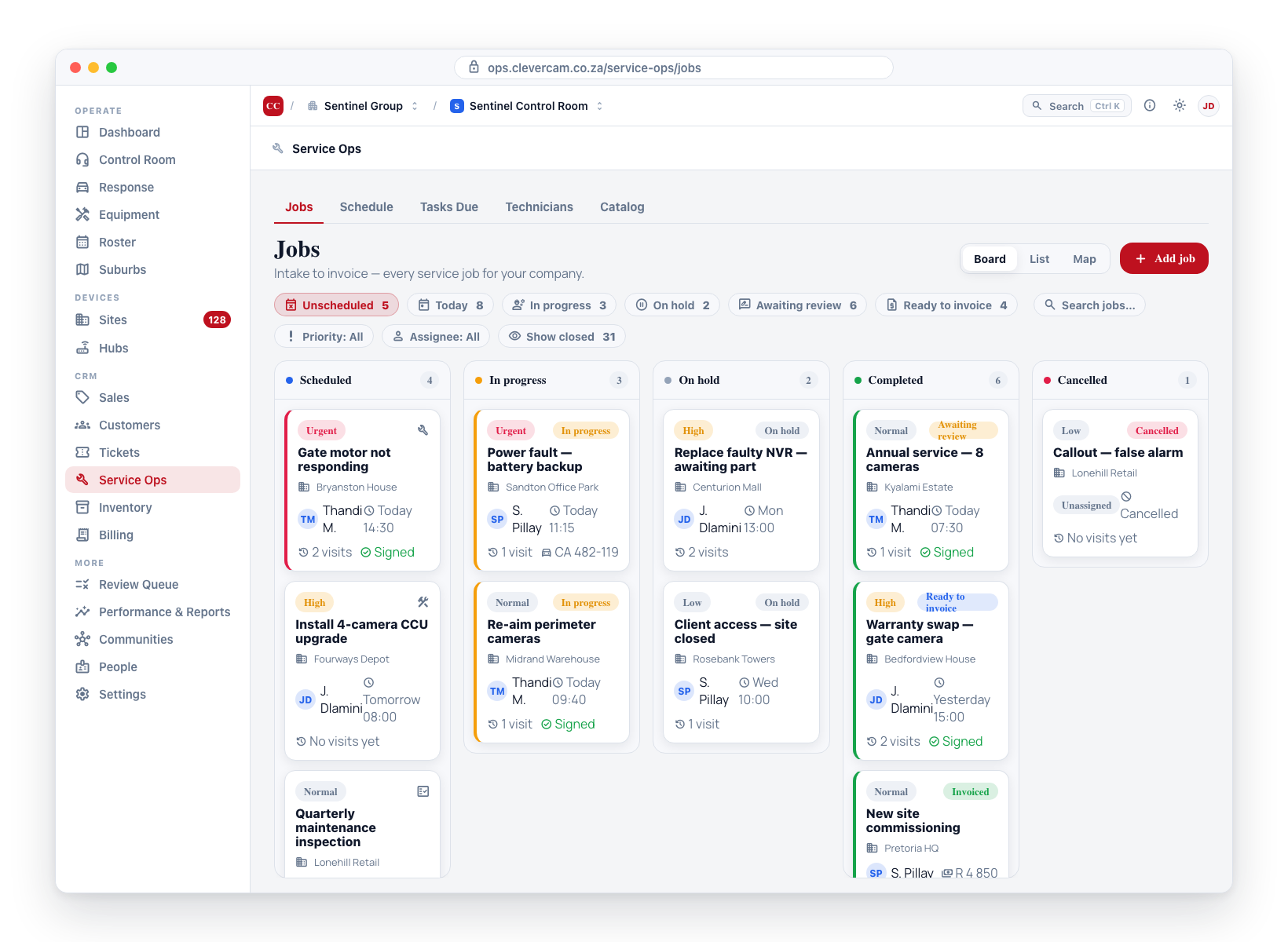
Board is the default view — the pipeline itself, one column per stage on the Stage chip. By default that is Unscheduled · Scheduled · In progress · On hold · Awaiting review · Ready to invoice; adding Done or Cancelled to the chip adds those columns, and taking a stage off removes its column. Each column header shows a live count and a one-line hint, and every job is a compact card showing its site, assigned technician (or a highlighted Unassigned), scheduled time, visit count, and a Signed tick.
- Click a card to open the full job.
- Each card has a next action button — the single obvious next step for that job (for example Assign a technician, Ready — tech to start, Sign off when done, Approve to bill, or Awaiting follow-up). Click it to do that step: simple status nudges happen on the spot, while anything that needs a form, a sign-off, or the invoice path opens the job.
- Drag a card to another column to move the job through the pipeline:
- Forward moves (into In progress) apply instantly.
- Dropping into On hold offers a follow-up reminder: Just park, Park + remind me, or Cancel to leave the card where it was.
- Moving backwards asks first. Dragging an in-progress job back to Scheduled or Unscheduled, or dragging a completed job back into an open column, shows a confirm. A completed job rarely needs reopening: its line items and invoice amount can be corrected in place until it is invoiced, and Return to technician (in the job) is the way to send it back with a reason the technician sees.
- Dropping into Awaiting review marks the job completed (it warns first if no technician visit has been logged — for a proper close, open the job and use Complete & sign off).
- Dropping into Ready to invoice approves the job for billing, behind a confirm. This is reversible via Reject in Needs attention.
- Dropping into Scheduled needs a time and technician — if the card doesn't have them yet, the job opens so you can set them rather than bouncing back.
The search and every chip on the filter rail apply to the board too — to work a slice of the pipeline, edit the Stage chip, or open the Schedule board for the calendar layout. Long board columns cap at 25 cards with a Show more toggle.
Closed jobs are not loaded until you ask
See Stage is a filter: a job counts as closed when it is Cancelled, Completed and invoiced, or Completed with no invoice required. A job that is completed but still needs invoicing is not closed — it sits in Awaiting review or Ready to invoice (approve it, then invoice it, and it drops out of the default view). Closed jobs are never deleted; they stay in Billing, in the customer and site records, and in search.
List view
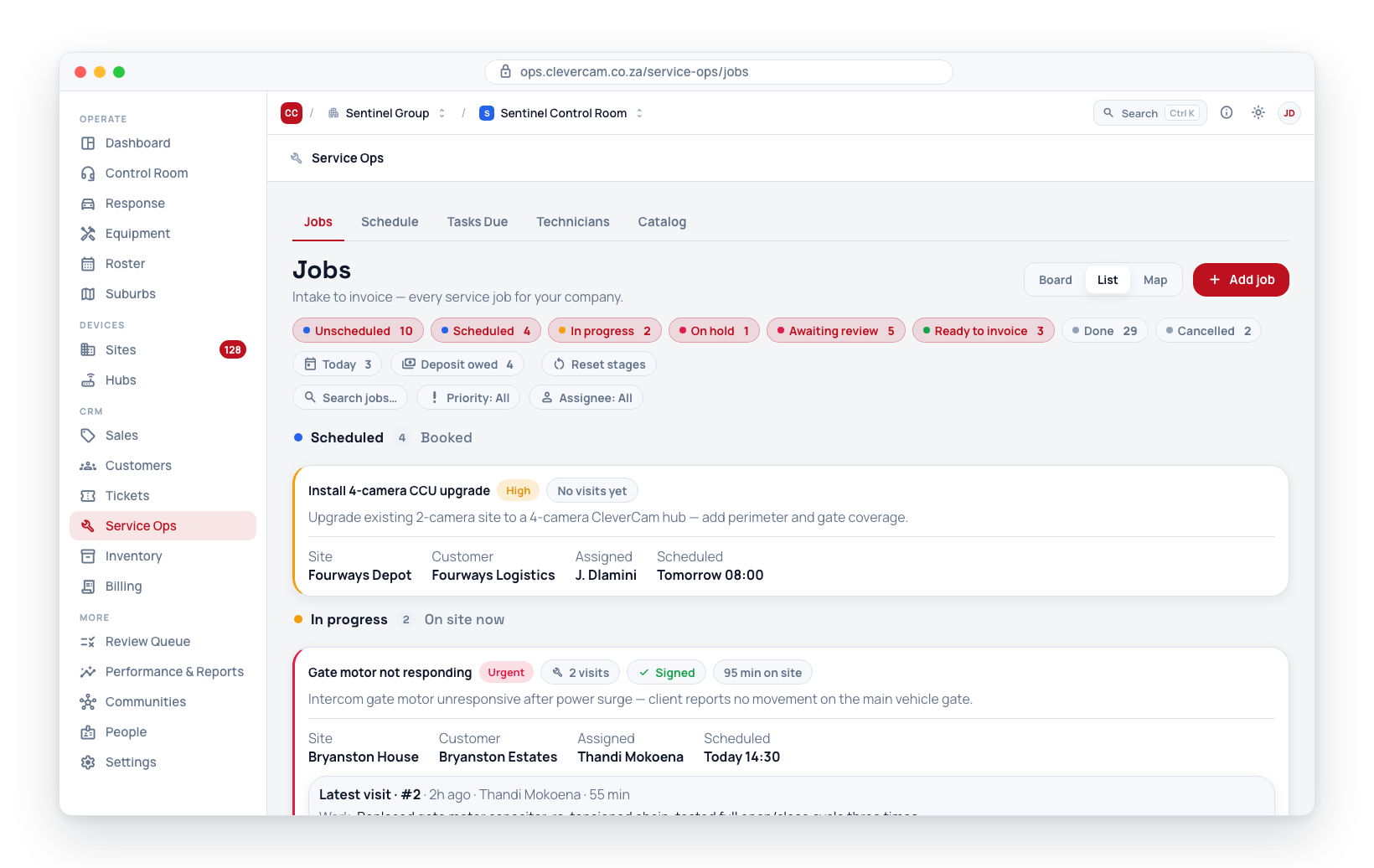
List view is a table — the same kind of list as Sites and Customers, built for working many jobs at once. Click a row to open the job.
Columns
| Column | Shows |
|---|---|
| Job # | The job number (or its id). Always shown, pinned to the left. |
| Title | The job title; hover for the description. Always shown, pinned to the left. |
| Stage | The derived pipeline stage as a pill. |
| Priority | Urgent (red) / High (amber) / Normal / Low (grey). |
| Site, Customer | Links straight to the record. |
| Assigned | The lead technician, or a highlighted Unassigned. |
| Scheduled | Date and time; today is highlighted, an overdue time is red. |
| Visits | Technician visits logged. |
| Flags | The row's chips: Awaiting reply / Confirmed / Change requested, Not seen by tech, the deposit state, No invoice (with its reason), Linked to job #. |
| Follow-up, On site, Signed, Branch, Invoice, Job total (ex VAT), Created, Age, Completed | Off by default — switch them on in Columns. |
The last column holds the row's actions, revealed on hover: Open, and Review (only on a job awaiting review — it opens the same review drawer the Board's drag-to-approve uses, so the approval is made with the evidence and the invoice preview in view). Deleting a job is not a row action — see Deleting a job.
Sorting
Click a header to sort by it; click again to flip. Shift-click a second header to add it as a secondary sort — a small 2 marks it. Every header also has a ▾ menu: sort ascending / descending, add as secondary sort, pin, group by this column, hide.
Grouping
Group (in the toolbar) splits the rows into sections by Stage (the default — so the list still reads as the board unrolled, in the same left-to-right order), Assignee, Branch, Customer or Priority, or None. Each group row carries a count and can be collapsed; it stays pinned under the header while you scroll through its rows.
Columns, pinning and widths
Text columns size themselves to what is on the page: Title, Site, Customer, Assigned, Branch and Flags open as wide as their longest value on the loaded rows (within sensible limits), and whatever width the screen has left is shared between them, so a page of short workshop titles isn't padded out with empty column and a long customer name isn't cut short. The table also fills the height of the window from where it starts, on any screen size, so there is one scroller for the rows rather than a short box and a page scroll.
The Columns menu turns columns on and off, drags to reorder them, and pins a column to the left edge so it stays put while the table scrolls sideways. Drag a header's right edge to set a width of your own; a width you set is kept and no longer auto-fits. Reset to default layout puts everything back. The row-density toggle beside it switches between comfortable and compact rows.
All of this is saved against you, with the filters (see Your view is remembered), and a saved view captures the layout too — except column widths, which belong to the screen they were sized on.
Pages
The table shows 50 rows a page, with the footer saying which rows and how many in all. Search and the filters run over the whole set, so a job on page 4 is still found.
Selecting and acting on many
Supervisors get a checkbox on every row and a tri-state box in the header that selects every filtered job, not just the page. Once something is selected a bar appears at the foot of the screen: Approve for invoicing, Reschedule…, Assign lead…, Set priority…, Cancel jobs…, and Clear. Actions run one job at a time with progress, and finish with a report of what succeeded, what was skipped (a job without a sign-off, or without a customer in your control room — including one whose site is on another control room's customer — is skipped with its reason, never batch-fatal) and what failed.
Location flags — a job whose CleverTech actions were logged away from the site (or with a simulated position) carries a chip in its Flags column. See Where the work was logged.
Map view
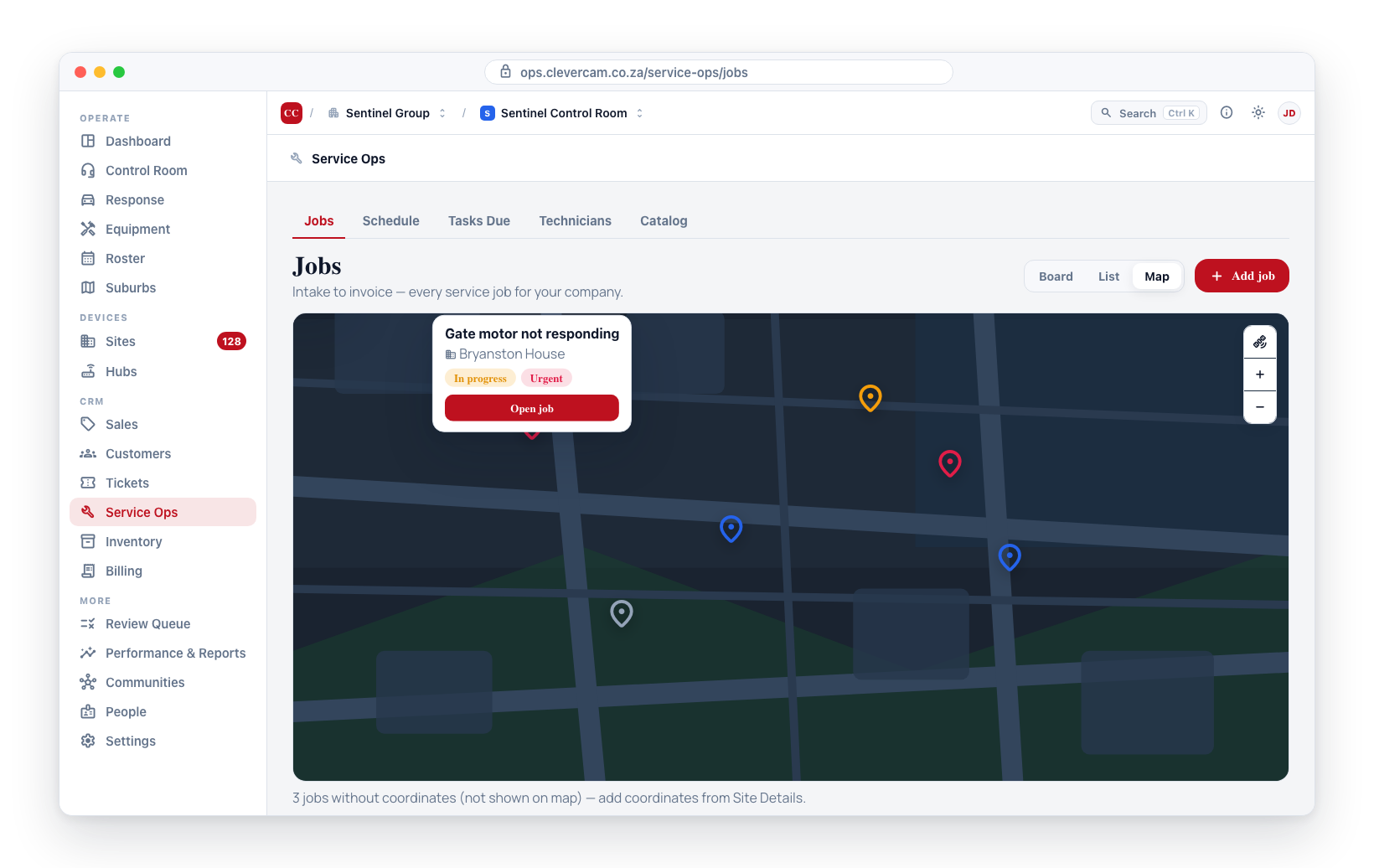
Click Map in the top-right toggle. The map shows two things on one canvas: a pin for every job in scope whose site has coordinates, and a marker for every technician vehicle — where each technician is right now.
Technicians on the map
A technician's position is their vehicle's tracker — the CleverTech app does not stream a live position. A van appears on the map when:
- it is signed out to the technician (a vehicle sign-out or standing assignment on their seat — see Signing a vehicle out), or
- it carries a vehicle tag whose Technician vehicle switch is on (see Controlling what the control room sees), or
- it is a van stock location in Inventory.
A van signed out to a technician carries that technician's initials and name; a van nobody has signed out shows as a spare van in grey. A tracker that has not reported for 15 minutes draws the marker dashed and marks it offline. Click a marker for the vehicle, why it is on the map, when it last reported, and how many of the technician's jobs are in view. Positions refresh every 30 seconds while the map is open; the count in the toolbar says how many vehicles are plotted.
Vehicles with no tracker, or a tracker that has never reported, are counted in a note below the map rather than drawn.
One colour per technician
By default the map colours by technician: each technician gets a colour, and their van and every one of their job pins share it — the red technician and the red jobs are one person. Unassigned jobs are grey. Switch Colour to By priority for the older colouring:
| Priority | Pin colour |
|---|---|
| Urgent | Red |
| High | Amber |
| Normal | Blue |
| Low | Grey |
Colours are dealt in the order technicians were added, so a person keeps the same colour on every visit and a new hire takes the next one rather than reshuffling everyone.
The legend (top-left) lists every technician with a job or a van in view, with their job count and their vehicle's last report. Click a name to show only that technician and their jobs; click more names to add them, and Everyone to show all again. The Unassigned and Spare vans rows toggle those layers.
Choosing what to plot — saved for you
The toolbar above the map is saved to your login, so the map opens the way you left it, on any machine, and nobody re-selects it every visit:
-
Jobs — which jobs to plot:
- Follow page filters (default) — whatever the Board and List show: the stage chips and header filters decide.
- Due today (incl. overdue) — open jobs scheduled up to the end of today, plus anything in progress.
- Due this week — open jobs scheduled within the next seven days, plus anything in progress.
- Overdue only — open jobs whose scheduled time has passed and that nobody has started.
- All open jobs — every job that is not Done or Cancelled, including unscheduled ones.
The dated scopes ignore the stage chips (that is their point) but still honour the search box and the assignee, priority and branch filters.
-
Colour — by technician or by priority.
-
Technicians, Spare vans, Unassigned jobs — the three layers.
-
The technician picks you make in the legend.
Reset view puts everything back to the defaults and clears the saved view.
Click a pin to see the job's title, site, schedule, technician, status and priority, plus an Open job button. The map fits itself to everything in view when the set changes; a van moving between refreshes does not move the map.
Jobs whose sites have no coordinates do not appear on the map. A note below the map shows how many jobs are hidden for this reason — you can fix this by adding coordinates to the site from Site Details.
When the map doesn't appear
The map needs WebGL — the browser feature that draws hardware-accelerated graphics — and it needs to reach Mapbox. When either is missing, the map area says so instead of leaving you on an empty panel:
| What you see | What it means | What to do |
|---|---|---|
| This browser can't draw the map | The browser isn't providing WebGL. Most often hardware acceleration is switched off, or the session is running over remote desktop. | Turn hardware acceleration on in the browser's settings and reload. |
| Couldn't reach the map service | The map data didn't download. | Check the connection and reload. On a locked-down machine, ask IT whether api.mapbox.com is blocked. |
| The map service rejected this request | Mapbox turned the request down — the map key needs renewing, or the account is over its monthly limit. | Report it; this one is for CleverCam to fix. |
| Map unavailable | No map key is configured for this environment. | Report it; this one is for CleverCam to fix. |
In every one of these cases the List and Board views still show the same jobs, each with its site, schedule, assignee, status and priority — only the geographic read of them needs the map.
Permissions
- Viewing jobs: any team member with access to your company.
- Creating, editing, and deleting jobs: requires service management access (supervisor level).
Next steps
- Create a service job — fields, scheduling, line items, notes, and attachments.
- Projects — group many jobs, quotes and invoices for a large multi-site install under one umbrella.
- Schedule board — drag-and-drop layout with smart overlap warnings.
- People — the staff registry (technicians, sales, billing, admin): roles, permissions, mobile login, working hours, and commission summaries. Under More in the sidebar.
- Products & Services — the equipment catalog used by quotes and installed equipment, in its own Inventory sidebar area.
- Quotes — creating, sending, and converting quotes.
- Installed equipment — tracking what is deployed at each site.
- Standby roster — who's on call, by date.