Billing Plans
A plan is a named, priced product you bill customers for on a recurring (or once-off) basis. Plans are reusable: you define "Armed Response Monthly · R 550" once and attach it to every armed-response site via a subscription.
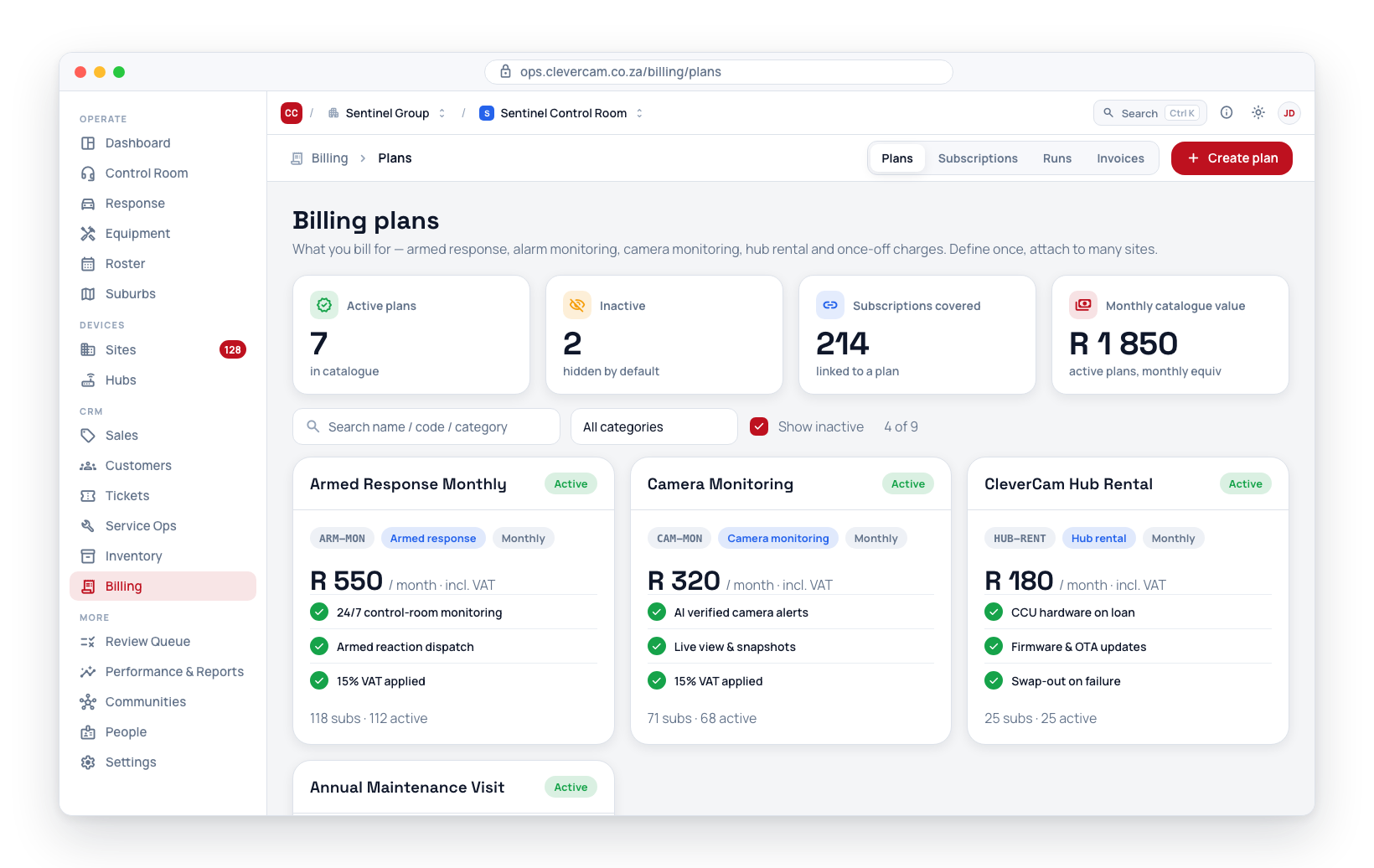
Navigate to Billing → Subscriptions and switch the view toggle to Plans — plans live as a view inside the Subscriptions tab, next to the subscriptions they price.
A plan is now the same kind of record as everything else you sell: it appears in Products & Services with the type Plan (recurring), and on a quote it is picked from the same Add item list as products and labour.
Billing → Subscriptions → Plans remains the place to define a plan's billing behaviour — cycle, billing basis, minimum quantity, ledger account and department. Products & Services is where you see it alongside everything else and set its commission rate. Existing plans, subscriptions and billing runs were migrated automatically and are unaffected.
A plan can be tagged with a Department / cost-centre (in Classification & ledger) to group revenue. Manage departments under Billing → Config.
Plan fields
| Field | Purpose |
|---|---|
| Code | A short reference code for the plan (e.g. ARM-MON, CAM-MON) — useful for filtering and exports |
| Name (required) | The display name shown on invoices |
| Description | A longer description that appears on invoice lines |
| Billing basis | Flat price (default) / Per camera / Per hub / Per unit (custom) — see Per-device pricing below |
| Default price | The price used when a subscription does not have a custom price set. For per-camera / per-hub / per-unit plans this is the price per device or unit |
| Minimum quantity | Non-flat plans only — never bill fewer than this many units (e.g. "R 50 per camera, minimum 4 cameras") |
| Unit label | Per unit (custom) plans only — the singular noun shown on invoices (e.g. "user", "zone", "detector") |
| Cycle | Monthly / Quarterly / Annual / Once-off |
| Ends after (cycles) | Optional — subscriptions on this plan bill this many cycles, then complete on their own (e.g. 4 for a four-month fixed-term plan). Blank = runs until cancelled. Each subscription can adjust its own term |
| Custom price per subscription | Tick for a plan with no default price — every subscription must enter its own agreed amount. Useful for bespoke or negotiated-per-customer plans |
| VAT applicable | Tick to apply 15% VAT to this plan's invoice lines |
| Ledger account | An accounting code for your own bookkeeping reference |
| Category | A grouping label — used for filtering and reporting |
| Is active | Untick to hide retired plans without affecting existing subscriptions |
Per-device pricing
A plan's Billing basis decides how the charge scales:
| Basis | How the amount is calculated |
|---|---|
| Flat price | One fixed price per billing period — today's classic "R 550 per month" plan |
| Per camera | Price × the number of enabled cameras on the subscription's site, counted live at every billing run. A customer-level subscription (no site) counts cameras across all the customer's sites |
| Per hub | Price × the number of hubs linked to the site (or all the customer's sites), counted live at every run |
| Per unit (custom) | Price × a quantity you set manually on each subscription — for anything CleverOps can't count itself (users, zones, detectors, …) |
For per-camera and per-hub plans the minimum quantity acts as a floor: a site with 2 cameras on a "R 50 per camera, minimum 4" plan is billed 4 × R 50 = R 200; a site with 9 cameras is billed 9 × R 50 = R 450. When cameras are added or removed, the next billing run picks up the new count automatically — no subscription edit needed.
Each subscription can also pin an exact quantity (its Billed quantity field), which overrides both the live count and the minimum — see Subscriptions. The invoice line always records the quantity and unit price, so the customer sees "Camera monitoring — 9 cameras, 9 × R 50.00".
Common categories
The app suggests the following categories (but you can use any label you like):
- Armed response
- Alarm monitoring
- Camera monitoring
- Hub rental
- Maintenance
- Service
- Other
Billing cycles explained
| Cycle | Behaviour |
|---|---|
| Monthly | The customer is billed every month |
| Quarterly | The customer is billed every 3 months |
| Annual | The customer is billed once a year |
| Once-off | The customer is billed once, then the subscription is automatically cancelled |
A subscription can also override the plan's cycle — useful when a specific customer wants annual billing on a plan that is normally billed monthly.
Add a plan
- Navigate to Billing → Subscriptions and switch the view toggle to Plans — plans live as a view inside the Subscriptions tab, next to the subscriptions they price.
- Click Add plan in the top-right.
- Pick the Billing basis (flat, per camera, per hub, or per unit) — non-flat plans also take a Minimum quantity.
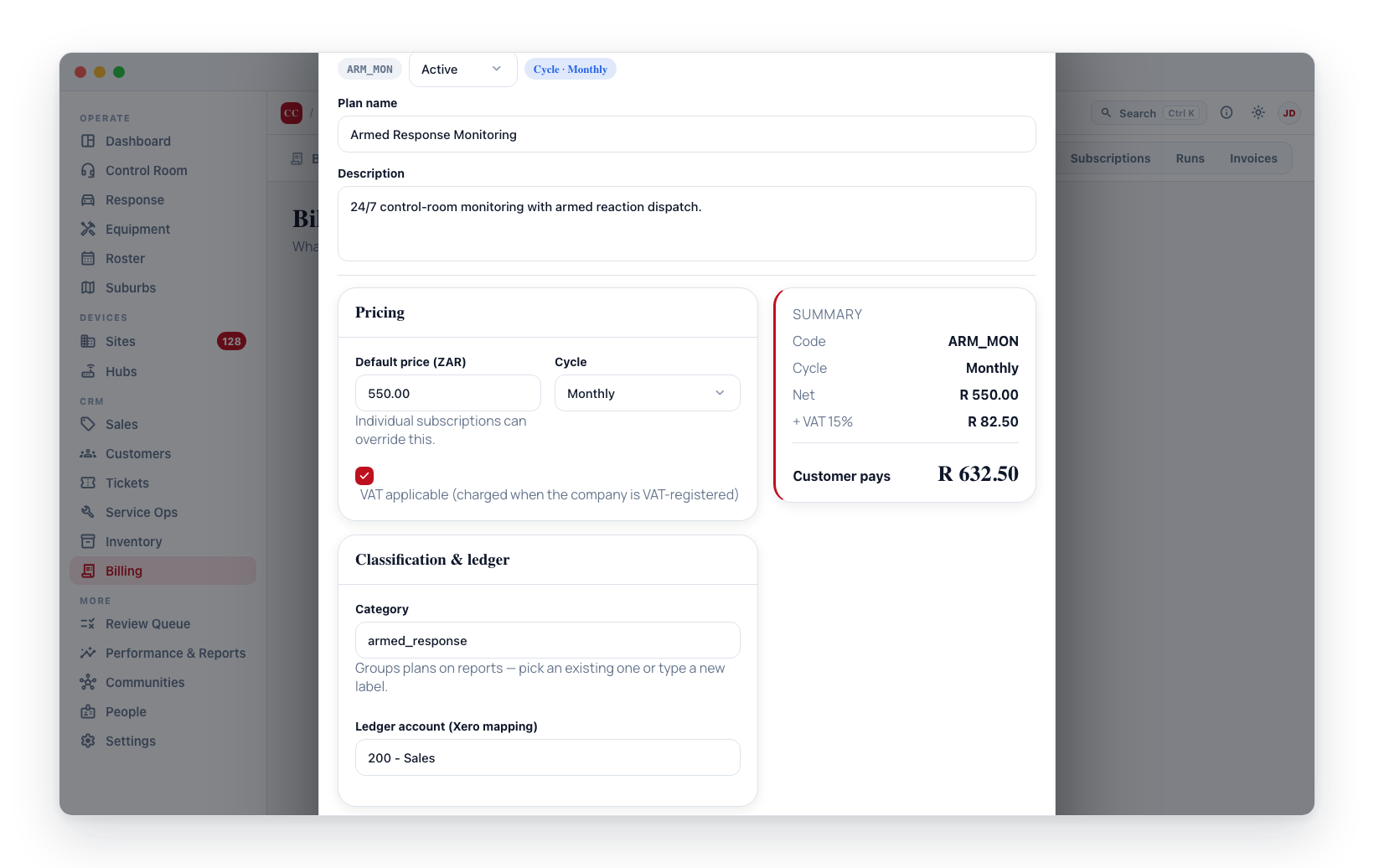
- Fill in the remaining fields — the summary card on the right shows the per-unit price, the minimum charge for non-flat plans, VAT, and the total the customer will pay, updating in real time as you type.
- Click Create plan.
Edit a plan
Click any row to open the edit form. The header shows how many subscriptions are currently using this plan, so you can see how widely a change will apply before saving.
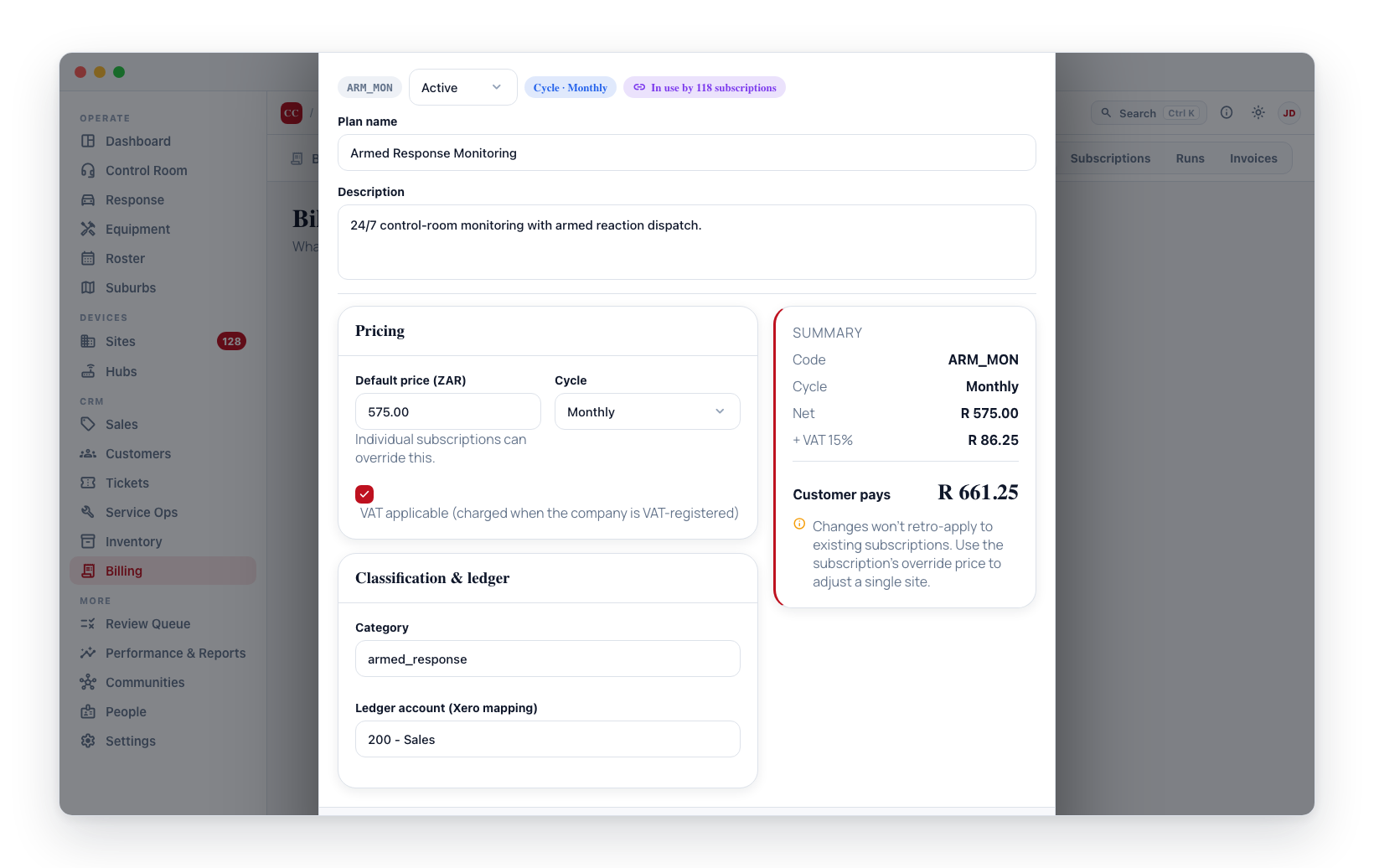
Editing a plan does not change past invoices — those are already written and finalised. It only affects:
- Future monthly runs where no custom price has been set on the subscription.
- New subscriptions created from that point on.
To push a price increase to existing customers, use the yearly increase % field on each subscription — or update the plan's default price and keep existing custom prices in place so only new sites pick up the new price.
Price realisation — what the book actually charges
Once a plan has live subscriptions, the edit form grows a Price realisation card under the two setup cards. It answers the question the list price alone cannot: the plan says R 205, but what are you actually charging?
A subscription's agreed price overrides the plan's list price — it never unlinks the subscription from the plan. This card is the other half of that link.
| Tile | What it means |
|---|---|
| List price | The plan's own default, as typed in Pricing above |
| Median charged | The typical account — half are charged less, half more |
| Average charged | The mean, with its drift from list as a percentage |
| Standard deviation | How tightly the book clusters around that average. Labelled tight book / moderate spread / wide spread |
| On list price | How many of the live subscriptions sit exactly on the list price |
Below the tiles, a histogram shows how the agreed prices are distributed. The band containing the list price is highlighted and marked with a dashed line, so a book that has quietly drifted above or below the catalogue is visible at a glance. The end bars absorb the top and bottom 2% so a single outlier cannot flatten the chart — the caption says how many were absorbed.
Two lines of prose close the card:
- What the plan bills a cycle at the agreed prices, against what it would bill at list.
- How many subscriptions carry a hand-set price that is identical to list. These count as overrides, so a change to the plan price above will not reach them — a common after-effect of a data migration.
Cancelled subscriptions are excluded; paused ones are counted. Every figure is a unit price on your VAT axis (quantity is not applied), so on a flat plan it lines up with the Amount column in the subscriptions register.
Find every subscription on a plan
The Billing → Subscriptions register has an All plans filter next to the status filter. Pick a plan to narrow the register — and the CSV export — to just that plan's subscriptions. Use this rather than the search box: search matches the subscription's title, which is optional, so it misses every subscription that left its title blank and simply inherits the plan name.
Deactivate a plan
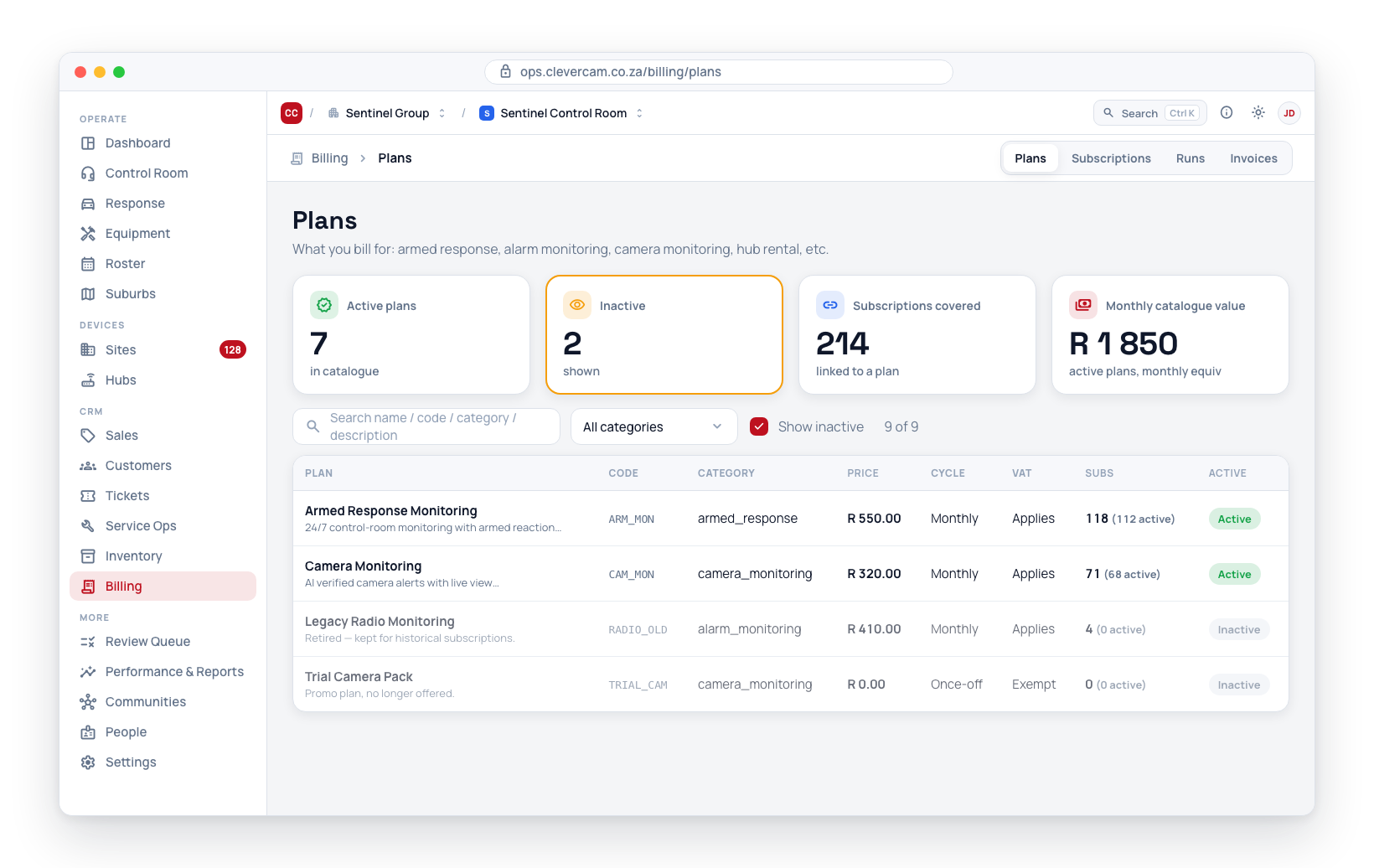
Untick Is active. The plan disappears from the subscription picker but stays linked to existing subscriptions and historical invoices.
Permissions
Creating, editing, and deactivating plans requires billing management access.