Job Templates
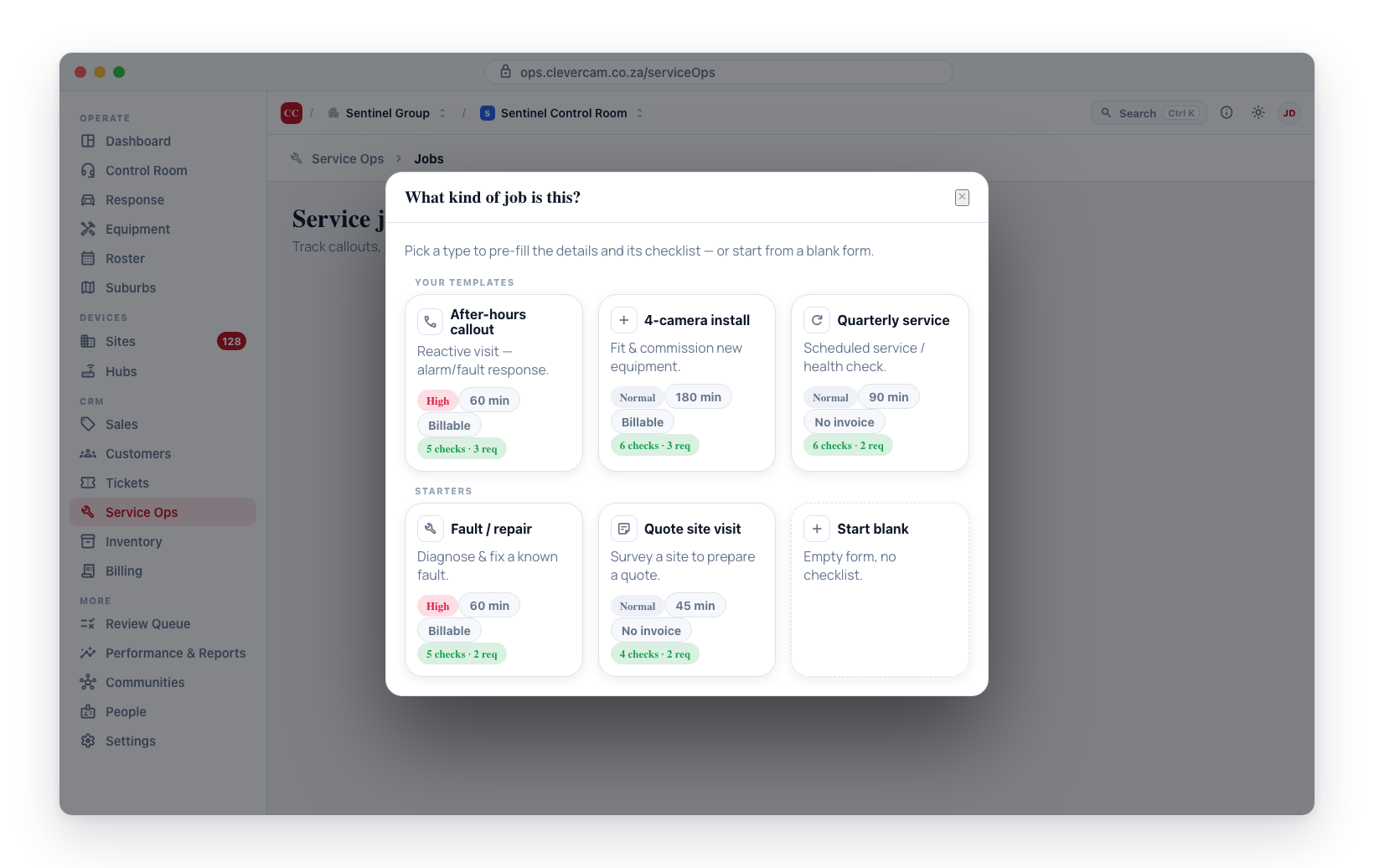
Job templates standardise the work your coordinator creates. A template is a job type — Callout, New install, Maintenance, and so on — that pre-fills a new job's defaults and seeds a checklist of the steps a technician should complete. Templates appear in the "What kind of job is this?" step when creating a job, alongside six built-in starters.
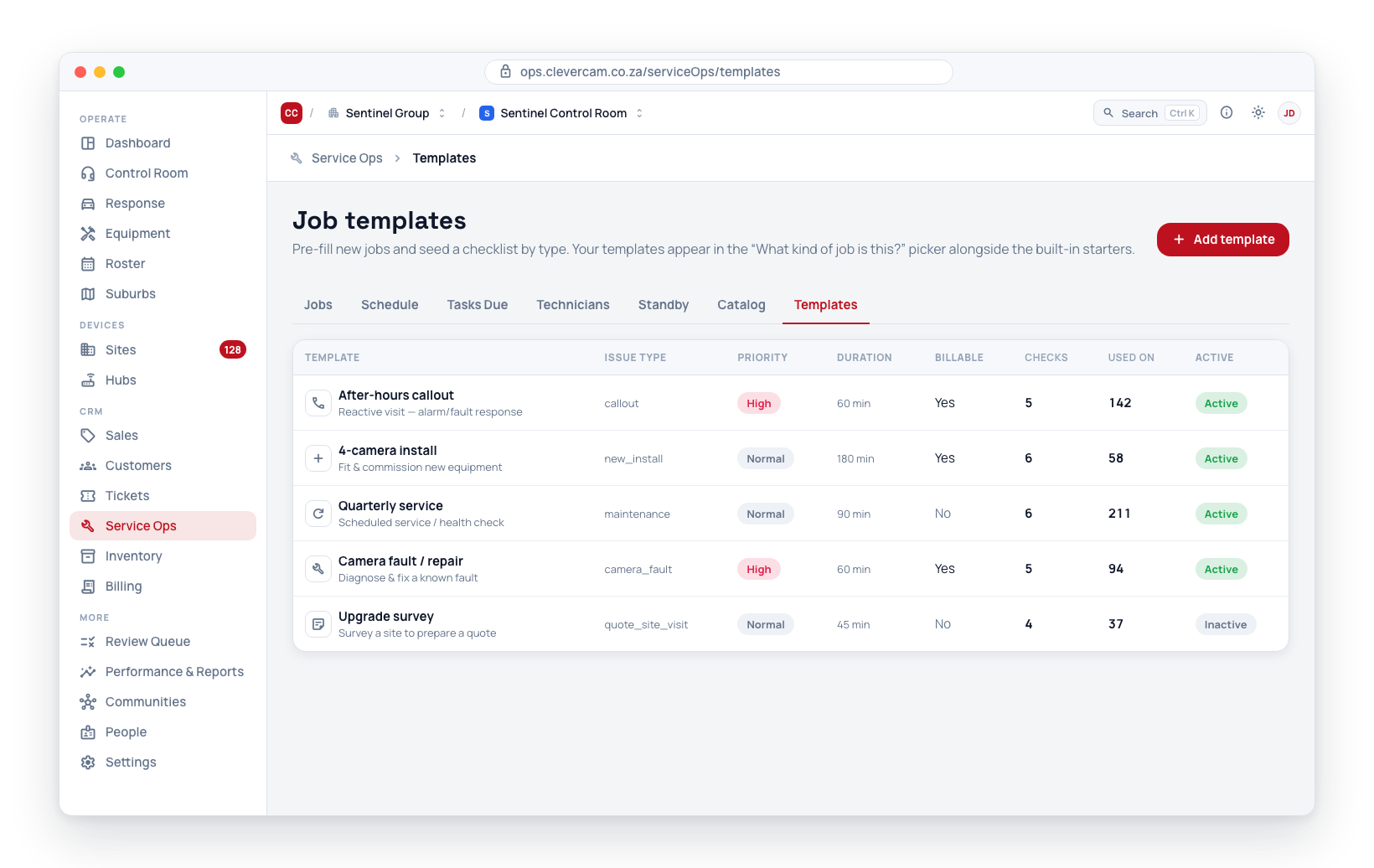
Open Service Ops → Templates in the sidebar.
Even before you create a single template, six starters are always available in the picker: Callout, New install, Maintenance, Battery replace, Fault / repair, and Quote site visit. Every one carries a sensible typed checklist: photo-required steps so each job type leaves photographic evidence behind (the condition found on a callout, the completed install, the panel/battery/signage on a maintenance or battery job, the faulty part before and after a repair, the proposed camera positions on a quote visit), pass/fail questions like All zones walk-tested OK? that demand a note and flag a follow-up when answered No, and readings like Panel battery voltage with a healthy range. Your own templates are shown first; the starters follow.
The templates list
The list shows each template with its icon, issue type, default priority, default duration, whether it is billable, the number of checklist steps, how many jobs were created from it, and whether it is active. Click a row to edit it, or New template to create one.
The template library
Next to New template sits Browse library — a gallery of ready-made job types with full typed checklists, built for the work a security company actually runs. Library presets are not in the picker by default; Add copies one into your templates (template + its whole checklist), where it behaves exactly like a template you built yourself — edit any step, retitle it, deactivate it. The library itself never changes, so you can always add a fresh copy.
Companies running the Onboarding module get the whole library seeded automatically (and wired as the per-kind install/assessment defaults on the Journey kinds table), so auto-created install jobs carry a checklist from day one. Seeding never duplicates: a preset you already have is left alone, and your edits to a seeded copy stick.
Each card shows the preset's priority, duration, billable default and step counts; View checklist expands the full procedure — sections, step types, healthy ranges and on-fail rules — before you commit. A preset whose name matches one of your templates gets an In your templates badge (the button turns into Add again, which creates a second copy).
| Preset | What it's for |
|---|---|
| Site assessment | Full pre-quote / pre-link survey — perimeter walk, existing equipment, power & connectivity checks, and a recommended-solution summary that feeds the quote |
| General callout | Catch-all reactive visit (system issue, sensor fault, beeping keypad) — closes on Problem resolved on this visit? so unresolved callouts demand a note and flag a follow-up |
| Alarm system installation | Panel, keypads, detectors, siren — installer/master codes changed from default, every zone and the panic proven received by the control room, battery voltage read |
| CCTV installation with CCU | New cameras plus a CleverCam CCU — claim the hub, streams to spec (H.264, ±704×480, ~8 fps, 1–2 Mbps), upload-speed reading, walk-test and a verified event proven end-to-end |
| CCTV upgrade — link to CCU | Put a CCU onto an existing camera system — credentials audit, stream optimization, the customer's own NVR left recording, detection proven end-to-end |
| False alarm investigation | Repeat triggers on a zone or camera — find the physical cause, fix it, then prove a real intrusion is still detected before agreeing a monitoring window |
| Electric fence inspection & repair | Energizer/line/battery voltage readings (with healthy kV ranges) before and after repair, the full line walked, plus warning-sign and Certificate-of-Compliance checks |
| System takeover / re-link | Take over a site from another company — gain panel access, reprogram reporting to your control room, prove every signal, remove dual reporting, swap the signage |
| Power backup installation | UPS / inverter / battery for load shedding — tested with the mains killed, backup runtime proven, mains-fail alert confirmed |
| Site decommission & recovery | Cancellation or relocation — recover equipment with serial numbers and condition photos, leave the site safe, close the loop with the office |
Every preset uses the typed-step system below: photos where a dispute would need evidence, readings with ranges where numbers matter, and pass/fail closers that demand a note and flag a follow-up when the visit didn't actually fix the problem.
Template fields
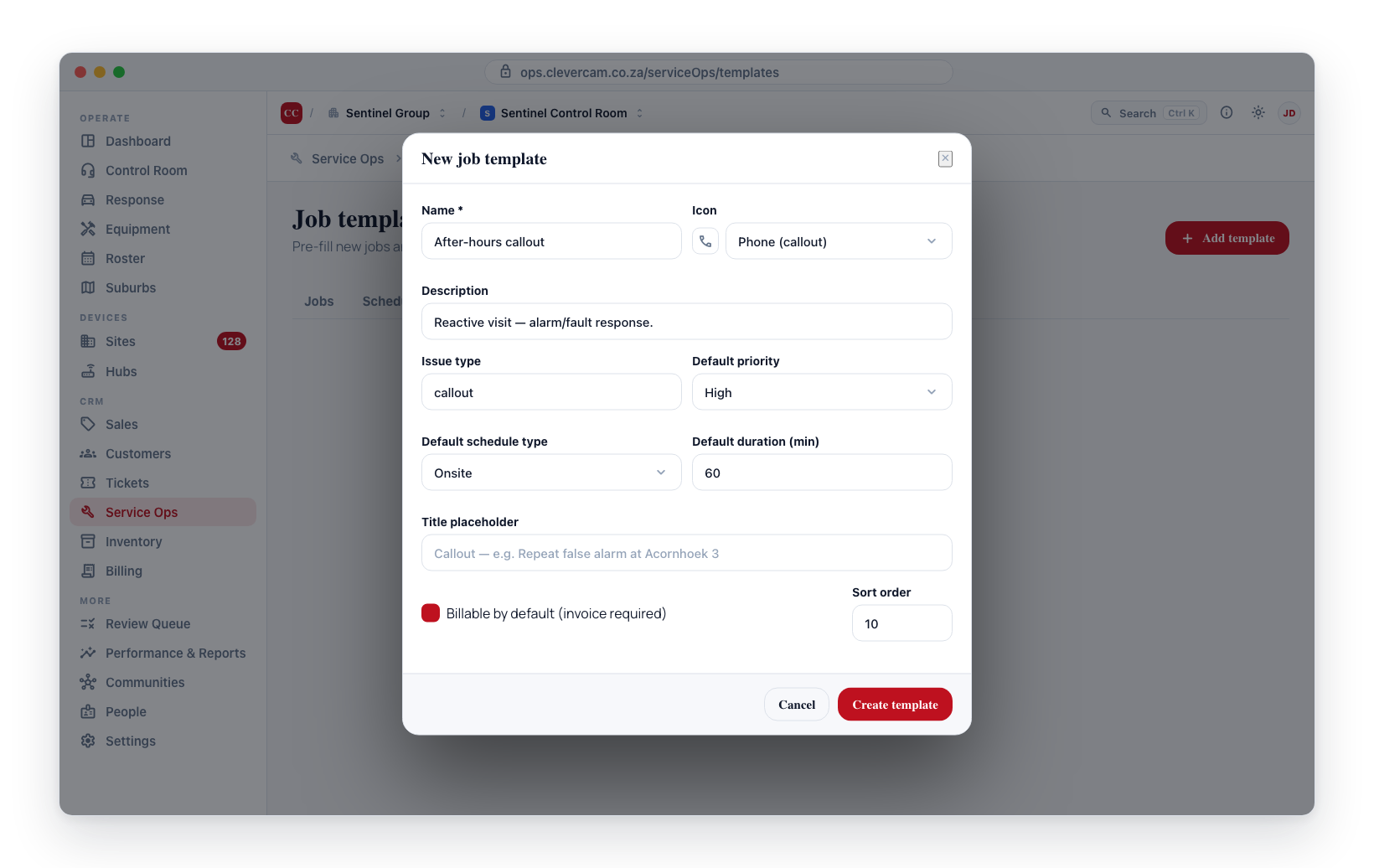
| Field | Notes |
|---|---|
| Name (required) | Shown on the picker tile, e.g. "Callout" |
| Icon | A tile icon, chosen from a fixed set |
| Description | A short line shown under the name on the tile |
| Job type | Pre-fills the job's job type (free text with suggestions) |
| Default priority | Low / Normal / High / Urgent |
| Where (default) | Onsite / Remote / Phone / Other, or unset |
| Default duration (min) | Pre-fills the job duration |
| Title hint | The greyed-out example shown in the new job's title box (plain text — it doesn't auto-fill the site name) |
| Billable by default | Whether new jobs of this type require an invoice |
| Order in picker | Lower numbers show first among the picker tiles |
| Active | Only active templates appear in the picker |
The checklist
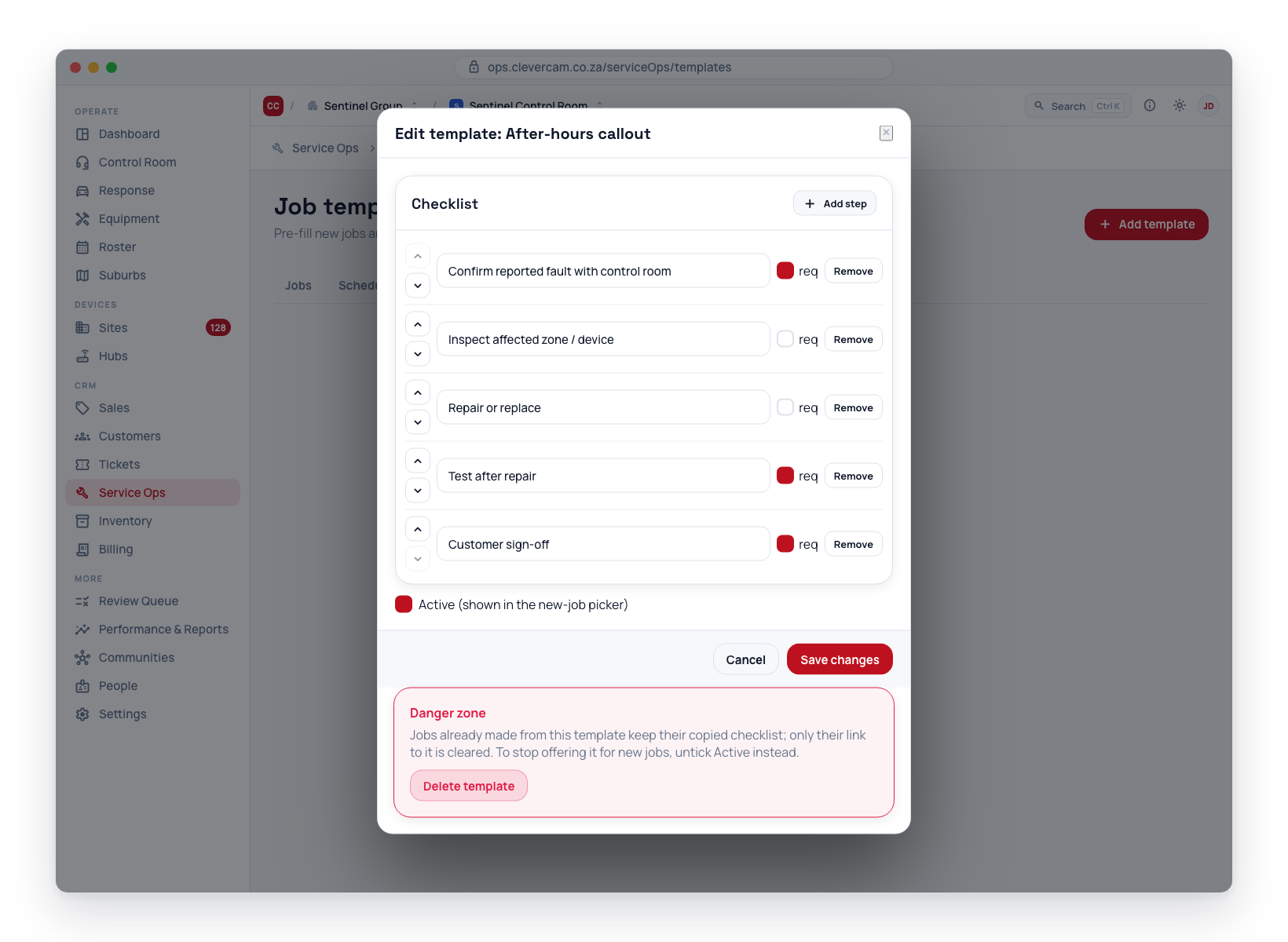
Each template carries a checklist — the steps that seed onto every job created from it. Steps are typed: each one says what kind of task it is and what evidence it produces.
Step types
| Type | The technician… | Extra settings |
|---|---|---|
| Check (tick) | ticks the step off | — |
| Photo | attaches a photo as the evidence (Photograph the battery, Photograph the panel, Photograph the sign board outside) | — |
| Pass / fail | answers Yes / No / N-A; a No marks the step FAILED | On-fail rules |
| Reading (number) | enters a reading (Panel battery voltage) | Unit, Min, Max — a reading outside the range marks the step FAILED — plus on-fail rules |
| Text answer | types a short answer (Panel model / serial) | — |
Editing steps
- Add step appends a new step; pick its type from the dropdown next to the label.
- Tick Required to make a step mandatory, and reorder steps with the up/down arrows. Answer-type steps (pass/fail, reading, text) count as done once answered.
- Tick Photo when a step needs photographic proof in addition to its answer. A Photo-type step is always a Required step (its photo is the evidence), so choosing the Photo type ticks Required automatically.
- The options line under each step sets its Section (see below) and, for reading steps, the Unit / Min / Max.
- Remove a step with the ✕ button.
Optional, mandatory — and mandatory-on-condition
Beyond plain optional vs required, pass/fail and reading steps carry On fail rules — requirements that only switch on when the step actually fails (a No answer, or a reading outside the healthy range):
- Note — the technician must write what they found before the job can be signed off.
- Photo — a photo must be attached against the failed step before sign-off.
- Flag follow-up — the failure flags the job so the office can create a linked follow-up job in one click.
A step that passes demands none of this — the extra evidence is conditionally mandatory, exactly when it matters.
Sections — one job, several checklists
Give steps a Section name and they render grouped under that heading on the job (and in the CleverTech app). Sections keep a long procedure readable — Panel, Cameras, Perimeter — and they're also how a single job carries multiple checklists: on a live job, Add from template appends another template's whole checklist as its own section.
Copy-on-create
When a job is created from the template, these steps are copied onto the job — including each step's type, range, and on-fail rules. Editing or deleting a template later does not change the checklists (or the rules) already copied onto existing jobs — those keep the steps they were created with.
Required steps drive the Readiness indicator in the Needs attention → Review & invoice, so a coordinator can see at a glance whether the required work is done before approving a job for invoicing.
Photo-required steps
A Photo step (or any step with the Photo toggle) needs at least one photo attached against it before it counts toward sign-off — a plain tick isn't enough. On the job's checklist, a step like this shows an Attach photo control that flips to Photo attached once satisfied; the same photo appears in the job's Attachments tab tagged with the step it satisfies. In the field, the CleverTech app shows a camera button directly on the step so the technician can snap the required photo (panel, battery, signage, etc.) as part of working the checklist.
The sign-off gate treats missing required photos exactly like open required checklist items: a job can't be marked Completed or approved for invoicing until every photo-required step has a photo attached — and until every failed step's demanded note/photo is captured — unless the coordinator records a "complete without full sign-off" reason.
Because a missing photo blocks sign-off either way, a photo step is always required and carries the Required tag — so the technician can see up front that the job won't close without that photo. A step can't be optional to tick but mandatory to photograph.
Templates are the fastest way for a single coordinator to keep job creation consistent across hundreds or thousands of clients — pick a type, and the issue type, priority, duration, billing, and checklist are all set in one click.
Permissions
Managing templates requires service management access. Without it, the New template and edit controls are hidden.