Company Settings
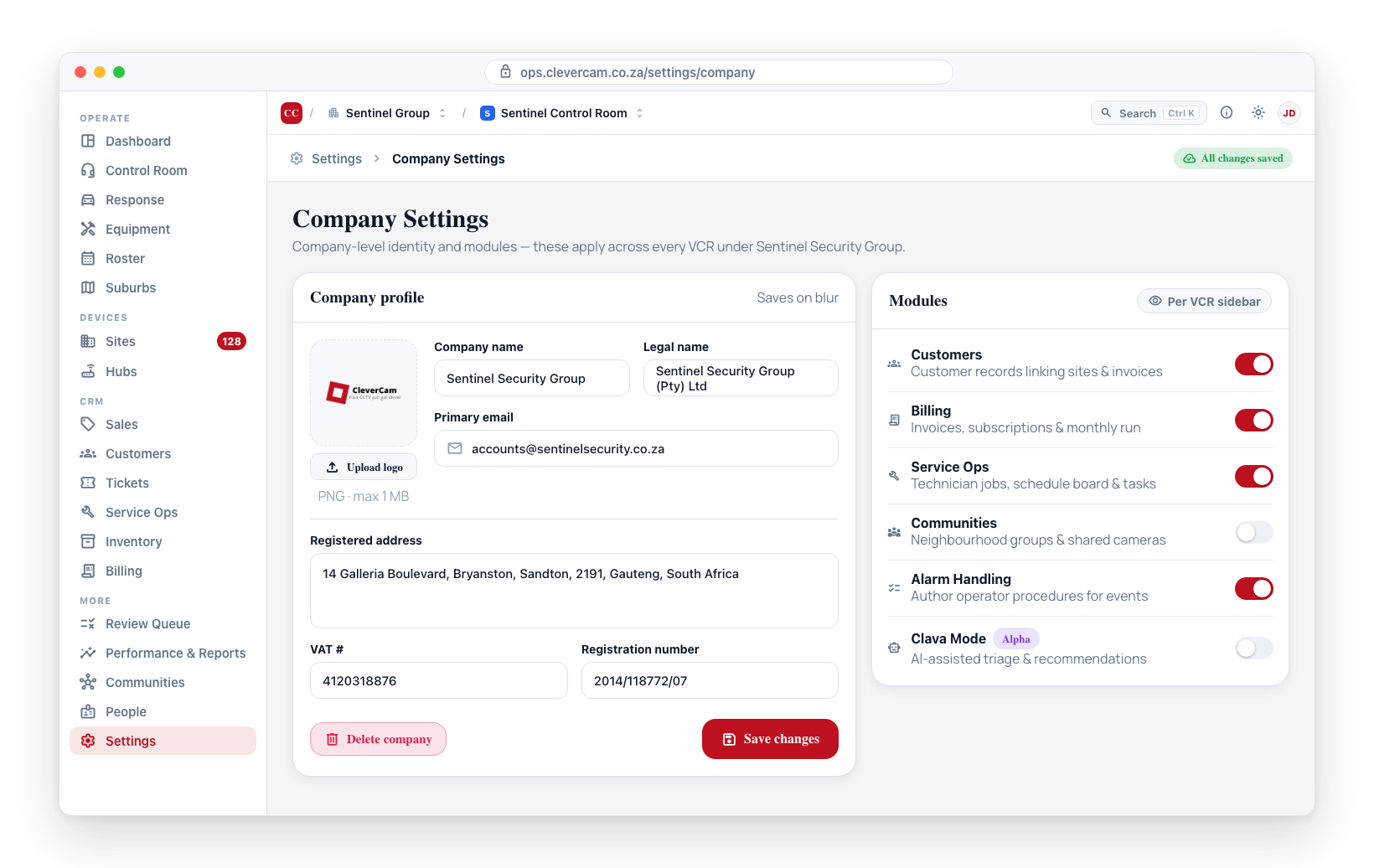
Company settings manage the top-level identity and administrative details of your security company within CleverOps. While Virtual Control Room (VCR) settings control individual operational units, company settings apply across your entire organization -- including all VCRs under your company. This is where you update your company name, manage team members, and control which modules each VCR can use.
The billing identity that appears on customer-facing documents — accounts address, accounts contact, VAT-registration status, VAT number and VAT rate — belongs to each VCR (the entity that invoices its own clients), not the company. Edit it under Settings → Branding → Company profile for that VCR. See VCR Settings — Branding.
Accessing Company Settings
Company Settings is accessed from the VCR selection screen by clicking the settings icon next to a company name.
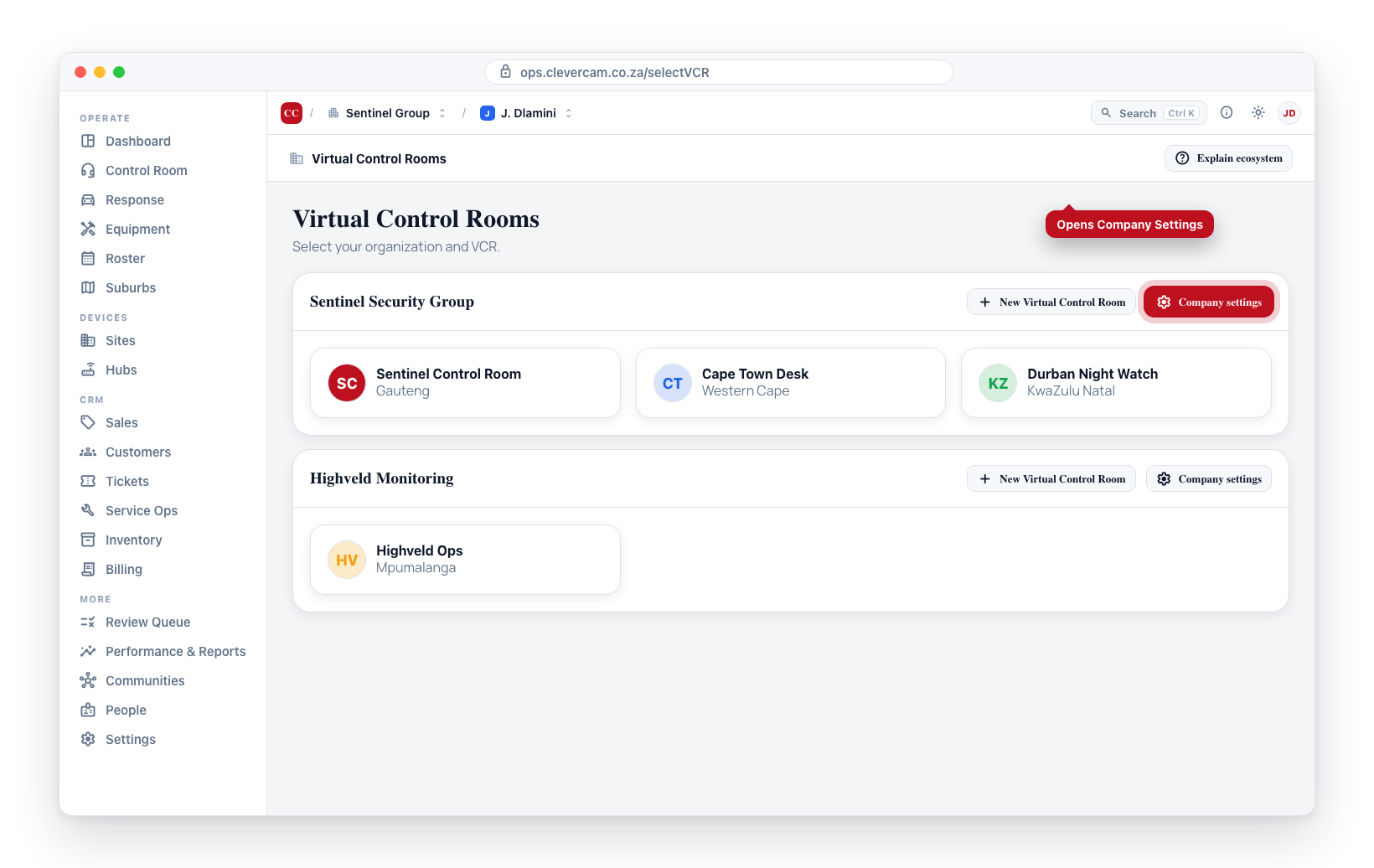
Company settings are accessible to company team members, or to super admins with super-admin mode turned on. If you do not see the settings icon, you may not have company-level access.
Tabs
The Company Settings page has these tabs (the Modules tab is only shown to company owners, or super admins with super-admin mode on):
Basic Info
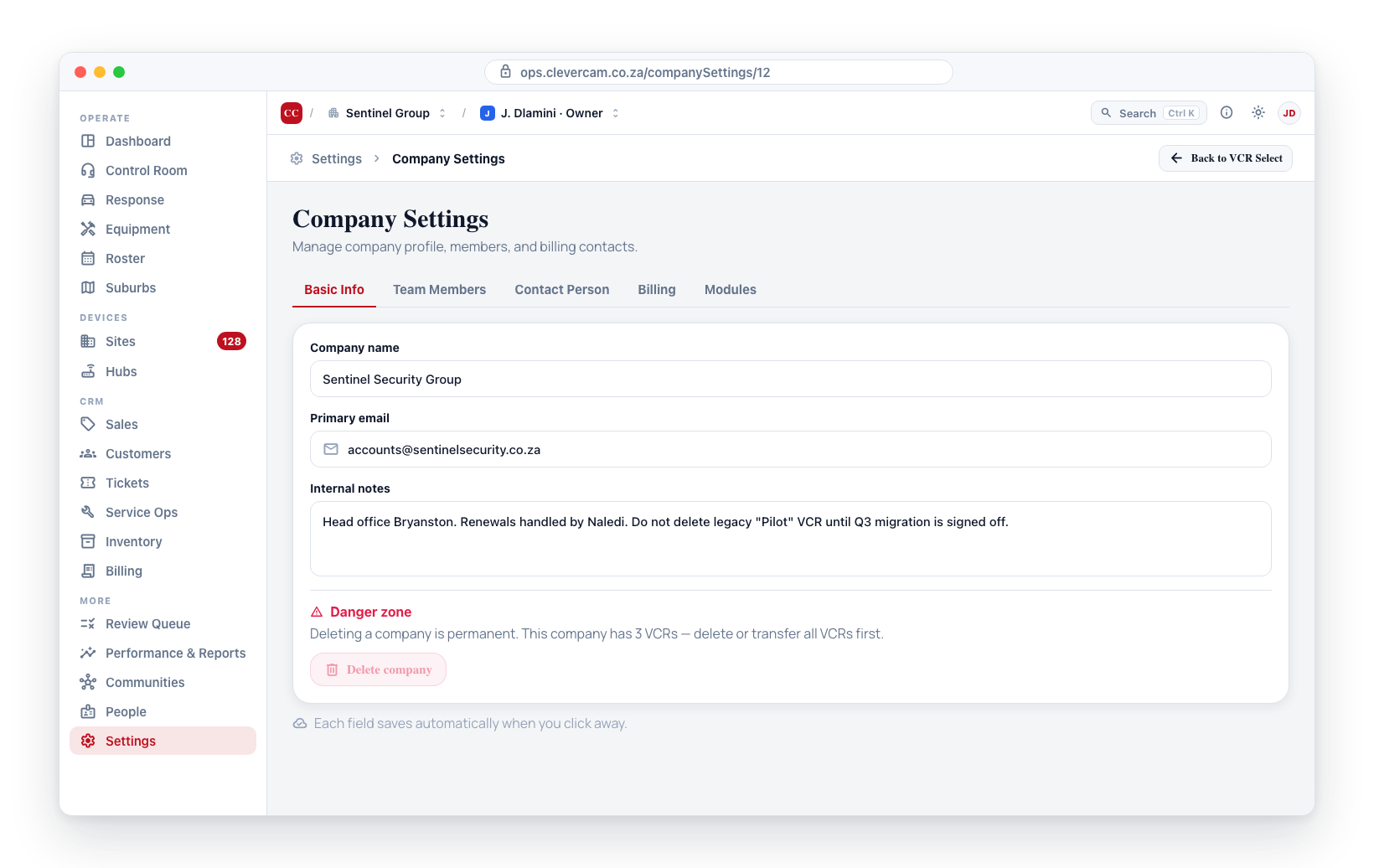
- Company name -- Edit inline and click away to save.
- Primary email -- The company's main contact email.
- Internal notes -- Free-text notes for internal reference.
- Danger zone — Delete company -- Visible only to company owners (or super admins with super-admin mode on). The button is disabled while any VCRs are linked to the company; delete or transfer all VCRs first. Deleting a company permanently removes the company record and cascades the team-member rows. Linked VCRs block the delete (database-enforced safety).
Owners
Who owns the company — add an owner, remove one, or hand ownership over. Deliberately the only people surface left at company level: everything else about a person is on their workspace under People. See Owners for full details.
Modules
Visible only to super admins with super-admin mode on. This is where CleverCam decides which optional feature areas appear in the sidebar for each of your VCRs — keeping each control room focused on only what it uses.
Every VCR is listed with a toggle per module. Turning a module on makes its sidebar entries appear for that VCR's whole team; turning it off hides them. Changes save immediately.
Modules describe what a control room has subscribed to, so they are set by CleverCam rather than self-served — the platform rejects a module change from anyone who is not a super admin, whichever route it comes through, including creating a new control room with modules already on. Company owners and VCR managers see the read-only On/Off state on Modules & Capabilities (Settings → General); contact CleverCam support to change your subscription.
| Module | What it adds |
|---|---|
| Advanced Alarm Handling | Per-alarm-type Action Plans and the smart event-handling Brain. Master switch for the Alarm Handling settings tab plus the Performance & Reports page. Set by CleverCam — read-only for company owners. |
| Allow 3rd Party Alarm Receivers | Inbound integrations with 3rd-party alarm panels (Olarm, Ajax, FSK, RDC, FinMon, SpotBot, Hyyp, Onyyx) via the Settings → Alarm Receivers tab, plus the Identity & Signals tab on the Hubs page. |
| Customer Relationship Manager (CRM) | The whole customer lifecycle in one switch — Sales (leads pipeline + quotes, under one sidebar entry), Customers, Tickets, Service Ops (jobs, schedule board, technicians, equipment catalog, tasks-due, recurring maintenance) and Billing (invoices, subscriptions, payments, statements, monthly run). |
| Onboarding journeys (alpha) | The Lead-to-Live acquisition journey: the Onboarding board that takes a deal from enquiry to a live monitored site, with the customer-facing Getting Started link (tasks, e-sign, keyholders, debit order), automatic prospect-customer and pending-site creation, and per-VCR task packs and gates. Pairs with the CRM module — see Onboarding. |
| Multiple billing entities (alpha) | Issue finance documents from more than one legal entity in the same control room — each with its own letterhead, VAT registration, invoice numbering, bank accounts and accounting connection. Requires the CRM module (the platform refuses the switch without it). Rolling out in stages — see Modules & Capabilities. |
| Chat with the hub (alpha) | Camera setup as a conversation. On a site's Hardware tab, + Add Camera gains Chat with the hub: the installer says what they need and the hub scans its network, signs in to the cameras, shows what each one is looking at, adds them, tunes their streams for detection, and can go back to a camera that has gone dark. Open to the people who already manage that site's cameras. Each conversation costs a few cents in AI, which appears under External spend. See Setup chats. |
| CleverCam Academy (beta) | Training for the control room's own staff at academy.clevercam.co.za. Adds the Academy tab to People and to each person's workspace, where anyone with Manage team enrols people in a track or single modules with a due date, and sees progress and certificates. People are emailed the steps and reminded before the date. Unlike other modules, a super admin cannot enrol people in a control room that has it off — switch it on first. See Academy. |
Each module gates its whole area as a single unit — there are no separate toggles for Service Ops, Billing, Customers, Tickets or Communities, and Advanced Alarm Handling has no runtime sub-switches either (its Brain runtime follows the master automatically). For the full per-area breakdown, see Modules & Capabilities.
Dashboard, Control Room, Response, Areas, Sites, Hubs, Communities and Settings are core features — always available and not listed as modules. Note that Performance & Reports is gated by the Advanced Alarm Handling module, and the Identity & Signals tab on the Hubs page is gated by Allow 3rd Party Alarm Receivers — both hide when their module is off.
The sidebar groups (Operate / Devices / CRM / More) are collapsible — click a group heading to fold it. Your choices are remembered on your device.
Best Practices
- Keep contact details up to date -- Outdated contacts may miss important communications. (Accounts/VAT details live per-VCR under Settings → Branding.)
- Limit company admin access -- Only grant company-level access to personnel who need it.