Response Settings
Response Settings is where you leave information that control rooms read when responding to events at your site. It also lets you set a response password and a duress password so operators can verify who is calling and detect a distress situation.
How to Get There
- Tap the More tab (bottom navigation, far right).
- Under My site, tap Response Settings.
Site Notes
The Site notes field is a free-text box visible to all control rooms handling events for your site. Use it to give responders the context they need before they make contact or dispatch a unit.
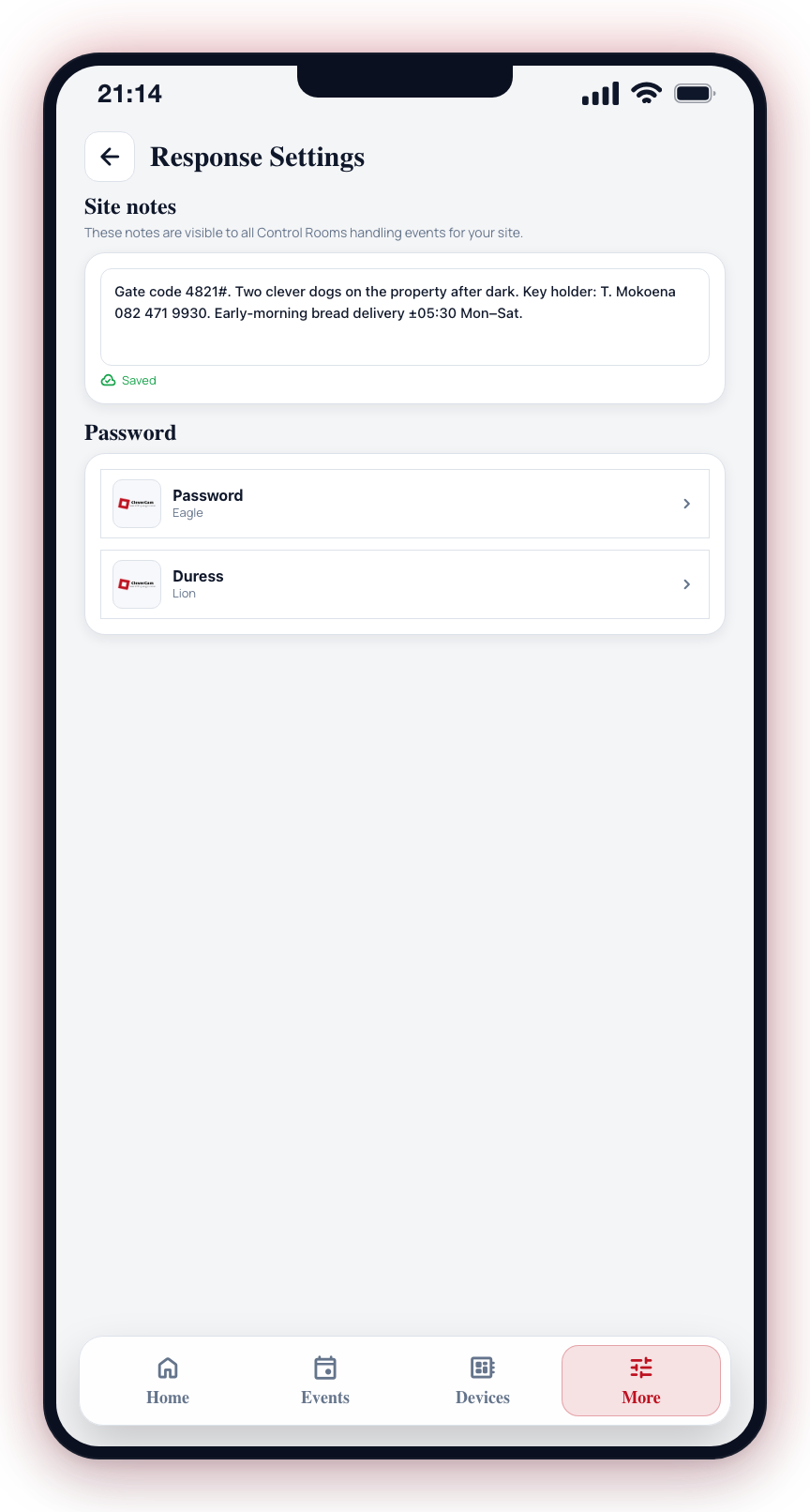
Good things to put here:
- Gate code or access instructions
- Dog warnings
- Key holder names and numbers
- On-site hazards
- Normal activity that might otherwise look suspicious (e.g. early morning deliveries)
Notes apply to the entire site. You do not need to enter them separately for each hub or camera.
Some third-party alarm panels may not pass your notes through to the control room. If you are using a third-party panel, confirm with your control room that they can see your notes.
Changes save automatically two seconds after you stop typing.
Password and Duress Password
Below the notes section, two selector tiles let you choose a Password and a Duress password from a grid of branded logo images.
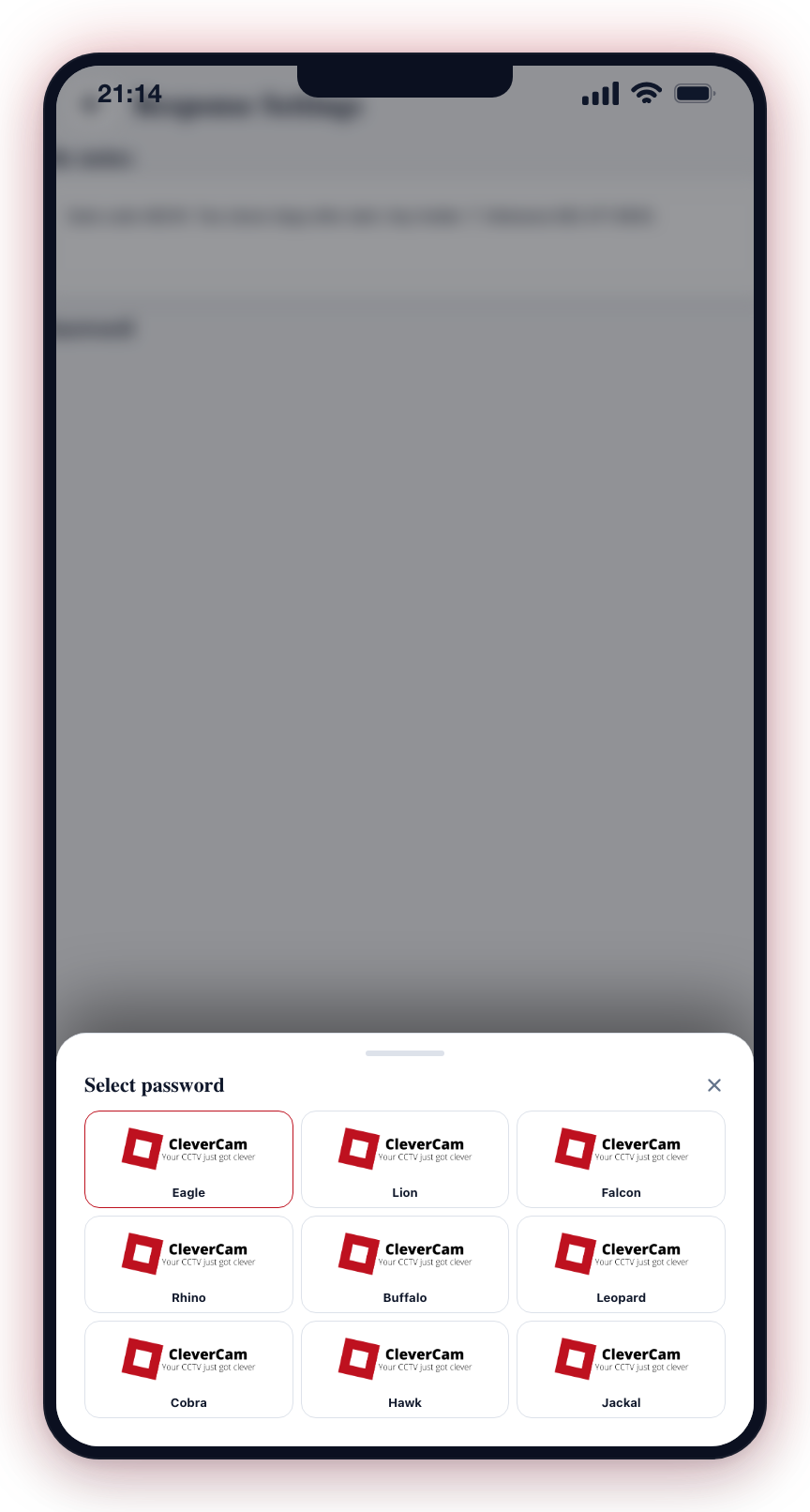
- Password -- The image you select is your verbal confirmation that you are the legitimate account holder when calling a control room.
- Duress -- A separate image you select to silently signal to the control room that you are under duress. The operator acknowledges your call normally but escalates covertly.
Tap either tile to open a picker, then tap the image you want. The selection saves immediately.
There are nine tiles, and each one is the same logo in a different colour -- red, blue, green, yellow, purple, orange, pink, grey, and black. That is why an operator will ask you for your colour, and why the same choice appears as "tap your secret colour" when you close an event from the app. See Quick Reply.
These passwords apply to you personally (your own access to the site), not to the site as a whole. Other users on the same site set their own passwords separately.
Choosing your own colours
Every new site connection starts on the same two defaults: red for your password and pink for duress. Those defaults are identical for every CleverAlert user, so until you change them they prove nothing -- anyone who knows the defaults knows both your confirmation colour and your duress colour.
While a site connection is still on both defaults, Home shows a one-time Choose your response colours prompt:
- Set them up opens this screen so you can pick your own.
- Not now dismisses the prompt for that site, and it will not ask again.
The prompt stops appearing as soon as you have chosen your own colours. Whether or not you ever see it, you can change both colours here at any time.
In the app these are always colours -- one of the nine tiles. The word-based password your security company may hold for you (for phone or WhatsApp verification) is a separate thing that they manage on their side; it does not replace your colours. If your colours ever end up unset, the app shows a Set your response colours prompt instead, and keeps asking until they are set -- without them you cannot close an alarm from the app at all.
Pick a duress colour you will remember under pressure, and do not share it with anyone -- including family members who also use the app. Each person on the site sets their own.