Connecting to a Site
A "site" in CleverAlert represents a physical location that is protected by one or more Clever Hubs and their connected cameras. Before you can view cameras, receive alerts, or manage schedules, your account must be linked to at least one site.
What is a Site?
A site is the top-level grouping in CleverAlert. It typically corresponds to a single physical address -- such as a home, office, warehouse, or retail store. Each site has:
- One or more Clever Hubs installed on the premises
- Cameras connected to those hubs
- Groups for organizing cameras
- Schedules for automated arming and disarming
- Events generated by camera detections
- Users who have access to monitor and manage the site
All data in the app -- cameras, events, groups, and schedules -- belongs to the site you currently have selected.
Invited by Your Security Company?
If your security company sent you an invitation (by WhatsApp, SMS or email), you don't need a code at all:
- Open the link they sent you. A page in your company's branding shows three steps and the right app-store button for your phone.
- Install the app and create your account — use the phone number your security company has on file (the page shows it, and the app pre-fills it) so the app recognises your invitation.
- Accept the invitation. The moment you sign in, a sheet shows who invited you and to which site — one tap on Accept invitation and the site is yours: its alarms, arming, and panic. Not now parks it for later; Decline tells your security company you'd rather not, and why.
The app also finds your invitation without the link: registering with the email address the invitation went to shows it immediately, and registering with the phone number your security company has on file first texts that number a 6-digit code — enter it and the invitation opens. If the link page can't open the app, Show my code instead gives you a classic 4-character code (valid for one hour) to type in under Method 2 below.
How to Connect to a Site
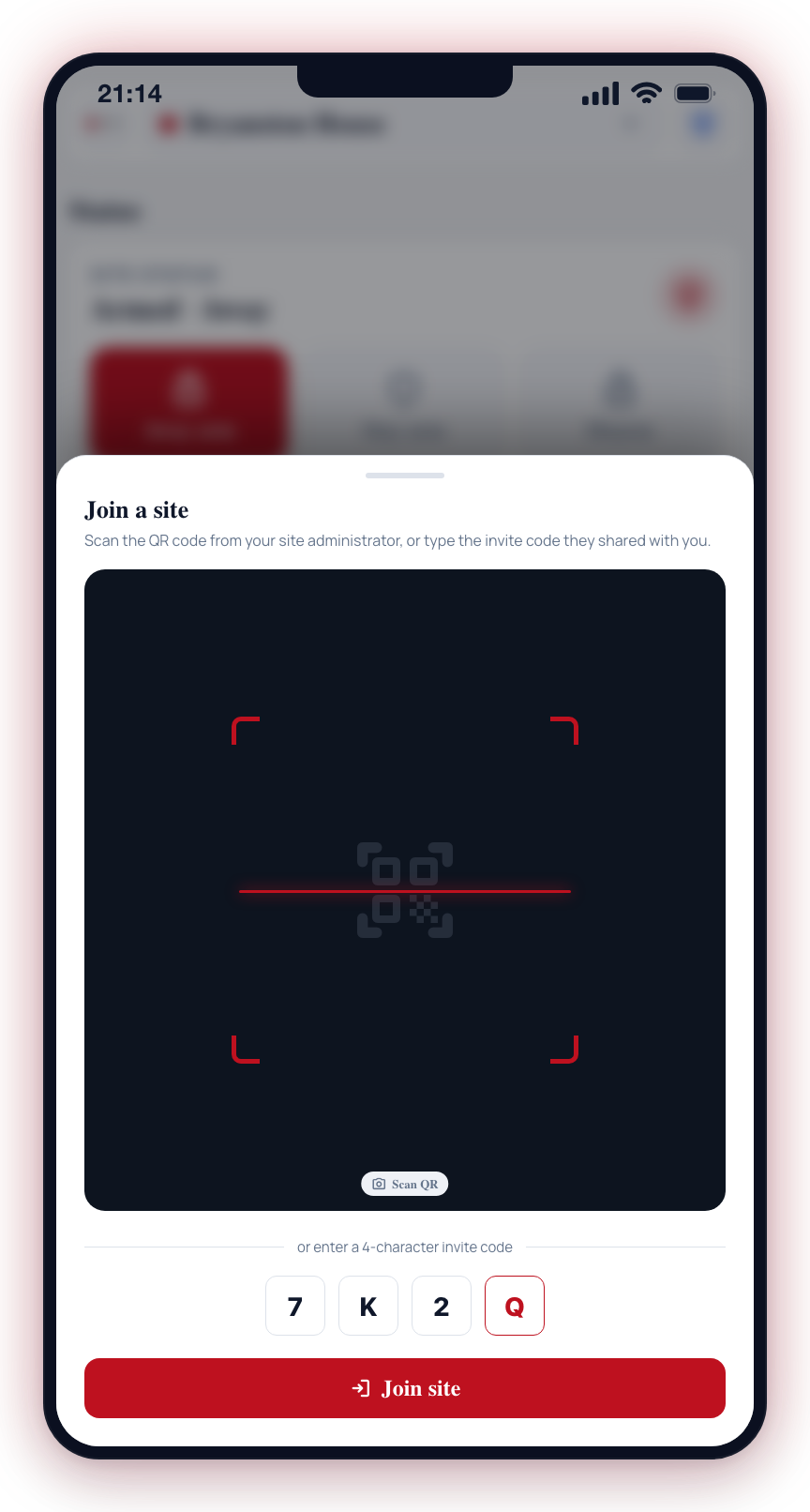
To connect your account to a site, a site administrator must first create an invite for you (see Manage Users). You then join using the invite code or QR code they provide.
Method 1: Scan QR Code
- Open the CleverAlert app and sign in.
- Open the site selector (tap the site name at the top of the screen).
- Tap Join site.
- Tap Scan QR on the right side of the panel.
- Grant camera permission if prompted, then scan the QR code displayed by the site administrator.
- If the code is valid, your account is linked to the site immediately.
Method 2: Enter Invite Code
- Open the CleverAlert app and sign in.
- Open the site selector and tap Join site.
- Enter the 4-character invite code in the code input field on the left side of the panel.
- Tap Join site.
- If the code is valid, your account is linked to the site immediately.
First-Time Site Setup
If you are the first user setting up a new site (typically the installer or property owner):
- Ensure your Clever Hub is powered on and connected to the internet.
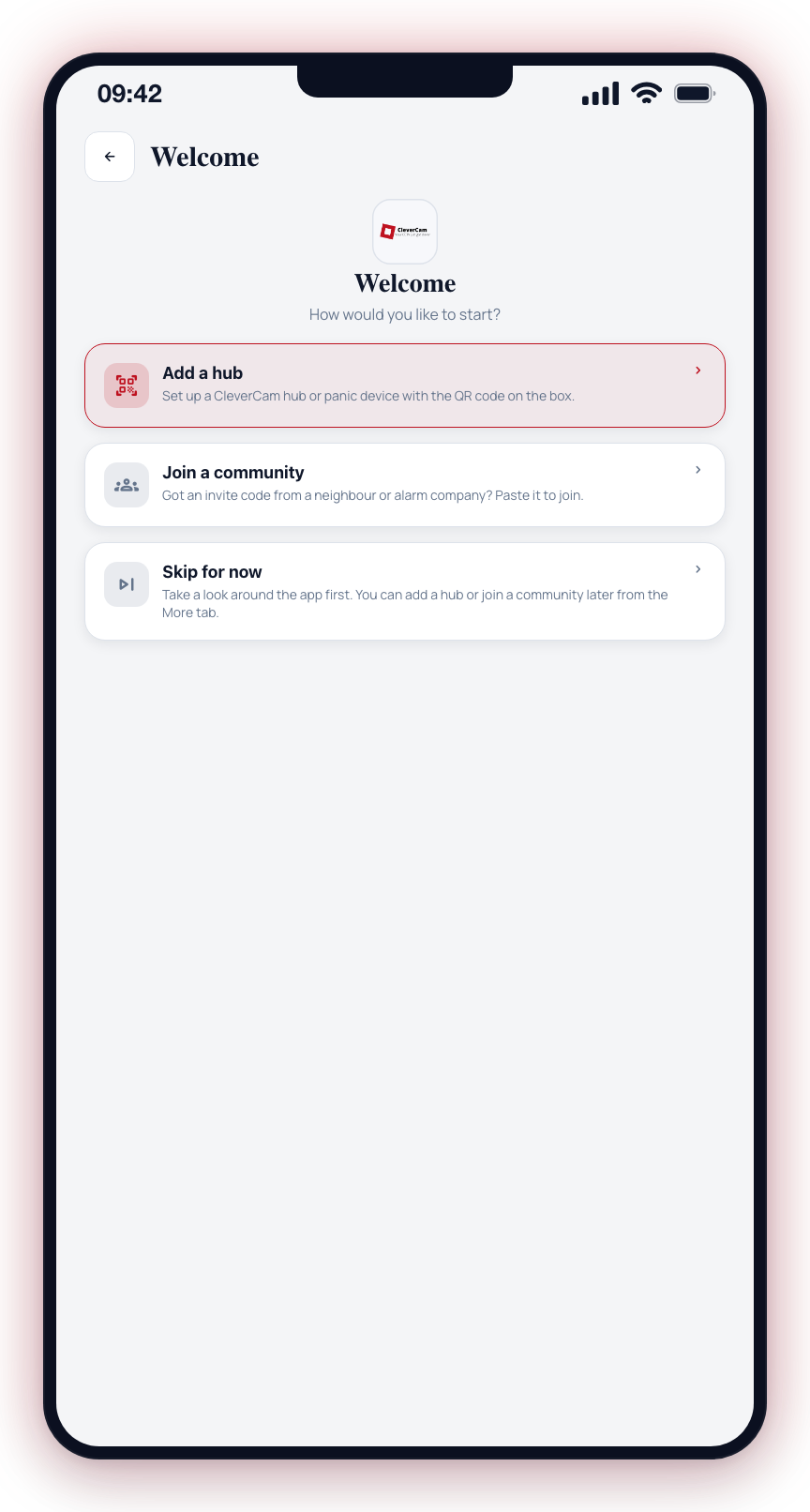
- Open the CleverAlert app, sign in, and choose Add a hub. The Create a site wizard opens with five screens:
- Site name — what you want to call the site.
- Link hub to site — tap Scan QR Code and scan the label on the hub, or type the hub's serial number and verification code, then tap Continue. The hub is checked here, so a wrong code is caught before you fill in anything else.
- Address — search for the address or fill it in by hand. Tap Skip for now if you would rather add it later under Site information. A security company needs the address to respond, so add it before you request monitoring.
- Groups — optionally name groups to arm and disarm cameras together. You can leave this empty: each camera or alarm you add later makes its own group. Tapping Next creates the site and links the hub.
- Security company — pick a company to request monitoring from, or tap Continue without security company.
- The app opens on Home. Add your cameras from the Devices tab.
The back arrow (and the Android back button) takes you one screen back and keeps what you typed. It only leaves the wizard from the first screen, and from the security-company screen, where the site already exists.
The hub is linked to your new site as soon as the site is created. If you close the app before choosing a security company, the site keeps its hub and you can carry on from Home.
Sites are managed by your security provider or installer. If you need a site code or have questions about your site setup, contact your installer or the Clever support team.
Switching Between Sites
If your account has access to multiple sites:
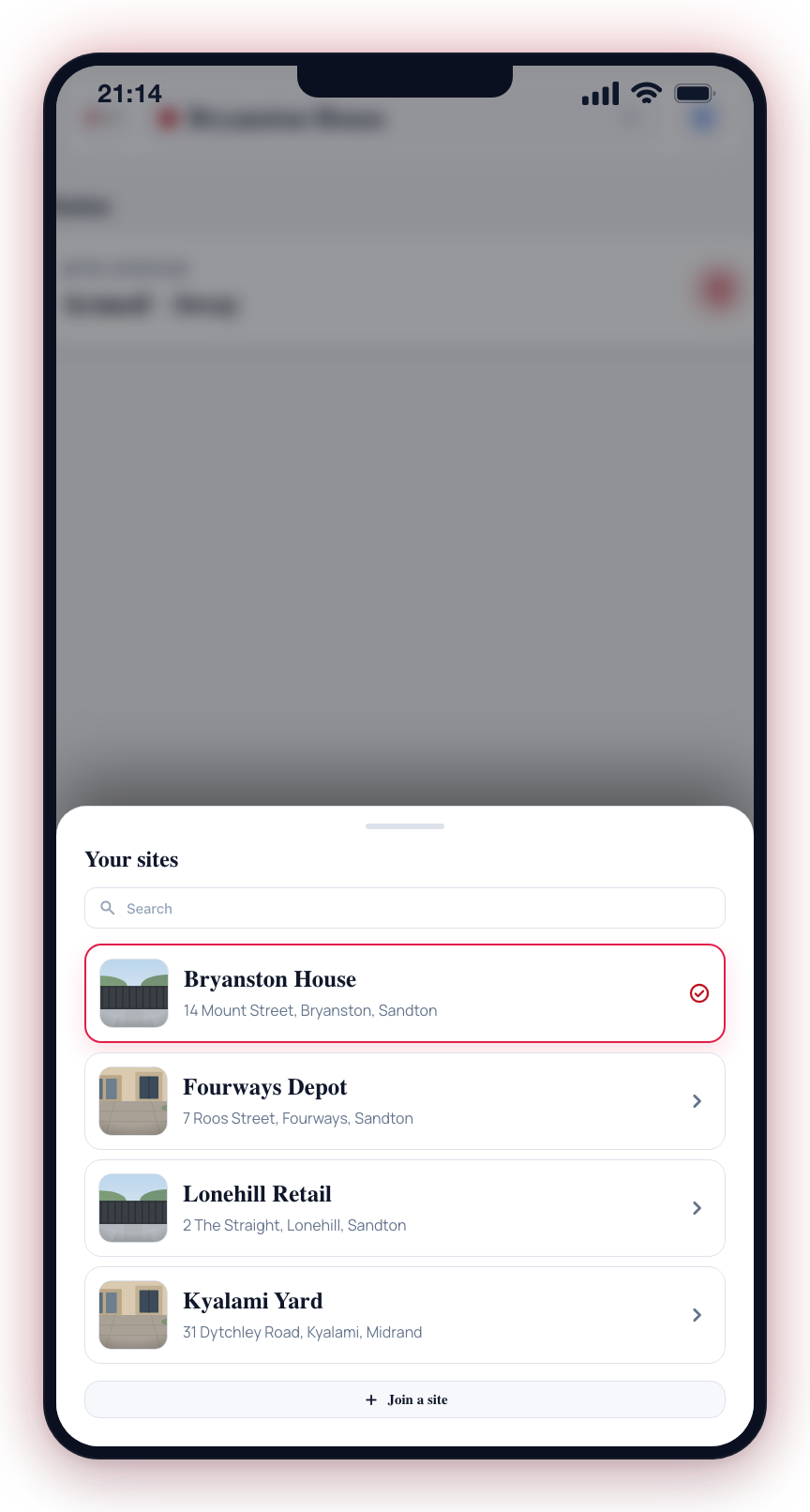
- Tap the site selector at the top of the screen.
- A panel opens listing all your connected sites with a search bar.
- Tap the site you want to view.
- All tabs and data will refresh to show information for the selected site.
If you manage multiple properties, use the site selector to quickly switch between them. Each site maintains its own cameras, groups, schedules, and event history.
Disconnecting from a Site
To remove your access to a site, contact the site administrator and ask them to remove your account from that site. You cannot disconnect yourself from a site directly through the app.