App Info
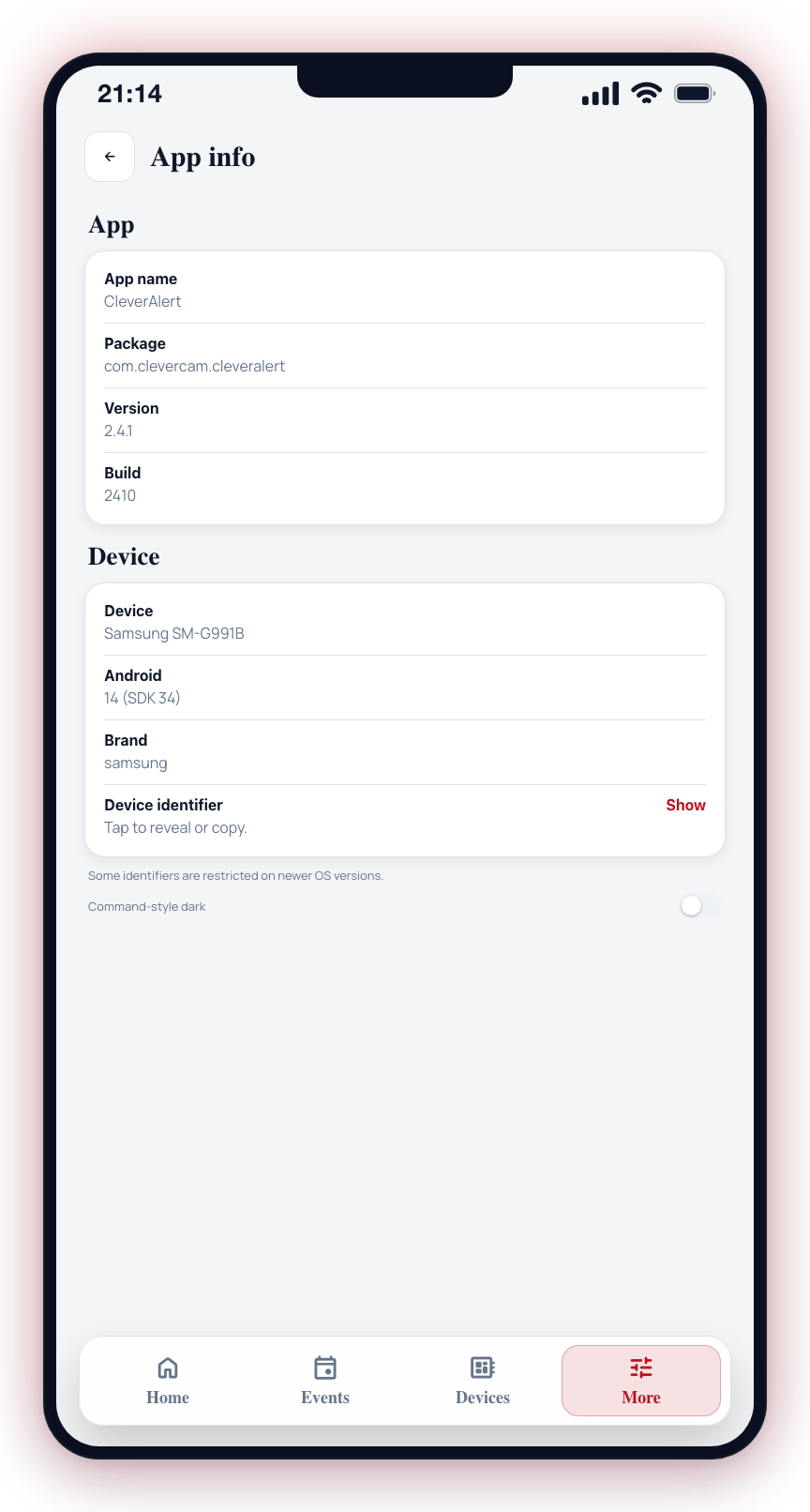
The App Info screen shows details about your CleverAlert installation. This information is useful when contacting support, or when you want to confirm that you are running the latest version of the app.
Viewing App Info
- Open the More tab.
- Under App, tap App Info (a footer at the very bottom of the More screen also shows the app name and version).
- The following details are shown:
- App Version -- The version number of CleverAlert (e.g., 2.4.1).
- Build Number -- A more specific identifier that helps the support team pinpoint exactly which release you are on.
- Platform -- Whether you are running the iOS or Android version.
The screen is split into an App card (name, package, version and build) and a Device card (your phone model, OS version and a Device identifier you can tap Show to reveal or copy for support).
Why App Info Matters
Support Requests
When you contact CleverAlert support with an issue, they will often ask for your app version and build number. Having this information ready speeds up the troubleshooting process.
Checking for Updates
After updating the app, check the App Info screen to confirm the update was applied. If the version number matches the latest version listed in the App Store or Play Store, you are up to date.
Keeping the App Updated
Running the latest version of CleverAlert ensures you have:
- The newest features and improvements
- Security patches and bug fixes
- Compatibility with the latest hub firmware
- Optimal performance
To update:
On iOS
- Open the App Store.
- Tap your profile icon at the top.
- Scroll down to see available updates.
- Tap Update next to CleverAlert, or tap Update All.
On Android
- Open the Google Play Store.
- Tap your profile icon.
- Tap Manage apps & device.
- Tap Updates available.
- Find CleverAlert and tap Update, or tap Update all.
Enable automatic updates on your device so CleverAlert stays current without manual intervention. On iOS, go to Settings > App Store > App Updates. On Android, go to Play Store > Settings > Network Preferences > Auto-update apps.
If you are experiencing issues with the app, check whether an update is available before contacting support. Many issues are resolved in newer versions.