Edit Profile
Your CleverAlert profile contains your personal information that is displayed to other site users and control room operators. Keeping your profile up to date ensures that when you verify events, add notes, or appear in user lists, your correct name and contact details are shown.
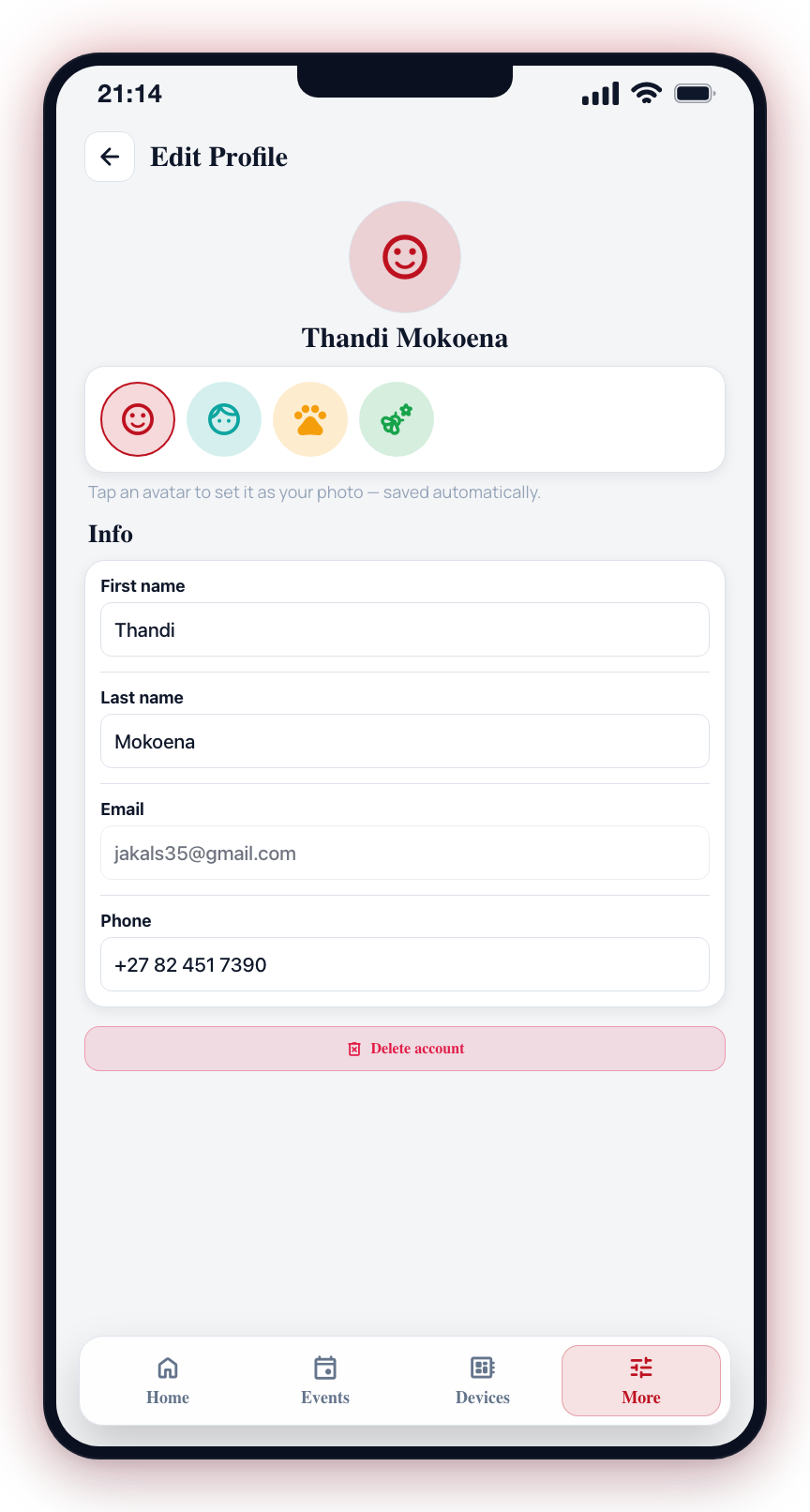
What You Can Edit
Your profile includes the following editable fields:
- First Name -- Your first name as displayed in the app and to other users.
- Last Name -- Your surname.
- Phone Number -- Your mobile phone number, used for account recovery and optional contact by control room operators. Unlike the other fields, this one is confirmed with a one-time code before it is saved -- see Confirming your phone number.
- Profile Avatar -- A built-in avatar that represents you in the app, chosen from a row of presets (there is no camera or gallery upload).
How to Edit Your Profile
- Open the More tab from the bottom navigation bar.
- Under Account, tap Profile Information.
- The profile editing screen displays your current information.
- Make your changes:
- Tap the name fields to update your first or last name.
- Tap the phone number field to update your number. Type it in local (082 123 4567) or international (+27 82 123 4567) format -- it is stored in international format so WhatsApp, SMS, and calls work reliably. A Confirm button appears under the field; the new number is not saved until you have entered the code.
- Tap an avatar in the row near the top of the screen to change your profile picture.
- There is no Save button -- your name changes are saved automatically, a couple of seconds after you stop typing, and tapping an avatar applies it right away. The phone number is the exception and waits for its code.
- Your profile is updated across all devices and for all users who can see your profile.
Confirming your phone number
Your mobile number is not just a contact detail -- it is how your security company can recognise you. A keyholder invitation can be matched to a person by their number, and call lists and alarm notifications are built off it. So before a new number is attached to your account, the app asks you to prove you can receive messages on it.
What you will see under the field
- ✓ Confirmed -- nothing to do.
- Not confirmed yet. [Confirm now] -- the number works normally, but it was never confirmed. Numbers that were already on the app before this was introduced are all in this state and keep working; confirming is an offer, not a demand.
- New number -- confirm it's yours to save it. [Confirm] -- you have typed a different number and it has not been saved.
Confirming
- Type the new number into the Phone field.
- Tap Confirm. A 6-digit code is sent to that number -- on WhatsApp where possible, otherwise by SMS.
- A dialog opens showing which number the code went to, partly masked (082 ··· 4567), and which channel carried it. If that is not the number you meant, tap Cancel, fix the field and try again.
- Enter the code and tap Confirm. Your phone will usually offer the code straight from the incoming message.
Resend becomes available after 60 seconds. A code lasts 10 minutes, and you get 5 attempts before it is closed and you need a new one.
Your existing number remains on your account, and on your control room's call list, for as long as the change is unconfirmed. Backing out of the screen part-way through does not save the new number -- nothing is lost except the unconfirmed change.
When you sign up
The number you enter when creating your account is stored but not yet confirmed -- there is no signed-in session to send a code against at that moment. If your control room invited you, that number was pre-filled from their own records. More → Profile Information offers Confirm now from the first time you open it.
If a code does not arrive
- Check the masked number in the dialog -- a typo is by far the most common cause.
- Codes are limited to one a minute, and a handful an hour. If you have been retrying, wait and try again.
- WhatsApp is tried first. If your number has no WhatsApp account the code falls back to SMS on its own -- there is nothing to switch.
Updating Your Profile Photo
Your profile photo is chosen from a row of built-in avatars on the Edit Profile screen. Tap the one you want and it is applied immediately — the selected avatar shows a coloured ring.
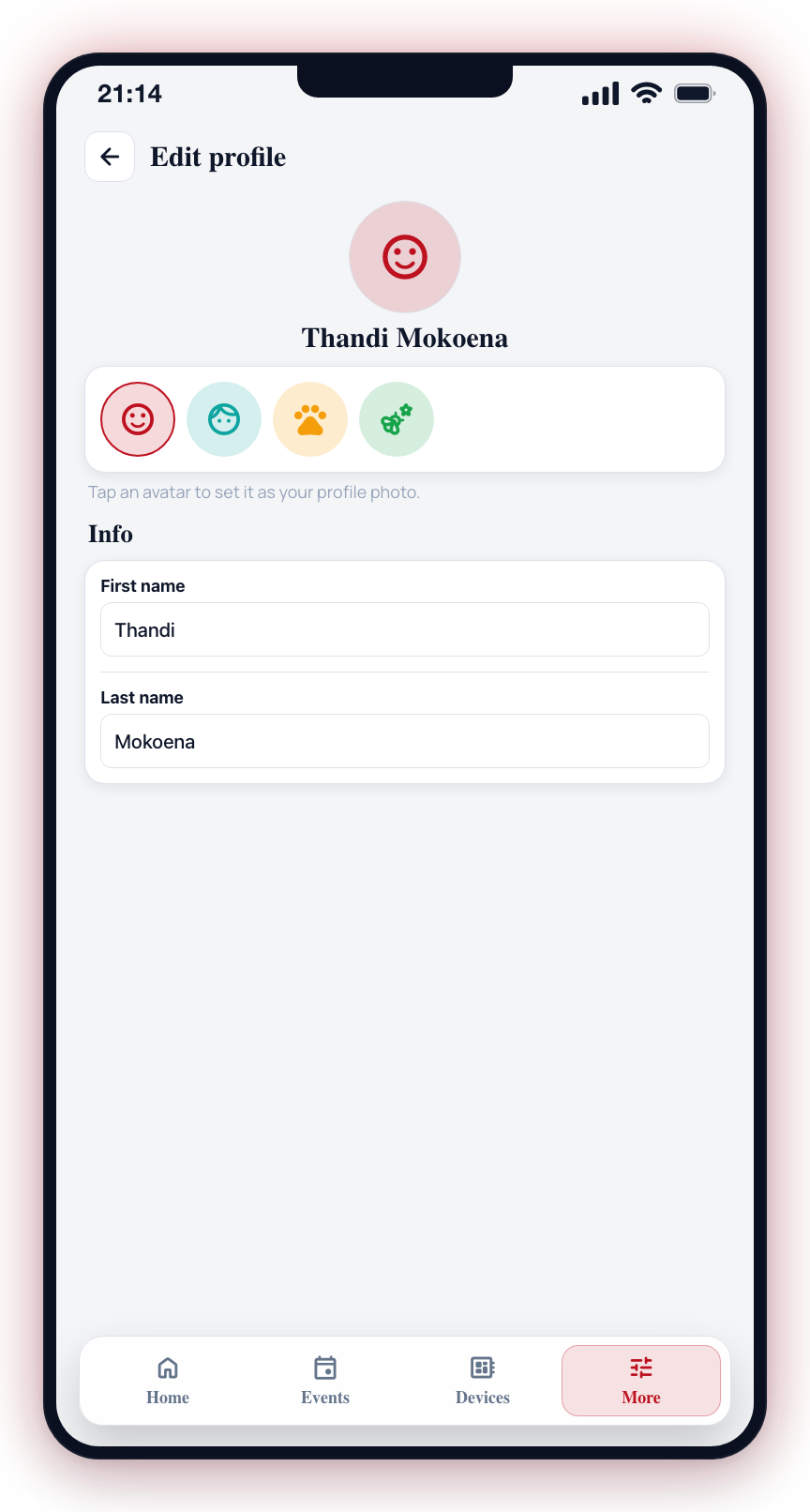
- On the Edit Profile screen, find the horizontal row of avatars just below your name. Swipe sideways to see all of the available options.
- Tap the avatar you want to use.
- It is saved straight away -- the avatar you picked gains a coloured ring to show it is selected, and your new picture appears in the large circle above and everywhere else your profile is shown.
The app does not support taking a photo with your camera, uploading one from your gallery, or cropping a custom image. You choose from the built-in avatars only.
Delete Your Account
You can permanently delete your CleverAlert account from inside the app. This removes your login and personal data and cannot be undone.
Leave your sites first
Your account cannot be deleted while it is still connected to any site. This is deliberate: it prevents a site owner from being removed in a way that would orphan the site or cut off the other people who rely on it for monitoring.
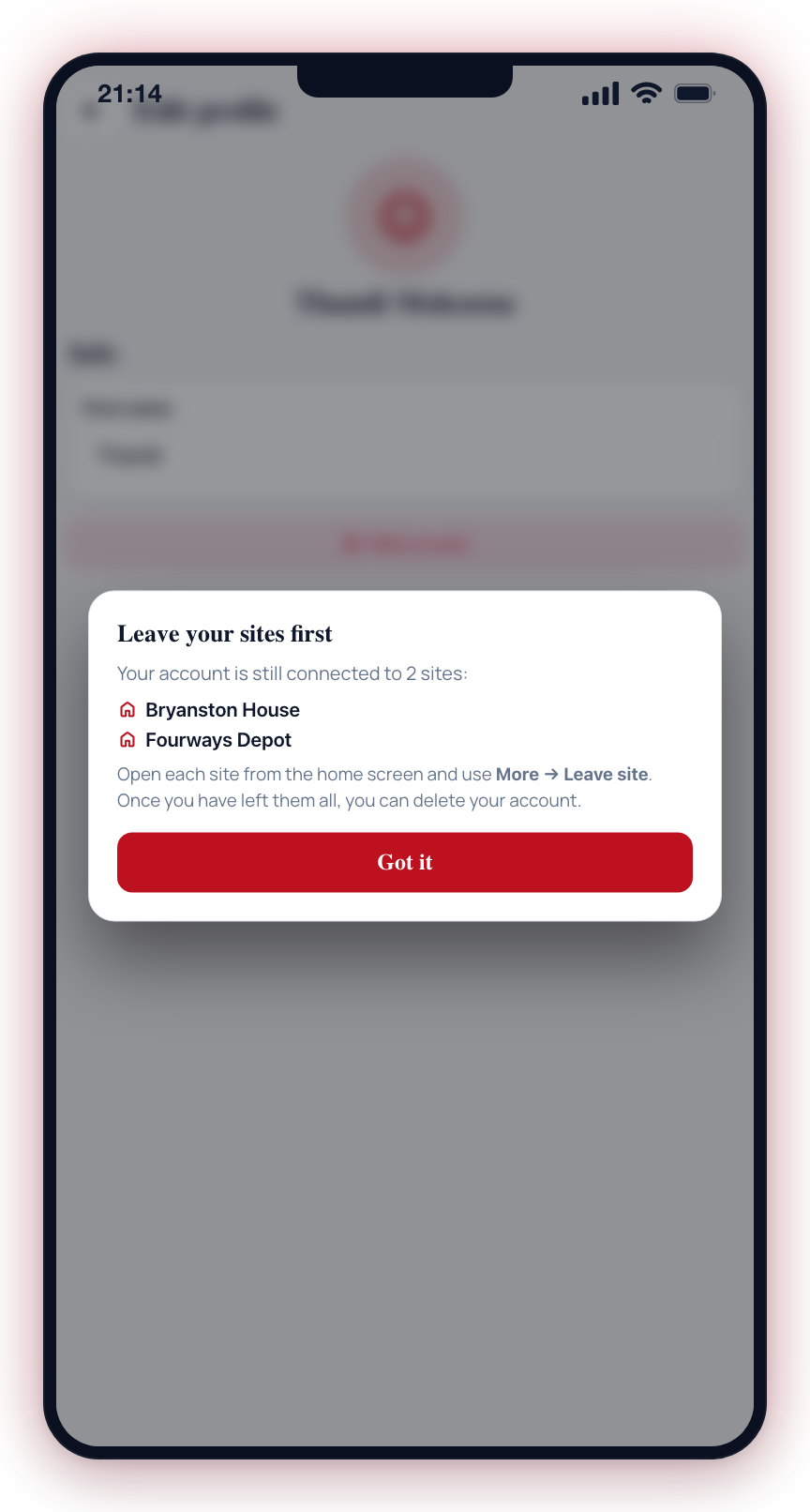
If you still belong to one or more sites, tapping Delete account shows a Leave your sites first message that lists every site you are still connected to. To clear it:
- From the home screen, open each listed site.
- Go to the More tab and, under My site, tap Leave site.
- Repeat until you have left every site in the list.
If you are the owner of a site, leaving it can make that site unrecoverable for the other users. Make sure another owner is in place, or that you genuinely want to give up the site, before you leave it.
Delete the account
- Open the More tab and, under Account, tap Profile Information.
- Scroll to the bottom and tap Delete account.
- Once you have left all of your sites, a confirmation dialog explains that this permanently deletes your account and personal data.
- Tap Delete account to confirm.
- Your login and personal data are permanently removed and you are signed out.
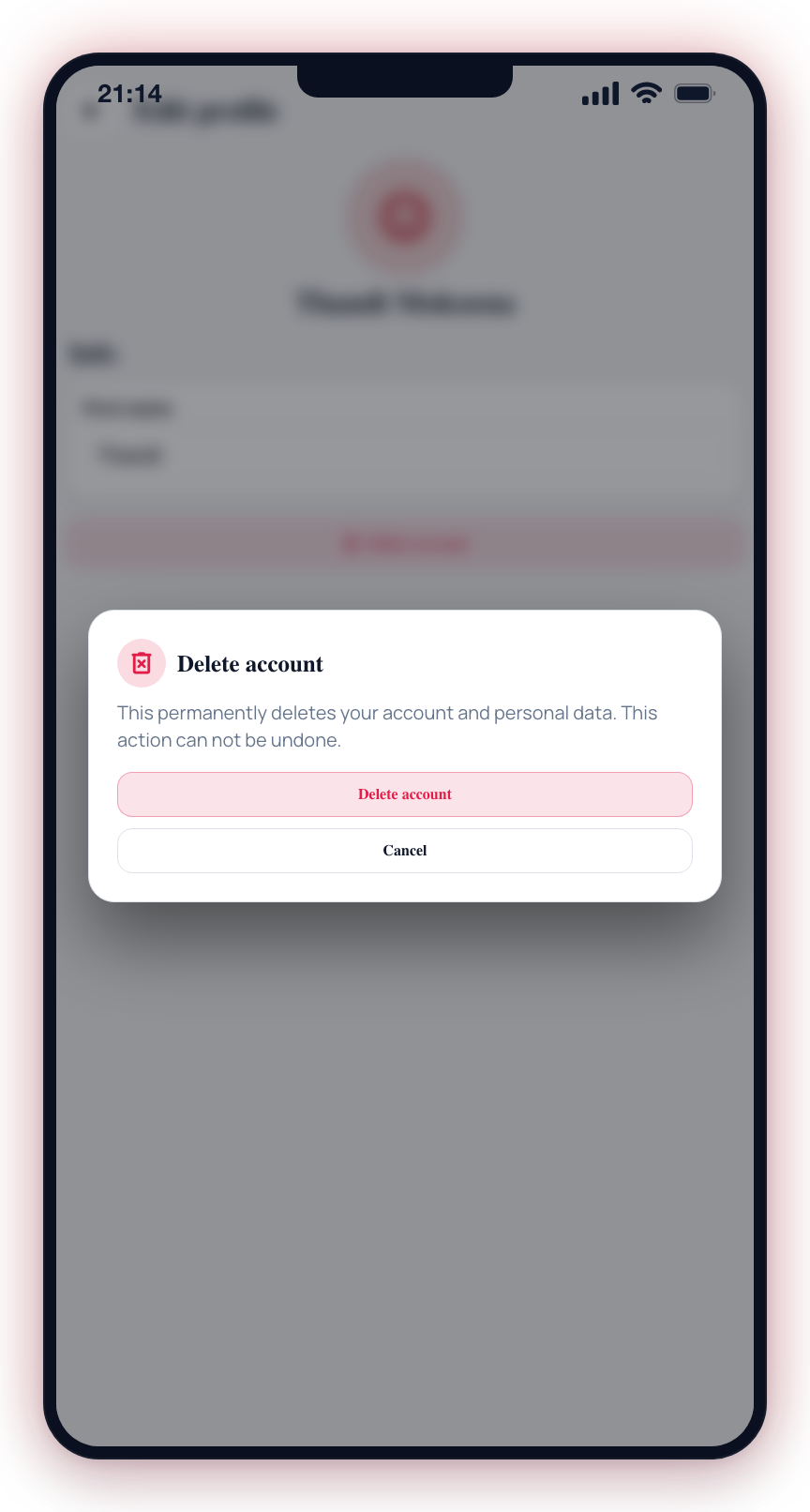
Deleting your account does not remove operational history that other people or control rooms still rely on (for example, events you verified). Those records are kept but are no longer linked to you.
What You Cannot Edit
Your email address cannot be changed from the Edit Profile screen, as it is your login identifier. If you need to change your email address, contact support.
Your profile name is visible to other users on your site and to control room operators. Use your real name so people can identify you when reviewing event verifications, notes, and user activity.
Choosing a profile avatar is optional but helpful, especially when multiple users share access to a site. It makes it easier to identify who performed an action in the activity log.