Sign In
Once your account is created and verified, you can sign in to CleverAlert to start monitoring your security system. You can sign in with your email and password, or have the app email you a link that signs you in without one.
CleverAlert keeps you signed in afterwards, so this is usually a one-time step on a new phone.
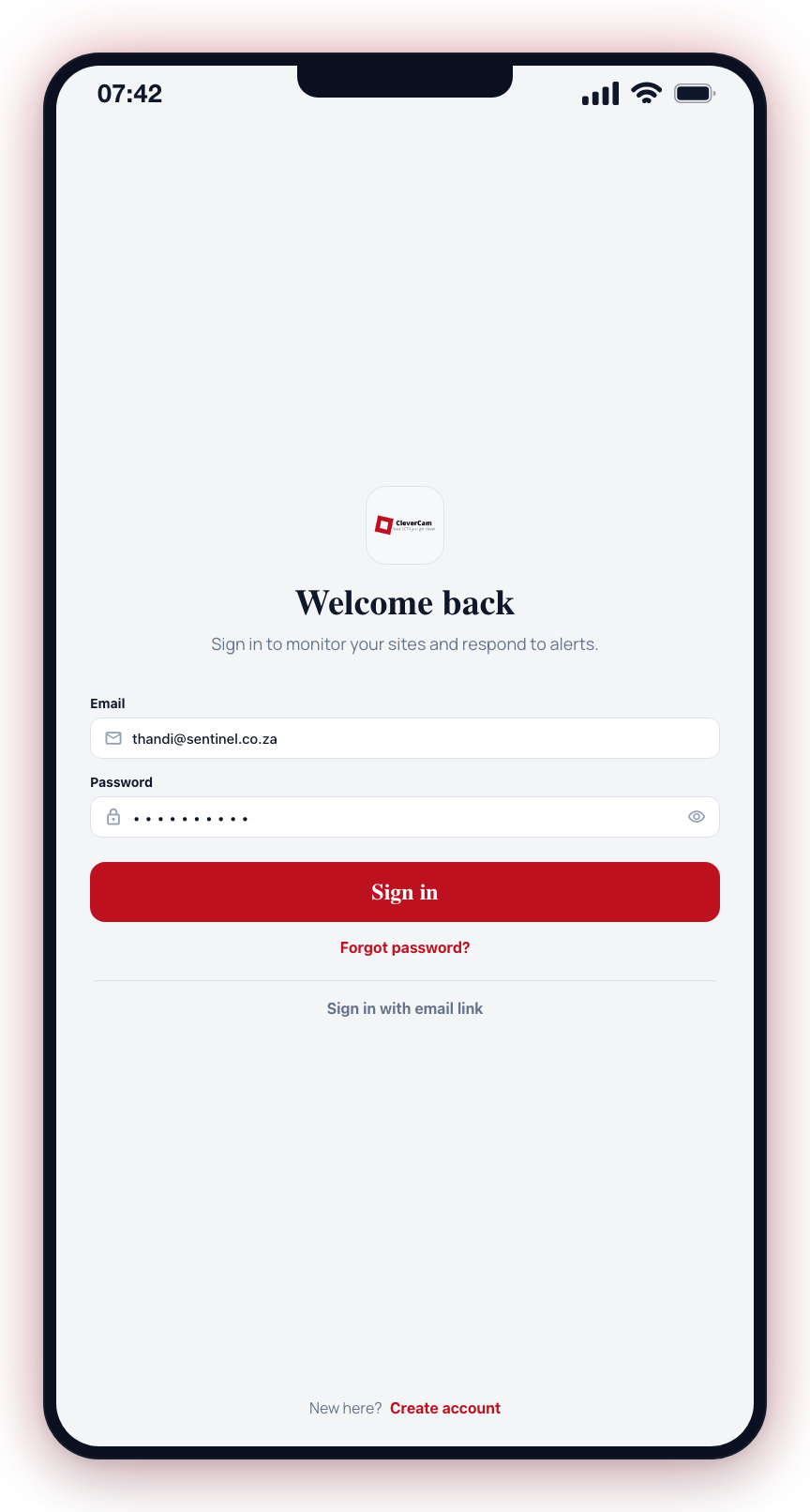
Standard Sign In
- Open the CleverAlert app.
- Enter your email address in the email field.
- Enter your password in the password field.
- Tap Sign In.
- After authentication, where you land depends on what's on your account:
- One or more sites linked -- you go to the site picker. Tap the site you want to monitor and the home screen opens for that site.
- No sites but at least one community -- you land directly on the Community tab.
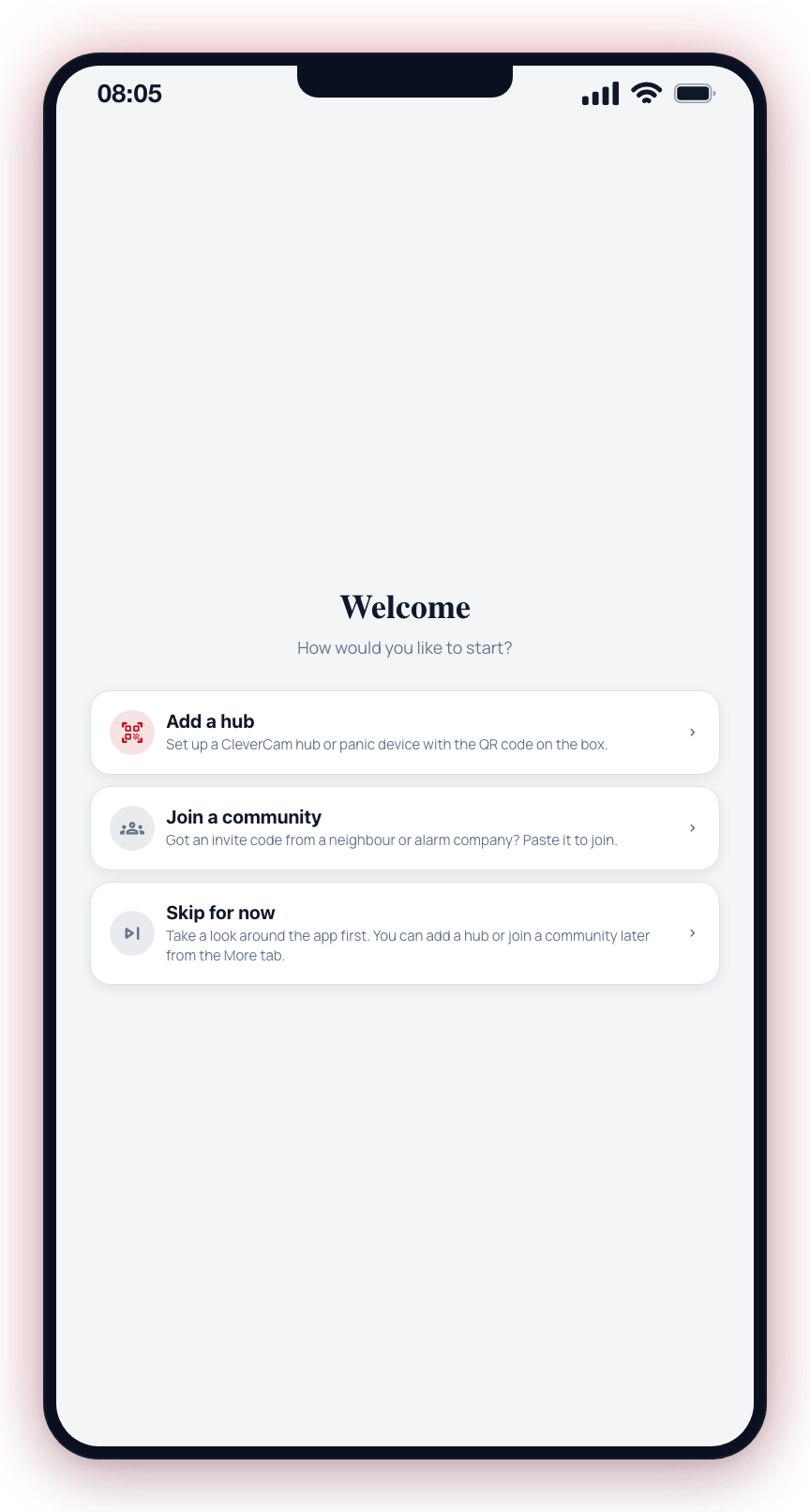
- No sites and no communities -- you see a welcome screen with three options: Add a hub (run the hub setup flow), Join a community (paste an invite code), or Skip for now (look around the app first).
Continue with an account from another CleverCam app
If you are already signed in to another CleverCam app on the same phone — CleverTech or CleverSales, or another security provider's version of this app — the sign-in screen shows a Signed in on this phone card above the email field, listing that account's name and email address.
- Tap Continue next to the account you want to use.
- The app signs you in as that account — no password to type.
- You land exactly where a normal sign-in would take you (site picker, Community tab, or the welcome screen), because what you can see is decided by what is on the account, not by where the sign-in came from.
Nothing happens until you tap Continue: the card is only an offer. If you would rather use a different account, ignore it and sign in with your email and password below it.
The card only shows while the other app is signed in. Signing out of that app removes its offer, changing your password removes every offer, and an offer that has gone stale simply disappears when you tap it — sign in with your password instead. The app you are signing in to keeps its own session afterwards: signing out of one CleverCam app never signs you out of another.
Sign in with an email link
If you would rather not type a password, tap Sign in with email link under the Sign In button.
- Type your email address in the email field first — the link is sent to whatever is in that field, and the app will say Enter your email first if it is blank.
- Tap Sign in with email link.
- You will see Magic link sent! Check your email.
- Open the email on the same phone and tap the link. It opens CleverAlert and signs you in.
This is the easiest way back in if you have forgotten your password and do not want to set a new one right now. It signs you in for this session; your password stays exactly as it was.
Forgot Password
If you cannot remember your password, tap Forgot password? on the sign-in screen. A Forgot password sheet slides up from the bottom, with your email already filled in if you had typed one.
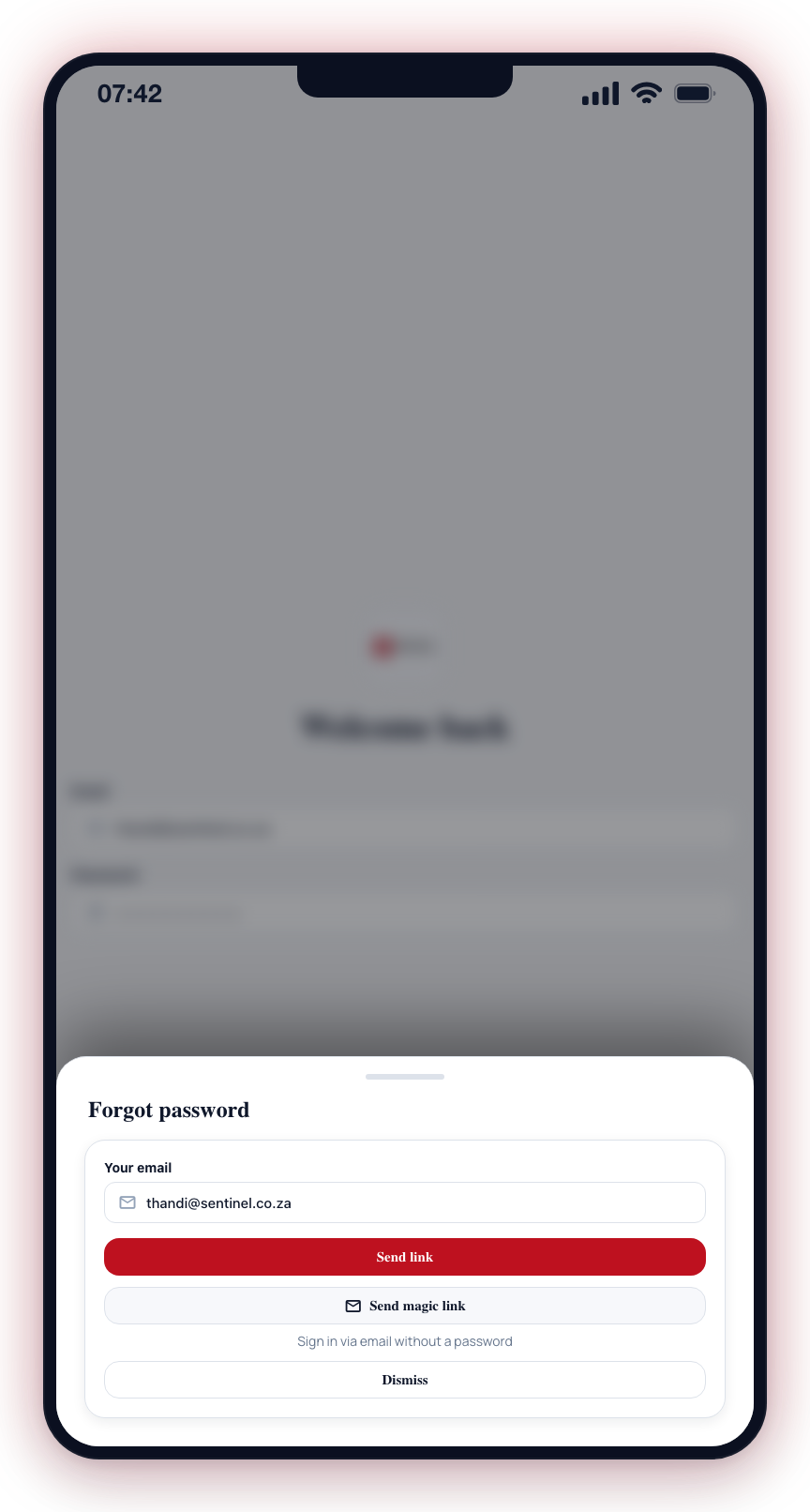
- Check the Your email field, or type the address your account uses.
- Tap Send link.
- The sheet confirms: Please check your email for the password reset link.
- Open the email and tap Set a new password. It works on any phone or computer: the link opens a page at auth.clevercam.co.za in your security provider's branding, so a Corcomm customer sees a Corcomm page. The email is sent in the same branding — check for it under that name if you can't find it.
- Tap Continue, choose a new password (at least 8 characters), confirm it and tap Set new password.
- On the Password updated screen tap Open <your app> to jump back into the app and sign in with the new password. On a computer the page shows the app store links instead, so you can sign in on your phone.
Each link works once and expires after 60 minutes. The page tells you if yours no longer works and offers Send me a new link, which emails a fresh one without going back to the app.
The same sheet also offers Send magic link — described as Sign in via email without a password — which signs you straight in instead of resetting anything. Use it when you just want access now and will deal with the password later.
Tap Dismiss to close the sheet without sending anything.
Both the reset link and the magic link expire. If yours has, open the sheet again and send a fresh one.
Staying Signed In
CleverAlert keeps you signed in between app launches, so you normally open it straight onto your site. You will be asked to sign in again if you sign out yourself — More → Log Out, at the bottom of the More tab — or if you sign in on a different phone and your session here is ended.
If you look after more than one property, you do not need a second account. Every site you have been given access to appears in the site switcher — see Site Selector.