Quick Reply Buttons
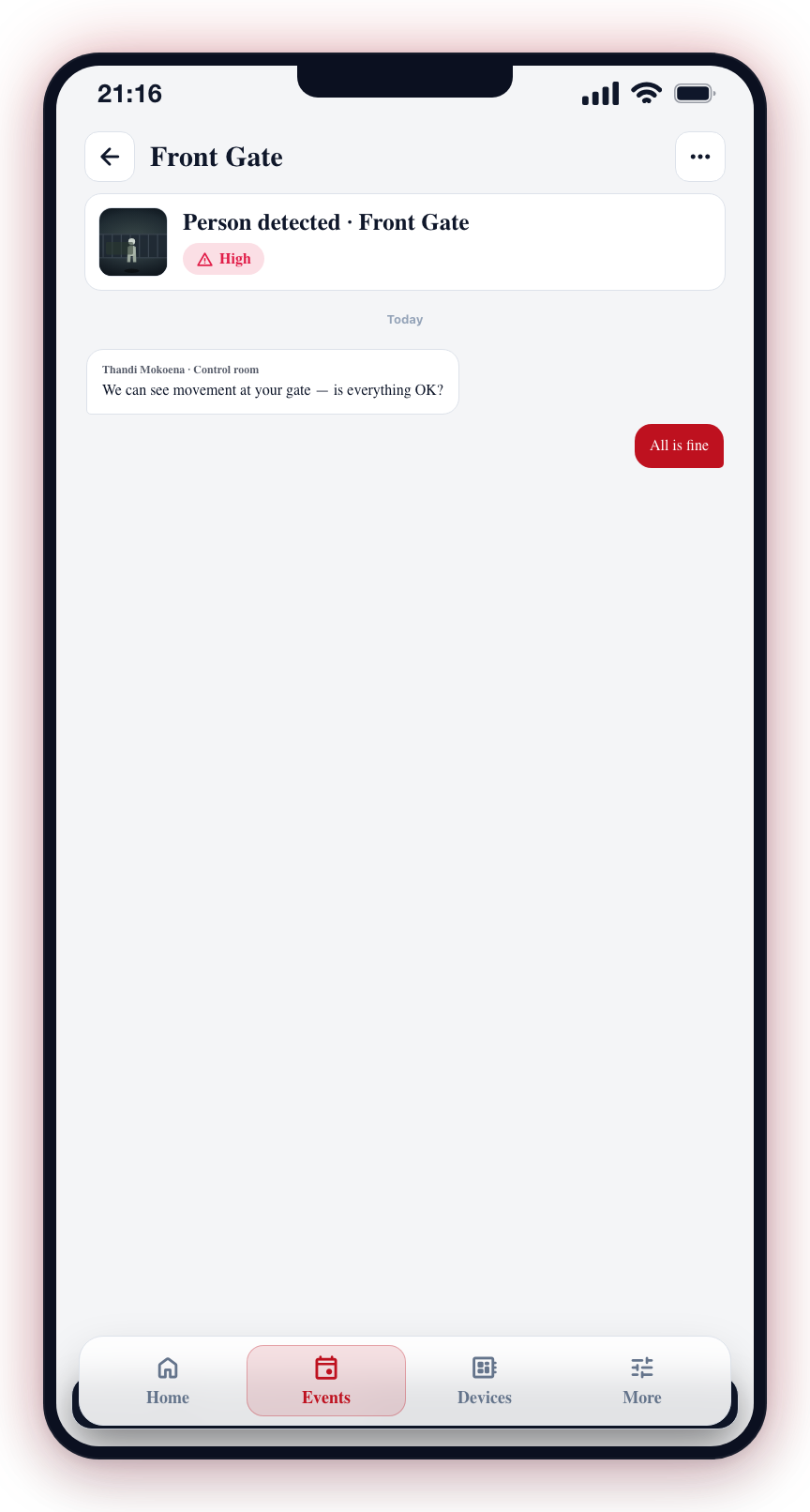
When the control room reaches out to you about an active event, three quick-reply chips appear at the bottom of the chat thread on the active event screen: All is fine, Phone me, and Emergency. Tapping any one tells the control room your status immediately, without typing.
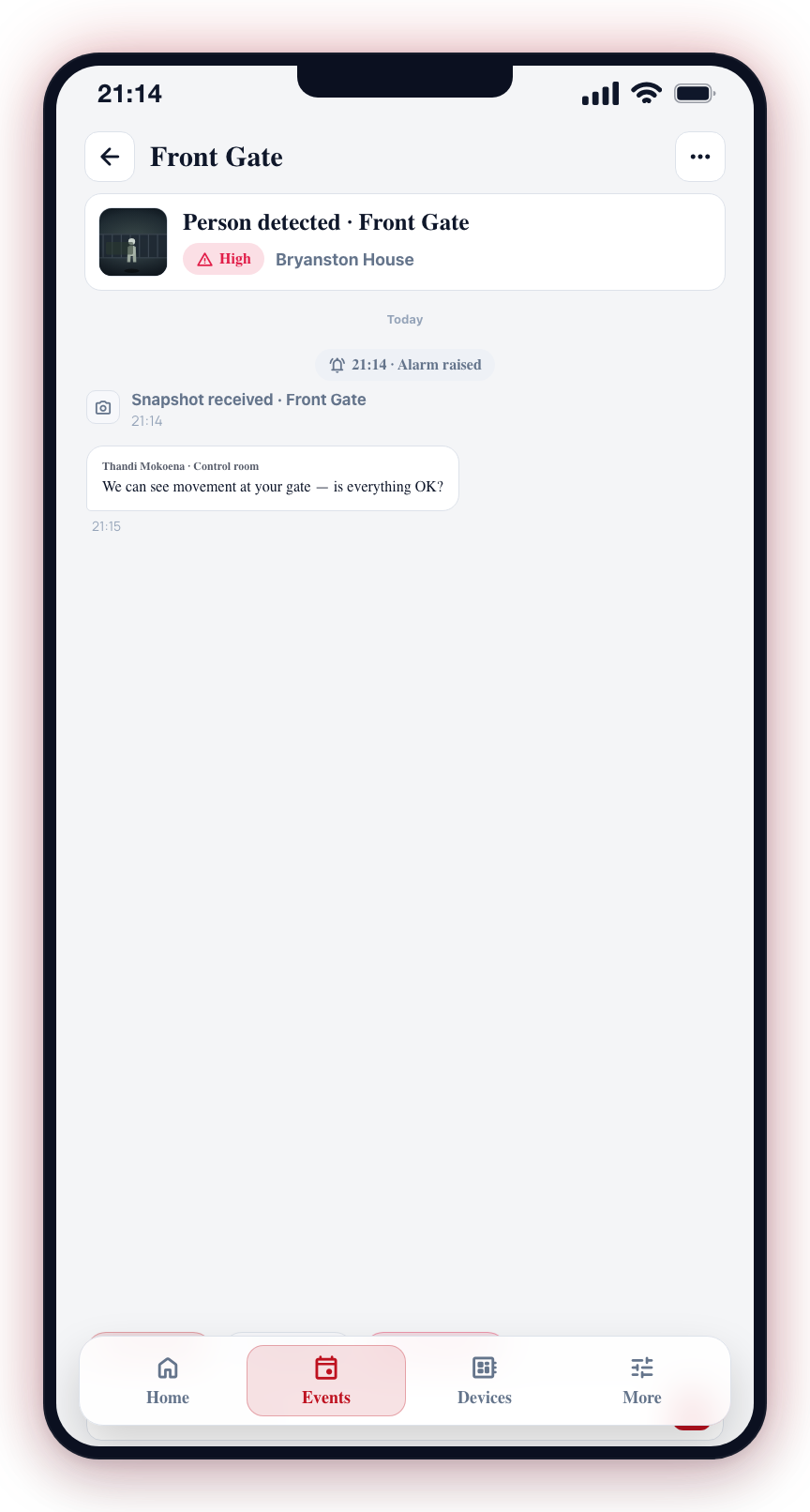
The chips look and behave like the WhatsApp interactive-reply buttons you may have seen in business messages — they sit attached to the bottom of the conversation, just below the most recent message in the timeline.
When the chips appear
The chips do not show on every active event. They only appear once the control room has opened a conversation with you — typically the moment an operator presses Notify Client from their dashboard, or automatically at the start of an event on sites configured for the customer-first response flow.
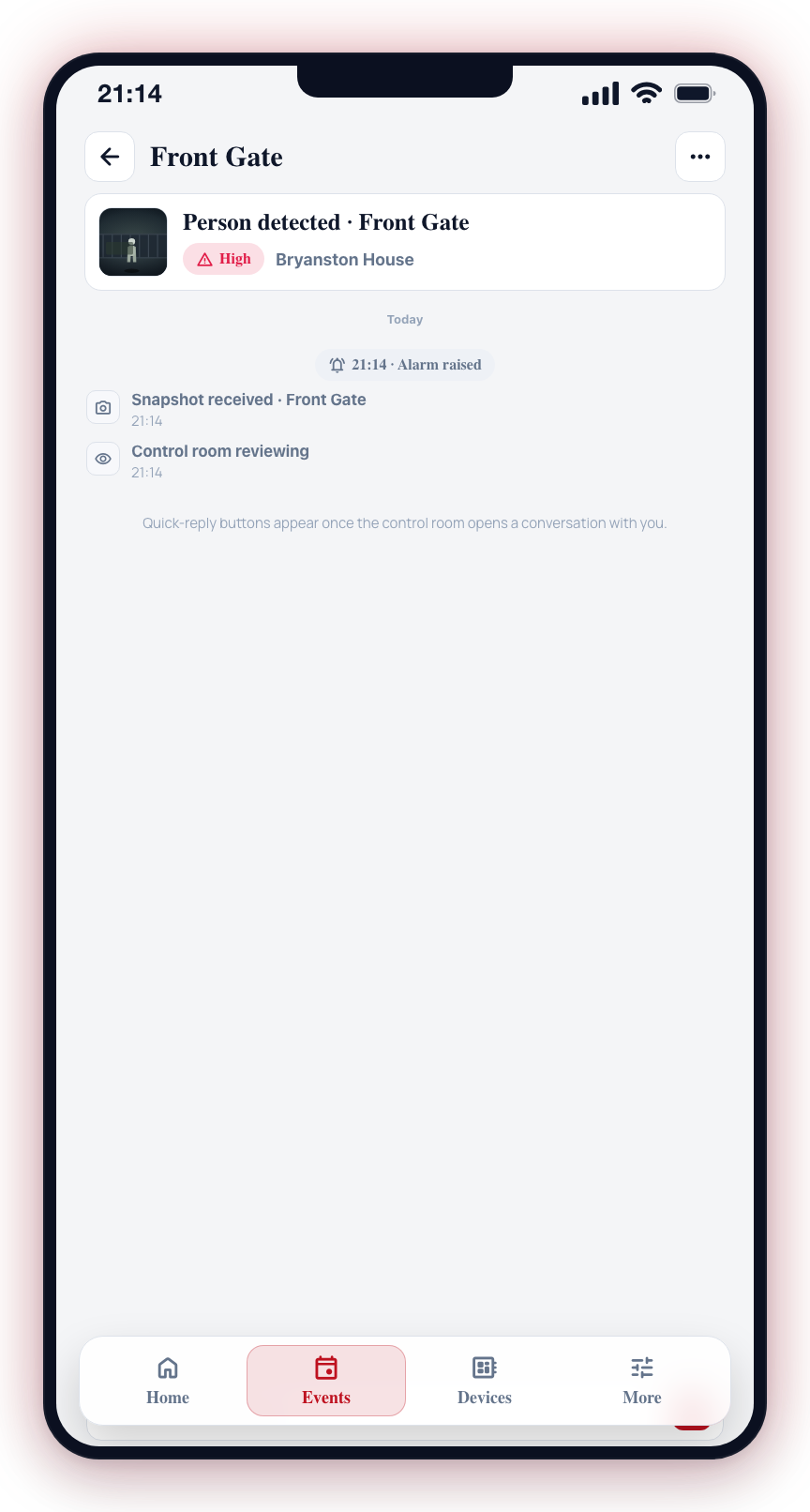
Until then, the timeline simply shows the event details, photos, and any operator activity. As soon as the operator notifies you, the chips fade in at the bottom of the chat (within a few seconds — the app polls for new conversations every 5 seconds in the background as a fallback to realtime).
If the operator closes the conversation on their side (or the event ends), the chips disappear again. You can always reach the same outcomes through the existing event-action buttons (Stop siren / Disarm / Cancel) and the chat composer.
What each chip does
All is fine
Tap this if you've checked and there's no emergency. The app then opens the Cancel & confirm screen which asks you to verify it's really you — by tapping your secret colour, or typing your password, depending on how your account is set up. This double-check exists because someone else holding your phone could also tap "All is fine" — the colour or password proves the right person is responding.
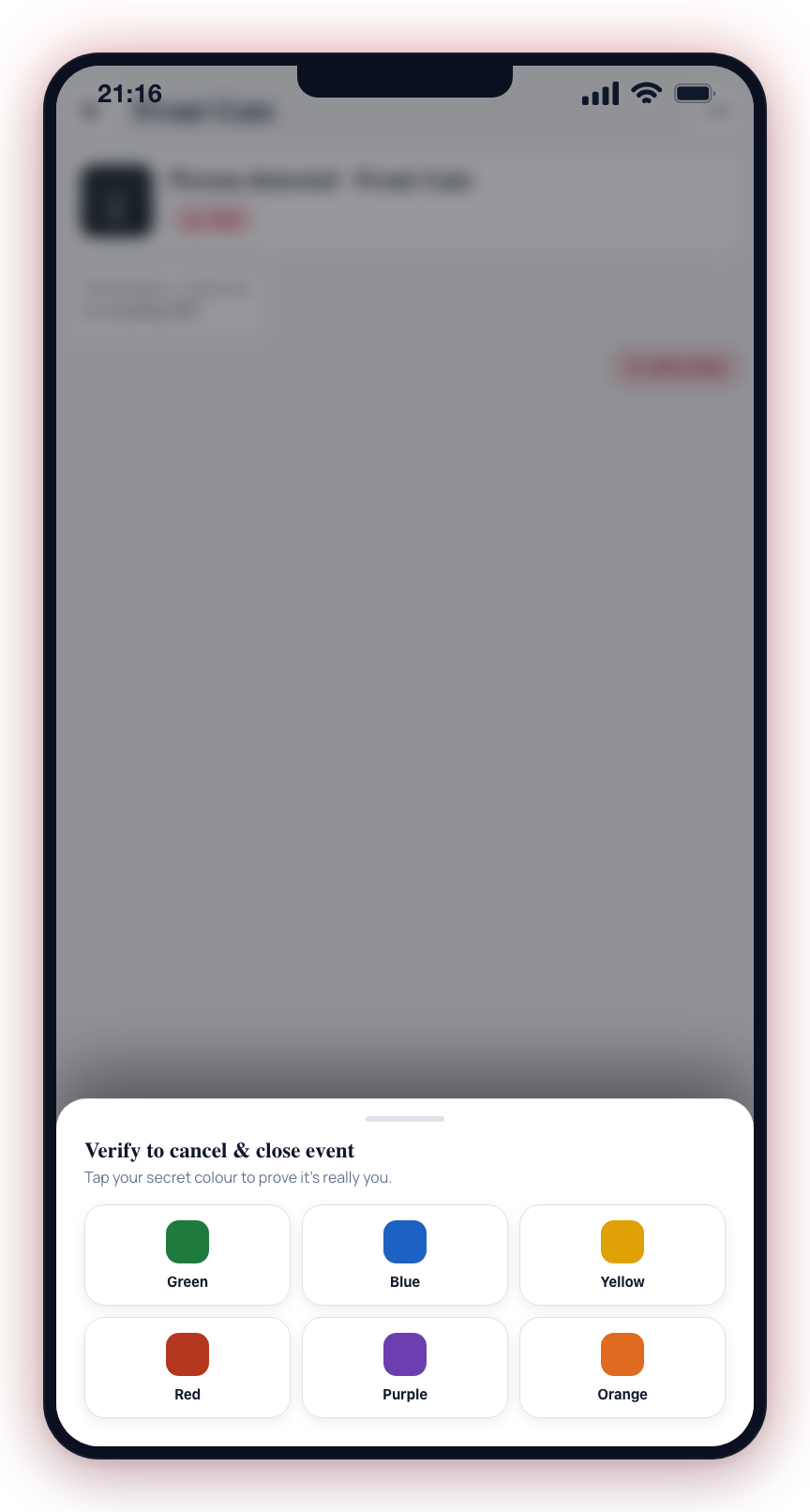
After you confirm, the event is closed and the control room is notified that you've stood the alarm down.
Phone me
Tap this if you don't have an emergency but want to talk to a control-room operator — for example, if you're not sure what triggered the alarm, you want to extend opening hours, or you'd rather explain in person. The control room sees a "callback requested" notification on their dashboard and an operator will phone you back.
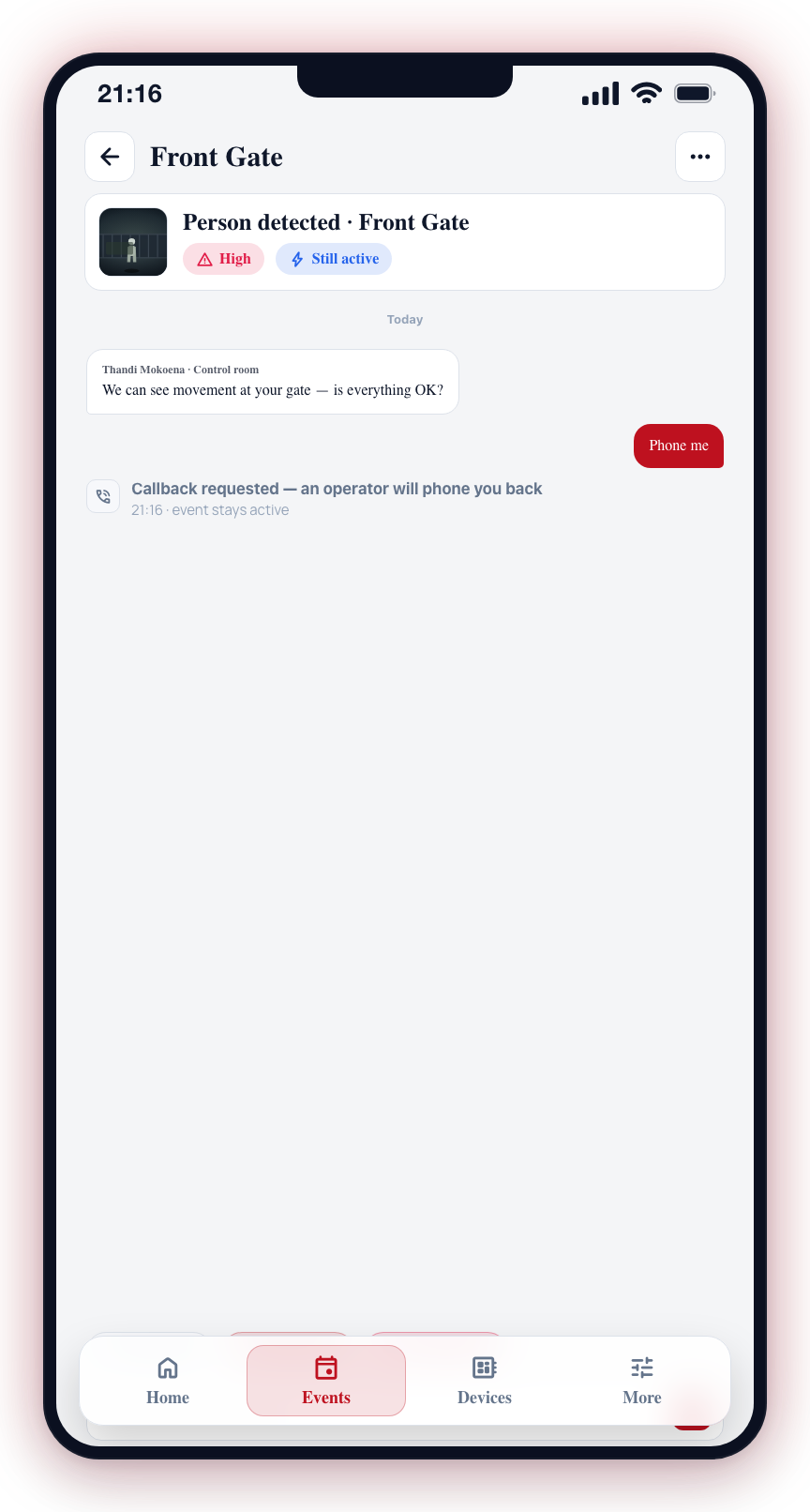
The event stays active in the meantime; you don't need to do anything else.
Emergency
Tap this if you are in a real emergency and need help dispatched immediately. The control room treats this exactly like a duress signal — they begin coordinating a response unit silently, without sending any message back that would tip off someone who might be watching your phone.
The app shows you a generic acknowledgement ("Got it — closing this out our side") that looks identical to the message it shows after "All is fine". This is intentional: if someone has forced you to use your phone, they shouldn't be able to tell from the app's response which button you tapped.
If you tap Emergency by mistake, phone the control room directly and tell them. Don't try to "undo" by tapping All is fine afterwards — the duress signal has already gone out.
How long do I have to reply?
There's no countdown on your side. On customer-first sites the control room briefly waits (about 30 seconds) before they begin engaging on their own — so the sooner you tap, the more efficient the response. After that window the event simply behaves like any other active event: operator picks it up, follows your site's standard response procedure.
What if I miss the notification?
If you don't see the notification or don't reply, nothing breaks. The event stays active and the control room continues its normal procedure. The chips remain available the whole time the conversation is open — you can tap them later if you check your phone after the fact.
What does the control room see?
When you tap a chip, the operator's dashboard records it on the event timeline:
| Your tap | What the operator sees |
|---|---|
| All is fine + valid colour/password | Event closed, attributed to you, "All clear confirmed" |
| Phone me | "Callback requested" notification, event stays open |
| Emergency | Silent emergency signal, response begins, no acknowledgement to the customer phone beyond the generic message |
If you typed a password (rather than picking a colour), the audit log shows only [correct password] or [incorrect password] — never the literal text. Your secret stays on your phone.
Typed messages get auto-replies too
When the control room has an open conversation with you (the same condition that lights up the three quick-reply chips), anything you type into the chat composer is also parsed by the system and may get a brief automatic acknowledgement back — for example, if you type "I'm fine, dog set off the alarm" the system can recognise that as an "all clear" intent and reply with a short confirmation message. The same parser understands both English and Afrikaans.
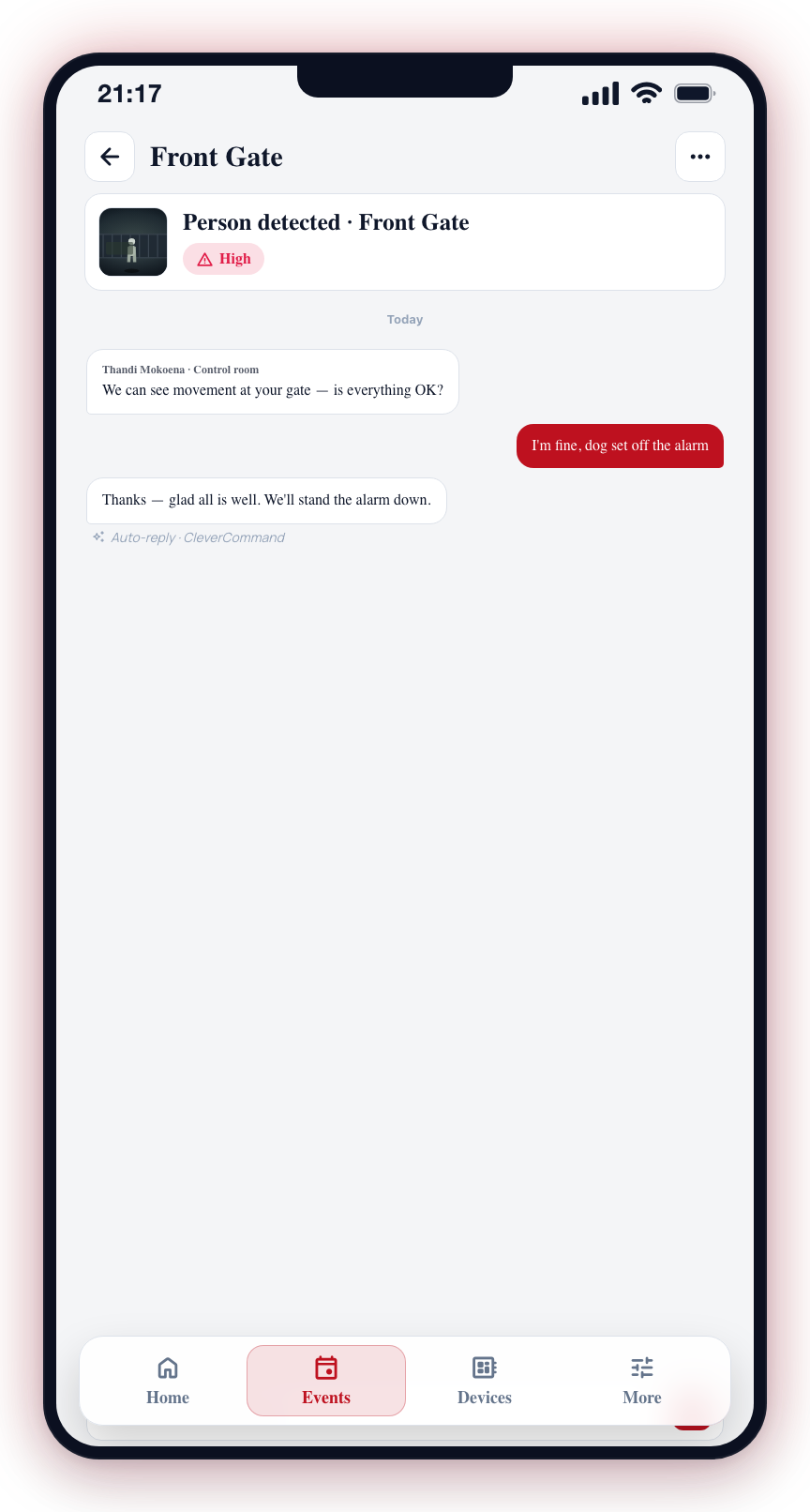
Auto-replies come from Clava, the conversation assistant. They appear in the chat thread as a separate left-aligned bubble with Clava's clover mark as the avatar, marked underneath with a small Clava · Auto-reply label so you can tell at a glance the message wasn't typed by a human operator. Operator messages from the control room continue to render the same way they always have — with the operator's name and avatar above the bubble.
The legacy chat-message path is unchanged: your message is always written to the event timeline regardless of whether the auto-reply system is reachable. Auto-replies are an additive layer on top of the existing chat — when the system can't reach the parser, the chat just behaves like a normal conversation thread.
Until the control room opens a conversation with you (typically right after Notify Client or at the start of an auto-fire customer-first event), typed messages are stored on the event timeline but no auto-reply will fire. This matches the behaviour of the three quick-reply chips — both surfaces depend on the same open conversation.