Site Selector
If your CleverAlert account has access to more than one site, the site selector lets you switch between them quickly. Each site is a separate physical location with its own hubs, cameras, groups, schedules, events, and users. The site selector ensures you are always looking at the right data for the right location.
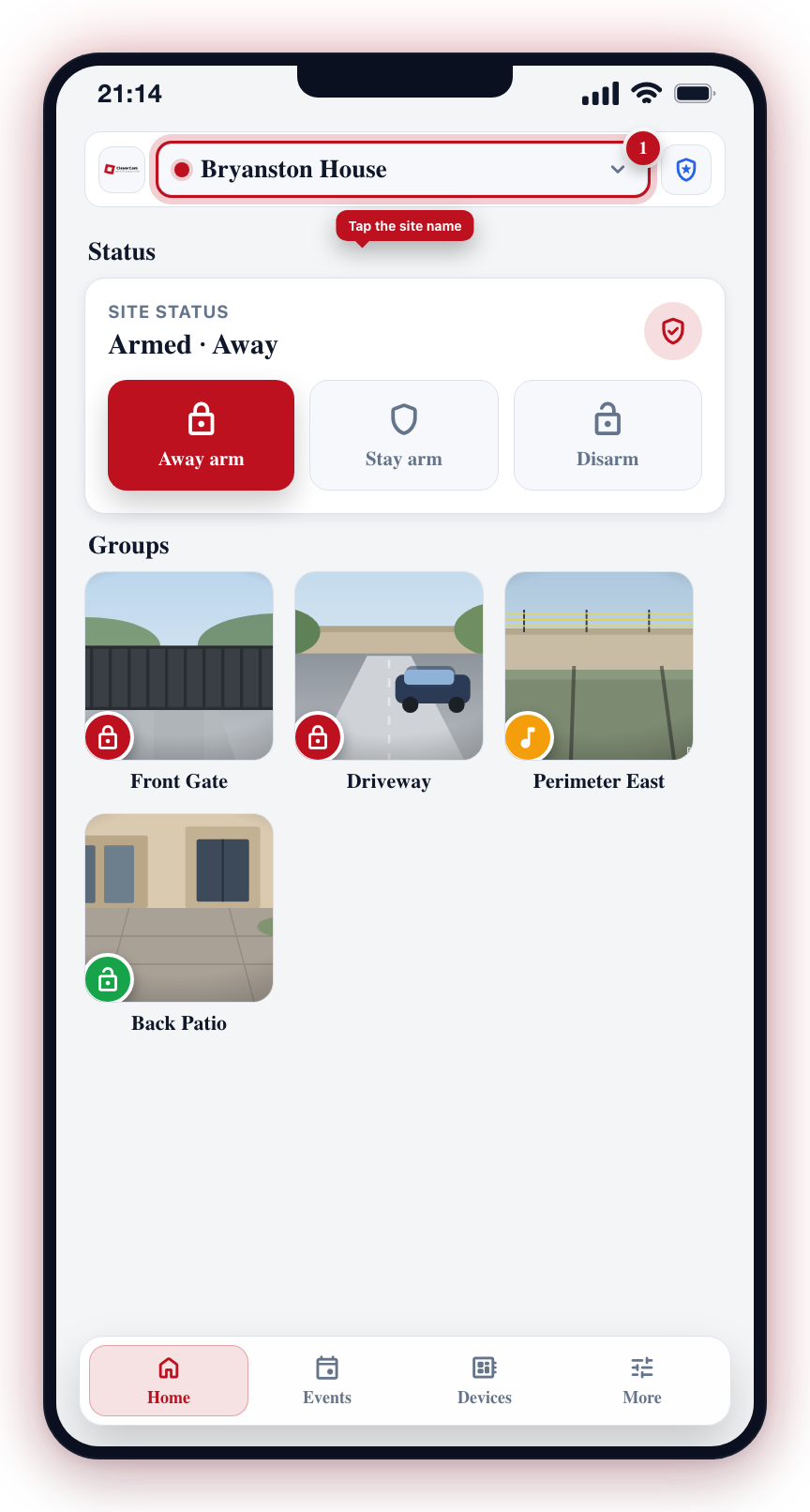
On any tab, tap the site name at the top of the screen.
Where to Find the Site Selector
The site selector is in the header area at the top of the screen. Tap it to open a panel listing all sites you have access to.
Switching Sites
- Tap the site selector at the top of the screen.
- A panel opens showing all sites your account is connected to, each with its name, address, and a thumbnail image. If you have given a site your own nickname (Site information → My nickname for this site, or the label under Notification Preferences), the nickname shows here and in the header instead of the site's name.
- Use the search bar at the top of the panel to filter sites by name if you have many.
- Tap the site you want to switch to.
- The app refreshes all data to reflect the selected site and the panel closes.
Joining a New Site
From the site selector panel, you can also join a new site:
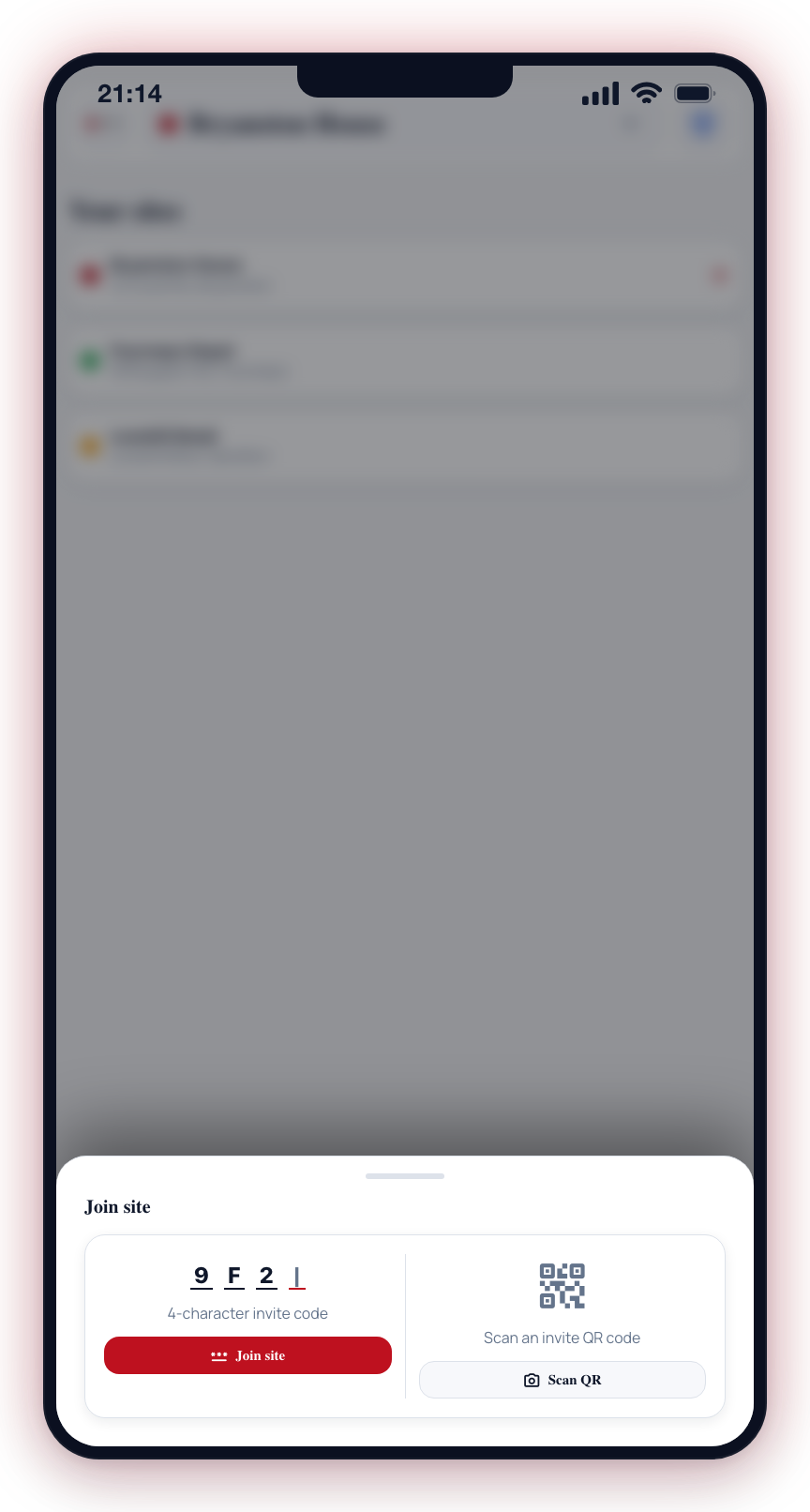
- Tap the Join site option at the bottom of the site list.
- A "Join site" panel opens with two options:
- Enter a 4-character invite code using the code input field, then tap Join site.
- Scan a QR code by tapping Scan QR, which opens the camera to scan an invite QR code.
- If the code is valid, you are connected to the site immediately.
What Changes When You Switch Sites
When you select a different site, the following data is updated across all tabs:
| Tab | What Refreshes |
|---|---|
| Home | Groups, active events, upcoming schedules, and hub status for the new site |
| Events | Event history from the new site's cameras |
| Devices | Camera and hub list for the new site |
| More | Group management, schedule management, and user management for the new site |
All filters, searches, and scroll positions are reset when you switch sites.
Push Notifications and Multiple Sites
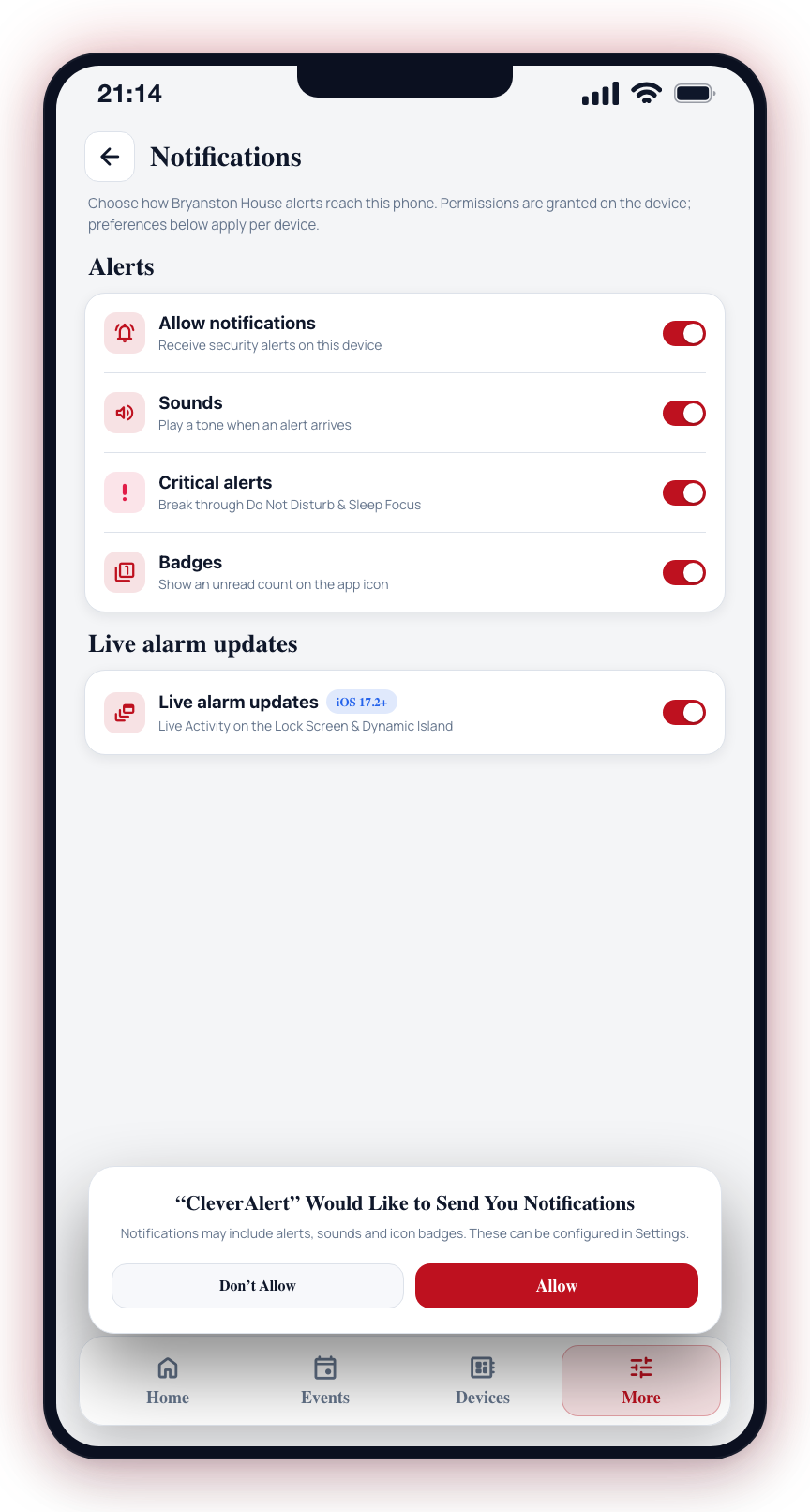
Push notifications are delivered for all sites you have access to, regardless of which site is currently selected in the app. Each notification includes the site name so you know which location it refers to. When you tap a notification, the app automatically switches to the relevant site and opens the associated event.
Common Use Cases
Property Manager
A property manager overseeing several residential buildings can switch between sites to check the status of each building's cameras and review events specific to each location.
Business Owner with Multiple Locations
A business owner with retail stores in different areas can use the site selector to monitor each store independently, checking camera status and reviewing events for the selected location.
Security Company
A security operator who has been granted access to multiple client sites can switch between them for monitoring and management purposes.
Your access to each site is controlled by the site administrator. If you need access to an additional site, contact the administrator of that site and ask them to invite you.
Pay attention to which site is selected before taking actions like arming or disarming groups, or modifying schedules. Actions always apply to the currently selected site.