Create an Account
Before you can start monitoring your cameras and receiving alerts, you need to create a CleverAlert account. Your account ties together all of your sites, cameras, events, and notification preferences into a single secure profile.
Registration Steps
- Open the CleverAlert app on your device.
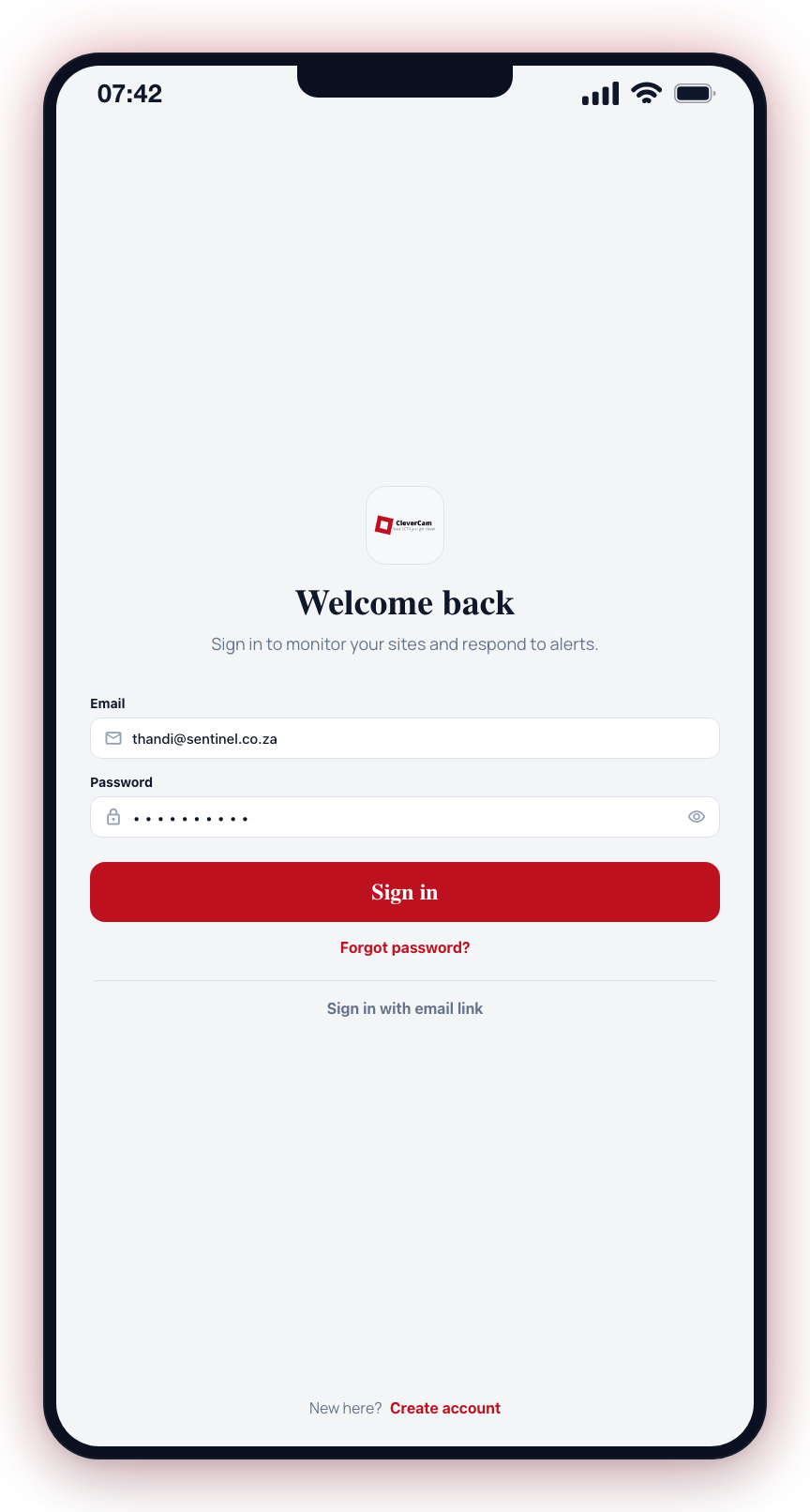
- On the sign-in screen, tap Create Account.
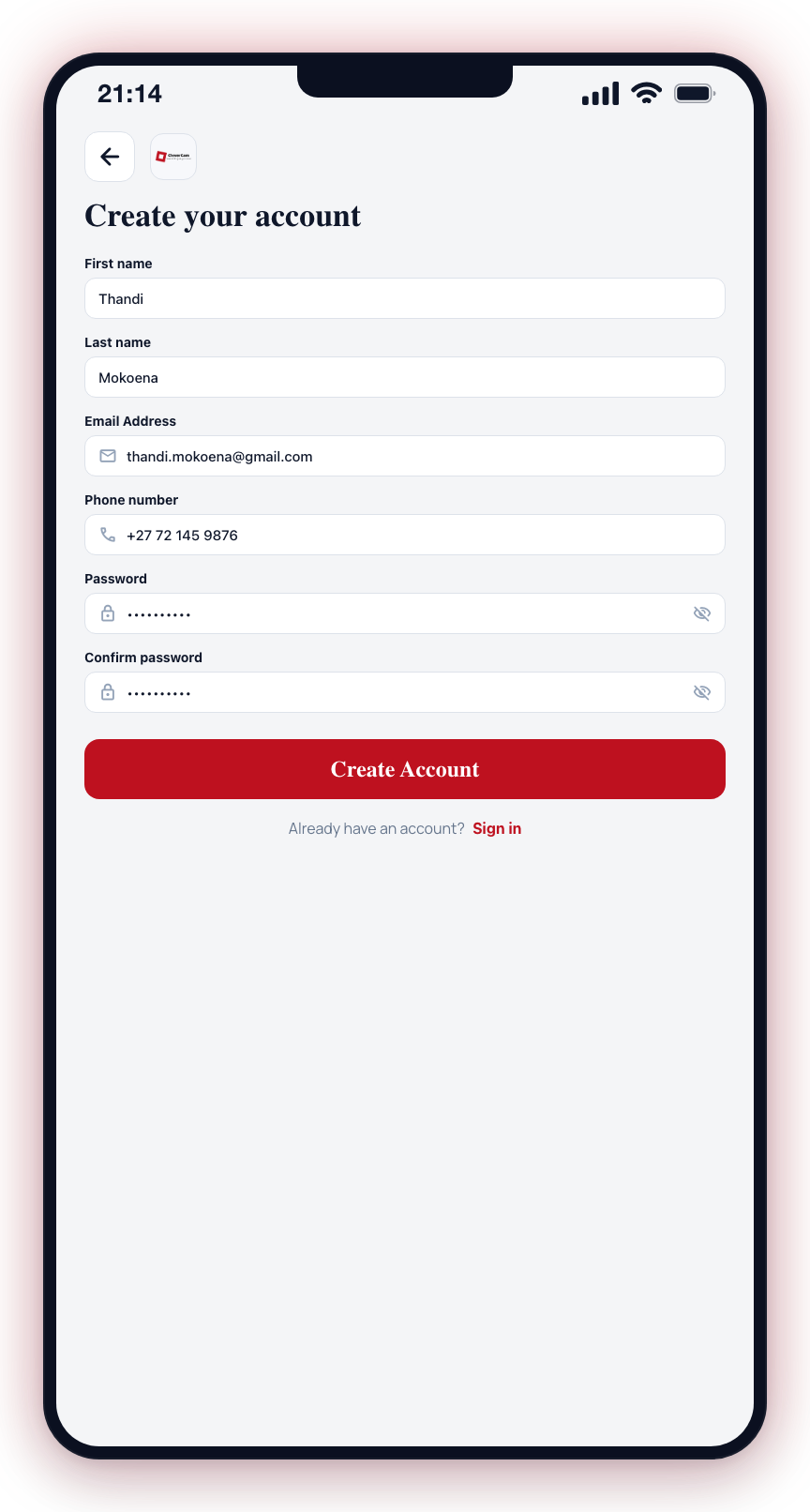
- Fill in the registration form with the following details:
- First Name -- Your first name as you want it to appear in the app and to control room operators.
- Last Name -- Your surname.
- Email Address -- A valid email address. This will be your login username and the address where verification and password reset emails are sent.
- Phone Number -- Your mobile number, in local (082 123 4567) or international (+27 82 123 4567) format -- it is stored in international format so WhatsApp, SMS, and calls reach you reliably. For a number from another country, enter the full international form starting with +. This is used for account recovery and optional SMS notifications.
- Password -- Choose a strong password. It must be at least 8 characters long and include a mix of uppercase letters, lowercase letters, and numbers.
- Confirm Password -- Re-enter your password to confirm it matches.
- Tap Register to submit your details.
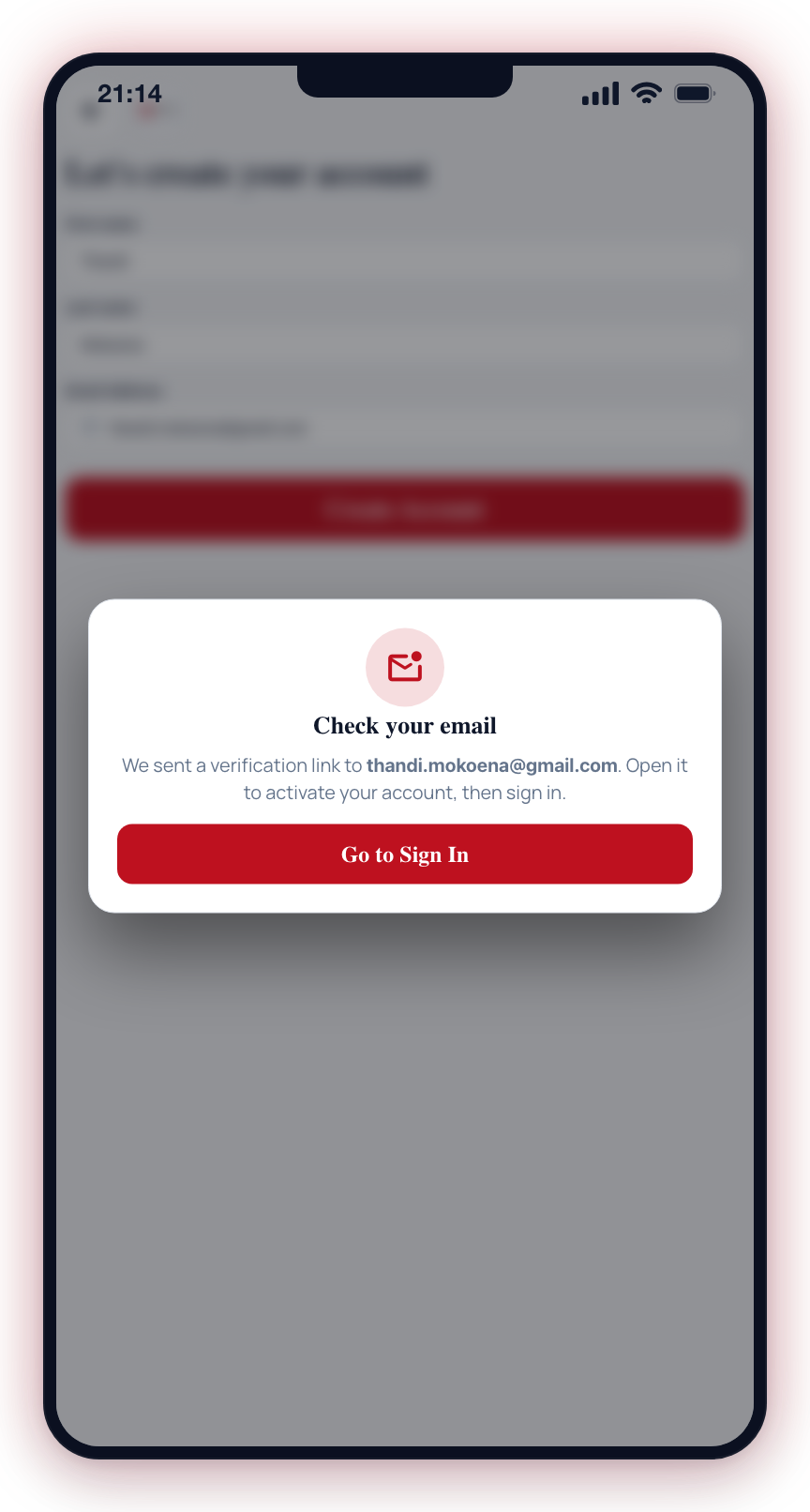
- Check your email inbox for a verification email from CleverAlert.
- Open the verification email and tap the Verify Email link.
- Return to the CleverAlert app. Your account is now active and you can sign in.
Password Requirements
Your password must meet these criteria:
- At least 8 characters long
- Contains at least one uppercase letter
- Contains at least one lowercase letter
- Contains at least one number
Choose a strong, unique password for your CleverAlert account. This account controls access to your security cameras and alarm system. Do not reuse passwords from other services.
Email Verification
After registering, you must verify your email address before you can sign in. The verification email is sent immediately after registration. If you do not see it:
- Check your spam or junk folder.
- Wait a few minutes -- email delivery can sometimes be delayed.
- Return to the sign-in screen and tap Resend Verification Email if available.
Your account will remain inactive until you verify your email. You will not be able to sign in or access any features until verification is complete.
Next Steps
Once your account is verified, head to Sign In to log into the app for the first time.