Control Room Clock
The Control room clock card sits on Settings → General, under the Modules & capabilities board. It holds three facts about the whole Virtual Control Room (VCR): the timezone it operates in, the hours that count as day, and the days a response unit is on duty by default.
Until August 2026 this card was its own Settings entry called Shifts, which made it look like a rival to the Roster module. It never planned a shift. Roster is where you build guard shift patterns, posts, demand and offers; the clock is a handful of whole-control-room settings that other features read. Old ?tab=shifts and ?tab=shiftDefaults links now land on General.
Unlike the other Operations entries, the clock is not gated behind Advanced Alarm Handling — every control room needs a timezone.
Accessing the clock
- Navigate to Settings in the sidebar.
- Under Operations in the Settings navigation, click General.
- Scroll past the Modules & capabilities board to the Control room clock card.
Fields
Timezone
The IANA timezone the control room operates in. Defaults to Africa/Johannesburg for South African operations. Every local time in CleverOps — schedules, reports, site test cycles, the day window below — is read in this zone.
Other options in the dropdown:
Europe/London,Europe/Berlin,Europe/Paris,Europe/Madrid,Europe/LisbonAmerica/New_York,America/Chicago,America/Denver,America/Los_AngelesAfrica/Cairo,Africa/Lagos,Africa/NairobiUTC
Only the most common timezones are listed. If your control room operates in a region not listed, contact support to have it added.
Daytime
The local window that counts as day, set with a single time window — always HH:MM, 24-hour, with its length shown beside it. Anything outside it counts as night. An end earlier than the start describes a window that crosses midnight (18:00–06:00 is a 12-hour overnight day window), and setting the two the same reads as the whole day — a control room with no night at all.
Leave the window empty and everything is treated as day — the night half of every feature below simply never applies.
Four things read this window:
- Night SLA overrides — the per-event-type response targets on Response SLAs and the Night-shift overrides sub-section in Site details → Monitoring apply when an event arrives outside the day window.
- Supervision escalation — supervision buckets its contact attempts per day/night period so the same escalation isn't repeated within one.
- The work-shift report — the day/night split in the report described under Export reports.
- Unit duty hours — the fallback window an inheriting response unit is on duty (see below).
Default duty days
The days of the week an inheriting response unit is on duty. Two presets are available:
- Weekdays (Mon-Fri) — a standard 5-day working week.
- Daily (Mon-Sun) — round-the-clock coverage including weekends.
Click any day chip (Mon, Tue, Wed, Thu, Fri, Sat, Sun) to toggle that day. Days are stored using ISO numbering (1 = Monday, 7 = Sunday).
Off these days a unit reads as already off duty: CleverCommand shows the off-duty pill and Dispatch Copilot won't recommend it.
Saving changes
Click Save clock to persist your changes. A confirmation appears once the save succeeds, and inheriting units pick up the new values immediately.
Relationship to units
This card sets the control-room-level values. Each response unit can either:
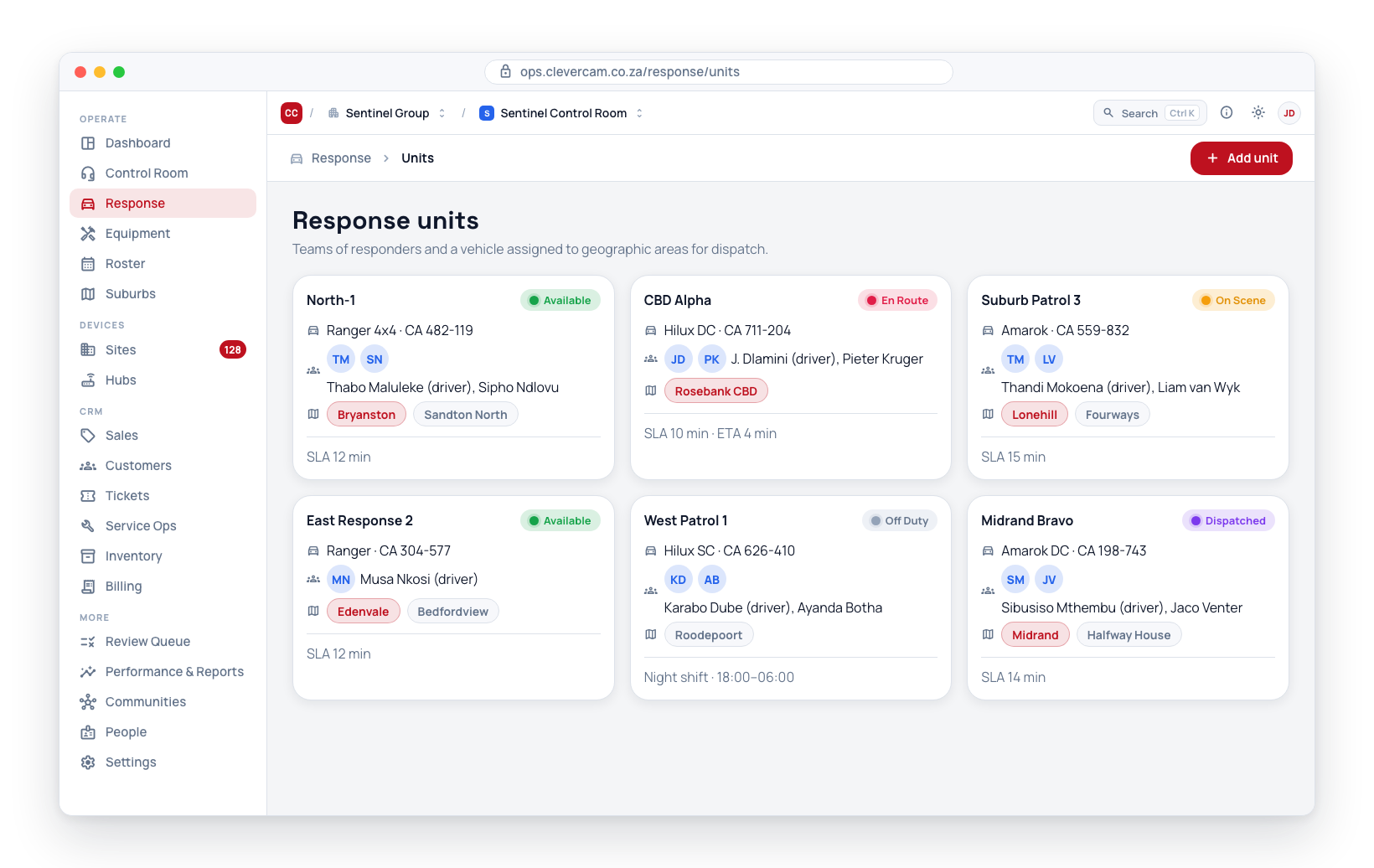
- Inherit them (the default for new units), or
- Override them with its own Duty window and Weekdays via the Duty hours section of the unit edit dialog under Response → Units.
See Response Units for the per-unit override flow.