Dispatch Management
When an event is verified as a genuine alarm, operators dispatch response units to the site for physical inspection. CleverCommand provides a complete dispatch workflow -- from selecting a unit and sending them to the location, through tracking their progress, to marking the dispatch as complete.
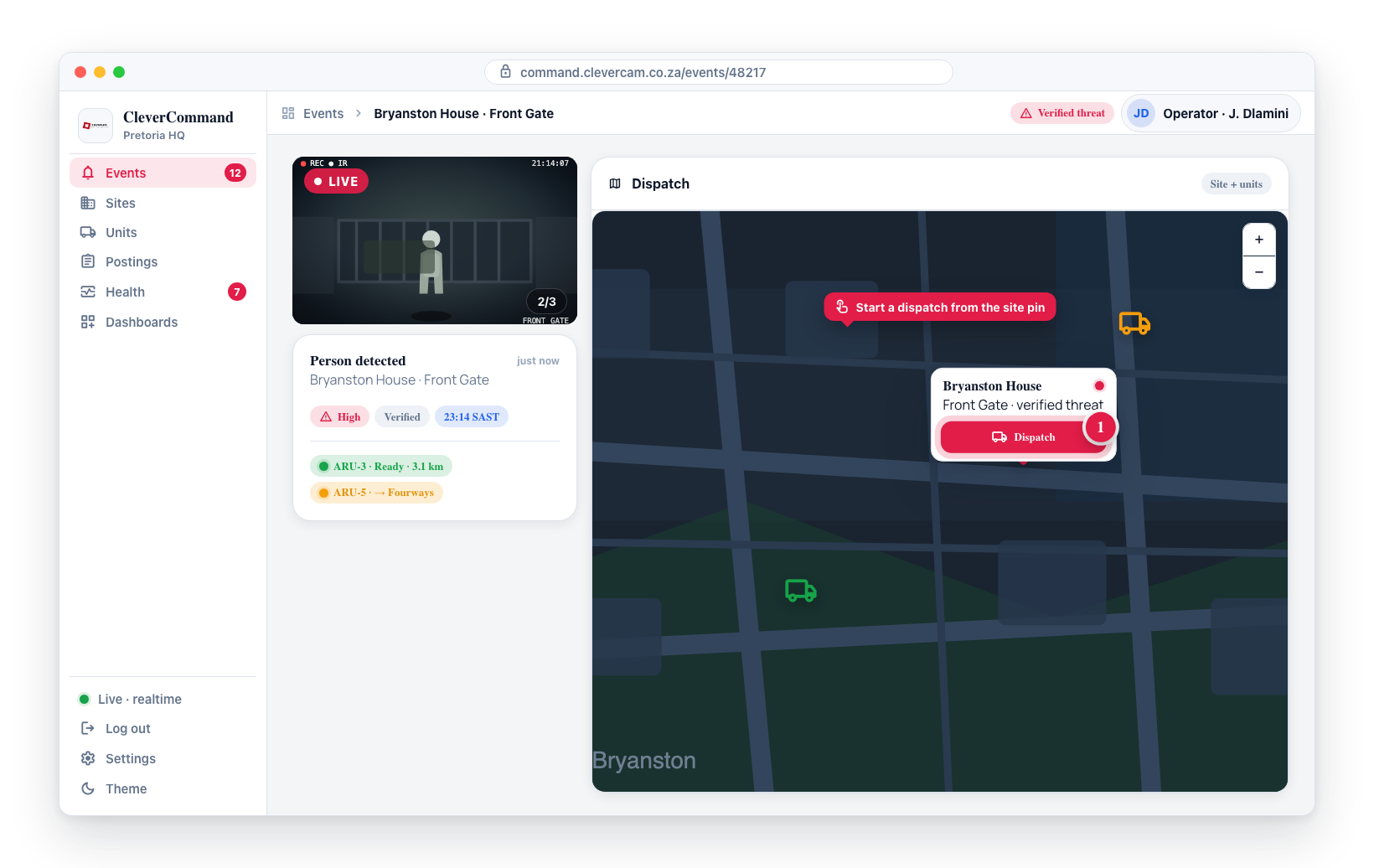
Open the event and start a dispatch from the map panel.
Dispatching a Unit
Dispatching in CleverCommand is done through an interactive map view in the event details:
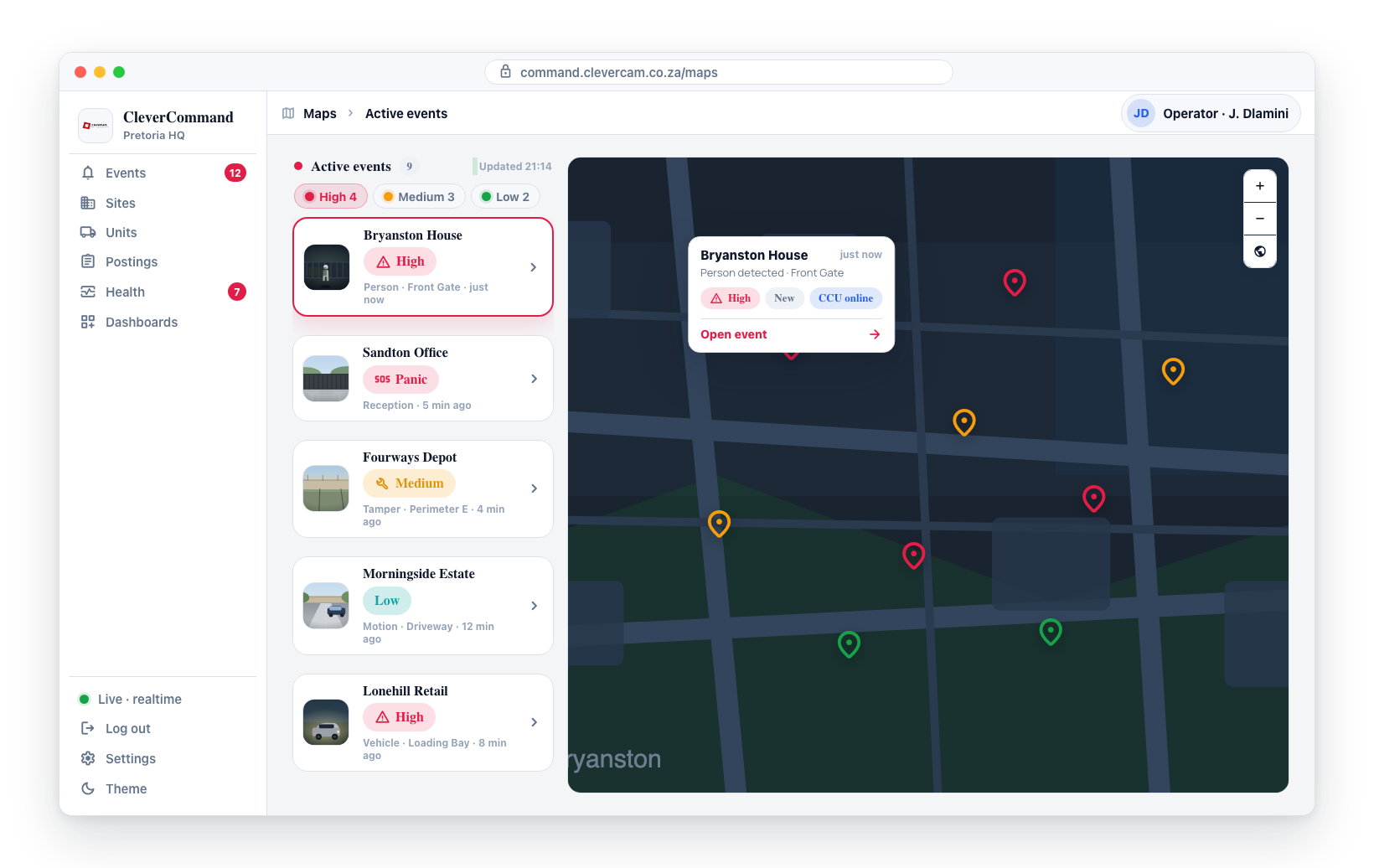
- Open the event from the queue
- The event details page includes a map showing the site location and all available response units with their current positions. A unit is placed by its vehicle tracker; a unit with no tracker, or whose tracker has no usable fix, is placed at its crew's last phone position instead (a unit with neither is left off the map)
- Click on a unit marker on the map to select it — or open the Dispatch dropdown in the dispatch panel, which lists the same units
- A dispatch menu appears showing the unit details
- Click Nominate. The unit is now nominated for this event — it appears in the dispatch panel as Nominated, with a Roll button — but the vehicle has not been sent yet
- Press Roll when you are ready to send it. The dispatch becomes En Route, the unit's crew are told to go, and the timeline records Unit rolled. If the crew tap Accept & respond in CleverResponder before you press Roll, that rolls it the same way
The unit list is ordered closest first — each unit's straight-line distance and estimated ETA to the dispatch target (the site, or a live vehicle for vehicle-in-transit events) are shown next to it, and the nearest unit sits at the top. Units with no GPS fix fall to the bottom of the list.
Nominating writes the dispatch record and a Unit nominated note on the event timeline; rolling adds Unit rolled. The map also shows a route line between the unit and site.
Units marked No app
A unit whose crew are not signed in to CleverResponder carries an amber No app badge — in the Nominate list, on the event's dispatch rows, in the Clava picker and on the unit strip (where the unit's popover says why). Nobody on that unit can receive the dispatch alert on a phone, so a nomination is only seen on your screen: radio the crew, then roll, mark arrived and complete the run here yourself.
The badge clears as soon as a crew member signs in to CleverResponder on their phone. A phone that has lost the app — uninstalled, or its sign-in gone — drops to No app the first time a dispatch alert to it is refused.
Nominating is the same verification-before-roll step as the Nominated for Dispatch column on the board: the pick is on record, and it can still be cancelled — or a different unit nominated — before a vehicle moves. There is no direct-dispatch shortcut on the event details page; every operator nominates, then rolls.
Mobile panic events have no site — the dispatch target is the sender's live GPS position instead, and the unit list is ranked against that moving position the same way it would be against a site address.
Premises pin (partitioned premises)
When the event belongs to a premises on a shared panel (see Partitioned Premises) and that premises has a pin of its own, the unit is sent to the premises pin by default rather than the site address. The Respond to picker in the dispatch panel and the destination dropdown on the map both offer Premises pin alongside Site address, so you can still send a unit to the shared entrance; the nearest-unit sorting and the ETA note follow whichever target is selected. A premises without its own pin uses the site address exactly as before.
One run at a time — everything else queues
A unit can only be rolling on one job at a time. A vehicle cannot be en route to two sites at once, so the platform refuses to put it on a second run while the first is still open.
That is not the same as refusing the work. A unit that is already out can be queued for another event, and the queue is ordered: the run it is on sits at position 1, and each job you add lines up behind it. Its crew is told it is queued work — "Another job is queued behind your current run" — not that they should turn around.
In the unit picker, a unit that is out on another event shows an amber On another run · queue badge. It stays selectable: picking it nominates it like any other unit, and the nomination simply waits behind the current run — the timeline reads Unit queued rather than Unit nominated. Roll it once that run is complete. Units that only hold queued work are not marked — they are still free to roll now, so they appear normally.
A unit already on this event is greyed out and shows Nominated or Dispatched; there is nothing to add.
Two conflicts can still surface, and they mean different things:
- "Romeo 3 is still on scene at Uitkyk Big House since 07:30. Complete that run first — a unit rolls to one job at a time." — you pressed Roll on a unit whose previous run is still open. The message names that run, and Open Uitkyk Big House next to it takes you to the event so you can complete it; then come back and roll. On the board, Roll → shows the same message as a red Unit did not roll toast, and the card stays in Nominated.
- "That unit is already on another run…" — the unit started a run between your click and the save, usually because a colleague dispatched it a moment earlier. Queue it, or pick a unit that is free.
- "That unit is already queued for this event…" — it is already in the queue for this job. Nothing to do.
Dispatch Status Lifecycle
Every dispatch follows a standard status progression:
| Status | Description |
|---|---|
| Nominated | The unit has been chosen for the event and its crew notified, but it has not rolled — the operator can still cancel it or nominate a different unit |
| En Route | The unit has rolled — the operator pressed Roll or the crew accepted the call-out — and is traveling to the site |
| On Scene | The unit has arrived at the site location |
| Completed | The unit has finished the on-site inspection and reported back |
Updating Dispatch Status
As the response unit progresses, their status updates in CleverCommand:
- The operator presses Roll on the nominated unit (or the crew accept the call-out) — the dispatch becomes En Route
- On arrival, the status changes to On Scene
- After completing the inspection, the dispatch is marked as Completed
- Each status change is recorded in the event timeline with a timestamp
The times come from the server. When you nominate, roll, mark arrived, complete or cancel from CleverCommand, the time recorded is the server's, not your PC's — a workstation clock that runs a minute slow or fast no longer shifts nomination or response times. A crew's own taps in CleverResponder keep the phone's time, because an arrival or finish made with no signal is sent later with the moment it happened.
A nominated dispatch cannot be completed — the unit never rolled. Roll it first, or, for a unit you run by radio, record that it attended (see When a unit never rolled).
Responders drive these transitions themselves from the CleverResponder app: Accept & respond moves the dispatch to En Route and stamps the dispatched time — so response-time metrics include dispatches the responder accepted, not just ones an operator rolled — Mark on scene flips it to On Scene, and the All in order / Problem at site outcome buttons complete it.
Outcomes resolve the event
Completing a dispatch with any outcome — whether the responder taps a button in CleverResponder or the operator picks a chip in the outcome picker — moves the event's card to the Resolved column, and that resolved state is persisted: the card stays in Resolved awaiting final close-out, surviving reloads and showing the same on every operator's board. The outcome decides how the event is resolved:
- All in order and No contact resolve it as unconfirmed / in-order — if a fresh alarm image arrives afterwards, the event is automatically reopened for re-verification.
- Problem at site and Other resolve it as an attended problem — the event stays in Resolved, with no auto-reopen.
For the responder's two buttons, All in order logs a false alarm and Problem at site logs a resolved problem. An outcome never hard-closes the event — an operator still completes it from the Resolved column.
ETA Calculation
When a unit is dispatched, CleverCommand calculates an estimated time of arrival (ETA) based on the straight-line distance between the unit's current position and the site, assuming an average travel speed of 60 km/h.
In Clava-Mode VCRs, the smart dispatch picker uses Mapbox driving routes for ETAs instead of haversine. When the operator picks a unit from the picker, the picker's authoritative ETA and routing source (mapbox_driving vs straight_line) are persisted on the vcr_dispatches row alongside the unit and event references — so the dispatch report reflects the same numbers the operator was looking at.
ETA calculations are estimates. In Clava Mode they come from Mapbox driving routes; on VCRs without Clava Mode they're straight-line at 60 km/h. Actual arrival times will vary based on traffic, road conditions, and the actual route taken. The ETA is recorded with the dispatch for reporting purposes.
Smart Dispatch Picker (Clava Mode)
In Clava-Mode VCRs the unit picker shows a ranked list of candidate units ranked by live Mapbox driving ETA rather than the standard dropdown's straight-line closest-first ordering. The recommendation comes from the dispatch-recommend edge function which combines Mapbox driving ETAs, current-queue delays, and a switching-cost penalty for units already en route to another event.
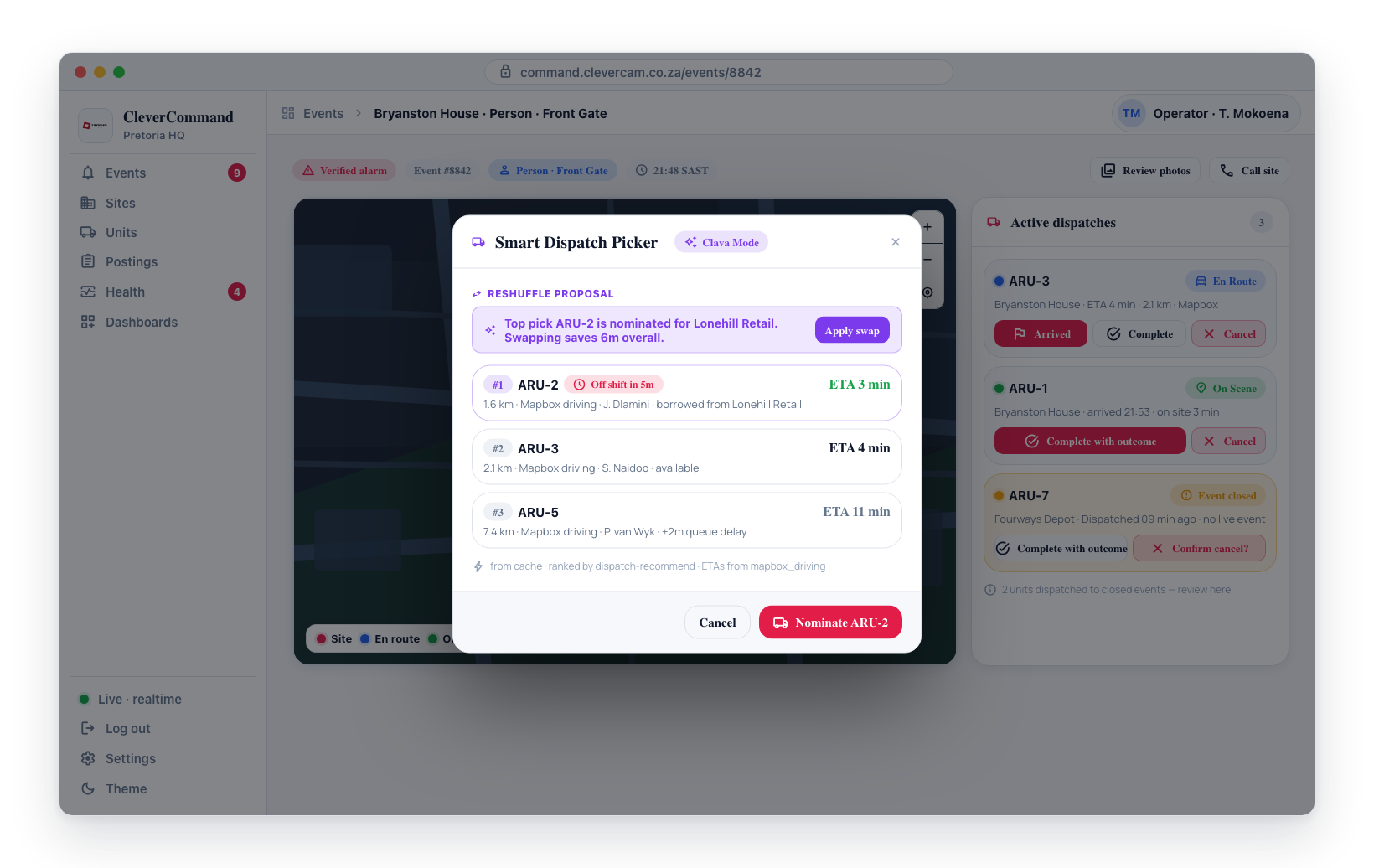
The top pick is the 1-tap default
Rank #1 is pulled out of the list into a hero card at the top of the picker — a large unit label, its ETA (with a live / cached / estimate source pill), any En route / Off shift / queue badges, and a Tap to nominate call-to-action. It carries an always-on strength line that tells the operator why it's the pick and how safe the call is:
- Clear best — Xm ahead of the next unit when the margin to rank #2 clears three minutes.
- Best option — about Xm ahead for a smaller but real margin.
- Fastest to respond — narrowly ahead of the next unit when it's a close race, or Only unit in range — recommended when it's the sole candidate.
The hero is auto-focused when the picker opens, so pressing Enter (or tapping it) nominates the top pick without hunting through the list. Every other candidate drops into a subordinate Other units list below, keeping the smart pick the obvious default while still letting the operator pick any unit by hand. Nominating (from the hero or the list) never rolls the vehicle on its own — the unit still has to be rolled from its Nominated card.
Cached recommendations
Each successful recommendation is persisted to vcr_event_dispatch_recommendations for ~2 minutes. If the operator reopens the picker on the same event within that window the modal hydrates instantly from the cache without a fresh edge-function call. The trace footer at the bottom of the picker shows from cache · ... when this happens.
The road ETAs themselves are cached separately and shared by every operator: each unit-to-site leg is stored per ~110 m grid cell for 7 days when it starts from a unit's GPS position, and 60 days when it starts from a fixed point (the site a busy unit is heading to, or a patrol-area centre). Reopening the picker after the 2-minute window therefore only buys legs that are not already cached — in practice, those of units that have moved. Live road routes are bought only for units' legs to the event the picker was opened for, plus a busy unit's legs through the jobs it already has; the other open events it weighs (see Apply swap below) use cached road ETAs or straight-line estimates.
Off-shift warning chip
Each candidate may include a resolved shift end (default shift hours plus any once-off override). If the projected dispatch finish — arrival + ~7 minutes service time — would fall after that shift end, the candidate gets a red Off shift in Xm chip in its header (or Off shift if the shift has already ended). Tooltip: "Projected to finish after shift end." The chip is informational; the operator is still allowed to nominate that unit.
Apply swap (reshuffle)
When the recommender determines that the optimal joint assignment differs from the current nominated state by ≥ 5 minutes of total saving, it emits a reshuffleProposal. The picker shows this as a Reshuffle proposal callout — "top pick is currently nominated for another event. Swapping saves Xm overall." — with an Apply swap button. The displaced event's side of that saving is worked out from cached road ETAs or straight-line estimates rather than live routes, so treat the figure as approximate.
Clicking Apply swap fires fn_apply_reshuffle which atomically:
- Cancels the current nomination on the picker's primary event (if any).
- Nominates the borrowed top pick on the primary event.
- Cancels the displaced event's existing nomination.
- Nominates the replacement unit on the displaced event.
After the RPC succeeds the picker refreshes the active dispatches and closes. On error the existing error state surfaces and the operator can still nominate by hand.
Canceling a Dispatch
If circumstances change (e.g., the event is determined to be a false alarm after dispatch), you can cancel the dispatch:
- Open the event with the active dispatch
- Locate the active dispatch in the dispatch section of the event details
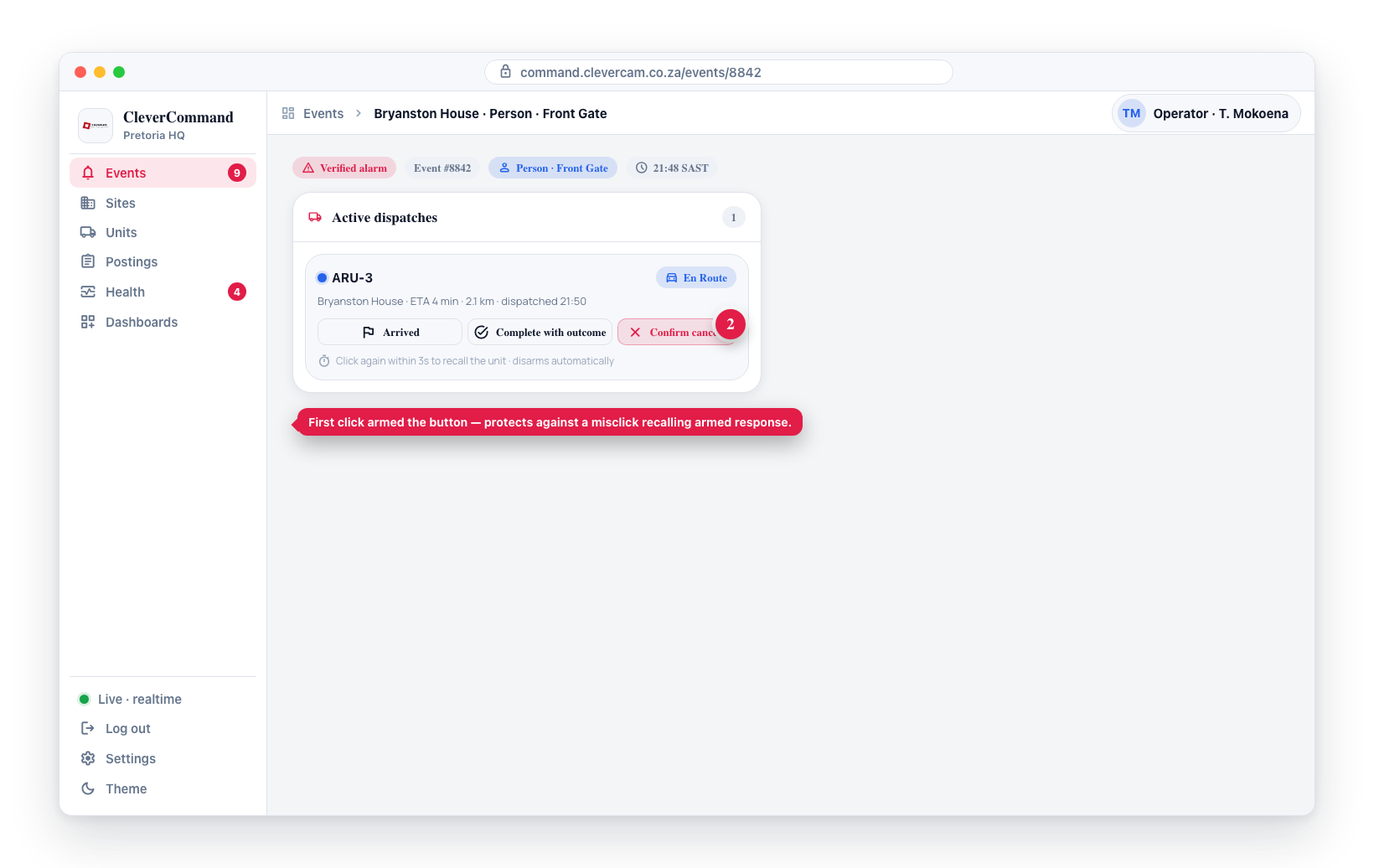
- Click Cancel on the active dispatch — the button arms and changes to Confirm cancel?
- Click it again within 3 seconds to confirm (it disarms automatically if you don't)
- The unit is notified of the cancellation and a cancellation entry is added to the event timeline
Cancelling recalls a unit that may already be en route, and the Cancel button sits next to the high-frequency Arrived/Complete buttons. The two-step confirm protects against a misclick silently recalling armed response. This applies to the Dispatches panel as well. On the unit status strip the confirm names the site instead — Yes, cancel {site name} or Keep, resetting after 6 seconds (see Active Units strip).
When a responder declines
A responder can also decline a dispatch they've been nominated for, from the CleverResponder app (Can't respond). The dispatch is cancelled with a note recording the decline, and a Dispatch declined entry is added to the event timeline — treat it like any other cancellation and nominate another unit.
So a decline can't slip past unnoticed, CleverCommand also raises a red toast the moment it happens — "ARU 2 declined the dispatch — nominate another unit." with the event number underneath. It appears on whatever page you're on, stays up for around 20 seconds (longer than normal toasts), and can be dismissed with the ×.
Completing an Event with Active Dispatches
An event must not be completed -- or even moved to the Resolved column -- while a response unit is still on it. When units are, CleverCommand asks what happens to each of them before it goes on.
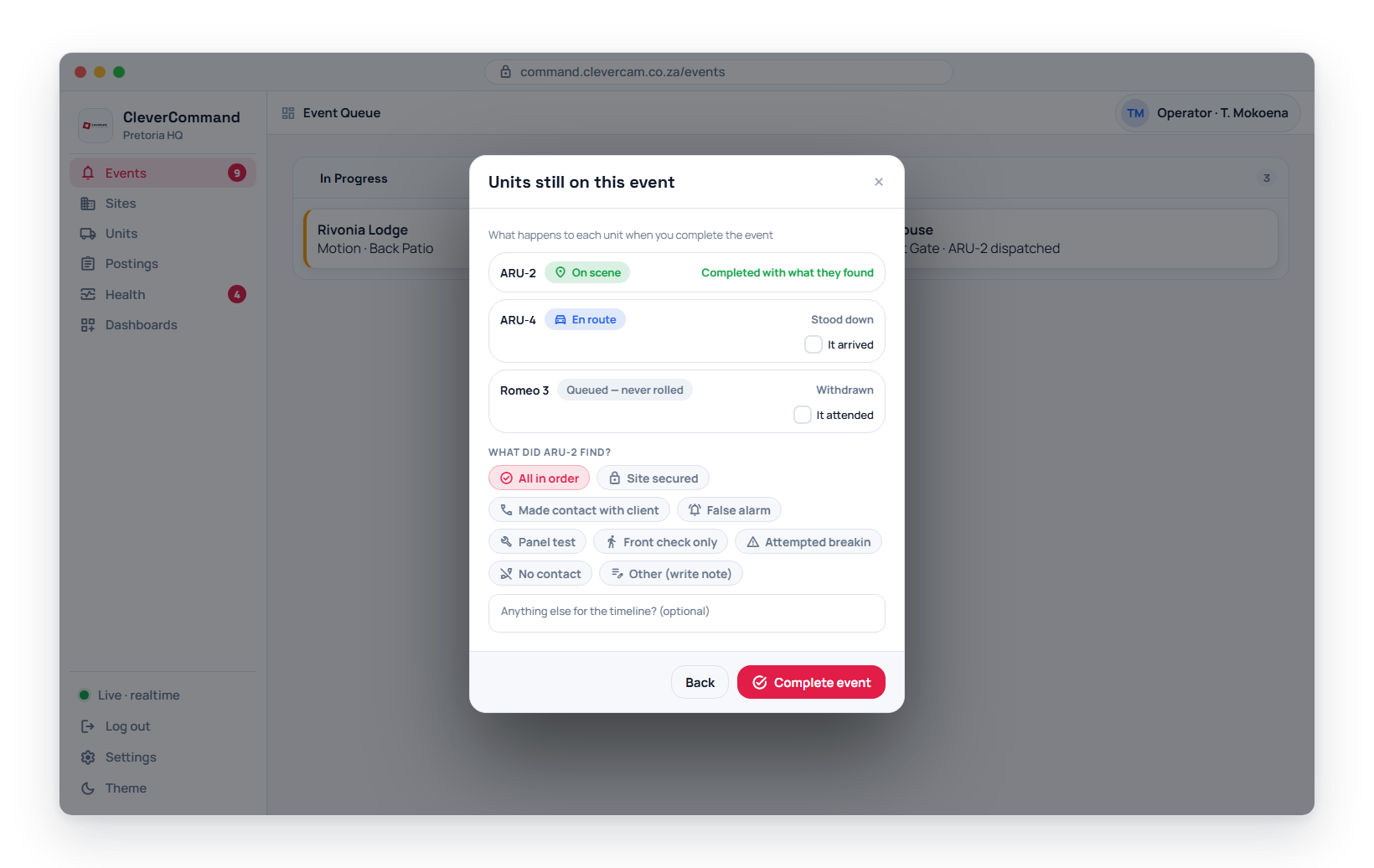
The Units still on this event dialog appears at two moments:
- When you move a card to the Resolved column -- dragging it to Resolved in the Clever/Advance kanban, or Move to Resolved in the card's More actions menu. The dialog's button reads Move to Resolved.
- When you finalise the close -- ✓ Complete event on a Resolved-column card, accepting the Brain's Resolve action, or completing from the Event Details page. The button reads Complete event.
With no unit on the event, both run straight through as before. The dialog runs on both the Events dashboard (kanban) and the Event Details page.
It lists every unit of your control room still on the event, and what will happen to it:
| The unit is | What happens | What you can change |
|---|---|---|
| On scene | Completed, with the outcome you pick | -- |
| En route | Stood down -- its crew get Dispatch recalled | Tick It arrived to complete it with the outcome instead |
| Queued -- never rolled | Withdrawn | Tick It attended for a unit you ran by radio: it is recorded as rolled (at the time it was nominated) and on scene, then completed with the outcome |
When any unit will be completed, pick what it found -- the same outcomes as the dispatch Complete picker: All in order, Site secured, Made contact with client, False alarm, Panel test, Front check only, Attempted breakin, No contact and Other (write note). The dialog's button stays disabled until you pick one, and Other also needs a note. The outcome is recorded on every completed unit; the chip's note goes on the timeline together with one Units settled line that says what happened to each unit.
Press Back to leave everything as it was. If a queued unit you ticked is still on another run, the dialog names that run and nothing changes.
When a unit still has checklist tasks
A unit cannot be completed while one of its required checklist tasks is unanswered -- the same rule as the dispatch's own Complete button (see Operator checklist). The dialog checks this before it settles anything. If a unit it would complete -- one on scene, or one you ticked It arrived or It attended -- still has an open task, nothing is settled yet and the dialog turns into the Tasks outstanding list, each task named with its unit (Romeo 3 · Photo of the front gate):
- Answer the tasks on the checklist, or -- if you hold Clear mandatory event tasks -- type one reason and press Waive next to each task that cannot be done.
- When the last one is cleared, press Complete event (or Move to Resolved). The units are settled with the choices you made, and the event carries on to close.
- Back returns you to the units dialog with your outcome and ticks kept.
A unit's crew tasks count once it is on scene, so ticking It arrived brings them in. Leaving it unticked stands the unit down instead, and a stand-down is never held up by tasks.
A crew whose run you completed before they sent their report can still send it from CleverResponder.
Until 24 September 2026 this popup offered only Cancel all & complete / Cancel all & resolve, which cancelled every unit -- including crews standing on site, who got Dispatch recalled and whose run was lost from the record. Completing an on-scene unit keeps the attendance, its outcome and its charge.
The platform also enforces the rule in the database: an event cannot be marked complete while a unit is still actively dispatched to it. The dialog is the normal way to satisfy it; the database block is the final safety net, so a phantom dispatched unit can never be left behind no matter which path is used to close the event.
Multiple Dispatches
An event can have multiple dispatches if additional units are needed:
- After the first dispatch, click another unit marker on the map
- Dispatch the second unit
- Both dispatches are tracked independently with their own status progression
Viewing Active Dispatches
The event details page shows all dispatches associated with the event:
- Active dispatches with current status and ETA
- Completed dispatches with arrival time and completion time
- Cancelled dispatches with cancellation reason
Always verify an event before dispatching a response unit. Dispatching to false alarms wastes response resources and increases response times for genuine incidents. Review photos, check site history, and contact the site owner when possible before dispatching.
Dispatches Panel and Stale Dispatch Warnings
The Dispatches panel on the Events dashboard lists every active dispatch for your VCR, grouped by area and unit. Each row shows the site, the dispatch status, and the time since dispatch or arrival.
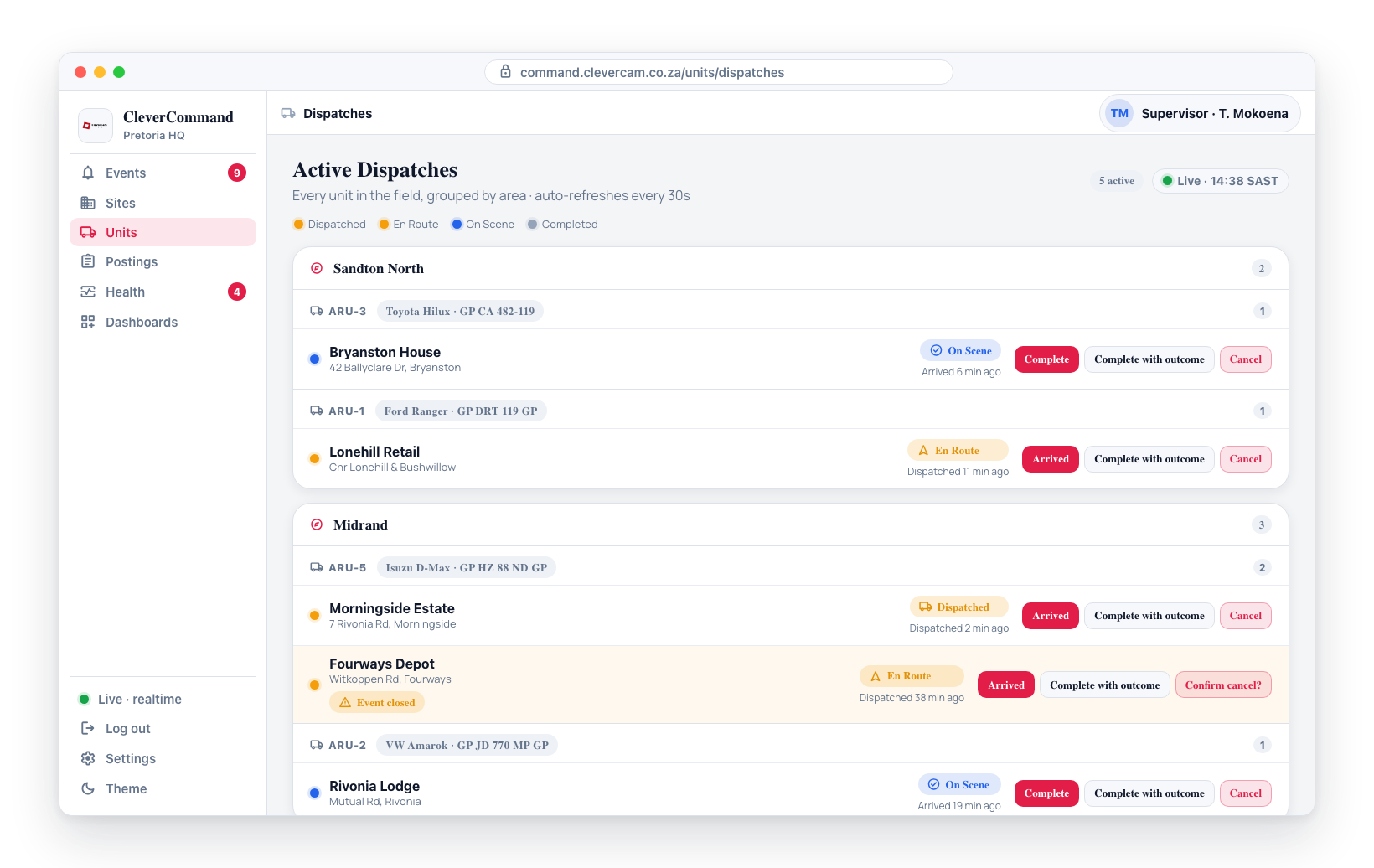
If a dispatch's underlying event is no longer open, the row is highlighted in amber with a warning badge so you can clear the stranded unit:
| Badge | Meaning |
|---|---|
| Event closed | The event this unit was dispatched to has already been completed |
| Event no longer exists | The event record has been purged and can no longer be found |
| No linked event | The dispatch was never tied to an event (e.g. a direct dispatch) |
When the panel loads and one or more dispatches are flagged, a one-time notification appears -- e.g. "2 units dispatched to closed events -- review in Dispatches." The notice fires once per affected dispatch, not on every refresh.
Each dispatch row has two completion actions:
- Cancel -- recalls the unit. First click arms the button (Confirm cancel?); a second click within 3 seconds fires the cancellation.
- Complete -- opens the outcome picker so you can record an outcome (all in order, false alarm, no contact, etc.) and a timeline note as you clear the unit. The dispatch is marked complete and the event's card moves to the Resolved column for final close-out -- it is not closed here. Every outcome persists that resolved state -- No contact and Other included -- so the card stays in Resolved across reloads; see Outcomes resolve the event for how each outcome classifies the resolve.
Completing always records an outcome. The Dispatches panel used to offer a plain Complete alongside Complete with outcome, and the unit status strip and Event Details page completed without asking at all -- so a large share of completions were stored with no outcome, and everything that reads it (false-alarm rate, cost-optimisation reporting, the Brain's procedural gating) under-counted. There is now one Complete button on every surface and it always opens the picker.
If an action fails (network blip, stale dispatch), a red toast names the action and the reason — the row did NOT change, so retry rather than assume it worked. While an action is in flight, that row's buttons are disabled to prevent double-fires.
Use these to resolve any flagged stale dispatches so the board stays accurate.
Over-limit dispatch consent
In Clava-Mode VCRs every site has a monthly dispatch budget -- an included quota plus an optional allowed over cushion. When an operator tries to dispatch on a site past included + allowed_over, CleverCommand opens a soft-block Over-limit dispatch consent modal before the dispatch RPC fires. The gate intercepts every entry-point (Nominate Unit, drag-into-Dispatch, the legacy Dispatch button, Apply Swap).
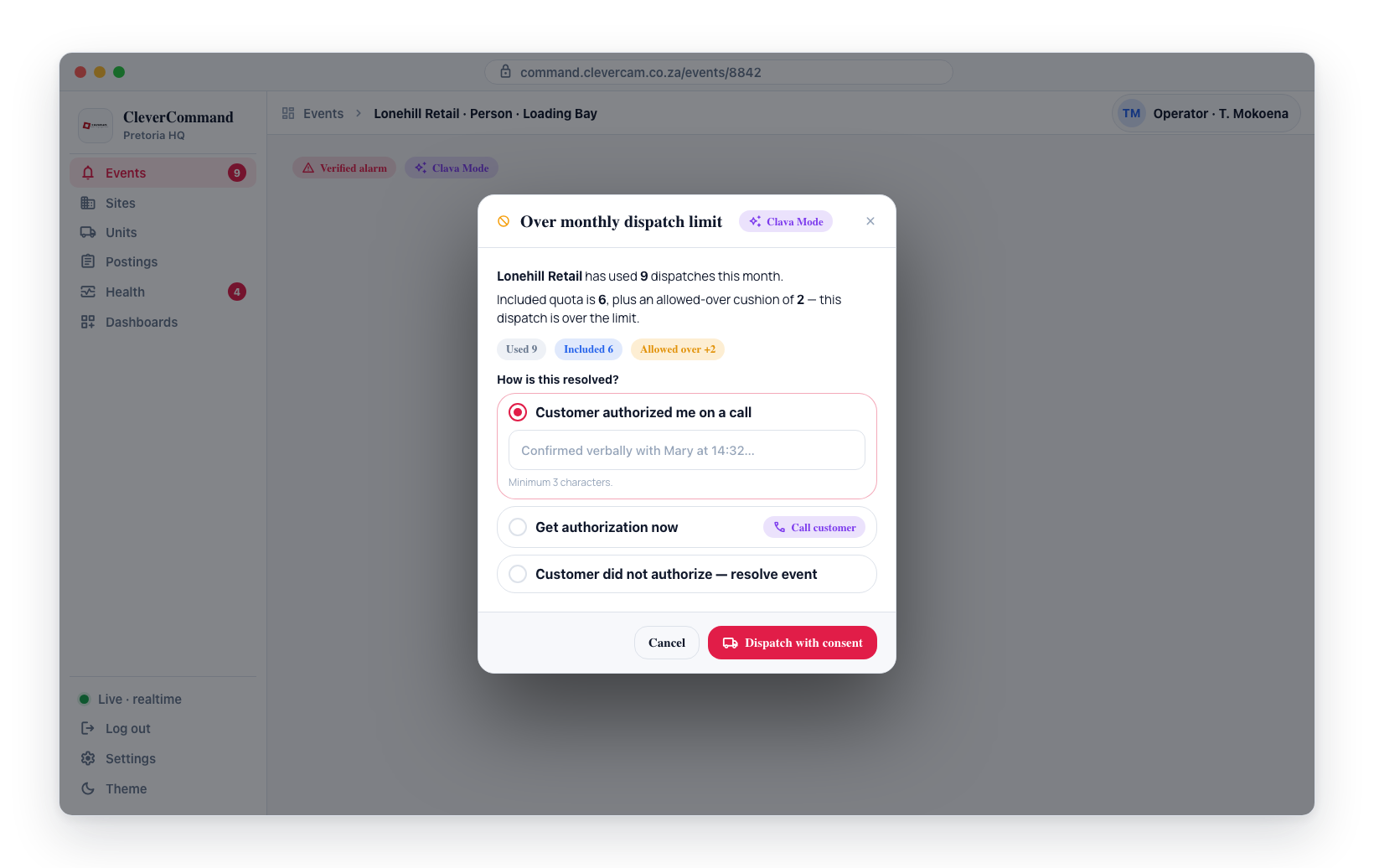
The modal lists the site name, dispatches used this month, the included quota, and the allowed-over cushion, then offers three radio paths:
- Customer authorized me on a call -- operator attests (with required note) that the customer agreed; dispatch fires. Gated by the
can_attest_overdispatch_consentcapability onvcr_team_members(supervisors get it by default). - Get authorization now -- opens the Call Customer flyout for an AI call, Twilio call, or manual call. See AI Calls: over-limit consent prompt for the in-call scripts and tool-call mechanics.
- Customer did not authorize -- resolve event -- closes the event without dispatching and raises a
management_eventsrow of kindoverdispatch_unresolved.
Either consent path writes an event_actions row with action_type='customer_consent_overdispatch'. The next dispatch attempt short-circuits through if the latest row decision is authorized; if not_obtained the modal re-opens so the operator can attest, call again, or resolve. Operators can re-open the modal at any time by hitting a dispatch entry-point on the call flow.
Server-side enforcement: fn_nominate_unit, fn_dispatch_unit, and a vcr_dispatches BEFORE INSERT trigger all block unconsented dispatches as a safety net (raising dispatch_blocked_over_limit_no_consent). Consent history lives on the event Timeline, off the event_actions rows above. In CleverOps it surfaces two different ways, and only one of them is a queue row: a refused consent raises an overdispatch_unresolved item in Performance & Reports → Review queue, while consent that was granted raises no item at all — it is counted instead in that page's over-dispatch consent panel, which totals authorized vs not obtained for the calendar month and names the top channel.
This feature only triggers in VCRs with Clava Mode enabled. VCRs without Clava Mode never see the chip, modal, or AI-call consent prompt.
Acknowledge required before dispatch
A control room can attach Acknowledge instructions to an event's operator checklist — must-read steps the operator must confirm before acting (for example "Confirm you have read the keyholder safety note"). While a required Acknowledge item is unticked:
- Every dispatch entry-point (Nominate Unit, drag-into-Dispatch, the Dispatch button, smart dispatch) is blocked. The operator sees "Acknowledge the required checklist instructions before dispatching a unit."
- The event also cannot be resolved (every required checklist item blocks the resolve gate).
Click Acknowledge on the event's checklist card to clear the gate, then dispatch normally.
Server-side enforcement: fn_nominate_unit, fn_dispatch_unit, and the vcr_dispatches BEFORE INSERT trigger all block dispatch (raising dispatch_blocked_ack_required) until the required Acknowledge items are satisfied. Acknowledge items are authored in CleverOps Operator Checklists (per-VCR or per-site).
Dispatch and the Units Map
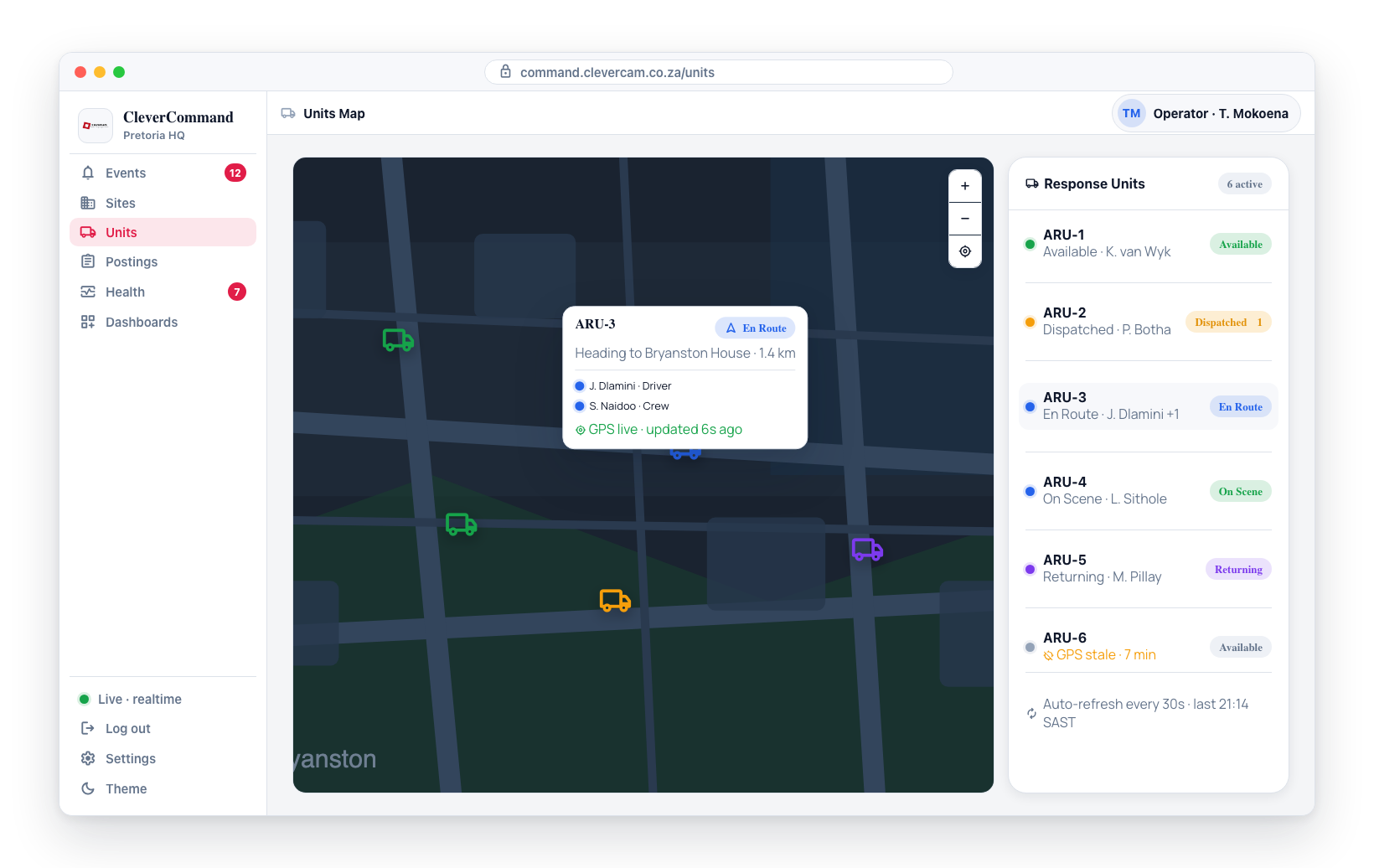
All active dispatches are also visible on the Units Map page, where you can see unit positions on a geographic map and track their movement toward the site in real time.