Operator Checklist
In Clava Mode, every kanban card carries an operator checklist under the card's body. Each row is a task the operator (or the dispatched responder) must clear — by ticking, typing a response, picking a choice, taking a photo, or scanning a QR — before Complete event is allowed on the Resolved column.
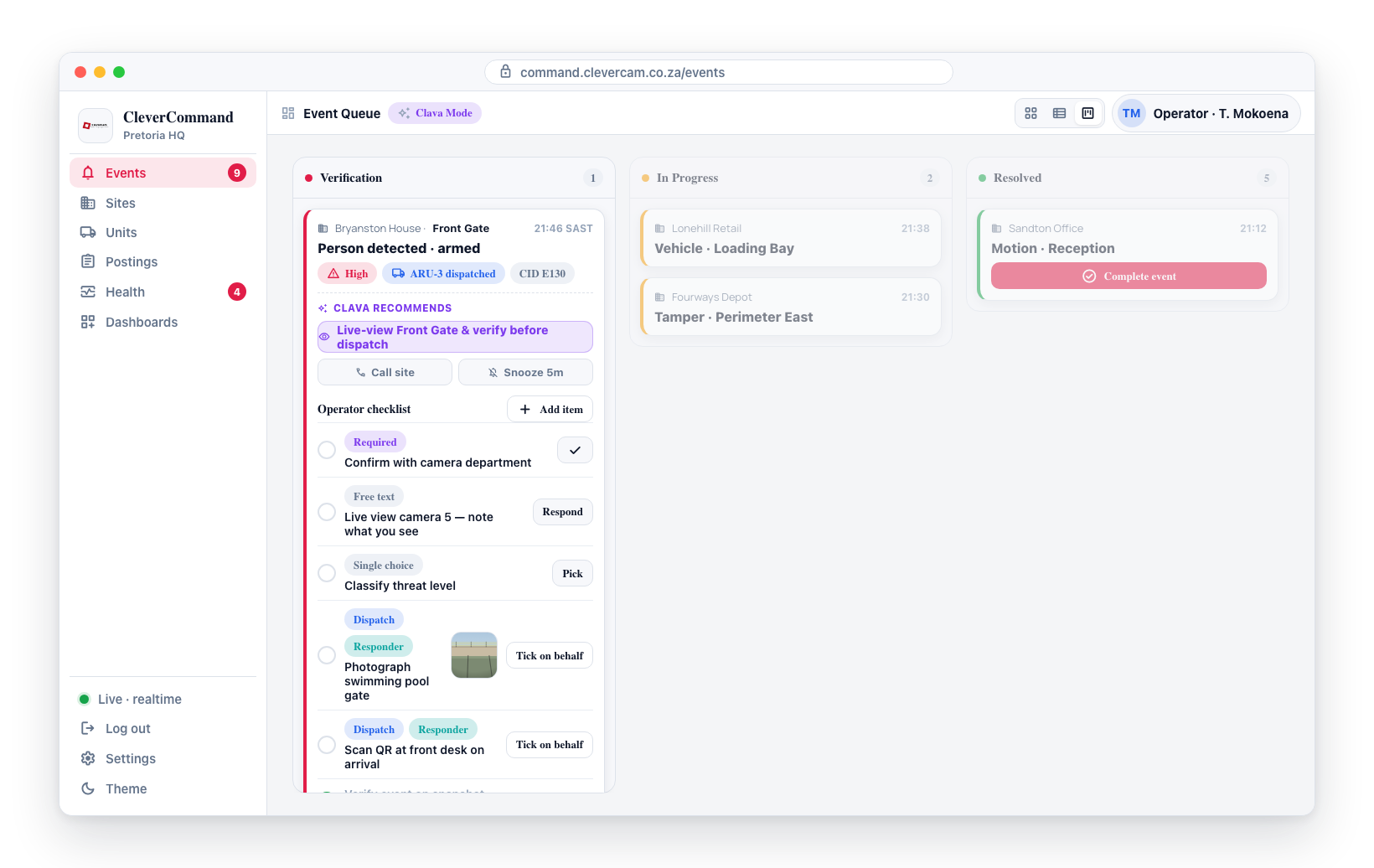
The checklist is not a hard wall: there is always a path to clear a row. An operator can type "n/a — panel offline" on a free-text row, waive a task that cannot be done (with a reason), tick a responder row "on behalf" when the responder's phone is dead, and required vs optional is configurable per row. The point of the checklist is an audit trail of who acknowledged what when — not literal blocking.
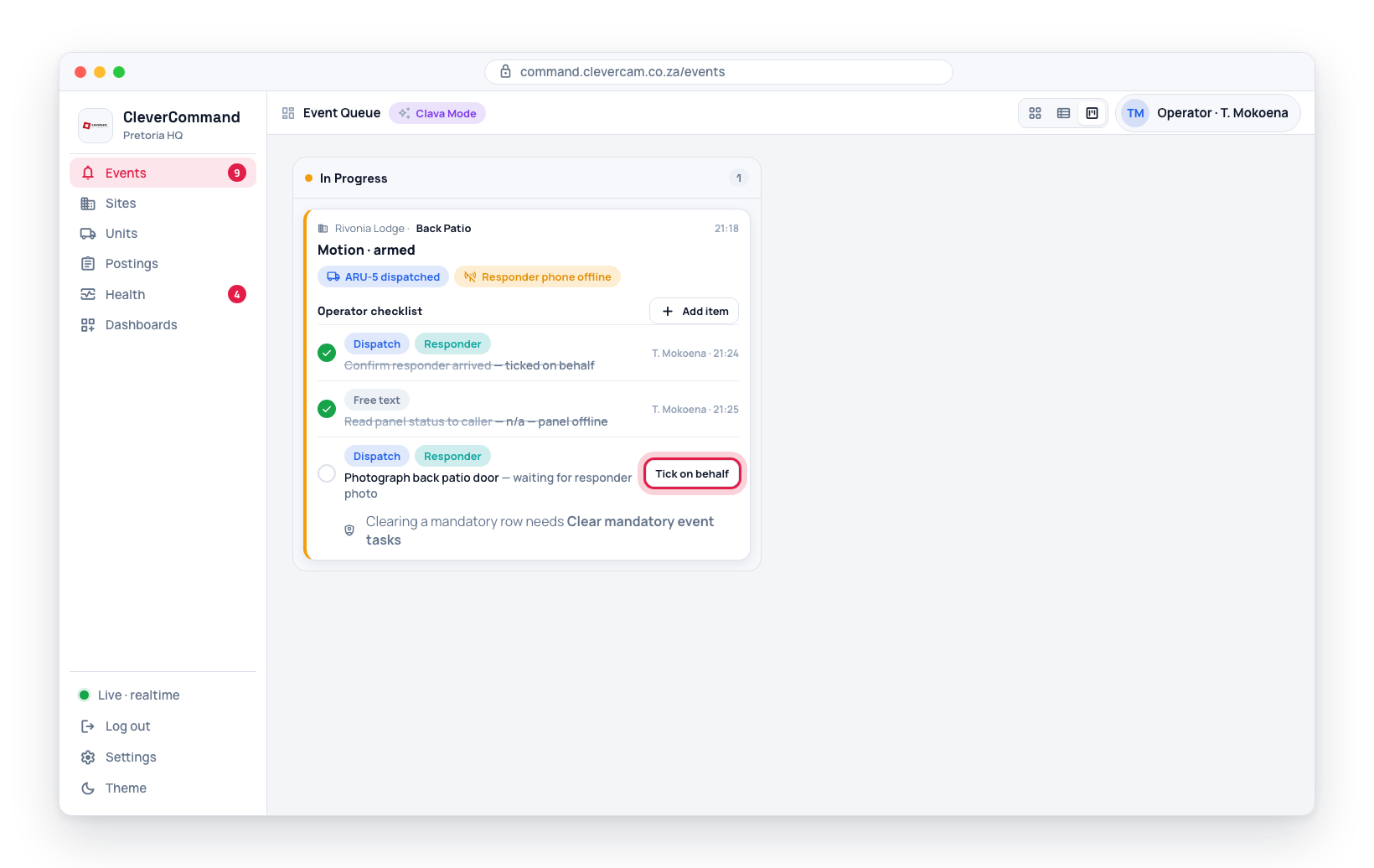
Clearing a mandatory row without the assignee doing the work is the one thing that is gated: it needs the Clear mandatory event tasks capability. Supervisors have it automatically. See Waiving a task.
Cards and Table views do not render the checklist and do not enforce the resolve gate. This entire page is gated on Clava Mode (virtual_control_rooms.maven_mode = true) per VCR — the checklist lives on Clever/Advance kanban cards only.
What sits in the stack
Each row in the stack shows:
- A tick / circle at the left, indicating whether the row is responded yet
- Pills —
Dispatchfor items scoped to a specific dispatch (see Event scope vs Dispatch scope),Responderfor items the field responder is responsible for,On arrivalfor responder items waiting on a unit to reach the scene (see When no responder reaches the scene),Optionalfor items that don't block resolve - The row text — what the assignee must do (e.g. "Confirm with camera department", "Live view camera 5", "Photograph swimming pool gate")
- A response control on the right that depends on the row's response type:
| Response type | Operator UI | Responder UI |
|---|---|---|
| Tick only | ✓ button — one click to mark done | "Done" button |
| Free text | "Respond" → inline input → Send | "Respond" → text field → Send |
| Single choice | "Pick" → radio chips from options | Same |
| Multiple choice | "Pick" → checkbox chips | Same |
| Photo | "Tick on behalf" override, or "Waive…" (no in-browser camera) | Opens phone camera → uploads → response |
| QR scan | "Tick on behalf" override, or "Waive…" | Full-screen scanner → captures value |
Sort order
Pending control-room items render at the top so the operator sees their own work first; pending responder items are below; completed rows sink to the bottom regardless of role.
Operator override
Responder rows carry an extra Tick on behalf ghost button beside the response control. Clicking it submits the row with role='operator_override' and an "on behalf" flag. The row renders "ticked on behalf" in the audit trail. Use it when the responder did the task and couldn't record it — a dead phone, a lost connection — so a field-side blocker never traps the operator on the Resolved column.
If the task was never done, waive it instead. Ticking on behalf claims the work happened; waiving says it didn't, and why.
Waiving a task it can't be done
Some tasks simply cannot be completed. "Photograph the Wendy house" is unanswerable if the yard is locked. Ticking it on behalf would put a false record in the incident history, so mandatory rows carry a Waive… button instead.
Waiving asks for a reason, and will not submit without one. It then:
- records the response as
waivedwith the reason, so the row reads "Photograph the Wendy house — waived: no access to the yard" on the card; - writes an operator-visible Mandatory task waived entry to the event log, naming the task and the reason (hidden from the customer's timeline — it is internal record-keeping);
- stops the row blocking Complete event / dispatch completion.
The row keeps its mandatory status in the data. A report can still show that the task was mandatory and was waived rather than done.
Who may clear a mandatory task
Both Waive… and Tick on behalf clear a mandatory row without the assignee doing the work, so both are gated on the same capability:
| Who | May clear a mandatory task |
|---|---|
| Supervisor | Yes, always — the role carries every capability |
| Controller | Only with Clear mandatory event tasks switched on for them |
| Controller (without it) | No — the buttons are disabled with a tooltip pointing at a supervisor |
Grant it per operator in CleverOps → Control Room → the operator's Role dropdown. See Operator management.
Optional rows are never gated — they don't block anything, so anyone who can work the event can waive one. The event log entry reads "Task waived" rather than "Mandatory task waived".
The gate is enforced in the database, not just the UI: fn_checklist_waive and fn_checklist_respond both refuse a mandatory clear from an operator without the capability, so a stale browser tab or a direct API call cannot bypass it.
When the customer stands the event down
If the customer resolves the event themselves — the app, WhatsApp, SMS, a Clava voice call, or the secure alarm link — the reaction is cancelled and the outstanding tasks stop being obligations. Nobody is going to check the pool gate on an alarm the keyholder just cancelled with their password.
Every mandatory row on the event is then released:
- the row gains a green Released pill and stays on the card;
- the header stops counting it — the stack reads "released by customer" instead of "3 pending";
- Complete event and dispatch completion are no longer blocked by it;
- the operator can still tick or respond to any released row if they want it on the record, and no longer needs the clear-mandatory capability to do so;
- an Outstanding tasks released entry goes into the event log.
Released rows keep is_required in the data, so a report can still show what was outstanding at the moment the customer cancelled.
This applies only to customer resolutions. An operator closing the event with their own disposition (false alarm, resolved after dispatch, operator judgment) does not release anything — that is exactly when the checklist should still bind. A duress password never resolves an event at all, so duress can never release a checklist.
When the supervised condition fixes itself
The other releaser is the supervision engine. An escalation ladder can put a mandatory task on the stack — most often "Phone the client and record the call outcome" on a Phone the client stage. If the condition it was raised for clears first (the hub comes back, the test signal arrives, the camera recovers), the call is moot, so the task is released the same way a customer stand-down releases one: Released pill, an Outstanding tasks released entry on the event, and the event completes normally.
Two differences from a customer stand-down are worth knowing:
- it releases only the tasks that ladder raised for that subject, not every mandatory row on the event — an unrelated obligation still binds;
- a task that has already been answered is left exactly as it is. The operator did the work; the record keeps their outcome rather than being overwritten with a release.
Hovering the Released pill tells you which of the two happened.
When no responder reaches the scene
A responder task is only an obligation once a responder actually got there. "Photograph the breach point" is unanswerable on an event nobody was sent to, and equally unanswerable when the unit was recalled halfway because the keyholder answered their phone.
So responder rows carry an On arrival pill until a unit on this event is marked on scene, and while that pill is showing:
- the header stops counting them — the stack reads "2 on arrival" instead of "2 pending";
- Complete event and dispatch completion are not blocked by them;
- photo and QR rows read "waiting for a unit on scene" rather than "waiting for responder photo".
The moment any unit is marked on scene, every event-scoped responder row on that event becomes required and starts blocking again. Rows scoped to a specific dispatch follow their own unit: arrival by a different unit doesn't clear them.
Marking on scene is what counts, not the dispatch's final status. A unit that arrived, worked the scene and was then cancelled or recalled still binds its tasks — the arrival stamp is never taken back. A dispatch that was cancelled or completed without ever arriving never binds them.
An On arrival row still needs the Clear mandatory event tasks capability to waive or tick on behalf. It isn't blocking the board today, but clearing it early would pre-empt the obligation the unit's arrival is about to create.
Responder rows also never gate dispatch itself: a responder-assigned "acknowledge" row is skipped by the acknowledge-before-dispatch check, which would otherwise deadlock — no unit may roll until it's ticked, and no responder can tick it until a unit rolls.
Photo evidence inline
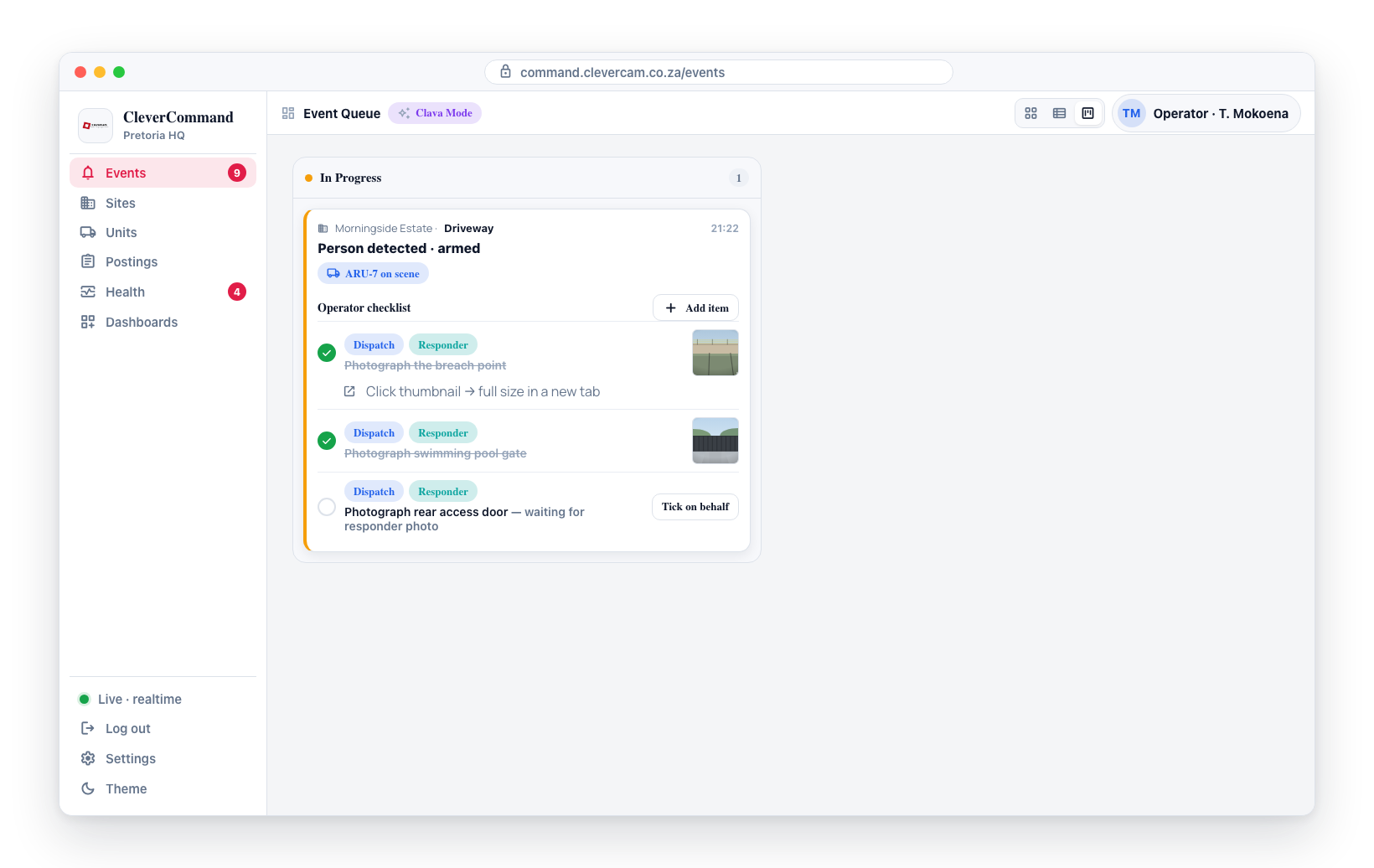
When a responder uploads photos for a photo row, every photo they attached appears as a 56×56 thumbnail in the row on the kanban card — one photo row can carry several pictures, taken before the responder taps Send report. Click a thumbnail to open the full-size image in a new tab. Rows with photos stay at full brightness even once they are done, so the evidence never fades with the strikethrough.
Because completed rows sink to the bottom of the stack and a long stack collapses to its next pending row, the same thumbnails are also shown in a photo strip directly under the collapsed summary (the ▸ 4/5 · Show all line). You never have to expand the checklist to see what the responder photographed; expand it to see which task each photo answers.
Photos are stored in a private bucket and shared with the control room through a long-lived signed link; the resolve gate clears as soon as the photo is recorded.
The dispatch-scoped responder rows (the responder's report — property accessed / damage / forced entry, notes, photos) are also assembled into a Responder incident report card on the event detail page, with the same photos at 72×72 — see Responder Incident Report.
QR scan match indicator
When a responder template carries an action_payload with kind: 'qr_expected' and an expected_value, the responder app records matched: true | false on the response. The kanban row renders one of:
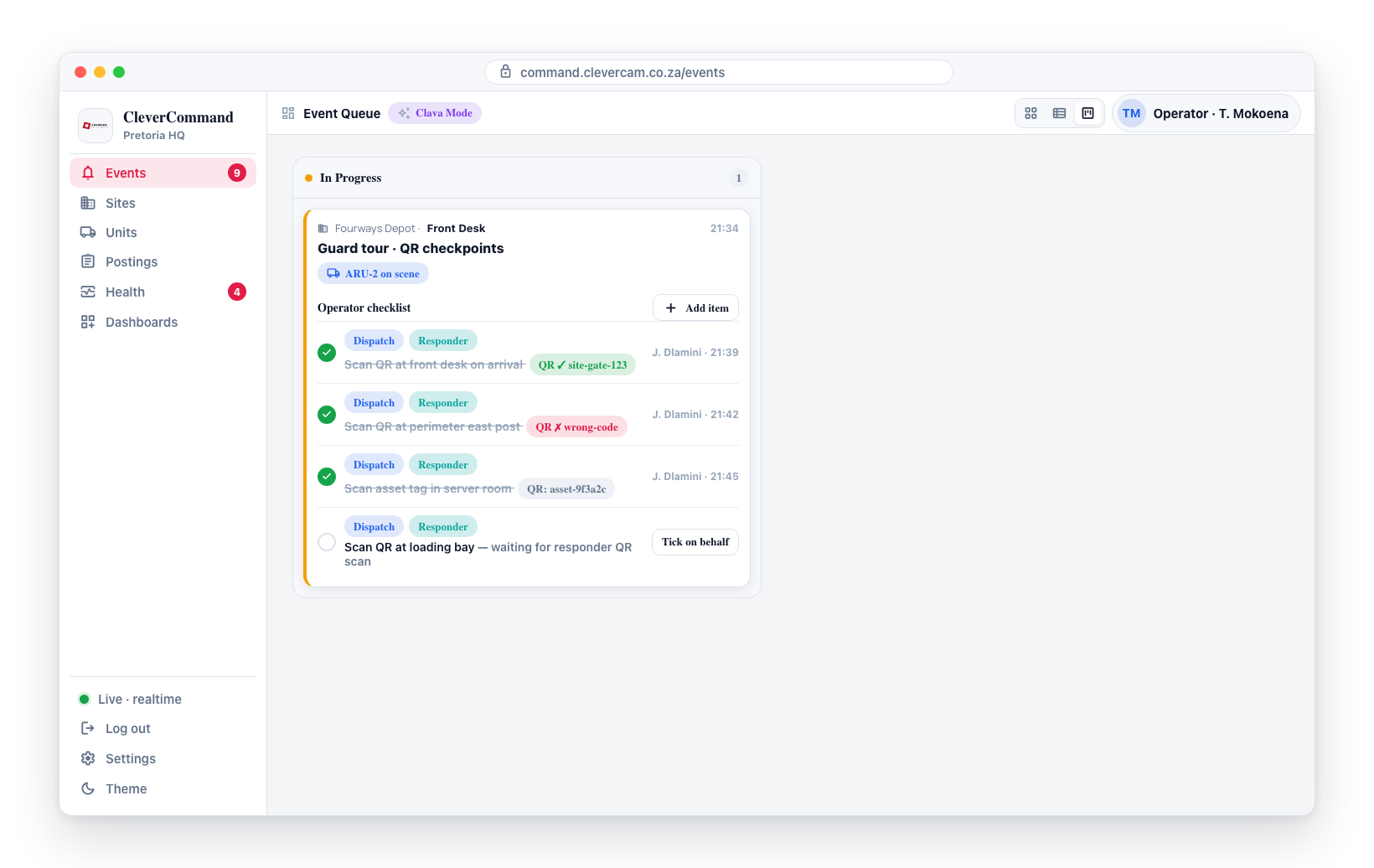
QR ✓ site-gate-123— scanned value matchedQR ✗ wrong-code— scanned value did not match (still recorded; does not hard-block)QR: <value>— no expected value was configured; just shows what was scanned
The responder's scanner screen never displays the expected value — it only prompts "Scan the checkpoint code" — so a responder can't read the code off their phone and counterfeit the checkpoint. The match is computed from the actual scan and recorded on the response.
Event scope vs Dispatch scope
Checklist items live in two scopes:
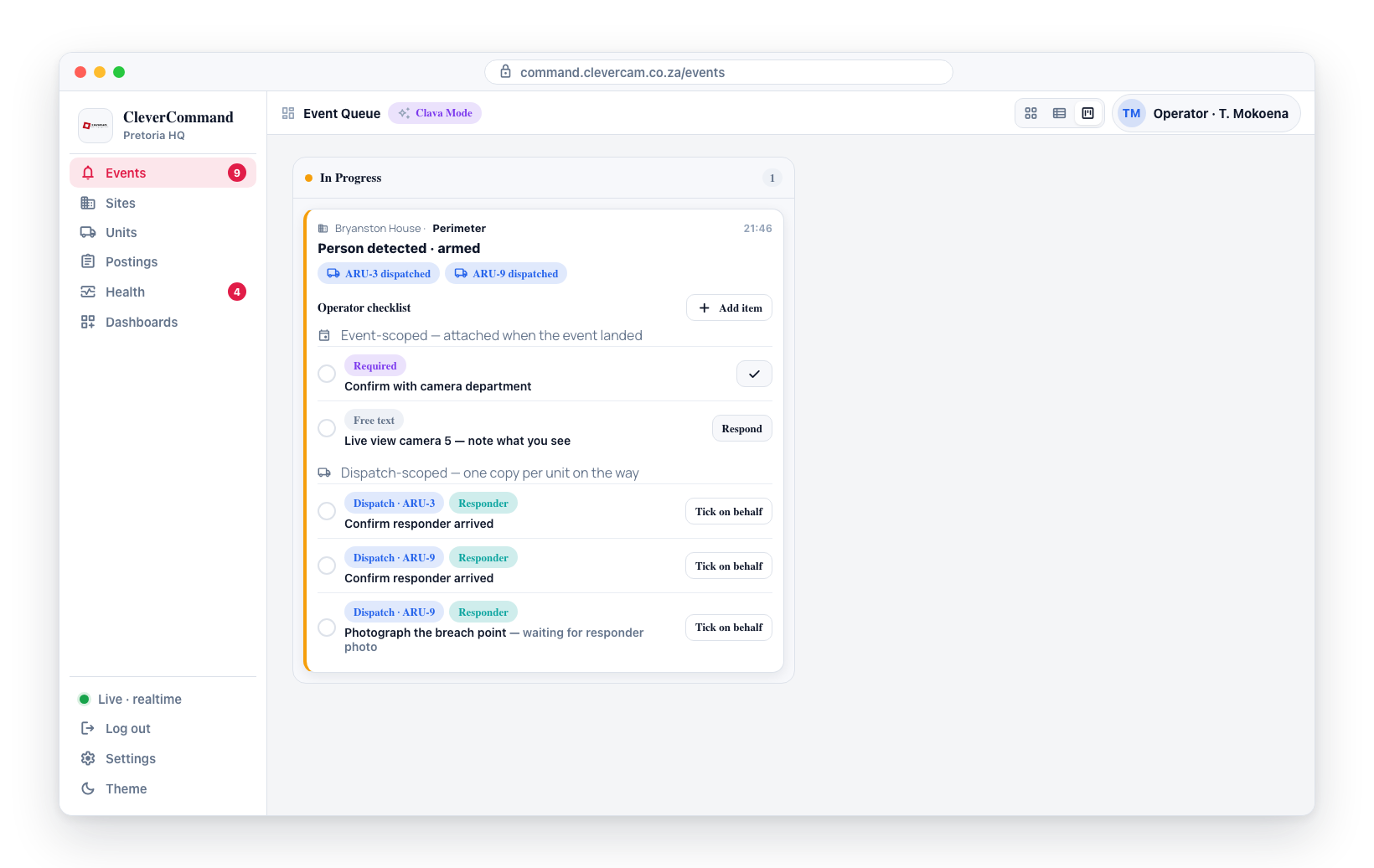
- Event-scoped items attach when the event arrives (see Where rows come from). They appear on the kanban card from the moment the event lands, even before any unit is dispatched. Use for tasks the control room or responder should do regardless of whether dispatch happens — "Confirm with camera department", "Live view camera 5". Event-scoped responder rows are visible from the start but don't become required until a unit is on scene — see When no responder reaches the scene.
- Dispatch-scoped items attach when a unit is dispatched (a row inserts into
vcr_dispatches). They render with aDispatchpill on the kanban card and only block the dispatch's completion, not the event resolve directly. Use for tasks that only make sense once a unit is on the way — "Confirm responder arrived", "Photograph the breach point", "Scan QR at front desk on arrival".
Dispatch-scoped items don't block event resolve directly because the active-dispatch check already does that transitively — the event can't close while the dispatch is active, and the dispatch can't complete with unresponded dispatch items.
When two units are dispatched to the same event, each dispatch gets its own copy of the dispatch-scoped items (one per dispatch). Responders only see their own dispatch's items in the CleverResponder app; operators see all dispatch items on the kanban card.
The resolve gate
The Resolved column's ✓ Complete event button is gated on three conditions, all of which must be clear:
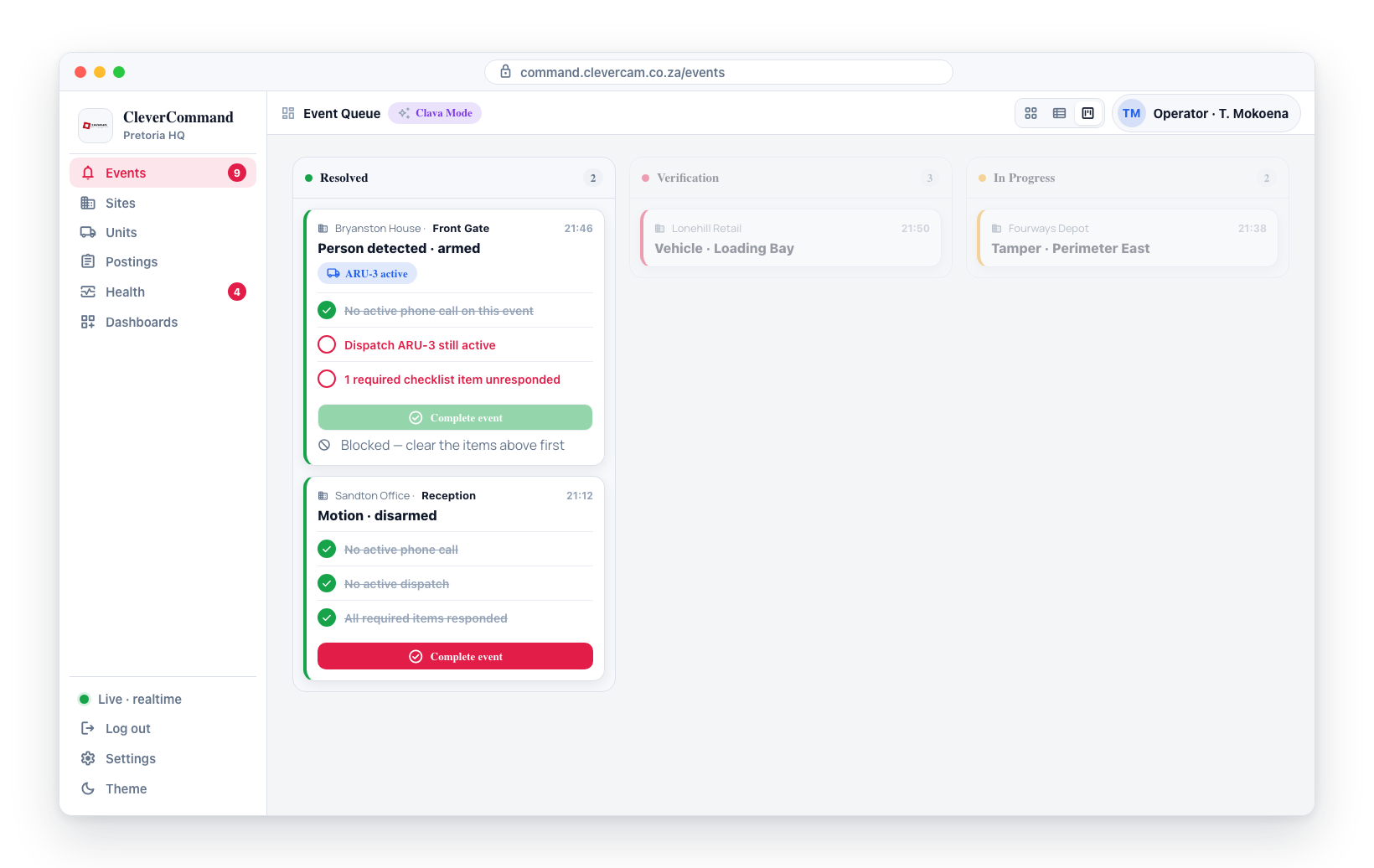
- No active phone call on this event (manual or AI) — see When a call is stuck
- No active dispatch on this event (
status NOT IN ('completed','cancelled')) - No required event-scoped checklist item is unresponded
Optional items (is_required = false) never block the gate, and neither do released, waived, or awaiting-arrival items.
Dispatch-scoped items are gated separately at the dispatch completion step:
- The dispatch's Complete button (Dispatch column / outcome picker) refuses to transition the dispatch to
status='completed'while any required dispatch-scoped item is unresponded — both the React UI and a serverBEFORE UPDATEtrigger enforce this. - Its responder items only count if that dispatch was marked on scene. A unit recalled before arrival completes without clearing them.
- Cancelling a dispatch (
status='cancelled') always succeeds — operators need an out when a responder can't be reached. - Closing or resolving the event while the unit is still on it runs the same check first: the units dialog lists that unit's open tasks in the Tasks outstanding dialog before it settles anything — see When a unit still has checklist tasks.
Separately, a required acknowledge item blocks dispatch until it is confirmed (the operator sees an "Acknowledge" button on the row). Only control-room acknowledge rows do this; responder ones are skipped.
The server enforces the event resolve gate via a BEFORE UPDATE trigger on vcr_events, and the dispatch completion gate via a BEFORE UPDATE trigger on vcr_dispatches. A direct DB update or a misbehaving edge function cannot bypass either.
When the gate stops you
Pressing ✓ Complete event — or dragging a card to Resolved — while a required row is unanswered opens a Tasks outstanding dialog rather than a bare refusal. It lists every blocking task by name, each with a pill for who it belongs to (Control room / Responder) and what it wants (Tick, Photo, QR scan, Written response, Choice, Acknowledge). You do not have to hunt for the row on the card.
You get the same dialog from either surface — the events board and the full event page. (Until 29 August 2026 the event page had no dialog: it refused with a bare count, "1 unresponded required checklist item(s)", which never said which task was holding the event open.)
If you hold Clear mandatory event tasks, the dialog also lets you clear them from where you are:
- Type one reason in the box — the same reason applies to every task you waive in this dialog, and nothing can be waived until it is filled in.
- Press Waive next to each task you want cleared. One tap per task, and each one is recorded individually.
- When the last task is cleared the dialog turns into Complete event (or Move to Resolved) — press it and the transition runs.
Each waive is the ordinary waive described in Waiving a task it can't be done: a waived response with the reason, plus a Mandatory task waived entry on the event log. Nothing is silently skipped.
Without the capability the dialog still names the tasks, but shows no Waive buttons — it points you at the checklist under the card and tells you a supervisor can waive them.
A unit still on the event does not hold this dialog up. The dialog says so, and once the tasks are cleared its button reads Continue: it takes you to the units dialog, where you say what happens to each unit. (Until 24 September 2026 the dialog withheld its button while a dispatch was active and said to end it first, which sent operators to cancel runs by hand — including crews already on scene.) An active call still holds the dialog up until it is ended — see below.
When a call is stuck
A call blocks the close only while it is genuinely live. An operator does not have to keep an event open because a call record never settled.
The call has a maximum duration. A call row stops counting as active 5 minutes after it was placed — ringing or connected. The AI call itself is capped at 2 minutes by the calling provider (in practice they run under a minute), so a record still claiming to be live after five cannot be describing a real conversation. A background job also settles the row itself every minute, so the call list stops showing a phantom Ringing… — a ring that timed out is recorded as No answer, and a call that ran past the cap as Call ended.
This matters because a call does not always get closed off cleanly. If the operator's browser tab dies mid-ring, or a telephony provider never sends its final callback, nothing on the operator's side is left to end the call. Before these limits existed such a row stayed "ringing" indefinitely and no one could ever close that event.
You can also end it by hand. If you know the call is over and don't want to wait out the window:
- On the calls-only block, the dialog's button reads End the call & complete (or End the call & resolve). Pressing it settles the call and runs the transition in one step.
- On the Tasks outstanding dialog, an Already off the call? → End the call button appears next to the call blocker. Press it, clear the remaining tasks, and the proceed button appears.
Either way the event log gets a Call marked ended entry naming the contact and your reason. The entry is internal — the customer does not see it.
Ad-hoc items
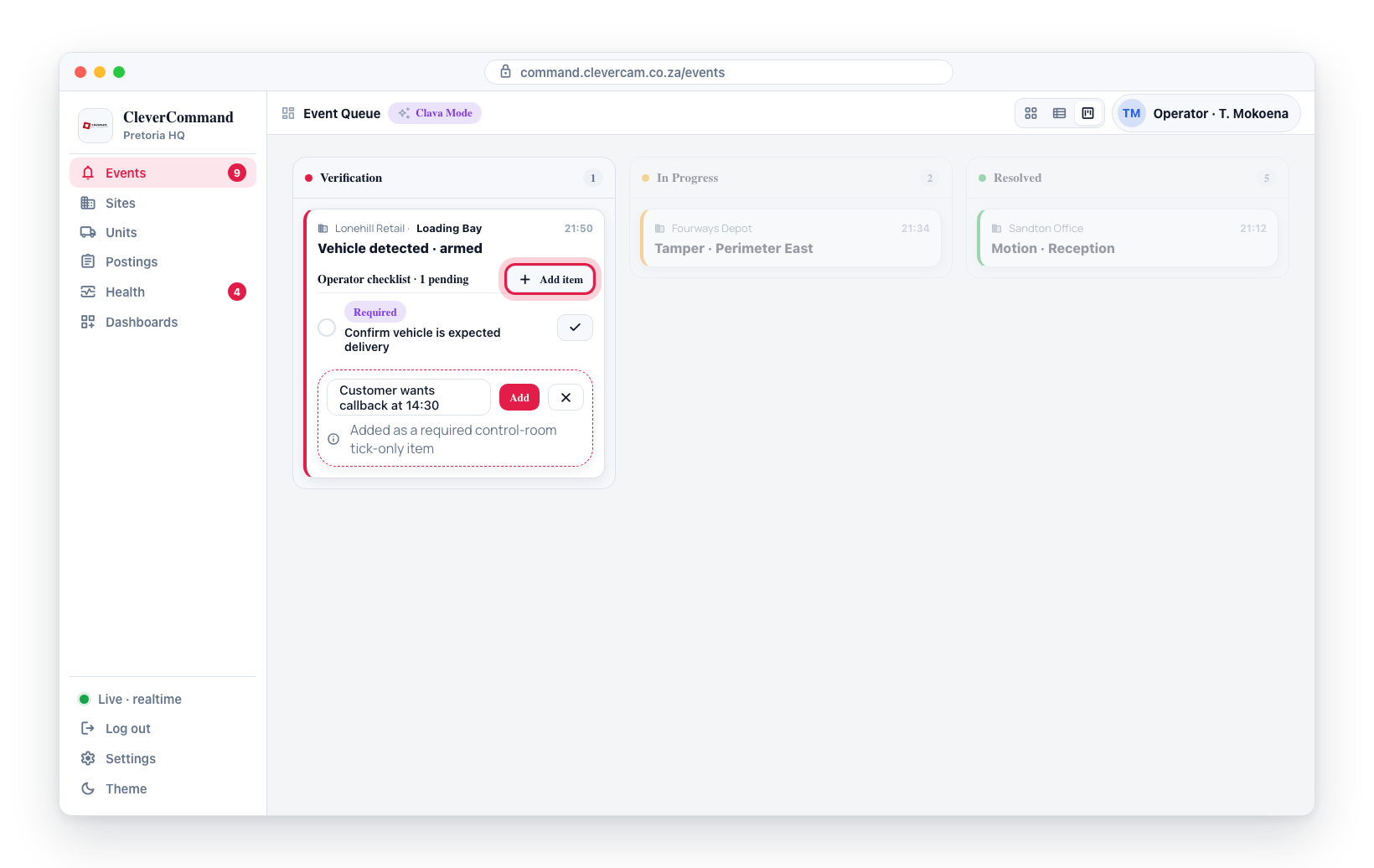
Operators can add an ad-hoc row to the live card via the + Add item button at the top of the stack — useful for per-event tasks the templates didn't anticipate (e.g. "Customer wants callback at 14:30"). Ad-hoc rows always default to assignee_role = 'control_room', response_type = 'tick_only', is_required = true.
Where rows come from
There are two attach triggers, one per scope:
- Event-scoped: when an event arrives on a Clava-Mode VCR, the event attach trigger fans
scope='event'templates → items for the matchingevent_type(andcidif the template is CID-specific via the pattern editor). - Dispatch-scoped: when a unit is dispatched (
vcr_dispatchesINSERT), the dispatch attach trigger fansscope='dispatch'templates → items withdispatch_idset to the new dispatch's id.
Both triggers use a site-overrides-fully-replace-VCR-defaults rule:
- If any site override templates exist for this
(site, vcr, scope)combination (with matching event_type / cid for event scope), only those attach. - Otherwise, the VCR default templates attach.
Templates are authored in CleverOps — see Operator Checklists on the CleverOps Settings docs for the authoring surface.
Besides templates and ad-hoc items, one more source exists:
- From the customer (Clava conversations): when a keyholder says something actionable in the WhatsApp/app conversation — "please check by the swimming pool", "it's probably the gardeners" — the conversation agent files it as a required, tick-to-acknowledge row for the control room (capped at three per event, sorted to the top of the stack). The row's own text carries the customer's instruction, so the resolve gate guarantees an operator actually read it before the event can close.
Related
- Clever/Advance Mode — the kanban view this is gated on.
- Operator Checklists (CleverOps) — authoring surface for templates.
- Pattern Detection — pattern-type-scoped checklist authoring per CID set.
- Operator management (CleverOps) — where the Clear mandatory event tasks capability is granted.