Call List
Each site in CleverCommand has a call list containing the contact details of people who should be notified during a security event. The call list is accessible directly from the event details panel, giving operators quick access to phone numbers and contact information without leaving the event workflow.
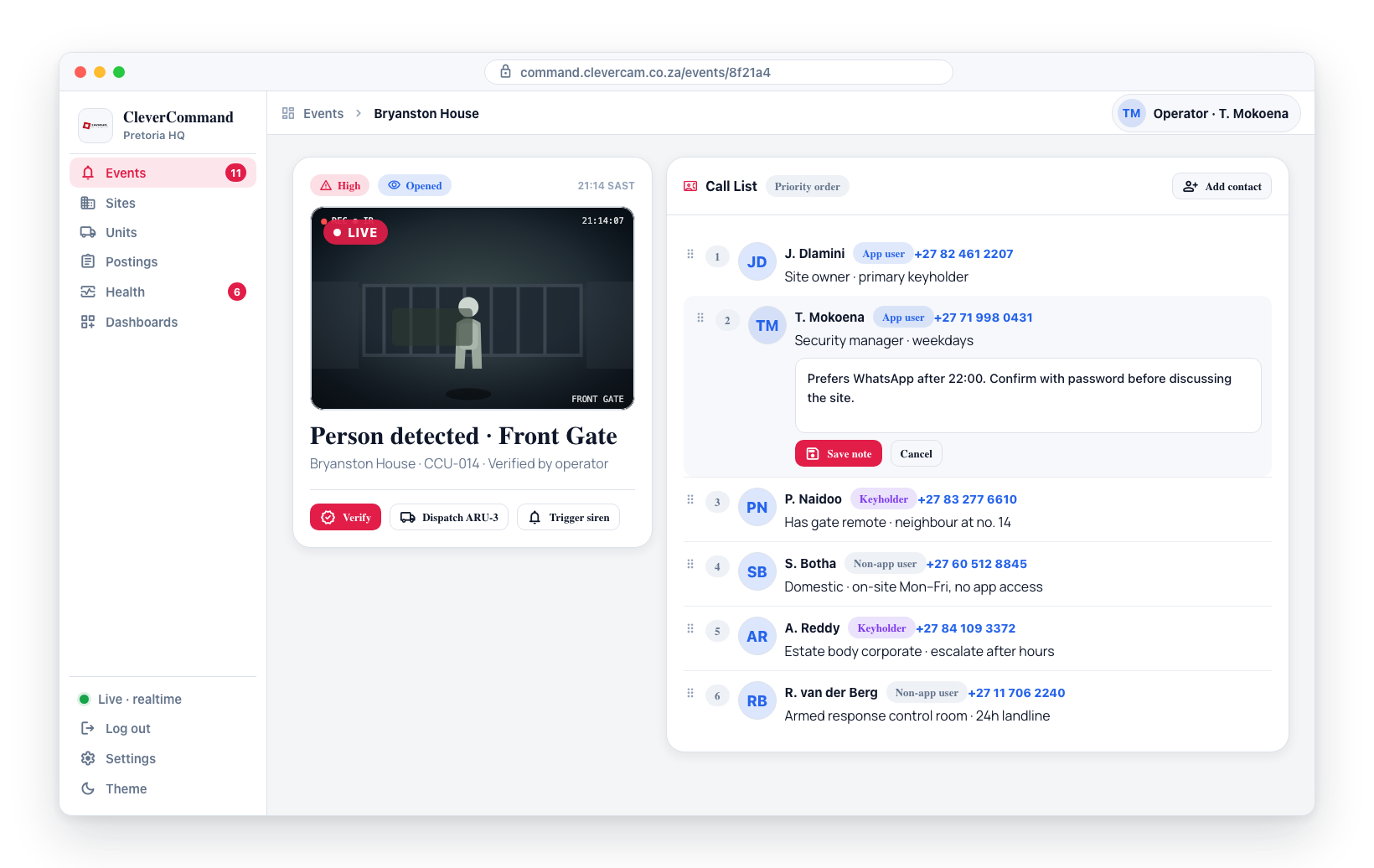
Accessing the Call List
- Open an event from the queue
- Navigate to the Call List tab in the event details
- The call list displays all contacts associated with the event's site
- Contacts are shown in priority order (most important contacts first)
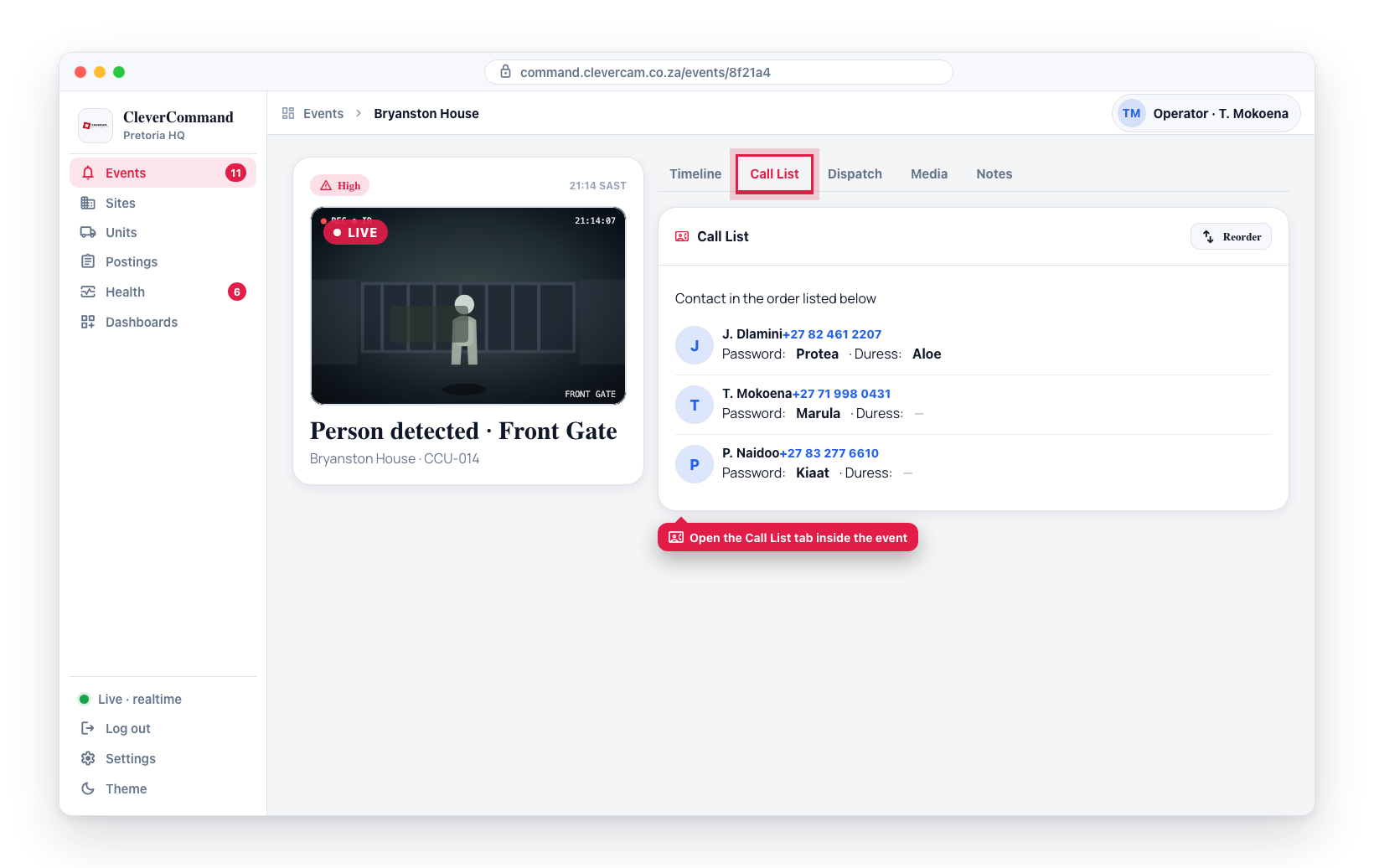
Contact Information
Each contact in the call list shows:
| Field | Description |
|---|---|
| Name | The contact's name |
| Phone number | Clickable phone number for quick dialing |
| Password / Duress | The contact's personal verification word and duress word — see Verification passwords below |
| Priority position | Order in which contacts should be called |
| Notes | Any additional notes added by operators or admins |
| Med | A small red indicator beside the name when the person has emergency medical information on file |
| Info | A button beside the phone number that opens the person's photo and medical record — see Personal info below |
The call list includes both app users (contacts connected through CleverAlert) and non-app users -- external contacts like keyholders or neighbours added by the site admin in CleverOps or CleverAlert. Non-app users appear with their role shown as "Non-app user" and a phone number they can be called on; they are for calling purposes only and receive no automatic notifications.
Personal info
Beside each contact's phone number is an Info button. It is closed by default and opens only when an operator asks for it — a face and a medical record are not left sitting on screen.
Opening it shows:
- The person's ID photo, so the operator can describe who a responder is looking for.
- Emergency medical alerts — conditions, allergies, blood group, medication and mobility.
- Medical aid — the scheme, plan and membership number, the main member and their ID number with the dependant code, and the scheme's 24-hour emergency line as a clickable number. Someone who answered that they have no medical aid reads as "No medical aid — state patient", which is what the ambulance service needs to hear.
- Ambulance membership — the service, the membership number and the service's own emergency line as a clickable number, or "No ambulance membership". It is recorded separately from the medical aid, so a person can have one without the other.
- The person's emergency contact and doctor, both clickable to call.
The information is captured either by the site admin in CleverOps (Site → People → Edit) or by the person themselves in CleverAlert under More → Account → My emergency profile.
Operator-only. Nothing in this panel may be copied into a customer-facing report, message or event feedback.
Partitioned premises
On a site whose alarm panel is split into separate premises (cottages, flats, units -- set up in CleverOps under Alarm zones → Partitions as separate premises), an event from one of those premises shows that premises' keyholders: the people scoped to it plus the site's Whole site keyholders. A muted caption under the header says what you are looking at -- Keyholders for Cottage 3 · 2 of 5 site keyholders -- and a Show whole site button in the panel header lifts the filter for this event (click again to narrow it back). If nobody is scoped to the premises the whole site is shown and the caption says so. Panel-wide signals and ordinary sites always show the whole site. Client phoned in always identifies the caller against the whole site. See Partitioned Premises for the rest of the picture.
Verification passwords
Three different credentials can appear around the call list — do not conflate them:
| Credential | Scope | Where it shows |
|---|---|---|
| Site password | One word for the whole premises, set in CleverOps on the site | The "Site password (whole premises)" block above the contacts, and on the card of every contact who has no word of their own, tagged site |
| Contact password | A personal word, one per keyholder | On each contact's card as Password: |
| Contact duress word | A personal word given instead of the password when the person is under coercion | On each contact's card as Duress:, only when one is set |
| Cellphone digits | The last four digits of the contact's cellphone number on file — used only when neither the contact nor the site has a word | On the contact's card as Password: with a last 4 of cell tag |
All of these are free-text words. The colour tiles a keyholder can pick in the CleverAlert app are an app-only credential — they are never displayed in the control room and are never used as a spoken challenge on any call.
A contact with no word of their own shows the site word instead, with a small site tag beside it — so you read one thing per contact and ask for it, instead of joining the site block and the card in your head. The tag matters: you are hearing the premises word, not a personal one. Each word stands in on its own — a keyholder with a personal password but no duress word still shows the site's duress word — and the site block says Shown on each contact who has no word of their own whenever at least one contact borrows it.
When neither the contact nor the site has a word, the card shows the last four digits of the contact's cellphone number with a last 4 of cell tag — ask the caller for them. None set appears only when there is no word and no usable number: a fact about the records, not a loading gap, and the one case with nothing to challenge on. The site password block likewise shows None set when the site has no premises-level word.
The robot asks for the same thing you see. An AI call walks the same ladder — the contact's own word, else the site word, else the last four digits of the number it is ringing — so the card, the Add feedback screen and the robot all challenge on one rung.
Calling a Contact
The contact's number is the call button. There is one call affordance per contact, and clicking it starts the call — you never pick an outcome from the row afterwards.
- Open the event and go to the Call List tab
- Identify the appropriate contact based on priority and notes
- Click the phone number
- If more than one way of reaching them is available (manual, AI Call, Twilio Call, App Call, AI App Call), CleverCommand asks how you want to call them first
- If manual dialling is the only option available, it goes straight ahead
- A manual call opens your device's phone app — or your control room's on-site PBX / desk softphone if a custom dial link is configured (set in CleverOps under Settings → Telephony) — and copies the number to your clipboard
- The Add feedback screen opens by itself so the outcome gets written up
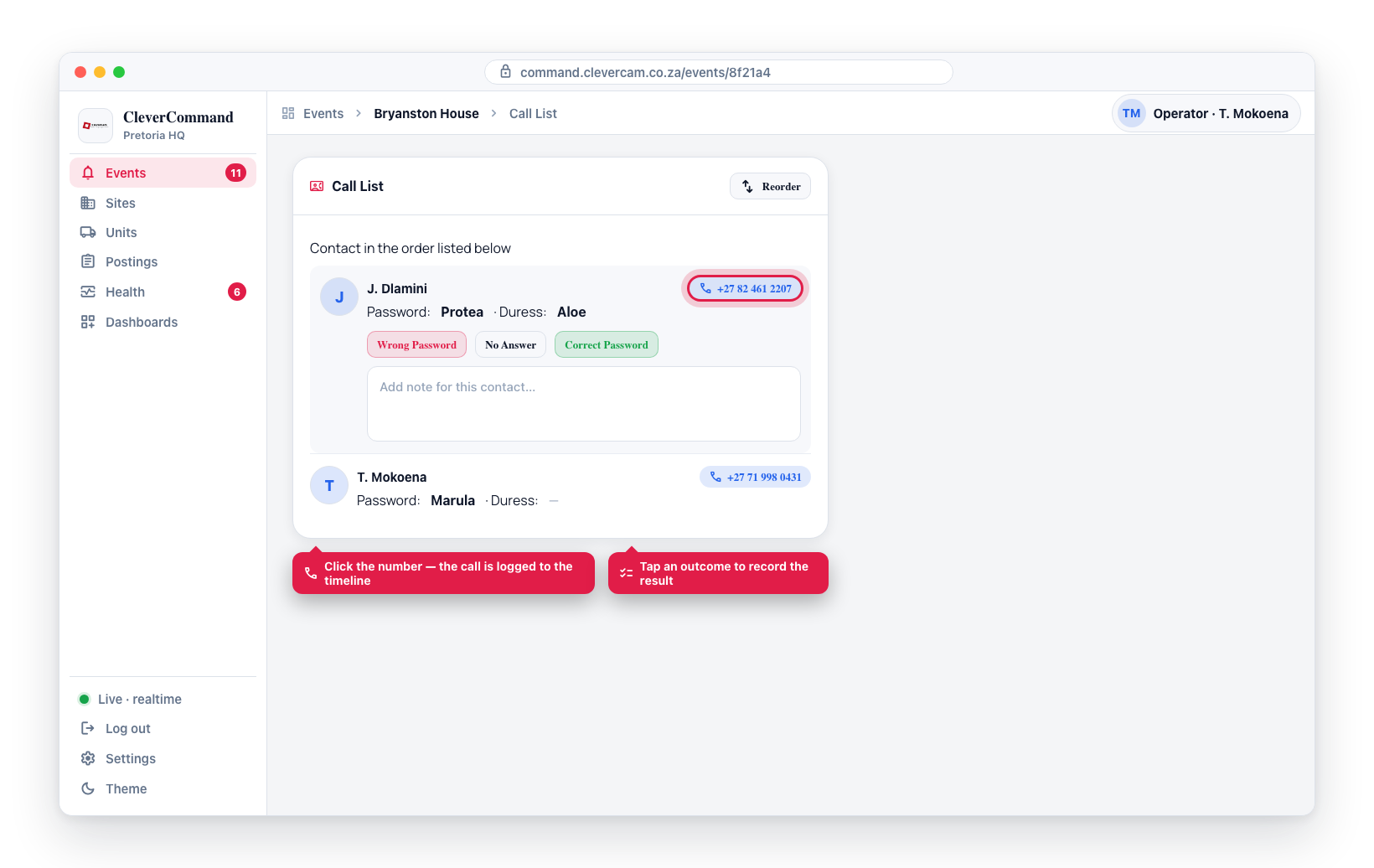
The number stays on screen
Operators normally click call in CleverCommand and only then pick up the desk phone to dial. So the Add feedback screen keeps the number in a strip at the top: click the number to copy it, or ↻ Dial again to re-launch the dialler. You never have to go back a step to read it.
Writing up the call
Add feedback is the same screen the Advance board uses after a manual call:
- A row of + chips writes a complete sentence into the notes with one click — Correct password, Wrong password, Duress signal, No answer, Voicemail, All in order, Owner away, Requested dispatch
- The contact's Password and Duress words are shown at the top so you know what to listen for — labelled Site password / Site duress when the premises word is standing in, or Last 4 of cellphone when the digits are; a contact with no word and no usable number shows "None set — nothing to challenge on"
- Type anything else in your own words, then ✨ Polish with AI to tidy the wording
- Finish with Submit notes or ✓ Call done — either writes to the event timeline
If your control room has the in-browser softphone enabled, you can dial the keyholder inside CleverCommand (with mute and hang-up controls) instead of using your own phone — and the call is logged automatically. See In-browser call (softphone).
If the contact is a CleverAlert app user, you can skip the phone number entirely and ring them inside their app with no telephony cost — App Call is one of the options offered when you click their number (and the only option for a contact with no number on file). See App Calls.
Always start with the highest-priority contact and work your way down the list. If the first contact does not answer, move to the next one. Every attempt is logged, and the Add feedback screen that opens after each call is where the attempt gets its outcome for the audit trail.
Contact Priority Order
Contacts are ordered by their assigned call priority. The first contact in the list is the primary person to reach, followed by alternates. This order is configured by the site owner or company admin in CleverOps.
Reordering Contacts
If you need to adjust the contact priority for a specific situation:
- Open the Call List for the event
- Drag a contact to a new position in the list
- The updated order is saved for the duration of the event
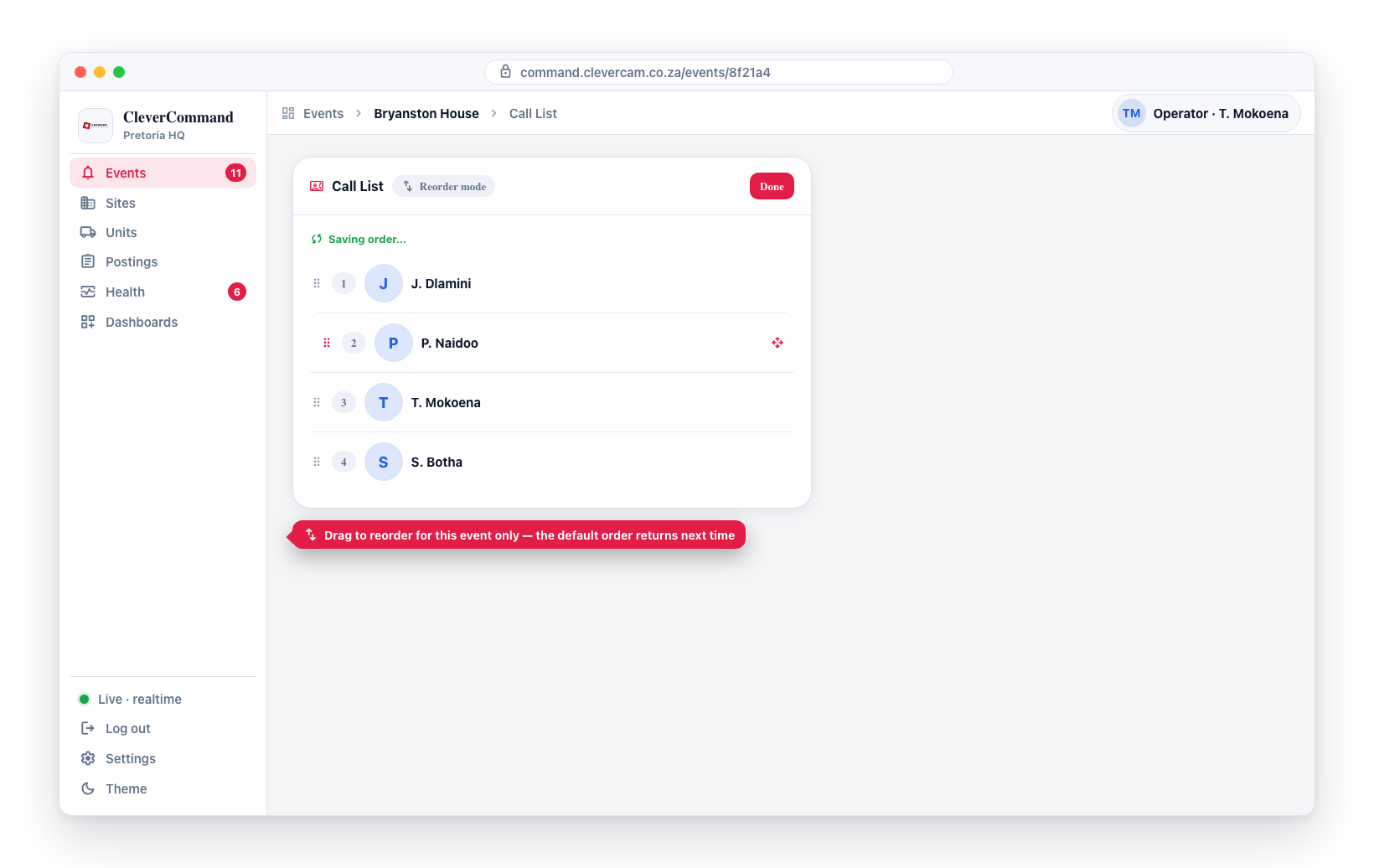
Permanent changes to call list order should be made by a company administrator in CleverOps. Operators can reorder contacts temporarily for a specific event, but the default order is restored for future events.
Adding Notes to Contacts
Operators can add notes to individual contacts to record important information for future reference:
- Click on a contact in the call list
- Add a note (e.g., "Prefers text messages after 10pm", "Security manager on weekdays")
- Save the note
These notes are visible to all operators and help the team communicate effectively with site contacts.
When to Use the Call List
The call list should be used when:
- An event has been verified as a real alarm and the site owner needs to be notified
- You need additional context about the site from the owner or manager
- A response unit needs access credentials or gate codes to enter the site
- You need to confirm whether expected activity is occurring at the site
Follow your company's call escalation procedures when contacting site owners. Some companies require verification before making contact, while others authorize immediate calls for high-severity events.
When the Action Plan says "don't call"
On control rooms with the Advanced Alarm Handling module, the event's per-alarm-type Action Plan (configured in CleverOps under Settings → Alarm Handling) can switch keyholder calling off for an alarm type. When it does, the Call List shows a red warning above the contacts telling you to skip the chain.
The built-in case is Duress: a duress signal is silent by design — any outbound call could alert a captor — so its plan never calls keyholders and the warning reads "SILENT DURESS — do NOT call keyholders; a call could alert a captor. Dispatch immediately." The contacts stay visible for reference, but the correct action is to dispatch, not dial.
The same event page also shows the plan's operator instructions for the alarm type (an Action plan note above the event notes), so type-specific guidance — e.g. "verify on camera, then dispatch immediately" — travels with every event.