Event Stacking
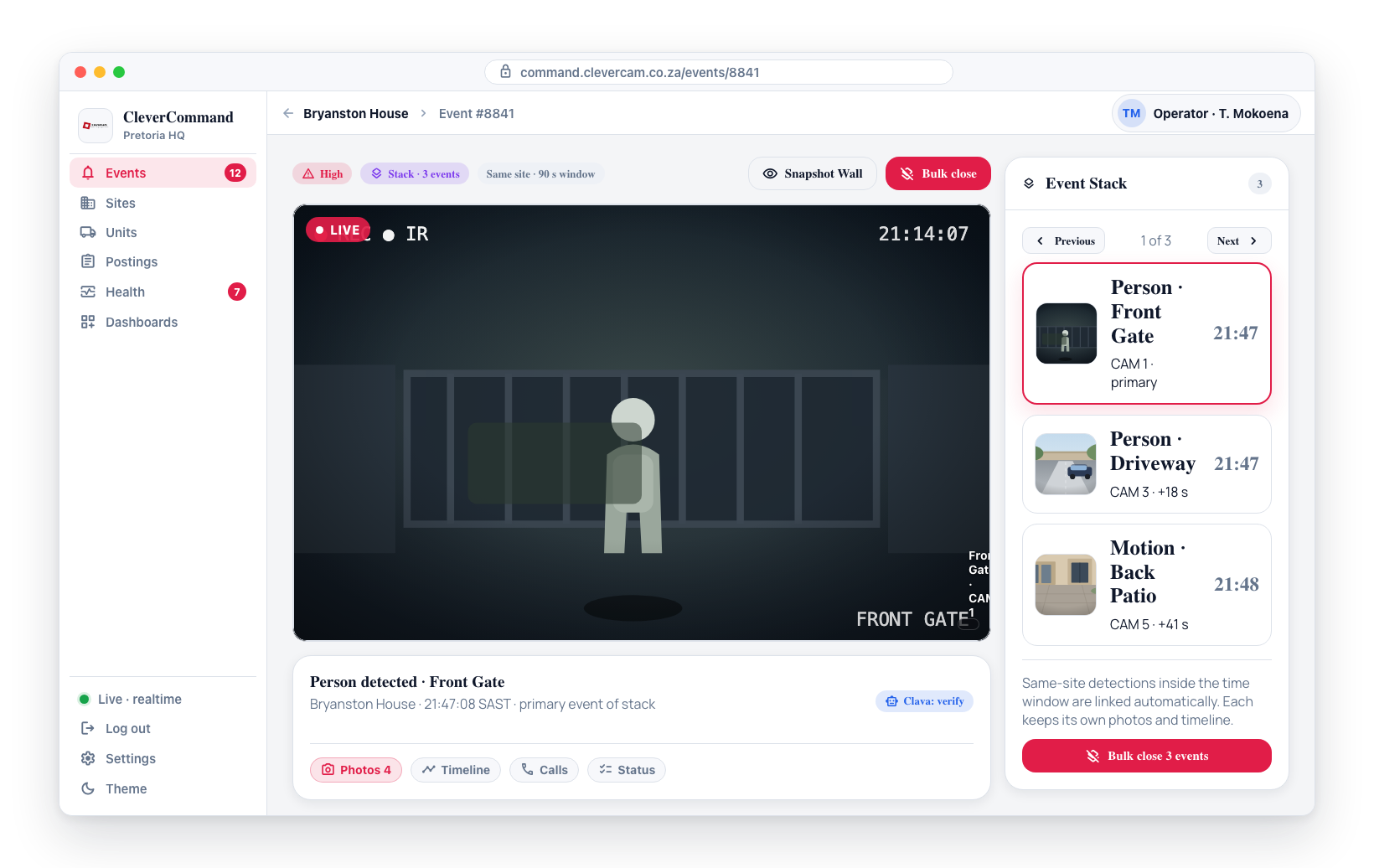
When multiple events occur at the same site within a short time window, CleverCommand automatically groups them into a stack. Event stacking helps operators see the full picture of an incident rather than treating each detection as an isolated event. A person walking through multiple camera zones, for example, may trigger several detections -- stacking links them all together.
How Stacking Works
The system automatically identifies related events based on:
- Same site -- Events must originate from the same monitored site
- Time window -- Events must occur within a defined time period of each other
- Automatic linking -- No manual action is required; the system handles grouping
When events are stacked, the primary event displays a stack indicator showing how many related events are grouped together.
Viewing Stacked Events
- Open an event from the queue that shows a stack indicator
- In the event details, look for the Event Stack section
- The stack lists all related events with their camera, type, and time
- Click any event in the stack to view its specific details
Each event in the stack retains its own photos, timeline, and actions. The stack simply provides a convenient way to navigate between related detections.
Exact times in the stack
Stack entries show the date and the time to the second — never "3 minutes ago":
3 Sept, 05:50:51
Relative time scans fast, but it is already wrong by the time it reaches an incident log, and it cannot tell you which side of midnight a signal in an overnight stack fell on. Hover any of these times for the full stamp with the weekday and the year:
Tue 1 Sept 2026, 14:32:07
The second matters here more than anywhere else in CleverCommand. Stacked signals routinely arrive seconds apart, and the ordering — which zone fired first, how long the panel took to report — is often the whole story. Rounded to the minute, several signals collapse into one indistinguishable timestamp.
The year is shown only for events outside the current year, so a week of ordinary traffic reads as "3 Sept, 05:50:51" and an old one still says which year it was. The same stamp appears on the stack viewer's caption above the list, on the image viewer, and on the site-history panel inside the event.
Power and comms context
An alarm that fires shortly after the site's mains came back, or 40 minutes into a power cut, is very often the panel itself — a battery sagging under load, a detector re-initialising after a power cycle, a communicator dumping a backlog — rather than an intruder. The signals that would tell you so (AC power lost / restored, low battery, communicator offline / online) are trouble signals, so most action plans never route them to the desk.
The Event stack therefore carries an amber block whenever the same site sent any of those signals in the 6 hours before the alarm (or 30 minutes after it). Each line states the signal, how far it was from this alarm and its exact time — for example:
⚡ 34 min after AC power restored — may be the panel recovering from a power cut, not an intruder.
- AC power restored 34 min before this alarm (07:37)
- AC power lost 2 h 10 min before this alarm (06:01)
The first line is the pattern the system detected, in this order of precedence:
| Pattern | What it means |
|---|---|
| N min after … restored | Mains, battery or comms came back within 45 minutes before the alarm. |
| Mains has been off for N | AC power was lost and never restored before the alarm — the panel is on battery. |
| Low battery reported N before | A low-battery / battery-test / battery-missing signal was not cleared. |
| Communicator offline N before | The communication path dropped and had not come back. |
| … restored N after this alarm | Nothing before, but a restore landed shortly after — the site was mid power/comms cycle. |
When power or comms signals exist in the window but none of these shapes fit, the block still lists them under a neutral heading. Hover a line for the full timestamp, the Contact ID code and the panel's own wording. The block is a heads-up, not a verdict — verify the alarm as you normally would.
Codes considered: 300, 301, 302, 309, 310, 311, 312, 337 (power and battery) and 350–354, 361, 369 (communication), in both their event and restore forms. Zone and sensor troubles (E380–E383) are deliberately excluded. The block refreshes each minute while the event is open and whenever the stack grows.
On the event queue, a card whose alarm matches one of the patterns above shows the same finding as a compact ⚡ chip (see Code, zone and repeat count on panel cards).
Why Stacking Matters
Without stacking, a single incident could generate dozens of individual events as a person or vehicle moves through different camera zones. Operators would need to handle each one separately, which is inefficient and can lead to missed context.
With stacking:
- Full context -- Operators see all detections from the same incident in one place
- Efficient handling -- Related events can be processed together instead of individually
- Better decisions -- Multiple camera angles provide more evidence for verification
- Faster resolution -- Bulk actions apply to all stacked events at once
Bulk Close Stacked Events
When the incident is resolved, you can close the rest of the stack as you complete one of its events:
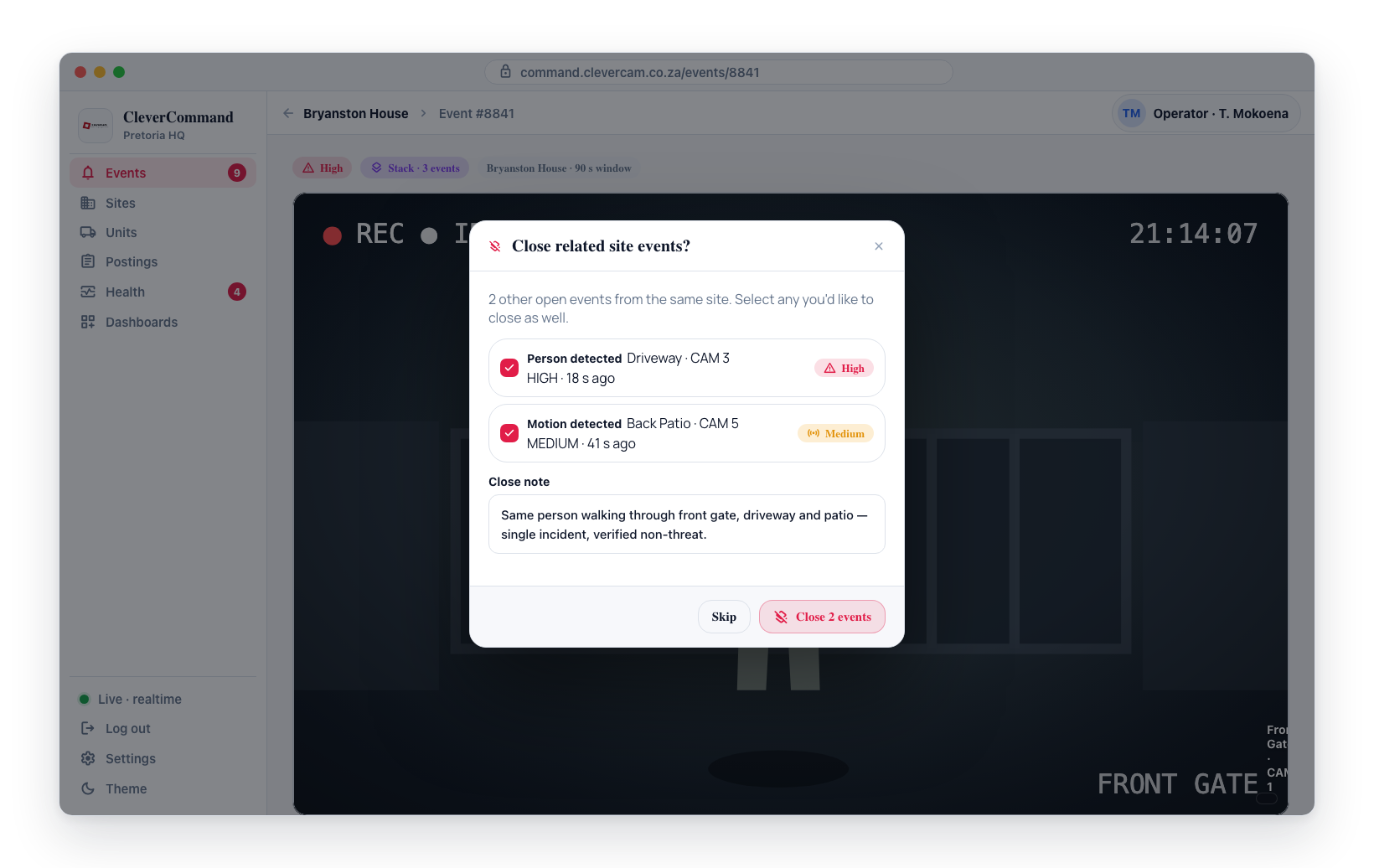
- Open any event in the stack and complete it with Complete Event or Complete & Next
- The Close related site events? prompt lists the other events from the same site that are still open in your queue
- Tick the ones to close, edit the Close note if needed, and press Close 3 events (the button counts your ticks)
- Each closed event receives a Bulk Close entry on its timeline with the note
An event whose response unit is still on the way or on site, whose call is still live, or whose required checklist items are unanswered is left open, and the prompt lists it with the reason. See Bulk Closing Related Events.
Before bulk closing stacked events, review the photos from each event in the stack. While most stacked events relate to the same incident, occasionally an unrelated event may be included in the stack by timing coincidence. Verify that all events in the stack are truly part of the same incident.
Stack Navigation
When viewing a stacked event, you can navigate between events in the stack without returning to the main queue:
- Open a stacked event
- Use the stack navigation to move to the next or previous event in the stack
- Each event displays its own photos, timeline, and details
- Return to the main queue when you are done reviewing the stack
The viewer follows the newest signal — until you are watching a clip
When you open an event, the viewer follows the stack: it moves to the newest signal that carries a picture as each one arrives. Stepping the stack yourself (Prev, Next, or clicking an entry) stops that for the rest of your time on the event.
Picking a camera chip or pressing on the video player (to play or scrub) holds the viewer on that clip, so a new signal does not swap the picture out from under you. New signals still join the stack list, and a line under the viewer counts them — Held on this clip · 2 new signals — with a Show latest button. The hold lifts when the clip has played through once, when you press Show latest, or when you step the stack.
Event stacking is automatic and cannot be manually configured by operators. If you believe events are being grouped incorrectly, report it to your company administrator.
Stacking and Dispatch
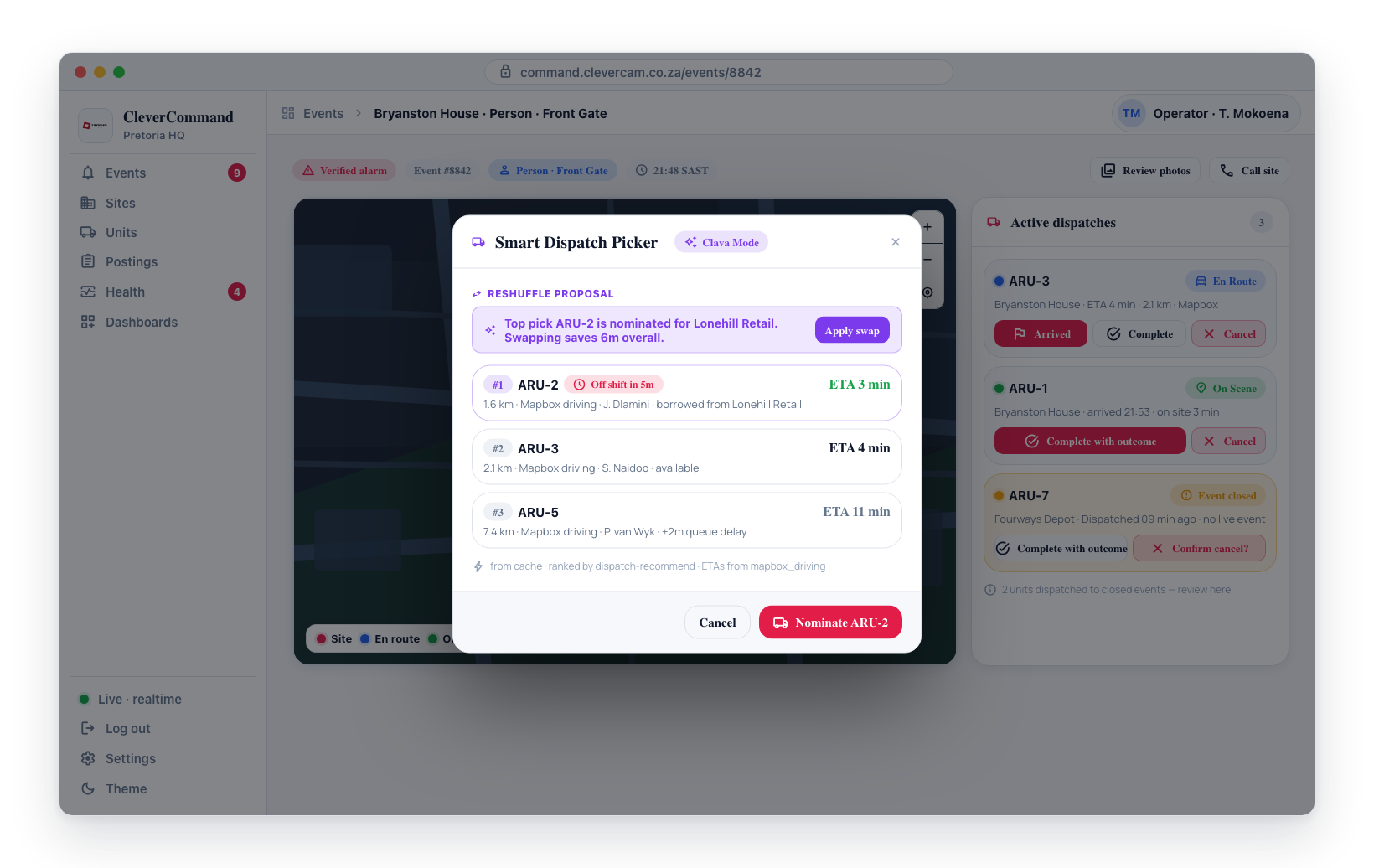
When you dispatch a response unit for a stacked event, the dispatch applies to the site as a whole. The response unit is sent to investigate the incident, not just a single detection. Once the unit has finished its inspection, complete the event that carries the dispatch (its dispatch prompt settles the dispatch), then close the rest of the stack from the Close related site events? prompt. Bulk close never completes a unit's dispatch for you: an event whose unit is still en route or on scene stays open.