AI Calls
CleverCommand supports AI-powered verification calls that automatically contact site owners to confirm or deny an alarm. Instead of the operator manually calling and speaking with the contact, an AI places the call, verifies the contact's identity with a password, and collects their response.
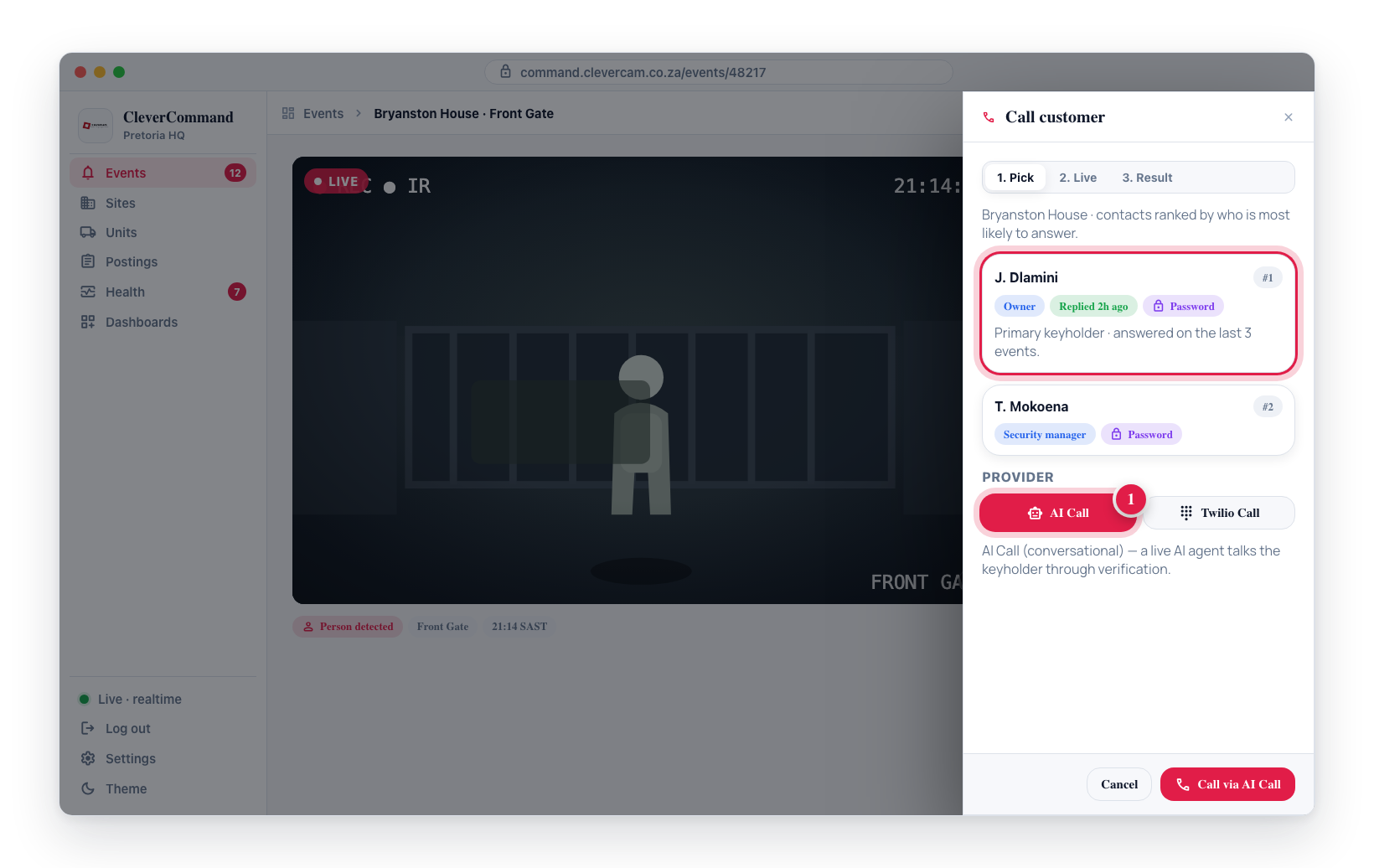
On the call list, click a contact's number and choose AI Call.
Three AI call providers are available, plus an operator-driven in-browser call (below) for when you'd rather speak to the keyholder yourself — the operator picks per-call which one to use.
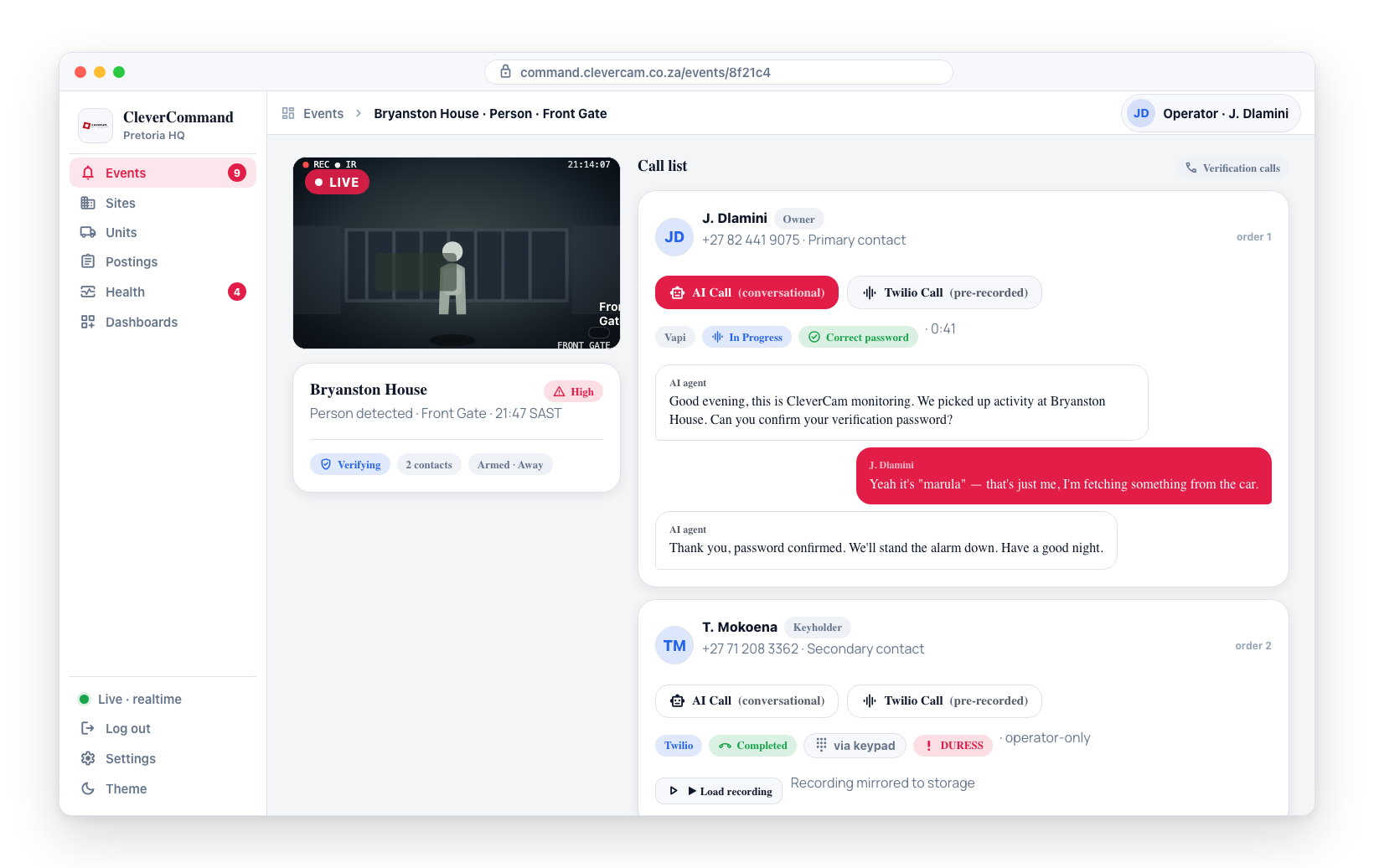
Three providers
AI Call (conversational)
The original flow. A live AI agent has a free-form conversation with the contact, identifies itself, asks for the password, asks if everything is okay, and hangs up. Best when the conversation needs to handle the unexpected (e.g. contact wants to add context, asks questions, sounds confused).
Twilio Call (pre-recorded + keypad/voice)
A faster, lower-cost alternative. The system plays a pre-recorded greeting that names the site, then asks the contact to say or enter their verification password. The caller can press digits on the keypad or speak the password — whichever is easier. Every prompt on the call — greeting, retries, and confirmations — uses the same natural voice, so the call sounds like one person throughout. The full call is recorded and the operator can play it back from the call card.
The Twilio path is best for routine verification: faster, no AI conversation pause, and works even on bad cell signal (DTMF tones survive low-quality audio better than speech).
AI App Call (robot call in the CleverAlert app)
The same scripted verification conversation as the Twilio path, delivered through the contact's CleverAlert app instead of a phone call. The phone rings with the normal full-screen incoming-call experience; when the keyholder answers, the app plays the same natural-voice greeting naming the site, listens while they speak their password, and confirms — no phone number, no telephony cost at all.
Because the answer is captured on the phone's own microphone (not squeezed through a phone line), speech recognition is meaningfully more accurate than on the telephony paths — short one-word passwords that phone lines often mangle come through clean. The spoken answer is saved as the call's recording, so the Password review flow below works identically.
AI App Call is offered when you click a contact's number only if they are a linked app user and your VCR has in-app calling enabled. There is no keypad entry (speech only), and if the keyholder doesn't answer, declines, or the app can't complete the flow, the call lands as missed on the call card like any other unanswered attempt.
In-browser call (softphone)
Not every call should be handed to an AI. When you need to speak to the keyholder yourself — a high-severity event, an unusual situation, or a contact who needs reassurance — you can place the call directly from your browser instead of dialling on your own phone. The In-browser chip appears in the Call Customer flyout alongside the AI providers when your control room has the softphone enabled and you hold the AI-caller permission.
Clicking Call via In-browser dials the keyholder over the internet (WebRTC, using the same control-room Twilio account as the AI calls) and connects the audio to your headset. You hold the conversation and verify the password yourself — there is no AI agent and no automated password check. The live pane gives you:
- A status line (Connecting → Ringing → Connected) and a running call duration
- A Mute toggle (mutes your microphone; click again to unmute)
- A Hang up button to end the call
When the call wraps, the result pane shows the outcome and the same Was this call useful? feedback chips as the AI paths.
Every in-browser dial is logged, exactly like the AI calls — as a call record (provider browser) plus a Click-to-dial entry on the event timeline carrying the contact, duration, and outcome. This replaces the old "dial on your own phone" approach with an auditable, in-app call you never have to write up by hand.
The In-browser chip only appears when CleverCam has set up the softphone for your control room and it's switched on for your VCR. If you don't see it, your control room is still using the AI providers plus the manual call list — ask your administrator to enable it. Recording of in-browser calls is configurable per control room.
The softphone uses your computer's microphone and speakers, so allow the browser microphone access when prompted, and use a headset to avoid echo. Closing the Call Customer flyout ends an active in-browser call.
How AI Calls Work
AI Call (conversational):
- Calls the designated site contact using the number from the call list
- Identifies itself as calling from the security monitoring center
- Asks the contact for their word — or the site password, or the last four digits of their cellphone number — to confirm their identity
- Informs the contact about the detected event
- Records the contact's response (confirm alarm, deny alarm, or other)
- Thanks the contact and hangs up automatically once the conversation is complete
- Provides the call transcript and recording to the operator
Twilio Call:
- Calls the designated site contact
- Plays a pre-recorded greeting naming the site and explaining the call is recorded
- Prompts: "please say or enter your verification password followed by the hash key"
- Caller can either speak the password or press digits on the keypad
- Verifies the password (Haiku-classifier handles fuzzy speech matches; DTMF must match exactly)
- Confirms verification to the caller and hangs up
- Mirrors the recording into Supabase Storage so the operator can play it back
Initiating a call
- Open the event from the queue
- Find the contact's card in the call list
- Click their phone number — CleverCommand asks how you want to call them
- Choose AI Call (conversational) or Twilio Call (pre-recorded)
- The system places the call
- Watch the status pill on the call card update in real time
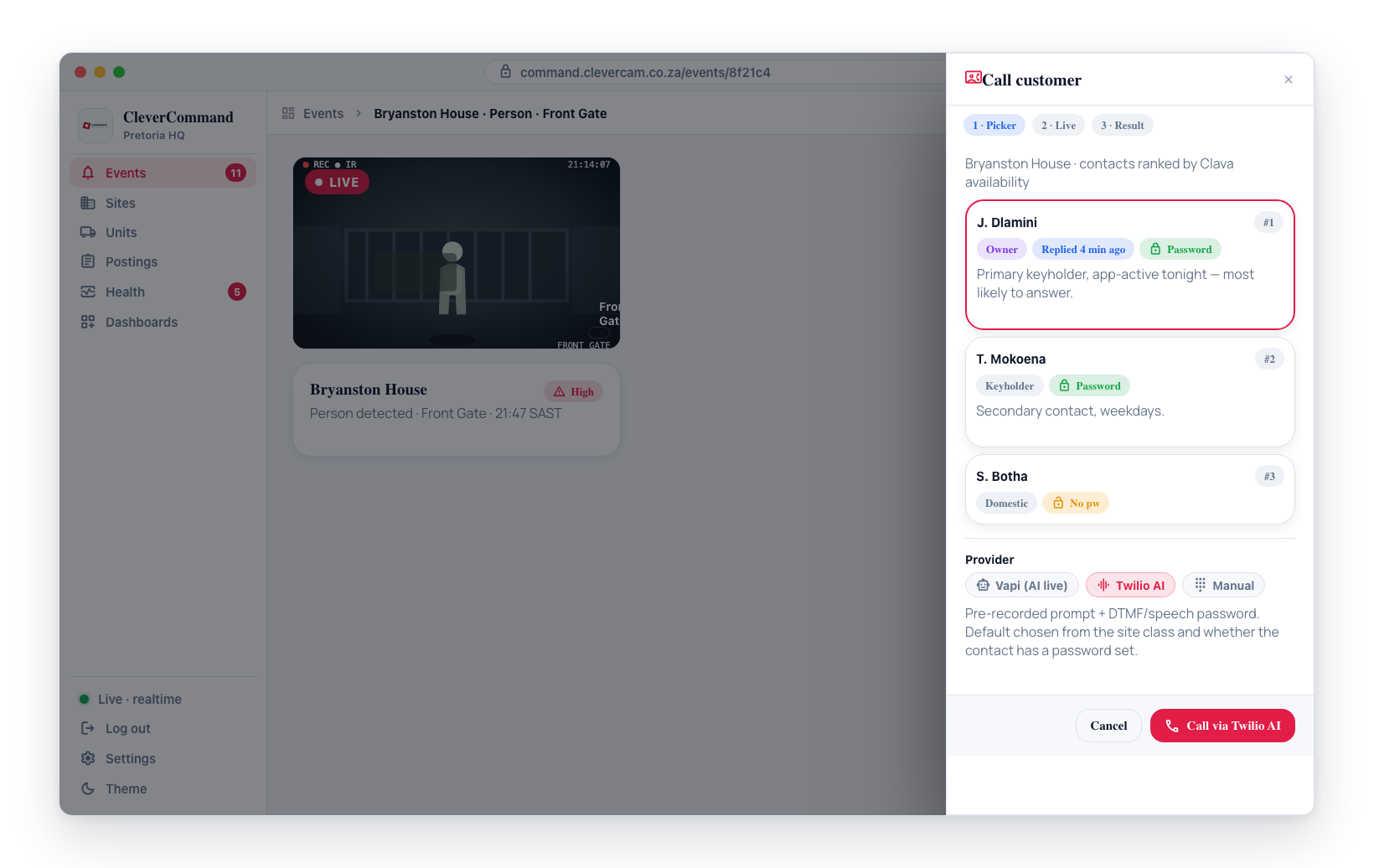
The picker starts with the site password block — the one word for the whole premises, distinct from the per-contact passwords on the rows below — so you can also verify a caller who only knows the site word. Each contact row carries one of four pills, and every call — yours or the robot's — challenges on that rung: Password (a word of their own), Site pw (no word of their own, so the site's word is asked for), Cell last 4 (no word anywhere, so the last four digits of their cellphone number are asked for), or No pw (no word and no usable number, so nothing to challenge on).
Call Status
The AI call progresses through several stages:
| Status | Description |
|---|---|
| Initiating | The call is being placed |
| Ringing | The phone is ringing at the contact's number |
| In Progress | The AI agent is speaking with the contact |
| Completed | The call has ended and results are available |
| Failed | The call could not be completed (no answer, busy, etc.) |
The call itself is capped at 2 minutes by the calling provider. Separately, a call record stops counting as live 5 minutes after it was placed, and a background job settles it at that point — a timed-out ring is recorded as No answer, anything else as Call ended. This is what stops a call whose ending was never reported (a browser tab that died mid-ring, a provider callback that never arrived) from holding the event open forever; see When a call is stuck.
Password Verification
Both providers verify the contact's identity with a password. The password and duress code are configured per-contact in the site settings, and are always free-text words — the colour tiles a keyholder can pick in the CleverAlert app are an app-only credential and are never used as a spoken challenge.
What the robot asks for follows the same ladder as the call list: the contact's own word, else the site password, else the last four digits of the cellphone number it is ringing ("please say, or key in, the last four digits of your cellphone number"). Digits can be spoken or keyed on the phone's keypad, and a keyholder who reads out their whole number is still verified on its last four. The timeline says which of the three the call used.
Only a contact with no word anywhere and no usable number gets no challenge. That call plays the site greeting and asks whether everything is okay, but skips the verification step entirely — the result is recorded as No password verified rather than a wrong password.
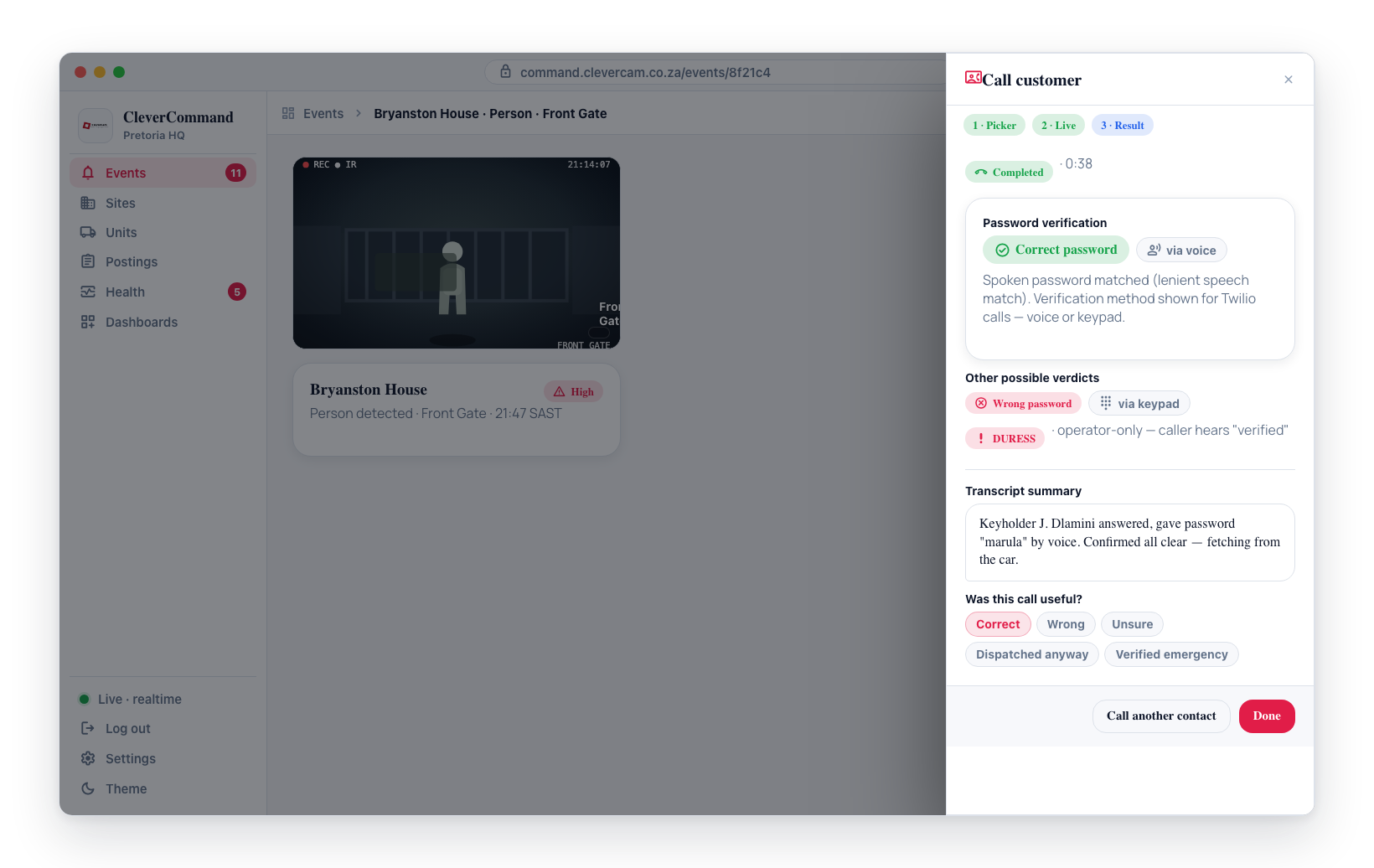
- If the password matches, the call confirms verification and ends
- If the password does not match, the caller gets one retry on both providers: Twilio says "That did not match, please try once more"; the AI Call agent asks the contact to repeat their password once, then moves on silently if it still doesn't match
- If the duress code is given, the system silently flags the event as urgent and tells the caller "verified" so the attacker is not alerted
- If the classifier can't honestly call it either way (garbled audio, an answer that is neither the password nor clearly a wrong one), the call ends neutrally and lands in Password review — see below
Speech matching (both providers) is intentionally lenient: minor mispronunciations, accents, transcription errors, plurals, and filler words ("uh apple", "the apple", "my password is apple") are accepted as correct. Phone-line speech recognition often hears a one-word password as a different word that rhymes with it (e.g. "red" transcribed as "he said"); the classifier judges by phonetic shape, so these still verify as correct. The duress code never gets this benefit of the doubt — it only triggers on a clear match.
DTMF matching (Twilio Call only) is strict — entered digits must match the stored value exactly. This is by design: the keypad has no ambiguity, so a non-match indicates a wrong password rather than a recognition error.
The verdict is shown on the call card with a coloured pill: Correct password, Wrong password, Needs review 🎧, or DURESS (visible to the operator only). The verification method (keypad or voice) is shown next to it, and the call record keeps what the speech engine actually heard so a mishear is easy to spot afterwards.
Password review (human listen-and-decide)
When the classifier returns "unsure", the call is never guessed to a verdict. Instead:
- A persistent operator task is added to the event's checklist — "🎧 Verify password from call — [contact]" — visible on the kanban card's checklist stack and in the event page's Actions section. It survives page refreshes and stays until the review is done (resolving the review ticks it automatically). The event timeline also gets an "AI call - Password needs review" entry with what the speech engine heard, and the call card shows a Needs review 🎧 pill
- The review can be opened directly from the kanban: the call-status row shows "🎧 review password — click to listen" (the row itself is the button), and the checklist task carries a 🎧 button — either opens a listen-and-decide box with the recording, without leaving the board. The same block also appears on the event page's call list (and in the Call customer flyout right after a call). ▶ Listen to password seeks the recording to just before the password was spoken, so clicking play means hearing mostly just the password
- The operator settles it with one click: Correct password, Wrong password, or Duress word — the verdict, the reviewer timestamp, and an "operator reviewed" timeline entry are written exactly as if the automated check had decided
- Choosing Duress word also runs the standard duress escalation (silent flag + dispatch flow), same as the copilot's duress button
The review path is also the fail-safe: if the classifier itself is unreachable, calls land in Password review rather than being marked wrong.
AI calls include password verification to prevent unauthorized individuals from dismissing genuine alarms. If a contact cannot provide the correct password, treat the event as unverified and follow your standard escalation procedure.
Call outcome — next steps
When a call wraps, the result pane offers one-tap follow-on actions so you can act on the outcome without leaving the flow. Which buttons show depends on the call result:
- 📞 Call next keyholder — name — when there is another contact on the ranked list, jumps straight to a fresh call to the next one.
- ✓ Cancelled — password verified (stand down) — the keyholder verified the password; logs the outcome and reversibly stands the event down.
- 🚨 Confirmed emergency — dispatch — the keyholder confirmed a real emergency; logs it and opens the ranked dispatch picker with the nearest unit pre-selected for a one-tap roll.
- ⚠️ Wrong password — escalate (duress) — the keyholder gave the wrong password; flags the event as duress (which re-runs the emergency routing) and opens the dispatch picker.
When the keyholder chain is exhausted
If you attempt every keyholder on the list and none answer, the result pane replaces the outcome buttons with a 📵 All keyholders attempted — none answered notice and a prominent 🚨 Roll the best unit — dispatch button. This opens the ranked dispatch picker so you can roll a unit in one tap — it only arms the picker, it never rolls a unit on its own.
On a VCR switched to enforced handling that has turned on the Resolve when keyholder chain unanswered Action Plan rule for Burglary, reaching this exhausted state also reversibly stands the event down as noise — the event moves to Resolved but can be reopened, and you can still roll a unit from the button above if you judge it genuine. Camera-verified and duress events, and any non-burglary alarm type, are never stood down this way.
Call Transcript
After the call completes, a transcript of the conversation is available in the event details. The transcript shows:
- What the AI agent said
- How the contact responded
- Whether the password was verified successfully
- The contact's decision regarding the alarm
Call Recordings
Call recordings are stored and accessible from the call card on the contact in the event details.
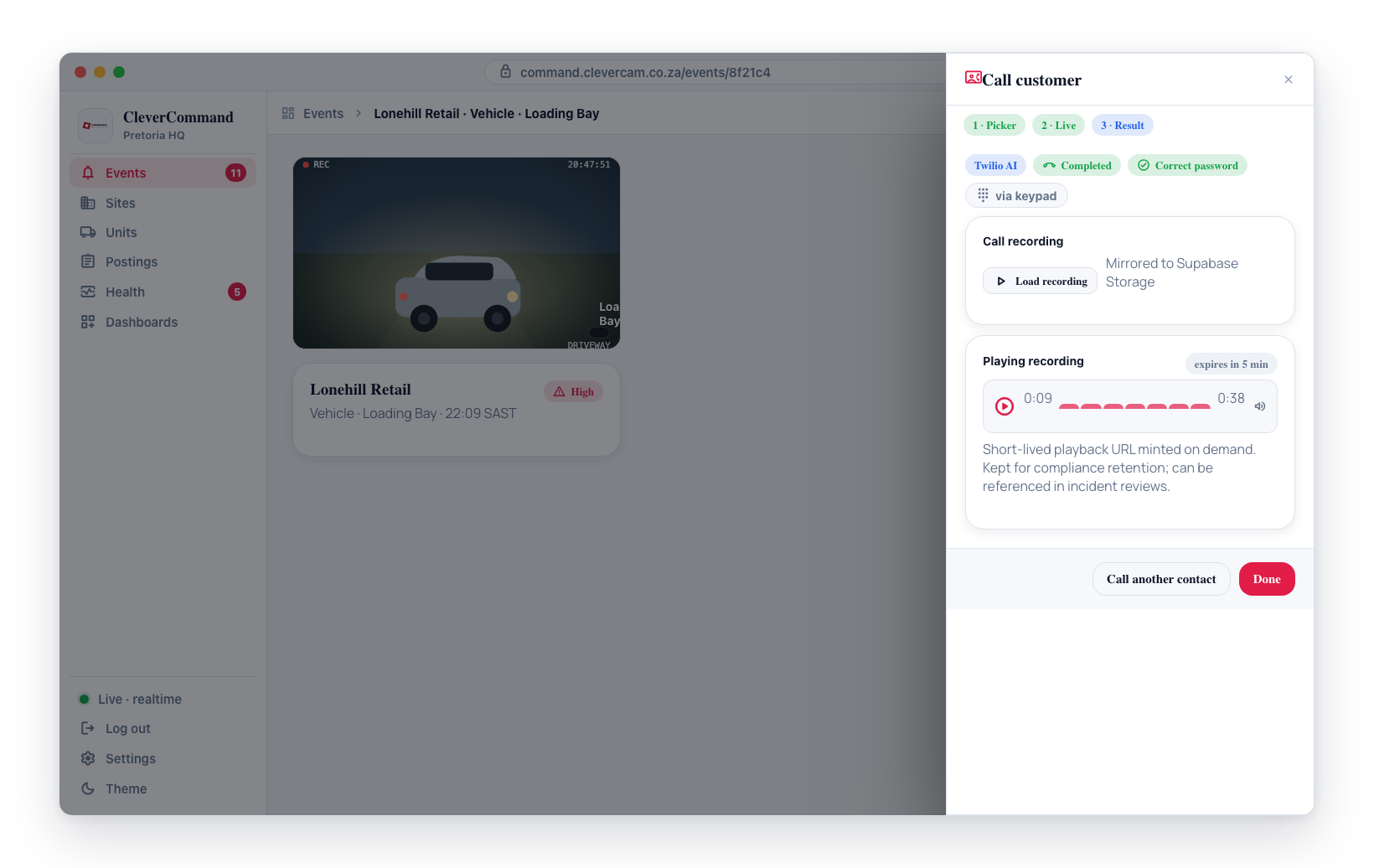
For Twilio Call, the recording mirror to Supabase Storage is automatic. After hangup, the call card shows a ▶ Load recording button. Click it to mint a short-lived playback URL and reveal a standard audio player. Use this when:
- The verdict is unclear (e.g. the caller spoke ambiguously)
- You want to hear the caller's tone for context
- A complaint or QA review needs the original audio
For AI Call, the recording link points at the provider's CDN. Click play directly.
Recordings are kept for compliance retention and can be referenced in incident reviews.
AI calls are most effective for routine alarm verification at sites with cooperative contacts. For complex situations or high-severity events, a direct operator call may be more appropriate. Use the Call List for manual calls.
Over-limit dispatch consent prompt (Clava Mode)
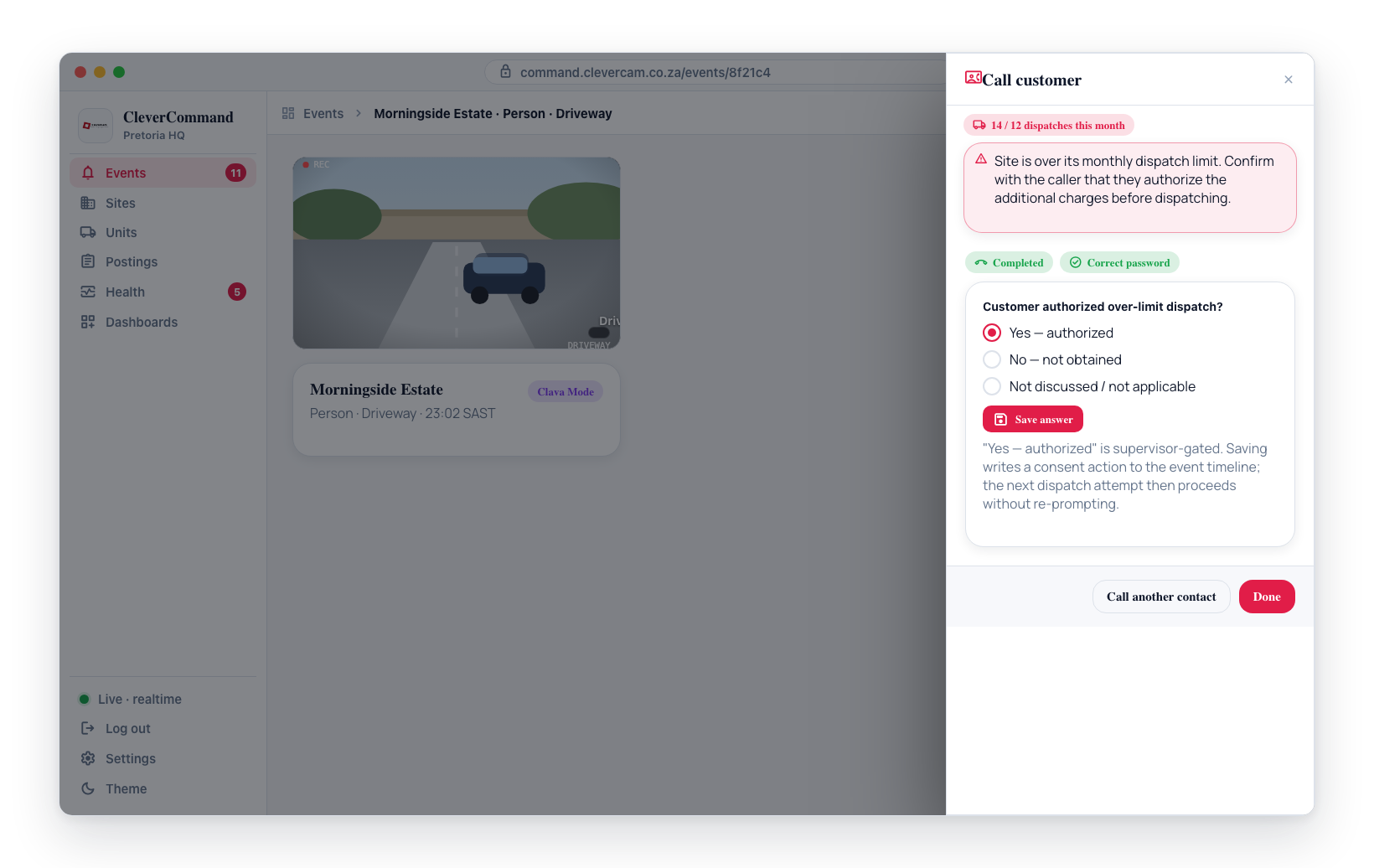
When a Clava-Mode site is past its monthly dispatch limit, both providers automatically append a consent prompt to the standard verification flow. The operator does nothing different -- placing the call from the Call Customer flyout after hitting the Over-limit dispatch consent modal triggers it automatically. See Over-limit dispatch consent for the operator-side modal and server-side enforcement.
AI Call (Vapi)
- Injected prompt section asks: "I can dispatch a response unit, but please note this will incur additional charges since your monthly included dispatches have been used. Do you authorize this dispatch?"
- Customer's yes/no answer triggers the server-side
record_overdispatch_consenttool call with the decision (authorizedornot_obtained) plus a transcript excerpt. - Writes a
customer_consent_overdispatchevent_actionsrow withchannel='ai_call'and the Vapi id on the payload.
Twilio Call
- A second
<Gather>runs after password verification: "Your site has reached its monthly dispatch limit. A response unit dispatch will incur additional charges. Press 1 to authorize, or press 2 to decline." (TTS today; recorded MP3 once produced.) - Caller presses 1 (authorize) or 2 (decline); lenient speech also accepts "yes/okay/go ahead" or "no/cancel/decline".
- Unclear input retries once, then defaults to not authorized with a
timeout/unclearexcerpt -- safer than auto-authorizing extra charges. - Writes the consent row with
channel='twilio_ai_call'and the Twilio Call SID on the payload.
After consent is captured
The next dispatch attempt short-circuits through if the latest decision is authorized. If not_obtained, the over-limit modal re-appears so the operator can attest, call again, or resolve without dispatch. The event_actions row stays visible on the event timeline.
When to use which provider
| Situation | Recommended |
|---|---|
| Contact is a linked app user | AI App Call — no telephony cost, clearest audio, most accurate password recognition |
| Routine verification, contact knows the drill | Twilio Call — fastest, cheapest, deterministic |
| Bad cell signal expected | Twilio Call — DTMF tones survive low-quality audio |
| First-time contact, may need explanation | AI Call — handles back-and-forth |
| Contact may want to add context ("there's been an electrician here all morning") | AI Call — captures conversational nuance |
| You want to speak to the keyholder yourself, in-app | In-browser call — dial from the browser, logged automatically |
| High-severity events requiring nuanced communication | In-browser call, or a manual call from the Call List |
Both providers verify identity the same way (password + duress) and feed the same event_actions timeline, so downstream operator workflow doesn't differ between them.
When to Use AI Calls
AI calls are best suited for:
- Medium and low severity events where quick verification is needed
- Sites with reliable contacts who are familiar with the verification process
- High-volume periods when operators need to handle multiple events simultaneously
- After-hours events where contacts may need a prompt call to respond
For high-severity events or situations requiring nuanced communication, operators should place manual calls using the call list.