Clever/Advance Mode
Clever/Advance is a third view mode for the events queue (alongside Cards and Table), and the only kanban-style view in CleverCommand. It reserves a small action slot below each card for Brain-proposed quick actions — typed next-step suggestions the operator can act on without opening the full Event Details page.
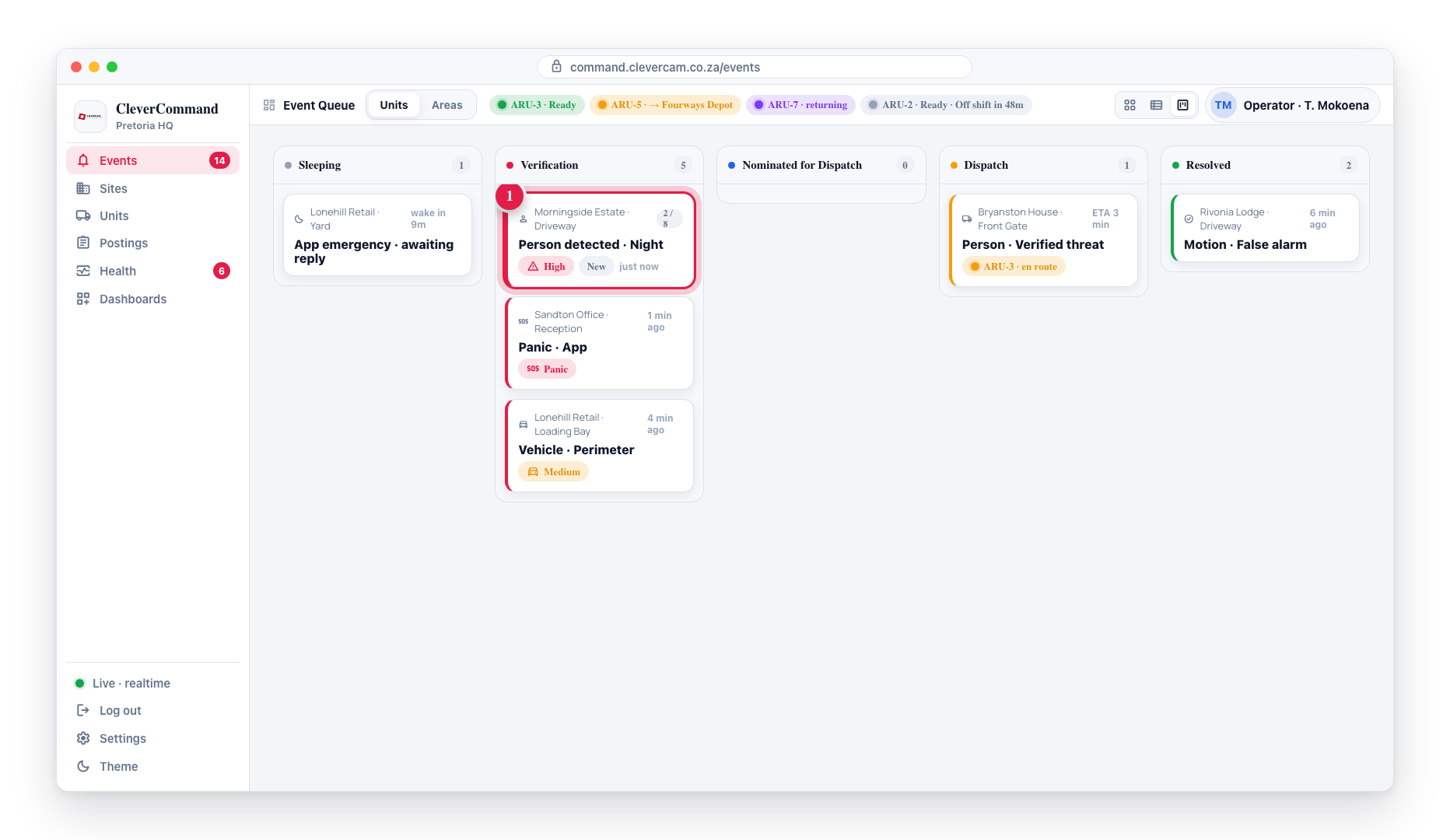
New events arrive in the Verification column, newest first.
It is gated per VCR by Clava Mode (virtual_control_rooms.maven_mode). The Cards and Table list views remain unchanged for everyone; switching to Clever/Advance only changes what you see in the events list, never how it stores or routes data.
Where to find it
The view selector in the top-right of the Events panel has two buttons by default (cards, table). VCRs with Clava Mode enabled get a third kanban button for Clever/Advance. Click it to switch in. Your choice is remembered locally across sessions.
If your screen is too narrow for kanban width (under 1280 px), the kanban toggle hides and the queue falls back to cards view automatically.
The five-column dispatch workflow
Clever/Advance kanban splits the queue into five columns so the dispatch decision is visible end-to-end:
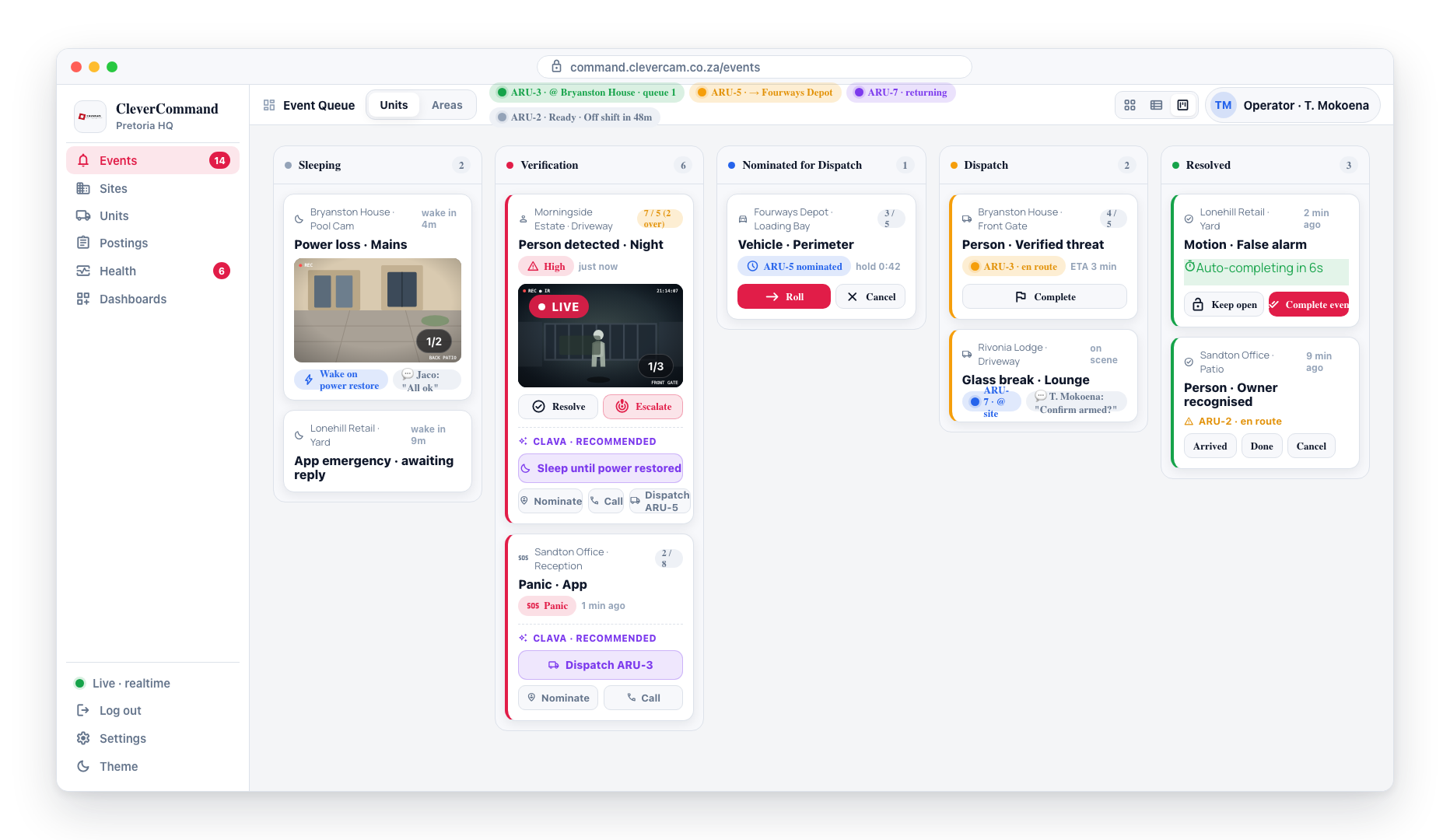
| Column | What it means | Operator actions |
|---|---|---|
| Sleeping | Snoozed events with a wake_on condition. A maven emergency event on an auto-reply / auto-notify site opens directly here for its short customer-response window — it no longer flashes through Verification first. Technical signals (AC fail, comms, battery, supervision) usually open here too, since they are created asleep. | Drag back to Verification to wake it, or drag straight to Resolved (or use r / More actions → Move to Resolved) to close it without waking it first — the sleep is cleared as part of the resolve. |
| Verification | The renamed Needs Attention column — Brain (or operator) is gathering info and deciding whether dispatch is warranted. Cards are ordered newest-first, so the freshest events stay at the top and kept-open events that keep firing sink toward the bottom. Events re-opened by a new alarm image that have also piled up 20+ photos are grouped into an Overactive sub-section at the very bottom — see Reopened by a new alarm image. | Nominate unit opens the unit picker. Drag to Sleeping / Resolved as usual, or use the card's More actions menu (target icon) → Move to Resolved to send the card to the Resolved column for final close-out. The vcr_event row stays open until ✓ Complete event is clicked on the Resolved column. |
| Nominated for Dispatch | A unit has been chosen for the event but the vehicle has not rolled yet. The operator (or Brain) can still swap, hold, or cancel. The nomination is shared across the control room: the card sits in this column on every operator's board, not only the one who nominated, and any operator can Roll, swap or Cancel it — so two operators can't send two units to the same event without seeing each other. | Roll → sends the vehicle and moves the card to Dispatch. Cancel returns the card to Verification. The responder can act first from CleverResponder: Accept & respond rolls the dispatch (card → Dispatch), while Can't respond declines it — the nomination is cancelled with a note, a Dispatch declined timeline entry, and a prominent decline toast prompting you to nominate another unit (see When a responder declines). |
| Dispatch | A unit is actively rolling, en-route, or on-scene. | Complete opens the outcome picker — pick an outcome and add a timeline note; the card then moves to Resolved for final close-out. The event is not closed here. |
| Resolved | Closed events awaiting final close-out. | Complete event finalises and removes from the board. If a unit is still actively dispatched to the site (e.g. the card auto-resolved while a vehicle was already en route), an amber ⚠ {unit} · {state} row appears above the Complete button with inline Arrived / Done / Cancel controls so the operator can clear the unit without leaving the column. A resolved card is also automatically sent back to Verification if a fresh alarm image arrives after it was resolved — see Reopened by a new alarm image. |
This split exists because smart dispatch decisions — "ARU-3 is 4km away but ARU-5 will free up in 90s and saves 6km of petrol, hold for a minute" — only become possible when the Nominated column gives that decision a visible holding lane with a countdown. Without it, the operator goes straight from queue to fire-and-forget. Petrol-cost optimisation, ETA monitoring, and unit-swap mid-flight all attach to this column.
The Dispatch column's Complete action opens the outcome picker — one click on an outcome chip writes the outcome and a timeline note and moves the card to Resolved:
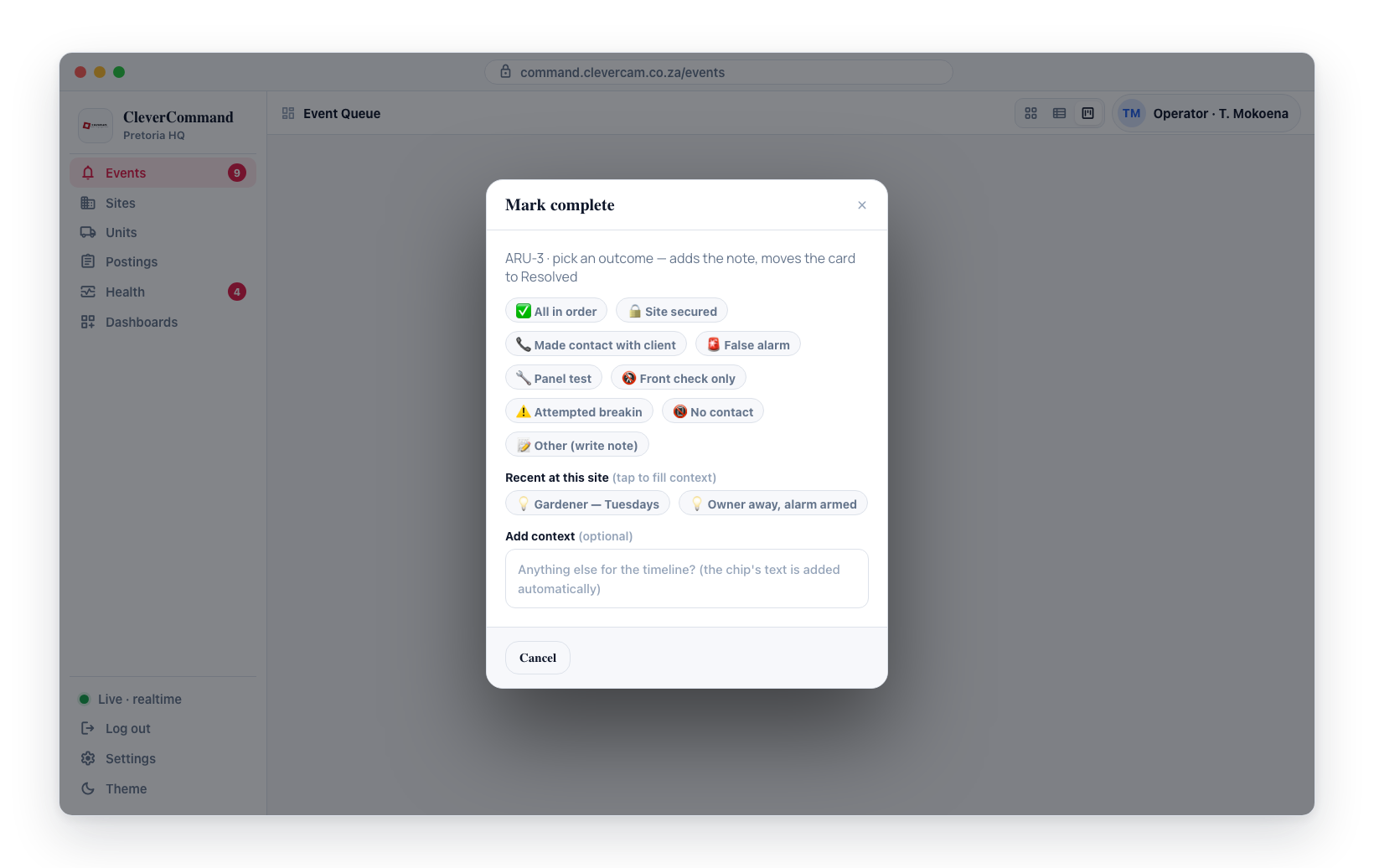
Whatever the outcome, the resolved state is persisted — the card stays in Resolved across reloads, awaiting final close-out. The outcome only decides how the event is resolved: All in order and No contact outcomes resolve it as unconfirmed / in-order, so a fresh alarm image automatically reopens the event; Problem at site and Other outcomes resolve it as an attended problem, which is never auto-reopened.
Underlying data model: Nominating a unit inserts a vcr_dispatches row with status='nominated', nominated_at=now(), dispatched_at=null. The unit's status stays available and the legacy is_dispatched flag stays false until Roll is clicked — or the responder taps Accept & respond in CleverResponder, which rolls the dispatch the same way — at which point the row transitions to status='en_route' with dispatched_at stamped, the unit moves to dispatched, and the legacy flag fires for CleverResponder. Cancelling a nomination soft-deletes the row (cancelled_at) and reverts the unit if no other active dispatch remains. The board matches dispatches to cards by the event itself (linked_event_id), not by the operator's own queue row, which is what makes a nomination show on every seat's board the moment it is made.
Legacy responder compatibility: Events dispatched via the legacy responder path (no vcr_dispatches row, just vcr_events.is_dispatched=true) still appear in the Dispatch column — the grouping accepts both signals. Switching out of advance mode back to Cards or Table view shows the same events grouped into the standard four sections (Needs Attention / In Progress / Resolved / Sleeping); no data migration required.
Column counts and how much of the queue is on the board
The board loads the 30 newest events and pulls in 20 more each time you scroll to the bottom. On a busy queue that means what you see is a window on the queue, not the whole of it.
So that the window is never mistaken for the whole picture:
- The number on each column header is the column's real total — every open event in that column on your queue, not just the cards currently rendered. The same totals drive the filter chips above the board.
- When a column has more events than are loaded, a dashed
+N not loaded — scroll to loadmarker sits at the bottom of that column. - When the board as a whole is truncated, an amber banner above the columns reads "Showing 30 of 412 open events — 382 older events are not on the board yet. Scroll down to load them."
Scrolling to the bottom of the board loads the next page; keep scrolling until the banner disappears and every column count matches its cards.
Search, the area filter and the OVERDUE filter narrow the board client-side, across the events currently loaded. While any of them is active the column counts switch to counting exactly what is rendered, and the truncation banner is hidden — because a total for the whole queue would not describe the filtered view. Clear the filter to see queue-wide totals again. This also means a search only finds events already loaded onto the board; scroll to load more, or clear the search and use the column counts to judge queue depth.
Active Units strip (top-of-page)
Clever/Advance reuses the empty space in the centre of the page header for a compact Active Units strip with a Units / Areas toggle on the left. The choice is remembered locally between sessions.
Units mode (default)
Each on-shift unit gets a small pill showing:
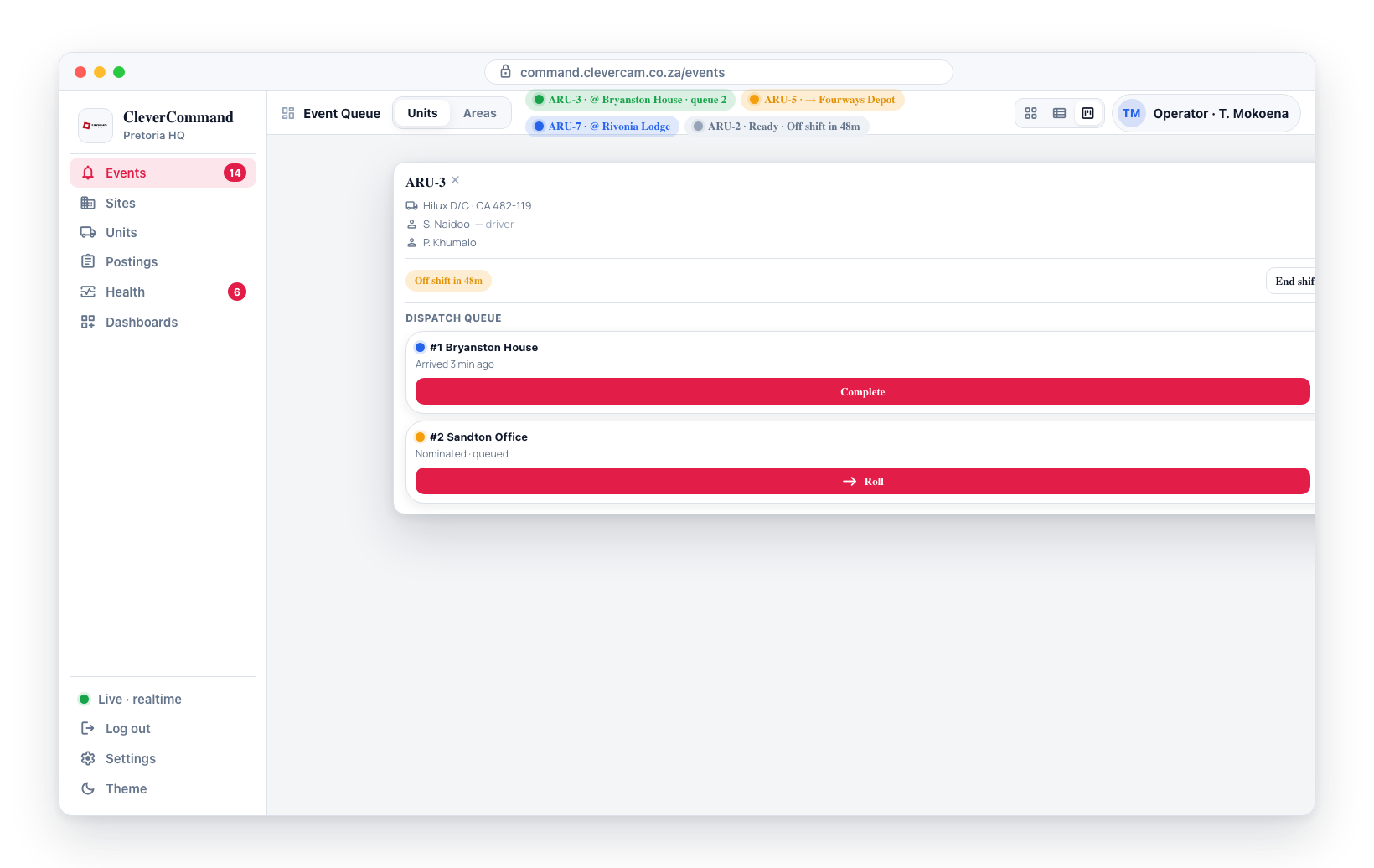
- A status dot (green = ready, amber = en route / dispatched, blue = on scene, purple = returning)
- The unit label
- A short status: Ready, → {site name} when en route, @ {site name} when on scene
- A queue badge (count) when more than one dispatch is queued for the unit
Clicking a pill opens a popover with the full unit detail — vehicle, driver, passengers — and the complete dispatch queue. Each queued site shows its dispatched / arrived time and the relevant action buttons:
- Roll — for nominated sites; the vehicle starts moving.
- Arrived — for en-route or dispatched sites; flips the dispatch to on-scene.
- Complete — for on-scene sites; closes the dispatch out.
- Cancel — recalls the unit. Two clicks on purpose, because the rows reflow as dispatches update and a single click could land on the wrong one: the first click turns the button into Yes, cancel {site name} and Keep, naming the site so you can see which run you are about to cancel. Yes, cancel … recalls the unit; Keep, or doing nothing for 6 seconds, puts Cancel back.
If an action fails (network blip, stale dispatch), a red toast names the action and the reason — the row did not change, so retry rather than assume it worked. A row's buttons are disabled while its action is in flight.
Areas mode
Switch to Areas to collapse the strip to one pill per area, each showing:
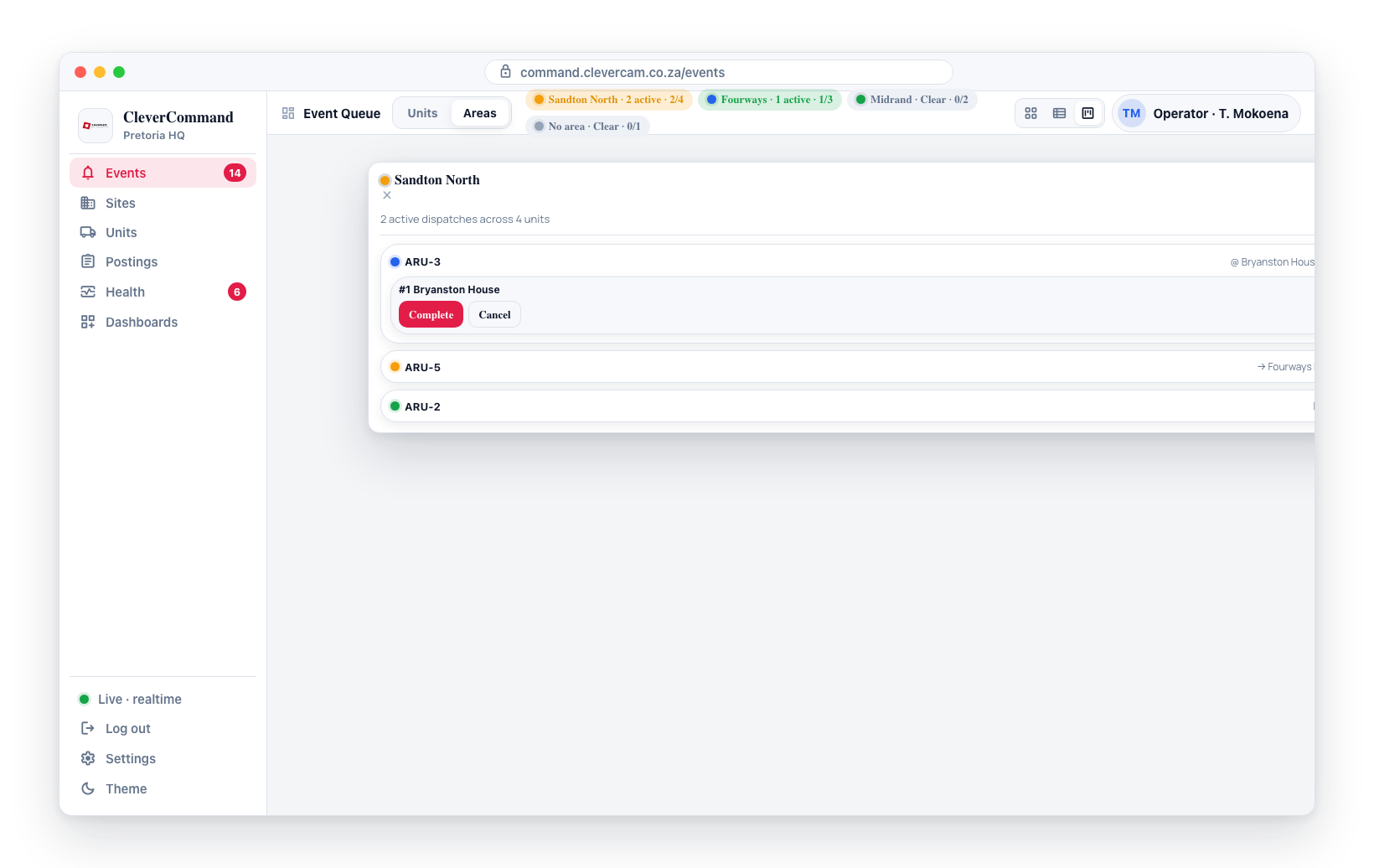
- A dot in the area's configured colour
- The area label (units without a primary area assignment fall into a single "No area" bucket at the end)
- A short status: Clear when no active dispatches, or N active when at least one unit is dispatched
- A ratio badge
active/total(e.g.3/4= 3 active dispatches across the area's 4 on-shift units). Idle areas render with a muted ratio; busy areas highlight in the accent colour.
Clicking an area pill opens a popover listing every on-shift unit in that area with its own status, queue count, and inline list of queued sites. The same Arrived / Complete / Cancel actions are available per site.
Off-shift units are not shown — start their shift from the Units page first. The strip auto-refreshes via realtime when any vcr_dispatches, vcr_units, vcr_unit_responders, vcr_unit_areas, or vcr_areas row changes, plus a 30-second sweep for safety.
Shift end pill and once-off override
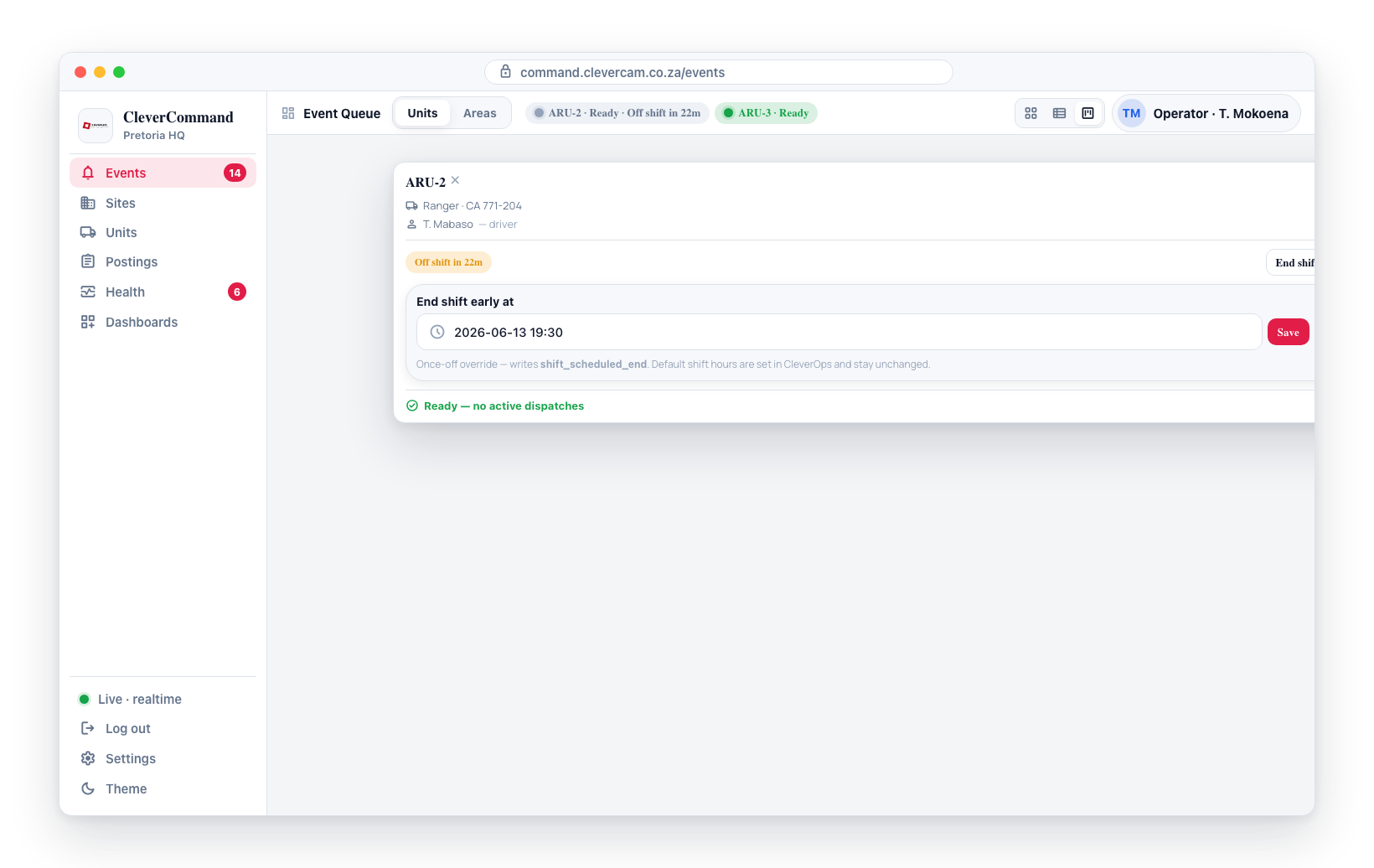
Each unit chip resolves a shift end via the fn_resolve_unit_shift_end RPC, which prefers the once-off override (vcr_units.shift_scheduled_end) when set and otherwise falls back to today's instance of the default shift hours configured in CleverOps (vcr_units.default_shift_end_local). Resolved shift ends are cached client-side and refreshed every 60 seconds.
When a unit has a future shift end, a small Off shift in Xm/Xh Ym pill appears on the chip and at the top of the unit popover. When the shift has already ended (i.e. the operator hasn't restarted the unit) the pill renders muted — Off shift — so the data clearly looks stale rather than live-warning.
The unit popover exposes an End shift early at… button that opens an inline datetime-local input. Saving writes vcr_units.shift_scheduled_end directly. This is intended for once-off overrides only — for example, finishing an early shift, calling in sick, or extending a shift past its default end. Default shift hours themselves are configured in CleverOps and remain unchanged by this control.
Per-card Brain action slot
Below each card, Clever/Advance reserves an action slot. It holds two kinds of buttons:
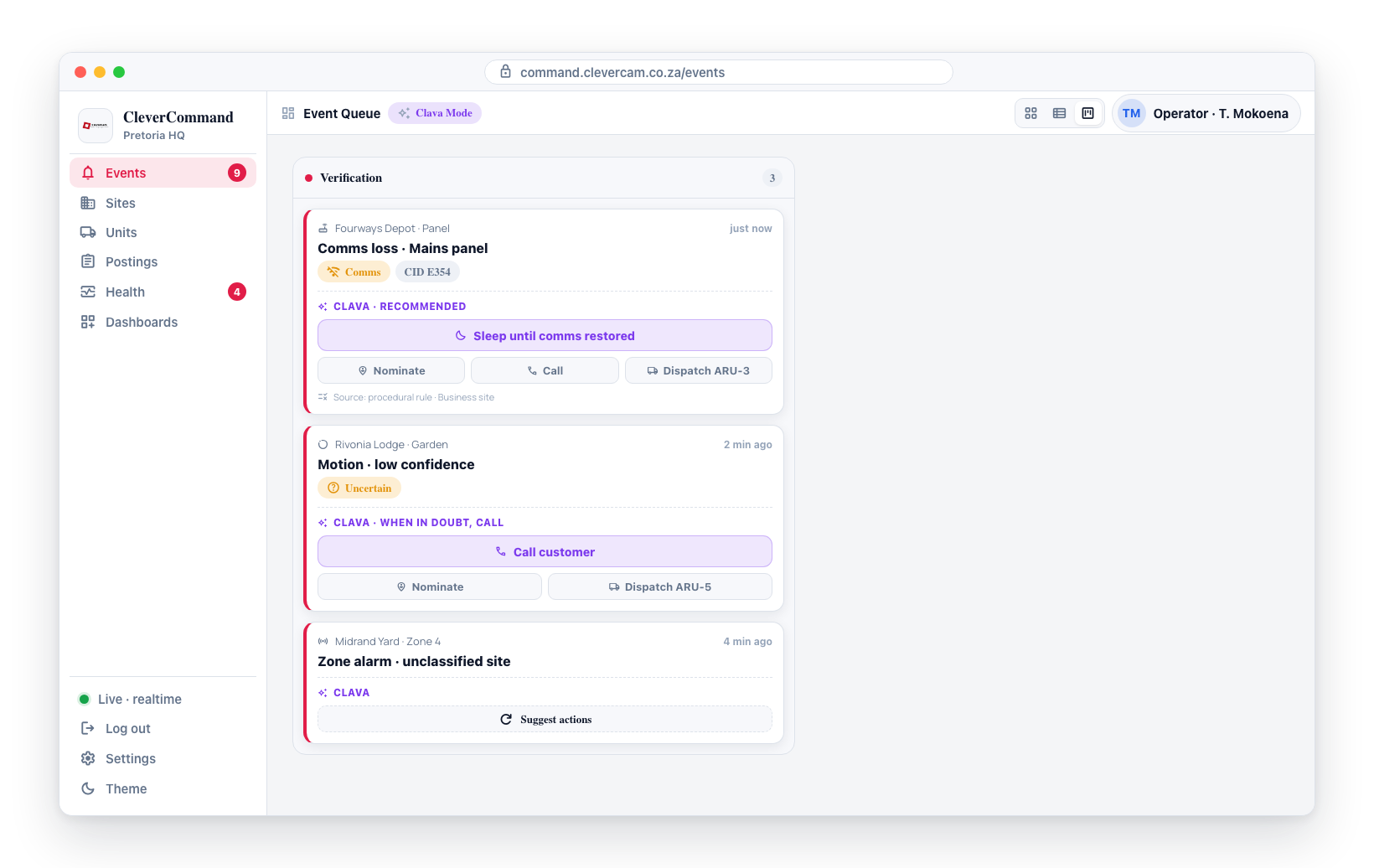
- Always-present action pills. On Verification cards three pills are always shown, so the cardinal actions are never lost when a Brain suggestion expires: Nominate (opens the ranked unit picker), Call (opens the call picker), and Nominate {unit} — a one-click smart nomination of the rank-1 unit (see below). When the event has a snapshot, the photo is shown directly on the card for review — see Inline image review — so there is no separate "View image" pill to click.
- Brain-proposed chips. 0–3 typed next-step suggestions from the procedural rules engine (and, when enabled, the LLM tail).
In the call picker, every contact row shows the name, number, challenge word and last outcome on one line — WORD maple · DURESS orange in monospace next to the number — so the word is on screen before you pick up the desk phone, not only once the feedback popup opens. A contact with no word of their own shows the site word with a small site tag, or the last four digits of their cellphone number with a last 4 of cell tag; no word on file appears only when there is no word and no usable number. The duress word is marked in red. Prior attempts still show as Reached · / Tried · badges on the same line.
Opening the picker from a Brain chip (for example AI phone keyholder) marks that chip as taken the moment it opens. Closing the picker without picking a contact hands the chip straight back — it returns to the slot as a normal, clickable suggestion, because no call was placed. Click it again whenever you're ready. A chip you actually acted on stays in its in-progress state instead, and clears when the call wraps.
Every button renders in one of two prominence states:
- Recommended (primary): the single recommended next step is pulled out as a full-width, filled button on the top line of the slot, so the operator's eye lands on it first. Exactly one element per card is the primary. It may be a chip (e.g.
Sleep until power restoredon a comms event,Notify customeron a standard alarm) or one of the always-present pills (the Nominate {unit} or Nominate pill on a panic event). - Available (secondary): every other action sits compact in a row beneath the primary — useful, but not the headline.
Every Verification card always surfaces exactly one recommended next step. When the procedural rules have no specific recommendation for a card, the Call pill is highlighted as the safe default — when in doubt, call the customer. On the other columns (Nominated for Dispatch, Dispatch, Resolved) the next step is the column's own action, so no chip row is forced.
If the Brain produced no proposals at all for a Verification card, a dashed ↻ Suggest actions pill appears in the slot. Clicking it re-runs the procedural rules for that event, and the chips appear within a few seconds. (It needs the shared webhook secret configured; where it isn't, the pill is disabled with a tooltip.)
Hard rule: dispatch / no-dispatch / customer-comms-send actions are never auto-fired regardless of prominence. The operator always clicks.
Two pipelines feed the chips:
- Procedural rules engine (Pretoria HQ, beta) — deterministic rules driven by the site's classification in CleverOps (
Classic,Residential,Business,Continuous-movement) and its SLA configuration. Pattern-based: a panic event recommends dispatch (the Nominate pill is encircled); an alarm with a photo shows the snapshot inline for review (see Inline image review); comms loss recommendsSleep until restored; a standard alarm recommendsNotify customer; and so on. See Site classification. - LLM tail — an AI model (DeepSeek Flash, with Claude Haiku as the automatic backup) catches anything the procedural rules don't cover, gated by an environment flag.
Each chip records its origin (source='rule' vs source='llm') for telemetry.
Inline image review
When a Verification or Sleeping card's event carries a snapshot, the photo is shown directly on the card — the operator verifies it in place instead of opening the full-screen viewer first. It appears on Sleeping cards too because a maven camera alarm now opens there for its auto-reply window, so the operator can review and act on it without waiting for that window to expire.
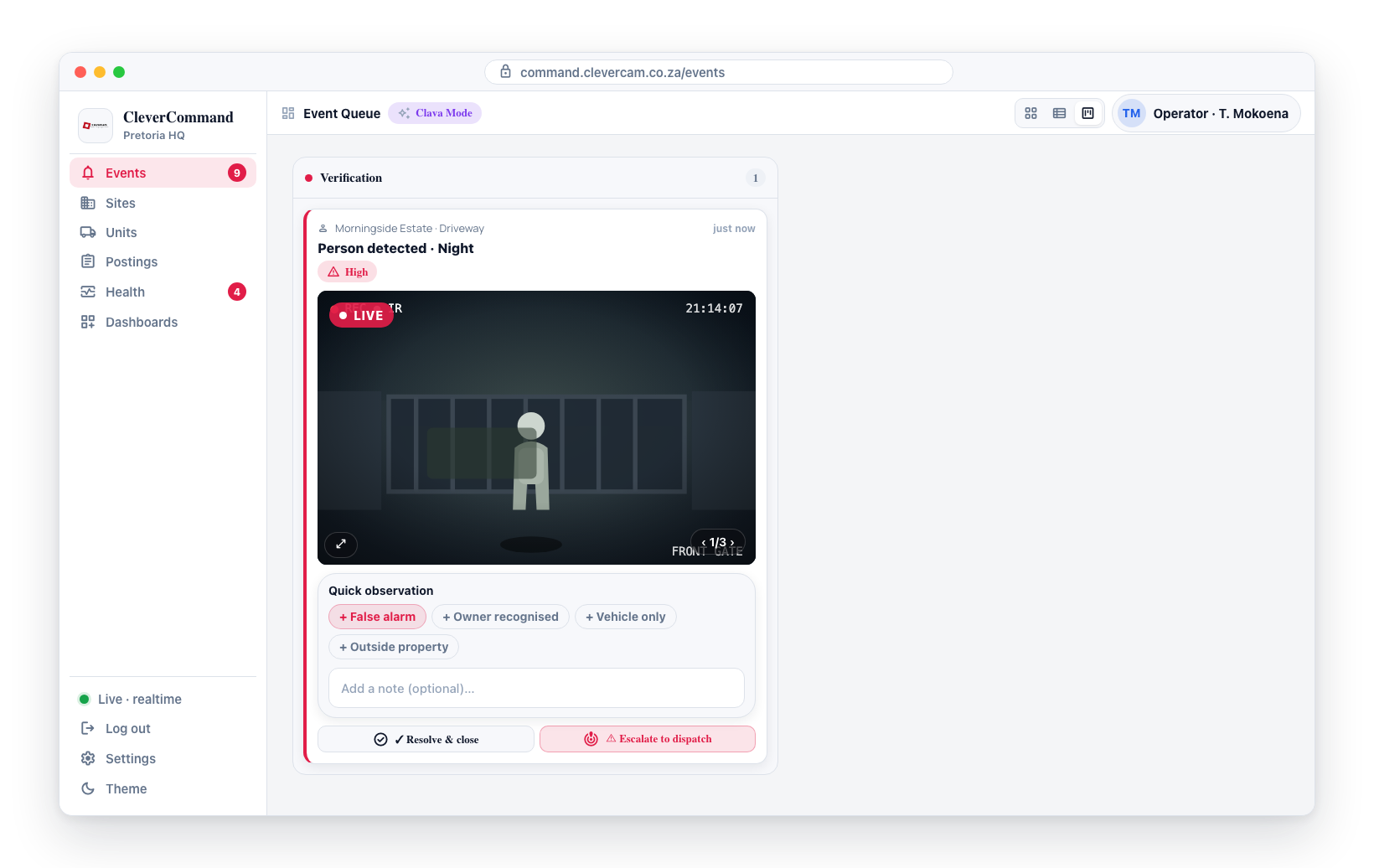
This includes events that start without a photo. An app panic or alarm-panel signal opens as a text-only card (no placeholder), and the moment camera snapshots stack onto the event — for example, cameras at the site detecting movement after a panic was pressed — the photos appear on the card automatically, even if they arrive well after the event opened.
- The snapshot. Shown beneath the card details. If the event has more than one snapshot, ‹ › arrows and a
1/2counter step through them. - Resolve. Visually verified all-in-order. Opens a short feedback panel — quick-observation chips (False alarm, Owner recognised, Vehicle only, Outside property) plus an optional note — then ✓ Resolve & close logs the note and moves the card to Resolved. The card moves the instant you confirm — it no longer waits for a server round-trip to relocate. Resolve runs the same resolve gate as drag-to-Resolved and More actions → Move to Resolved: if a required checklist item is unresponded or a customer call is still active, you're prompted to clear those first rather than the card moving.
- Escalate. A threat is visible. Opens the same panel with escalate-oriented chips (Verified threat, Person on site, Inconclusive); ⚠ Escalate to dispatch logs the note and opens the unit nomination picker. Escalating a card that is still Sleeping wakes the event first, so it leaves the Sleeping column and the dispatch can proceed.
- Expand. The ⤢ control (or clicking the image) opens the full-screen image viewer — all snapshots, the auto-play strip, and the apply note to this site option — for the cases that need a deeper look.
- LIVE. When the event's camera has Allow external live view enabled (and isn't disabled, and your role has the Live view permission), a red-dot LIVE chip appears in the snapshot's top-left corner. Clicking it opens the full-screen viewer with the camera streaming live over the snapshot — verify against what is happening right now, not just the detection frame. The full-screen viewer also has its own Live view button in the footer, and Stop on the player returns to the snapshots.
The note on either action is optional: an operator confident in the verdict can confirm straight away. Every note is written to the event timeline with source snapshot_review, so the visual verdict is captured for the record and for training.
Because the photo and its Resolve / Escalate actions sit on the card, the old View image pill and the Brain's open_image_viewer chip are not shown on these cards — the image is reachable one way, not two.
On a card with no photo, the Brain can still occasionally propose a view-images chip for an event that turns out to have no images behind it at all. Clicking it now retires the chip rather than doing nothing: it disappears from the slot, so the slot only ever offers actions that lead somewhere.
Customer messages on cards
When the customer types a message on the active event in their CleverAlert app — for example "Help", "All ok" or "Domestic worker arriving" — the latest message appears directly on the kanban card as a blue 💬 chip with the sender's first name: 💬 Jaco: "Help". Hovering the chip shows the full text and the time it was sent.
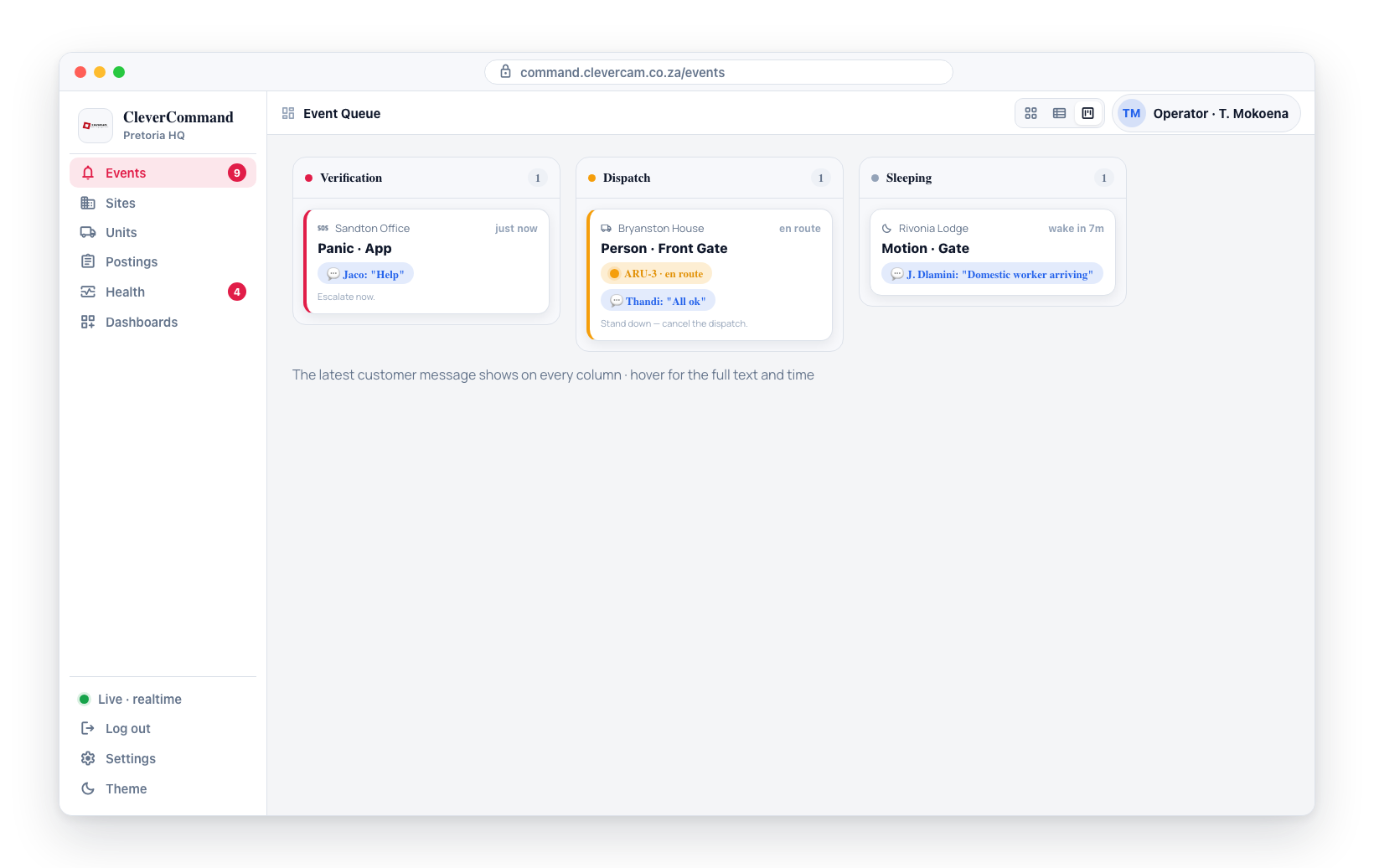
The chip appears on every column, not just Verification — a customer message can change the verdict at any stage: "All ok" while a unit is rolling means the operator can stand down and cancel the dispatch; "Help" on a card still in Verification means escalate now. The chip updates in near-real-time (within a couple of seconds of the customer sending), always showing the most recent message. The full conversation remains available in the event's timeline.
Schedule a check
Schedule a check… from Actions & Verification is also on every card's More actions menu (the target ⌖ icon). It books an outstanding job — call the keyholder back, re-test a gate motor — as its own card at a chosen time, so this event can be closed now instead of lingering in the queue.
From the kanban, closing moves the card to Resolved (where the usual auto-complete finishes it). At the scheduled time a card headed Follow-up check opens on the board carrying the instruction, and on Maven VCRs the instruction is also a required checklist item on that card.
It works in every view (Cards, Table and Clever/Advance). In the kanban it's reached from the card's More actions menu; on the Event Details page it's on the secondary action row.
Customer "all clear" banner
Low-end operators often phone or dispatch on every event in the list — even ones the customer already stood down. To stop that, when a customer cancels an alarm with their own password, a prominent green banner appears on the card:
✅ Customer cancelled — all clear (password verified). No call or dispatch needed.
It's a verified stand-down: the customer entered their normal (non-duress) password, so there is no need to call the keyholder or roll a vehicle. The banner is never shown for a duress cancel — that stays a silent emergency. The same banner appears at the top of the Event Details page.
Auto-complete on resolve
In Clava Mode, when you resolve a card from the control room — the inline image-review Resolve, a call or dispatch feedback verdict of all in order / correct password, drag-to-Resolved, More actions → Move to Resolved, or a Mark complete outcome — the card moves to Resolved and a short countdown appears on it: Auto-completing in Ns. When it reaches zero the event is completed (hard-closed) for you, so routine resolves don't need a second click on ✓ Complete event.
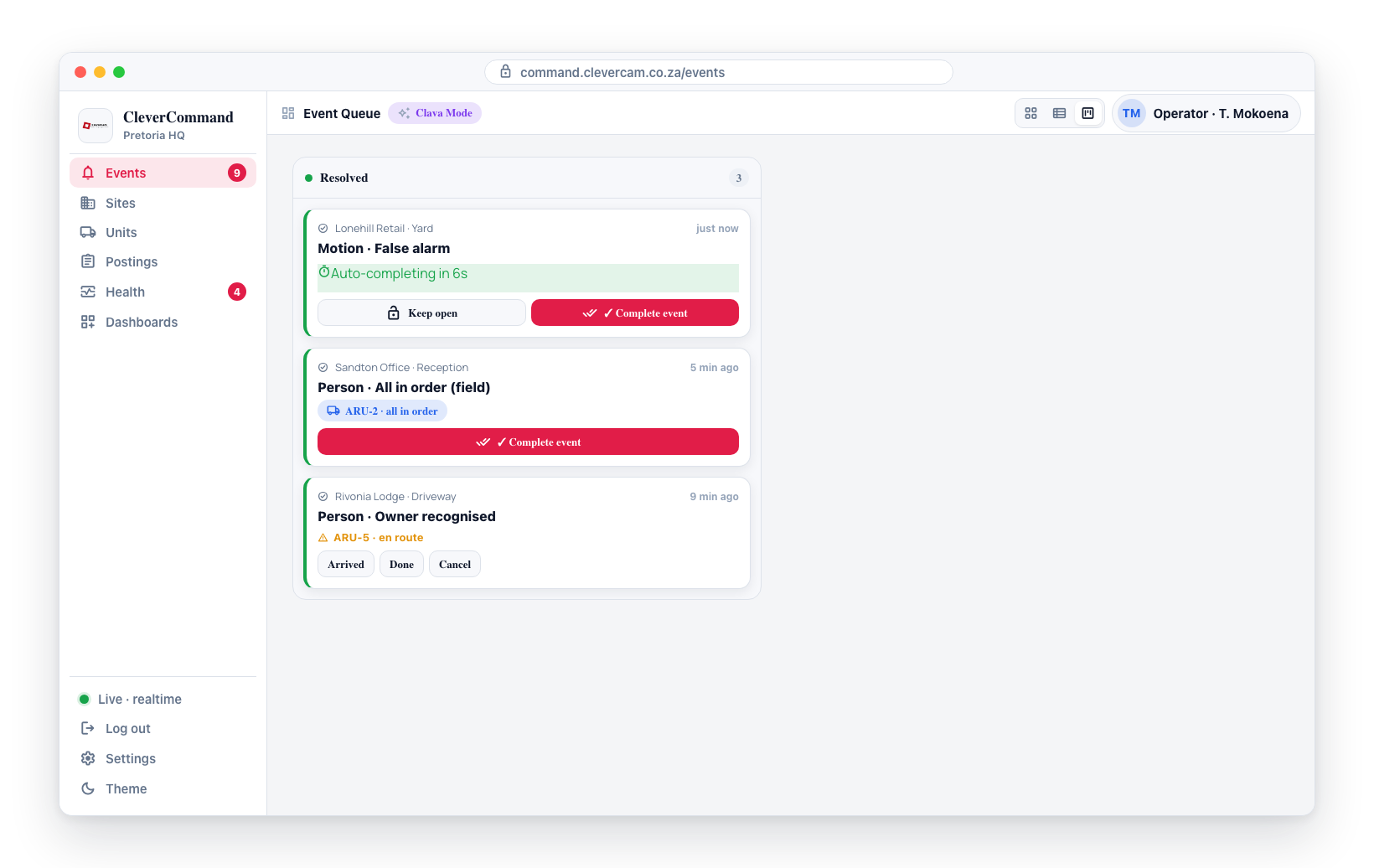
A Keep open button on the banner cancels the countdown instantly and leaves the card in Resolved for you to handle by hand.
The countdown only arms for your own control-room resolves. Cards that reach Resolved from elsewhere — a field responder marking all in order, or a customer closing the event in their app — are never auto-completed by this countdown; they wait for a manual Complete event. (Power-restore events have their own separate auto-complete — see Power events below.)
It also respects the resolve gate: if a required checklist row is unresponded, a call is still live, or a unit is still actively dispatched, the countdown does not run — the card simply stays in Resolved for you to finish. The timer never cancels a dispatched unit on your behalf.
Auto-complete is part of Clava Mode and is set by CleverCam per control room (and per site); the default countdown is 10 seconds. On VCRs without Clava Mode it has no effect — every resolved card is completed manually as before.
Power events
Power-failure events have a separate auto-complete: when mains power is restored, the matching power event is completed automatically after a longer think-time (default 2 minutes) than the operator countdown. It runs server-side, so restored power events clear even when no operator is watching the card, and it follows the same per-VCR / per-site Auto-complete policy (the power block) — Clava Mode only. Like the operator path, it re-checks the resolve gate and never closes a power event that still has an unresponded checklist row, a live call, or an active dispatch.
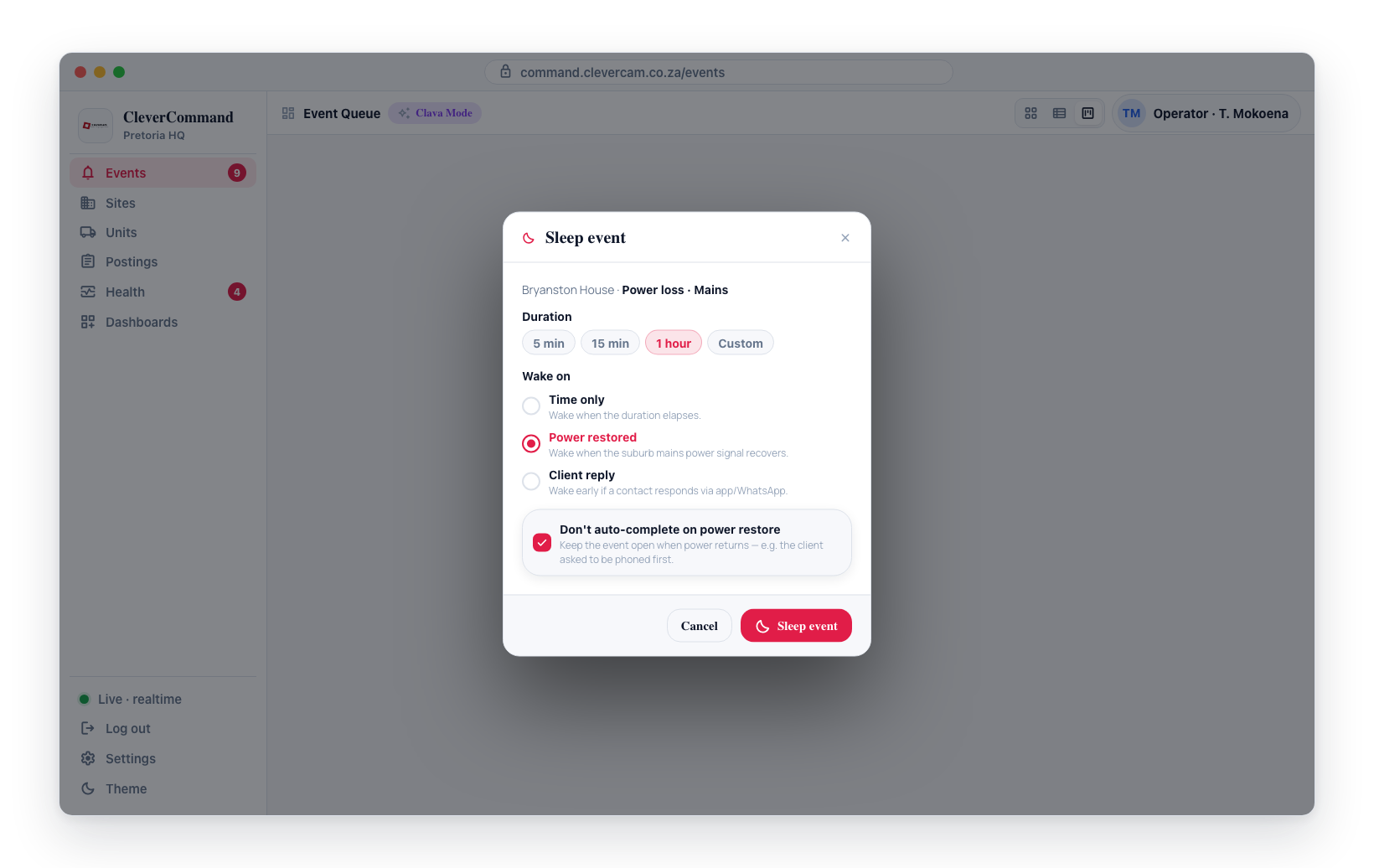
When you sleep a power event and choose the Power restored wake option, the sleep popover shows a Don't auto-complete on power restore checkbox. Tick it to keep the event open when power returns — for example when the client asked to be phoned first. It defaults to off (auto-complete on) and applies to the whole event, not just your own queue.
Close reasons
Cards in Resolved carry a row of close-reason chips above ✓ Complete event: Workers on site · Keyholder on site · Passer-by · Animals or birds · Test · Technician on site · No movement on cameras · Response on site · Already handled · Per site instruction · Account suspended · Other. Hover a chip for the Afrikaans phrase it replaces. Tap one (tap again to clear), then complete as usual — the reason is written to the event's timeline as a Close reason entry and stored on that action for reporting. Nothing changes if you don't pick one: a plain ✓ Complete event works exactly as before.
Panic, duress, fire and medical events ask once: pressing ✓ Complete event on one of these with no reason picked highlights the chips in red with "Pick what happened before completing this one, or press Complete again." Pick a chip, or press Complete a second time to close it as is. It is a reminder, not a wall.
Reopened by a new alarm image
A soft-resolved event often isn't actually over — the alarm can still be live, and the camera keeps sending fresh detection snapshots into the event after the operator moved the card to Resolved. In Clava Mode, when a new alarm image arrives after an event was resolved, the card is automatically sent back to Verification so the latest snapshot gets re-checked instead of sitting unseen under the Resolved column.
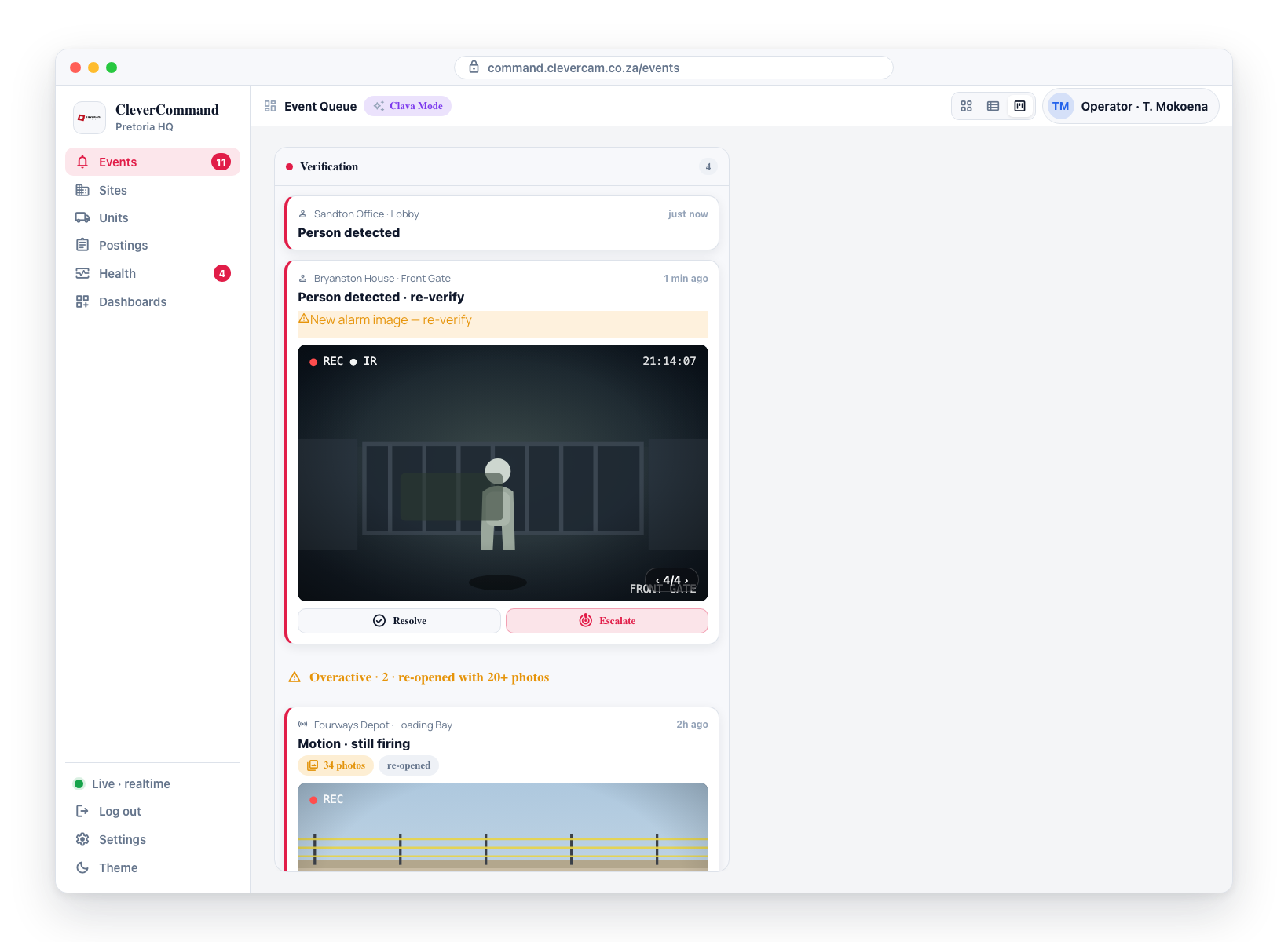
When this happens:
- The card returns to Verification on every operator's board (it's a shared state change, not just your tab), with the newest snapshot loaded in the inline image review ready to Resolve or Escalate.
- An amber ⚠ New alarm image — re-verify flag appears above the snapshot, the card briefly pulses, and a one-off "Event reopened" toast is shown.
- Any auto-complete countdown that was running on the card is cancelled — the event will not hard-close while there's a new image to review.
Only a genuine alarm detection that carries an image reopens a card. Panel restores and non-alarm signals do not, and images that were already on the event at the time you resolved it do not bounce it back — only an image that arrives after the resolve. Events resolved as an attended problem — flagged as a problem at site, or a dispatch completed with a Problem at site / Other outcome — are left in Resolved untouched; only events resolved as in-order (All in order, No contact) reopen.
This is part of Clava Mode. On VCRs without Clava Mode, a new alarm image on a resolved event does not move the card — it stays in Resolved as before.
Overactive events
An event that has been re-opened by a new alarm image and has accumulated more than 20 photos is treated as overactive — a kept-open event whose camera is still firing repeatedly. To stop these from burying fresh arrivals at the top of Verification, overactive cards are pulled into an Overactive sub-section beneath a divider at the bottom of the Verification column (⚠ Overactive · {count} · re-opened with 20+ photos).
Because the column is ordered newest-first, overactive events — being older and continuously re-opened — naturally sink anyway; the divider just makes the split explicit so an operator triaging the top of the column always sees the newest, un-triaged events first.
Overactive cards keep their inline image review fresh: their snapshot stack is re-fetched continuously (it does not "settle" like a normal older card), so the newest frame is always the one shown in the on-card review and its ‹ › gallery, even hours into a long-running event.
More than one camera recorded it
Video-verified panels (Videofied) send a separate clip for each camera that saw the alarm. Where a card's alarm has more than one, a quiet grey flag appears above the snapshot:
🎥 2 cameras recorded this
Hover it to see which cameras, by the panel's own names for them.
The flag is deliberately not amber. Amber on a card means this needs your attention — a second camera angle is extra evidence, not a problem, so it reads as a fact about the alarm rather than another thing to action.
It appears in any column, and on alarms that have no snapshot at all — a panel alarm often arrives with clips and no still image, which is exactly the case where knowing a second angle exists matters most. Open the event and use the camera chips on the video to switch between them.
An operator triaging the board decides which alarms to open from the card alone. Without this, the most informative alarms on the board — the ones two cameras independently recorded — looked identical to a single-camera one.
Code, zone and repeat count on panel cards
Every card for a third-party panel signal carries a small monospace chip with the Contact ID code and the zone that fired — E130 · Zone 4, E110 · FIRE PANEL, E301 — next to the time received. The zone label is whatever the installer named the zone in CleverOps; an unnamed zone shows as Zone N. Because the chip carries the zone, the card's title no longer repeats it ("Burglary alarm", not "Burglary alarm — Zone 4"). Camera detections don't get the chip — the code says nothing an operator needs there.
When the same site has sent more than one signal to the desk since midnight, the card also shows ×N today (amber), turning red from five. Hover it for the exact wording. The count is desk-routed events only — signals the action plan suppressed or sent to the Review Queue are not included — and it refreshes with the board's 60-second tick.
When the alarm sits close to a power or communication event at the same site, the card also shows an amber ⚡ chip stating the timing — ⚡ 34 min after mains back, ⚡ 1 h 20 min into mains lost, ⚡ low battery 7 s before, ⚡ comms back 3 min later. It appears only when the system detects one of the power/comms patterns (a restore within 45 minutes before the alarm, mains still off, an uncleared low battery, a communicator that has not come back, or a restore shortly after); hover it for the full finding. The event page's stack carries the complete list — see Power and comms context. The chip reads the last 6 hours of the board's sites on the same 60-second tick.
Same-site cards fold
Within a column, only the newest open card from a site is shown in full. Any other open cards from that site collapse under it behind a dashed ▸ Show N more open from this site toggle; click it to expand them (▾ Hide … collapses again). The selected card and a card that is mid-action never hide, and the column count in the header still counts every card. Nor does a card you have worked in — typed in one of its fields, pressed one of its buttons or opened its More-actions menu — so a half-written note is not folded away when a newer card from the same site lands on top. It stays open until you collapse that site with ▾ Hide … or the card leaves the board. This is the panel-signal equivalent of the camera burst fold — a site with an hourly perimeter fault occupies one slot on the board instead of six.
Quiet a site for an hour
A site that is dominating the board can be put on test for 60 minutes from the card: pick Quiet this site 1 h… from the card's More actions menu (key q), or, on a card whose ×N chip has turned red, tap 🔕 Quiet 1 h next to it. A short dialog asks for a reason — Known fault, Repeating false alarms, Workers on site, Technician on site, Weather, or your own words — and writes the same test-mode override as the Sites page control: new signals still arrive, dispatch is paused, and every card from the site shows the 🧪 banner with your reason. It ends on its own after the hour. A "Site quieted for 1 hour" entry with the reason is added to the event's timeline.
The action is only offered to operators with site-management permission (the same permission as the Test mode control) and never on a site that is already on test, in maintenance, suspended or in an installation window.
One-click smart nomination
Every Verification card carries a one-click Nominate {{unit}} pill next to the manual picker. It auto-picks the smartest unit — the rank-1 candidate from the dispatch recommender (ETA, queue delay, patrol-area fit, shift) — so the operator does not have to open the picker to take the obvious option.
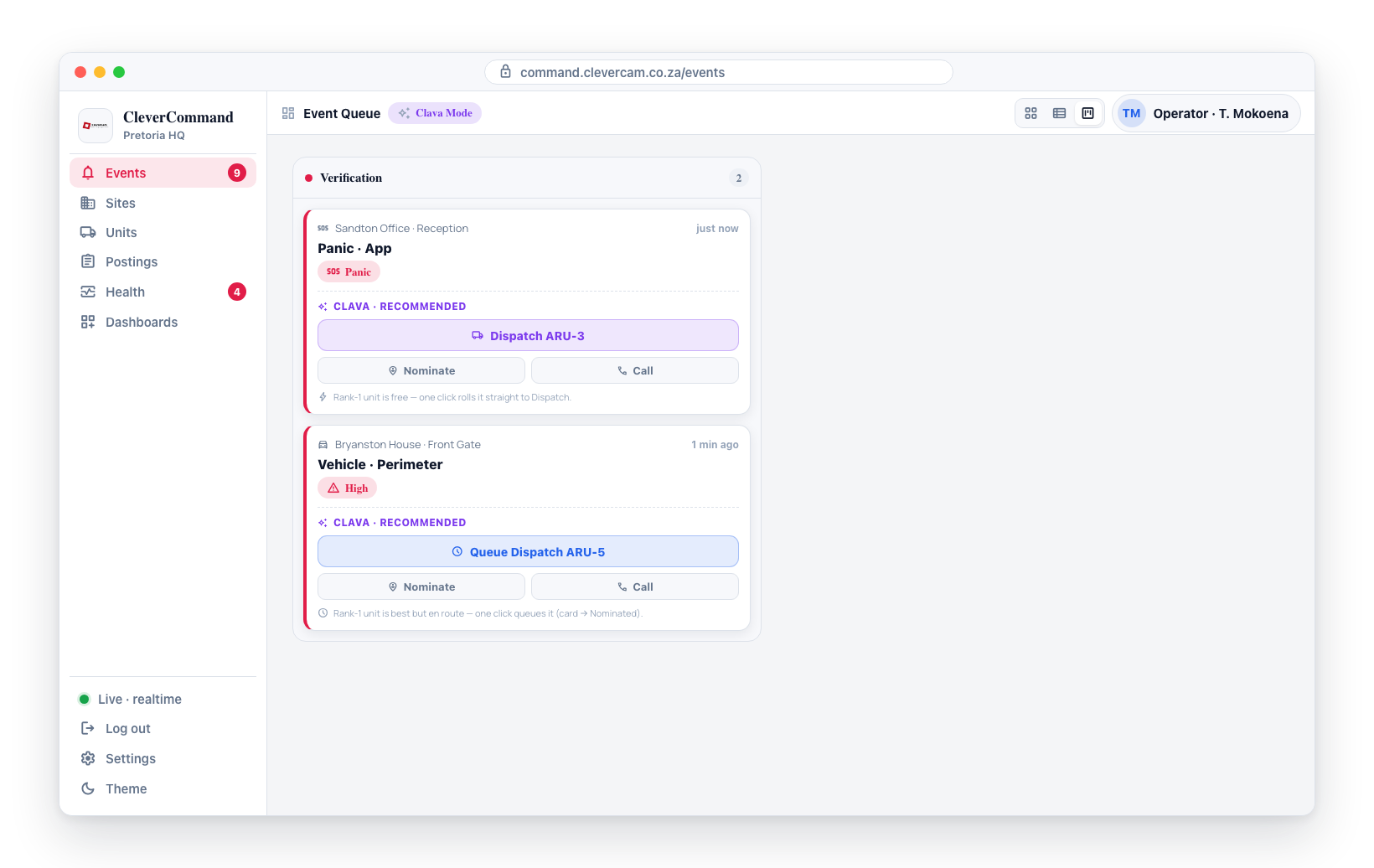
The pill nominates — it never rolls. One click writes the nomination and the card moves to the Nominated for Dispatch column, where the vehicle sits until the operator clicks Roll → (or the responder taps Accept & respond in CleverResponder). There is no path on this board that puts a vehicle on the road without passing through Nominated, so the decision is always verified before the unit moves.
The pill's sub-label tells you what you are nominating:
Nominate {{unit}}· ~N min — the smartest unit is free and can leave as soon as you roll it.Nominate {{unit}}· ~N min wait — the smartest unit is still the best option but is currently en route or carrying a queue delay, so it will be queued behind its current job.
Because this ranking is computed automatically for every Verification card (no operator click), it uses cached road ETAs and straight-line estimates only — the recommender spends no paid routing on it, and it ranks units on their leg to this site alone (no multi-event look-ahead). Paid road routing is bought only when the operator opens the full unit picker (Other unit / Choose Dispatch, or an action that leads to it, such as Escalate to dispatch), and even then only for units' legs to this card's site (plus a busy unit's legs through the jobs it already has): the picker's look-ahead over the other open events uses cached road ETAs and straight-line estimates. Calling a keyholder and resolving the card never buy routing.
The ranking is computed once per event, when the card lands — not once per operator screen. Every open board reads the same stored pick, so three operators looking at the same card cost the same as one, and the pill appears within a few seconds of the card. Cards for signals that can never lead to a dispatch — openings and closings, mains and battery faults, communication and sensor troubles — get no smart pill at all; only Nominate and Call are shown there. If a card still has no stored pick after about 45 seconds (for example an event that arrived while the board was offline), the board asks for it directly, once.
This is the recommended next step on a Verification card — the pill is outlined so the operator's eye lands on the smart pick first. The manual picker pill sits next to it for when you want to choose a unit yourself (or hold the card in the Nominated lane to deliberate): while a smart pick is available it is demoted to read Other unit, and it reverts to Choose Dispatch when no smart pick could be computed (for example when no unit has a GPS fix). Both paths run through the over-dispatch consent gate when the site is over its monthly dispatch limit.
Why it exists
State-machine triage on a kanban is great, but every card click takes you into the full Event Details page. For routine events, the operator already knows the next step before reading the page in detail. Clever/Advance closes that gap by surfacing the most-likely next step as a button on the card itself, so the operator can act without context-switching — but only when the Brain has a confident recommendation. Cards without a confident recommendation render with the standard chrome and no action slot.
Dispatch counter chip (Clava Mode)
When the active VCR has Clava Mode enabled, each kanban card in the Verification, Nominated for Dispatch, and Dispatch columns carries a small dispatch counter chip in its header. The chip reads the per-site monthly dispatch usage for the current period and renders one of three states:
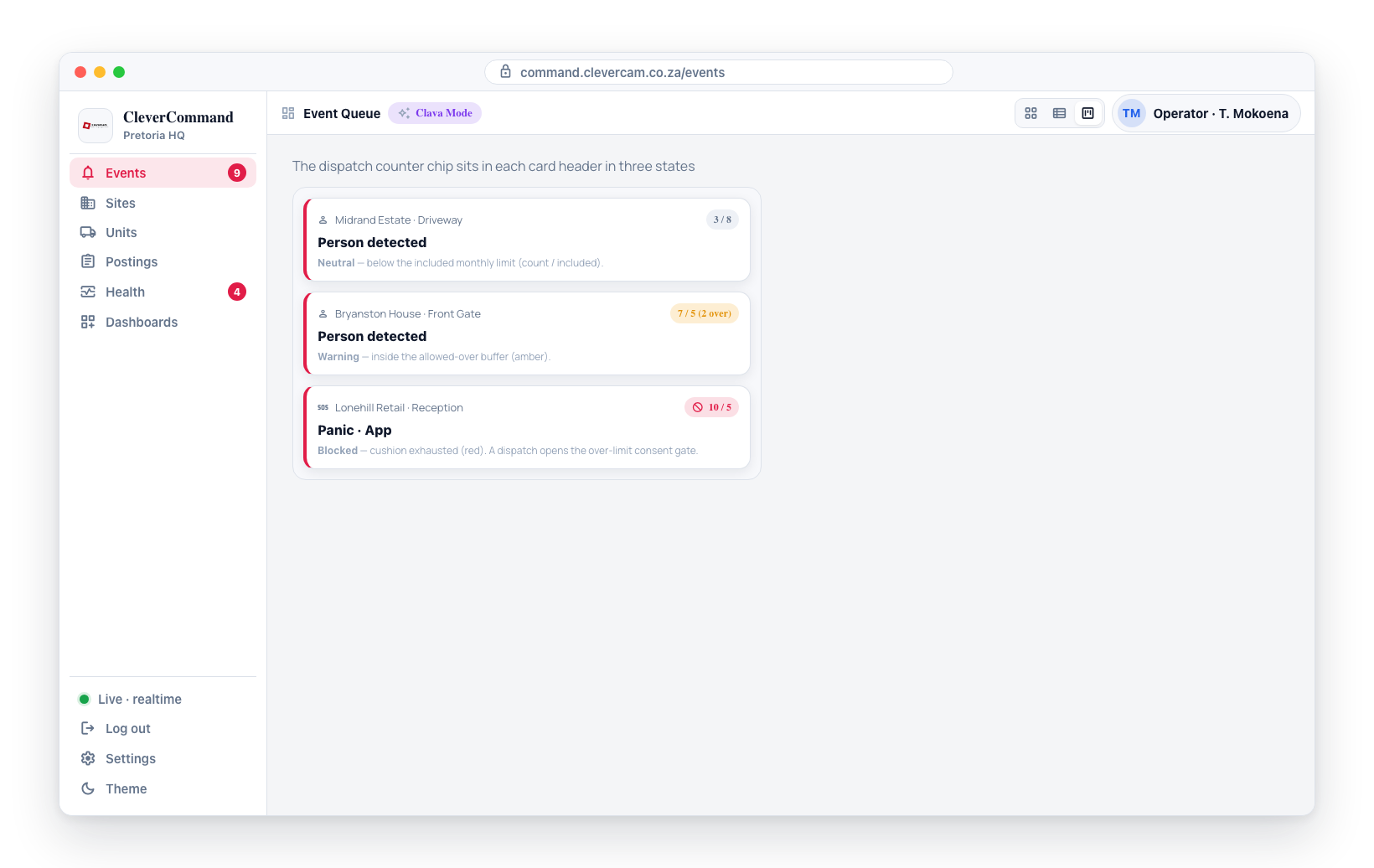
- Neutral -- the site has dispatched below its configured monthly limit. Shows
count / includedin a muted style. - Warning -- the site is in the allowed-over buffer: dispatched past the included quota but still inside the
allowed_over_limitcushion. The chip shifts to amber and labels the cushion remaining (e.g.7 / 5 (2 over)). - Blocked -- the site has exhausted the allowed-over cushion. The chip turns red and clicking a dispatch entry-point (Nominate / Roll / drag-to-Dispatch) opens the Over-limit dispatch consent modal before the dispatch proceeds. See Over-limit dispatch consent on the Dispatch Management page for the modal flow.
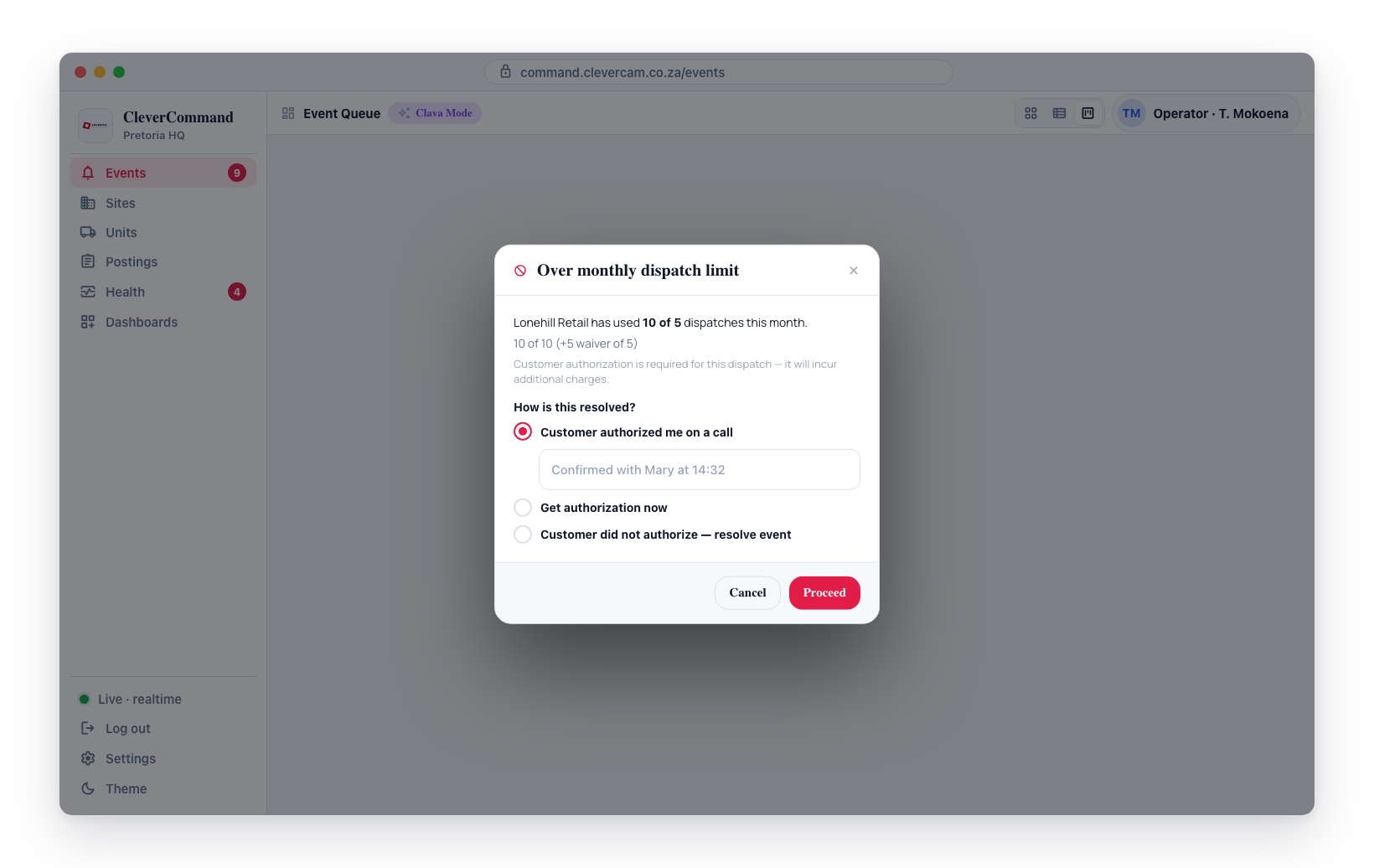
The included quota and over-limit cushion are configured per VCR (default) and optionally overridden per site in CleverOps -- see Dispatch Limits in the CleverOps Settings docs. The chip refreshes via realtime: as dispatches roll across operators, the chip on every card with the same site updates within ~1 second.
Sites in VCRs without Clava Mode never render the chip.
Keyboard shortcuts
Every action on the card's More actions menu also has a single-key shortcut, and the menu shows each key next to its action so you pick them up as you go.
Hold ⇧ (Shift) at any time and a bar appears at the bottom-left listing exactly which keys the selected card accepts right now. Release and it collapses back to a small Hold ⇧ for shortcuts reminder. Press ? for the full cheat-sheet.
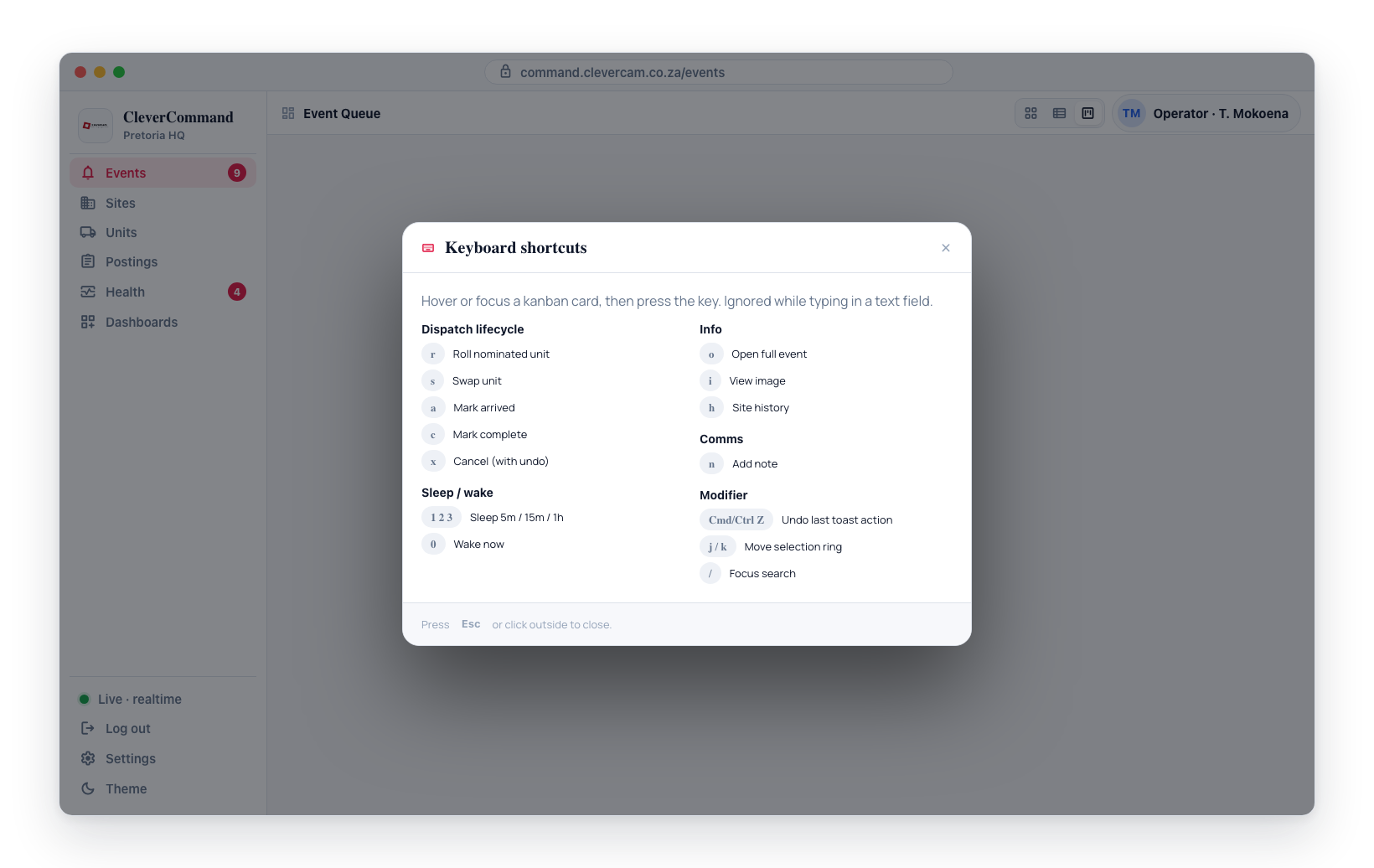
Select a card with j / k (or click it), then press the key — either on its own, or while still holding ⇧.
| Key | Action | |
|---|---|---|
d | Roll now (confirm dispatch) | Dispatch |
u | Swap unit | Dispatch |
a | Mark arrived | Dispatch |
c | Mark complete (opens the outcome picker) | Dispatch |
x | Cancel nomination / dispatch | Cancel |
s | Sleep (opens the smart sleep picker) | Lifecycle |
w | Wake now | Lifecycle |
f | Schedule a check | Lifecycle |
r | Move to Resolved | Lifecycle |
q | Quiet this site 1 h (opens the reason dialog) | Lifecycle |
b | Re-open event | Lifecycle |
o | Open full event | Info |
i | View image | Info |
h | Site history | Info |
n | Add note | Comms |
m | Send message | Comms |
t | Call customer | Comms |
l | Add to operator checklist | Comms |
A key only fires when the selected card actually offers that action — a does nothing unless a unit is rolling, i does nothing when there's no snapshot — so the keys are safe to lean on without checking the column first. Shortcuts are ignored while you're typing into a text field.
Shift is the only modifier that's safe here. As Ctrl combinations, several of these keys would be taken by the browser instead: Ctrl+N opens a new window and Ctrl+1/2/3 switch browser tabs (neither can be blocked by a web page), and Ctrl+R would reload the control room mid-incident.
Navigation:
j/kmove the selection ring through the queue in board order — Sleeping, then Verification, then Nominated for Dispatch, then Dispatch, then Resolved — so holdingjwalks the board exactly as it is laid out on screen. Tab also reaches every card. The ring is blue and only appears for keyboard navigation — clicking a card with the mouse selects it without drawing a ring, so an encircled card never reads as an alarm state.Enteropens the selected event./focuses the search box from anywhere.
Cards are moved between columns by dragging with the mouse; there is no keyboard drag.
Snapshot viewer keys (open via i or the card's View image):
Esccloses,←/→step through frames,Spacetoggles auto-play.- Click the image to zoom 2.5× at that point (click again to reset), scroll to zoom up to 5×, drag to pan while zoomed.
What's coming next
- Smart unit ranking — the Verification card and unit picker will rank candidate units by ETA + petrol cost (Mapbox Distance Matrix), not just alphabetical label. Closer units bubble to the top; the picker surfaces "wait N seconds, ARU-X frees up and is closer" suggestions.
- Live ETA + swap on Nominated cards — countdown to expected dispatch, plus inline swap-unit suggestions if a closer unit becomes available before Roll.
- Site-classification-aware proposals — the Brain reads the site's classification (set in CleverOps Site Configuration) to decide whether app/WhatsApp notifications are even an option for this site. Operator-continuous sites won't see "Notify client" suggestions; alarm-discipline sites will.
- Self-distillation — every proposal render + click + override is logged so a small classifier can learn which suggestions operators trust, and pre-filter low-quality proposals before the LLM sees them.
Related
- Cards & Table Views — the two list view modes available to every VCR.
- Event Queue — the underlying event queue.
- The site classification you set in CleverOps drives whether the Brain will propose app/WhatsApp notification actions for a site. See
cleverops/sites/site-classification.mdx.