Hyyp hub setup
Hyyp is an IDS-family alarm communicator (X-Series panels paired with the AppConnectLTE communicator) integrated into CleverCam. Once set up, you can arm/disarm partitions, bypass zones, fire PGM triggers, and view events — all from within CleverOps and CleverAlert. Communication with Hyyp's API is handled server-side; portal credentials are never exposed in the browser.
Monitor only or Manage
The Hyyp step opens on a small Monitor only / Manage switch, and Monitor only is selected by default — most control rooms link the radio first and take over control later, if at all. The line under the switch says what the selected mode does.
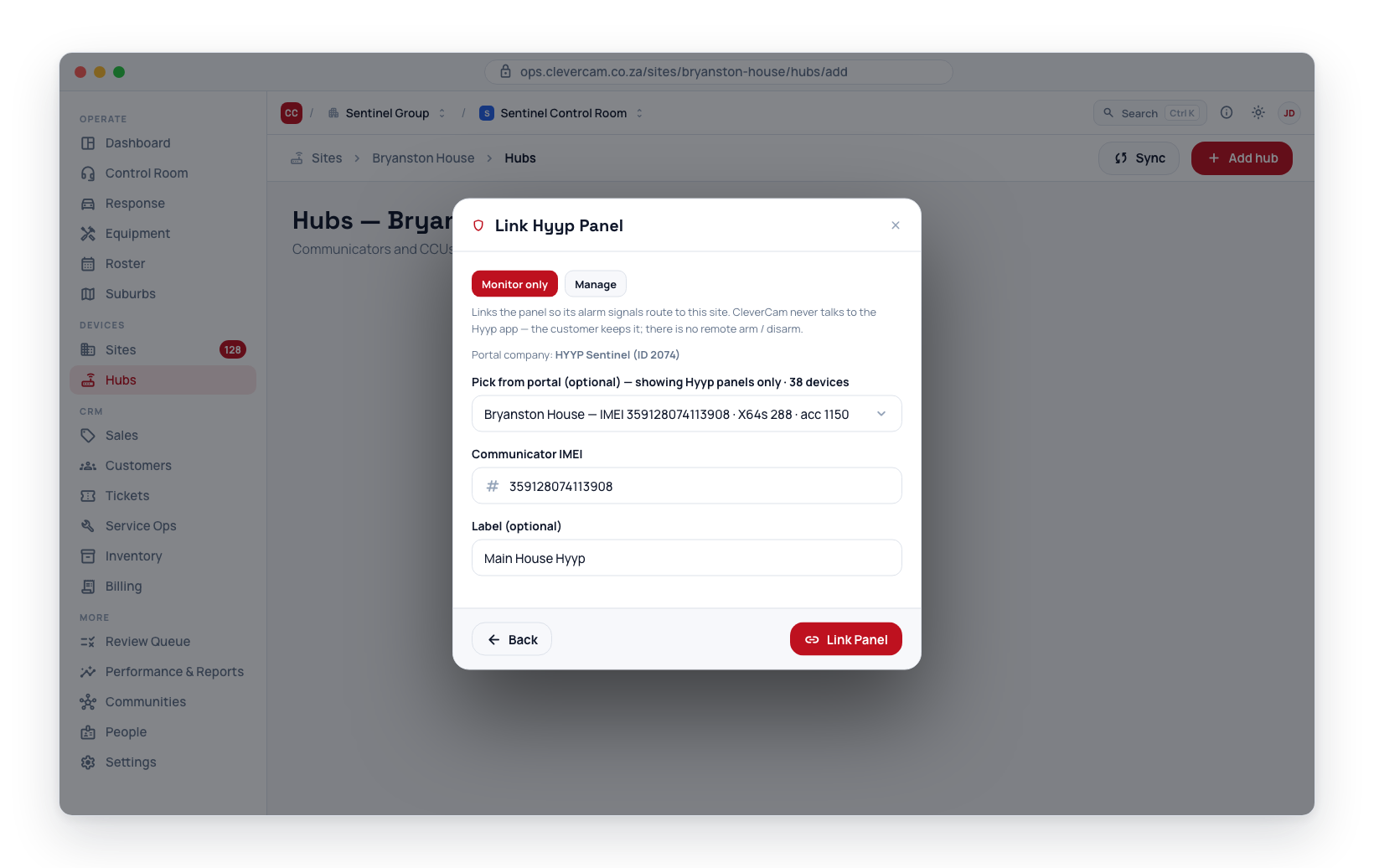
- Monitor only (default) — "Links the panel so its alarm signals route to this site. CleverCam never talks to the Hyyp app — the customer keeps it; there is no remote arm / disarm." Events come in via the TCP CID receiver only. The step's title is Link Hyyp Panel and its button Link Panel.
- Manage — "Adds remote arm / disarm, bypass and zone state: CleverCam registers the panel on its Hyyp account, which may need a SYNC press on the communicator." CleverCam connects to the panel via the Hyyp app API: arm/disarm, bypass, PGM triggers, partition + zone state, and notifications. Activation requires either a SYNC press on the communicator (fresh panels) or an existing CleverCam account on the panel (re-attach / sub-user paths). The step's title becomes Activate Hyyp Communicator, a Master PIN (optional) field appears, and the button reads Activate.
Adding a panel
- Open Sites → View Site → Hubs → Add hub.
- Pick Hyyp as the hub type.
- The TX number step opens for that line, asking for the panel's TX number (account code) or IMEI. CleverOps checks every receiver line on the control room for whatever you type, so a panel already reporting — on this line or another — comes up to pick, with its IMEI carried into the next step. Otherwise click Continue with <IMEI> (an IMEI-shaped value carries into the IMEI field below), or Continue / Continue without a TX number to enter the IMEI on the next step — a typed account code cannot carry over, because a Hyyp panel is added by its IMEI. See Adding an alarm panel by TX number.
- Verify your IDS portal company — enter the IDS portal company ID this panel sits under. If our master account isn't a member yet, follow the on-screen instructions to add
hyyp@clevercam.co.zaas a portal member, then click Verify again.
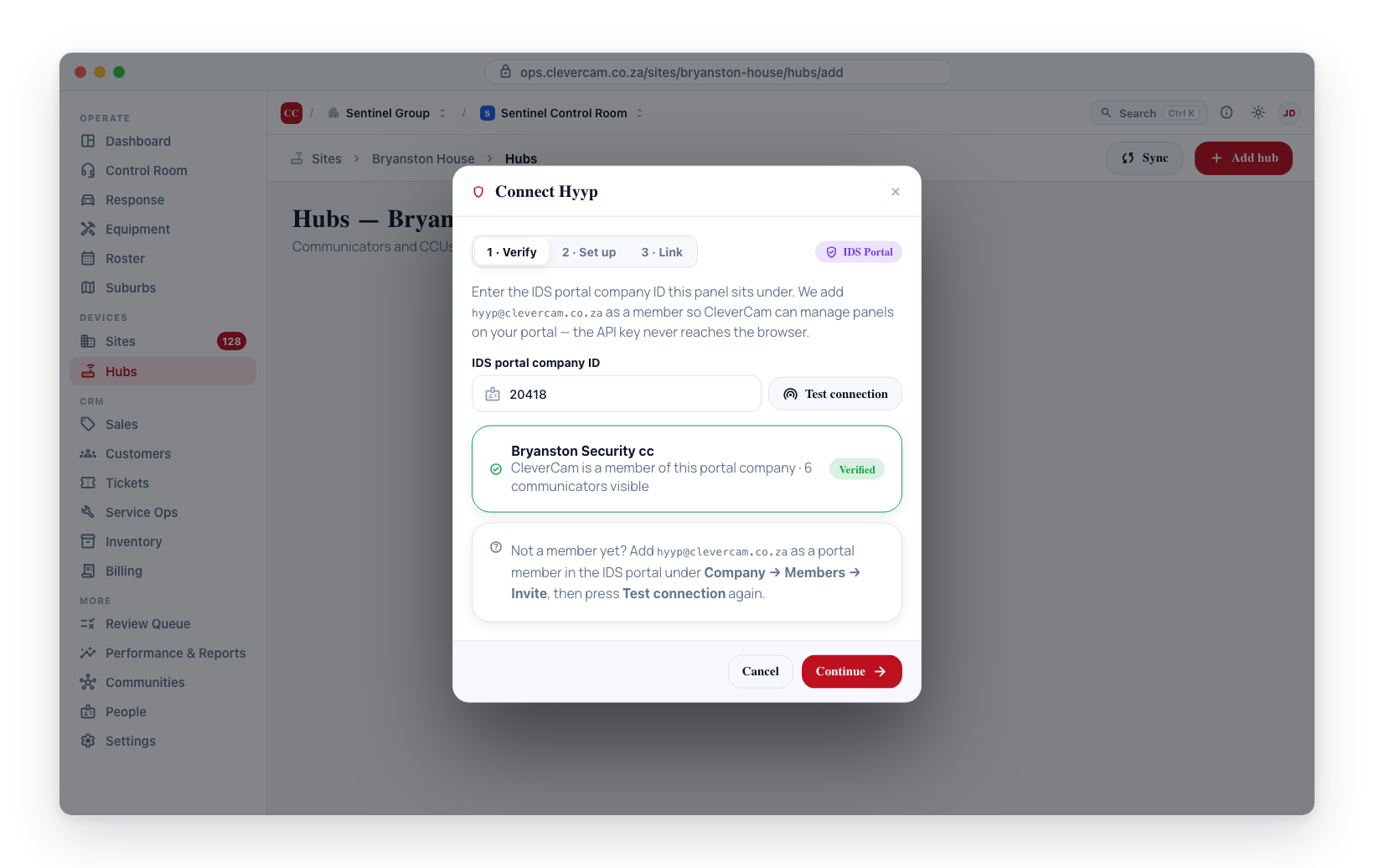
- Leave the switch on Monitor only, or switch to Manage for remote control (see Monitor only or Manage).
- Choose the communicator — either pick it from the portal device list (see Picking a device from the portal below) or type the IMEI of the AppConnectLTE communicator by hand (15 digits, on the device label). The panel's 4-digit account code is not an IMEI — the wizard warns as you type and refuses to continue on one, because a hub saved under an account code can never receive a signal. If the panel is already reporting, it is in the portal list: pick it there.
- Optionally set a label (defaults to "Hyyp") and, on Manage, a PIN (4 digits — used for arm/disarm).
- Click Link Panel (Monitor only — the panel is linked and waits for its CID signals) or Activate (Manage — the wizard automatically classifies the panel and routes you to the correct path below).
Picking a device from the portal
Pick from portal lists every device under the verified portal company, filtered to the hardware family for this flow (Hyyp panels here; OnyyxHub devices in the Onyyx flow). The header shows how many devices were found.
Each row leads with the device's portal site name — the description the installer gave it in the IDS portal — so you can find a panel by the name you know it by rather than by a 15-digit number. Underneath, the row shows:
- the IMEI,
- the panel / kit type (e.g. X64s 288) or communicator type,
- the account code (
acc …) where the portal has one, - when the device last communicated with the portal,
- and already linked if the device is on a CleverCam hub already.
Type in the search box to filter by any of those — site name, IMEI, or account code. Devices that are already linked stay visible but greyed out and cannot be picked, so it is clear why a device isn't selectable rather than it simply being missing from the list.
Picking a row fills in the IMEI. If the device you want isn't listed, choose — None (type IMEI manually) — and enter it by hand.
What happens on Activate
This is the Manage path only — Link Panel on Monitor only links the panel straight away and none of it applies. CleverCam looks the panel up via the IDS portal admin API to figure out who currently controls it, then routes you to one of three paths.
Path 1 — Fresh panel (most common)
The panel has no app users. You see a Press SYNC screen with a 90-second countdown.
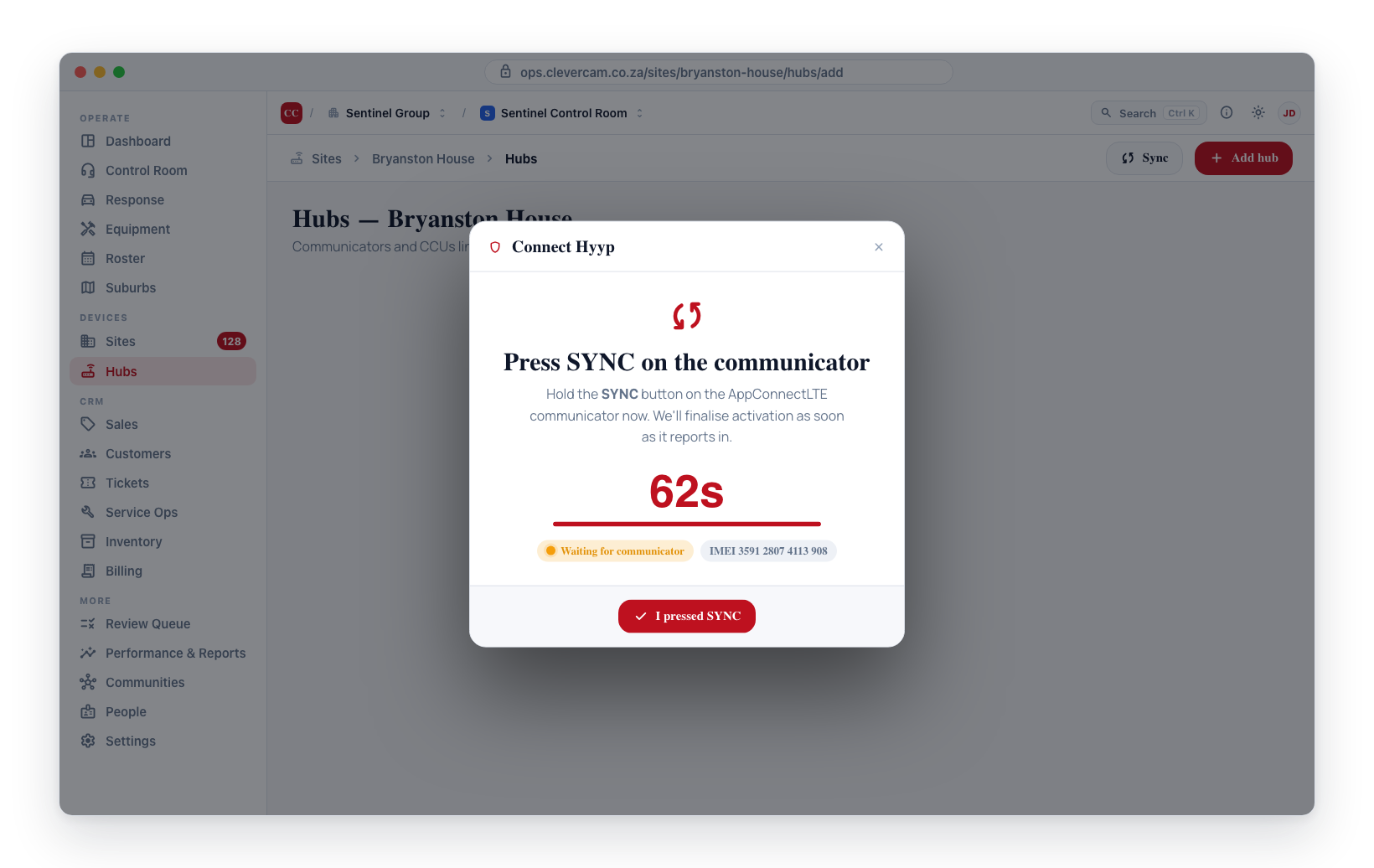
- Hold the SYNC button on the AppConnectLTE communicator.
- The wizard finalises activation as soon as the panel reports in.
- CleverCam pulls in partitions, zones, and triggers from
getSyncInfoand lands on the Alarm panel linked screen.
Path 2 — Already on CleverCam (re-attach)
The panel was previously activated under CleverCam (any VCR). The wizard skips SYNC entirely and re-links the panel locally — you go straight to Alarm panel linked without any communicator interaction. Useful when:
- Moving a panel between VCRs or sites
- Re-adding after a soft unlink
- Recovering from a wizard cancellation mid-flow
Path 3 — Owned by another master ("Alarm panel already registered")
Someone other than CleverCam is the primary user on this panel — typically the customer is using the standard Hyyp app. The wizard shows a choice screen titled Alarm panel already registered with two options:
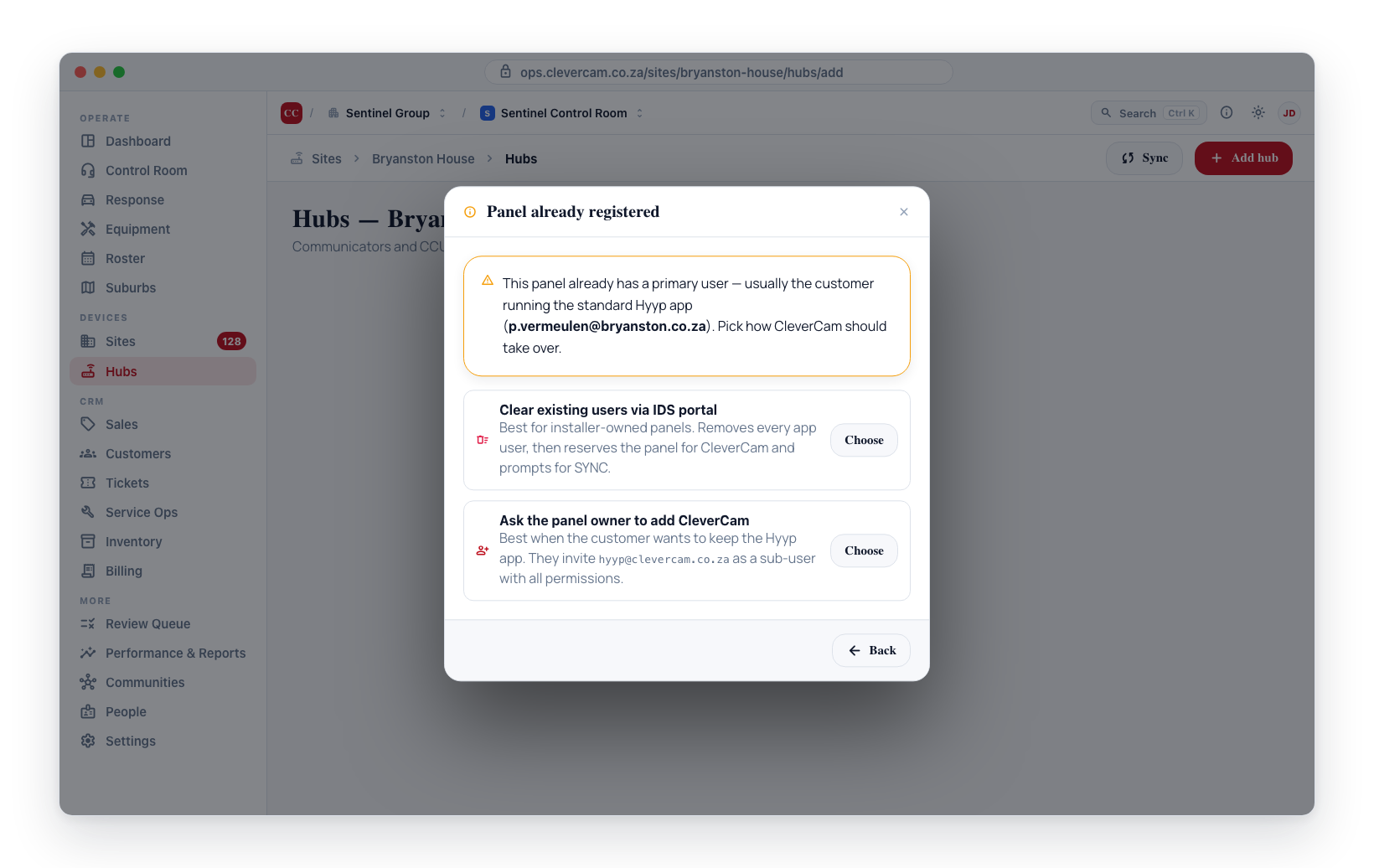
Option A — Clear existing users via IDS portal
For installer-owned panels where you want CleverCam to take over completely. This route goes through the Take over alarm panel confirmation:
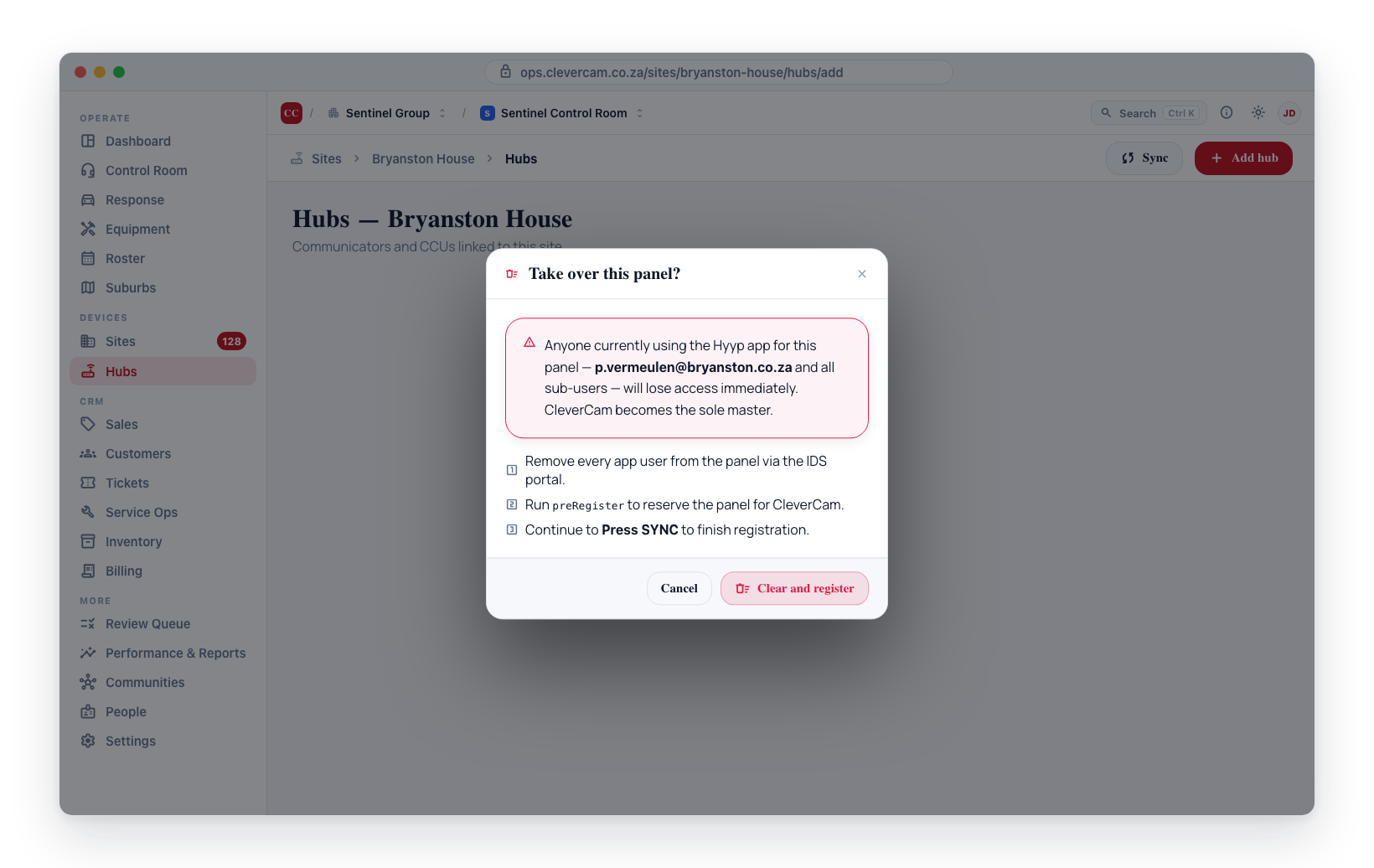
- Removes every app user from the panel (master + sub-users) using your IDS portal company access.
- Runs
preRegisterso the panel is now reserved for CleverCam. - Drops you on Press SYNC so you can finish the registration.
The previous master and any sub-users will lose all access to this panel as soon as you click "Clear and register". Use this only on panels you (the installer) actually own.
Option B — Invite our user as sub-user
For customer-owned panels where you don't want to disturb the customer's existing setup. This path goes through the Ask the panel owner to add CleverCam step:
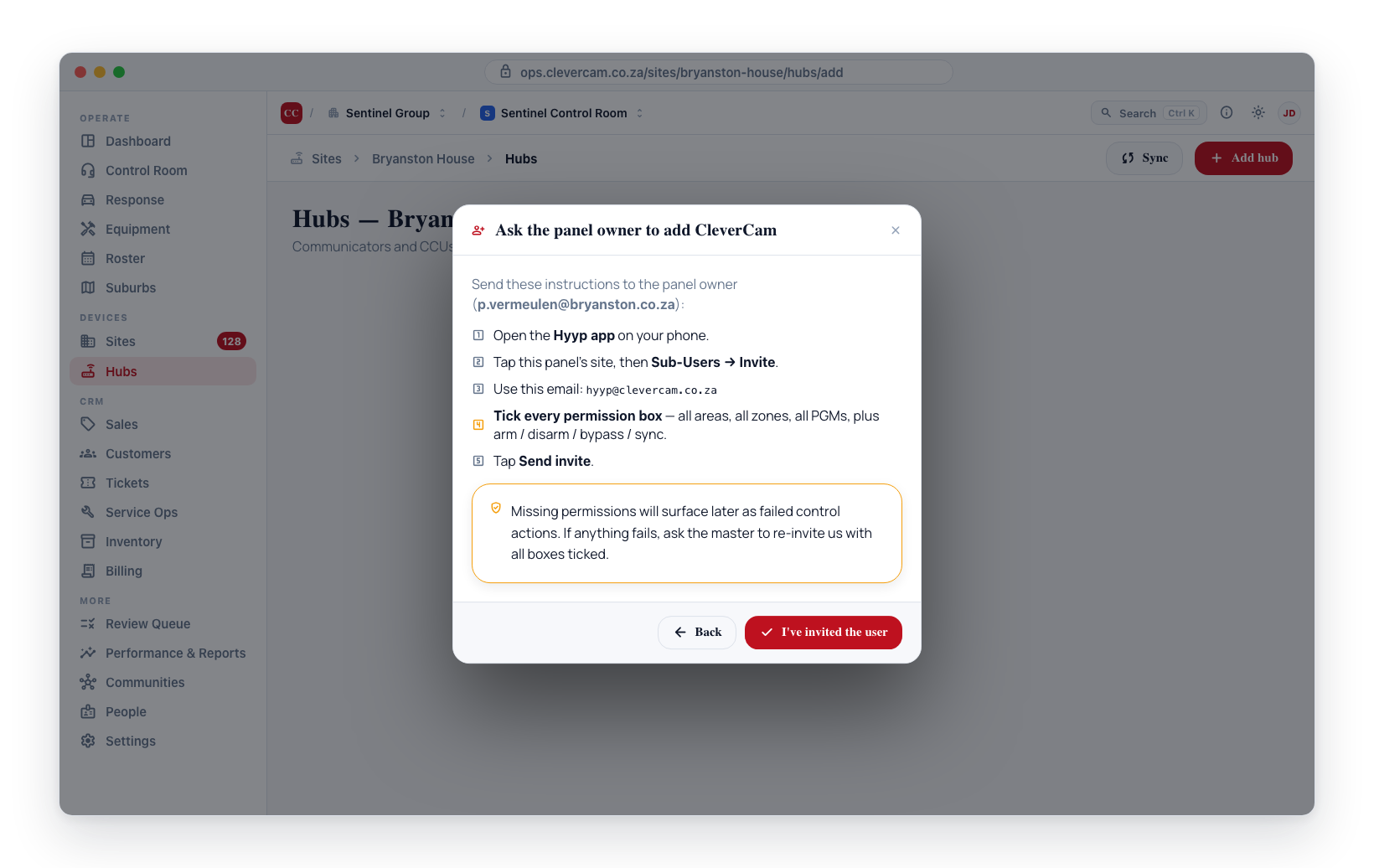
- Asks the customer's master to invite
hyyp@clevercam.co.zaas a sub-user from inside the Hyyp app. - Tick every permission — all areas, all zones, all PGMs, plus arm / disarm / bypass / sync. Missing permissions will surface as failed actions later.
- Once the master accepts, click I've invited the user in the wizard. CleverCam verifies access and links the panel.
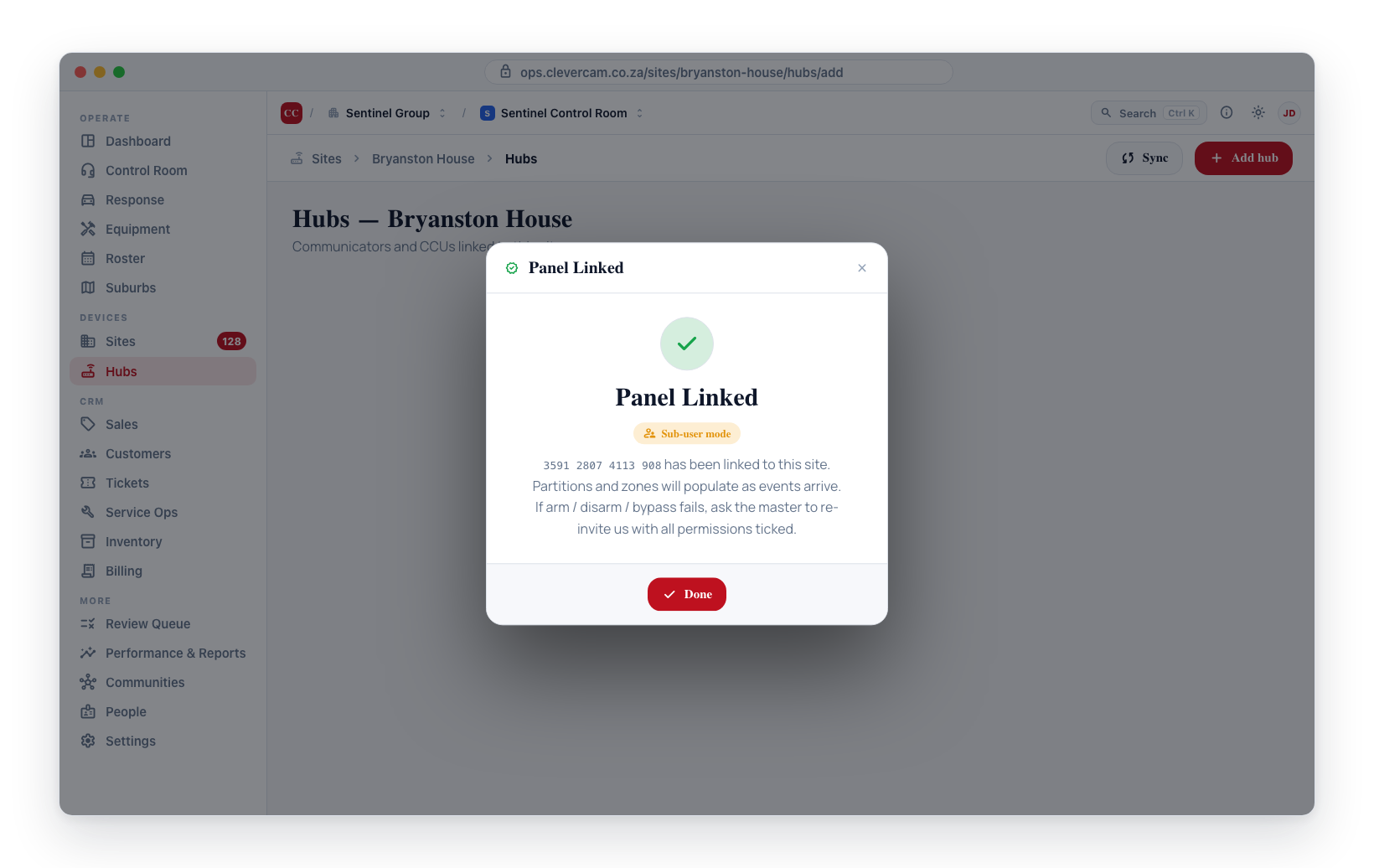
When you arrive on the Alarm panel linked screen via the sub-user path, an amber Sub-user mode badge appears on the success screen. The hub stays in managed_subuser mode going forward — operationally identical to managed mode, but if any control action fails with a permissions error, ask the master to re-invite us with all permissions ticked.
The hub detail panel
Opening a Hyyp hub from Sites → this site → Hubs shows three layer badges — DB, Portal, App — that light up as each layer answers, plus a status pill and, when something needs fixing, a banner above them:
- Monitor-only mode (amber) — the panel is registered for event reception only. Fix this hub — open setup wizard re-runs activation (
preRegister→ SYNC press) to promote it to managed, and Show step-by-step spells out the SYNC press on the communicator. - Out of sync with Hyyp (blue) — CleverCam was managing the panel, but our master account no longer sees it on Hyyp's side. Events still arrive over TCP; live arm and zone state can't refresh until access is restored. Same Fix this hub button, plus the sub-user re-invite instructions.
Both banners, the Portal and App badges, and the IDS portal / Hyyp app actions are Hyyp-only. Other communicator types (FSK, RDC, FOX, Olarm, FinMon, Ajax, and so on) share this detail panel but show just the DB badge, the partition and zone lists, and the note "Panel actions for this communicator type aren't managed here." — there is no SYNC-press wizard on those protocols, so none is offered. Where those types do have control (Olarm's app control, for instance) it is enabled from Settings → Alarm Receivers → Panels, and arming runs through the site's groups.
Removing a panel
The hub detail panel has two removal options:
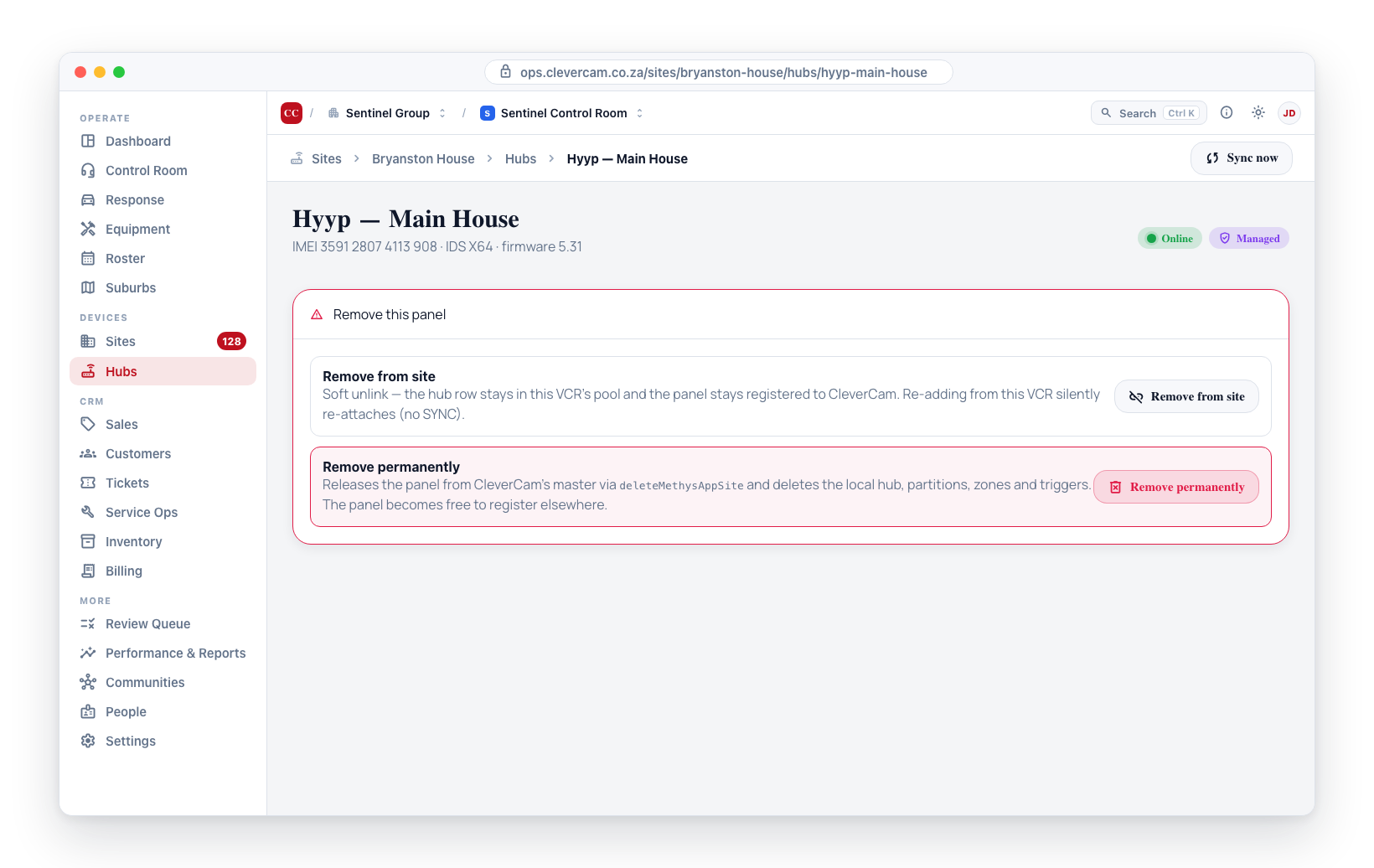
- Remove from site — Soft unlink, and the everyday choice. The panel's partitions, zones and triggers are archived (Archive → Hub config archives, reason unlinked) and detached, its billing stops, and the hub row is preserved: it stays in this VCR's Hubs list as Unlinked and in the receiver's Already reporting to this receiver list, keeping its name, PIN and history. The panel stays registered to the CleverCam master on Hyyp's side, so re-adding it from the same VCR will hit the silent re-attach path. The same action is available for every communicator type (FOX, FSK, RDC, Olarm, Ajax, …), and it is what Replace entire system does to the old panel before opening the wizard.
- Remove permanently — Deletes the local hub row + partitions + zones + triggers (archived first, billing record removed), then calls
deleteMethysAppSiteon the IDS portal to release the panel from CleverCam's master. The panel is now genuinely free to be registered to a different account (CleverCam VCR or customer). Reserve it for a communicator that will never report to you again — a radio-code identity that transmits after being deleted simply reappears as a new, unnamed Alarm Panel.
If a customer wants to migrate a panel from one CleverCam VCR to another, use Remove from site on the source VCR, then Add hub on the destination VCR — the destination wizard will silently re-attach without a SYNC press.
Troubleshooting
"Panel is offline" after Press SYNC
The communicator hasn't reported in within the 90-second window. Check the device's signal LED, ensure the SIM has data, and click I pressed SYNC to retry. Re-pressing SYNC is safe.
"Sub-user not yet visible on master"
You clicked I've invited the user before the customer's master phone accepted the invite. Wait a moment and click again. Hyyp's portal can lag a few seconds after invite acceptance.
"preRegister failed" after Clear and register
This is unusual — the panel side rejected the registration even after we cleared all users. Check that the communicator is online (LED solid) and the SIM has data. A power cycle on the communicator usually fixes this.
"Some operations may be limited" after sub-user activation
The customer's master didn't tick every permission when inviting us. Ask them to remove and re-invite hyyp@clevercam.co.za with all permissions ticked.