Hub Commands
CleverOps allows you to send remote commands to Clever Hubs directly from your browser. These commands are invaluable for troubleshooting, maintenance, and keeping hub data up to date without needing to send a technician to the site. Each command triggers a specific action on the hub and reports the result back to CleverOps.
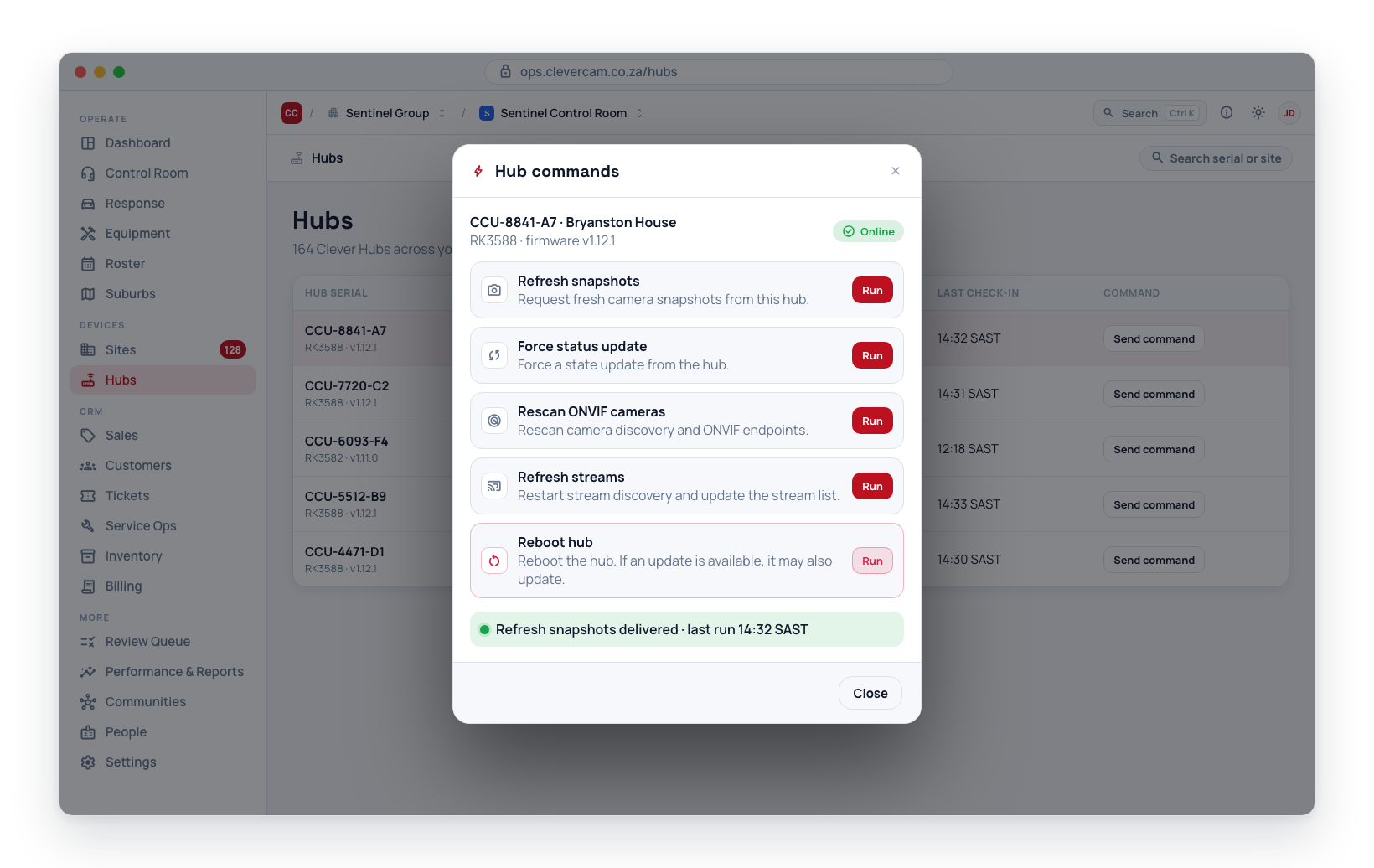
Available Commands
Refresh Snapshots
Fetches the latest camera images from all cameras connected to the hub. Use this when the thumbnails shown in CleverOps look stale or outdated.
- Navigate to Hubs and select the hub.
- Click Refresh Snapshots from the commands menu.
- The hub captures a new snapshot from each connected camera.
- Updated thumbnails appear in the site details and hub views within a few seconds.
Force Status Update
Forces the hub to report its current status immediately rather than waiting for the next scheduled check-in. Use this when you suspect the hub's displayed status is out of date.
- Select the hub from the hub list.
- Click Force Status Update.
- The hub sends a fresh status report including connectivity, camera states, and system health.
- The hub details page updates with the latest information.
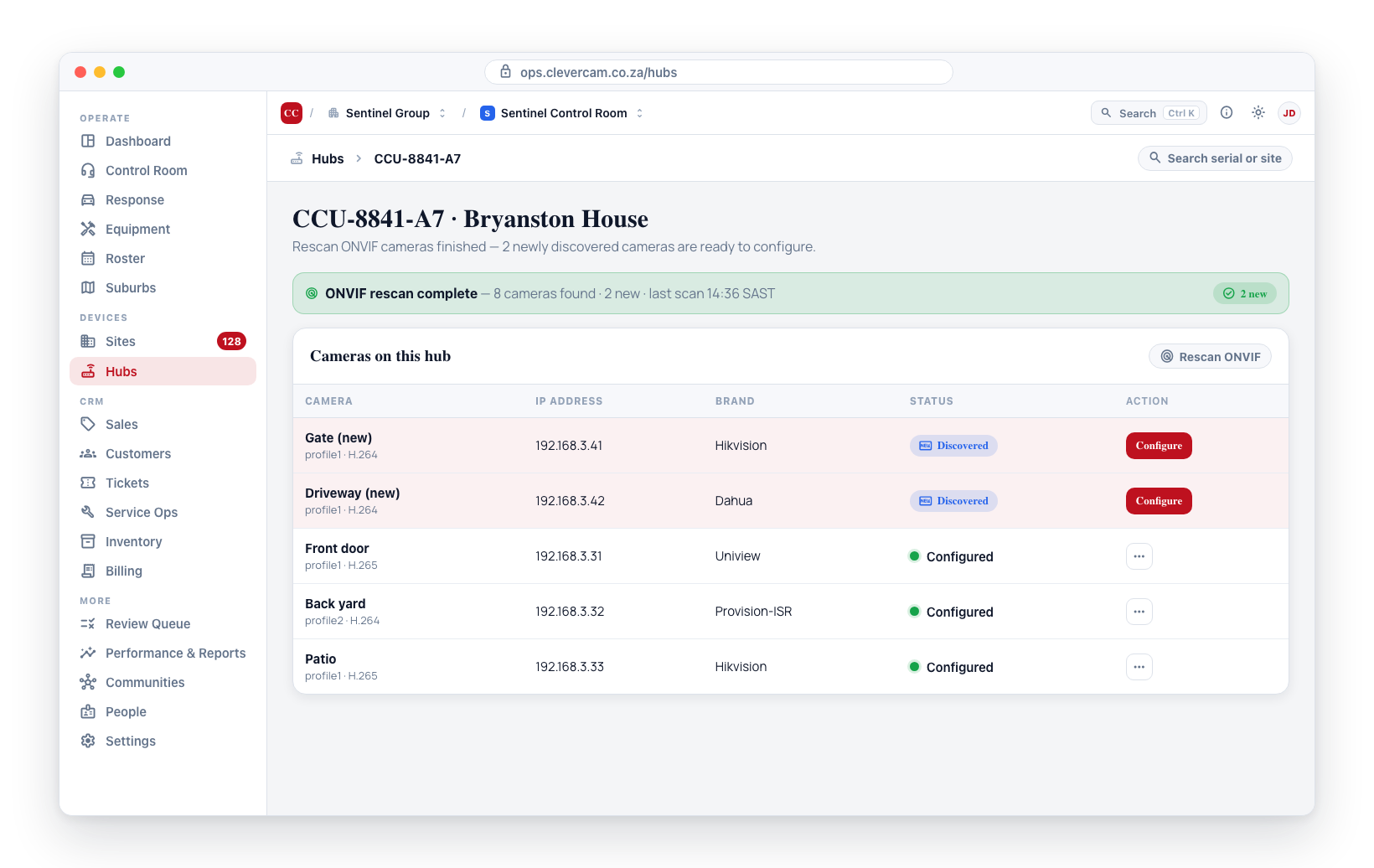
Rescan ONVIF Cameras
Triggers the hub to scan its local network for compatible cameras. Use this after a new camera has been physically installed at the site.
- Select the hub from the hub list.
- Click Rescan ONVIF Cameras.
- The hub performs a network scan and reports any discovered cameras.
- Newly discovered cameras appear in the site's camera list, ready to be configured.
Camera discovery only finds cameras that are on the same local network as the Clever Hub. Make sure the new camera is powered on and connected to the network before running the scan.
Refresh Streams
Reconnects all camera streams on the hub. Use this if live streams are failing or showing connection errors but the hub itself is online.
- Select the hub from the hub list.
- Click Refresh Streams.
- The hub drops all current stream connections and re-establishes them.
- Live streams should resume within a few seconds.
Reboot Hub
Remotely restarts the Clever Hub. This is the most disruptive command and should be used as a last resort when other commands have not resolved the issue.
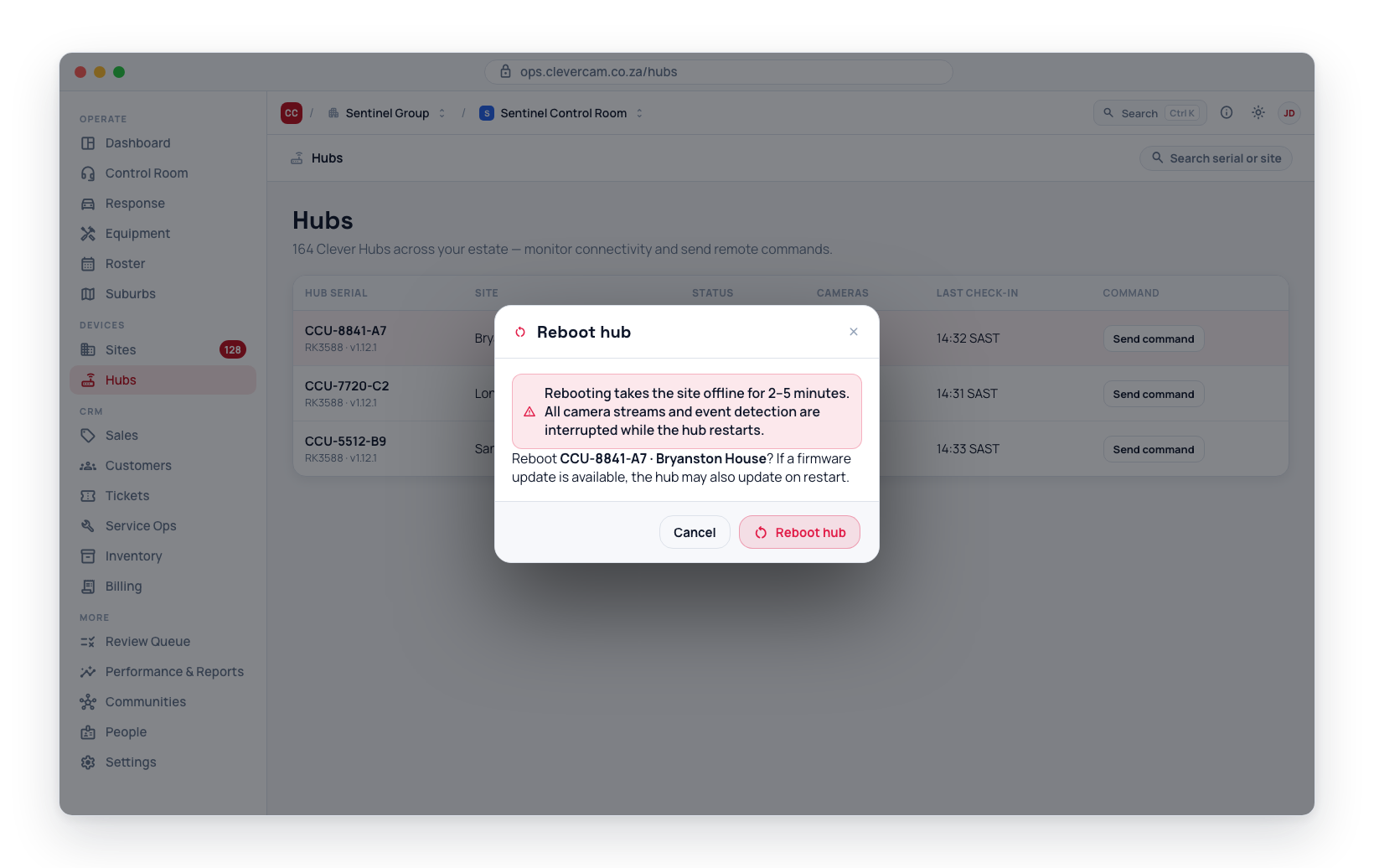
- Select the hub from the hub list.
- Click Reboot Hub.
- Confirm the reboot when prompted.
- The hub will shut down and restart. This process takes approximately 2–5 minutes.
- During the reboot, the hub will show as offline. It will return to online status once the restart is complete.
Rebooting a Clever Hub temporarily takes the site offline. All camera streams and event detection will be interrupted during the reboot. Only reboot a hub when other troubleshooting steps have failed, and inform the site owner if possible.
Command Status and Feedback
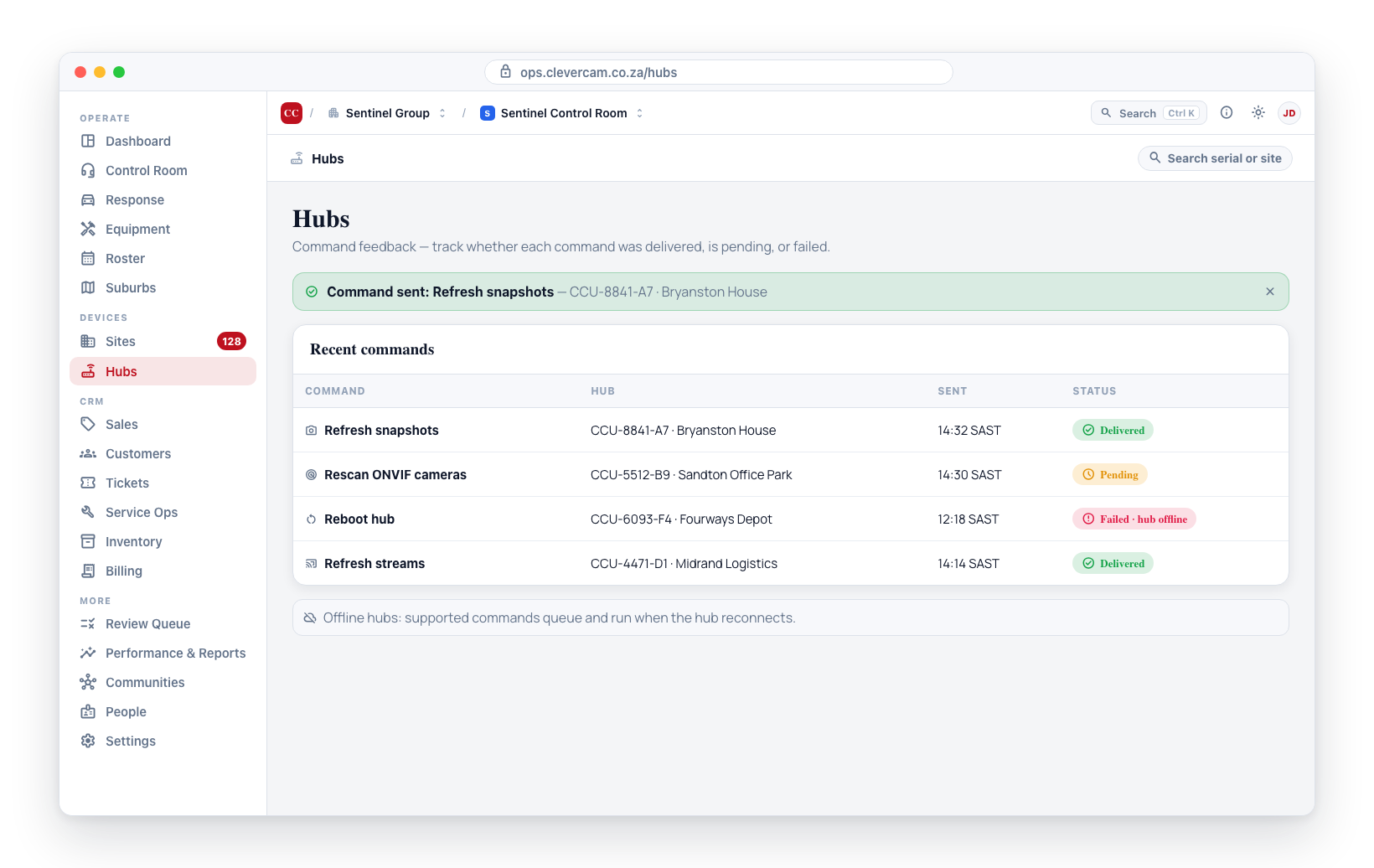
After sending a command:
- A status indicator shows whether the command was delivered, pending, or failed.
- If the hub is offline, commands will queue and execute when the hub comes back online (for supported commands).
- Check back on the hub details page to confirm the command had the expected effect.
When to Use Each Command
| Symptom | Recommended Command |
|---|---|
| Stale camera thumbnails | Refresh Snapshots |
| Hub status seems outdated | Force Status Update |
| New camera not showing up | Rescan ONVIF Cameras |
| Live streams not loading | Refresh Streams |
| Hub unresponsive to other commands | Reboot Hub |
When troubleshooting a hub issue, work through the commands from least disruptive to most disruptive: start with Force Status Update, then try Refresh Streams, and only use Reboot Hub as a last resort.