Billing Status
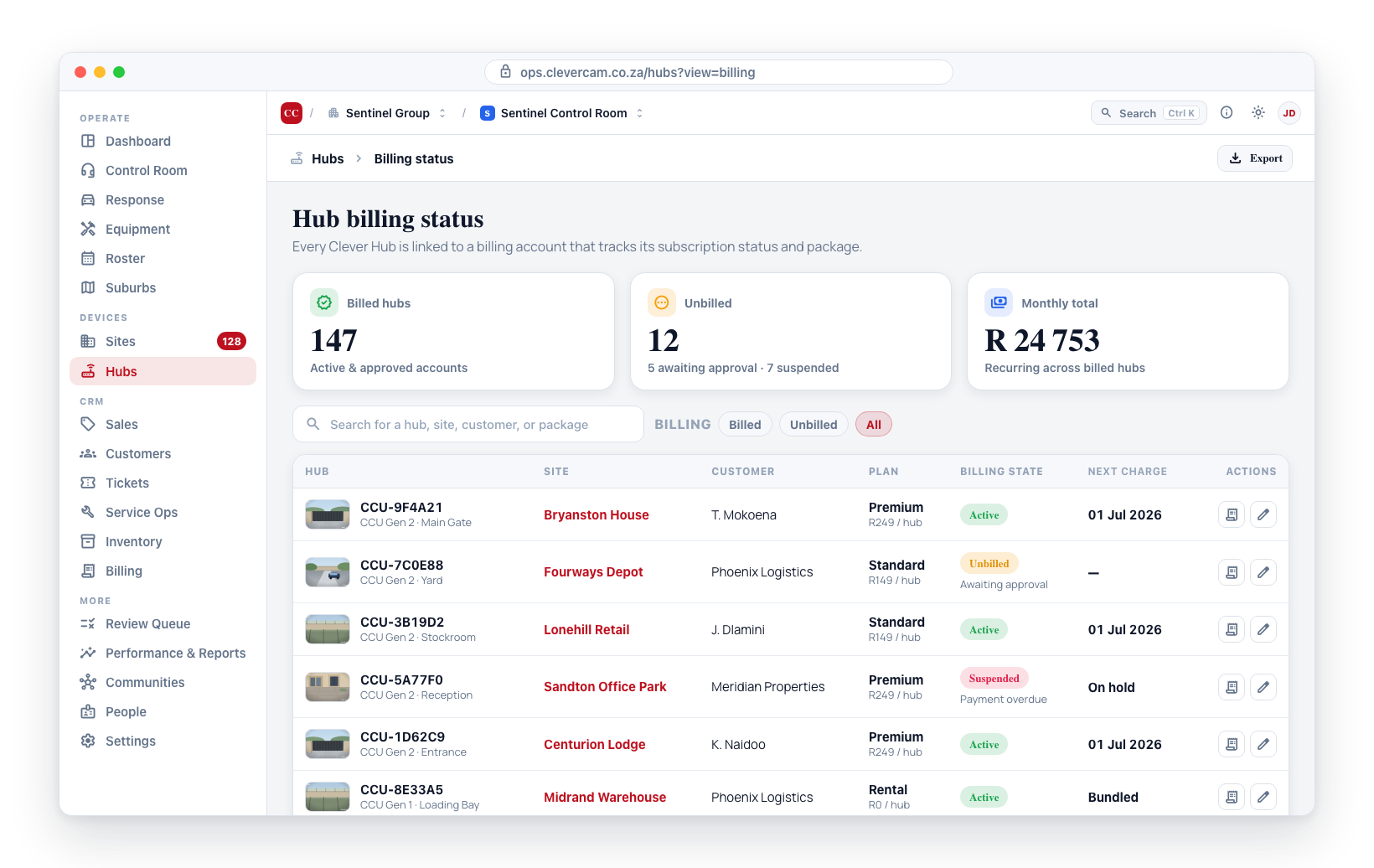
Every Clever Hub is linked to a billing account that tracks its subscription status and service package. The billing status view in CleverOps lets you see at a glance which Clever Hubs are active, which have billing issues, and what package each hub is running on. This information is essential for ensuring uninterrupted service to your customers and managing your operational costs.
Viewing Hub Billing Information
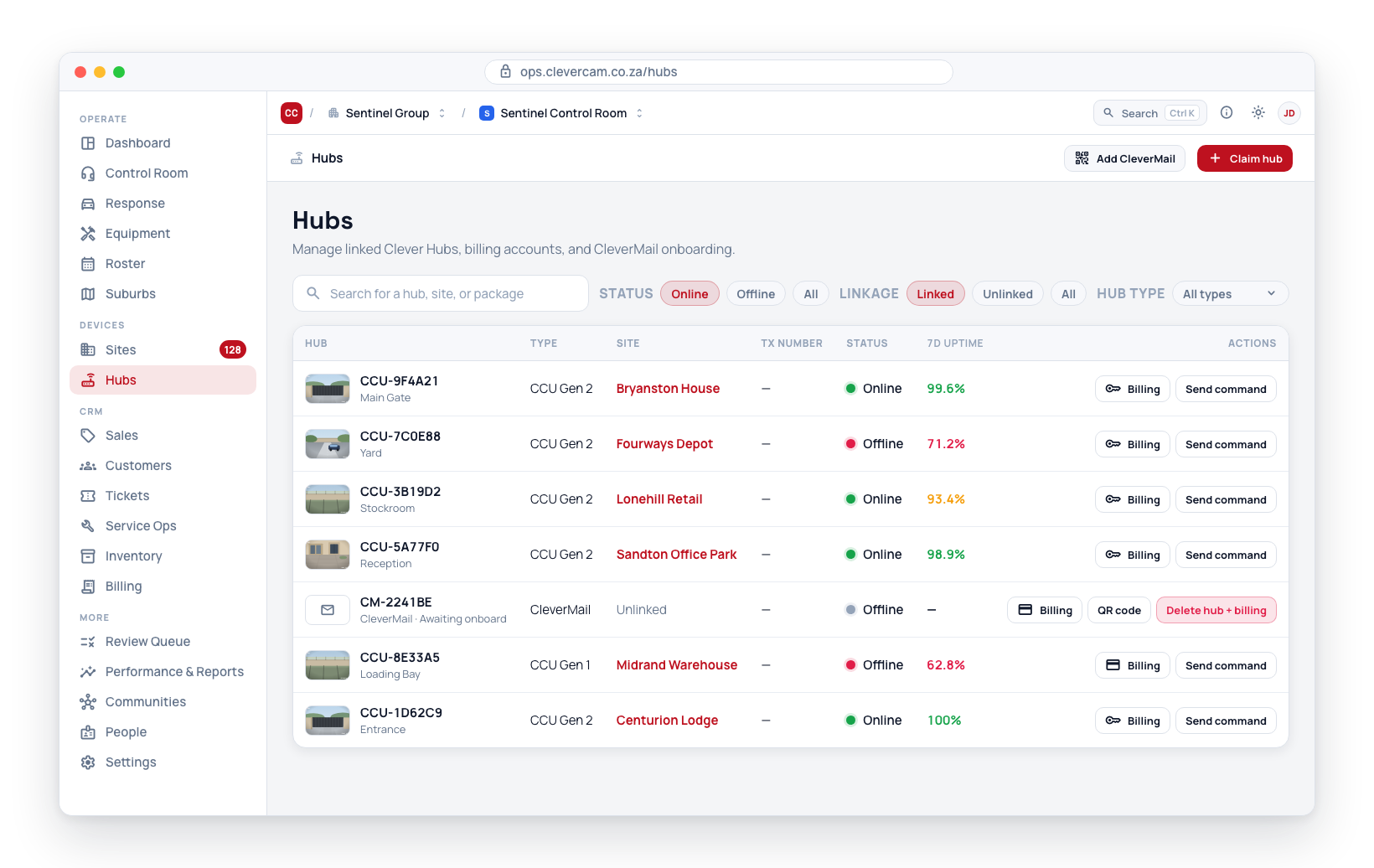
- Navigate to Hubs in the sidebar.
- In the hub table, the Billing column shows the billing status for each hub.
- Each hub's billing entry shows:
- Package name — The subscription package assigned to this hub.
- Active/Approved status — Whether the billing account is active and approved.
Billing Account Fields
The billing information tracked per hub includes:
- Hub package — Which package the hub is subscribed to.
- Is active — Whether the billing account is currently active.
- Is approved — Whether the billing account has been approved.
- Approved date — When the billing was approved.
- Approved by — Which staff member approved the billing.
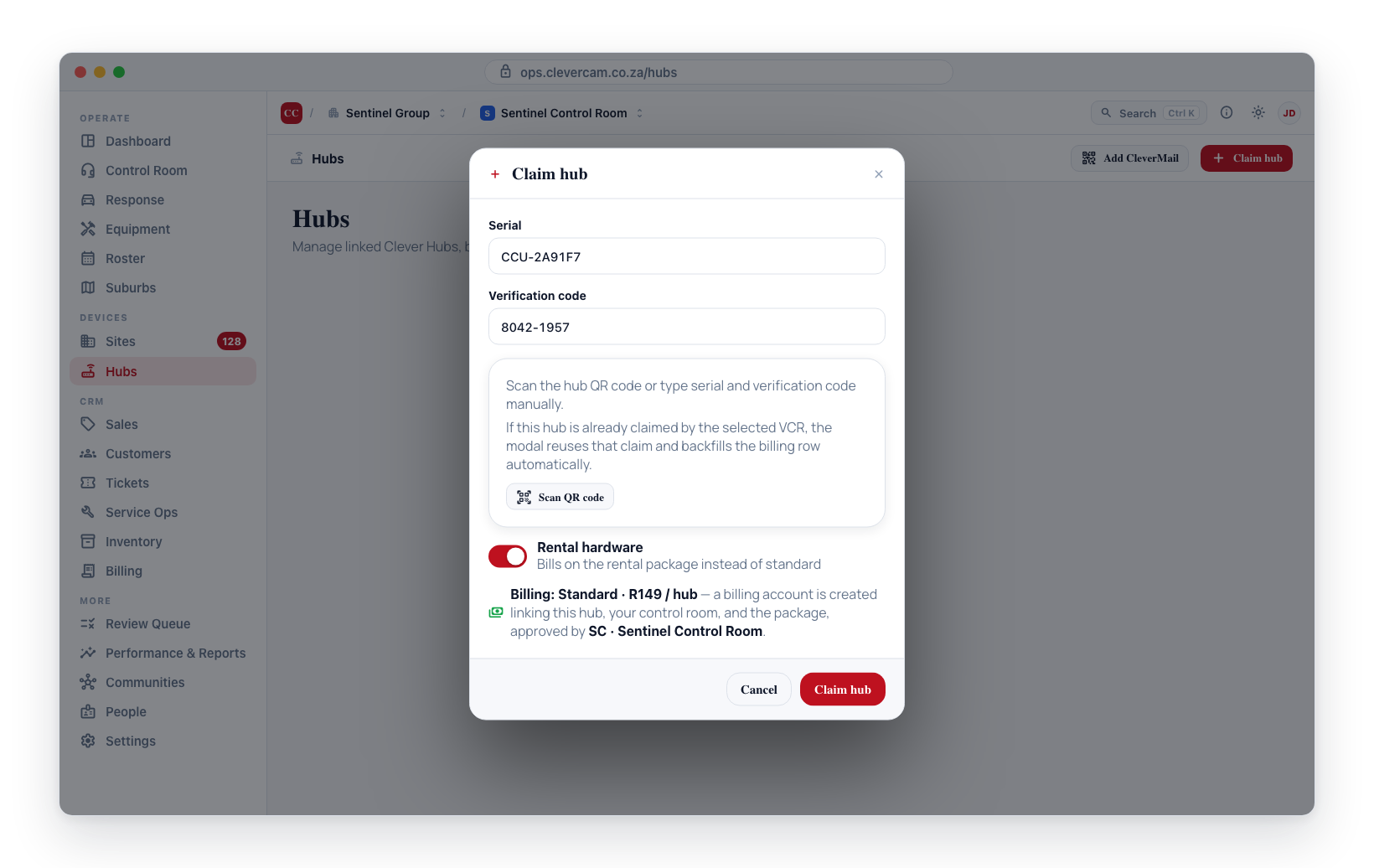
Billing account management is handled through CleverOps and the hub setup process. When a Clever Hub is registered to your monitoring centre, a billing account entry is created linking the hub, your centre, and the selected package together.
Hubs with no billing account
Not every hub in your inventory has a billing account. A hub can end up unbilled because its billing was removed, because it was claimed but never brought into service, or because the hardware was replaced and the old unit was left behind. These hubs show a red Billing button in their row's Actions column (hover: no billing account — not charged, not monitored) — they are not being charged and not being monitored.
In practice this only happens to CleverCam CCUs, which are claimed via the app or QR code and get their billing account through the claim dialog. Every hub created from CleverOps itself — CleverMail and Panic App hubs, from this page, a site's Add hub flow, or Add personal cover — is born with its billing account already linked to your control room, so it can never appear here as unbilled. An unlinked CleverMail or Panic App hub with billing is simply not deployed yet: link it to a site to put it in service (its charges only start from what the site carries — camera streams for CleverMail, app users for Panic App).
No billing is not a kind of rental. Owned and Rental describe how your company obtained the hardware from CleverCam, and that question only has an answer once a billing account exists. Until then the hub is simply unbilled.
Unbilled hubs are easy to find:
- The Overview tab has a No billing tile with the count; clicking it opens the inventory filtered to exactly those hubs.
- The Hardware (CleverCam) filter has a No billing option.
- A banner above the table names the count whenever any exist.
Each unbilled hub offers two ways to resolve it:
- Add billing — put the hub into service. See Hub Actions.
- Release hub — drop it from your fleet if the hardware is gone. You are asked for a reason, and the release is recorded permanently. Blocked while the hub is still linked to a site; hover the disabled button for the reason, and open the site from the Site column to clear the link first.
Leaving a hub unbilled is the same as having no hub there at all — events from it are not being handled. If the hardware is still installed and in use, add billing; if it isn't, release it so the inventory reflects reality.
Owned, Rental and Consignment
Once your control room holds a CCU's billing account, the hub's Billing popover (and the optional Billing column) says how you hold the hardware:
| Ownership | Meaning | Billed |
|---|---|---|
| Owned | Your company bought the unit from CleverCam. | Nothing while it is in stock; the standard subscription once it is linked to a site. |
| Rental | CleverCam's hardware, rented to you. | The rental package, from the day it is claimed. |
| Consignment | CleverCam's hardware held in your stock — on your profile so the unit has a known holder, but not yet sold or installed. | Exactly like an owned unit: nothing while it is in stock, the standard subscription once it is linked to a site. |
The Hardware (CleverCam) filter and the Overview tab's Ownership panel both have a Consignment entry, so you can list exactly the units you are holding for CleverCam. Consignment is set by CleverCam (a super admin), never from your own account; it applies to physical CCUs only.
A hub's owned/rental status and its billing package (Standard = owned, Rental) are two views of the same setting and are kept in lockstep automatically. Claiming a hub as Rental, or later using Mark as rental / Mark as owned in Super Admin, updates both together — so the Hubs table, the per-hub package, and the Settings → CleverCam subscription breakdown always agree. You never have to set the ownership and the package separately.
Claiming a hub as Rental and the Mark as owned / rental / consignment actions in Super Admin are the only things that change this status. A consignment unit sits on the Standard package, the same as an owned one. In Super Admin mode the hub's Billing popover on this page also has a rental switch; switching rental off on a unit that was marked consignment returns it to Consignment, not Owned. Adding a rental hub to a site, or moving it to a different site, leaves it on the Rental package — deploying hardware never converts it to owned.
Billing suspension — unpaid CCUs stop detecting
A CleverCam CCU that has no revenue line at all is automatically suspended. The platform checks nightly, and immediately whenever a hub's prepaid date, claim or billing account changes, and suspends an unclaimed CCU when either:
- it has no active billing account and its private prepaid window is missing or has lapsed, or
- its billing account belongs to a control room that is in arrears.
While suspended, the CCU's cameras are served to the unit as disabled and disarmed with status Suspended — detection stops until the billing is fixed. Hubs claimed by a control room are never suspended this way; they bill monthly through the control room instead.
Restoring service is automatic and immediate: stamp a paid-up prepaid date on the hub, claim it for the servicing control room, deploy it to a site (which claims it and opens a fresh prepaid window), or attach an active billing account — the unit re-enables itself on its next configuration sync. This is the enforcement behind the Active, not paying section in Super Admin — a resold or lapsed CCU can no longer consume detection, cloud verification and events for free.
CleverAlert shows the prepaid expiry ahead of time, so a private customer sees the lapse coming before service stops. Suspension takes effect at the expiry date itself.