Global Hubs
The Global Hubs page is a super-admin-only fleet view that lists every hub in the platform regardless of which VCR claimed it. It is designed for two jobs:
- Allocate hubs before they ship — assign an unclaimed hub to a VCR, mark it as owned, rental or consignment.
- Spot anomalies — find hubs that are claimed but not on a site, recently went offline, have prepaid expiring, or are flagged as faulty.
Accessing Global Hubs
- Sign in with a super admin account.
- Activate Super Admin mode via the sidebar toggle.
- Click Super Admin in the sidebar (only visible while Super Admin mode is on), then open the All Hubs tab.
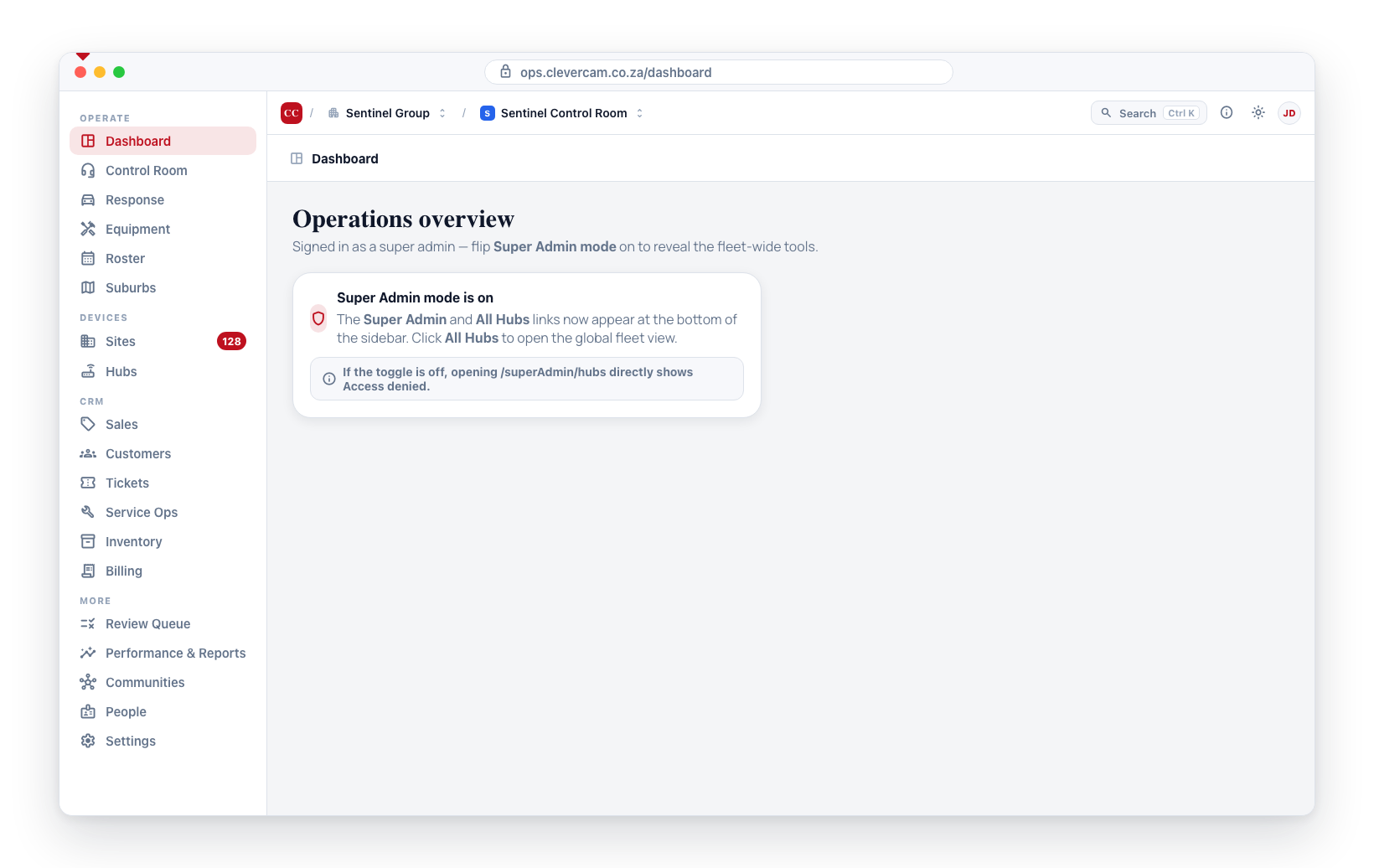
This area is restricted by both the sidebar (the Super Admin link is visible only with Super Admin mode on) and the page itself (on load it verifies you are a super admin and that Super Admin mode is on). Anyone without Super Admin mode active — including super admins with the toggle off — who navigates directly to the URL sees an Access Denied message.
Layout
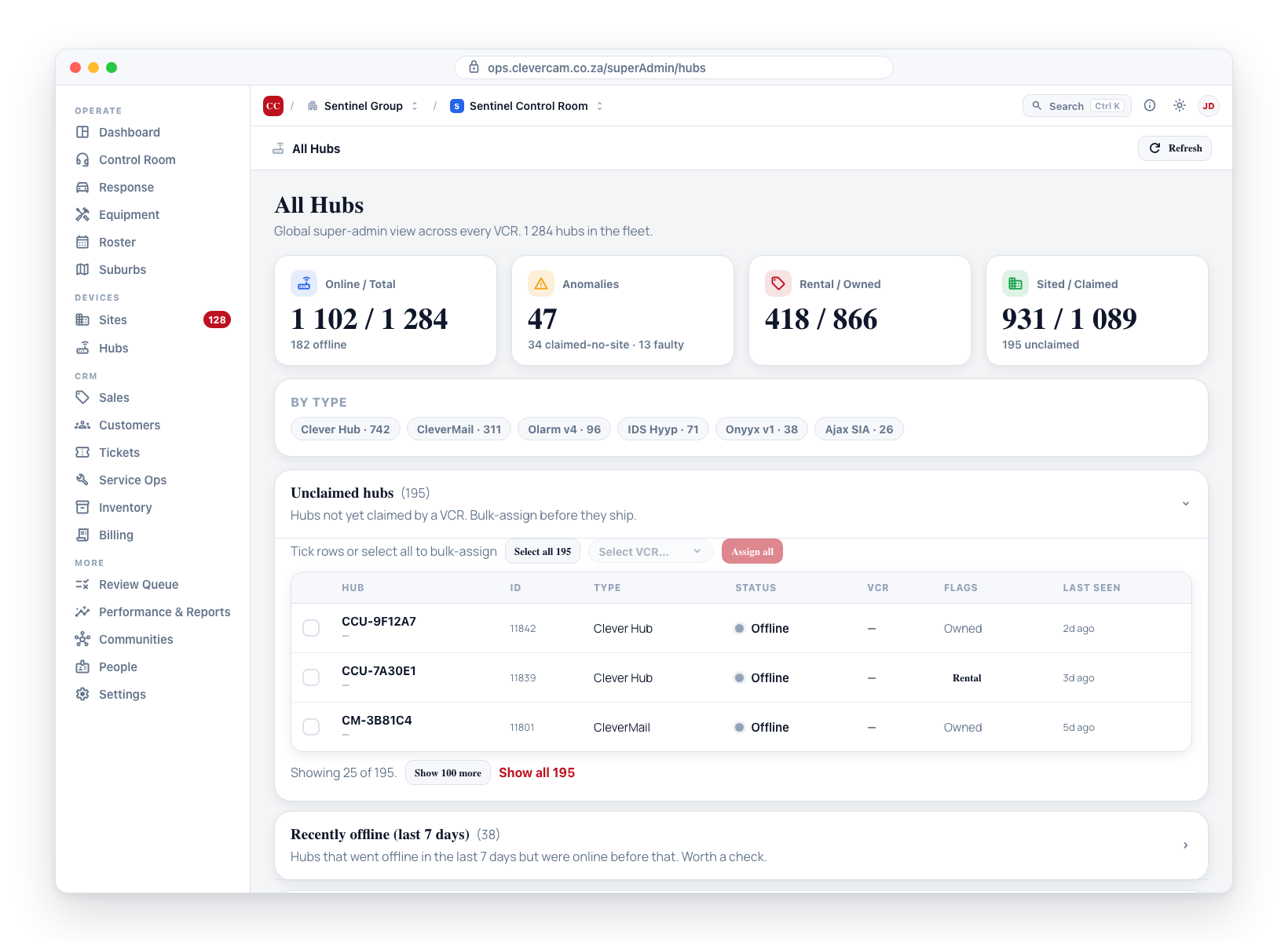
Stats overview
Four cards summarising the fleet at a glance:
| Card | Shows |
|---|---|
| Online / Total | Number of online hubs over the total fleet, with offline count. |
| Anomalies | Sum of "claimed but not on a site" and "flagged faulty" hubs. |
| Rental / Owned | Split of hubs flagged as rental versus owned, with the number on consignment underneath. Consignment units are CleverCam's hardware, so they are counted in neither figure. |
| Sited / Claimed | Number of hubs linked to a site versus claimed by a VCR, with unclaimed count. |
A By type chip list shows hub counts per hub type, sorted by frequency.
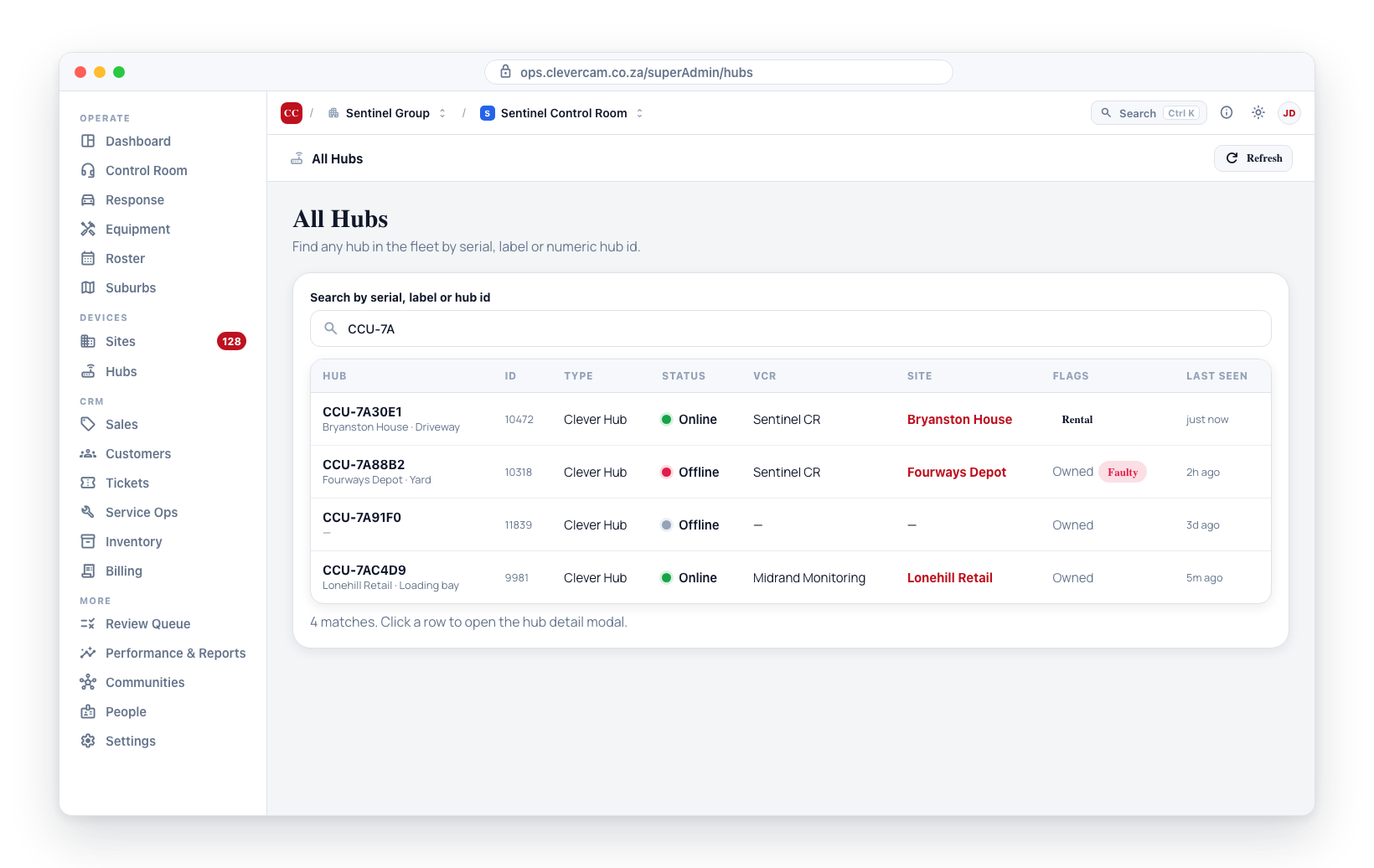
Search
A search box filters by serial, label, or hub id (numeric). At least 2 characters are required. Results show up to 50 matching hubs in a compact table.
Curated sections
Eight expandable sections show specific subsets of the fleet. Each section is collapsed by default except Released hardware, Active, not paying and Unclaimed:
| Section | Hubs included |
|---|---|
| Released hardware | Units a control room dropped from its fleet, newest first, with the reason given. This is a review queue — see Released hardware triage. |
| Active, not paying | CleverCam CCUs seen online in the last 14 days with no revenue line: no control room claims them, and their private prepaid window (prepaid_expire_at) is missing or has lapsed. Every row consumes service for free — this is where a resold CCU surfaces, since the seller releases it and the buyer's re-onboarded unit has neither a claim nor a prepaid date. Fix each row by claiming it for the servicing control room, stamping a prepaid date the customer has actually paid for, or retrieving the hardware. Longest-unpaid rows sort first (a missing stamp counts as unpaid, not as exempt). |
| Unclaimed hubs | Hubs not yet claimed by any VCR, recent first. Supports multi-select bulk assign. |
| Recently offline (last 7 days) | Hubs that are currently offline but were online within the last 7 days. |
| Claimed but not linked to a site | Hubs claimed by a VCR but with no linked_site. Owned subscriptions don't bill until linked. |
| Prepaid already expired | Hubs whose prepaid_expire_at has already passed. |
| Prepaid expiring (next 30 days) | Hubs whose prepaid window lapses in the next 30 days. |
| Faulty / broken | Hubs flagged as faulty via the detail modal. |
Each section shows the first 25 rows. When a section holds more, a "Showing X of Y" line appears below the table with a Show 100 more button and a Show all {N} link, so you can page through (or expand) the full list in place rather than relying on the search to reach later rows.
Released hardware triage
When a control room releases a hub from its fleet (see Hub Actions), it must give a reason, and the release is recorded permanently — hub serial and label, which control room it came from, who released it, when, the reason, and any notes. The record is kept as written, so it stays readable even after the unit is claimed by someone else.
The Released hardware section is the queue built from those records. The heading counts only the units still waiting on a decision; tick Include units already reviewed to see the full history.
Each row offers two verdicts:
- Faulty — flags the hardware. This is the one that matters: a hub flagged faulty cannot be put back into service by anyone except a super admin. If a control room tries to add billing for it, the attempt is refused with the fault note. Use this for units that are genuinely dead so they can't quietly re-enter circulation.
- Back to stock — the unit was checked and is fine. It clears the faulty flag and the hub can be claimed again normally.
A verdict can be changed later — a unit sent back to stock can be flagged faulty once it fails on the bench, and vice versa after a repair.
When a super admin does the release themselves, the release dialog offers Mark hardware faulty directly and pre-ticks it when the reason is Faulty — so the unit is quarantined in the same step, and the record arrives already reviewed.
Bulk-assigning unclaimed hubs
The Unclaimed hubs section always shows a bulk-assign toolbar (the VCR dropdown and Assign all button stay disabled, with a "Tick rows or select all to bulk-assign" hint, until you have a selection):
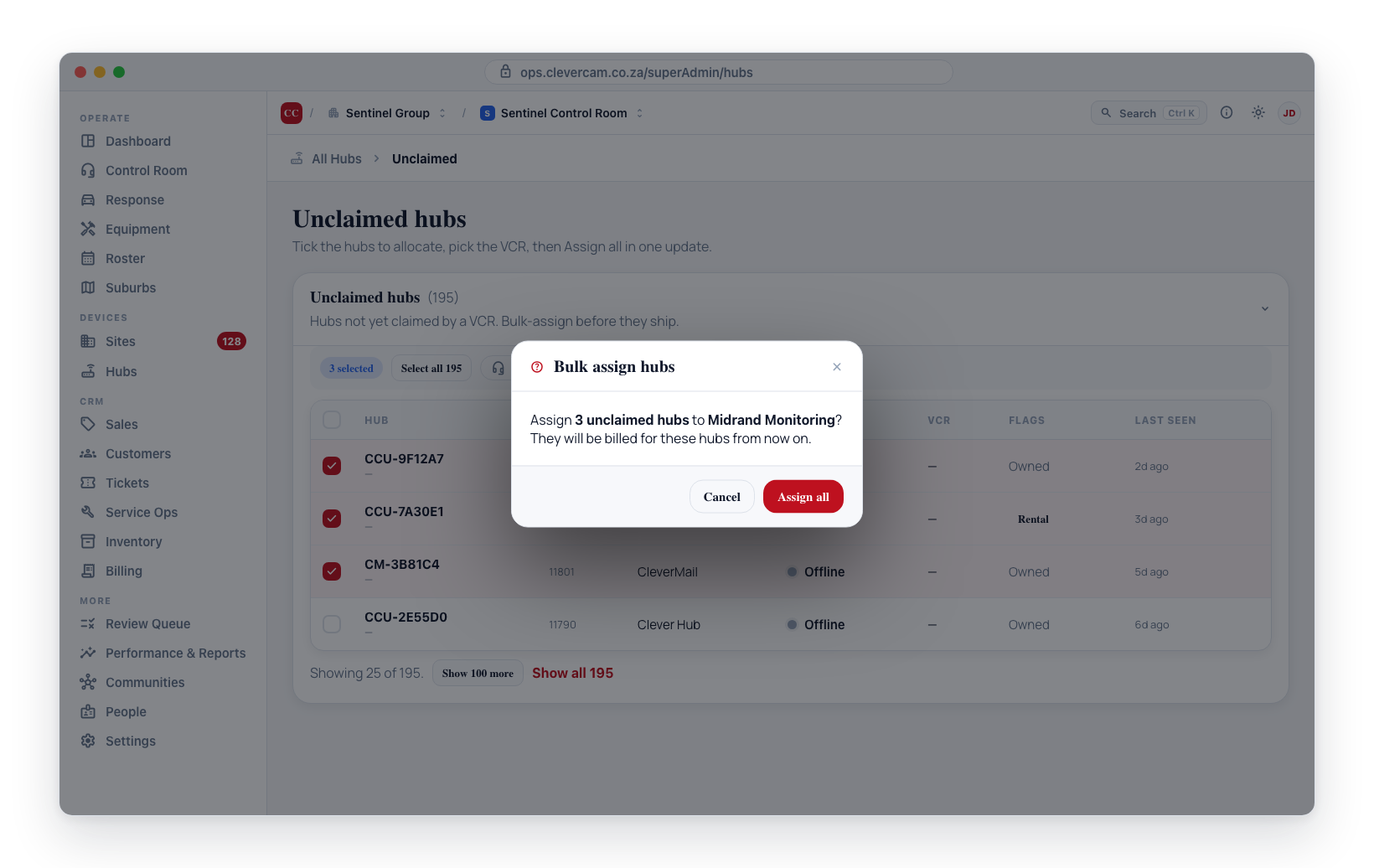
- Tick the checkbox on each hub you want to assign, or use Select all {N} in the toolbar (or the header checkbox) to select every unclaimed hub that matches the current filter — not just the rows currently paged into view. This lets you bulk-assign hundreds of hubs without scrolling each one onto the page. Deselect all clears the selection.
- The toolbar shows how many are selected.
- Pick a VCR from the dropdown.
- Click Assign all and confirm.
All selected hubs are claimed by the chosen VCR in one update, and a toast confirms how many were assigned.
Hub detail modal
Click any hub row in any section (or in search results) to open the detail modal. The modal shows:
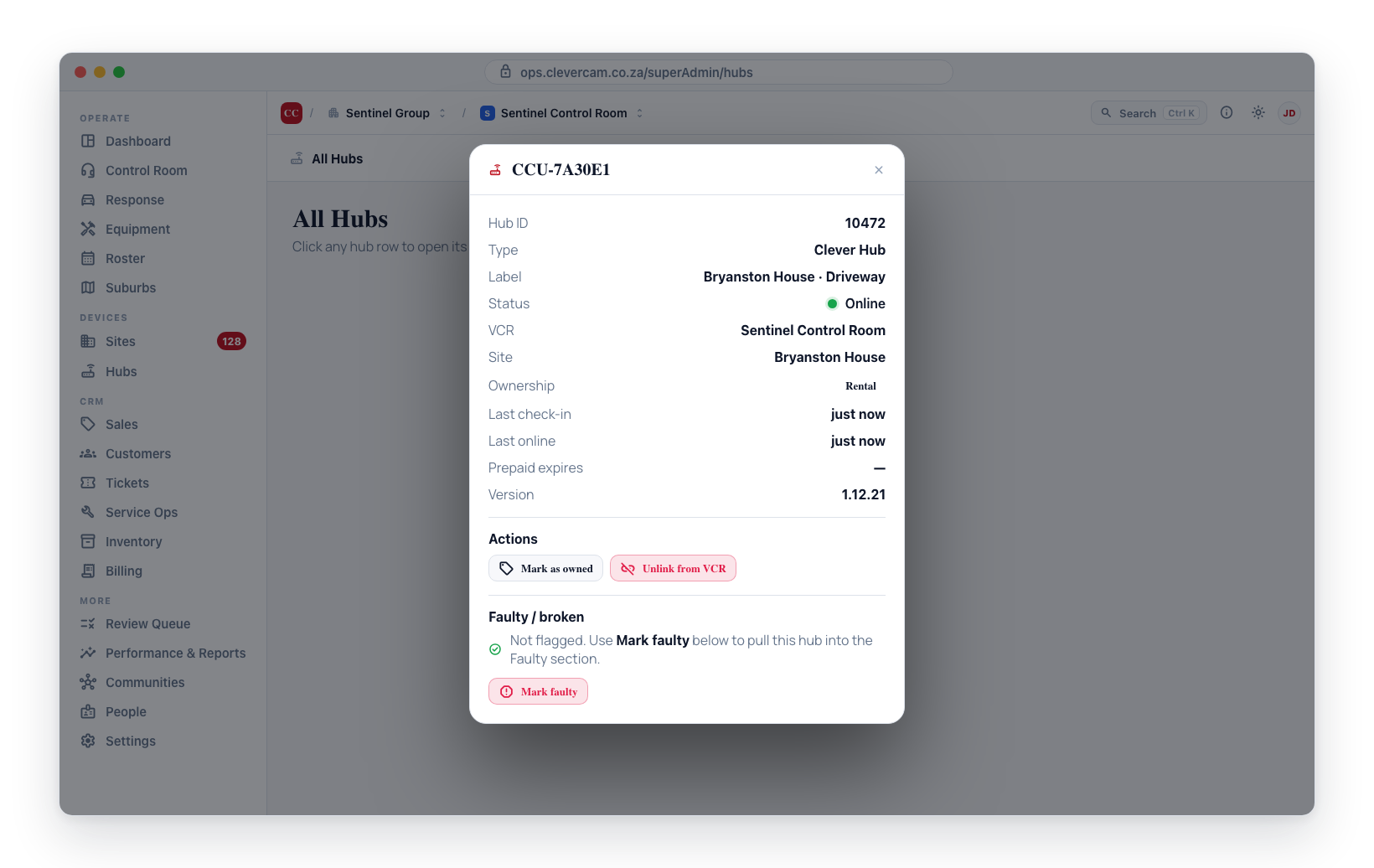
- Identity: hub id, type, label, version
- Status: online/offline, last check-in, last online
- Assignment: VCR (if any), site (if any)
- Ownership: Owned, Rental or Consignment
- Prepaid: expiry date
Actions
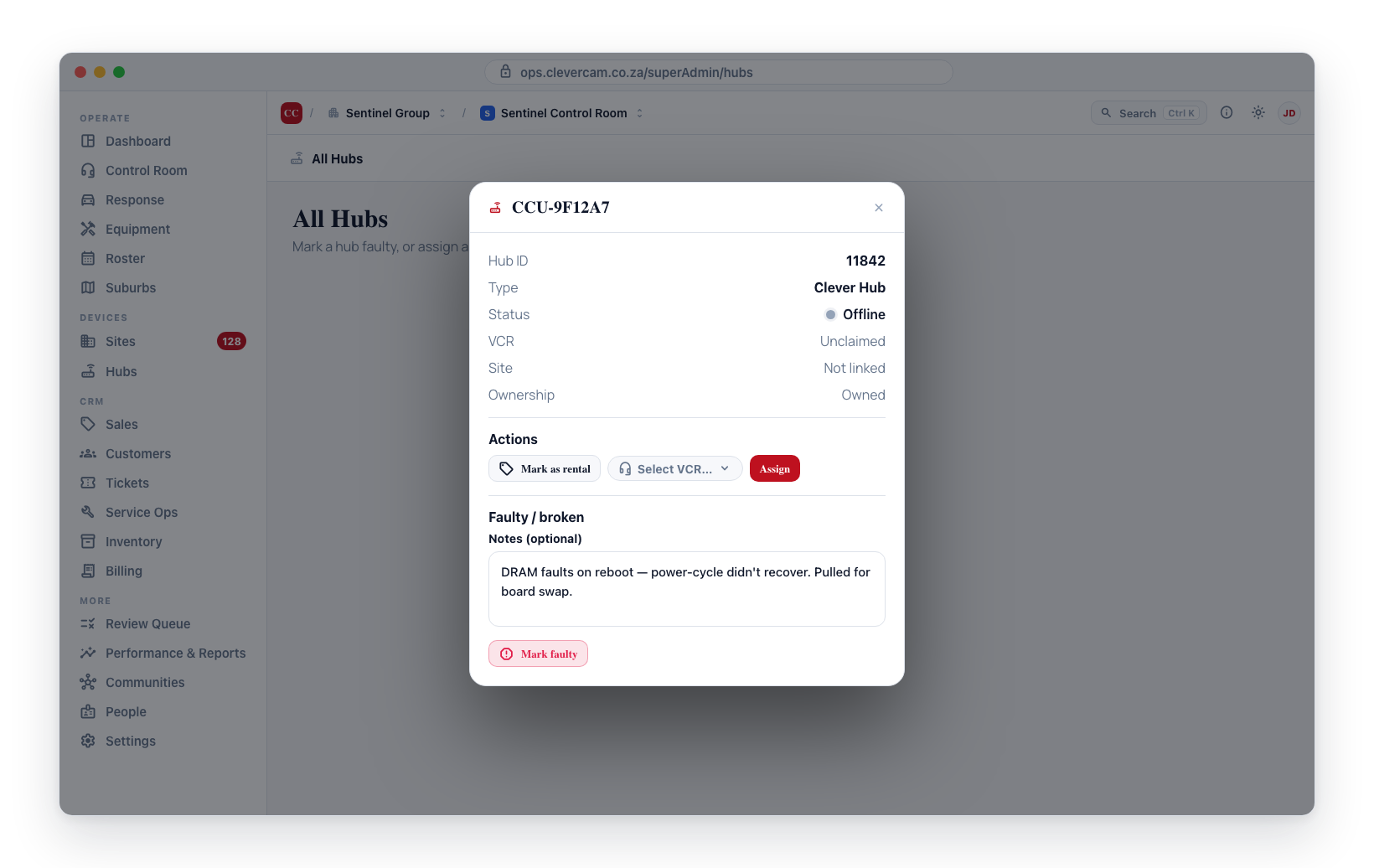
| Action | Available when | Effect |
|---|---|---|
| Mark as owned / Mark as rental / Mark as consignment | Owned and rental: always. Consignment: physical CCUs only | One button for each ownership the hub does not currently have. Each sets that ownership outright, after a confirmation. Rental changes how the hub is billed (see Settings → CleverCam subscription); consignment does not — see below. |
| Assign to VCR | Only when the hub is unclaimed | Sets claimed_by_vcr to the chosen VCR. |
| Unlink from VCR | Only when the hub is claimed | Clears claimed_by_vcr. The hub becomes unclaimed and can be re-assigned. Reassigning to a different VCR is a deliberate two-step process — first unlink from the current VCR, then assign to the new one. |
| Mark faulty | Hub not currently flagged | Sets is_faulty = true, optionally with a notes field. The hub appears in the Faulty section. |
| Clear faulty | Hub currently flagged | Clears the faulty flag and notes. |
The page does not let you change a hub's VCR in a single click. The whichever VCR has the hub claimed is responsible for billing it; reassigning is treated like a billing handover that should be deliberate. Unlink first, then assign.
A CCU can be held on consignment: ours, sitting in a company's stock, on their profile so a lost unit has a last known holder. It bills exactly like an owned unit — nothing while it is in stock, the standard subscription once it is on a site — so marking a unit as consignment changes nothing on anyone's invoice. It is a record of whose hardware it is.
A consignment unit carries a Consignment pill in the Flags column (a rental carries Rental; an owned unit reads Owned), and Consignment as its Ownership in the hub detail modal. Mark as consignment is offered for physical CCUs only — communicators, panic apps and CleverMail hubs have no such concept. A unit is only ever one of the three: marking a consignment unit as rental makes it a rental, and marking it as owned makes it owned — it does not drift back to consignment.
The same three ownerships can be set from the Superadmin card in CleverTech, which assigns a CCU to a VCR as normal, rental or consignment by serial, QR scan or a photo of the label.
The CleverTech card can also take an unlinked CCU out of another VCR's stock in one confirmed step, carrying its billing account across. That move is written to Released hardware as already reviewed (returned to stock), so the handover is on record — tick Include units already reviewed to see it — without joining the queue.
Why the page is dashboard-style instead of a full table
The fleet contains hundreds to low thousands of hubs. Showing them all in one paginated table would be slow and obscure the hubs that actually need attention. The dashboard layout surfaces anomalies first; the search lets you find any specific hub in seconds.