Customers Overview
A customer in CleverOps is the billable account that owns one or more sites. It is the party you invoice, the party who receives statements, and the party whose people you chase for payment and get authorisation from. It is not the alarm call list — that lives on each site's People tab, and is a separate set of people. See Contact persons. Sites, service jobs, quotes, subscriptions, and invoices all roll up to a customer.
The Overview dashboard
Opening Customers lands on an Overview dashboard, with an All customers tab beside it for the searchable list; the last-used tab is remembered per browser. The Overview answers who owes you and how healthy the base is — and every figure is a shortcut that opens the list filtered to exactly those accounts.
- Base KPIs — Active accounts, New this month, Prospects, total Receivables (what customers owe you), Overdue, and Recurring / mo (active MRR).
- By status — a bar per status (Active / Prospect / Suspended / Closed); click one to filter the list.
- Unpaid invoices by age — an aging strip that buckets every unpaid invoice by how far past its due date it is (0–30 / 31–60 / 61–90 / 90+ days). This is an invoice-level view of the same past-due money the Overdue tile sums.
- Top debtors — the accounts with the largest outstanding balances; click one to open the customer.
Overdue means the same thing everywhere on this page: an unpaid invoice whose due date has passed (its issue date, for an invoice with no due date). The tile is the sum of those invoices, the list's Overdue only chip and Overdue column are the accounts holding them, and the aging strip is the same money bucketed by age — so the three always agree.
Why a Customer, and Not Just a Site?
A CleverCam site captures where you protect -- an address, the hubs and cameras there, the response area. A customer captures who you bill for that protection. One customer can own many sites (a landlord with multiple buildings, a franchise group, a gated estate with shared billing). One site can only belong to a single customer.
Keeping the two separate lets you:
- Bill a single customer across several sites on one invoice
- Move a site between owners without rebuilding the site record
- Run customer-level statements and payment-age analyses
- Share a contact person across every site the customer owns
Where You See Customers in the App
| Area | What you will find |
|---|---|
| Customers page (sidebar → CRM → Customers) | An Overview dashboard (receivables, aging, top debtors, base by status) plus an All customers list — create (New customer) and edit accounts, search, and filter by status or balance. Rows have no delete button — retire an account by setting its status to Closed, or permanently delete it from the Danger zone under its Overview tab's Edit details view |
| Site Details → Overview | The customer that owns the site |
| Service Ops | Every job shows its site's customer in the list |
| Billing → Invoices | Invoices are addressed to a customer, not a site. A site still shows the invoices with work billed there, under Site Details → Service & Billing |
| Billing → Invoices → Statements | Per-customer record of invoices, payments, and credit notes |
Customer Status
Each customer carries a status that drives filtering and reporting:
| Status | When to Use |
|---|---|
| Active | Currently billable; the default for live accounts |
| Prospect | Not yet billable -- used for quoting and pipeline tracking. A prospect is promoted to Active automatically the moment you are actually monitoring them: one of their sites is approved for your control room and has a hub linked to it. Another control room's approved link to a site you share does not count. Whether they are being billed is a separate question, answered by the Monitored, not billed account tag |
| Suspended | A label for an account on hold (for example, non-payment or a dispute). This field is primarily a list filter / reporting label — to actually stop dispatch across the account and pause its subscriptions, use the Account status & scheduled changes card |
| Closed | Relationship ended — the way to retire an account. Historical records are preserved; no new activity |
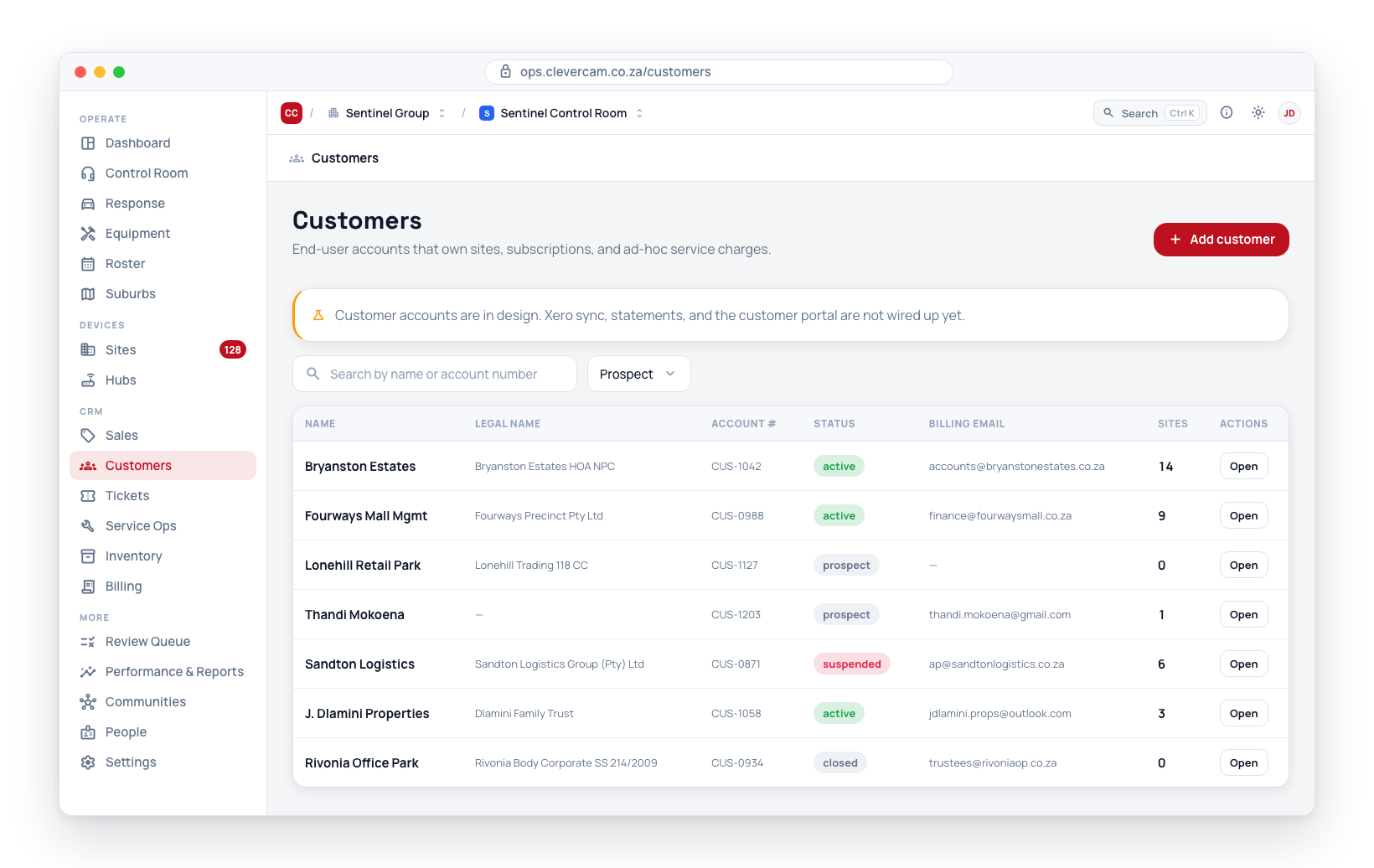
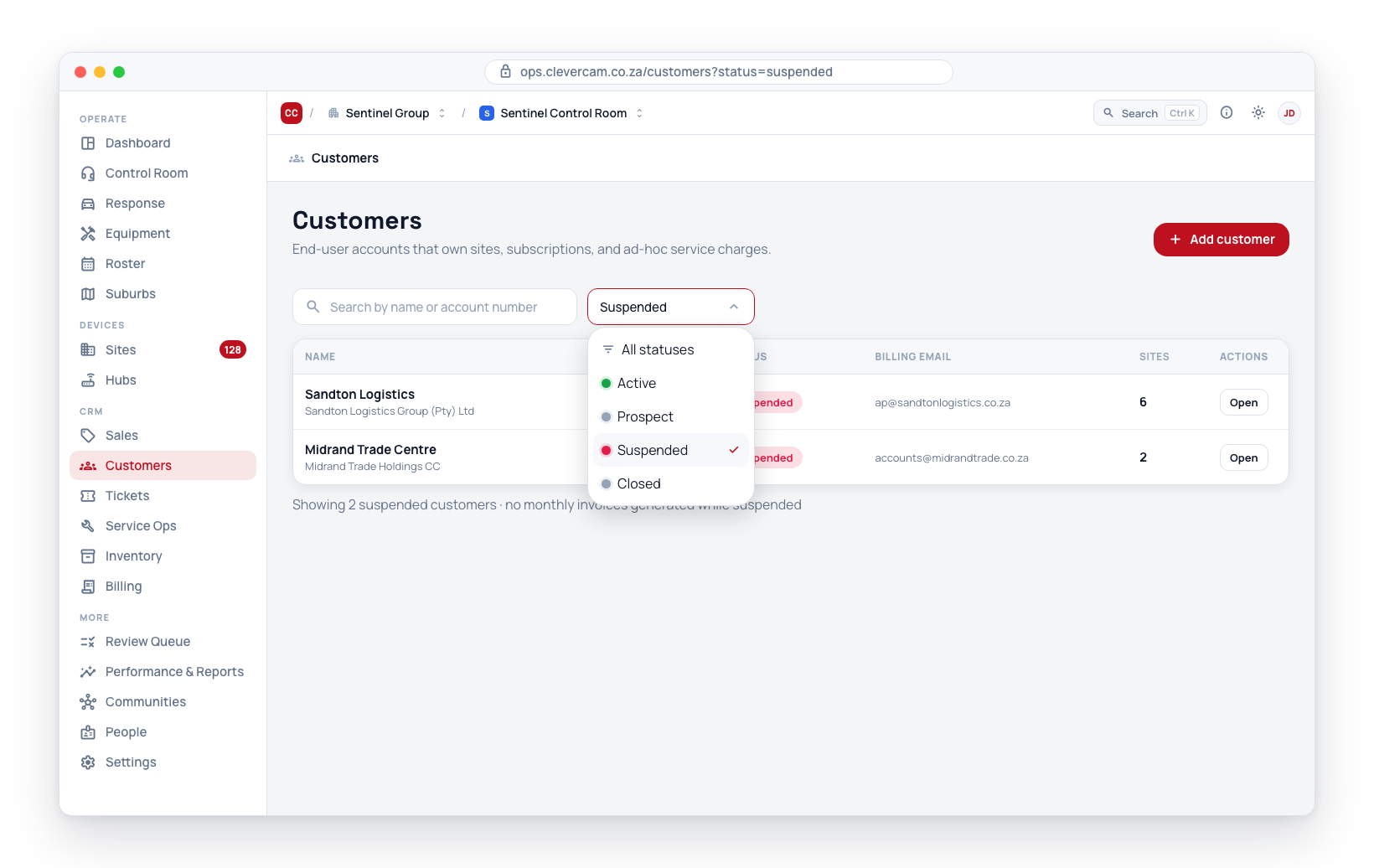
The Customers page has a status dropdown at the top to filter the list by status.
Finding a customer in the list
The All customers list shows 50 accounts a page, with Prev / Next and a Showing 1–50 of N summary at the foot of the table. The line above the table reads "X of Y customers" — how many match what you have set, out of everything on the books.
Searching, filtering and sorting all run across the whole customer base, not just the page you are looking at — so an account that would sit on page 40 is found by typing its name, and sorting by Balance puts the true biggest debtor at the top of page 1. Only the page you are reading is fetched, which is what keeps the list quick on a control room with thousands of accounts. Turning a page returns you to the top of the list, so you start the new page at its first row rather than halfway down it.
-
Search matches anywhere in the account, not only its name — "bay" finds Bayside Club, and so does its account number, the company reference of one of its sites, or the TX number of the panel at one of them. Results appear a moment after you stop typing. It reaches:
- the name, legal name, account number, legacy code, VAT, registration and ID numbers
- the billing contact, billing email, phone and address
- the customer's contact persons — name, role, email, phone (whether saved on the account or on one of its sites)
- the customer's sites — site name, company reference (the site's account code), address, and the hub or panel at the site: its serial and the TX number (account code) it transmits
- the people connected to those sites — the name they are saved under, their profile name, or their phone number
Phone numbers match on their last nine digits, so
0821234567and+27 82 123 4567find the same account. -
Sorting — click a heading to sort by it; click again to reverse. A heading's ▾ menu (it appears when you hover the heading) names the two directions — A → Z / Z → A, or Largest first / Smallest first — so one click gets the order you meant. Money and counts open on their biggest value, because that is the question those columns are asked. These headings sort: Name, Legal name, Account #, Status, Account health, Balance, Overdue, Oldest overdue, Last payment, Last invoice, Next invoice, MRR, Subscriptions, Sites, Open tickets / jobs / quotes, Added and Last changed. The sort is saved against your login, so the list comes back the way you left it.
-
Columns ▾ — choose which columns the list shows and the order they come in: tick a column to bring it in, untick anything you do not use, and use ↑ ↓ (or Move left / right in a heading's menu) to reorder. Name and the row actions are listed ticked and greyed — they always stay. The default set is Name, Account #, Status, Balance, MRR, Sites; everything else (below) starts off, and the list only fetches the data behind the columns that are showing. Your choice is saved against your login rather than the browser, so it follows you between machines and does not change what anyone else sees — Reset to default view puts it back.
-
Filters — status, account manager, account health, the Overdue only chip, and the column filters below all combine with the search.
-
Filtering from a column — a heading's ▾ menu also holds that column's filter, where it has one. Pick a value and the whole book is filtered; the heading's ▾ turns solid while a filter is set, and a chip naming the filter appears beside the other filters — even if you later hide the column — with × to clear it. Status, Account manager and Account health reach the bar's own dropdowns from their heading; Overdue and Oldest overdue reach the Overdue only chip. The rest exist only here: Debit order (has one / none), Accounting (linked / not linked / sync error), Open tickets / jobs / quotes (has open work, nothing open, or one kind of it), Sites (none / one / more than one), Subscriptions (has an active one / none) and Primary contact (has a contact person / none). Column filters are session-scoped — they clear when you leave the page.
-
Export CSV — beside the count line, downloads every account the current filters match, not the fifty rows on screen. It pages the whole set before saving, so a filtered export of two thousand accounts is one file. The columns in the file are the columns on screen, in your order, with Name always first — so a view built for collections downloads as a collections sheet.
The columns
- Name — the trading name, with the account's tags beside it. The legal name rides here in small type while its own column is off.
- Legal name, Account #, Old account code (the code the account had in the system it was imported from), VAT number
- Status — the account status, with the derived lifecycle badge and, on a multi-entity control room, the billing entities it has documents with
- Account health — Active account (a hub is linked and a subscription is running), Monitored, not billed or Billed, not monitored; a dash when neither applies
- Account manager — who on your team owns the relationship
- Primary contact — the account's contact person and their number (the primary one, else the first)
- Billing email and Billing phone — as links, so a collections call or email is one click from the list
- Balance — what the account owes (inclusive); an overdue chip rides in it while the Overdue column is off
- Overdue — the unpaid amount past its due date
- Oldest overdue — how many days the oldest past-due invoice has been waiting; amber past 60
- Last payment — the date and amount of the last payment that cleared
- Last invoice and Next invoice — the last invoice issued, and the earliest next invoice date across the account's subscriptions
- MRR — the monthly run of the active subscriptions, on your VAT axis
- Subscriptions — how many are active
- Debit order — whether a debit-order mandate is on file (Debit order, Inactive mandate, or a dash)
- Accounting — Synced to the accounting package, Sync error (the last sync of this customer failed), or Not linked
- Sites — how many sites the account owns; Site — their names (the first three, with +N for the rest)
- Open tickets, Open jobs, Open quotes — the work queues on the account
- Added — when the account was created; Last changed — when it was last edited
Changing the search or any filter takes you back to page 1, and the rows already on screen stay put while the next page loads, with · updating… beside the count.
Account managers
Beside the status dropdown sits an account manager filter — who on your team owns each relationship. Every name carries a live count of the accounts they hold, so the dropdown doubles as the answer to how many customers is this person carrying, and Unassigned (n) shows how many have nobody looking after them. Assign a manager when creating a customer or from Edit details on an existing one.
The list offers your office and control room team members, and only from your own control room. If a staff member leaves and is deleted, the customers they held simply become unassigned — nothing else about the account changes.
To assign a manager to many accounts at once — the usual case after an import, where every account arrives unassigned — see Working through accounts in bulk.
Working through accounts in bulk
Every row carries a checkbox, and one in the header selects the page. Tick some and a bar appears at the foot of the screen reading N customers selected — on this page:
- Account manager… — assign one to all of them, or Clear manager.
- Add tag… — apply one of your own labels to the batch.
- Export CSV — just the selected accounts.
The selection covers the page you are looking at, and the bar says so. The list is paged by the database — the accounts on page 40 are not in your browser to be ticked — so bulk work goes fifty at a time. Sort or filter first (by Unassigned, say) and each page is a batch worth doing.
Accounts you cannot contact
The Overview tab flags any account that holds no email and no phone number anywhere — not on the account, not on any of its contact persons. This is the account nobody can be called about when its site goes into alarm, and it is easy to accumulate: bulk imports rarely carry contact details.
Show them takes you to the list already filtered to exactly those accounts, so the gap can be worked through rather than just counted.
Possible duplicates
The Duplicates tab looks for accounts that are probably the same customer entered twice — the normal result of merging more than one source system into one book. It groups by three independent signals:
| Match | How it decides |
|---|---|
| Same name | Names match once case, spacing and punctuation are stripped — A.C.S. Spartan (Pty) Ltd and ACS Spartan Pty Ltd are one debtor typed twice |
| Same billing email | Two accounts bill to the same address |
| Same contact number | A contact person on each account carries the same number |
Each group lists its accounts side by side with the facts that decide which one is real: who has the sites, who has the account number, what status each is in, and which came first. The account carrying the most sites is marked Likely keeper.
Nothing here merges or deletes anything — it proposes, you decide. Open each account to compare, then retire the one you do not want by setting its status to Closed (Overview → Edit details), which keeps its history and its invoices. A wrong automatic merge on a billing record costs far more than a duplicate does. Export CSV takes the groups shown away for review, one row per customer.
The tab lists at most 500 groups, biggest first. When it reaches 500 it says the list stops there and there are likely more — resolve some and reload to see the rest. The export carries the same 500.
The relationship stage beside it
Next to that status, each row also carries a relationship stage. Unlike the status above — which somebody chooses — this one is worked out from the account itself, so it can never drift out of date:
| Stage | What it means |
|---|---|
| Active | Has at least one live subscription |
| Suspended | On hold — a paused subscription, or an active suspension on the account |
| Cancelled | Subscribed once; nothing is running now |
| Once off | Never subscribed, but has been invoiced or had work done — a pure installation or ad-hoc client |
| Prospect | On the books, but nothing billed yet |
It is normal for the two to differ: an active account with no live subscription reads Once off, which is exactly the distinction you want when deciding who to call about a renewal.
Only your control room's subscriptions, invoices and jobs count. On a site you share with another control room, that control room's subscriptions and jobs never change the stage.
Account tags beside the name
Beside each customer's name sits a row of tags. Five of them look after themselves: Ad hoc or Subscription (every account carries exactly one, from whether a subscription is running), and — comparing that against whether a hub is actually linked — Active account, Monitored, not billed, or Billed, not monitored. They update the moment the account changes, so there is never a re-tagging job after an import.
Two dropdowns beside the status filter let you narrow the list by tag or by account health, and a single quiet line above the table names the accounts where monitoring and billing disagree — the ones worth a phone call. Both reach the whole book, not the page on screen.
The chips here are read-only: overruling one happens on the customer's own page, and only for the tags that are yours to decide — Ad hoc / Subscription and your own labels. The three health tags cannot be hand-applied (you can dismiss one you have checked, but not award it), because monitored, not billed is a finding rather than a label. If Settings → Sales & CRM → Account tags has open on active accounts only switched on, the list starts with the health filter set to Active accounts — a starting view, not a hide. See Account tags.
A row in this list is one line tall — the name, the legal name and the tags share that line, and anything too long for its column is trimmed with the full text on hover. The legal name only appears when it differs from the display name — an accounting import sets both to the same string on most accounts, and printing it twice tells you nothing.
If your control room issues from more than one legal entity (Billing entities), each row also shows which entities that customer actually has documents with — so you can see at a glance who is an armed-response client, a technical client, or both.
Customer Details
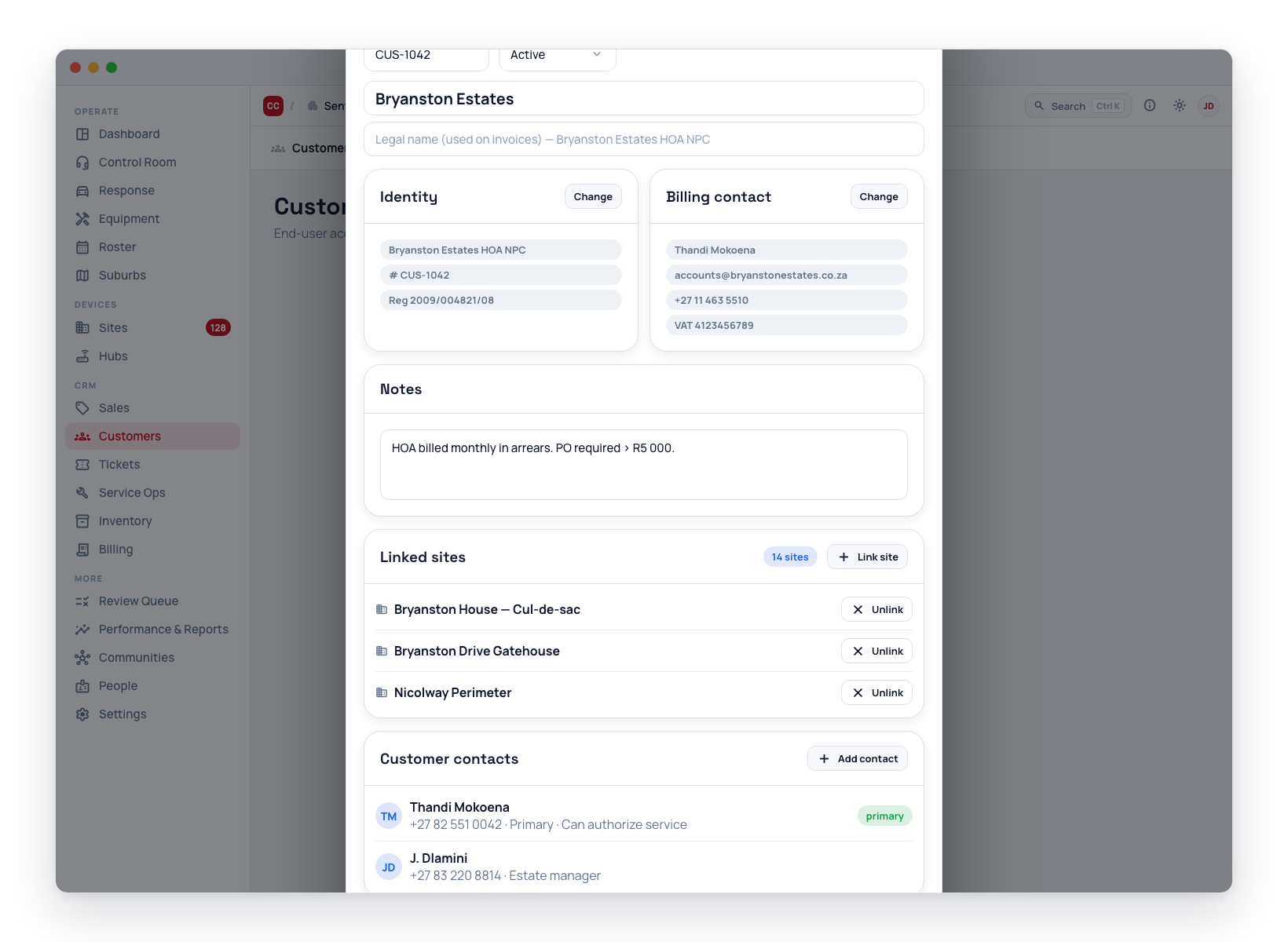
| Field | Purpose |
|---|---|
| Name | Display name used across the app |
| Legal name | Registered entity name, shown on invoices when different from display name |
| Account number | Your internal reference (searchable) |
| Status | Active / Prospect / Suspended / Closed |
| Account is for | A person or A business — which identity number applies. Not captured on legacy and imported accounts |
| ID number | The individual account holder's 13-digit SA ID number (a passport for a non-citizen) |
| Billing contact | Name of the person to address invoices to |
| Billing email | Where invoices and statements are emailed |
| Billing phone | Accounts-department phone number |
| Billing address | Street address printed on invoices |
| VAT number | Printed on VAT-compliant invoices |
| Registration number | CIPC registration number (YYYY/NNNNNN/NN), printed on invoices |
| Notes | Internal notes visible only to your team |
The identity number is how CleverOps recognises a customer you already have. Two spellings of one surname are two accounts as far as any database is concerned; one ID number is one person. It is deliberately not enforced as unique — a husband and wife on one ID, a company that re-registered, and an estate with no registration number at all are all real. Instead, creating a customer whose ID or registration number (or email, phone, or name) matches an existing one raises a Possible duplicate customer prompt listing the matches and what each one matched on, and you decide: cancel and use the existing account, or Create anyway.
Both numbers are checked as you type and the check is advisory only — an SA ID is validated against its own check digit, a registration number against the CIPC shape, and either way a number that doesn't match saves exactly as typed with a note suggesting a second look.
Clicking a customer row opens its detail page — a full-screen view with the customer's name in the breadcrumb and a row of tabs:
| Tab | What it shows |
|---|---|
| Overview | A read-only at-a-glance view: status, linked-site count, quote count, service-job count, monthly recurring run-rate, the current statement balance (owing / in credit), the open sales pipeline (deals not yet won or lost) and all the identity and billing facts. An Edit details button (managers only) flips the tab into the editable form — Identity, Billing contact, Notes, the Account status & scheduled changes card (see below), and the Danger zone (permanent delete — blocked while the customer has invoices) |
| Sites & contacts | Every site the customer owns, each with its own monthly recurring total and active-subscription count; the panel to link, unlink, or reassign sites to this customer; and the customer's contacts & notification preferences |
| Quotes | Every quote raised for this customer across all their sites, with pipeline-value and accepted-value totals and a sales / technical filter. You can create, send, and accept a quote here, or convert a won quote straight into a service job |
| Jobs | Every service job for this customer — scheduled, in progress, and completed — each row deep-linking to the job, back to the quote it was raised from, and forward to its invoice. Raise a new job for the customer from here |
| Tickets | Every ticket for this customer, with the full add / filter / promote-to-job toolkit |
| Activity | The Memos & call log composer and list, the account's unified timeline, and (via the Timeline / Messages sent toggle) the per-channel message-delivery log |
| Billing | Account lifecycle, subscriptions, payment options, invoices, age analysis, and the statement (only for control rooms with the CRM module). On a control room with more than one billing entity, a Billing entity scope switcher above the age analysis reads it combined or per entity, and picks which entity's statement ledger shows beneath it |
| Documents | The customer's document store — see Documents below |
The active tab is remembered in the page URL, so a customer's Quotes, Jobs, Billing, or Documents tab can be linked or bookmarked directly.
Account Status & Scheduled Changes
The Account status & scheduled changes card — under the customer's Overview tab, behind Edit details — suspends, sets to maintenance, or reactivates the whole account — and cascades that to every site the customer owns. This is the account-grain counterpart of the per-site Site state & scheduled changes card.
- Effective status — the account's live state (Active, Suspended, Maintenance, …). When the account is currently suspended, a Reactivate now button appears.
- Schedule change — managers (the Manage customers permission) open the form to:
- Change — Suspend or Maintenance (both suppress dispatch; Maintenance is just the planned-work label).
- Takes effect — leave blank to apply now, or pick a future date and time.
- Ends (optional) — when the account returns to normal. Leave blank for open-ended.
- Pause running subscriptions on suspend — on by default. The number beside it is how many active subscriptions a suspend starting now would pause, counted exactly the way the pause works: your control room's subscriptions on the customer, plus those on its sites that name no customer. Another control room's subscriptions on a shared site, and a site subscription that names a different customer, are not counted, because the suspend never pauses them.
- Reason (optional) — free text recorded with the change.
- Active now / Upcoming — current and future-dated changes are listed; End now ends an active suspension (sites return to normal, paused subscriptions resume) and Cancel cancels a scheduled one before it starts.
Suspending (or setting to maintenance) cascades to all the customer's sites — each site's dispatch is suppressed exactly as if you suspended it individually (signals are still logged). It is non-destructive: the customer's stored Status field is never changed; the account's effective status is computed live. The cascade is time-aware with no overnight job — a future-dated suspend self-applies on its date and self-expires at its end.
When Pause running subscriptions is on, an immediate suspend pauses the account's active subscriptions right away; a future-dated suspend leaves billing running until its date, after which the monthly billing run automatically skips the suspended account (and resumes it when the window ends or you reactivate). Reactivating or cancelling precisely reverses what the suspension did — re-activating sites and resuming the subscriptions it paused. Completed service jobs are still invoiced; only recurring subscriptions pause.
All of this stays inside your control room. A suspend pauses only your control room's subscriptions for the account (those on the customer, plus site subscriptions with no customer of their own), and Reactivate now ends only your control room's suspend and maintenance states on the customer's sites. On a site shared with another control room, that control room's subscriptions and site states are left as they are. Scheduled changes belong to the customer's own control room too: only that control room can schedule one for the customer, and only its changes make the account read as suspended or keep it out of a billing run.
Documents
The Documents tab is a per-customer document store — contracts, ID copies, signed debit mandates, proof of address, billing correspondence, and anything else you want kept against the account.
- Upload — pick a category (Contract, ID document, Debit mandate, Proof of address, Invoice / billing, Correspondence, Other) and an optional note, then choose a file. Any file type is accepted.
- Browse — uploaded documents are listed newest-first with their category, note, size, and upload date. Category chips above the list filter to one type at a time.
- Open / download — every row opens the stored file in a new tab via a short-lived signed link generated on demand (the link expires shortly after).
- Delete — managers can remove a document; this removes the stored file first and then the record together, so nothing is left orphaned.
Documents are held in private, access-controlled storage scoped to the customer's VCR — they have no public URL and are never exposed on any public share page. Only people who can see the customer can open its documents.
Only your own control room's customers
Everything you keep about a customer is on a customer of your control room: its contacts, documents (including the ones sent with every invoice), memos, account tags, Monthly Smart Summary enrolment, signature requests and account-status history. You add these from the customer's page, the Customers list or an onboarding journey, and all three only work on your own control room's customers.
CleverOps refuses to save any of these records on a customer that belongs to another control room, whoever or whatever is saving it: a person, an onboarding journey, or an integration writing to CleverOps directly. A contact on an account receives its invoices, statements and reminders, and a document ticked With invoices goes out with every invoice, so neither may ever sit on someone else's customer. The refusal reads:
CUSTOMER_OTHER_VCR: customer 18577 belongs to another control room, so it can't be stored on this customer_contacts (customer_id)
The customer number and the kind of record change with what was being saved. You won't meet it in normal use, because these screens only work on your own customers. If a save is ever refused this way, it shows where that screen shows a failed save: in the contact form with a Failed to save contact notice, or as a Could not add memo, Upload failed (the uploaded file is removed again) or Could not add tag notice.
This check never gets in the way of an ordinary edit. Renaming or re-ordering a contact, changing its document tags, opt-ins or app-user link, ticking With invoices, pinning a memo or withdrawing a signature request doesn't re-check the customer. Money records follow the same rule: see Billing → Only your own control room's customers.
Permissions
Managing customers requires supervisor-level access. Users without it can view the customer list in read-only mode but cannot create, edit, or delete customers.
Next Steps
- Create a customer -- including linking sites and adding billing details
- Contact persons -- call lists, primary contacts, and who can authorize service work
- Quotes -- how quotes work and converting a won quote into a service job
- Create a job -- raising and scheduling service jobs