Customer Statements
A statement is the complete account history for a customer — every invoice they owe, every payment they have made, and every credit note issued, listed in date order with a running balance. It is what you send when a customer says "I paid last month, why am I getting a reminder?"
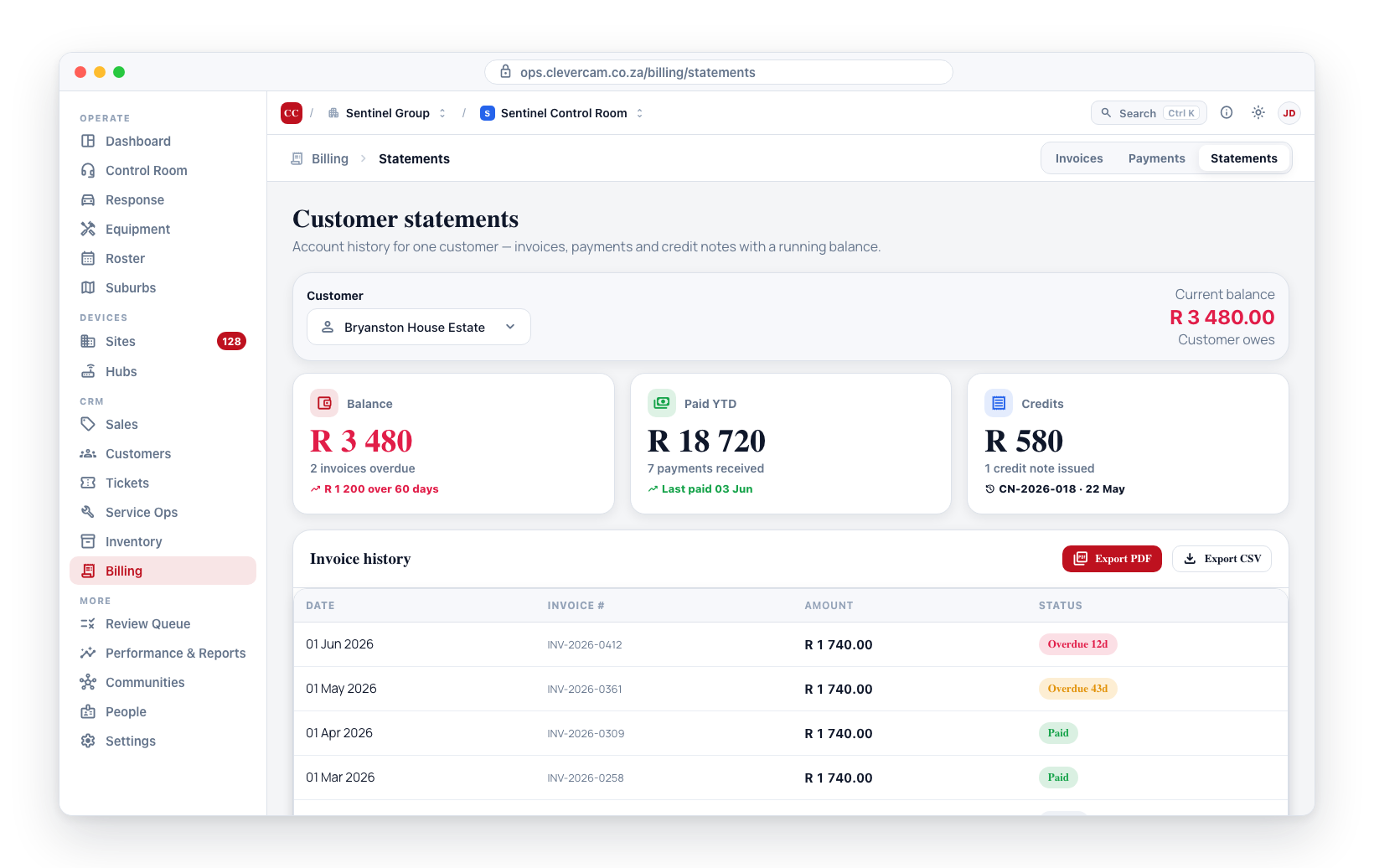
Navigate to Billing → Invoices and switch to the Statements view.
What a statement shows
A statement brings together these entry types:
- Invoices (excluding voided ones) — amounts owed
- Payments — amounts received (rejected / bounced payments are excluded)
- Credit notes — amounts credited back (a credit note voided in your accounting package stops counting, and the balance goes back up)
- Transfers — credit moved to or from another customer account (see Transfer credit between accounts)
Each entry shows what the customer's balance was at that point in time, giving you and the customer a clear picture of how the account has moved.
If your control room issues from more than one legal entity (Billing entities), each entity produces its own statement — a statement is one creditor's ledger, with its own running balance and aged debt. Use the entity switcher above the Billing tabs to choose whose ledger you are looking at; the on-screen ledger, its Current balance, and the statement PDF you preview, email or text are all that entity's. Under All entities the statement is never a merged ledger: it shows the entity set as the Statements default under Settings → Billing entities (the default entity if none is set), and a chip beside the Statement heading names which entity you are looking at. Control rooms with a single entity see no switcher and one statement per customer, exactly as before.
If a customer pays through more than one legal entity (Bill-to profiles), you can produce a statement for the whole relationship or for one payer's ledger — the answer to "what does the landlord owe?", without the rest of the account in it. Customers with a single payer are unaffected.
The Statements view
The tab opens with a customer selector. Pick a customer and you see:
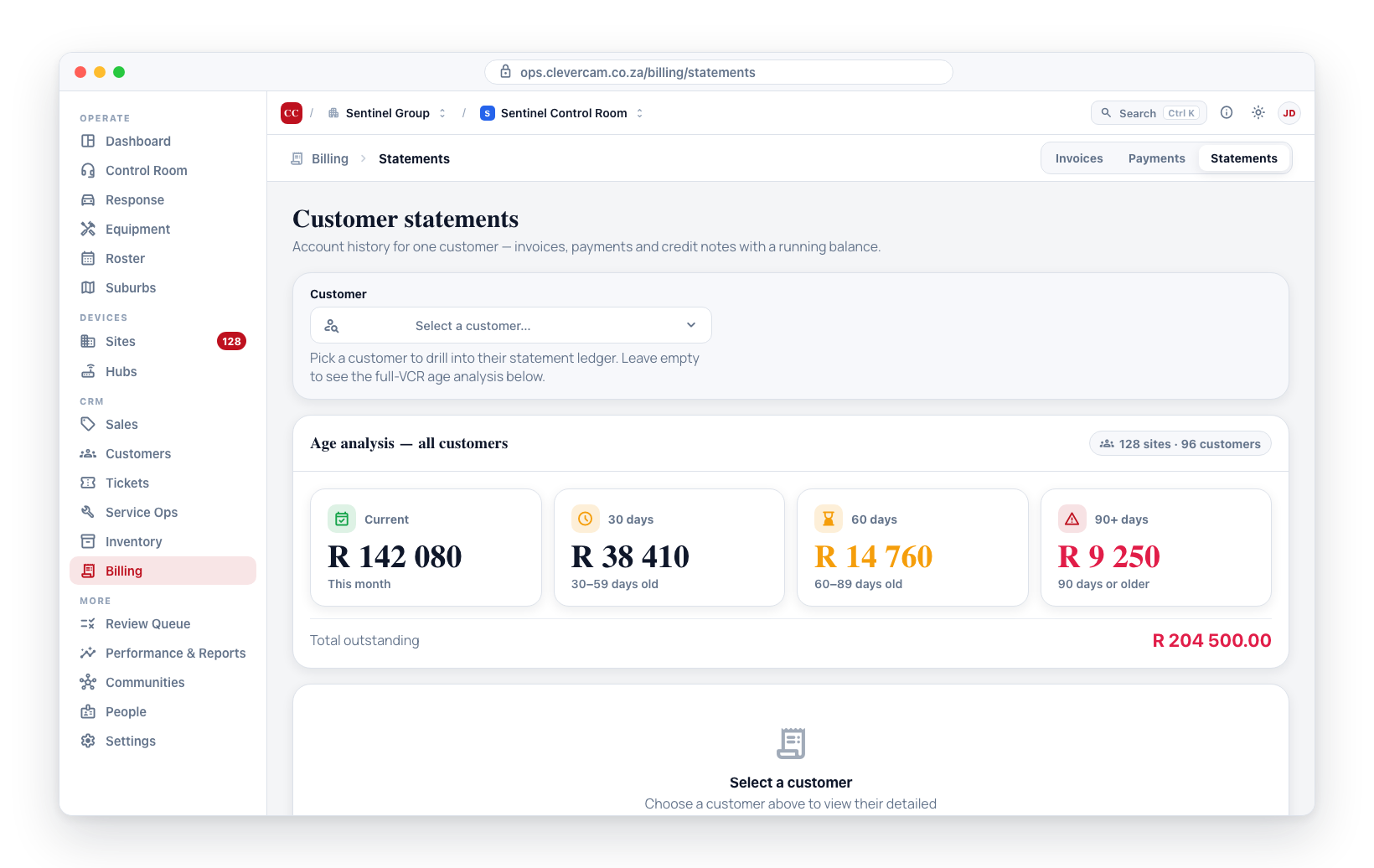
- Age analysis cards at the top — breaking down the outstanding balance by how long it has been owing: current, 30 days, 60 days, 90+ days, and total outstanding.
- Account ledger — a table showing date, entry type (Invoice / Payment / Credit / Transfer), reference, description, debit, credit, and running balance.
- Current balance shown in the header — highlighted in red when the customer owes money, or green when they are in credit.
- Preview PDF — opens a branded statement PDF in a new tab.
- Download PDF — saves the branded statement PDF straight to your device.
- Export CSV — downloads the ledger as a spreadsheet for reconciliation.
- Email statement — emails the branded statement PDF (see Email the customer their statement).
- WhatsApp / SMS — texts the customer a link to their statement (see Text the customer their statement).
Age analysis
The summary cards use standard age-analysis buckets:
| Bucket | Definition |
|---|---|
| Current | Invoices issued this month with an outstanding balance |
| 30 days | Invoices between 30 and 59 days old |
| 60 days | Invoices between 60 and 89 days old |
| 90+ days | Invoices 90 days or older |
Customers in the 60-day and 90-day buckets are the priority targets for collection follow-up.
Click any bucket to expand it and list the individual invoices it contains — customer, invoice number, balance, and days overdue — with each invoice linking straight to its detail. This works both for a single customer's statement and for the full-VCR age analysis (when no customer is selected).
On a VCR with more than one billing entity, the age analysis follows the entity scope selected at the top of the Billing page — scoped to one entity it counts only that entity's invoices, and All entities adds every entity's invoices together. The same scope switcher sits on a customer's Billing tab, just above that customer's age analysis, so an account that is invoiced by two entities can be read combined or per entity there too. The switcher also governs the statement ledger underneath, but a statement is always one entity's ledger — see One statement per legal entity above.
Preview a statement PDF
- Open Billing → Invoices → Statements.
- Select the customer.
- Click Preview PDF on the statement header.
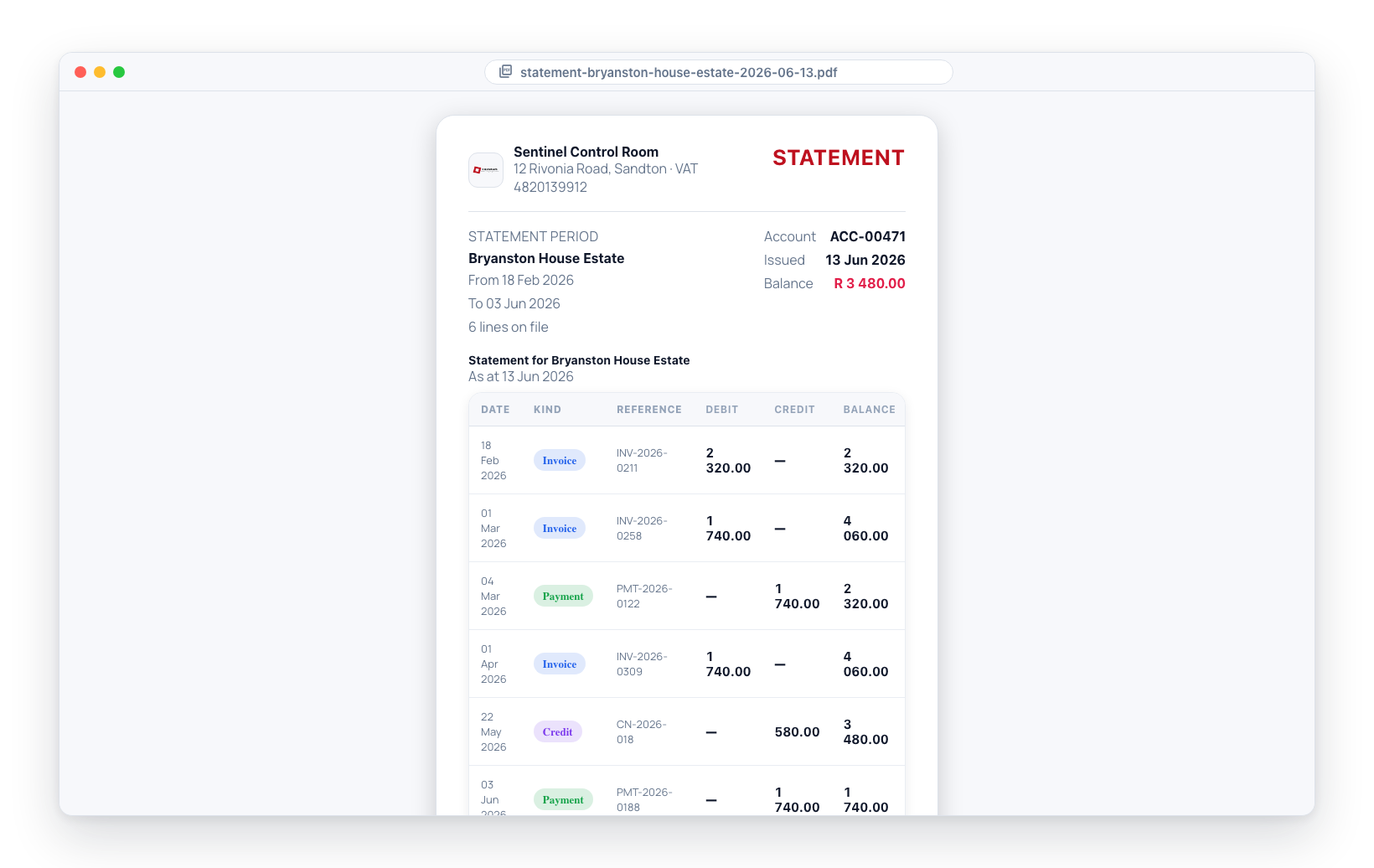
The PDF uses the same branded template as invoices and quotes. It shows the statement period, the full account history (oldest first), and the closing balance — indicating whether the customer owes money, is in credit, or is settled.
Each row's Description is the wording carried by that document itself: an invoice's description, a payment's note, a credit note's reason. Long wording wraps onto a second and third line rather than being cut off, and a statement that runs to more than one page repeats the column headings on each page.
Email the customer their statement
Click Email statement on the statement header to send the branded statement PDF directly from CleverOps:
- The dialog is the standard recipient picker: To defaults to the billing email (falling back to the primary contact) — click To ✓ on the chosen row to clear it and pick someone else — and you can CC anyone — type addresses or one-click the suggestions (billing email, customer contacts, CleverAlert app users on the customer's sites). Contacts tagged Statements & account links are pre-ticked as CC, and the Always button saves that tag for future sends.
- The email carries the statement PDF as an attachment, the current balance, and a secure "View my account" link to the customer portal (their live account view). The PDF is rendered at the moment you send, so it always reflects the latest ledger.
Alternatively, click Email account link (next to the customer selector) to send just the secure, no-login portal link without a PDF — it's the same account link managed from the customer's own page, expires after 30 days, and can be resent or revoked at any time.
Both actions require billing management access.
Text the customer their statement
Click WhatsApp / SMS on the statement header to text the customer a link to their statement.
A text message cannot carry a file, so the message carries a link to a statement page on the customer portal. The customer opens it with no login, reads the ledger and the age analysis on screen, and taps Download PDF to save the same branded document you would have emailed them.
- The dialog is the mobile-number picker: numbers come from the customer's billing number, their contacts, and CleverAlert app users on their sites. Contacts tagged Statements are pre-ticked.
- WhatsApp is tried first; anyone not reachable on WhatsApp gets an SMS instead.
- A contact who has replied STOP cannot be texted and the send is refused, even if their number is typed by hand.
Anyone holding the link can read this customer's full billing history — invoices, payments, credits and balance — without a login. The link is scoped to one customer and cannot be edited to show another, and it expires after 30 days rather than the 90 days a single invoice or quote link gets. Treat it like the account link, not like an invoice.
This requires billing management access.
In the future, customers who use the CleverAlert app will be able to view their own statements directly in the app.
Adjusting a balance manually
For genuine edge cases — a write-off, a goodwill credit, or correcting an opening balance — someone with the Credit notes, voids & adjustments capability (the Credits and voids role; owners and admins have it) can post a manual adjustment from the Adjust balance button in the statement header. The Credit note button beside it needs the same capability.
A balance is never edited as a raw number: the adjustment is a dated, reasoned document that lands in the ledger like any other entry, so the account stays fully auditable. Choose the direction (customer owes more or credit the customer), an amount, an as-at date, and a reason, and the running balance moves accordingly.
Manual adjustments are deliberately blocked when the customer is linked to an external accounting ledger (a connected cloud accounting sync) — there, that ledger is the source of truth for the balance, so you adjust it there and let it sync back. The Adjust balance button is disabled for those customers. You need the Manage billing permission.
Exporting
- Export CSV — downloads the full account history as a spreadsheet, with one row per invoice, payment, or credit note, including debit, credit, and running balance columns. Useful for matching against a bank statement.
Reconciliation
When matching bank statements to your CleverOps records:
- Export the CSV for the period you want to check.
- Match the reference or payment details against your bank export.
- For bank entries with no matching payment in CleverOps, create a payment against the relevant customer.
- For CleverOps entries with no matching bank line, confirm whether the payment actually arrived (it may have been entered in error).
Transfer credit between accounts
When a customer has credit on one account that should sit on another (for example consolidating two sites onto a single billing account), you can move it without recording a refund and a new payment.
- Go to Billing → Payments and click Transfer credit (the button needs the Credit notes, voids & adjustments capability).
- Pick the From (source) and To (destination) customer, enter the amount, and optionally a reason.
- Click Transfer credit.
The transfer posts immediately to both customers' statements: a debit (Transfer out) on the source account and a matching credit (Transfer in) on the destination account, each referenced TRF-<id>. Both running balances update accordingly. Transferring requires billing management access, and both customers must belong to the same VCR.
Permissions
- View statements — requires billing access.
- Generate PDFs and create share links — requires billing management access.