Invoice Runs
Most control rooms invoice every customer once a month on one billing day — the 22nd, say — and collect on a separate, pre-arranged date. CleverOps works the same way. The invoice run turns your active subscriptions, approved unbilled service jobs and pending ad-hoc guarding into invoices, and it works in batches: a batch is drafted (nothing is numbered, dated or advanced), reviewed, and then issued — some or all of it. The nightly run follows the same path automatically, honouring your control room's billing day and run mode.
Navigate to Billing → Runs → Invoice runs.
The three acts
- Draft. Pick a batch date and click Create draft batch. Every subscription due on or before that date, every completed job approved for invoicing, and every pending ad-hoc guarding line is consolidated — one invoice per customer (per site when the account is not clubbed, per legal entity and per payer when those differ), every line stating the period it is for. A draft has no invoice number, no issue date and no due date, and no side effects: subscriptions are not advanced, jobs and ad-hoc guarding are not marked invoiced, and nothing reaches the accounting sync, reminders or statements. Delete and re-draft freely.
- Review. The batch opens as a table with a search, a status view, a filter panel and exception counts. Change a subscription, rebuild the affected drafts, exclude what is not ready — as often as you like. No invoice number is ever used by a draft.
- Issue. Issue everything, or select rows and issue just those. Only now is the number allocated (in sequence), the invoice dated with the batch's billing date, the subscription advanced to its next cycle, and jobs and ad-hoc guarding marked invoiced. Emailing is a separate, explicit step — also some or all.
While a draft batch is open, another can't be created — issue or discard it first. An empty draft (nothing to bill) closes itself, and so does a batch with no draft left in it: once its last draft has been issued — from the batch, from the invoice itself, or by emailing or marking it as sent — the batch completes on its own and never blocks the next one. A control room with more than one billing entity can keep one open batch per entity instead: a batch for one entity blocks only that entity (and a batch for all entities), so the other entity's batch can be drafted, reviewed and issued alongside it. See A batch per billing entity.
The billing policy
Set under Billing → Config → Automation → Billing run:
| Setting | Choices | What it does |
|---|---|---|
| Billing day | A day of the month, or each subscription on its own date | With a billing day, the whole book is invoiced on that day: new subscriptions have their first bill moved onto it, the nightly run only runs on that day, and a subscription that is off the day is caught up pro-rata once and snapped onto it. Days 29–31 clamp to the last day of shorter months. Without one, every subscription bills on the day of the month it started (the historic behaviour). |
| Nightly run | Create a draft batch for review or Issue invoices automatically | In draft mode the run stops at the draft and a person issues it. In automatic mode the run numbers, dates and issues as it goes — invoices are live the moment it finishes. A draft batch can always be created by hand, whatever the mode. |
| Bills are for | The period ahead (in advance) or the period behind (in arrears) | A bill dated 22 September in advance is for October 2026; in arrears it is for September 2026. A subscription can be switched to the other timing on its own row. |
| Bill from | A date, or empty | No invoice covers service before this date. Set it when a book was imported: an imported subscription keeps its real contract start (2014, say), and this says where billing here begins. Empty is right for a control room whose subscriptions were all created in CleverOps. |
| Longest first bill | The period only up to 24 months of catch-up | How far a first bill may reach back before its own period. Default 3 months. A subscription reaching further is treated as an imported book: its period is billed on its own, the history is not, and the batch lists what it withheld. |
The Runs tab states the policy in one line above the batches, with a Change in Config → link.
A subscription's first bill covers everything from its start date to its first full period. That is right for a customer who signed up two weeks ago and wrong for one imported with a start date of March 2014 — without a floor, one invoice carries a line per month for every month since. Bill from and Longest first bill are the two guards; the second applies even to a control room that has never opened this page.
Create a draft batch
Simulate, Create draft batch, Issue, Discard, Rebuild and Exclude need the Run invoice batches capability — the Billing runs role grants it, and owners and admins have it without a role. Billing managers without it still open every batch, review it, and email issued invoices; they just cannot draft, issue or discard. See Roles and Permissions.
- Open Billing → Runs → Invoice runs. The Batch date defaults to the next billing day.
- Click Create draft batch. Every subscription due on or before the batch date, every unbilled completed service job, and every pending ad-hoc guarding extra is drafted. The batch opens for review straight away.
Tick Subscriptions only (beside the date) first to leave the approved service jobs and pending ad-hoc guarding out: the batch then holds subscription lines alone, and the jobs and guarding stay due for the next full batch — or invoice a job from the job itself. The batch remembers the choice: a Rebuild inside it stays subscriptions-only, the review header and the run history say subscriptions only, and Run billing now honours the box too.
A batch can be drafted ahead of its billing day (draft the 22nd on the 15th): the nightly run sees the open batch and leaves it alone, and the invoices are dated the 22nd when issued, whichever day you press Issue.
If nothing is due for that date, no batch is kept ("Nothing to bill for that date").
A batch per billing entity
A control room that issues from more than one billing entity — each with its own invoice numbering and its own accounting organisation — batches by the entity bar at the top of the Billing page. On All entities, a batch holds every entity's invoices, as before. On one entity, the button reads Create draft batch for ‹entity›: the batch holds only the invoices that entity issues (which entity a line bills from comes from its plan, as always), and its skipped list only that entity's leftovers. Simulate and Run billing now follow the same bar.
Scoped to an entity, the history shows that entity's batches plus the all-entities ones, each batch names its entity, and each open batch has its own Review batch banner. Rebuilding customers inside an entity's batch stays inside that entity. Drafting both entities separately produces exactly the invoices one all-entities batch would — only split in two.
To have the nightly run do this by itself, set Batches to One batch per billing entity under Billing → Config → Billing run.
Simulate — the run as a concept
Simulate answers "what would the run produce on this date?" without creating anything. Pick any date — including a date in the future — and click Simulate: the real engine drafts the batch internally and rolls every row back, so what you see is exactly what a real batch would contain, and nothing exists afterwards. No invoices, no numbers, no advanced dates.
Use it to prepare for a future event: the month-end before a price increase lands, the first run after an import, or just tomorrow's nightly run. The simulation view carries the same exception counts, filters, line detail and CSV export as a real batch review, plus a note saying whether the automatic nightly run would actually fire on that date given your billing-day policy.
Include paused (the checkbox next to Simulate) widens the simulation to paused subscriptions — the way to preview a fully migrated book that is deliberately paused until cutover, without unpausing anything. This is simulation-only by design: real runs — nightly, manual drafts, everything that can issue — always skip paused subscriptions, and the engine refuses the option anywhere but a simulation. The review carries a note when paused subscriptions were included.
Subscriptions only (the checkbox beside it) previews the run without approved service jobs and ad-hoc guarding — exactly what Create draft batch drafts with the same box ticked. The review notes it.
Every simulated row has a Preview PDF button: the simulated lines and totals render under the real issuing entity's letterhead with the real customer's details — the exact document the customer would receive — even though no invoice exists. (Excluding and editing need a real draft batch, since simulated rows were rolled back.)
A simulation can't run while a draft batch is open — the review of the open batch already shows you that picture.
Review the batch
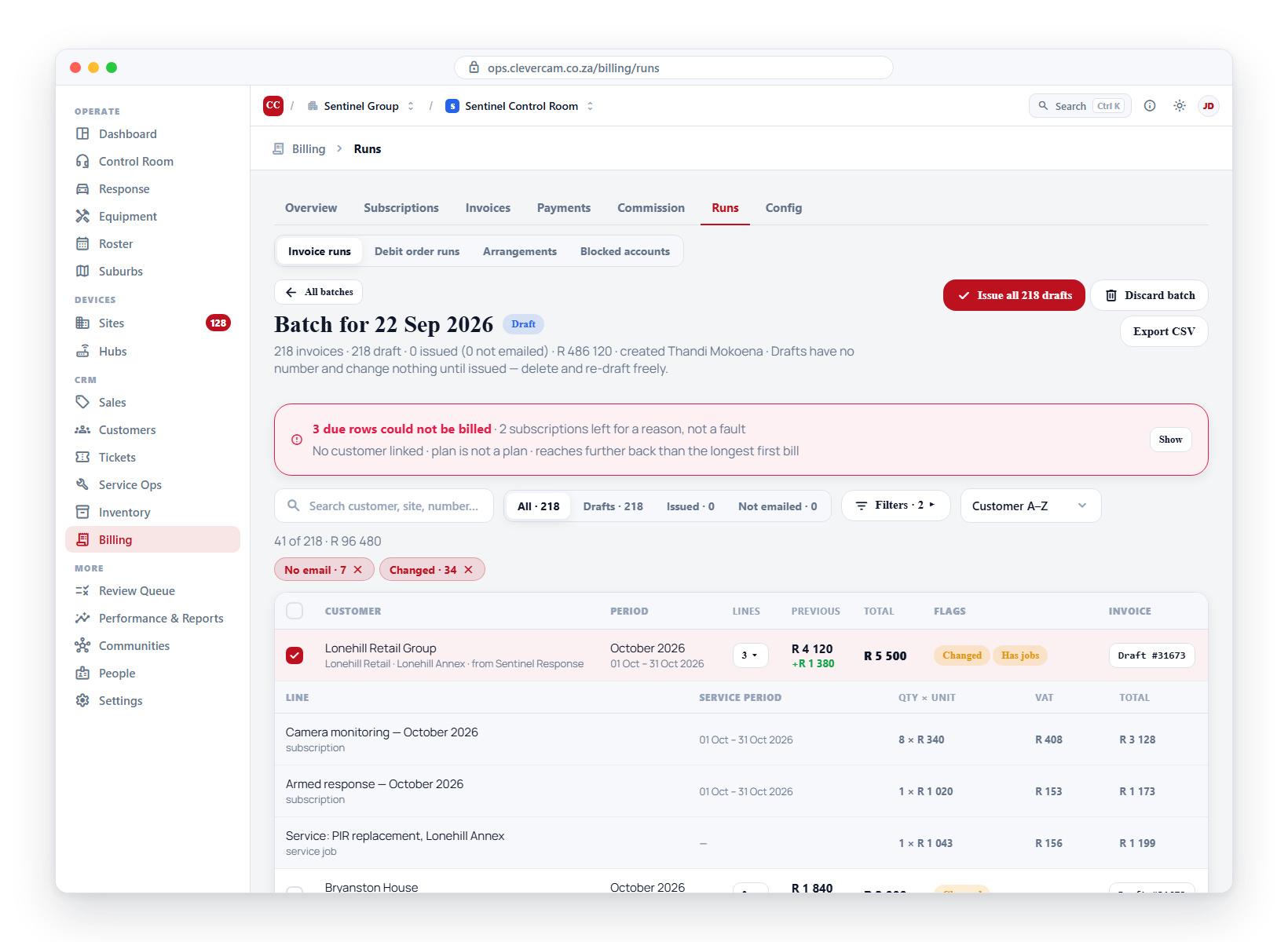
The header states the batch date, how many invoices are draft / issued / not yet emailed, and the total. Below it:
-
A search (customer, site, number) and a status view: All / Drafts / Issued / Not emailed, each with its count.
-
A single Filters button (carrying a count of what's applied) opens a panel of sections, the way the accounting platforms do it:
- Amount — Min R / Max R, incl. VAT.
- Exceptions, each with its count — No email (no billing email and no contact tagged for invoices, so an email send skips these), First invoice (the customer has never been issued one), Changed (the total differs from the customer's previous batch invoice, shown with the difference), Zero, Suspended, Pro-rata (carries a partial-period line), Arrears, Has jobs, Ad-hoc guarding.
- Plans on the invoice — a searchable checklist of only the plans that occur in this batch. An invoice usually carries several, so ticking more than one offers All of these or Any of these.
- Account tag.
What's applied shows as removable pills under the toolbar, every filter combines with the others and with the search, and Clear all resets the lot.
-
A sort that switches between customer order (the batch's own), Total — big first and Change — big first (the biggest month-on-month movers).
-
One row per invoice: customer, sites and issuing entity; the period and description; a Lines count that expands the line items with their service periods; the Previous total with the difference; the Total; the flags; and the invoice itself — a Draft #id until issued, the number afterwards. Click it to open the invoice, or click PDF to preview exactly what the customer receives (a draft renders without a number).
-
Export CSV downloads whatever the filters show, including each invoice's plans.
A banner lists anything due that could not be drafted, and separately anything the run left out on purpose:
| Left out | Why | What to do |
|---|---|---|
| No customer linked | The subscription (or an approved job) names no customer of its own, and its site has none in your control room — a site you share with another control room can be on their customer, who is never billed from yours | Link one of your own customers to the subscription (or job), then re-draft |
| Its plan is not a plan | The catalogue item is not of item type plan, so the run cannot see it | Fix the item type, then re-draft |
| Reaches further back than the longest first bill | A first bill whose start date predates Longest first bill — an imported subscription, almost always. The period was billed; the history was not | Nothing, unless you meant to bill the history: set Bill from, or raise the ceiling, and re-draft |
| Service starts after the period | An arrears first bill whose subscription starts after the period being billed, so nothing is owed for it yet | Nothing — it bills in full next cycle |
| Customer suspended | The account is suspended | Nothing, unless the suspension is wrong |
The banner counts the first three together, in red, as "N due rows could not be billed" — a capped first bill is grouped with the faults because the history it withheld is money you may still have meant to charge. The last two are counted separately beside it, as "N subscriptions left for a reason, not a fault". Show lists every row with its own reason either way.
Issue, exclude, re-draft
- Issue all N drafts (header) or tick rows and Issue N (bulk bar). Each draft gets the next invoice number, is dated the batch's billing date, and becomes Pending. Numbers are allocated in one sequence as they are issued, so issuing in two goes still gives consecutive numbers. A big batch issues in chunks of 100 — the button counts progress while it works, and if issuing is interrupted partway, everything already issued stands; click Issue all again to finish the rest.
- Found some invoices that aren't ready — say fifty odd ones that need queries first? Tick them and click Exclude N — bill later: they leave the batch so the rest issues clean. No number was used and nothing advanced, so the subscriptions behind them stay due and the next batch (or a re-draft) picks them up — handle them separately once the bulk is out.
- An invoice in a draft batch can also be issued from the invoice itself (Issue invoice), emailed, or marked as sent from the Invoices tab. Each of those counts toward the batch exactly as Issue here does: the batch's issued count follows its invoices, and when its last draft goes, the batch is Completed — there is nothing left to issue, so nothing is left open.
- Discard batch deletes every remaining draft and closes the batch — nothing is lost, because no draft ever held a number. Change what needs changing (the subscription price, its timing, its plan) and Create draft batch again. A draft deleted from the invoice itself leaves the batch the same way; if it was the last one, the batch shows no drafts left and closes at the next run or with Discard batch.
- A batch with some invoices issued and the rest excluded is Completed; one with everything gone is Discarded.
A draft is not on the customer's statement, not counted in balances or ageing, not pushed to Xero and never reminded. All of that starts at issue.
Editing what a run produced
While a batch is still draft, every invoice in it is a normal draft invoice — open it from the review and click Edit invoice to change lines, quantities or prices by hand. A hand-edit is a one-time change: the subscription itself is untouched, so the next cycle bills normally.
For a change that should stick — a new price, a different plan, a corrected quantity — edit the subscription first, then select the affected rows in the review and click Rebuild. The selected customers' drafts are deleted and regenerated from live data; hand-edits on every other draft in the batch survive. Rebuild always regenerates the customer's whole position in the batch, so their invoices can never end up half-old.
After a batch is issued, the edit window is closed: correct a wrong issued invoice with a credit note, not by editing it.
Email the invoices
After issuing, Email all N unsent (header) or tick rows and Email N. Confirming queues the emails on the server: sending runs in the background, spaced out with a little jitter so a big batch spreads over a few hours, and it carries on if you close the tab or leave the page. Each invoice goes to the customer's billing email, or a contact tagged for invoice emails. Customers with no address are skipped and counted; the No email exception filter lists them so you can add an address or send another way. Emailing marks the invoice Sent.
While the queue is working, a banner on the batch shows progress — how many are sent and how many are still to go — with Stop sending (cancels what has not gone out yet; anything mid-send finishes, and what was already emailed is unaffected) and, if any sends failed, the failure count with the last error and a Retry failed button. A failed send is retried automatically a couple of times with a growing pause before it is marked failed; an invoice emailed by hand while it waits in the queue is simply marked done rather than sent twice, and one that went out any other way in the last 24 hours is counted as failed, with that reason, instead of being sent a second copy. Queueing the same invoices again never double-sends — anything already queued or already emailed is skipped and the confirmation says so.
Service periods
Every subscription line says which period it is for — "Monthly Alarm Monitoring — October 2026" for a calendar month, "Armed Response — 14 Sep – 13 Oct 2026" for an anniversary cycle — set by the subscription's billing timing (in advance or in arrears) and the control room's billing-day regime. The invoice's description names the period when every line agrees.
A subscription that is off the billing day (an anniversary date being moved onto it, a pause that ended mid-month) is caught up pro-rata once, labelled (pro-rata), and then sits on the billing day.
A subscription whose service starts after the period being billed is not billed at all that cycle. This only arises in arrears, where the period sits behind the batch date: a subscription starting on 1 September has no share of an August bill, so it waits and bills September in full on 1 October.
First invoices
The First invoice exception flags customers who have never been issued an invoice before — worth a look in every batch. A first bill also covers the time from the subscription's start date to its first full period: whole months at full price, and the partial start month by policy. Two levers control that partial period:
- Control-room policy — Onboarding → Settings → First invoice: charged in full, pro-rata by days, or free ("on us").
- Per subscription — the subscription form's own First invoice field overrides the policy for that one account. Set it, then Rebuild the customer's draft to re-price.
How far back that catch-up may reach is bounded by Bill from and Longest first bill in the billing policy above: past the ceiling the period bills on its own, and the batch says what it withheld.
To skip a first invoice entirely, select it in the review and Exclude — bill later — no number is lost.
Special-care accounts: the tag filter
Some accounts need hand-holding every run. Tag them once (an account tag such as "Special care"), then use the Account tag filter in the review to narrow the batch to exactly those customers — check them, edit or rebuild the few, and issue the bulk with confidence. The filter combines with the exceptions, the plans and the search.
How a batch is built
Subscriptions for the same customer are bundled into a single invoice — one document per customer per batch, covering all their sites.
The customer a subscription bills is the one set on it. A site subscription left without one bills its site's customer — provided that customer belongs to your control room. A site you share with another control room can be on their customer; such a subscription bills nobody and shows under No customer linked until you give it one of your customers. An approved job with no customer of its own is billed — or left out — the same way. Roster ad-hoc guarding also bills the site's customer only when it is yours, but an extra with no customer is simply not billed rather than listed as left out.
This bundling is the default. A customer can be switched to one invoice per site instead, using the Club invoices toggle on the Billing account card.
If your control room issues from more than one legal entity (Billing entities), a customer with subscriptions from two entities gets one invoice per entity, even with clubbing on — a tax invoice has exactly one issuer. Which entity a subscription bills from comes from its plan.
A customer that pays through more than one legal entity (Bill-to profiles) gets one invoice per payer, even with clubbing on. Which payer a subscription bills to comes from the subscription, else its site, else the customer's default.
For each subscription in the batch:
- The charge is quantity × unit price, less the subscription's recurring discount. The quantity follows the plan's billing basis — flat plans are always 1; per-camera / per-hub plans count devices live at draft time and never under the plan's minimum; a pinned Billed quantity wins outright.
- The line names its service period, as described above; a first bill also covers the time from the start date, month by month, under the first-invoice policy.
- Completed, approved, unbilled service jobs for the customer are separate lines on the same invoice; so is pending ad-hoc guarding from the roster.
- VAT applies per line according to the issuing entity's registration.
- At issue (not before): the invoice is numbered and dated, the subscription's next invoice date moves on — onto the next billing day when the control room has one, else one cycle on (a subscription that started on the 31st stays on the 31st) — an annual increase applies when its anniversary has passed, and jobs and guarding are marked invoiced.
Subscription endings — the final invoice
Below the run history, the Subscription endings card lists recently cancelled subscriptions whose billed coverage doesn't meet their end date. A subscription that reached its End date or its last term cycle completes itself in the run that bills its final period, so it arrives here on its own:
- Unbilled stub — service ran past the last invoice. Click Draft final invoice to create a normal draft invoice for the gap (month-segment pro-rata at the subscription's current price), editable like any draft until you issue it. The draft bills the customer the run would — so a subscription with no customer in your control room is refused ("This subscription has no customer to invoice.") until it has one.
- Billed past end — billing in advance overshot the cancellation. The card shows the over-billed amount; settle it with a credit note on the last invoice.
The card only appears when something is outstanding.
Blocked accounts
Billing → Runs → Blocked accounts shows every account the run deliberately leaves out: suspended or closed customers, with their reason, when they were blocked, any planned reactivation date, how many subscriptions the block paused and what that pauses per cycle — plus suspension windows scheduled for later. Reactivate returns an account to the run and resumes the subscriptions its block paused.
Blocking happens on the customer's page (Billing → Account card), with a reason from your suspension-reasons taxonomy; this panel is the fleet view.
The nightly run
Every night at 02:00 UTC (04:00 SAST) the run looks at every control room with something due. A control room with a billing day is only run on that day; one without is run whenever something is due. In draft mode the run leaves a draft batch waiting; in automatic mode it drafts and issues in one go. A control room with an open batch — one that still holds drafts — is skipped; a batch whose drafts have all been issued or deleted no longer counts as open and is closed before the run goes ahead. A control room set to one batch per billing entity gets a separate batch for each active entity; an entity whose batch is still open is skipped while the others run. One control room failing is one Failed row in its history with the error — the others are unaffected.
Run billing now
Super-admins on a control room in automatic mode also see Run billing now, which drafts and issues immediately. To look first, use Create draft batch — or Simulate — instead.
The run history
Each row shows the batch date, when it was created and issued, who triggered it (a person, the nightly cron, or a rebuild), invoice and issued counts, the total, and its status — Draft — review, Completed, Failed or Discarded. A run that could not bill something carries a bare N rows skipped under its status pill — the count only, with no reasons, and counting only the faults: rows left out on purpose (a suspended customer, service starting after the period) stay out of it, so a run whose only omissions were deliberate shows no count at all. Open the batch to see what was left out and why.
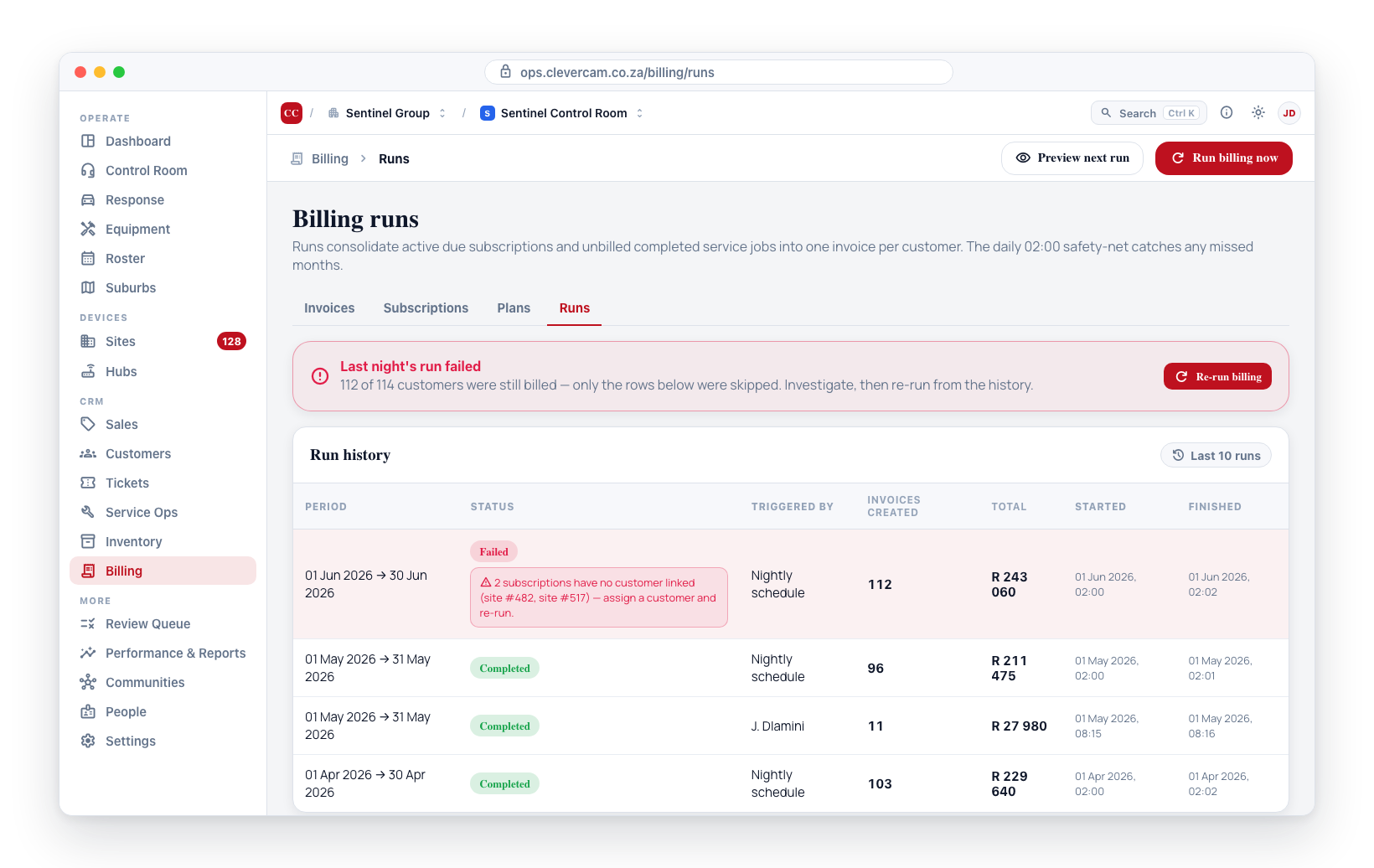
Click any row to open it — a completed batch opens the same review table over its issued invoices, which is where Email all unsent lives for a batch that was issued without emailing (it queues for background sending, the same as emailing at issue time). If a run fails, the error is recorded on the row; a problem with one customer doesn't stop the others. Fix the cause and draft again.
Related
- Plans — the billing products the run prices from.
- Subscriptions — the recurring records the run works through.
- Invoices — where drafts and issued invoices live.
- Account lifecycle — suspending and closing accounts.
- Config → Billing run — the billing policy.
- Debit-order runs — collecting the invoices the run raised.