Cards & Table Views
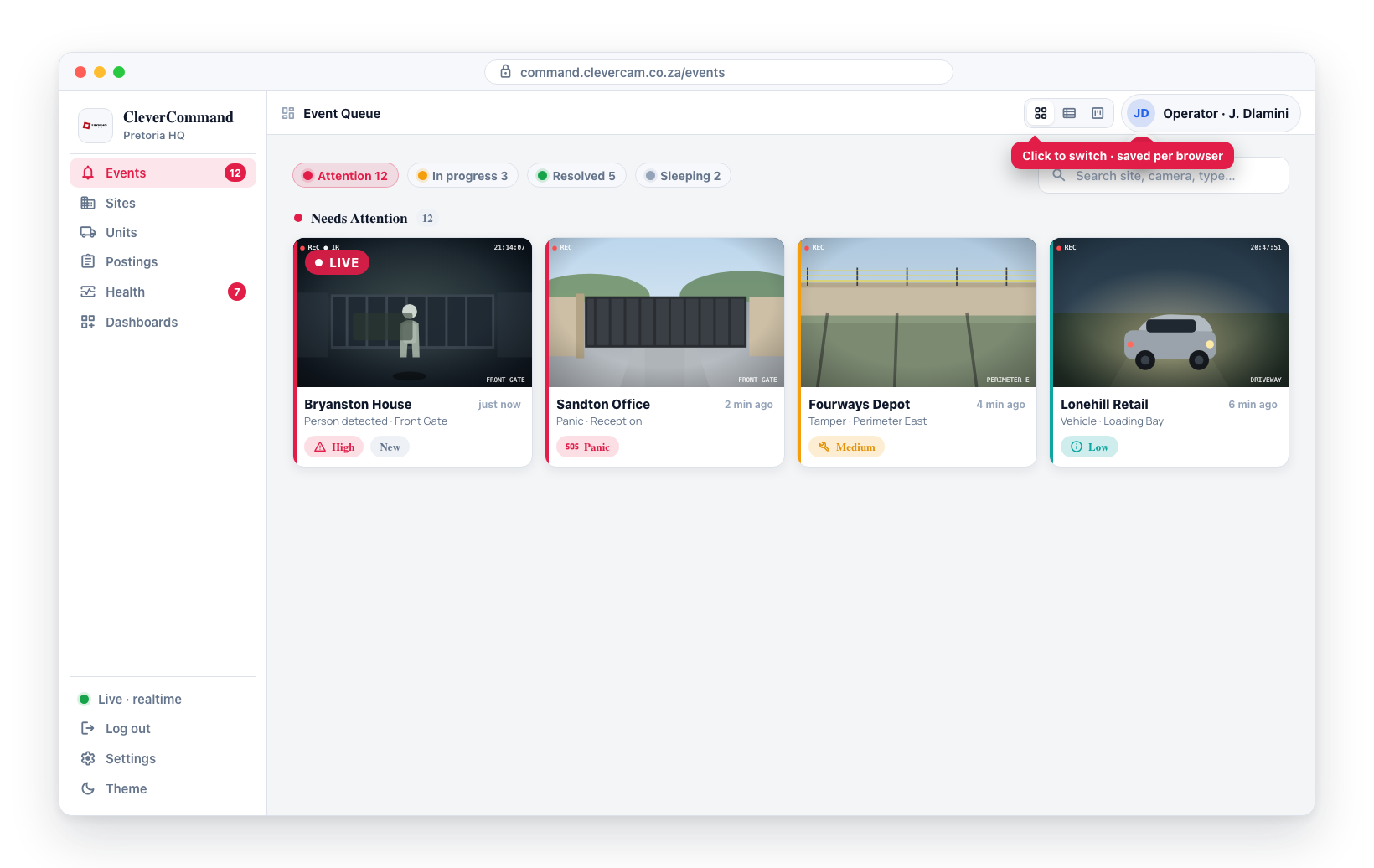
CleverCommand offers two ways to display events in the queue: Cards and Table. Each presents the same event data in a different layout, optimised for a different monitoring style. Your preference is saved locally so it persists across sessions.
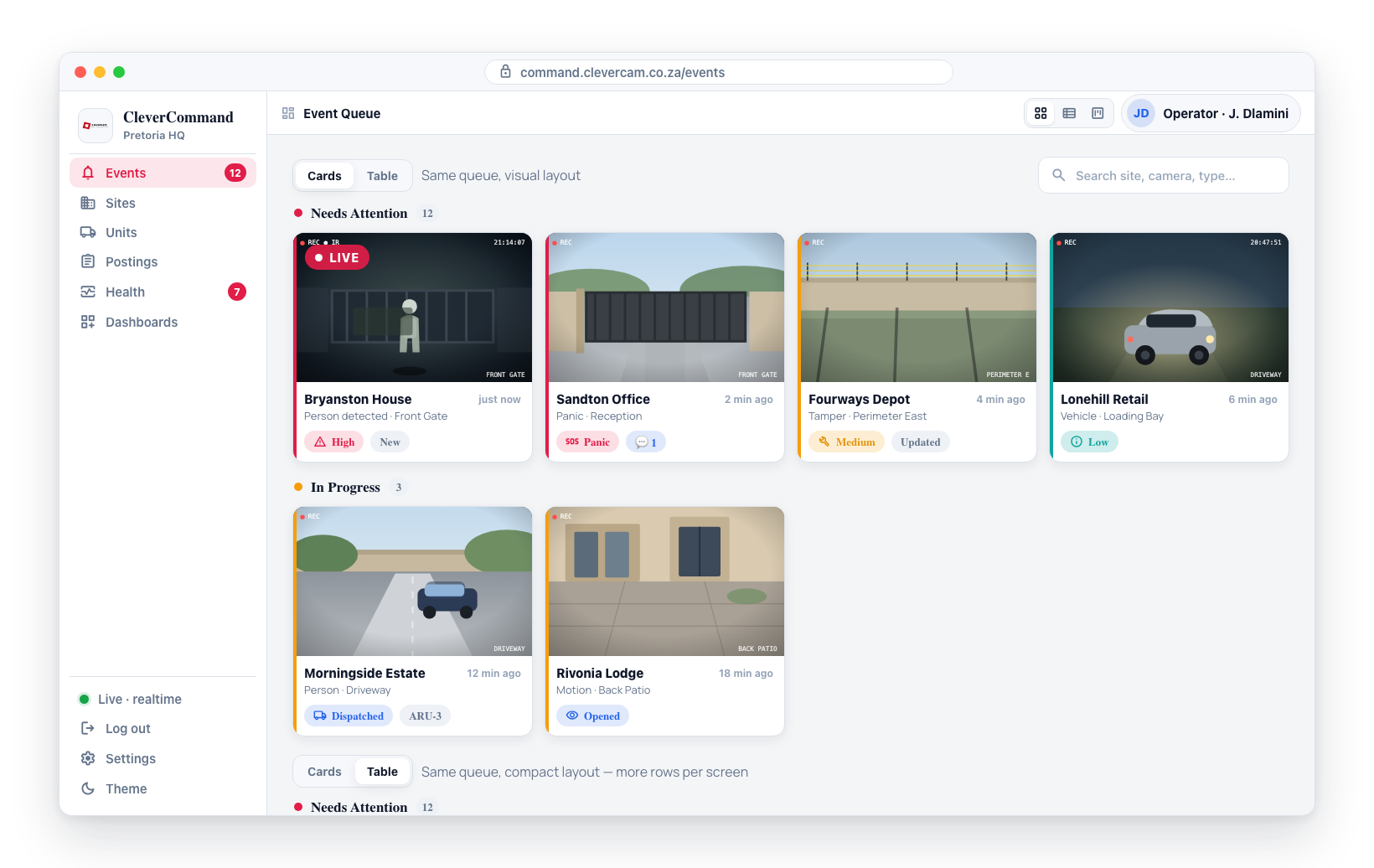
The view selector lives in the top-right of the Events panel header — a small segmented control with two icons (cards / table). Clava-Mode-enabled VCRs also see a third kanban button for Clever/Advance Mode — a separate kanban-style view documented on its own page.
Cards View
Cards view displays each event as a visual card with a thumbnail, severity indicator, site name, event type, camera, and time. This layout is ideal for visual triage — operators can scan event photos to assess whether an event warrants immediate attention.
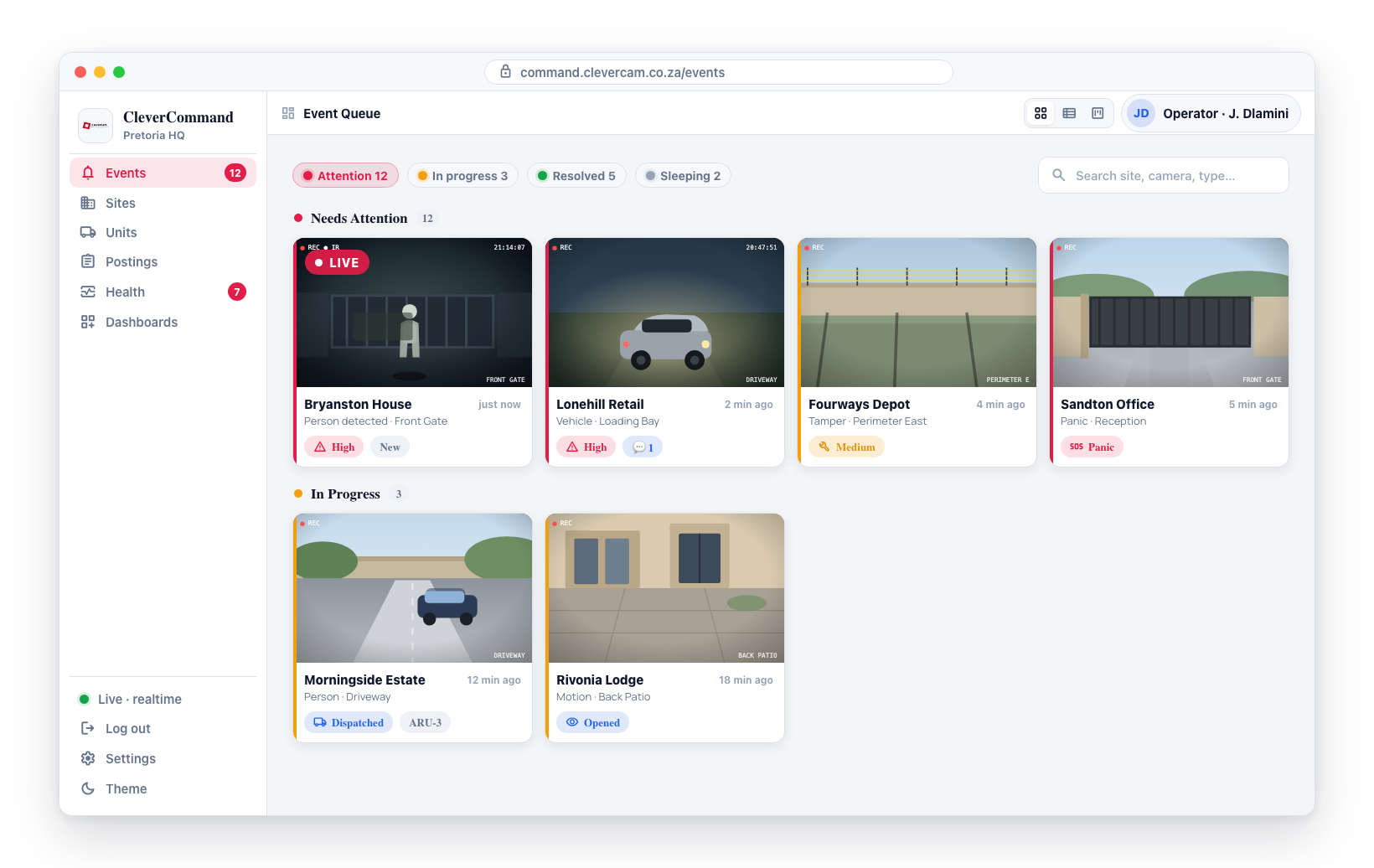
Each card includes:
- Thumbnail snapshot from the camera at detection time
- Severity colour along the card edge (red, orange, or teal)
- Site name (the name your control room set for the site, with the street address as a muted line below it) and camera name
- Event type label
- Time received as a 24-hour clock time (
HH:MM) — never "3 minutes ago". Hover it for the exact stamp with the second.
When to use Cards view
- When visual context is important for triage decisions
- When event volume is moderate and you can afford larger card sizes
- When working with detection types that benefit from photo review (intrusion, motion)
Table View
Table view displays events in a compact, list-style layout with one event per row. You see more events on screen at once without scrolling.
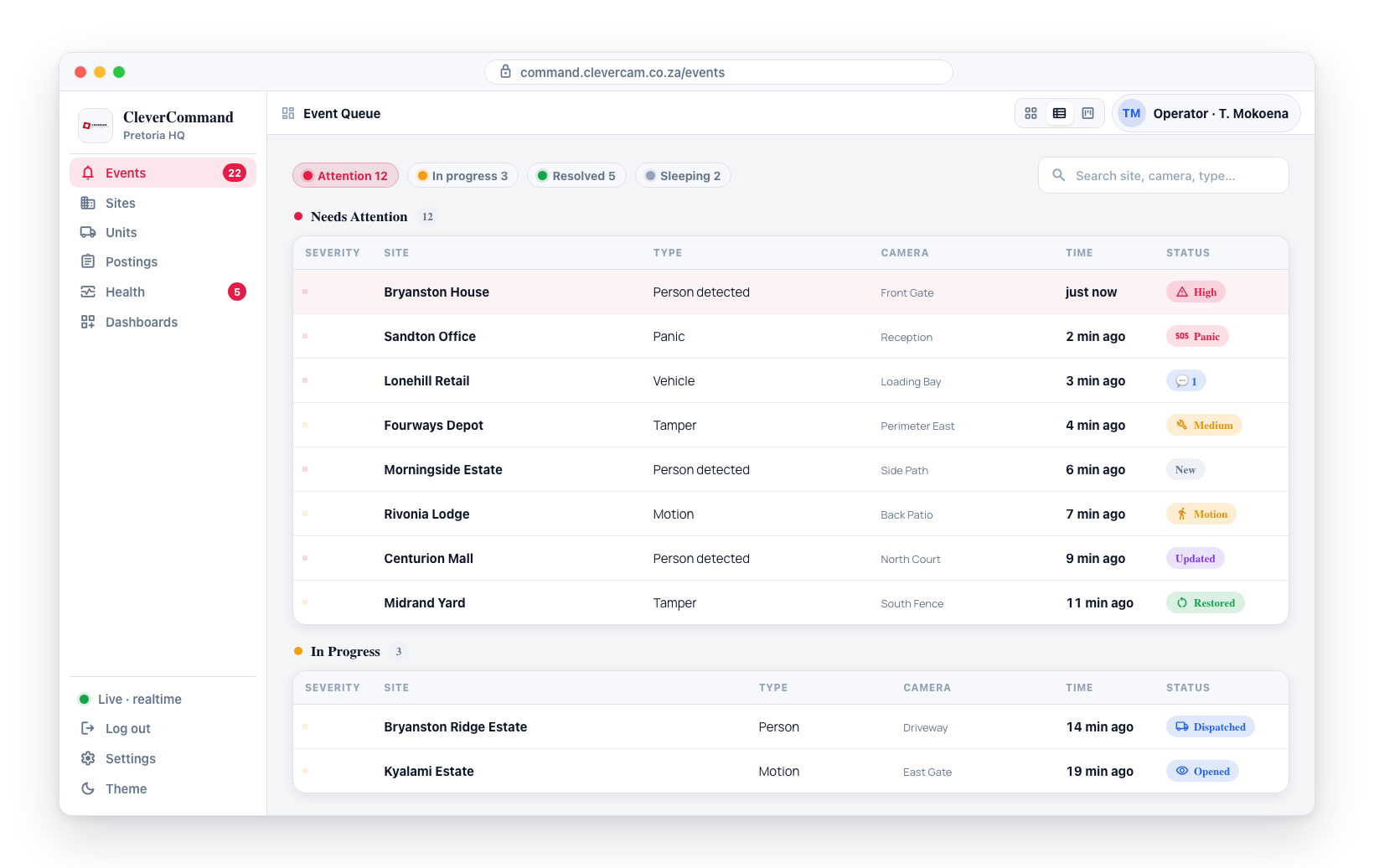
Table columns include:
| Column | Content |
|---|---|
| Severity | Color-coded dot |
| Site | Site name |
| Type | Event type |
| Camera | Camera name |
| Time | Time received, HH:MM — hover for the exact stamp with the second |
When to use Table view
- During high-volume periods when many events are active simultaneously
- When you need to scan a large queue quickly
- When photo thumbnails are less important than event details for triage
Sections in Cards & Table view
Both views group events into four sections by current state — Needs Attention, In Progress, Resolved, Sleeping. Section headers show the count for each state and can be collapsed/expanded. Filter chips above the queue (Attention / In progress / Resolved / Sleeping) jump to the matching section.
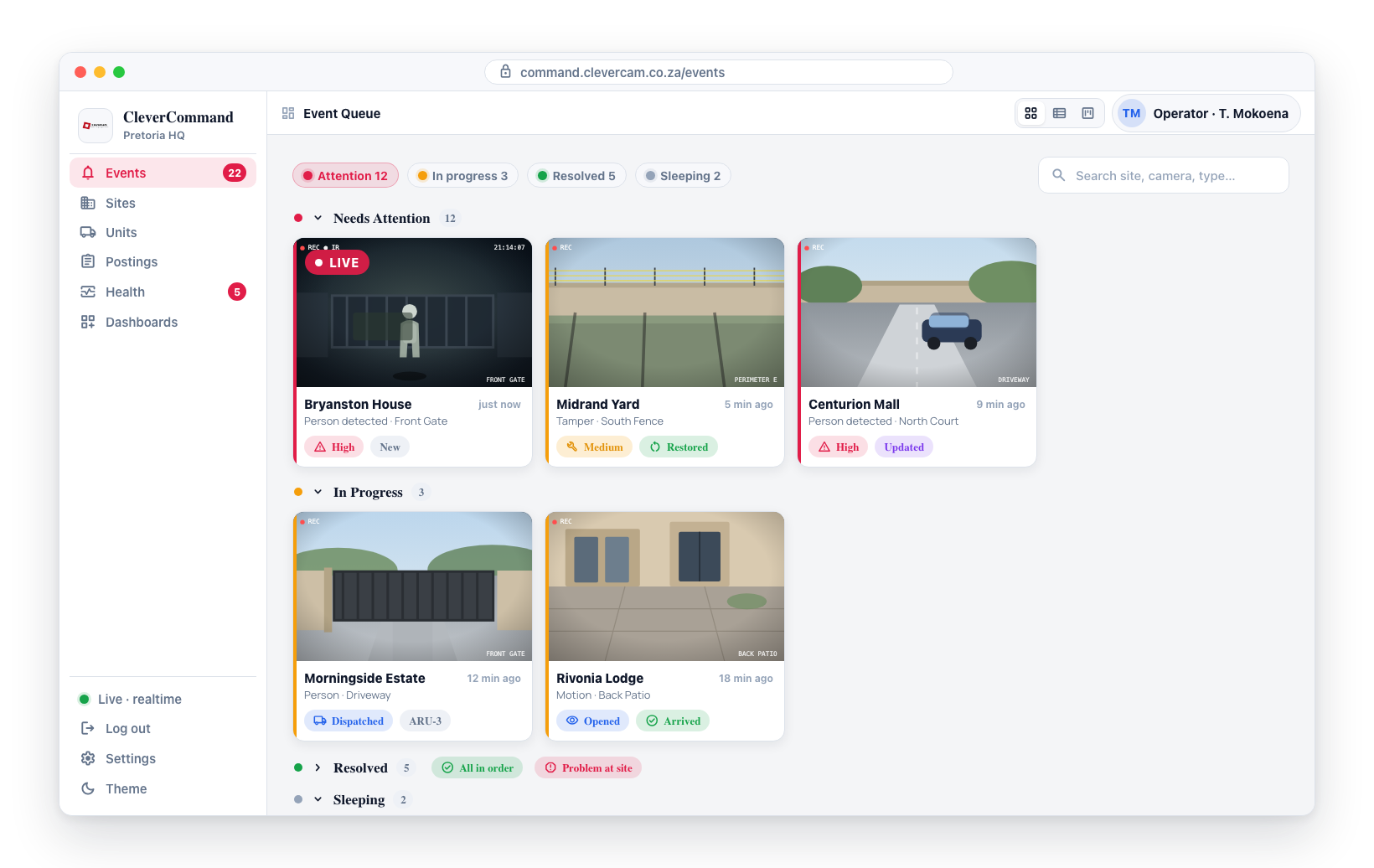
State-specific chips render inline on each card / row:
- Dispatched, Opened, Arrived, All in order, Problem at site — operational status the event has reached.
- Sleeping {countdown} — for events currently snoozed, with a live countdown to wake time.
- New / Updated — for events that have changed since the last time you opened the queue.
- Restored — for events whose signal has been restored at the panel.
Switching Between Views
- On the Events page, locate the segmented view toggle in the top-right of the queue panel header.
- Click the Cards or Table icon to switch.
- Your selection is saved automatically and applied on your next visit.
During a busy shift, switch to Table view to see more events at a glance. During quieter periods, Cards view gives richer visual context. For Clava-Mode-enabled VCRs that need drag-to-transition and per-card AI proposals, use Clever/Advance Mode.
Performance Considerations
Both views receive the same live updates. Cards view renders more visual content (thumbnails, larger cards), so it may use slightly more memory during very high-volume periods. If you experience any slowdown, switching to Table view is the lighter option.
View preference is stored per browser. If you use CleverCommand on multiple workstations, you may need to set your preferred view on each one.