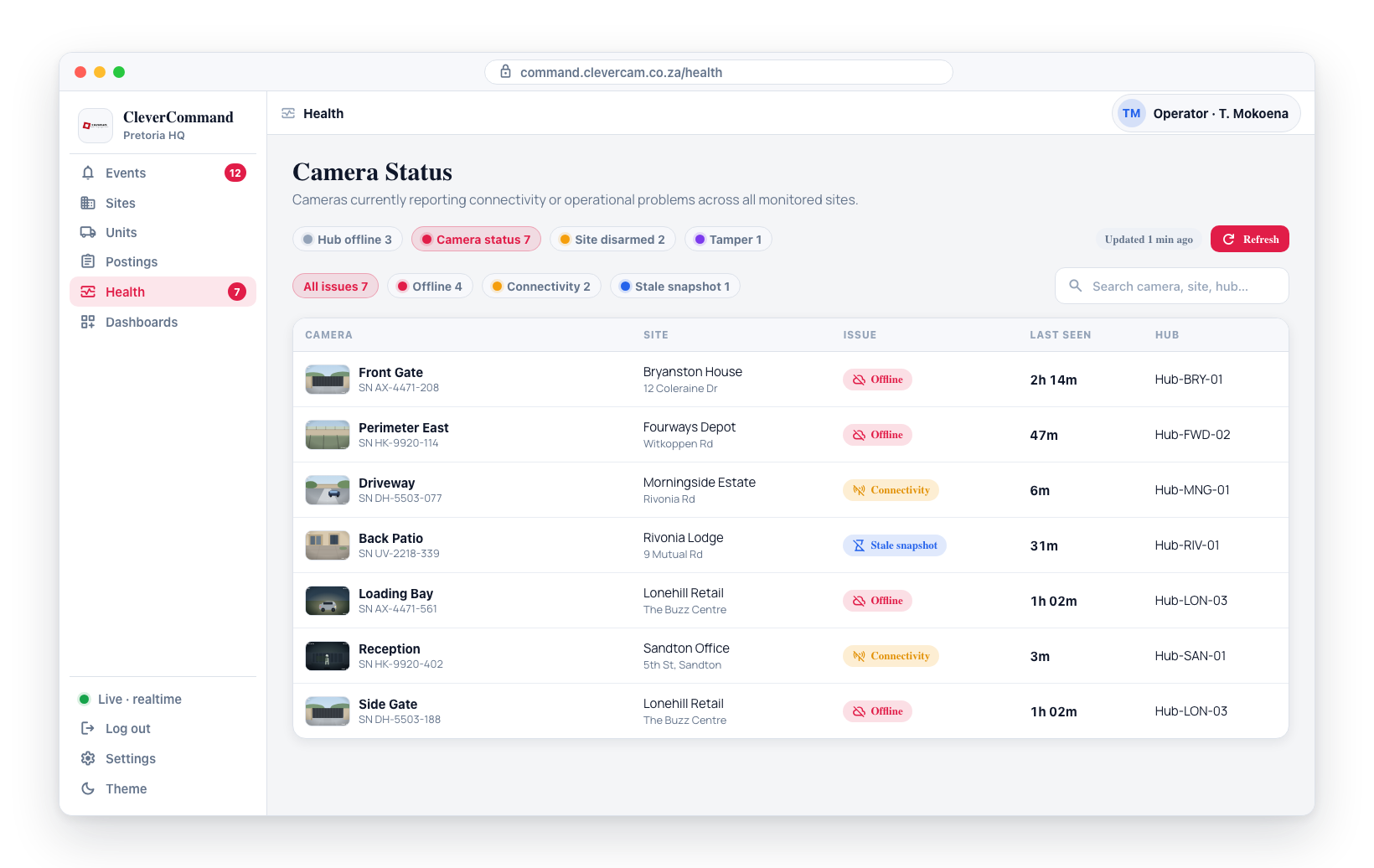
Health Monitoring Panel
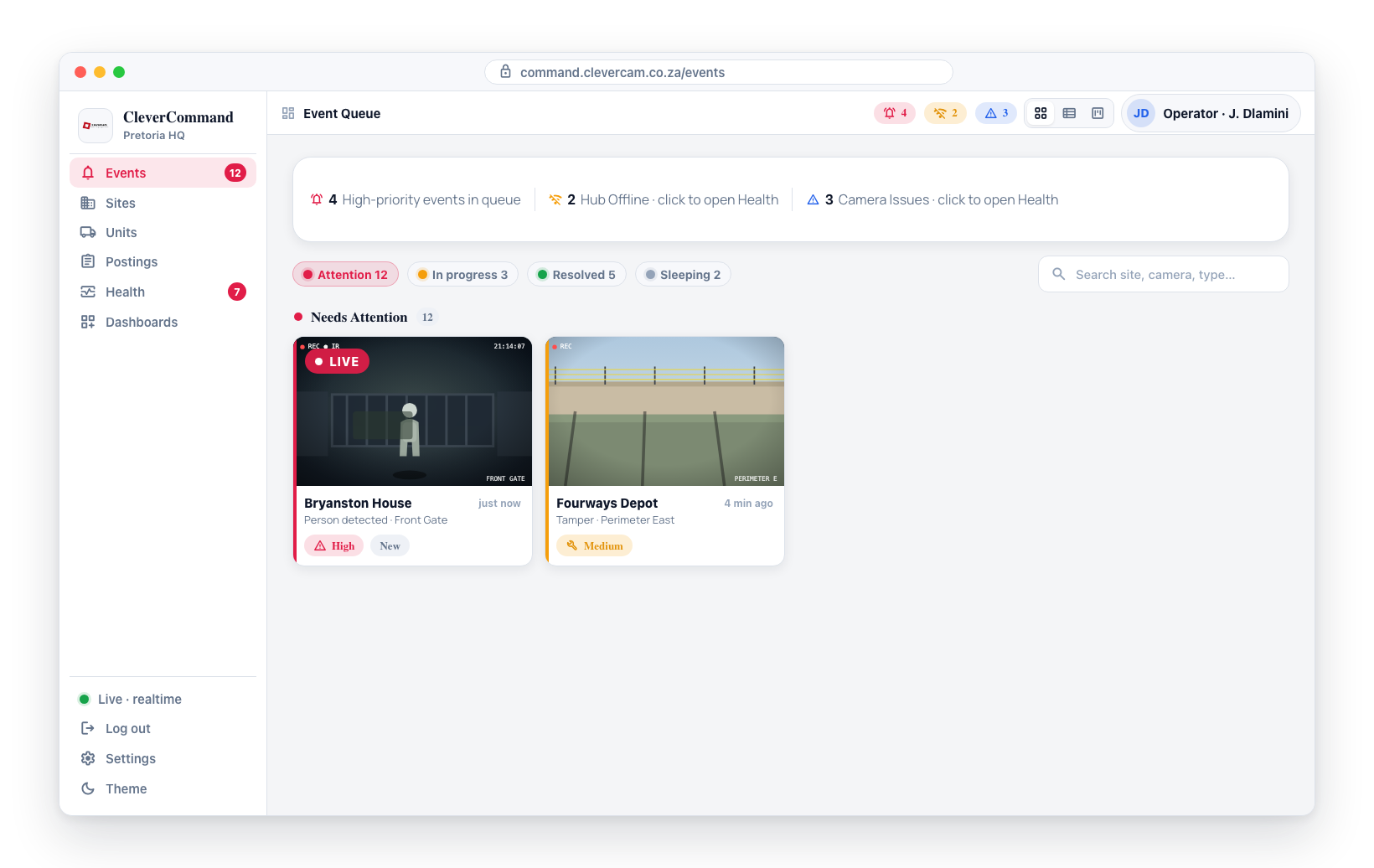
The Events page includes a compact health monitoring panel that gives operators quick visibility into system health without leaving the event queue. This panel displays summary counts for Clever Hubs that have gone offline and cameras with issues, helping you spot problems while you monitor live events.
What the Panel Shows
The health panel on the Events page displays two key metrics:
| Metric | Description |
|---|---|
| Hub Offline | The number of Clever Hubs currently disconnected from the network |
| Camera Issues | The number of cameras currently experiencing connectivity or operational problems |
These counts update in real time alongside the event queue, so you always have current information about the state of your network.
Reading the Indicators
- Zero counts -- All Clever Hubs are online and no cameras are reporting issues. The system is healthy.
- Non-zero counts -- One or more hubs or cameras have problems. The count tells you how many are affected.
- Rising counts -- If you notice the numbers increasing, it may indicate a broader network issue (such as an internet outage affecting multiple sites).
Navigating to Full Health Details
The health counts on the Events page are clickable. When you need more information:
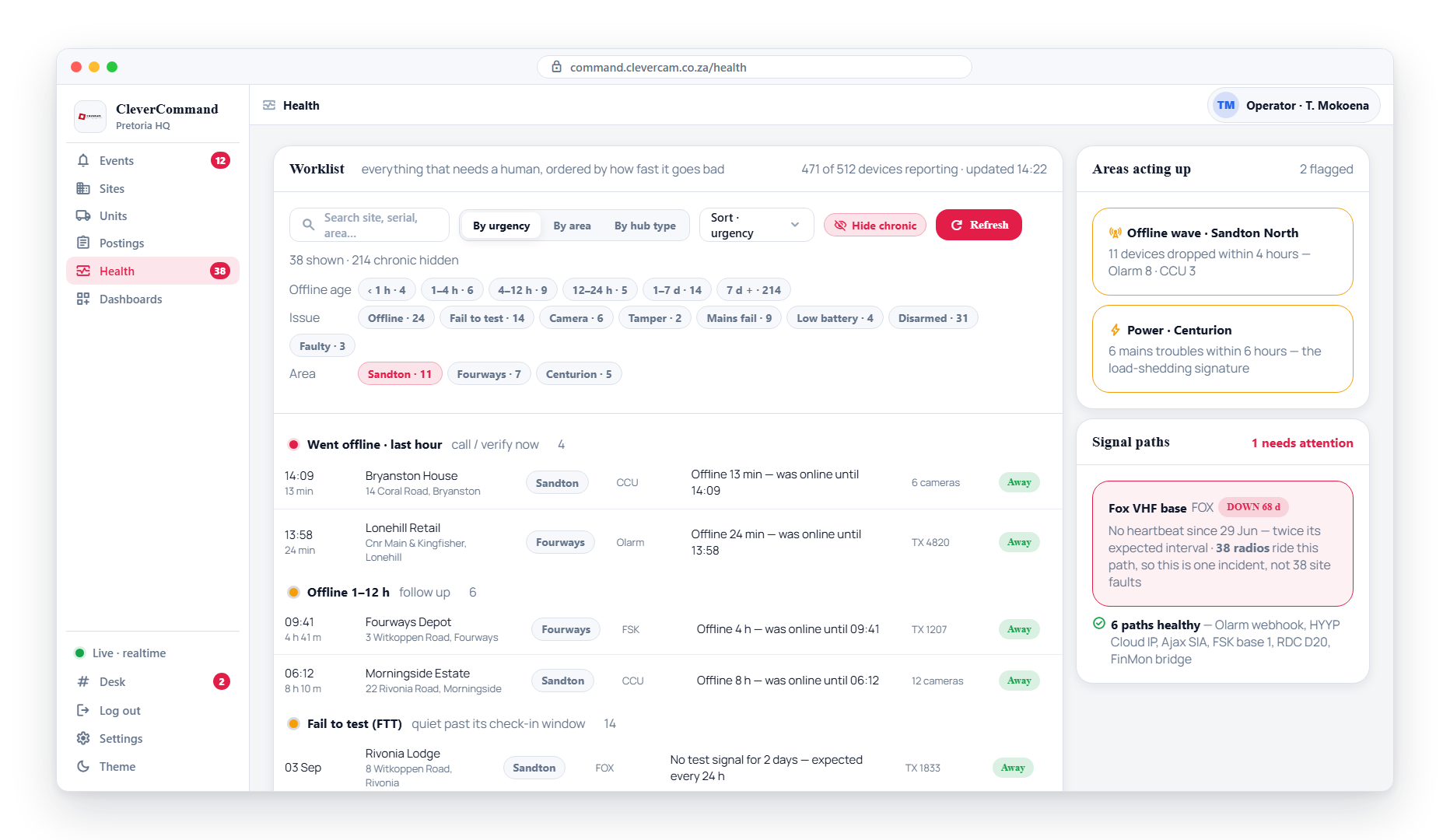
- Click the Hub Offline count to navigate directly to the Health page filtered to show offline hubs
- Click the Camera Issues count to navigate to the Health page filtered to show camera problems
- The full Health page provides detailed information about each affected hub or camera
Make it a habit to glance at the health panel periodically during your shift. Catching a hub going offline early allows you to notify field technicians before it affects event monitoring for that site.
Why Health Matters for Event Monitoring
Hub and camera health directly impacts your event queue. If a Clever Hub goes offline, cameras at that site can no longer send detections to the cloud. This means:
- Events from that site will stop appearing in your queue
- The absence of events from a site does not necessarily mean the site is secure -- it may mean the hub is down
- Monitoring health counts helps you distinguish between a quiet site and a disconnected one
If you notice a site that normally generates regular events has suddenly gone quiet, check the health panel. A zero event count combined with a hub offline indicator for that site means the hub has lost connectivity, not that the site is secure.
Relationship to the Health Page
The health panel on the Events page is a summary view. For full details, filtering, and management of health issues, navigate to the dedicated Health page. The Events page panel is designed to keep you informed at a glance without interrupting your event monitoring workflow.