Duress Banner
The duress banner is a persistent, pulsing red alert that pins to the top of every page in CleverCommand whenever a customer signals a duress condition through the dual-rail conversational comms channel (CleverAlert app picker or WhatsApp). It is fleet-wide — every operator and supervisor logged in sees it, regardless of which control room or site the duress originated from. Duress events are rare and the banner is intentionally loud so it cannot be missed.
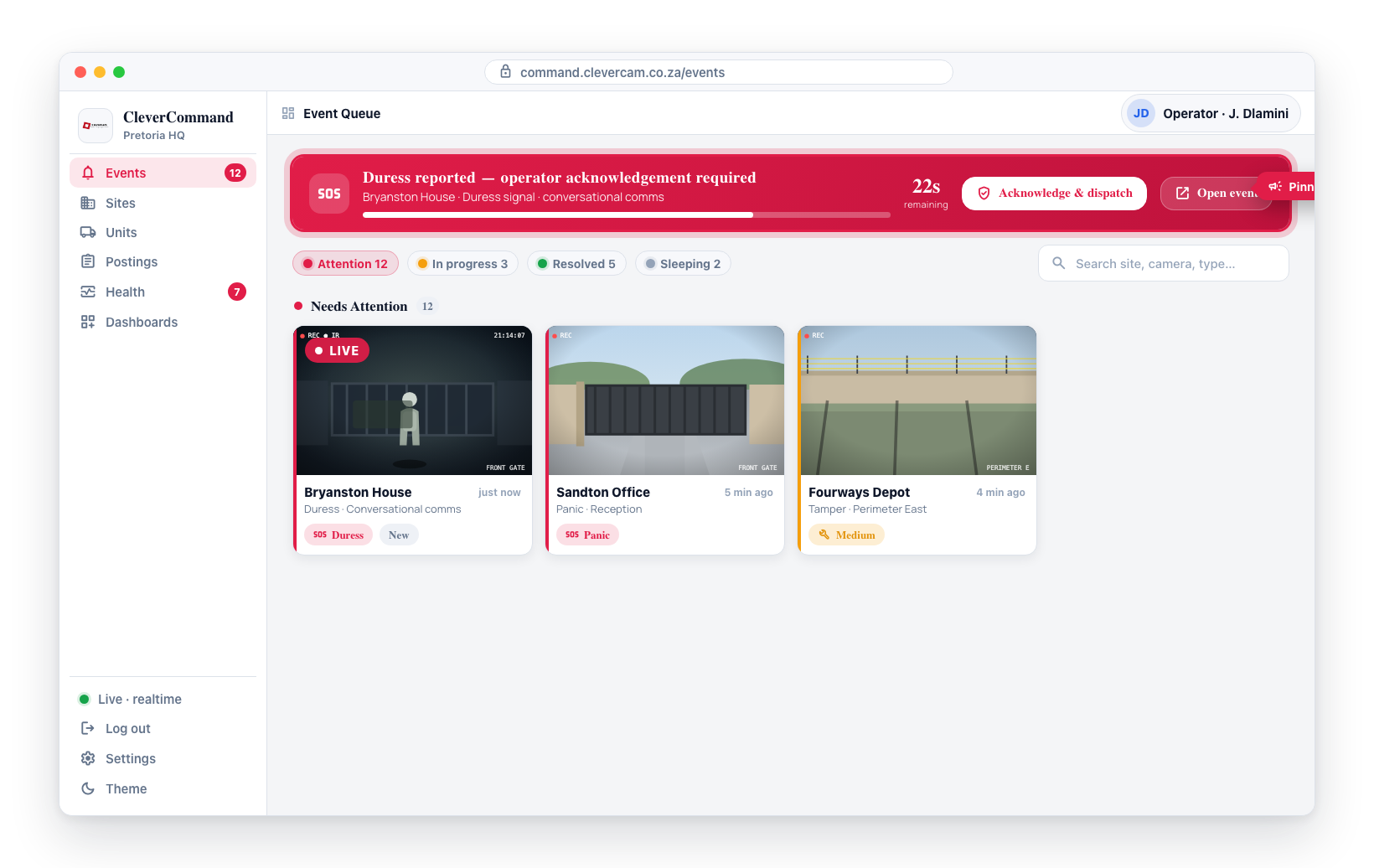
A duress alert pins to the top of every operator’s screen with a 30-second countdown and a warble.
Why it exists
When a customer responds to a CleverCommand outbound message with a phrase that matches their pre-configured duress text, or with the duress option in the CleverAlert app picker, the system flags the conversation as a possible silent alarm. The cover message that goes back to the customer is identical to the "all OK" cover message — the operator (and only the operator) sees the duress signal. The banner forces a human to engage within a tight window so a real response can be coordinated.
Two banner modes
Pre-timeout — "Duress reported"
Renders the moment the duress signal lands, with a 30-second countdown bar.
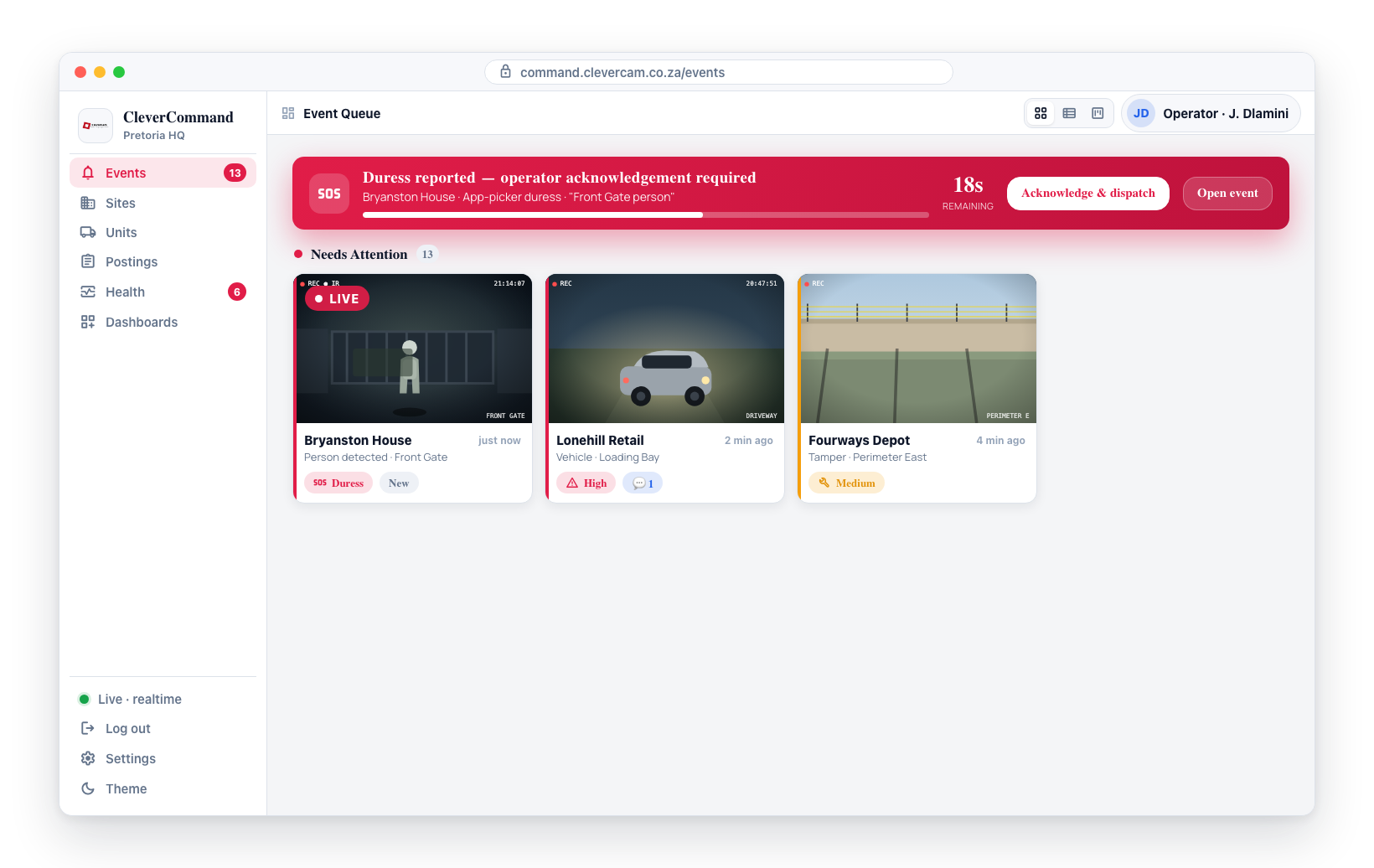
| Element | Behaviour |
|---|---|
| Heading | "Duress reported — operator acknowledgement required" |
| Detail line | Site name, event label/description |
| Countdown | Animated bar from 100% → 0% over 30 seconds, with seconds remaining shown numerically |
| Action | "Acknowledge & dispatch" button — clicking writes an audit row attributed to the operator and clears the deadline |
| Open event | Secondary "Open event" button — jumps straight to the event details page so you can review and act without hunting the queue |
If any operator on the floor clicks "Acknowledge & dispatch" within the 30-second window, the strip disappears for everyone. The control room is then expected to coordinate the actual response through the existing "Suggest dispatch" flow on the affected event.
Post-timeout — "Duress auto-fired"
If no operator acknowledges within 30 seconds, the system writes a system_timeout audit row and the banner swaps to a louder mode that stays up until a supervisor resolves it.
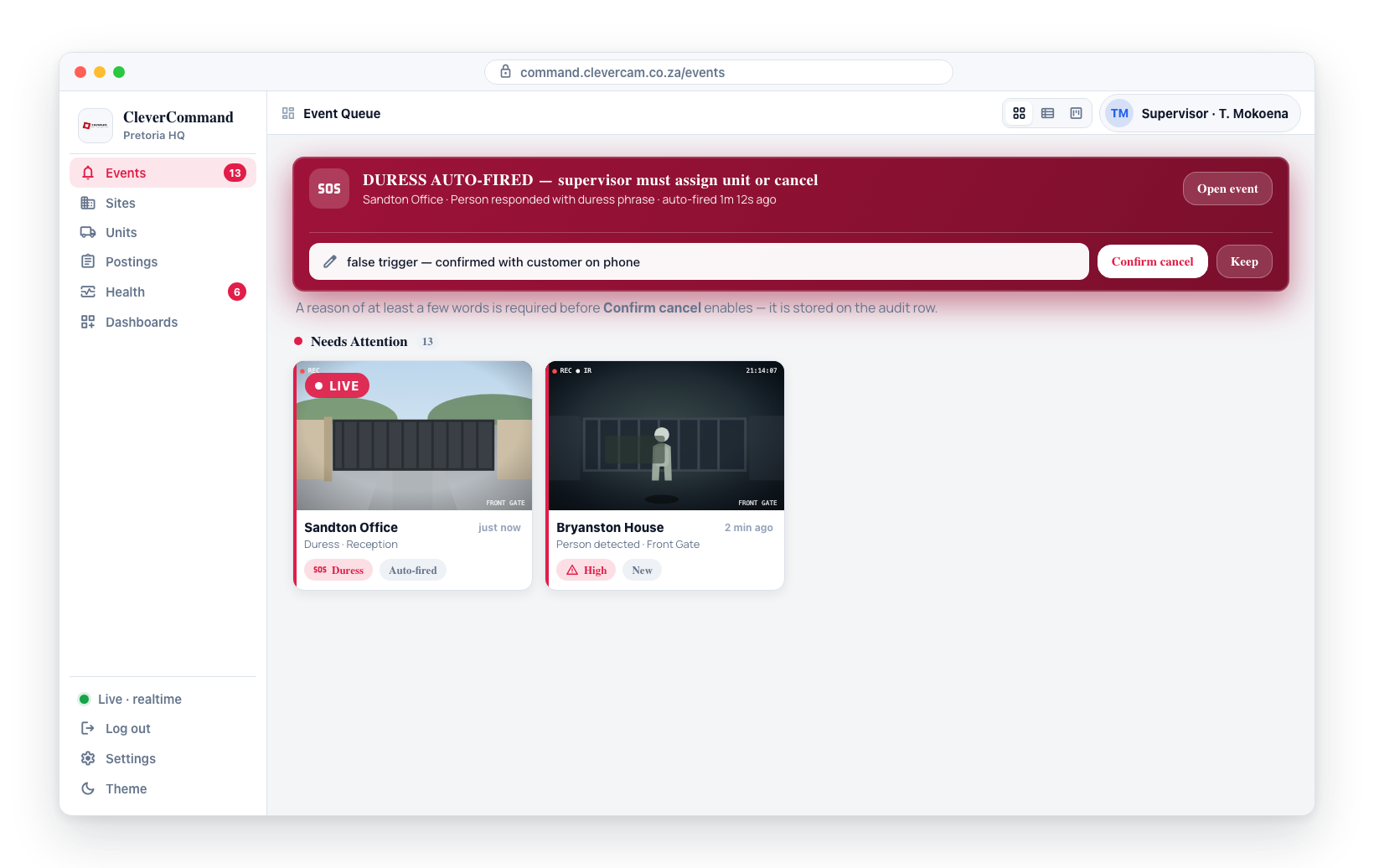
| Element | Behaviour |
|---|---|
| Heading | "DURESS AUTO-FIRED — supervisor must assign unit or cancel" |
| Detail line | Site name, event label/description, "auto-fired Xm Ys ago" relative timestamp |
| Pulse | Faster, deeper red gradient with stronger glow |
| Actions | "Open event" button and a "Cancel duress" button |
Two paths for resolving a post-timeout strip:
- Dispatch through the existing flow. Click "Open event" on the strip (or find the event in the queue), then pick a response unit through the "Suggest dispatch" button on the event card. The supervisor banner does not auto-resolve when this happens (a small follow-up improvement is planned).
- Cancel the duress. Click "Cancel duress" on the banner. The button expands into a confirm step with a mandatory reason field (e.g. "false trigger — confirmed with customer"); the cancel only fires after you type a short reason and click "Confirm cancel". The reason is stored with the audit row. Use this path when the supervisor has confirmed through another channel (phone, in-person, etc.) that the duress signal was a false alarm.
The system never picks a response unit on its own. Auto-fire raises the alarm; the supervisor decides which unit rolls (or whether the alarm is suppressed because it was confirmed false on another channel).
Channel-agnostic by design
The banner does not distinguish between a duress signal that arrived via the CleverAlert app picker and one that arrived via WhatsApp. Both rails feed the same conversation state machine, both can trigger the duress branch, and both surface in the banner identically. The detail line shows the underlying site and event — the rail the customer chose is recorded in the conversation message log on the event details page if you need it.
Audit trail
Every banner interaction writes a row to the duress acknowledgements audit table:
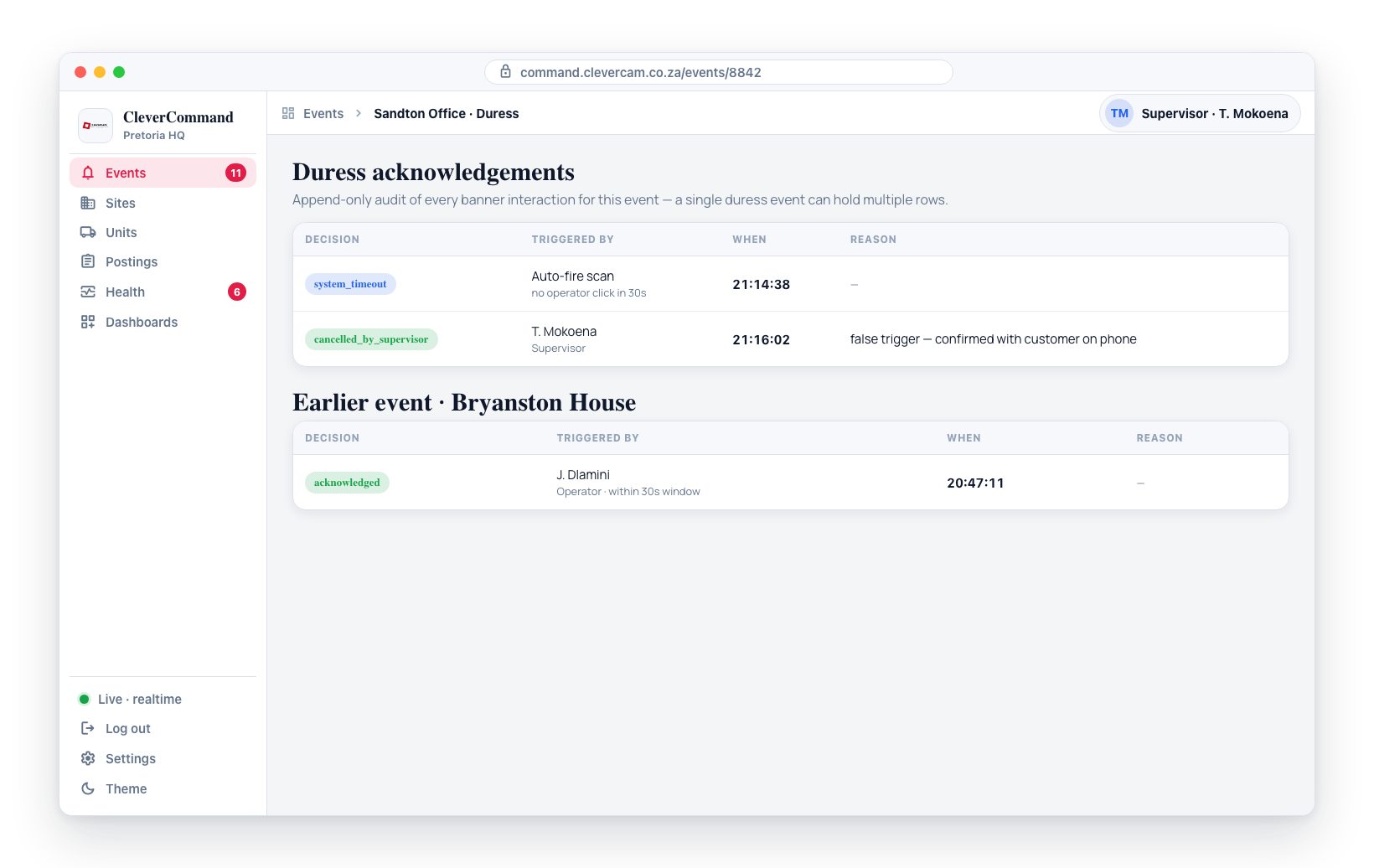
| Decision | Triggered by | What it means |
|---|---|---|
acknowledged | Operator clicked "Acknowledge & dispatch" within 30s | Pre-timeout window closed normally |
system_timeout | Auto-fire scan after 30s with no operator click | Banner swapped to post-timeout mode |
cancelled_by_supervisor | Supervisor clicked "Cancel duress" on a post-timeout strip | Alarm suppressed (confirmed false alarm on another channel) |
These rows are append-only. A single duress event can have multiple rows — for example, a system_timeout followed by a cancelled_by_supervisor is a normal sequence when the auto-fire fired and the supervisor then suppressed the alarm.
Audible and background alerting
A duress strip fires the loudest attention tier in CleverCommand — louder than a routine "new event assigned":
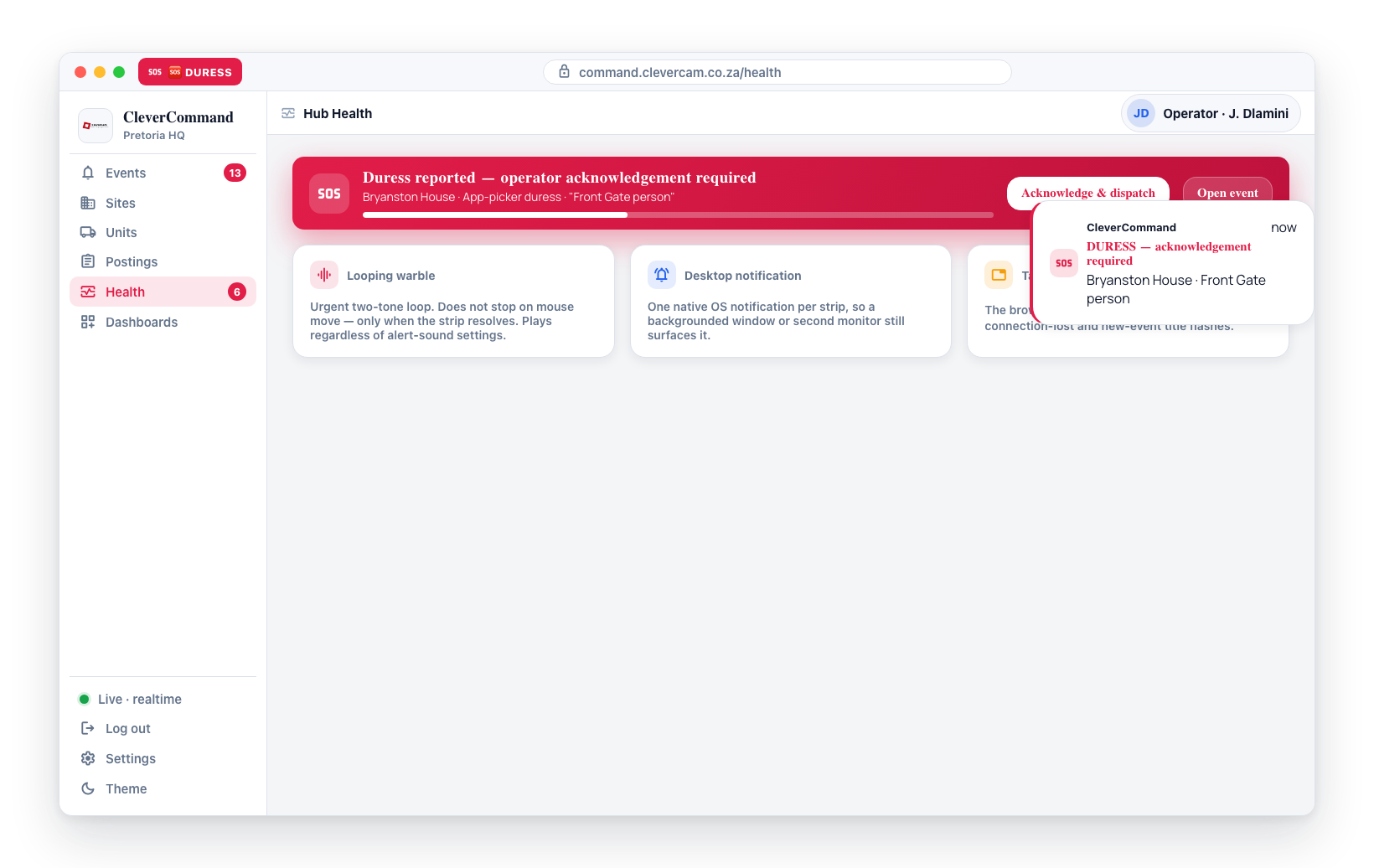
- Looping warble sound — a distinct urgent two-tone pattern that does NOT stop when you move the mouse. It only stops when the strip is resolved (acknowledged, cancelled, or handled by another operator). It plays regardless of your alert-sound settings: duress must never be missable.
- Desktop notification — one native notification per strip ("DURESS — acknowledgement required" / "DURESS AUTO-FIRED — assign unit or cancel"), so a backgrounded window or second monitor still surfaces it.
- Tab title flash — the browser tab flashes "🆘 DURESS", outranking the connection-lost and new-event title flashes.
What is NOT done automatically
- No response unit is dispatched automatically. The banner alarms; the supervisor picks a unit through the existing dispatch flow.
- No SMS, email, or external page channel is fired — the in-app banner, sound, and desktop notification are the supervisor surfaces.
Frequently asked questions
What if multiple duress signals fire at once? Each renders its own strip, stacked vertically. Post-timeout strips render above pre-timeout strips because they're more urgent.
What if the operator missed acknowledging because they were on another tab? The looping sound, tab-title flash, and desktop notification are designed to catch exactly this. If the 30-second window still lapses, the supervisor must either dispatch or cancel — there is no "I was just slow, let me ack now" path. Use the post-timeout actions instead.
Does the customer know we saw the duress? No — the cover message returned to the customer is identical to the "all OK" message. This is the load-bearing safety property of the silent alarm. Never mention duress in any text you send back to the customer through any channel.