Site Classification
Every connected site in CleverOps has a classification — a structured description of how the customer actually uses the site, plus the routing, timing, and SLA rules CleverCommand should follow there. CleverCommand reads this on every event so the procedural SLA engine knows whether it can safely auto-contact the customer, what channel to use, when to escalate, and which patterns to ignore.
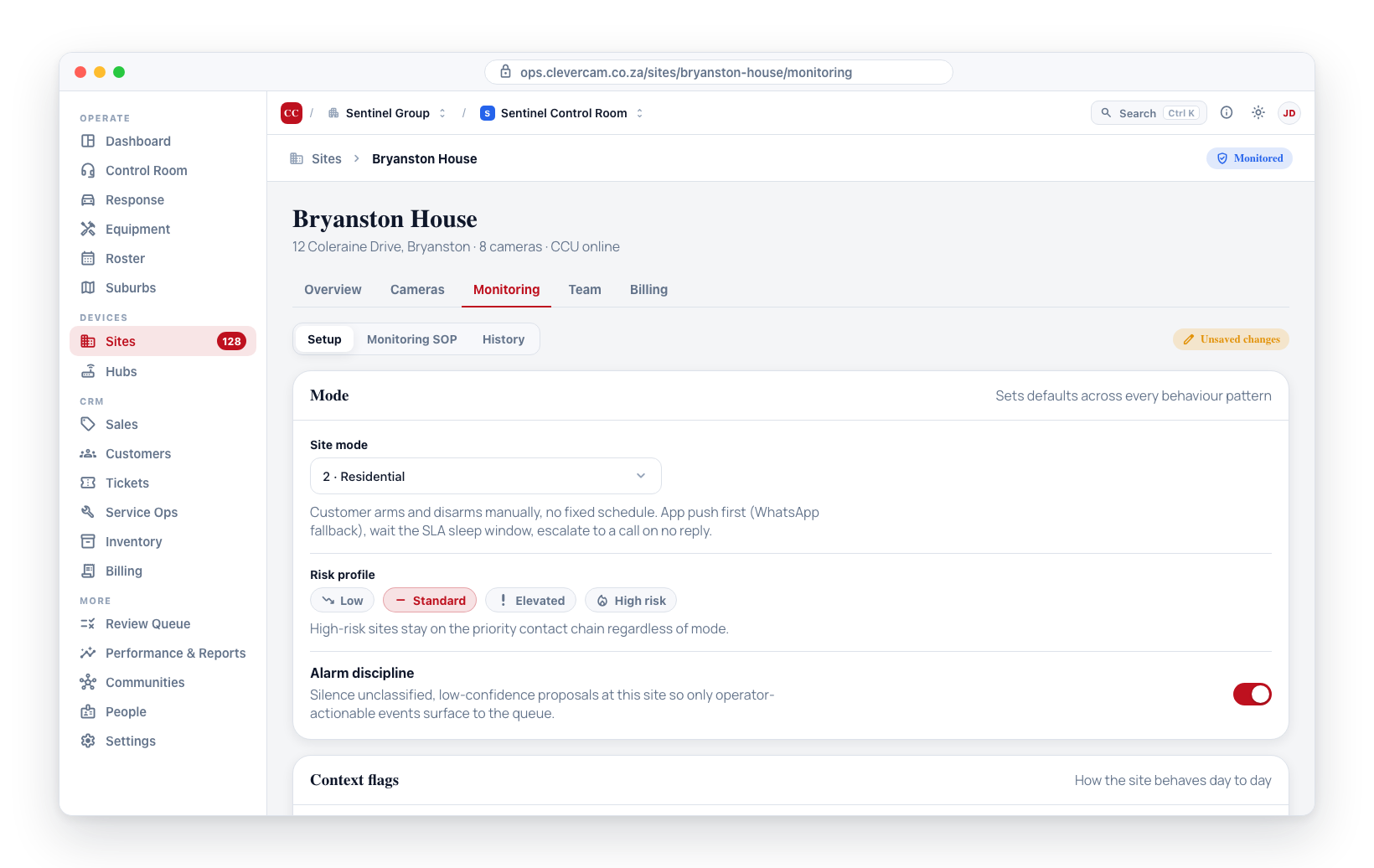
Classification starts with a mode, which sets sensible defaults across every behaviour pattern (alarm, panic, comms loss, opening/closing, fail-to-arm, and so on). On top of the mode you can adjust SLA defaults for the specific site, and Business-mode sites get an operating hours editor that drives the after-hours dispatch and fail-to-arm logic.
By default, every site is in Classic mode, which CleverCommand treats as the conservative case: no auto-contact, every event reaches an operator, no auto-dispatch. You only need to classify a site when you want CleverCommand to behave differently for it.
Where to find it
- Open Sites in CleverOps.
- Click a site to open the site modal.
- Switch to the Monitoring tab and stay on the Setup sub-tab.
- The Mode card is the first card on the Setup landing; Operating hours sits inside the same card group.
Timing defaults, auto-action gates, and site flags (the old "Smart Control Room" controls) now live on the Monitoring → Monitoring SOP sub-tab inside the Cross-cutting settings card of the merged Site SOP panel.
What you can capture
The Setup landing renders the Mode card first. The Operating hours card only appears when Business mode is selected — every other mode hides it entirely and cannot turn it on.
Per-mode automation (notify cooldown, photo preview, power-signal wait, auto-call on no reply, dispatch requires client contact, the site flags Guards on site / VIP / Repeat abuser / Pets) used to live in a Smart Control Room card on the old Policy sub-tab. They now live in the Cross-cutting settings card on the Monitoring → Monitoring SOP sub-tab, alongside the per-event SOP variants. Per-event automation (e.g. Burglary → Auto-dispatch (CCU-verified only)) is now configured per event type in the Event handling card on the same sub-tab.
Operating hours are tied to Business mode. Switching the mode to Classic / Residential / Continuous-movement hides the card and strips the schedule from site_config on the next save. Re-selecting Business brings the editor back with the default Mon–Sat 06:00–18:00 schedule.
Mode
This is the most important field. It drives whether CleverCommand can auto-contact the customer and how strictly it enforces the SLA flow. Four modes:
- 1 · Classic — default. Full manual. Operator triages every event. No auto-notify, no auto-call. The safe choice when you don't yet know how the customer uses the site, or for sites under cost pressure.
- 2 · Residential — typical home / residence customer. Customer arms and disarms manually, no fixed schedule. Standard alarm flow: app push first (WhatsApp fallback), wait the SLA sleep window, escalate to call on no reply, operator decides on chain exhaustion.
- 3 · Business — a business with predictable operating hours (default Mon–Sat 06:00–18:00). Out-of-hours alarms can be configured to dispatch first (skip notify and call entirely). Fail-to-arm grace-period reminders apply: when the site doesn't arm by the configured close time + 15 minutes, the system auto-notifies the customer; if still ignored, the operator handles a call.
- 4 · Continuous-movement — guards on site, perimeter monitoring, or scheduled-armed misuse. NO customer auto-comms. The operator handles every event manually. Suits industrial yards, retail with guards, and any site where motion events are expected as part of normal operation.
Picking the wrong mode has cost consequences. Marking a site Residential when the customer actually has roaming guards means the engine will fire app/WhatsApp notifications on every guard walk-by — burning per-message cost and customer goodwill. When in doubt, leave it Classic.
Operating hours
The Operating hours card only renders when Business mode is selected — every other mode hides it. There is no per-site opt-in toggle for non-Business modes; if you need operating hours, switch the site to Business mode first.
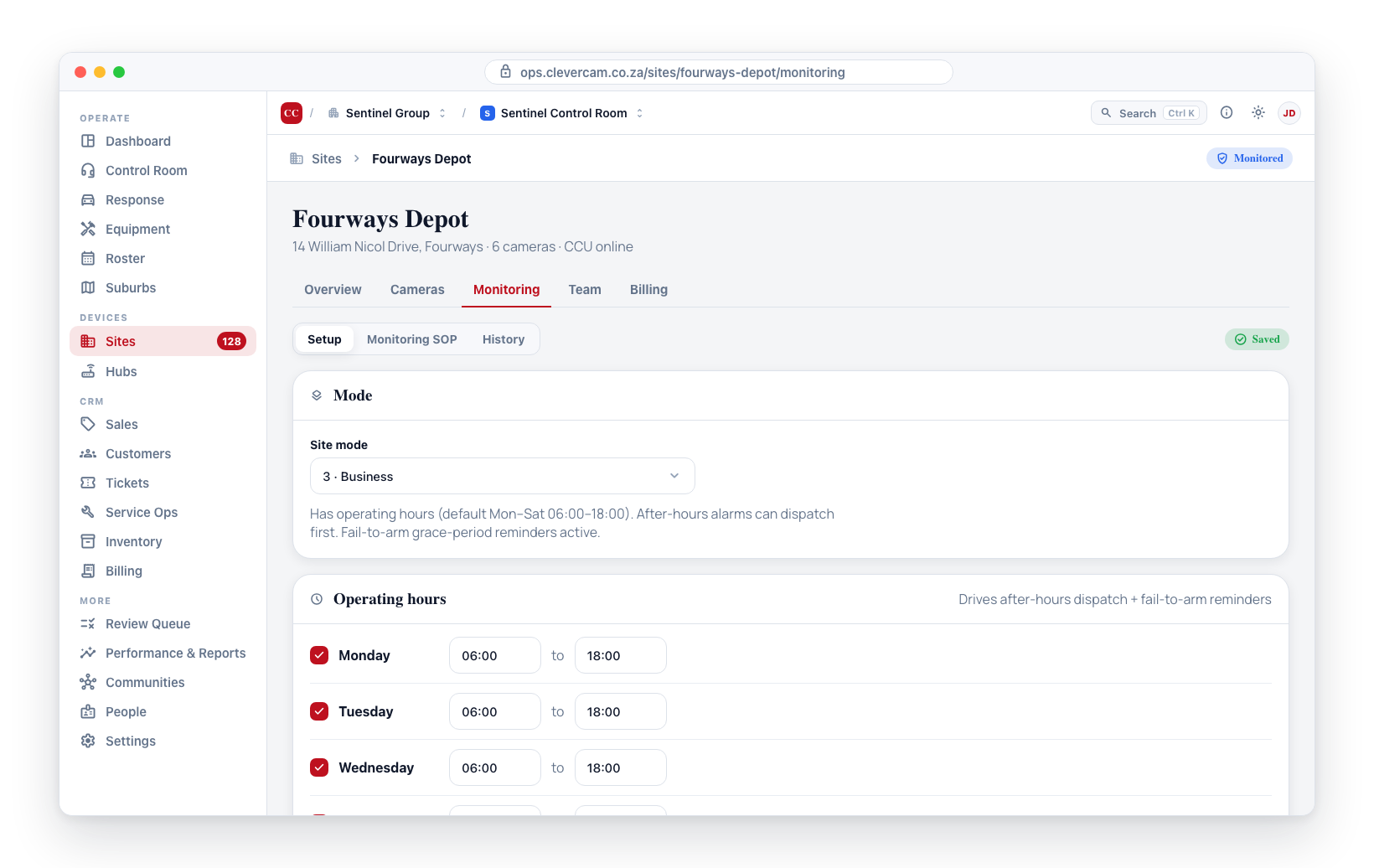
One row per day appears (Monday → Sunday), followed by an extra Public holiday row at the bottom of the list. Each row has:
- A checkbox to mark the day Open (ticked) or Closed (unticked).
- When ticked: a time window — open and close (default
06:00to18:00), with how long the day runs shown beside them. A close earlier than the open means the site trades past midnight, and the control says so. The day saves once, when you leave the control.
This supports asymmetric weekly schedules — for example a site that's open Mon–Fri 06:00–18:00, Saturday 08:00–13:00, Sunday closed, Public holiday closed. Each row is configured independently.
Default for new Business sites: Mon–Sat 06:00–18:00, Sunday + Public holiday closed.
The Public holiday row stores its open/close window on site_config.operating_hours.public_holiday, but the CleverCommand SLA engine does not yet swap to it on actual public-holiday dates — it still resolves the day key from the event's local weekday (Mon → mon, etc.). Holiday-date detection will land in a later release; the schedule entered here will be picked up automatically when that work ships.
These hours drive two things:
- Fail-to-arm reminders. If the site has not been armed by the close time plus a 15-minute grace period, the engine auto-notifies the customer ("Your site hasn't been armed for the night — reply ARM to dispatch a tech, or OK if aware"). If no reply in another 15 minutes, the event escalates to the operator for a phone call.
- Out-of-hours dispatch logic. When the per-site flag
dispatch_first_outside_business_hoursis on (see SLA defaults below), alarms that fire outside the operating-hours window skip the notify + call chain and surface directly withrecommend_dispatchpre-selected.
Switching the mode from Business to any other mode (Classic, Residential, Continuous-movement) hides the Operating hours card and strips has_operating_hours + operating_hours from site_config on the next save. The schedule is not preserved across the switch — re-selecting Business brings back the default Mon–Sat 06:00–18:00 schedule, not the previous custom one.
Residential customers don't get fail-to-arm reminders from the control room. If a customer wants their personal arm reminders (e.g. "remind me at 22:00 weeknights"), that's a setting they configure in the CleverAlert mobile app, not in CleverOps.
Timings
Three number inputs that control how long the engine waits at each step. Leave a field blank to inherit the mode default.
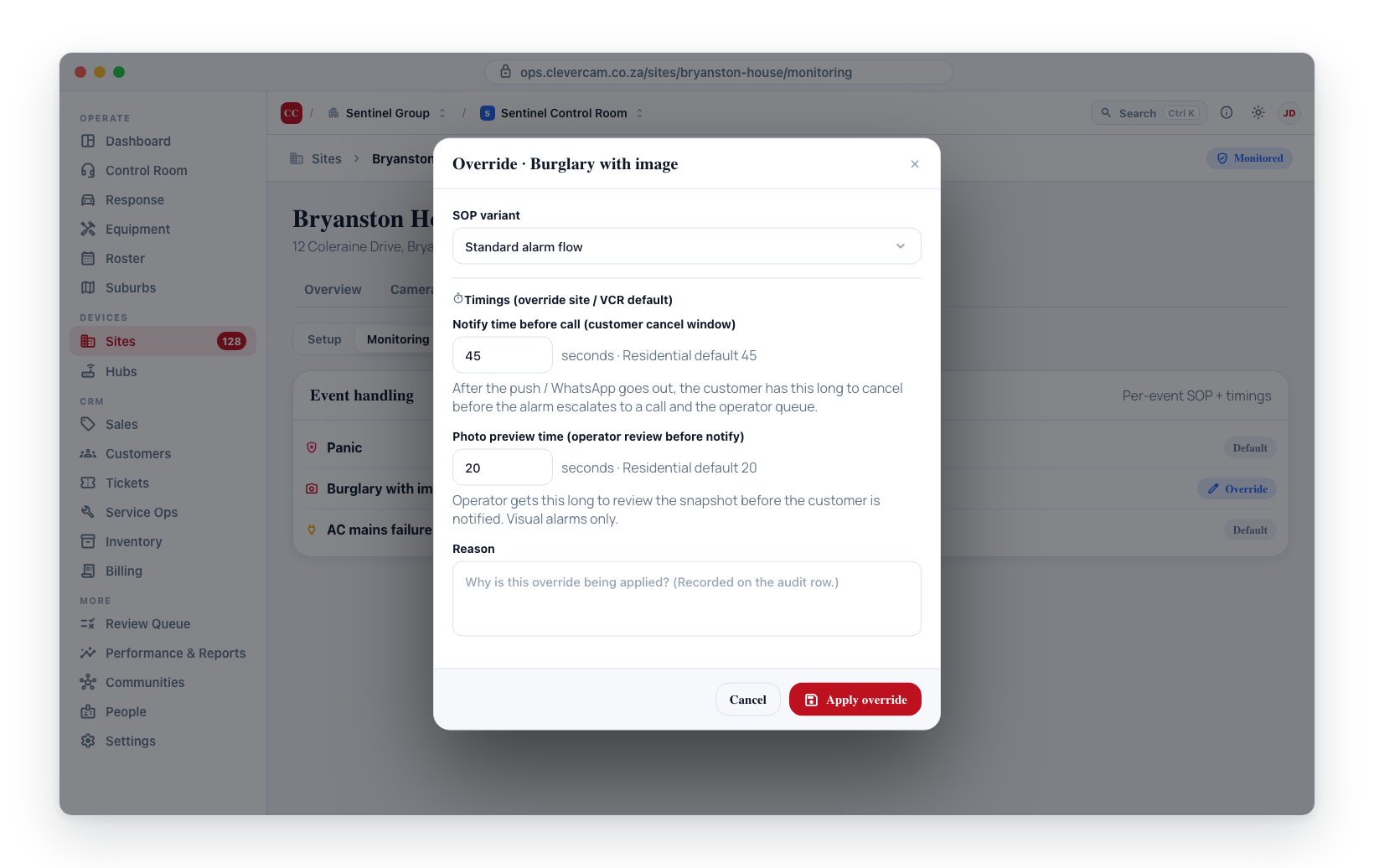
The Monitoring SOP sub-tab that hosted these timings was retired on 2026-06-23. Per-site timing overrides now live per alarm type in the Alarm handling editor. The mode defaults described below still apply — this section documents what each timing does, which is unchanged.
Photo preview time before notify (seconds)
How long the operator gets to review the snapshot on a visual alarm before the auto-flow kicks in. Default 20 seconds. During this window the engine surfaces the event to the operator with the image viewer pre-selected; if the operator doesn't act within the window, the event falls through to the standard alarm flow (notify customer, etc.).
Notify time before call (seconds)
How long the engine waits after sending the customer an app push or WhatsApp before escalating to a phone call (or to the operator). Default 45 seconds. Set to 0 to skip the notify window entirely and surface to operator immediately.
Power-signal wait before action (seconds)
How long power / comms / hub-offline events sleep before the engine acts. Default 600 seconds (10 minutes). Most events of this type self-restore within the window — when they do, the engine auto-resolves silently with no operator surface. If the whole area is affected (≥5 sites within the same suburb / hub-group), the engine rolls the event into a single bulk "area-wide outage" cluster so the operator handles it once.
Auto-actions
Two checkboxes that control what the engine can pre-select or fire without operator approval. Operator click is still required for actual dispatch / customer-comms-send per platform rules — these flags control whether the proposal appears at all.
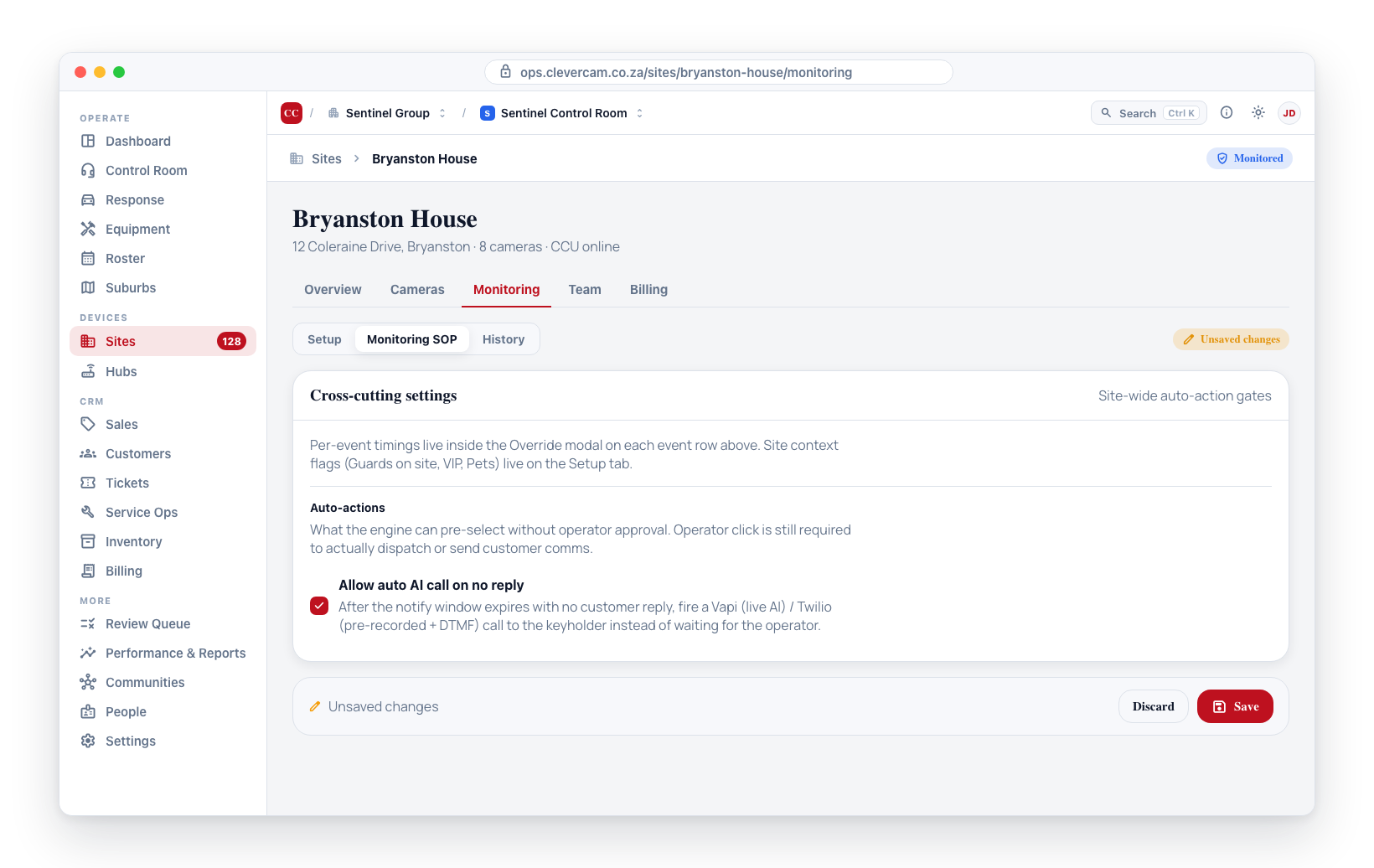
Allow auto AI call on no reply
When ON, after the Notify time before call window expires with no customer reply, the engine fires a Vapi (live AI) or Twilio (pre-recorded + DTMF) call to the keyholder. When OFF, the event escalates to the operator at the end of the notify window instead. Default depends on mode (ON for Residential / Business, OFF for Classic / Continuous-movement).
Dispatch requires client contact
The serial-no-answerer guard. When ON, the operator cannot dispatch from this site unless a successful customer contact was made earlier in the event — any of:
- An app reply was received, or
- A WhatsApp reply was received, or
- A keyholder answered the call and the password was verified.
Use it on sites where the contact chain repeatedly produces no answers but the alarm keeps firing — saves petrol on sites where the customer has effectively withdrawn from active monitoring while still letting the operator dispatch the moment they actually reach someone. Default OFF.
The legacy Allow auto dispatch on emergency and Allow auto dispatch on no answer checkboxes have been removed from the UI. Per-event auto-dispatch is now configured per event type in the Event handling card on the SOP sub-tab (e.g. Panic → Auto-dispatch, Burglary → Auto-dispatch (CCU-verified only), Tamper → Auto-dispatch). The chain-exhaustion no-answer outcome is now expressed via the Chronic no-answer variant in Smart pattern overrides. The underlying JSONB fields are kept for backwards compatibility — the Brain reads them as a fallback during the transition window — but they are no longer editable from CleverOps.
Site flags
Independent boolean modifiers:
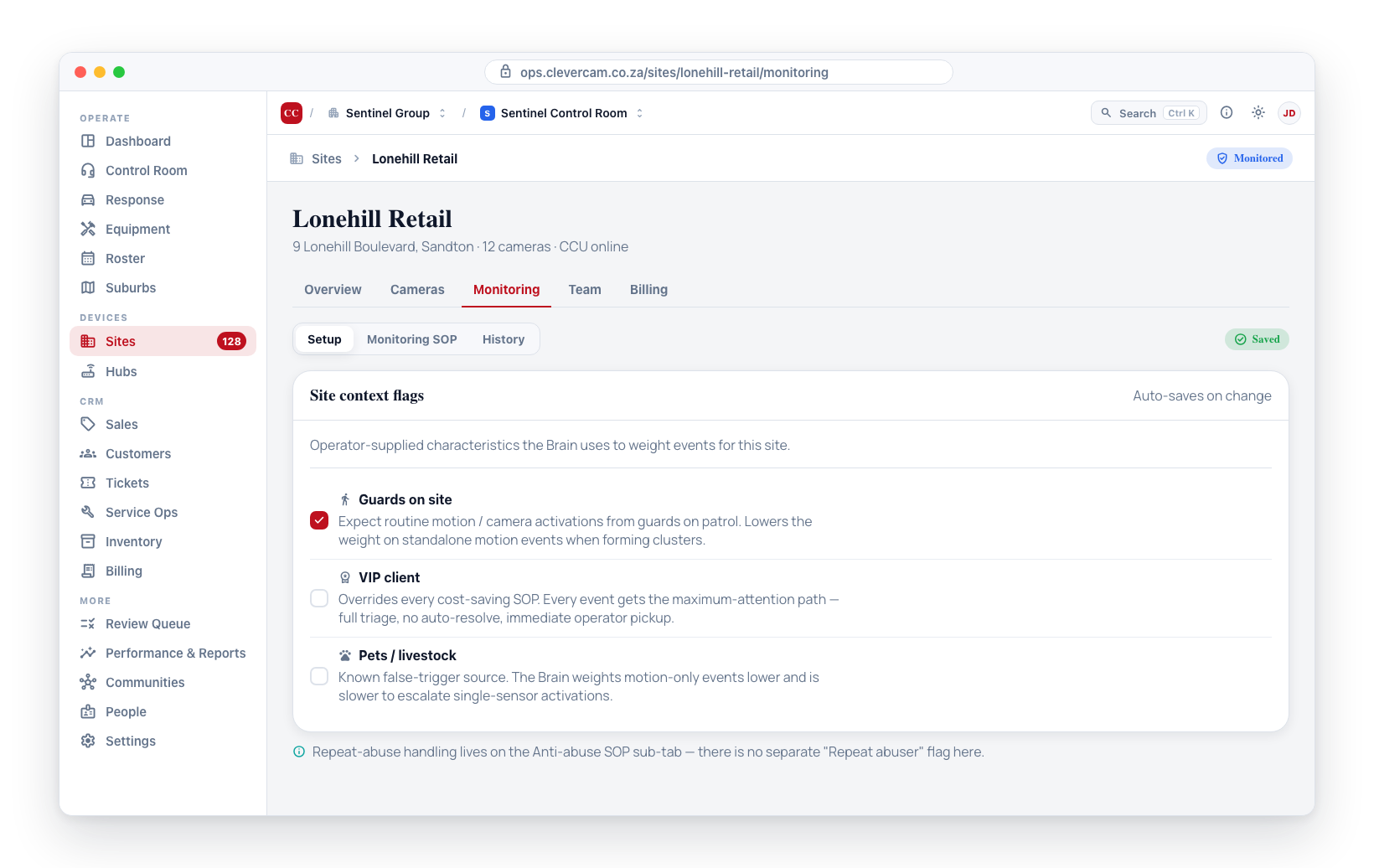
- Guards on site — expect routine motion / camera activations from guards. Useful for the engine's noise model even when the site is Continuous-movement.
- VIP client — overrides any cost-saving SOP. Every event at this site gets the maximum-attention path.
- Repeat abuser — flags the site as a candidate for management review. The long-term SOP recommendation engine will surface tightening recommendations for this site to management.
- Pets / livestock — known false-trigger source. The engine weights motion events lower at this site.
Free-text fields for site description, operator SOP, and known false-alarm patterns are not edited from the Mode card — Monitoring and Responder notes live in the Site team notes card on the Monitoring → Setup sub-tab. The procedural SLA engine still reads them from the same place; only the input surface has moved.
Saving
Changes are not saved as you type. The Mode card (and the Operating hours card when in Business mode) has its own Save / Discard footer on the Monitoring → Setup sub-tab, and shows Unsaved changes until you click Save. (The Cross-cutting settings card that carried Timings, Auto-actions and Site flags went with the retired Monitoring SOP sub-tab; Site context flags now auto-save on change instead.)
What CleverCommand does with this
The classification is read by CleverCommand on every event from the site. The mode sets the broad defaults, the SLA fields refine specific behaviours, and operating hours apply for Business sites:
| Mode | Default behaviour |
|---|---|
| Classic | No auto-comms. Every event reaches an operator. Conservative path. |
| Residential | Auto-notify customer on alarm. Wait the SLA sleep window. Escalate to call on no reply. Operator decides dispatch on chain exhaustion. |
| Business | As Residential, plus: operating-hours window drives after-hours dispatch logic; fail-to-arm grace period triggers customer reminder + operator escalation. |
| Continuous-movement | Operator handles every event. No customer auto-comms regardless of preset. Useful for guarded sites and perimeters. |
The SLA defaults override the mode's flag defaults where set. Risk-level, VIP, and abuser flags then overlay on top — high-risk sites stay on the priority chain regardless of mode, VIP sites always get the maximum-attention path, and abuser-flagged sites are surfaced for management SOP review.
Related
- Monitoring Modes — the contractual/billing layer (what we monitor); orthogonal to classification (how the customer uses it).
- Site Details — the rest of the site modal.