Hub List
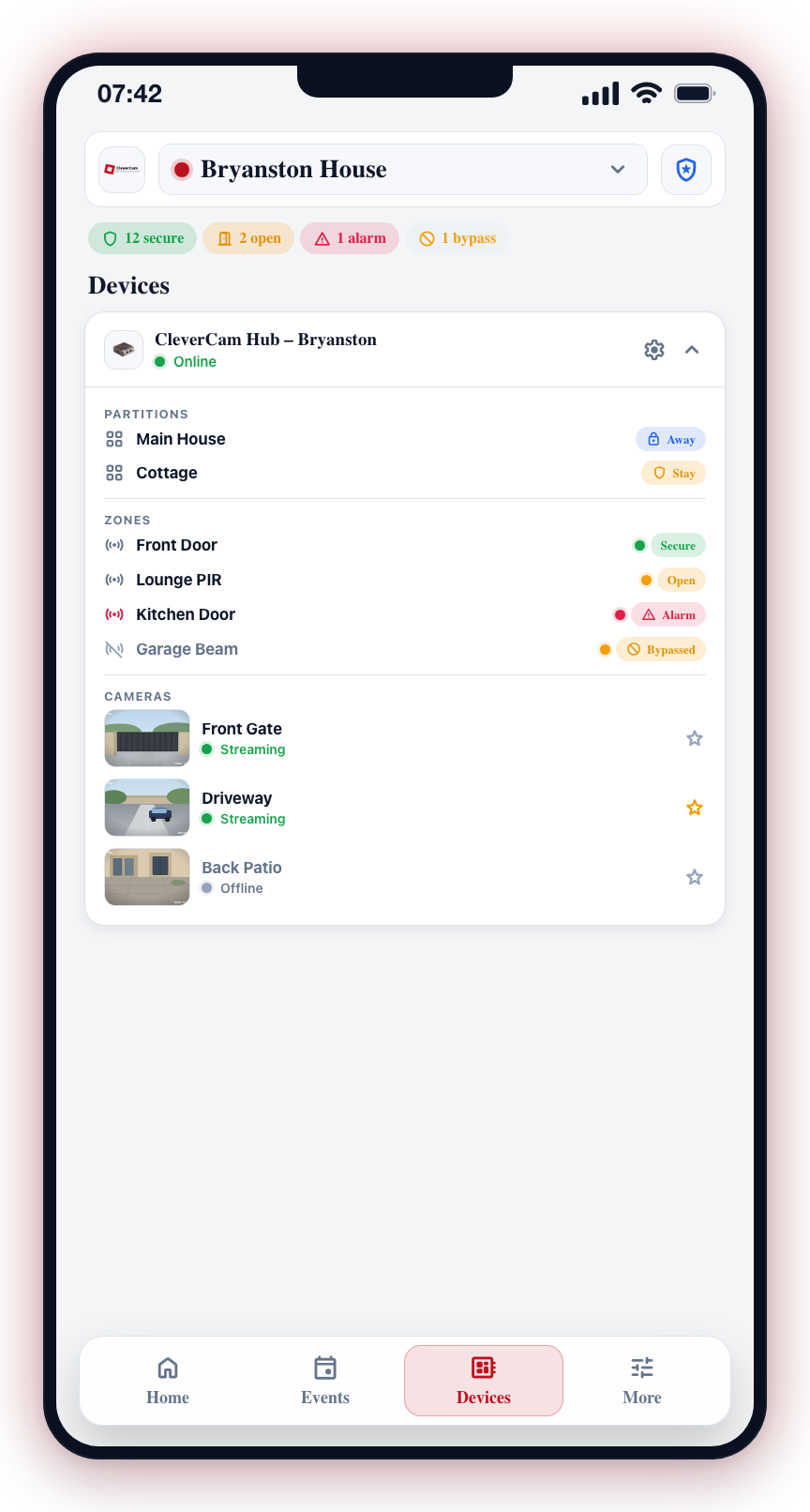
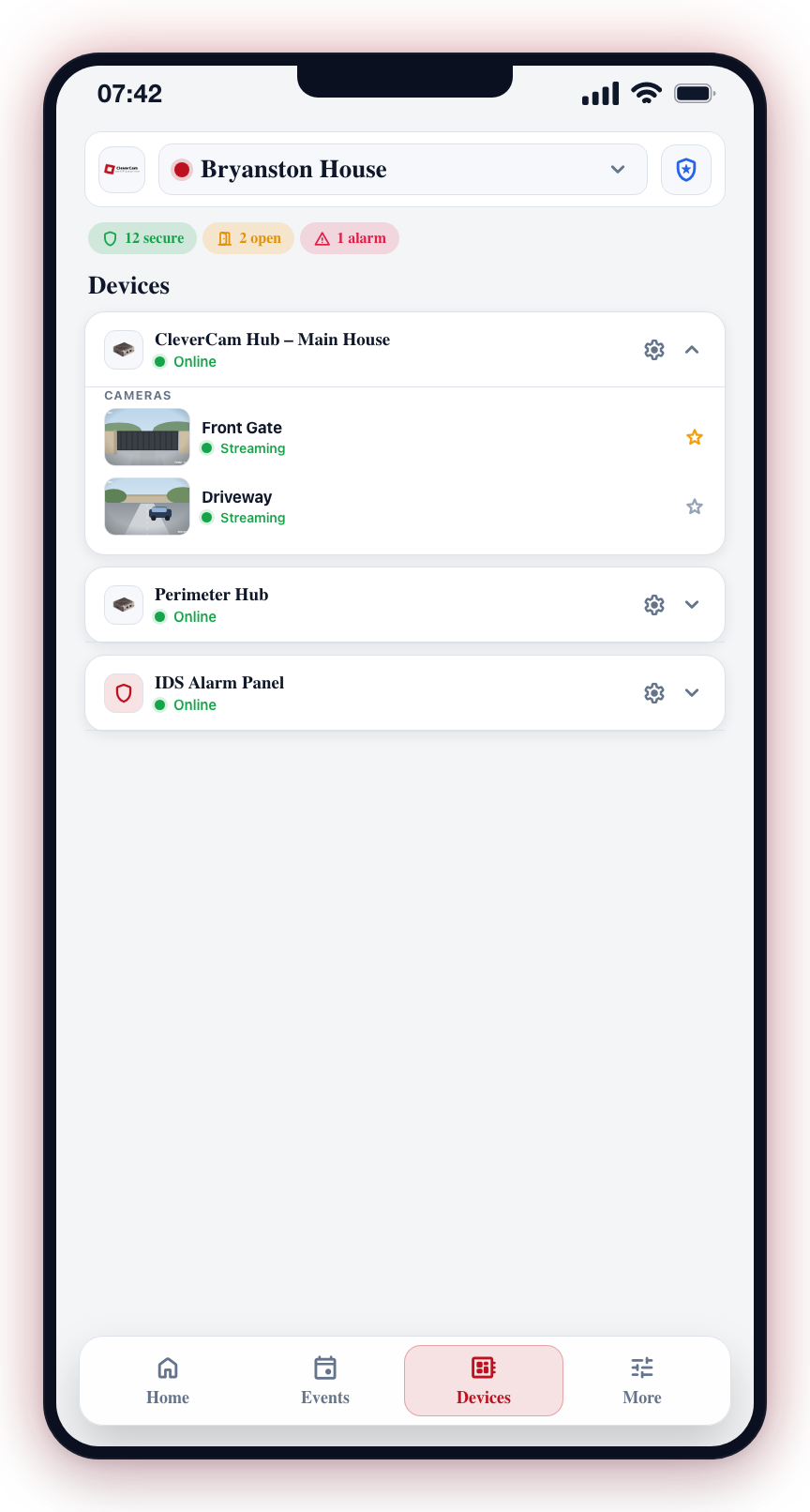
Clever Hubs are the physical devices installed at your site that connect your cameras, alarm panels, and other devices to the CleverAlert cloud. The Devices tab displays each hub as an expandable card, with all its devices nested underneath.
What is a Hub?
A Clever Hub is a compact device that sits at your site and acts as the bridge between your equipment and the cloud. It:
- Connects to your cameras over the local network
- Runs AI detection on the camera feeds
- Sends events, photos, and status updates to the CleverAlert cloud
- Receives arm/disarm commands from the app
- Connects to alarm communicators for zone and area monitoring
Each hub can support multiple cameras, and a site may have more than one hub depending on the size and complexity of the installation.
Hub-Centric Layout
Each hub is displayed as an expandable card. The card header shows:
- Hub Logo -- The logo for the hub type (Clever Hub, alarm communicator, etc.)
- Hub Name -- The name assigned during installation.
- Status -- Online, Offline, or Syncing indicator.
- Settings icon -- Tap to open full hub settings and management.
- Expand/collapse chevron -- Tap the header to expand or collapse the card.
When expanded, each hub card shows all its devices in sections:
- Areas (areas) -- Each alarm area row has an inline Away | Stay | Off segmented control. Tapping a segment sends the command right away — no confirmation sheet. If the panel has several arm profiles, tapping Stay opens a profile sheet to pick one. While the panel confirms, the row shows a pulsing "Arming…" or "Disarming…" chip with a note like "Command sent 14:02:31 · waiting for the panel to confirm". Tapping the row itself (rather than a segment) still opens the full arm sheet.
- Zones -- Zones list under their area, exceptions first: open, tamper, and bypassed zones are always visible, followed by a few secure zones, then a "+ N more zones" row that expands the rest. Tapping a zone opens its sensor sheet (state, battery, signal, bypass, and settings).
- Cameras -- Rendered as a 2-column snapshot grid. Tap a tile to open live view; long-press for an action sheet with Live view, Camera settings, Snooze camera, and Disable camera.
Only sections with data are shown — a camera-only hub will not show areas or zones.
Adding Devices
A + Add pill sits at the top of the hub list — this is where new devices are added (it replaced the add button that used to sit in the app header). A site with no hubs at all shows a proper empty state with an Add a hub button instead of a blank list.
Searching the Tab
The search on the Devices tab matches more than hub names — it also matches area, zone, and camera names, so typing "kitchen" surfaces the kitchen zone or camera wherever it lives.
Offline and Monitor-Only Hubs
- Offline hubs — the card dims, the arm controls disable, and a muted "Hub offline" chip is shown. Any command you attempt is refused with an explanation — the app never claims "command sent" to a hub that cannot receive it. Offline is styled as muted, not red: it is a state to fix, not an alarm.
- Monitor-only hubs (for example, Ajax) — the areas show "Keypad-controlled — the app shows status only" instead of arm controls. The hub's states still update live; arming happens from the panel's own keypad or native app.
Expand/Collapse Persistence
Your expand/collapse preferences are saved locally. When you return to the Devices tab, each hub card will be in the same state (expanded or collapsed) as you left it. By default, the first hub is expanded and the rest are collapsed.
Zone Summary
At the top of the Devices tab, a summary row shows zone counts across all hubs:
- Green badge -- Secure zones
- Orange badge -- Open zones
- Red badge -- Alarm/tamper/fault zones
- Yellow badge -- Bypassed zones
Favorites
Each camera, zone, and area row has a star icon. Tap the star to mark it as a favorite. Favorited items appear as quick-access widgets on the Home screen, so you can monitor your most important devices without navigating to the Devices tab.
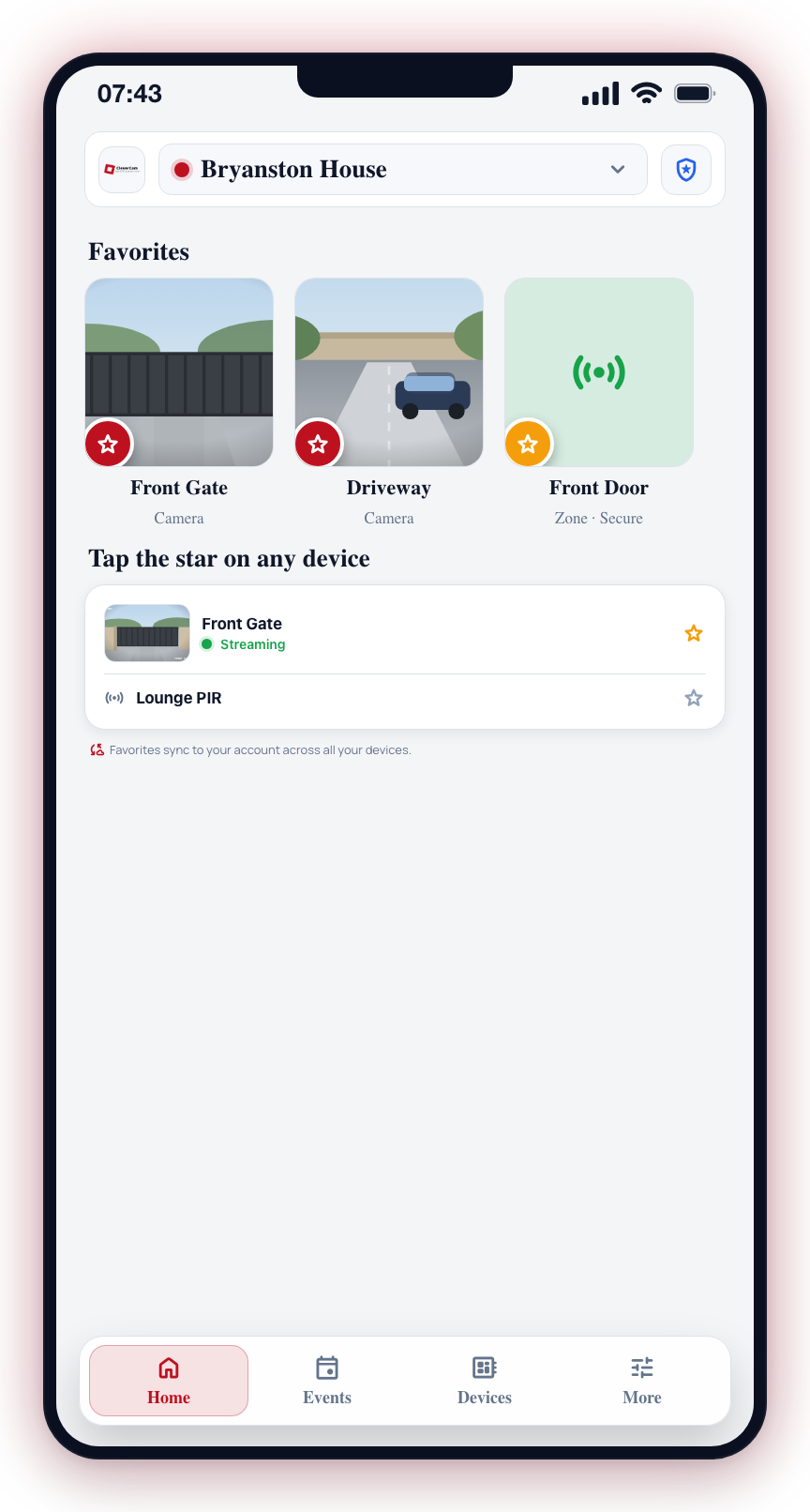
Favorites are saved to your account, so they sync across all your devices.
Hub Status Indicators
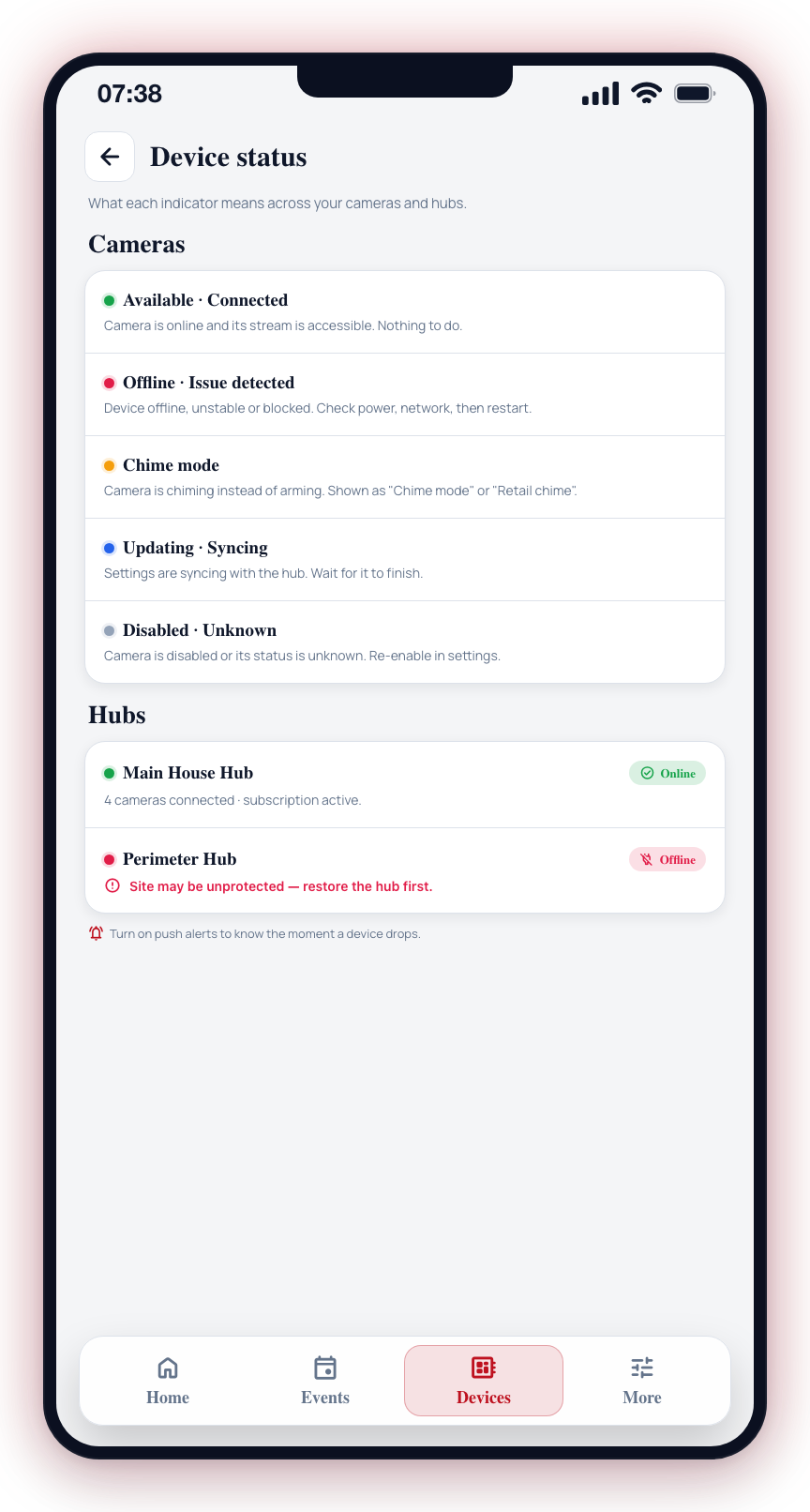
| Status | Description |
|---|---|
| Online | The hub is powered on, connected to the internet, and communicating with the cloud. |
| Offline | The hub is unreachable. This could mean it has lost power, lost internet connectivity, or is experiencing a hardware issue. |
| Syncing | The hub is applying configuration changes. It will finish automatically. |
Hub Settings
Tap the settings icon on any hub card to open its full details, including:
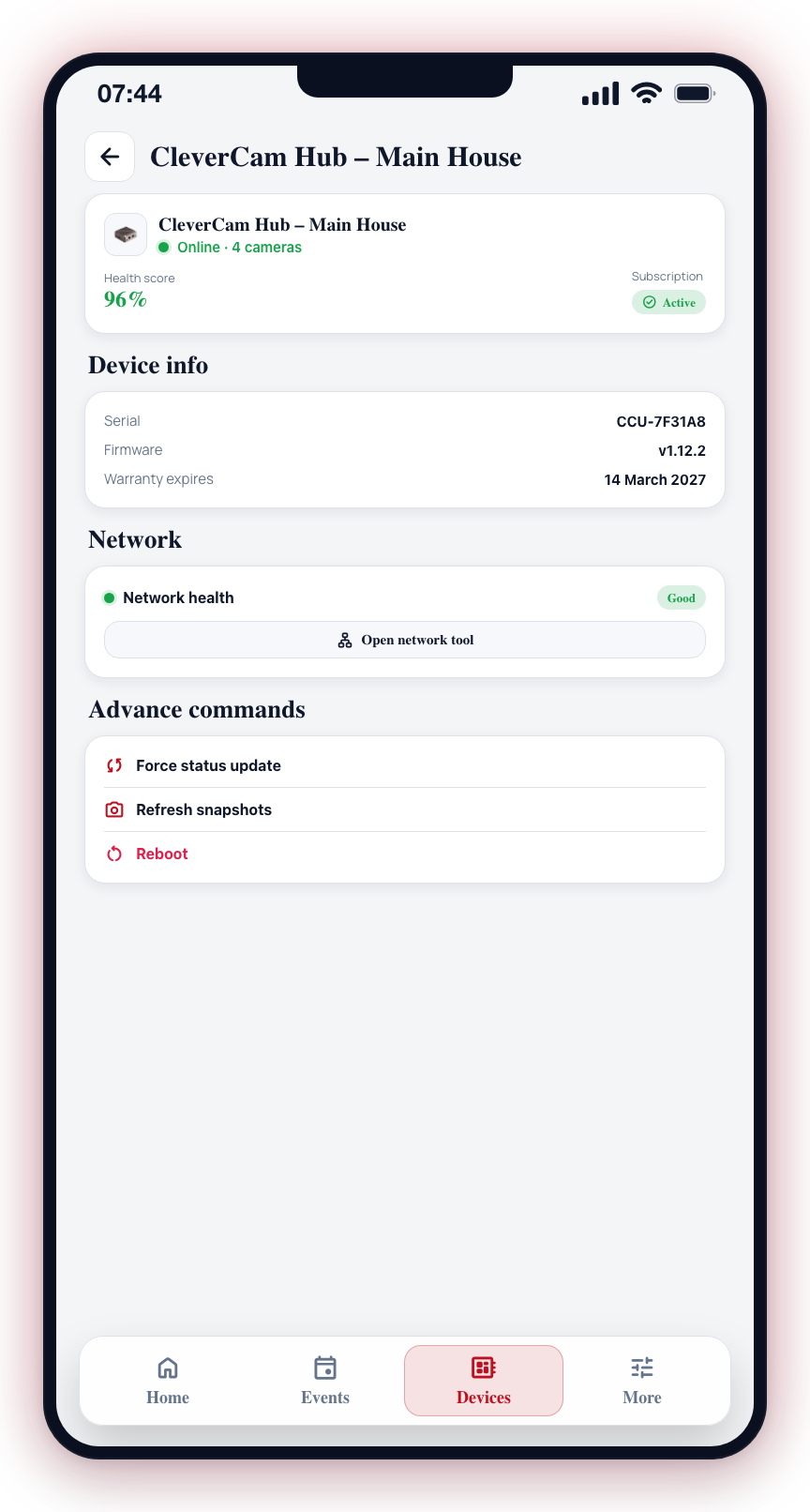
- Hardware information and firmware version
- A list of all cameras connected to the hub
- Hub health score
- Network connection details
From the hub details screen, you can also restart the hub remotely or check for available updates. See Manage Hubs for more information.
A Dahua Direct hub — Dahua cameras or a Dahua recorder connected straight to CleverCam, with no hardware on site — has a Cameras on this device card. It shows what has connected (a recorder and its model, or how many cameras) and how many of its cameras are monitored. Tap it to choose which cameras are monitored; see Add Camera: Dahua Direct hubs.
A Hikvision Direct hub — a Hikvision recorder or cameras connected straight to CleverCam, with no hardware on site — has a Devices on this hub card instead. It lists each device with its model, whether it is online, what it sends, and each of its channels with what it is monitored as. See Add Camera: Hikvision Direct hubs.
If a hub shows as offline, all cameras connected to that hub will be unable to generate events or alerts. Check the hub's power supply and internet connection immediately.
Your subscription is tied to the hub, not to individual cameras. If a subscription expires, all cameras on that hub will stop generating events until the subscription is renewed.