Manage Hubs
Clever Hubs are the backbone of your security system. From the CleverAlert app, you can view detailed information about each hub, restart them remotely, check their firmware version, and monitor their overall health. Keeping your hubs healthy and up to date ensures reliable camera connectivity and event processing.
View Hub Details
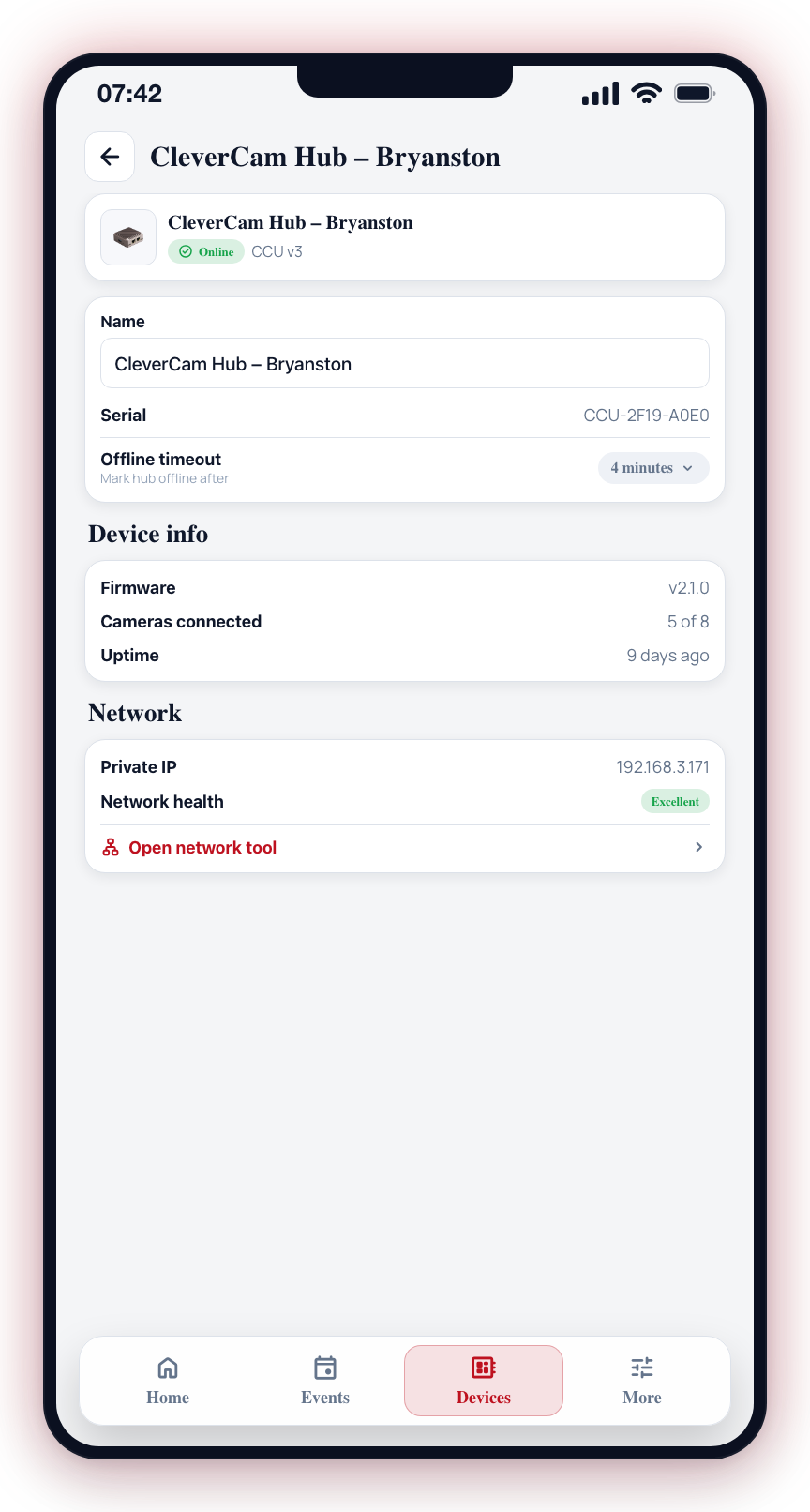
- Navigate to More > Manage Hubs (or find the hub in the Devices tab).
- Tap a hub card.
- The hub details screen displays:
- Hub Name -- The assigned name (editable)
- Serial -- The hub's unique serial number
- Firmware -- The currently installed firmware version (e.g., "v2.1.0")
- Private IP -- The hub's local network address
- Public IP -- The hub's external internet address
- Network health -- An assessment of the hub's connectivity (tap for details)
- Open network tool -- Jumps to the Network Tool scoped to this hub's network (live device map, network doctor, speed test)
- Talk to the hub -- For installers whose security company has Chat with the hub: opens a conversation with the hub that starts by asking what you need — a camera that has gone dark, the network, Platform Access, or adding cameras — rather than a camera setup. Greyed out while the hub is offline. See Chatting with the hub.
- Connected Cameras -- A list of cameras registered to this hub
- Subscription -- The subscription type (Company or Prepaid) and account status. For prepaid hubs, this also shows the expiry date and a Purchase subscription option to renew.
Restart Hub
If a hub is experiencing issues (degraded performance, cameras not responding, intermittent connectivity), a remote restart can often resolve the problem.
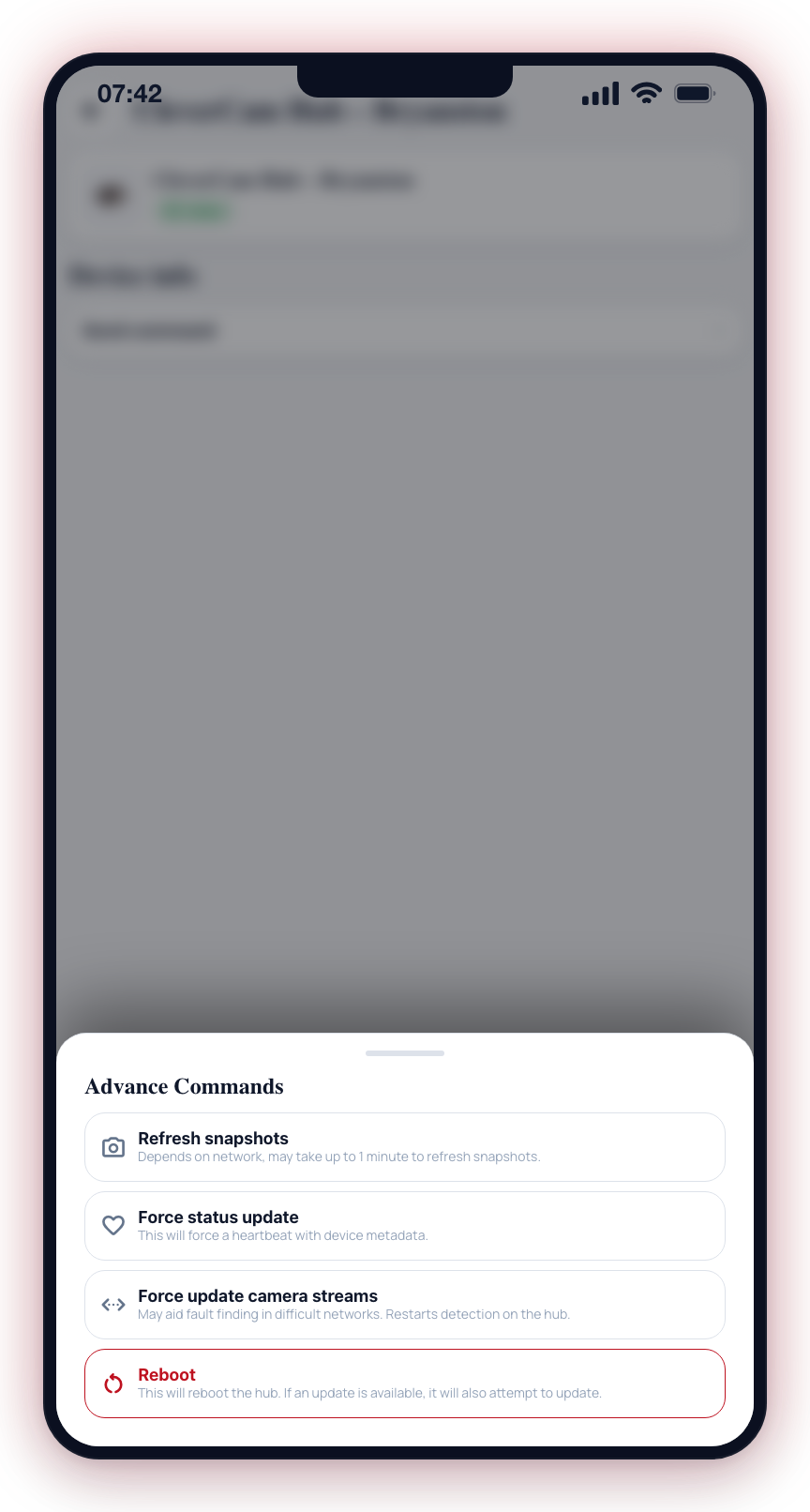
- Open the hub details screen.
- In the Device info card, tap Send command.
- The Advance Commands sheet opens. Tap Reboot ("This will reboot the hub. If an update is available, it will also attempt to update."). The reboot starts immediately -- there is no separate confirmation dialog.
- The hub will begin its restart sequence. This typically takes 2 to 5 minutes.
- During the restart, the hub and all its cameras will show as offline.
- Once the restart completes, the hub will come back online and cameras will reconnect automatically.
The same Advance Commands sheet also offers diagnostic actions that don't reboot the hub: Refresh snapshots, Force status update (force a heartbeat with device metadata), Force update network scan (re-scan ONVIF and RTSP ports for available cameras), and Force update camera streams (restarts detection on the hub to aid fault-finding on difficult networks).
Restarting a hub temporarily takes all connected cameras offline. During the restart, no events will be generated and no alerts will be sent. Choose a low-risk time to restart, or ensure an alternative monitoring method is in place.
Check Firmware Version
Keeping your hub firmware up to date ensures you have the latest features, security improvements, and performance enhancements.
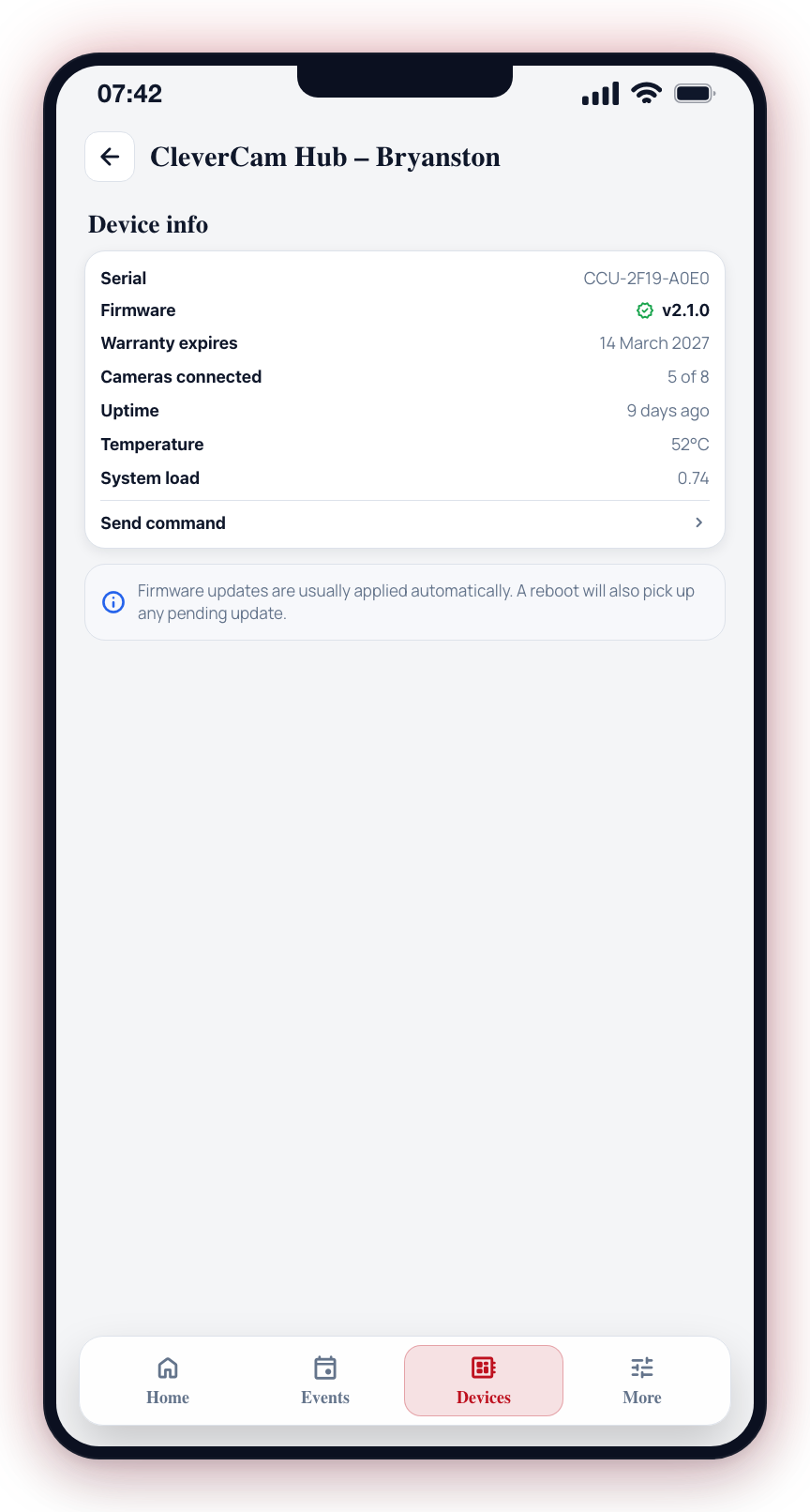
- Open the hub details screen.
- The current firmware version is shown, read-only, in the Device info card as v<version> (e.g., "v2.1.0").
- The app does not show an "update available" badge or an in-app update button. To apply a pending firmware update, use the Reboot command (tap Send command > Reboot) -- on reboot the hub attempts any available update. Many updates are also applied automatically during maintenance windows.
Firmware updates are typically managed by your security installer. If you see that an update is available, contact your installer to schedule the update. Some updates are applied automatically during maintenance windows.
Network Health
The hub details screen shows a Network health indicator for the hub's connectivity. Tap "Network health details" to view a detailed breakdown of the hub's connection quality, including information about each connected camera stream.
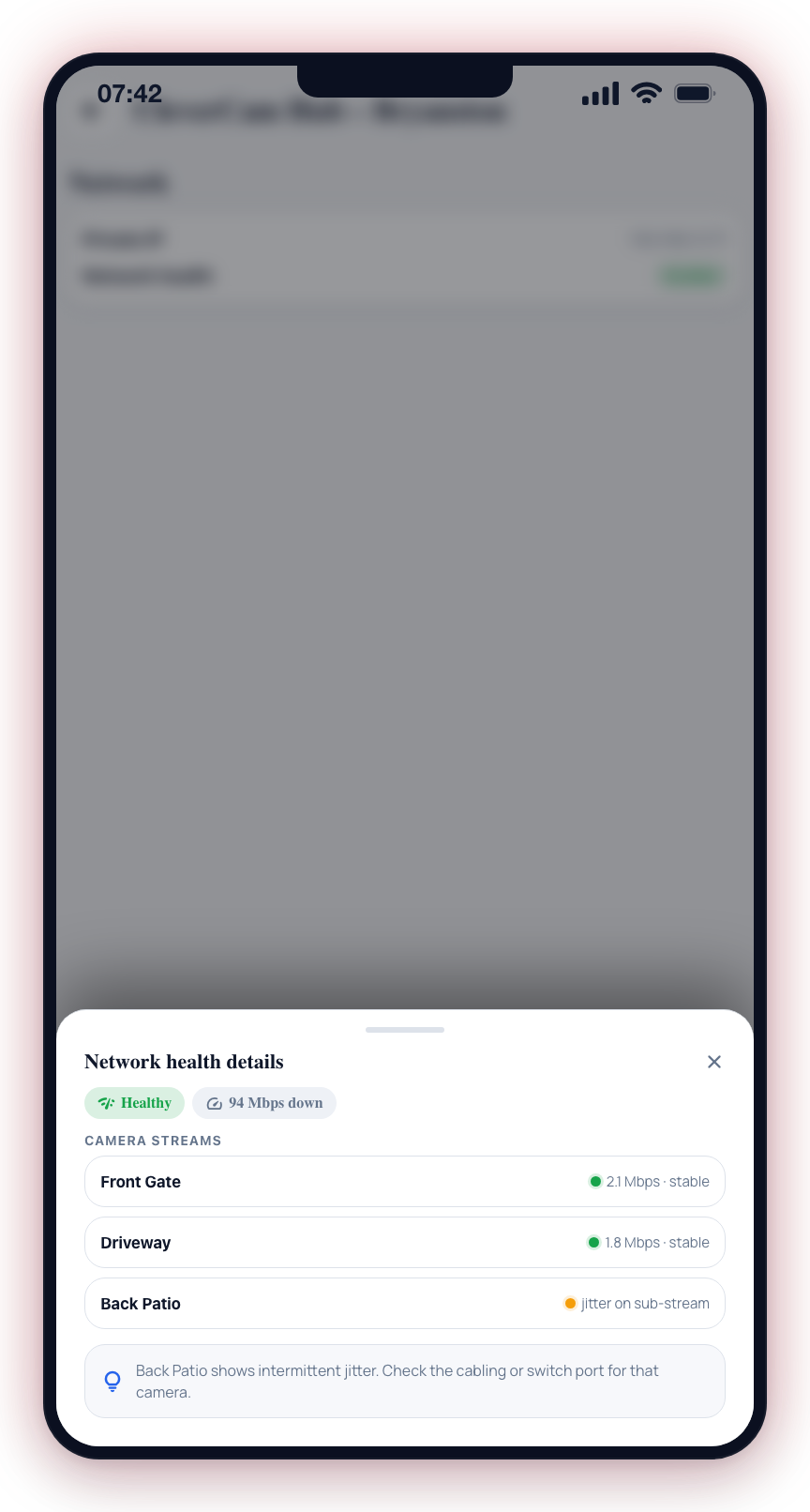
Connected Cameras
The hub details screen includes a list of cameras connected to that specific hub. Tap any camera to navigate to its settings screen.
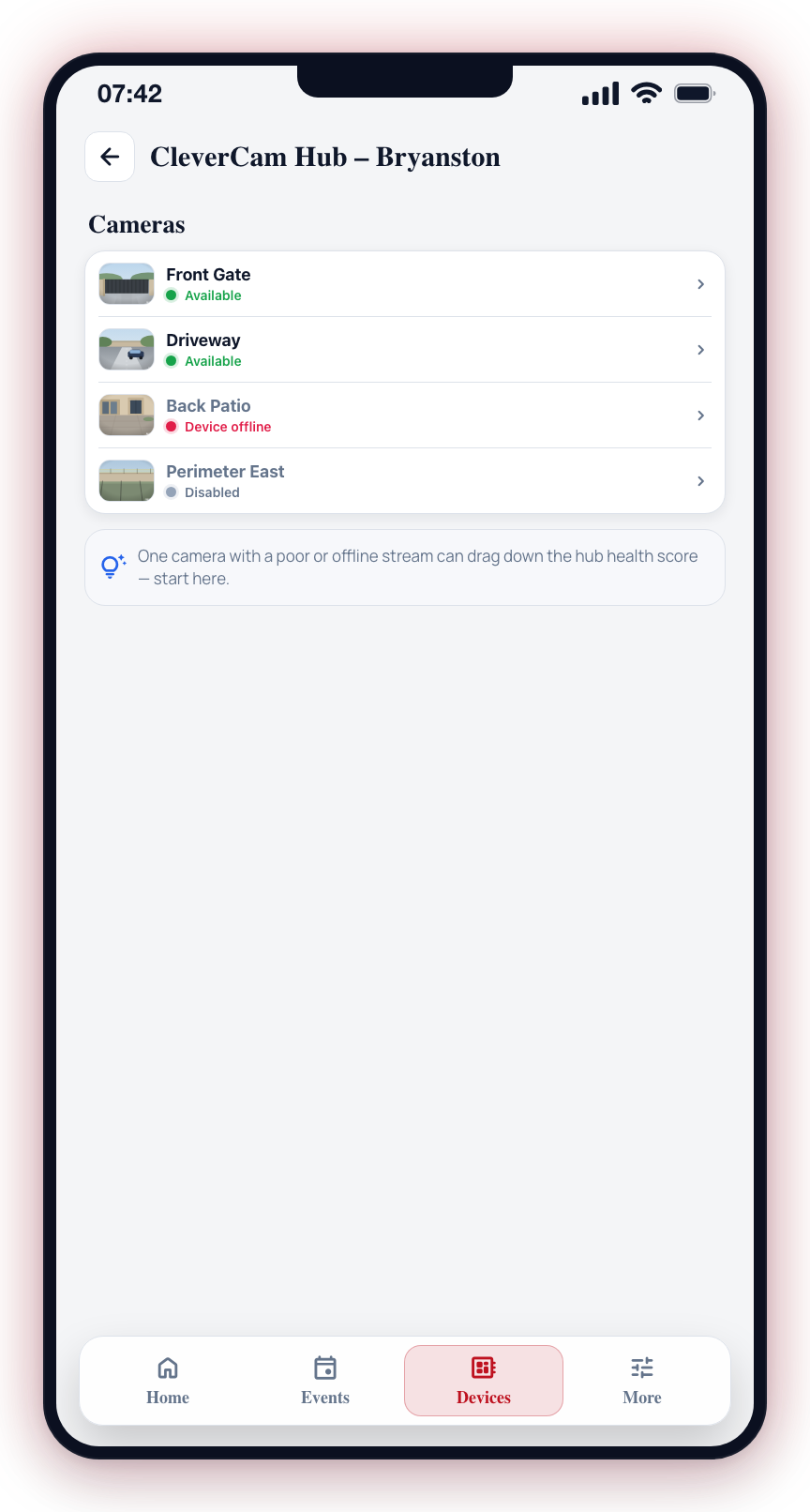
If your hub health score drops, start by checking the connected cameras list. A single camera with a poor stream or offline status can drag down the overall score.
Removing a Hub from a Site
Camera hubs and CleverMail hubs can be removed from a site from the hub details screen. Scroll to the bottom and tap Remove hub from site, then confirm.
Two things to know before you do:
- Cameras first. While any camera stream is still connected to the hub, the button is disabled and a warning explains why -- removing the hub would orphan those cameras. Delete or move the cameras, then come back.
- It is reversible. Removing unlinks the hub from the site; it does not delete or unclaim the hardware. You can link it again later from the Devices screen using its serial and verification code.
After the hub is removed the app returns to the Devices tab.
Alarm panels and radio communicators do not show this button -- they are removed from the site by the control room monitoring them.
Managed Sites
On managed sites — once CleverCam enables site-ownership enforcement and a security company is the primary company for your site — adding and removing hubs is handled by that company: the add (+) button on this screen is hidden, and the hub details screen shows who manages the site in place of the Remove hub from site button. Viewing hub details, restarting hubs, and all monitoring features work exactly as before. On all other sites nothing changes.