Camera List
The Devices tab in CleverAlert gives you a complete view of every camera connected to your site. Cameras live inside their hub's expandable card, rendered as a two-column snapshot grid so you can see at a glance what each camera sees. This is your go-to screen for checking the health and availability of your surveillance equipment.
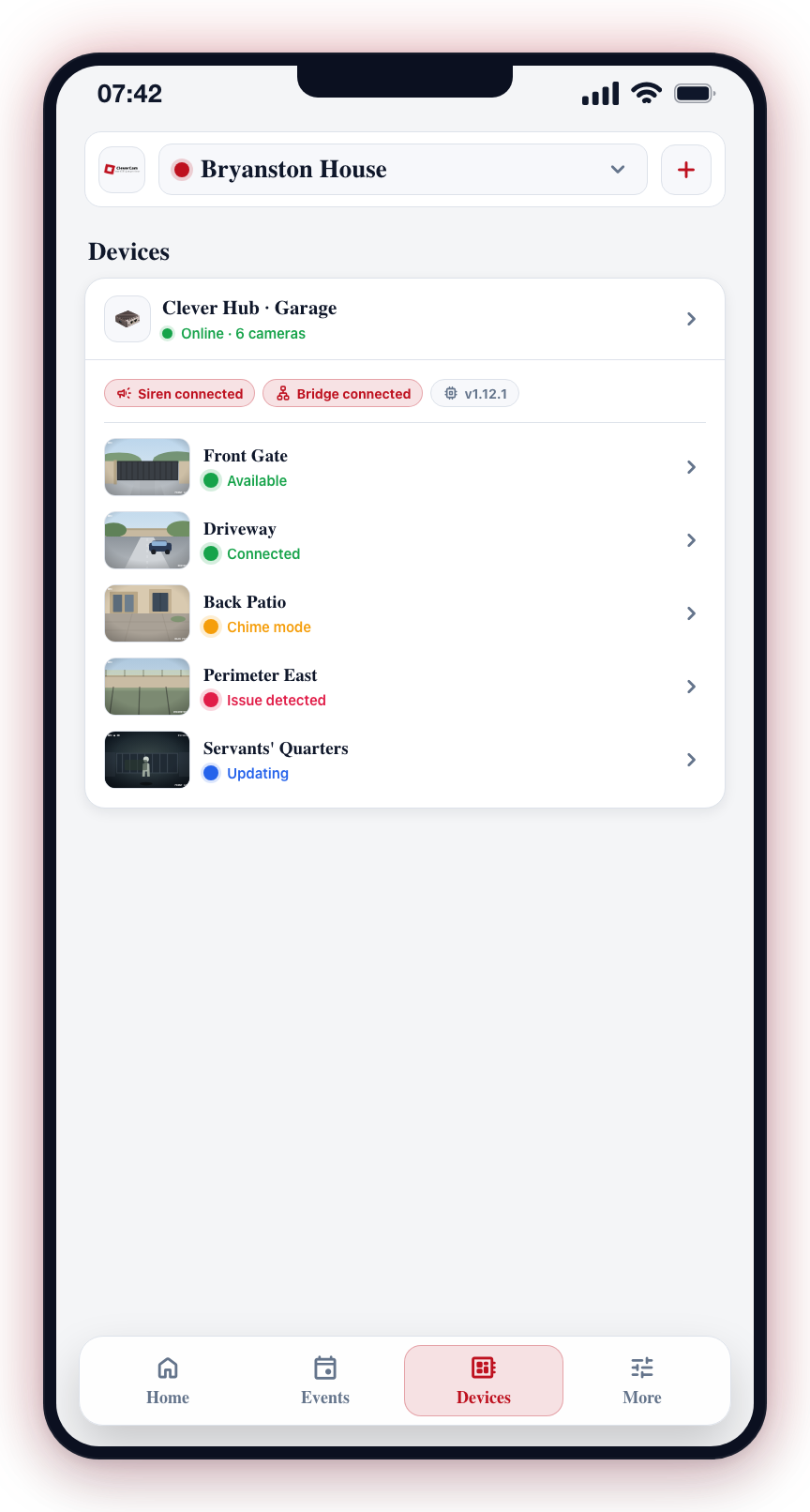
Accessing the Camera List
- Tap the Devices tab in the bottom navigation bar.
- Expand a hub card — its cameras appear as a 2-column grid of snapshot tiles.
Camera Tile Information
Each camera is displayed as a snapshot tile with the following information:
- Snapshot -- A recent still from the camera, so the grid doubles as an at-a-glance overview of the site.
- Camera Name -- The friendly name assigned to the camera (for example, "Front Door", "Parking Lot East", "Warehouse Interior").
- Status indicator -- A color-coded status showing the camera's current state. See Device Status for the full list of status colors and their meanings.
Understanding Camera Status
Each tile shows a colored status dot next to the camera name; tapping the tile opens the camera sheet, which spells out the full status text. The most common statuses are:
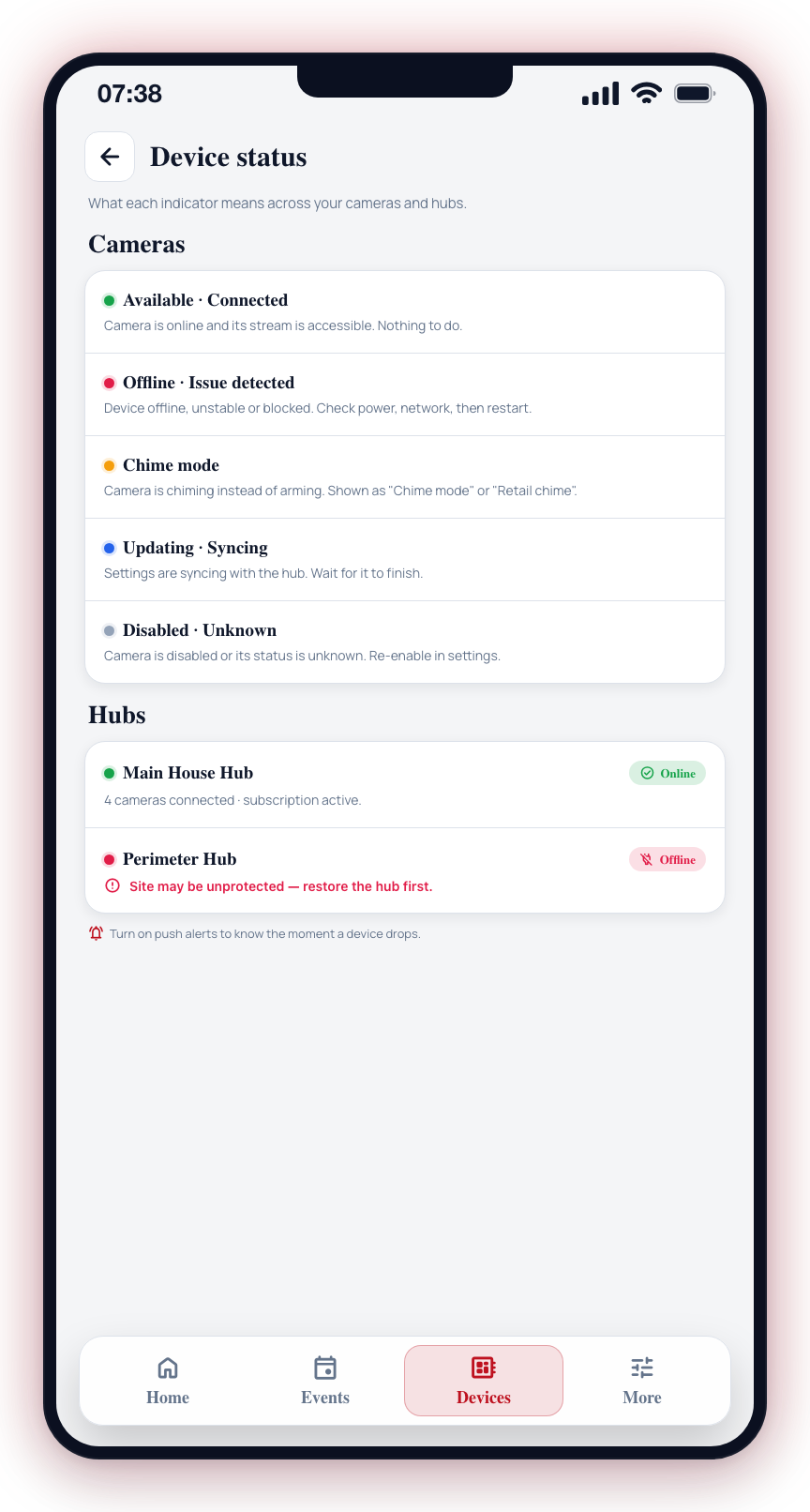
| Color | Status Label | Description |
|---|---|---|
| Green | Available / Connected | The camera is online and its stream is accessible. |
| Red | Device offline / Issue detected | The camera is not reachable or has a problem. |
| Red | Armed / Retail arm | The camera's detection mode is active. |
| Yellow | Chime mode | The camera has chime mode active. |
| Blue | Updating / Syncing | The camera is being updated or syncing its settings. |
| Grey | Disabled / Unknown | The camera is disabled or its status is unknown. |
Interacting with Cameras
Open the Camera Sheet
Tap (or long-press) any camera tile to open its camera sheet. The sheet shows the camera's name, its full status text, how old the snapshot is, a larger snapshot preview, and an action bar. See Live View for details on the streaming interface.
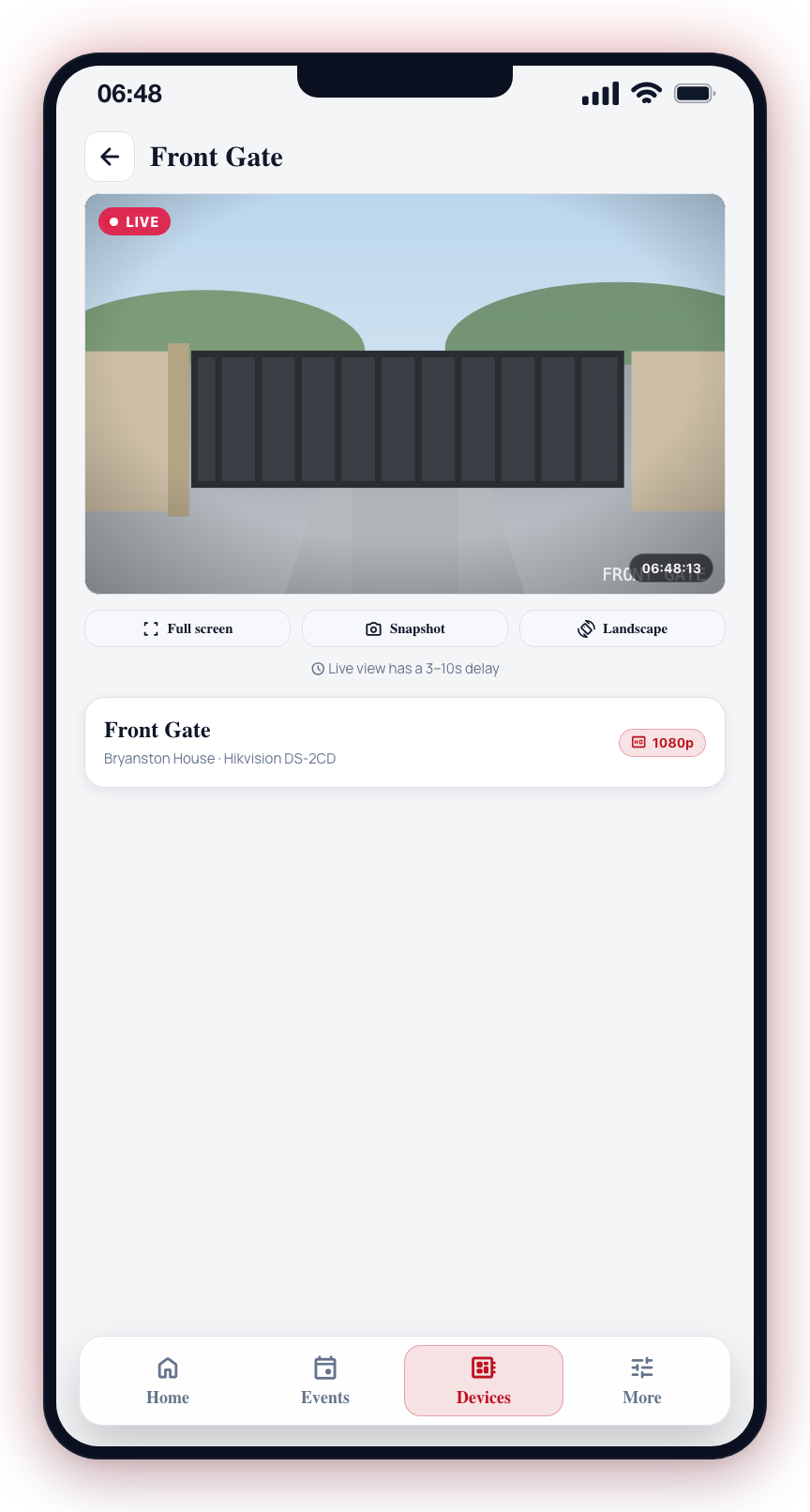
The Action Bar
Four actions sit under the preview and stay there whether you are looking at the snapshot or watching live:
- Watch -- start the live stream in the preview above. It becomes Stop while the stream is running. Tapping the snapshot preview itself does the same thing.
- Snooze -- temporarily silence detections from this camera. While the camera is snoozed this becomes Wake now, with the time remaining underneath.
- Settings -- open the camera's settings screen.
- Disable -- turn the camera off in the app. It becomes Enable while the camera is off. This action only appears if your role lets you manage cameras.
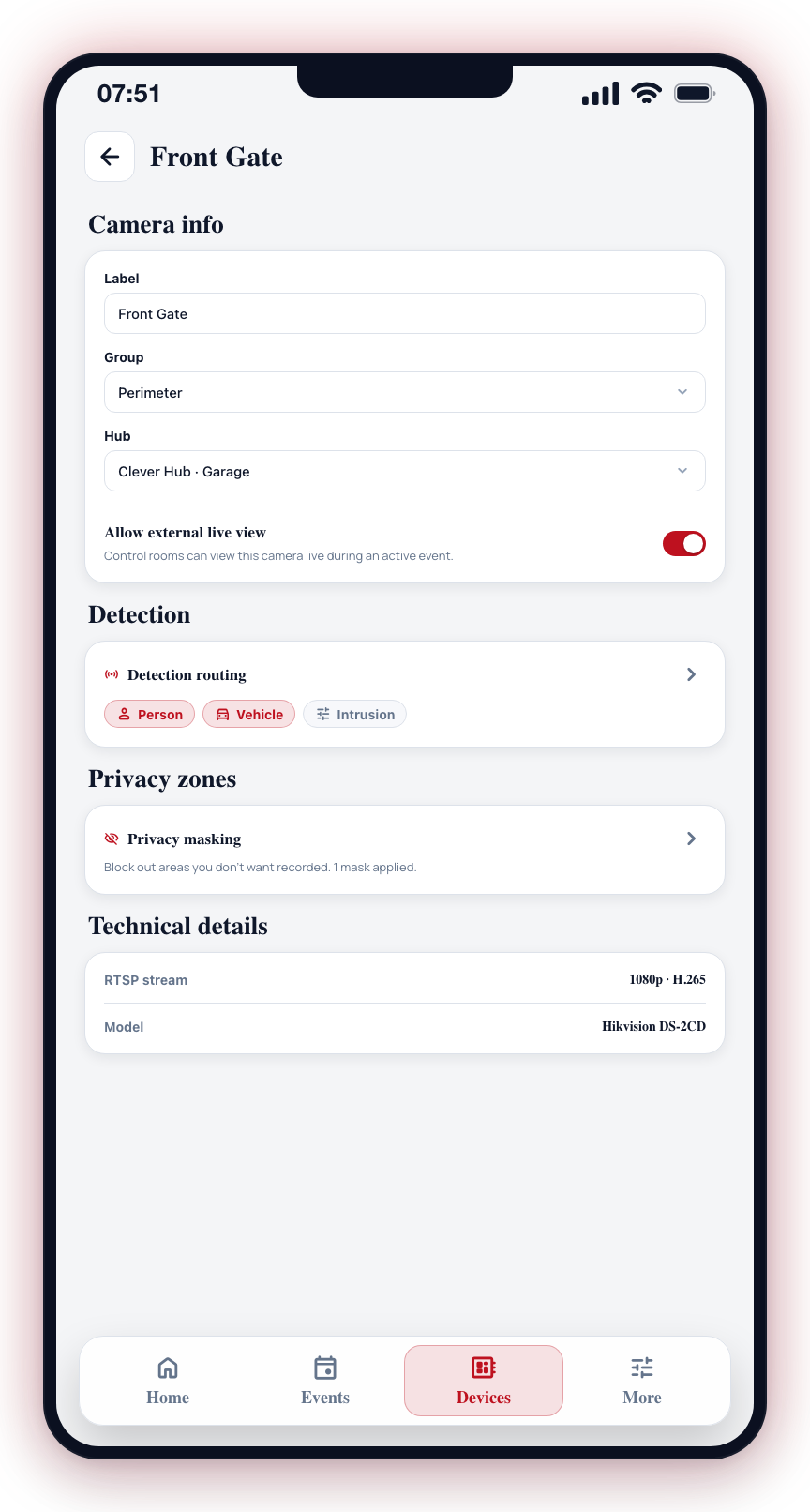
View Camera Details
Tap Settings in the camera sheet to open the camera details screen, showing the assigned group, detection settings, and privacy mask options.
Camera Sorting
Cameras in the Devices tab are displayed based on their group assignment and the order they were added.
Make it a daily habit to check the Devices tab and ensure all cameras show green status. A camera that goes offline could leave a gap in your security coverage.
If a camera appears in the list with a red status, see Camera Offline for troubleshooting steps.