Device Status
CleverAlert uses color-coded status indicators alongside descriptive text labels to communicate the operational status of every camera and hub in your system. Understanding these status indicators helps you quickly identify when something needs attention and take the right corrective action.
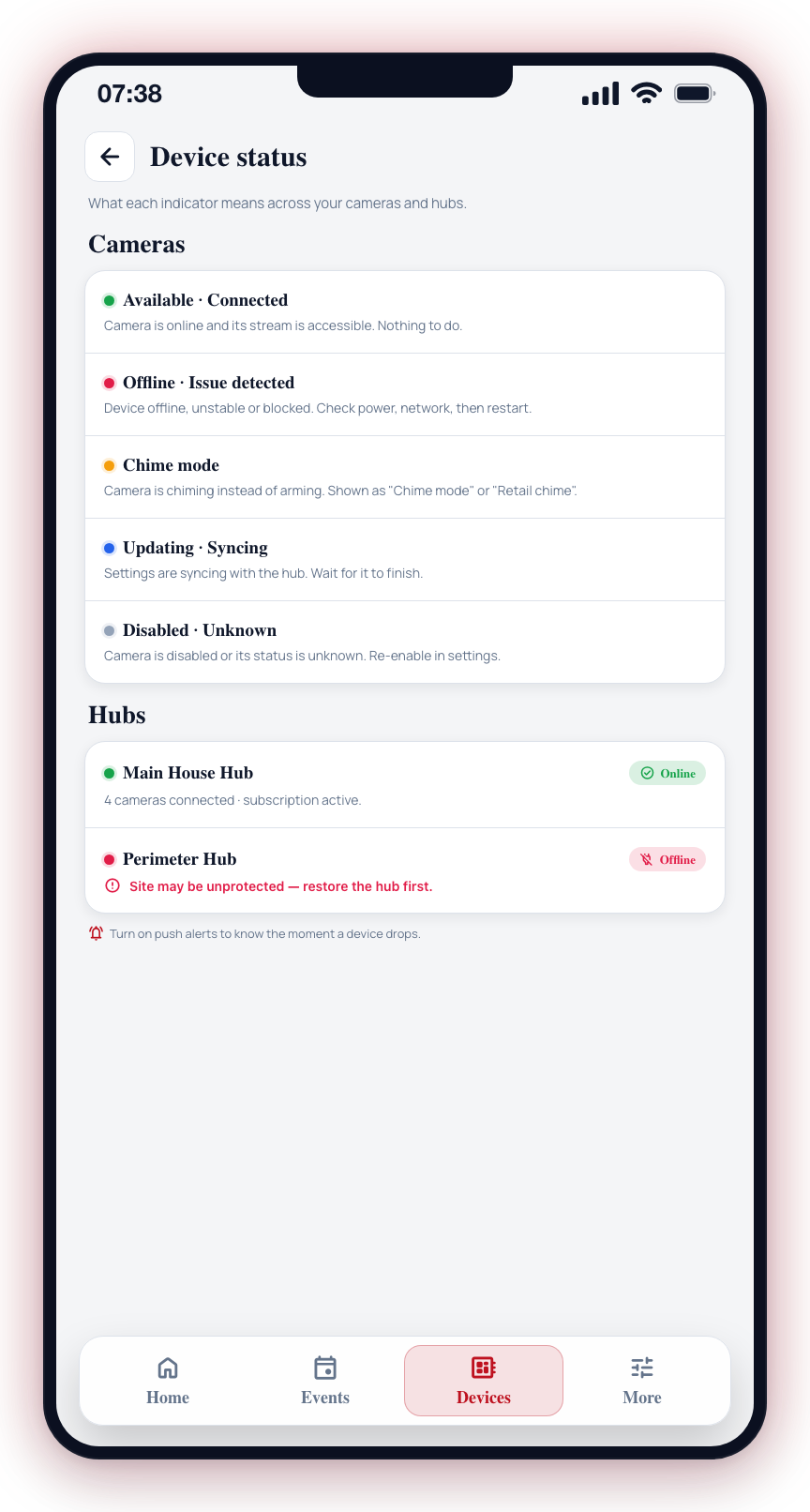
Status Indicators
Each camera tile shows a colored dot next to the camera name; tapping the tile opens the camera sheet with the full text status label. The color is determined by the camera's current state:
Green -- Available / Connected
The camera is online and its stream is accessible. The status label typically reads "Available" or "Connected".
Action needed: None. Everything is working as expected.
Red -- Issue / Offline
A red indicator means the camera has a problem. Status labels include:
- Device offline -- The camera is unreachable by the hub.
- Issue detected -- A connectivity or stream problem has been identified. When the hub can identify the cause, a short, plain-language reason is shown after it, so you can fix the right thing:
- Issue detected: Camera login failed -- the camera rejected the username or password. Re-enter the camera credentials.
- Issue detected: Stream not found -- the stream path/channel is wrong. Check the camera's RTSP URL or channel number.
- Issue detected: Connection refused -- the camera refused the connection; streaming (RTSP) may be turned off or the port is wrong.
- Issue detected: Camera not responding -- the camera did not answer in time (slow or overloaded network/camera).
- Issue detected: Camera unreachable / Address not found -- no network route to the camera, or its address could not be resolved.
- Issue detected: Access denied / Unsupported stream / Camera error -- the camera refused access, sent a format the hub can't decode, or returned an internal error.
- Contact support -- A serious issue requiring support assistance.
- Blocked -- The camera has been blocked.
- Not running -- Detection is not currently active.
- Unstable -- The connection to the camera is intermittent.
The red color is also used for Armed and Retail arm status labels, indicating the camera's detection mode is active.
Action needed: For offline or issue states, troubleshoot the connection:
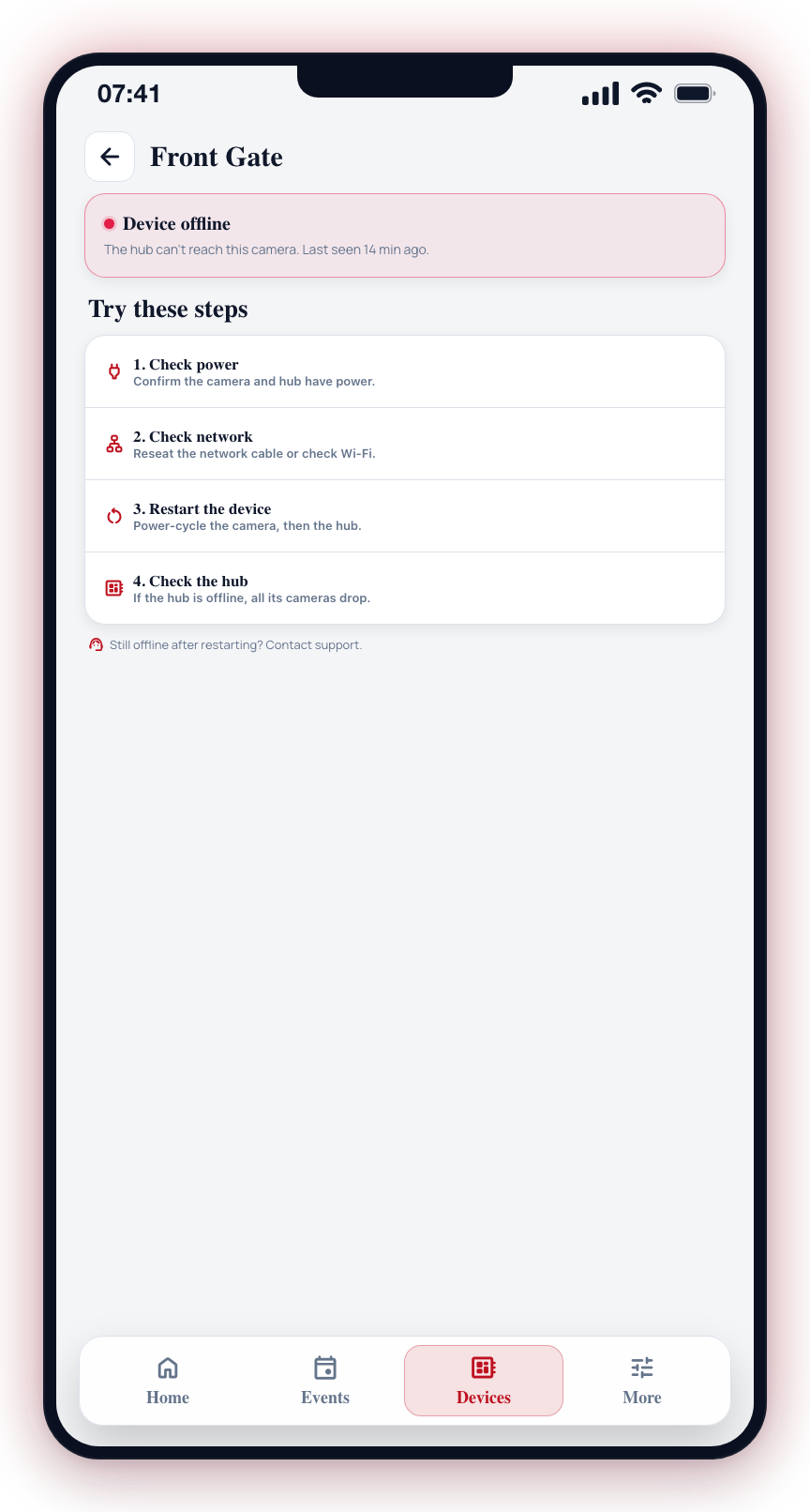
- Check power -- Verify the device has power.
- Check network -- Verify the network cable or Wi-Fi connection.
- Restart the device -- Try power-cycling the camera or hub.
- Check the hub -- If the hub is offline, all its cameras will be affected.
Yellow -- Chime Mode
A yellow indicator is shown when the camera is in chime mode. Status labels include "Chime mode" or "Retail chime".
Blue -- Updating / Syncing
A blue indicator shows that the camera is currently being updated or its settings are syncing with the hub.
Action needed: Wait for the process to complete.
Grey -- Disabled / Unknown
A grey indicator means the camera is disabled or the status is unknown.
Action needed: If the camera should be active, check its settings or re-enable it.
Offline Hubs
An offline hub is styled as muted, not red — its card dims, a "Hub offline" chip appears, and its arm controls disable. Commands to an offline hub are refused with an explanation; the app never claims "command sent" to a hub that cannot receive it.
An offline hub means your entire site may be unprotected — cameras and panels behind it cannot report. Prioritize restoring hub connectivity above all other device issues.
Set up push notifications for device status changes so you are alerted immediately when a camera or hub goes offline. See Push Notifications.