Vehicle Trackers
If your site has GPS vehicle trackers linked to it, they appear in a Trackers section on the Devices tab. Each tracker card shows its name, online status, and current speed. Tapping a tracker opens the tracker detail screen, where you can see its live location on a map, check vehicle telemetry such as ignition and battery voltage, and quickly navigate to or share its position.
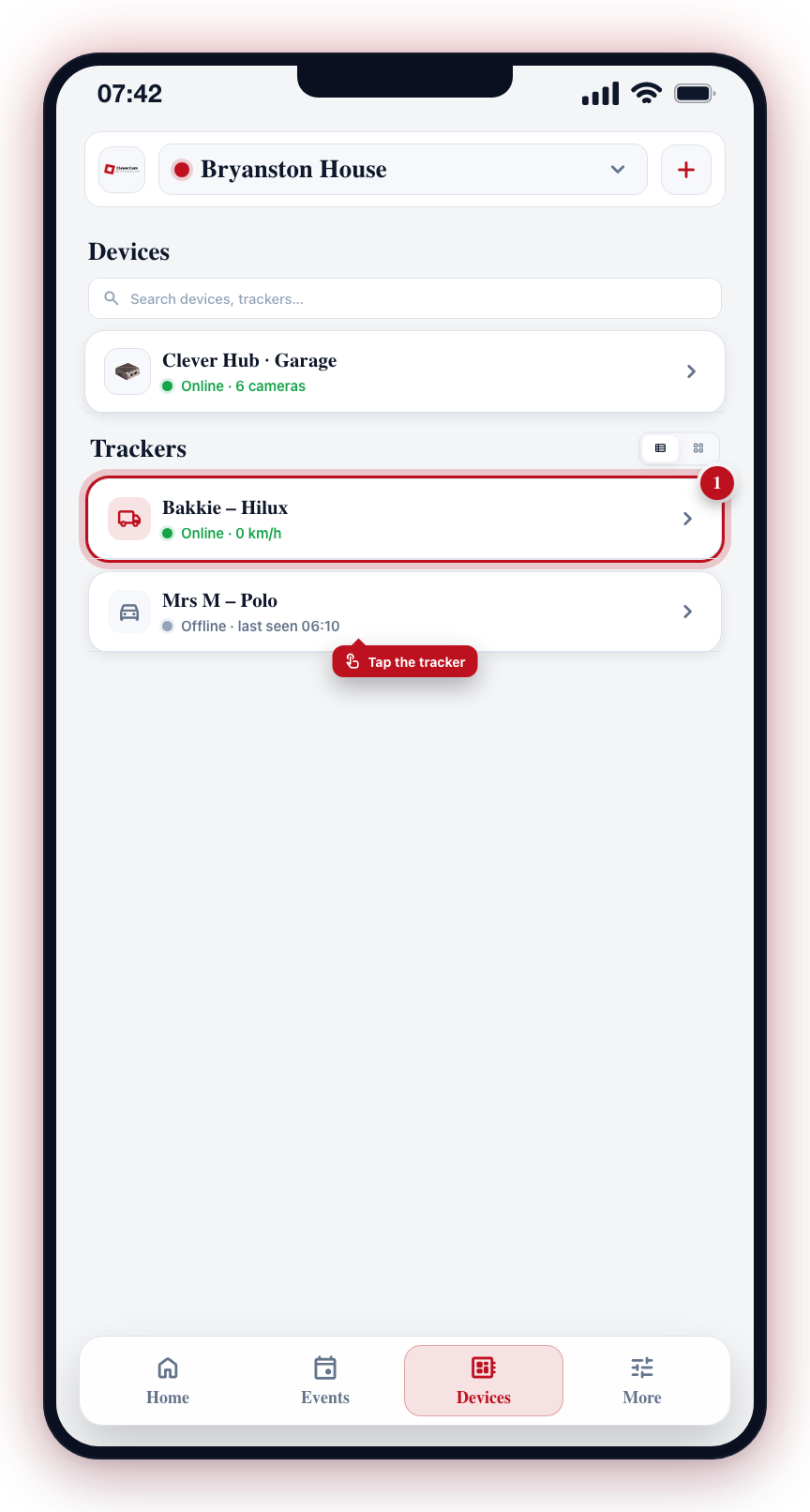
On the Devices tab, scroll to the Trackers section and tap your tracker.
Trackers on the Devices Tab
- Open the Devices tab.
- Scroll to the Trackers section. This section only appears if at least one tracker is linked to the selected site.
- Each tracker shows its label (or vehicle registration), online/offline status, and key live readings.
- If you have two or more trackers, a toggle in the section header switches between list and grid view.
- Tap a tracker to open its detail screen.
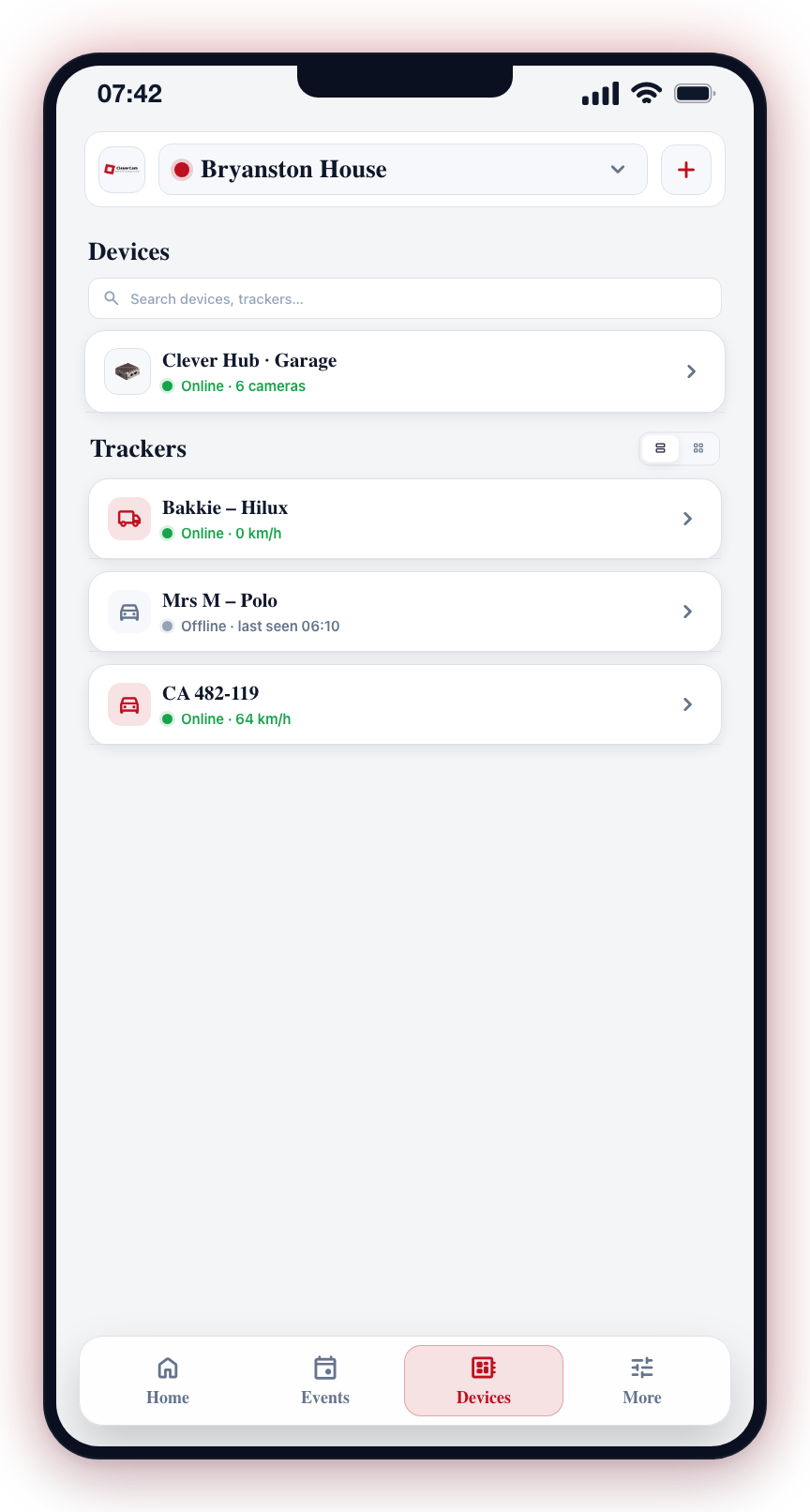
You can also find a tracker using the search bar at the top of the Devices tab — search matches the tracker's label, vehicle registration, or IMEI.
The Tracker Detail Screen
The top of the screen is a full-width map showing the tracker's last reported position, marked with a pin. Floating on the map you will find:
- Status pill (bottom left) -- shows Online or Offline along with how long ago the tracker last reported.
- My location button -- toggles your own position onto the map. When enabled, the map shows both markers and a second pill tells you how far away you are (for example, "You are 1.2 km away"). This requires location permission.
- Navigate button -- opens Google Maps with driving directions to the tracker's position.
- Share button -- shares the tracker's name and a Google Maps link to its position via your device's share sheet.
Tapping anywhere on the map opens the tracker's position in Google Maps.
Below the map, the panel shows:
- Tracker name and registration -- the tracker's label with the vehicle registration shown as a plate-style badge.
- Stat tiles -- headline readings at a glance: current speed, ignition (on/off), movement (moving/parked), and supply voltage, where the tracker reports them.
- Live Data -- the remaining live readings reported by the tracker, such as GSM signal, GNSS status, and odometer.
- Device -- the tracker's IMEI, brand, and model, plus its coordinates. Tap the coordinates row to copy them to the clipboard.
The map is a snapshot of the tracker's last reported position — it updates automatically whenever the tracker reports in, but it is not a pannable live map. Use the navigate button or tap the map to open the position in Google Maps.
Renaming a Tracker
- On the tracker detail screen, tap the pencil button next to the tracker's name.
- Edit the Label and/or Vehicle Registration fields.
- Tap Save.
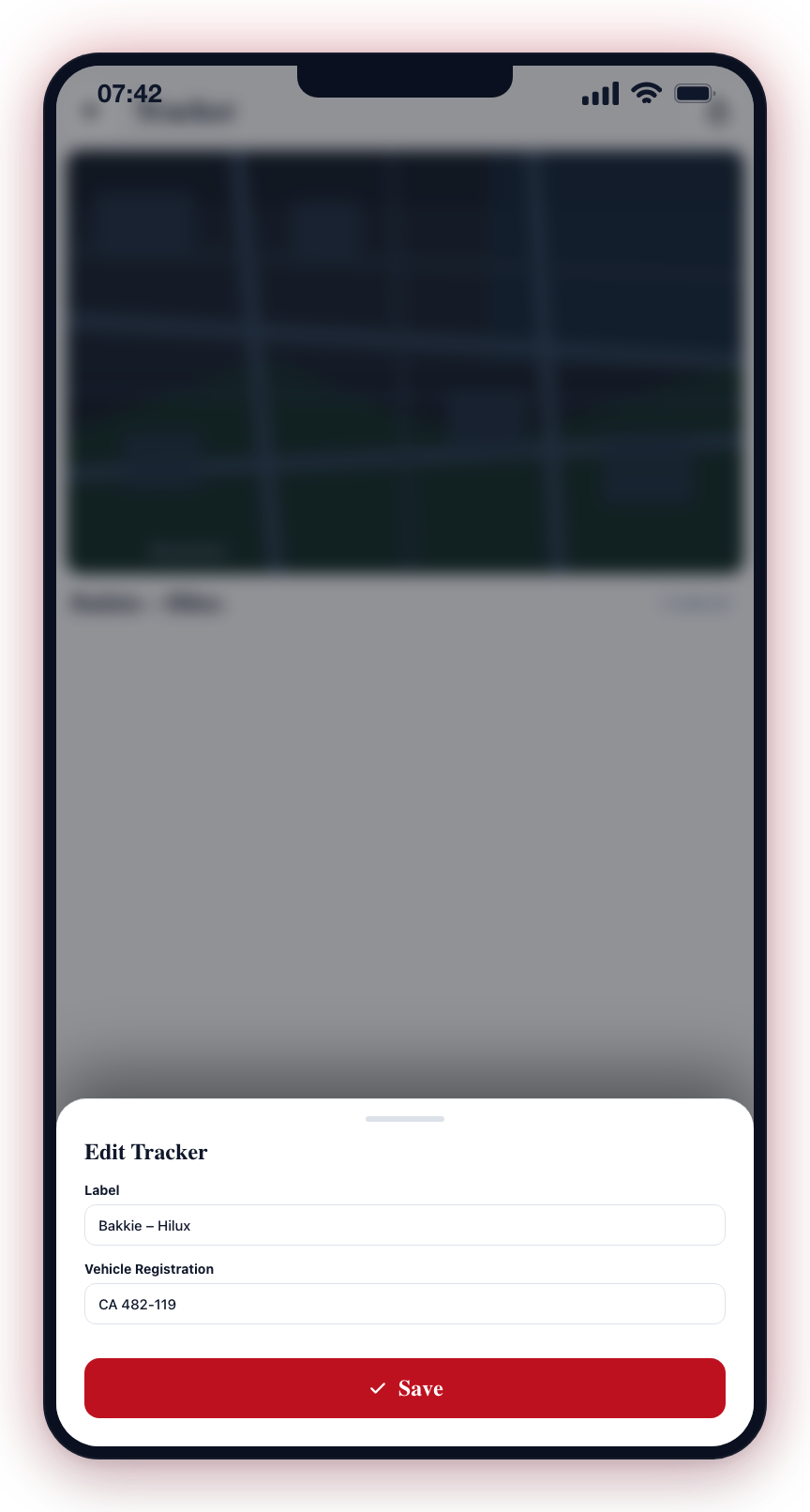
The new name is used everywhere the tracker appears, including the Devices tab and notifications. If no label is set, the vehicle registration (or the IMEI) is shown instead.
If a tracker shows "No location data yet", it has not reported a GPS position. Check that the vehicle has been driven recently and that the tracker is online.