Alarm Zones
Alarm zones are the individual sensors paired to your alarm panel — door contacts, motion detectors, panic buttons, key fobs, and so on. The Alarm zones screen gives you one searchable list of every alarm zone reported across all of the panels at the selected site, with full editing of the zone's name, sensor type, and per-zone notification settings.
This screen lives under More → Advanced setup and only appears when the selected site has at least one alarm area reported by an alarm communicator hub, and your security company has the third-party alarm receivers capability enabled on their control room.
Opening the screen
- Open the More tab and, under My site, tap Advanced setup.
- Tap Alarm zones.
If the menu item is not visible, either no panels have reported a area for the selected site yet, or your security company doesn't have the alarm receivers capability enabled. Zones appear automatically the first time a panel signals one.
Reading the list
Each row represents one zone:
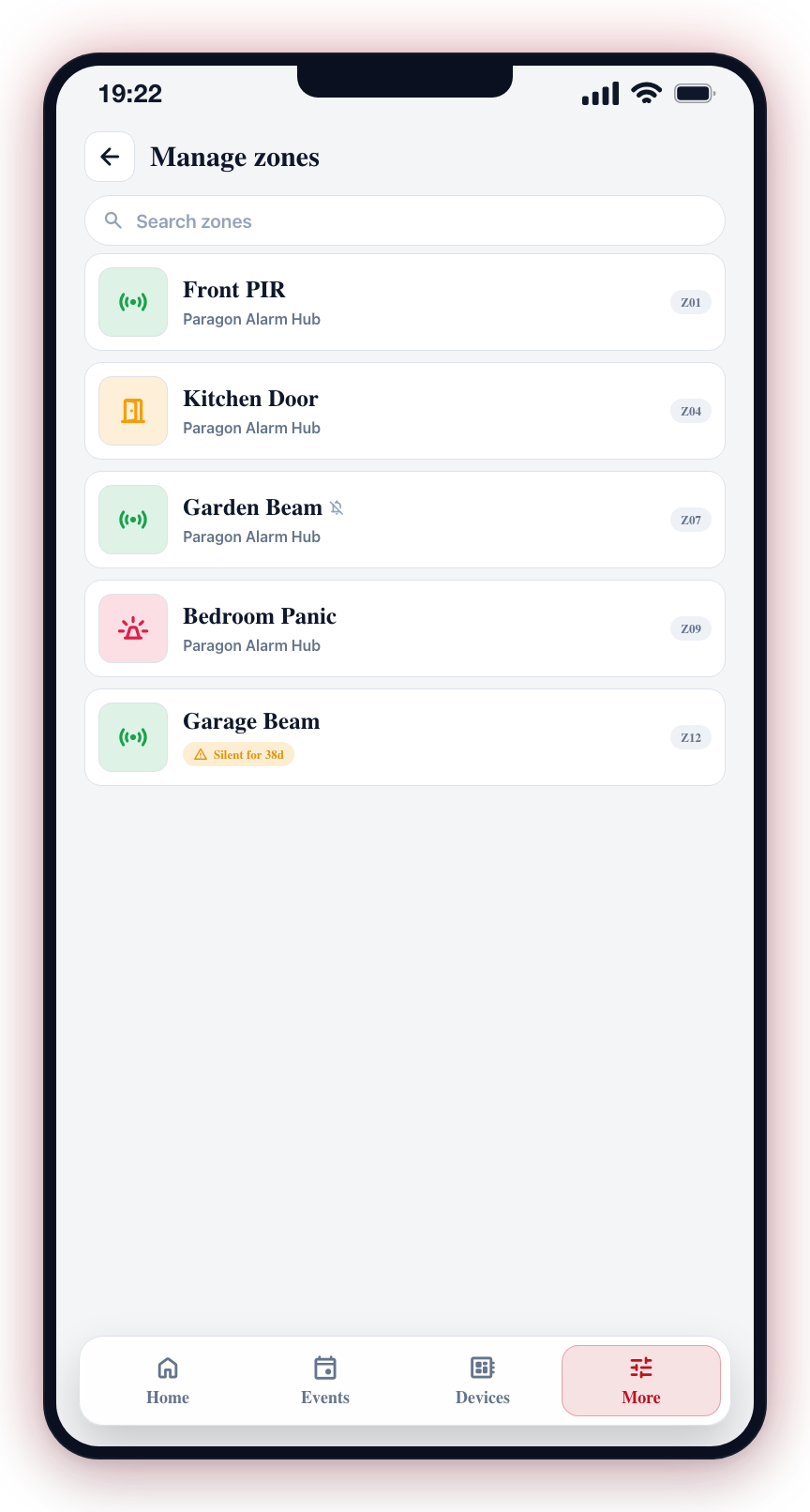
- State icon — coloured icon for the zone's current state (secure, open, alarm, tamper, bypassed).
- Zone name — the label CleverAlert shows for the zone. If you have not renamed it, this is the panel's own label.
- Mute icon — a small bell-with-slash appears next to the name when push notifications for this zone have been muted.
- Hub label — the hub the zone belongs to, shown beneath the name.
- Stale signal warning — an amber pill appears if the zone has not changed state or alarmed in the last 30 days. This usually means the sensor is offline or its batteries are flat.
- Zone number badge — the panel's own zone number (for example
Z12), shown on the right.
Searching
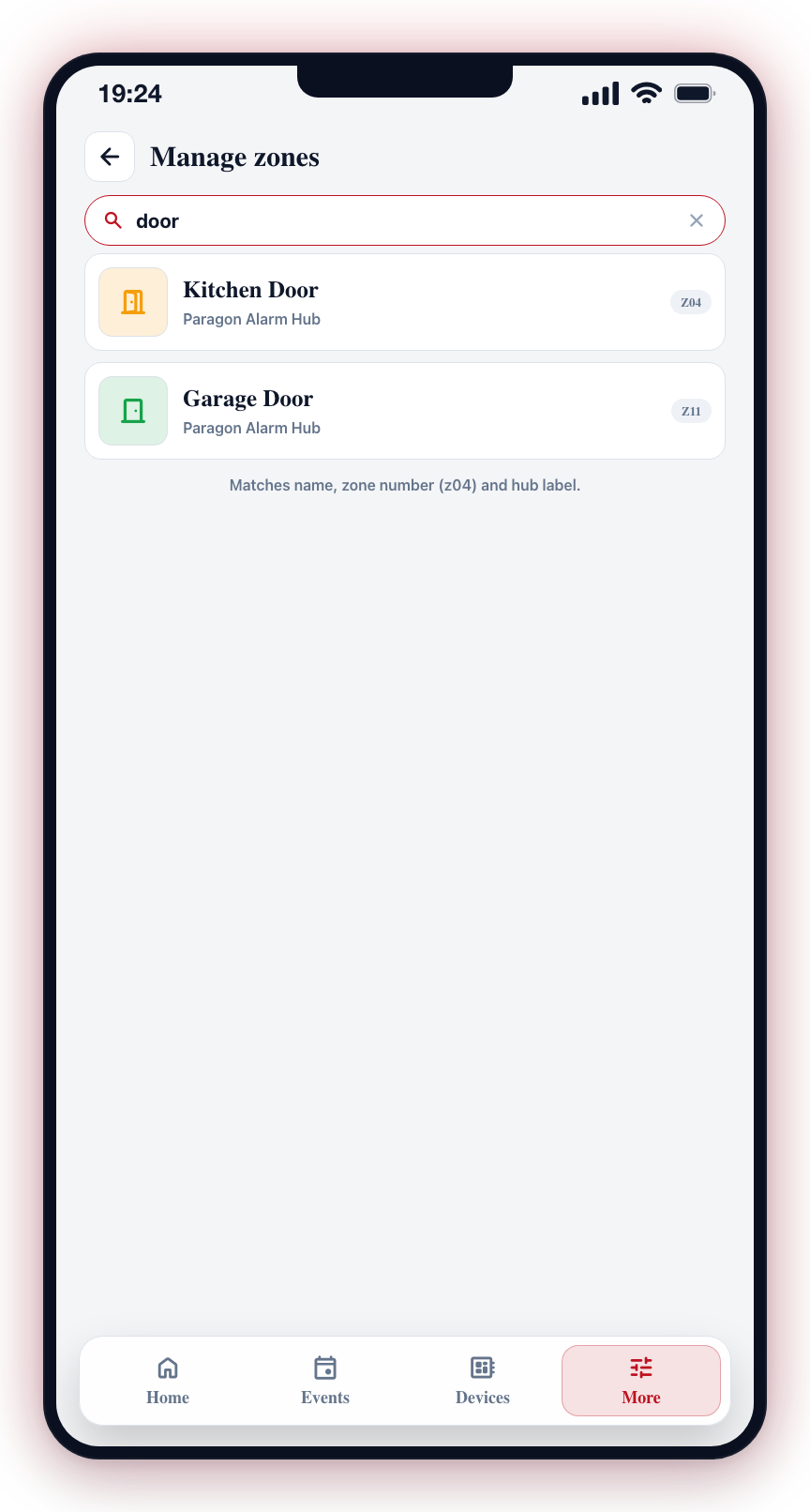
A search bar at the top filters the list as you type. Search matches the zone name, the panel zone number (typing z12 finds zone 12), and the hub label. Pull down on the list to refresh from the server.
Editing a zone
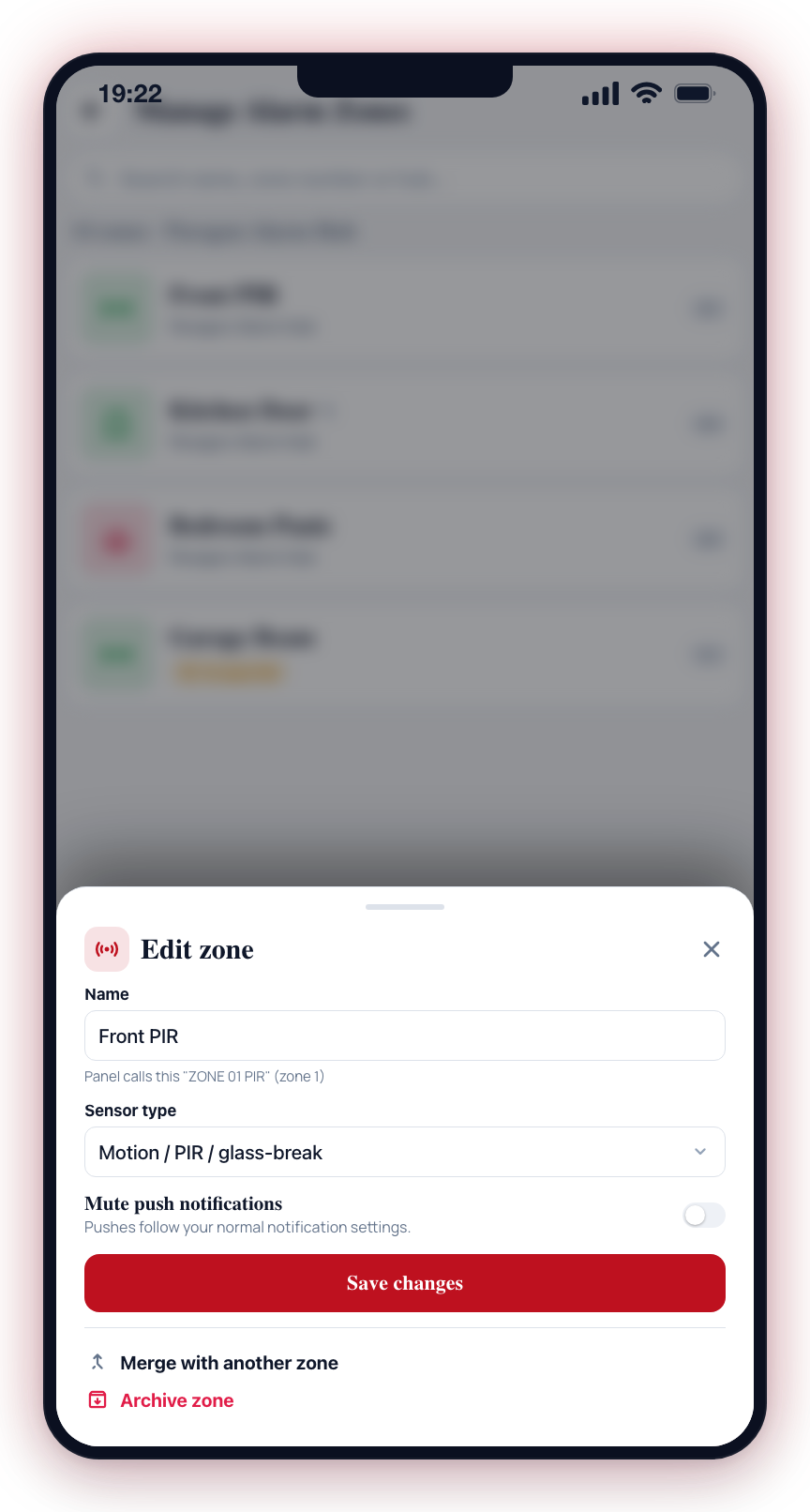
Tap any row to open the zone's detail sheet. From there, tap Edit zone to open the Edit Zone bottom sheet. You can change all of the following in one place and save in a single tap:
Rename
Type a new name (up to 80 characters). If the panel uses a different label, it is shown underneath the name field for reference. The new name is saved against the zone itself and shared across every panel mapping that points at the same zone.
Sensor type
Choose what kind of sensor this zone is:
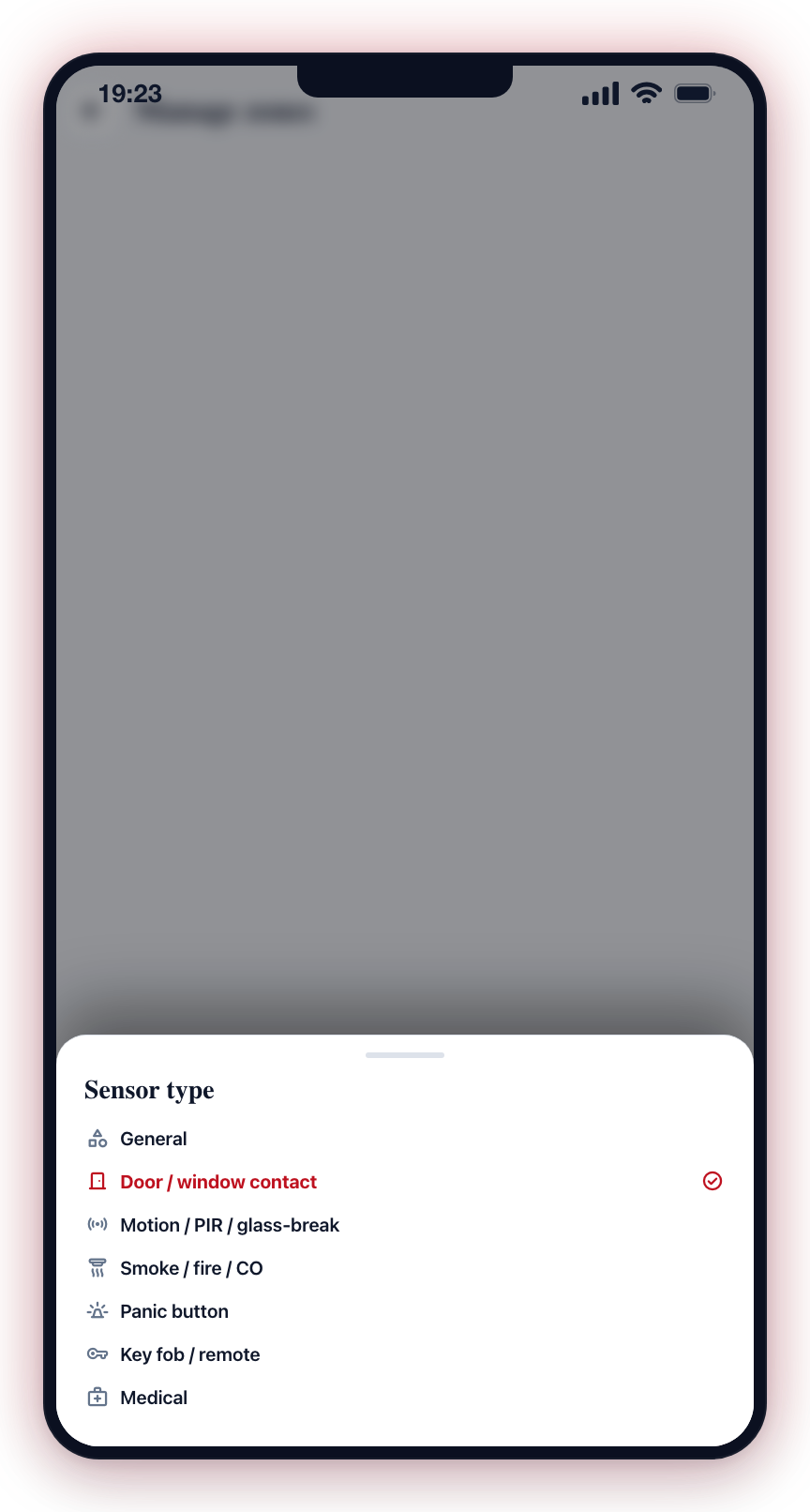
- General (default — no specific type)
- Door
- Motion
- Smoke
- Panic
- Duress
- Fob (key fob / wireless button)
- User (panel user code, not a physical sensor)
- Tamper
- Medical
The sensor type changes the icon shown next to the zone everywhere in the app and helps CleverAlert pick a sensible default for things like chime sounds and event severity.
Mute push notifications
Toggle Mute push notifications to stop your phone alerting on events from this one zone. Other devices on the same site continue to receive notifications normally — the mute is per-user, per-zone. The mute applies to all events the zone fires, regardless of severity.
Muting a single zone does not disarm the zone — events still log on the Events tab and your control room is still notified. Only your phone's push notification is silenced.
Merge with another zone
If two rows actually represent the same physical sensor (for example, the panel exposed it twice or it moved between hubs), tap Merge with another zone. Pick the zone you want to keep — every panel mapping currently labelled with the source zone will move under the target. The merged-from zone is removed.
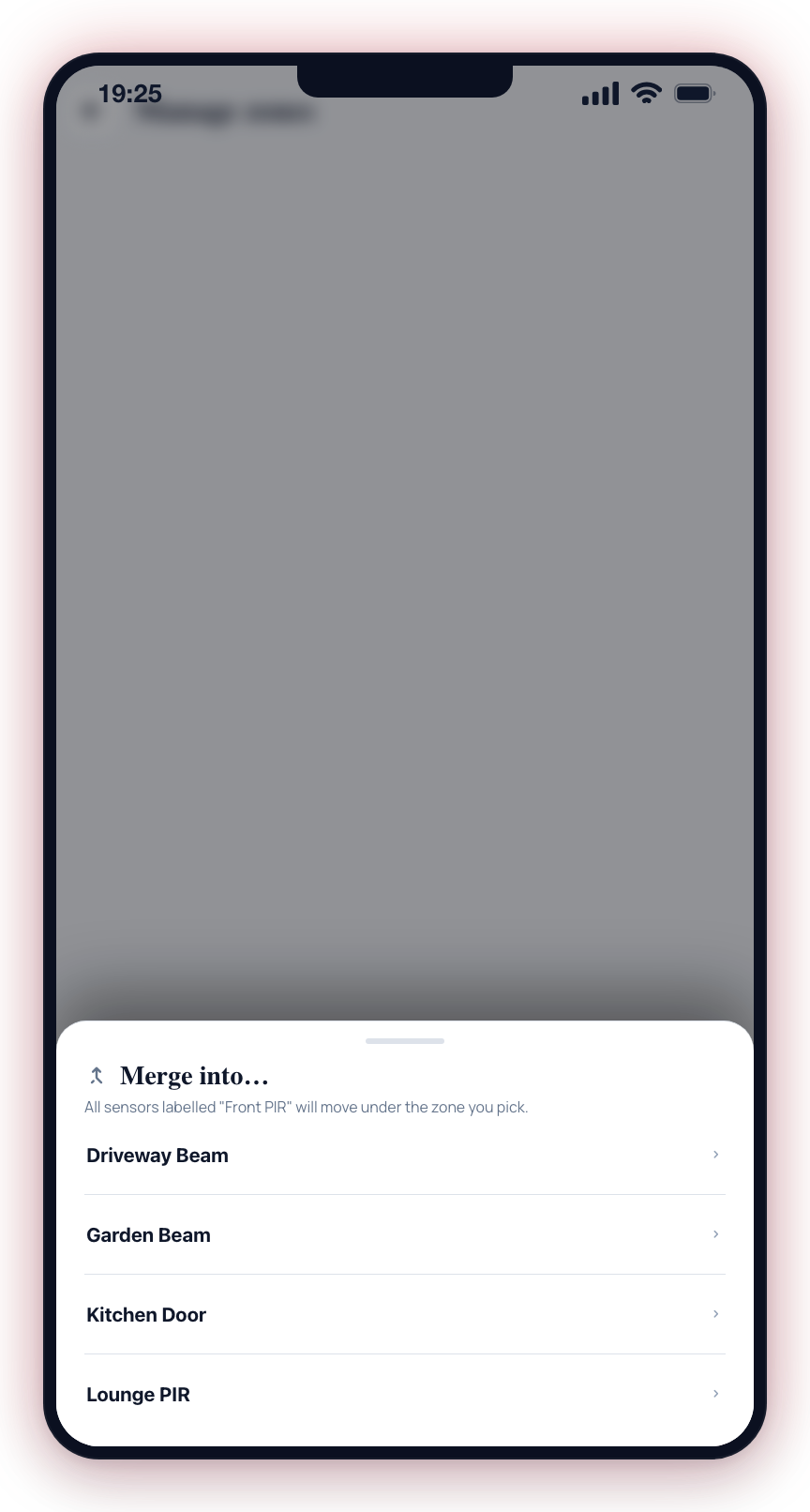
Merge can only join zones on the same site.
Archive
Tap Archive to hide the zone from the app. The next signal from the panel will recreate it under a fresh name.
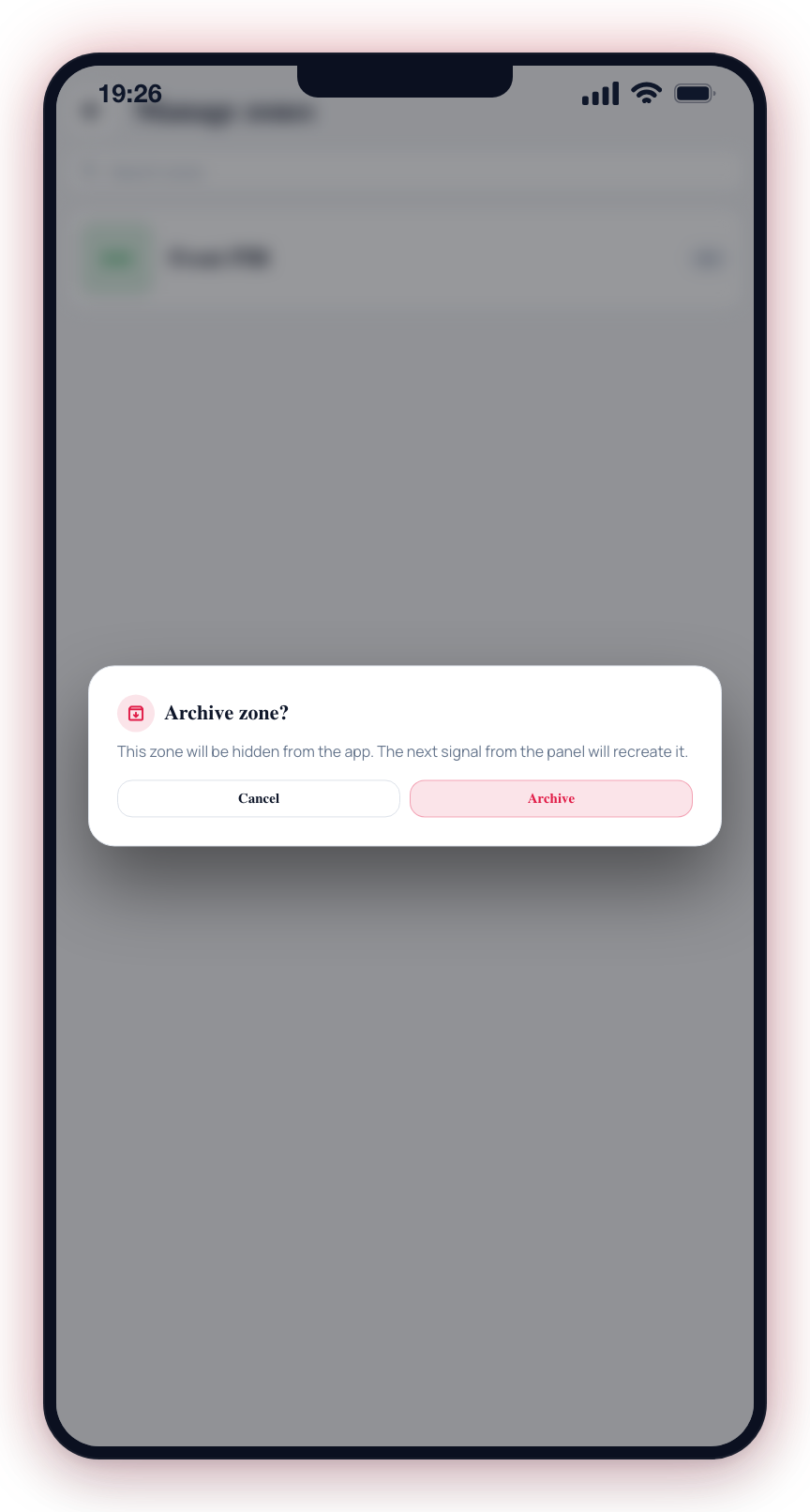
Renaming, changing the type, merging, and archiving all require permission to manage zones at the site. Users without permission see a friendly error if they try to save changes.