Alarm Groups
An area is a part of your alarm you can arm on its own — "Upstairs", "Garage", "Perimeter". The Devices tab shows them per hub; the Alarm groups screen gathers every one of them at the site into a single searchable list, whichever hub it belongs to.
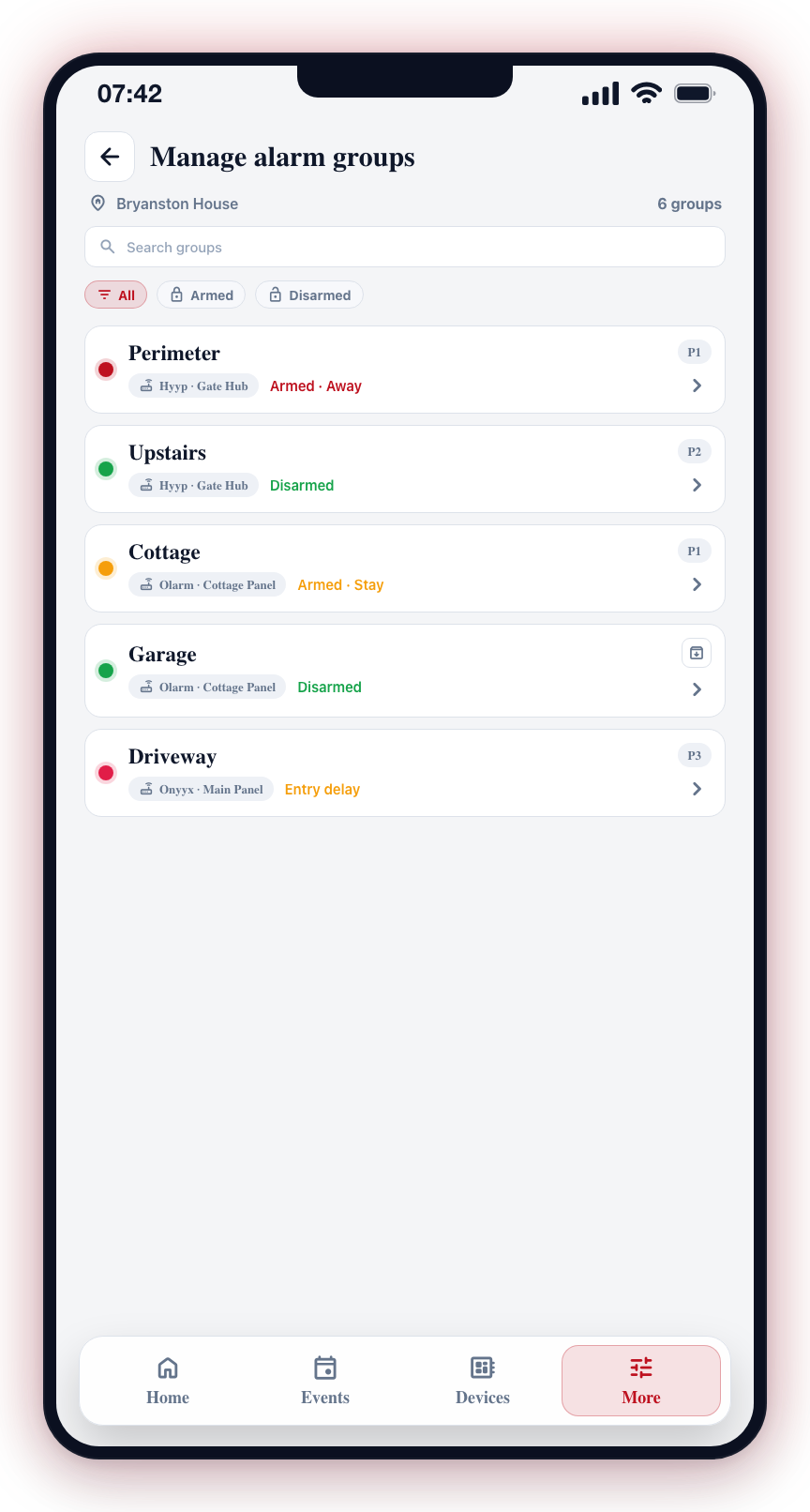
This screen lives under More → Advanced setup and only appears when the selected site has at least one alarm area reported by an alarm communicator hub (Hyyp, Olarm, Onyyx, Ajax, FSK), and your security company has the third-party alarm receivers capability enabled on their control room.
Some sites are set up so that each area is a separate premises — cottages on a farm, a house and its garden flat, a small block of units. On such a site you only see and control your own premises: groups belonging to other households do not appear anywhere in the app, and arm commands can only target your premises. Panel-wide device alerts that name no area (mains power, battery, comms, tamper) go to the site-wide keyholders.
Opening the screen
- Open the More tab and, under My site, tap Advanced setup.
- Tap Alarm groups.
If the menu item is not visible, either the selected site has no alarm panels reporting areas yet, or your security company doesn't have the alarm receivers capability enabled. Groups appear automatically the first time a panel signals one.
Reading the list
Each row represents one alarm group:
- Shield icon + arm-state colour — green for disarmed, red for armed away, yellow for armed stay or part-arm, orange for entry/exit delay.
- Group name — the friendly label CleverAlert uses for this group. If you have not renamed it, this is the panel's own label.
- Hub label — the alarm hub the group belongs to, shown beneath the name.
- Area number badge — the panel's own area number (for example
P1), shown on the right.
Searching and filtering
A search bar at the top filters the list as you type. Search matches the group name and the hub label.
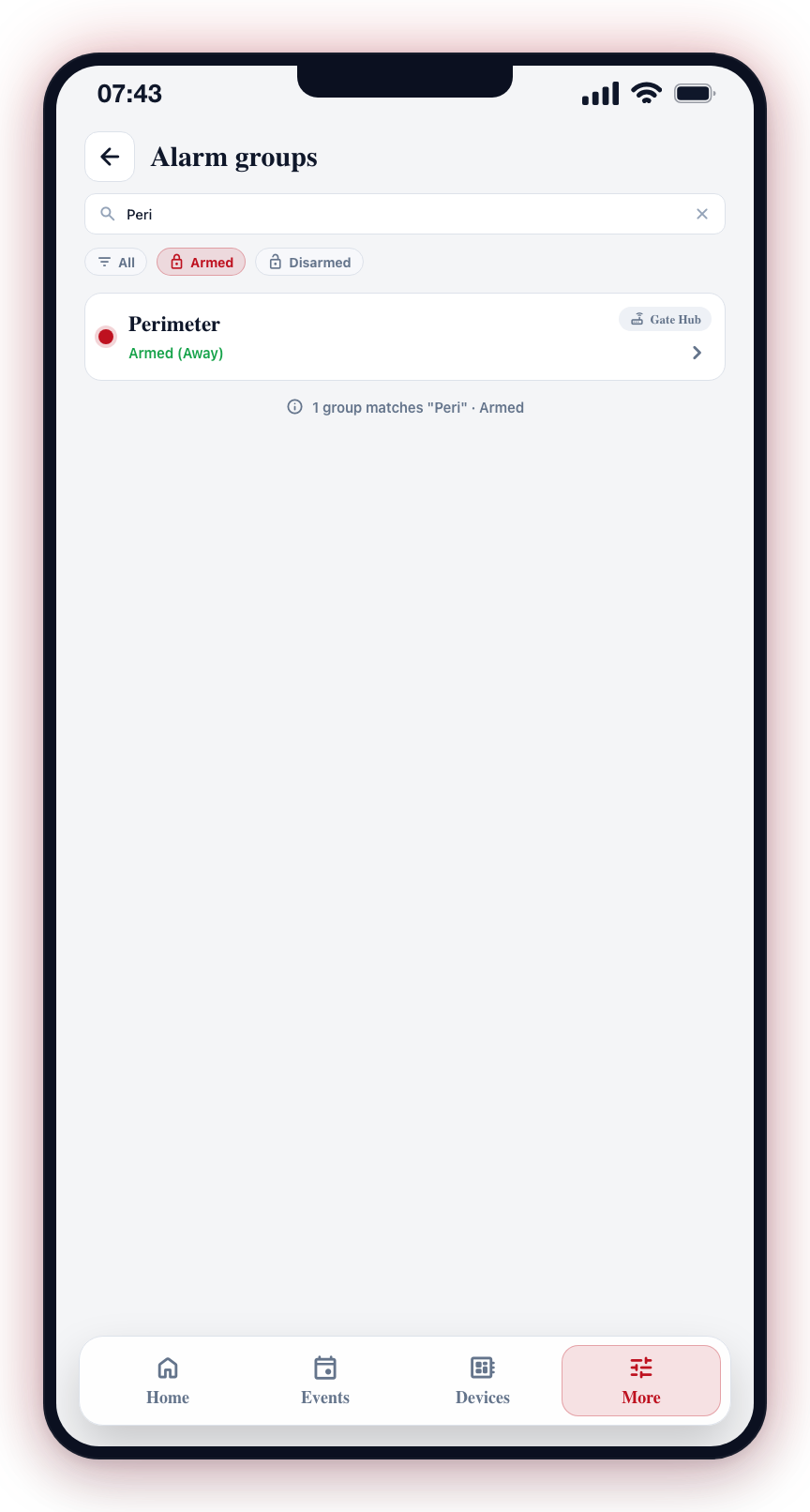
Three filter chips beneath the search bar let you narrow the list by arm state:
- All — every group.
- Armed — groups currently in any armed state (away, stay, part-arm).
- Disarmed — groups currently disarmed.
Filters apply on top of the search query — both narrow the list together. Pull down on the list to refresh from the server.
Editing a group
Tap any row to open the group's detail sheet. From there, tap Edit group to open the Edit Group bottom sheet, where you can:
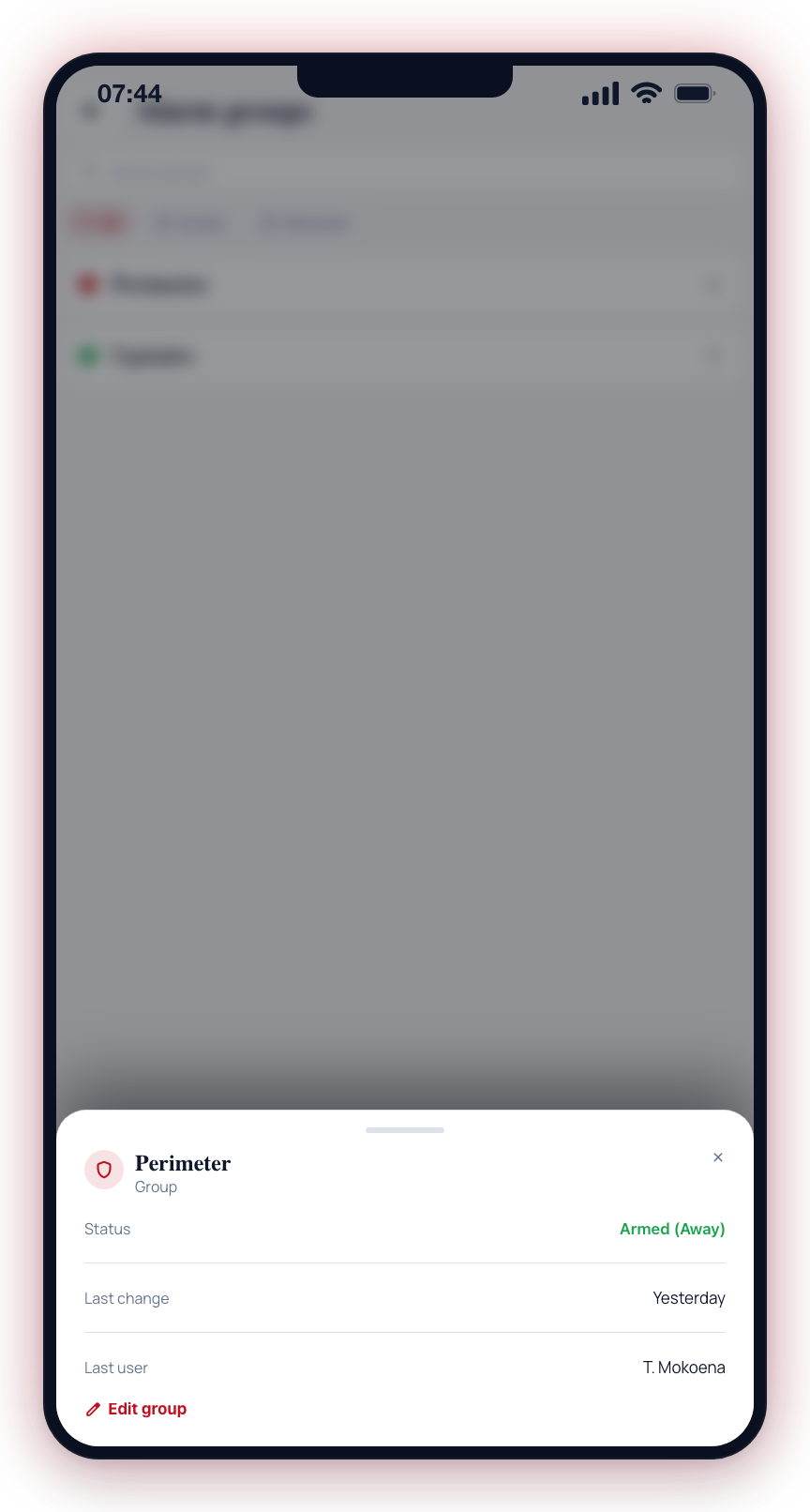
Tap any row to open the detail sheet. It shows the group's current arm state, when it last changed, and who last armed or disarmed it. Tap Edit group to make changes.
- Rename the group. The new name is saved against the group itself and is shared across every panel mapping that points at the same group. The panel's own label is shown below the name field for reference.
- Archive the group. This hides it from the app. The next signal from the panel will recreate it under a fresh name.
Renaming a group does not change the label on the panel itself — it only changes how CleverAlert shows the group across this site.
Renaming and archiving a group require permission to manage zones and groups at the site. Users without permission see a friendly error if they try to save changes.