Live View
Live View lets you watch a real-time video feed from any camera connected to your site. Whether you want to check on your property, verify an alert, or simply see what is happening right now, Live View gives you direct access to your camera streams from anywhere in the world.
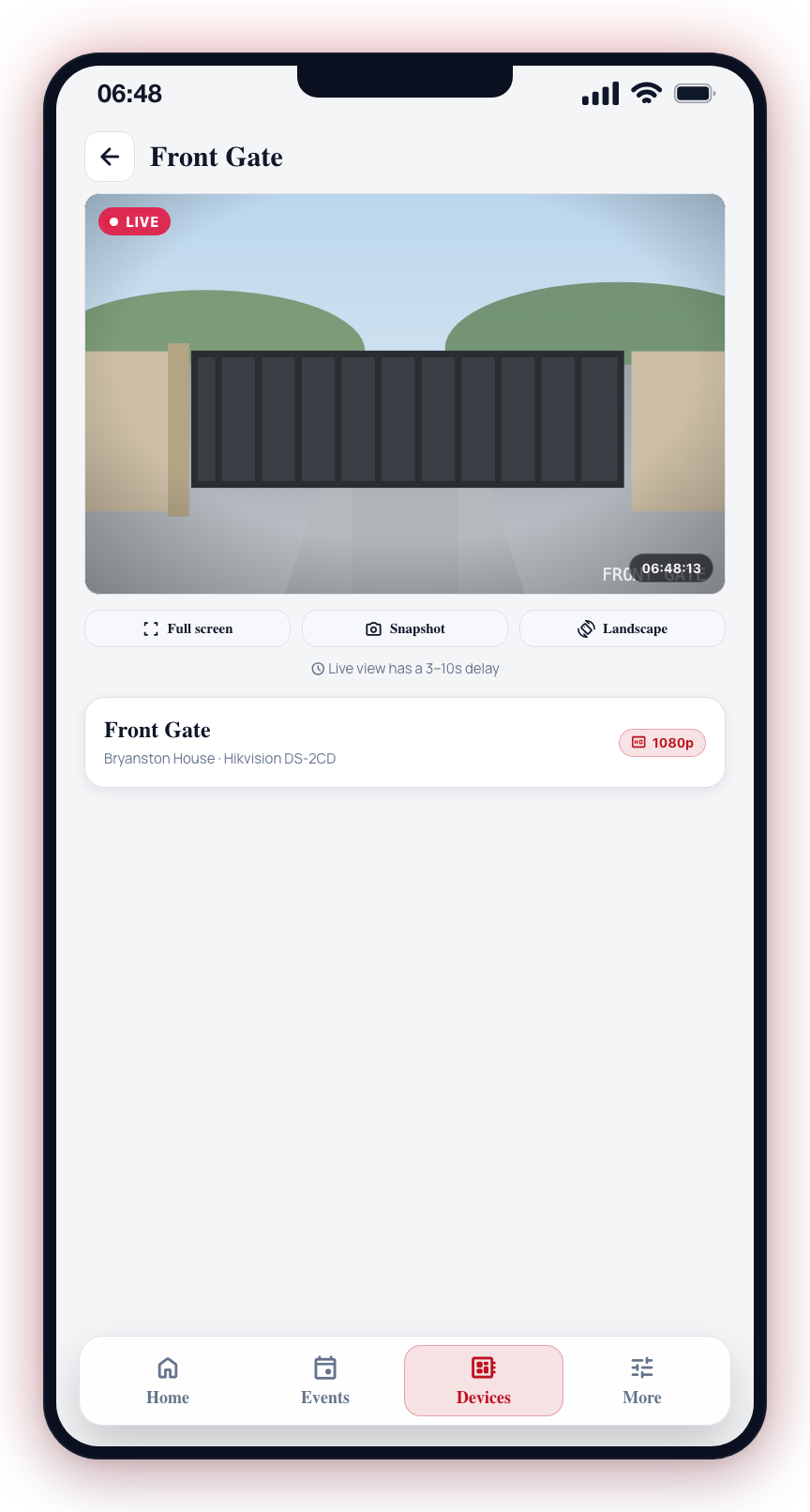
Opening Live View
- Navigate to the Devices tab and expand the camera's hub card.
- Tap the camera's snapshot tile in the 2-column camera grid (or long-press it).
- The camera sheet opens on the camera's latest snapshot, with a play button over it.
- Tap the play button — tapping anywhere on the snapshot does the same thing — or Watch in the action bar, to start the stream. The snapshot stays on screen under a Connecting label for a few seconds while the stream buffers, then the live feed fades in over it.
The stream replaces the snapshot inside the same sheet — the camera's name, status and actions stay exactly where they were, and Watch becomes Stop. Tapping Stop ends the stream and returns the preview to the snapshot.
The preview takes the camera's real picture shape. Many cameras and recorders send a squeezed picture — a widescreen view packed into a narrower frame such as 704×576, or 960×1080 on a recorder — which used to show squarish or even taller than wide. CleverAlert stretches these back to the widescreen picture they carry, the same way the camera makers' own apps do, in the live stream, the snapshot tiles, event photos and event clips. Cameras that really are square or upright (a fisheye, a doorbell, a thermal camera) keep their own shape.
You can also open live view from:
- Home screen favorites -- tap a favorited camera tile. These start streaming as soon as the sheet opens.
- Active event photo gallery -- in the full-screen photo viewer, tap the camera icon in the top bar to watch that photo's camera live. See Photo Gallery.
- Community chime preview -- when viewing a chime, a camera button appears next to Escalate if the chime has a linked camera. Live view of a community camera only works when its owner has enabled Allow external live view; otherwise a message explains it isn't shared.
Snoozed and Disabled Cameras
A snoozed or disabled camera still opens its sheet. The preview dims and shows Detection paused (snoozed) or Camera disabled, and the status line reads Snoozed · Back on at 14:30.
To bring the camera back before its snooze expires, tap Wake now in the action bar — it shows how long is left underneath. Enable turns a manually disabled camera back on.
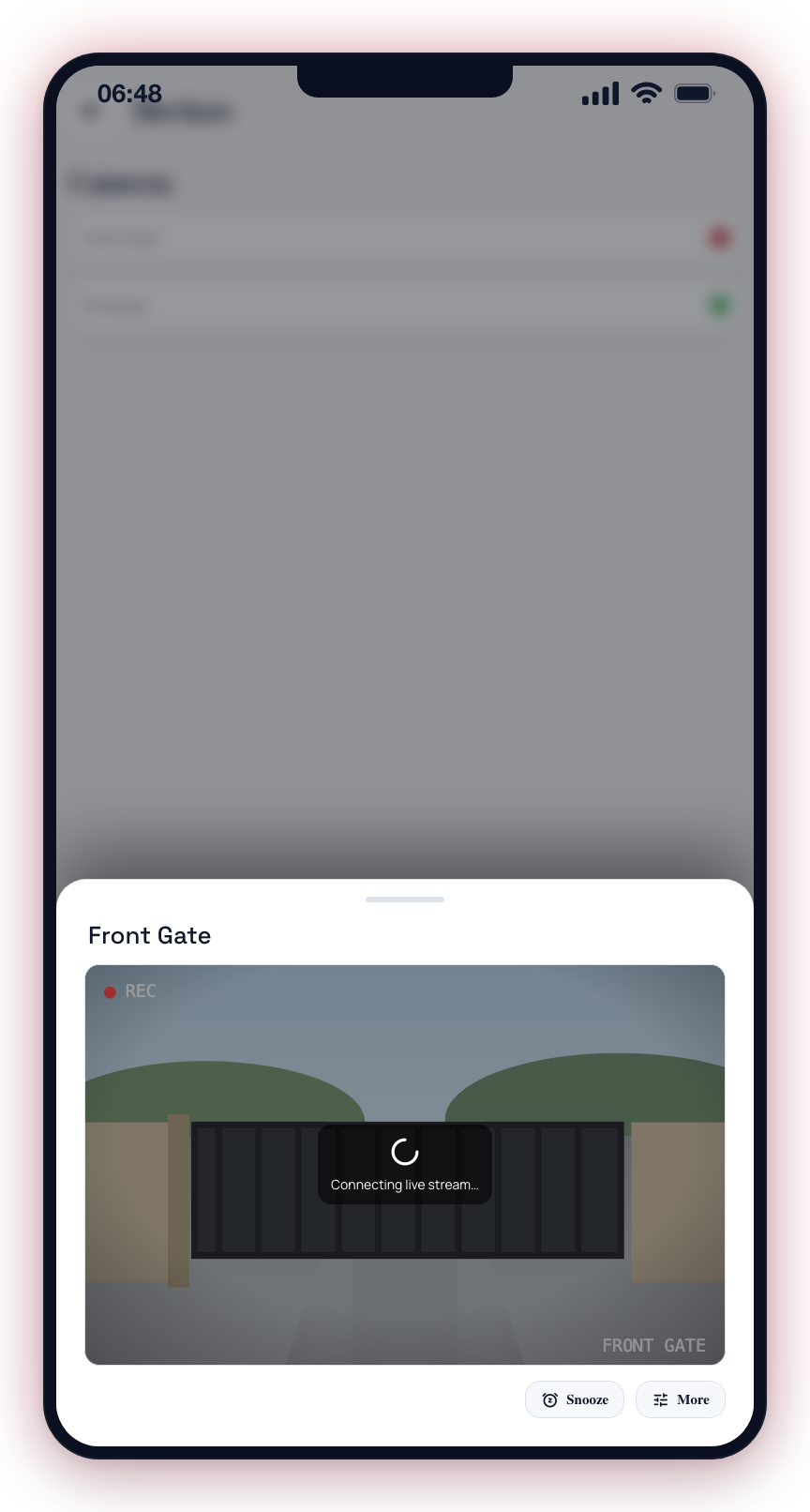
Photo-Verification Cameras (SpotBot & AVLytics)
Cameras ingested from a photo-verification partner (SpotBot, AVLytics) do not stream through a Clever Hub. Tapping their tile opens a snapshot preview instead, marked with a Snapshot chip.
Some of these cameras also provide a live feed hosted by the partner. When one is available, the camera's tile shows the same LIVE badge as a CleverCam camera, and opening the preview plays the live feed with a LIVE chip once it starts. If the feed cannot load, the preview falls back to the latest snapshot automatically.
How Live Streaming Works
CleverAlert delivers live video using a standard internet video streaming method. Here is what that means for you:
- Buffering delay -- There is typically a 3 to 10 second delay between real-time and what you see on screen. This is normal for live streaming and ensures smooth playback.
- Adaptive quality -- The stream quality may adjust automatically based on your internet connection speed. If you are on a slow connection, the video may drop to a lower resolution to prevent buffering.
- Initial load time -- When you first open a stream, it may take a few seconds to establish the connection and begin playing. A loading indicator is displayed during this time.
- Audio -- If the camera has a microphone, its audio plays along with the video. Cameras without a mic stream video only.
Landscape Mode
For a larger view of the camera feed:
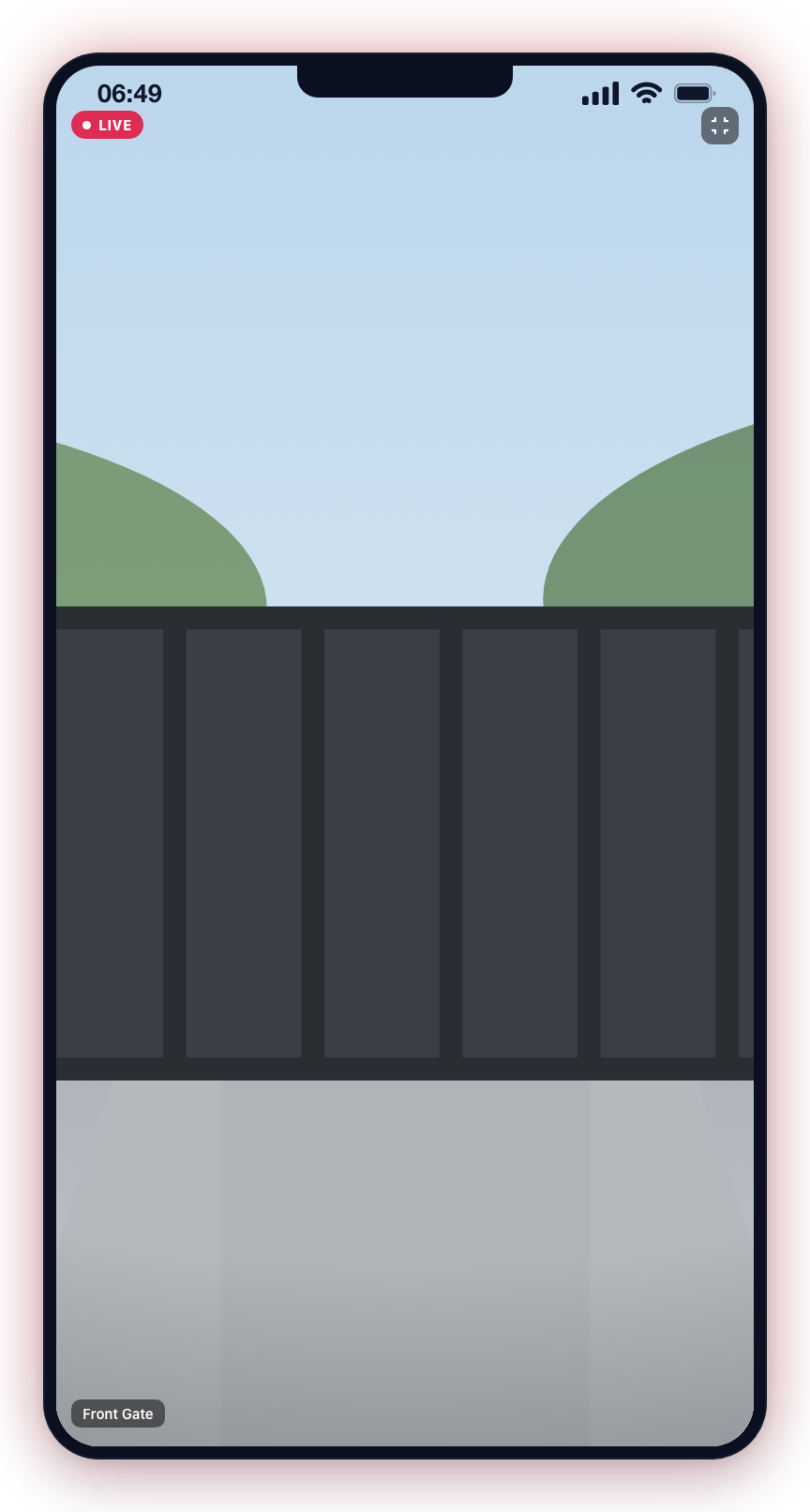
- Rotate your phone to landscape orientation.
- The live view expands to fill the entire screen.
- Rotate back to portrait to return to the standard view.
You can also tap the full-screen icon (if available) to force landscape mode without rotating your device.
Stream Quality Tips
For the best live view experience:
- Use Wi-Fi when possible -- A stable Wi-Fi connection provides the best streaming performance. Mobile data works but may result in lower quality or more buffering.
- Minimum recommended bandwidth -- At least 2 Mbps download speed for a smooth, single-camera stream. Higher resolution cameras may require more bandwidth.
- Close other streaming apps -- Other apps consuming bandwidth (video streaming, large downloads) can affect live view performance.
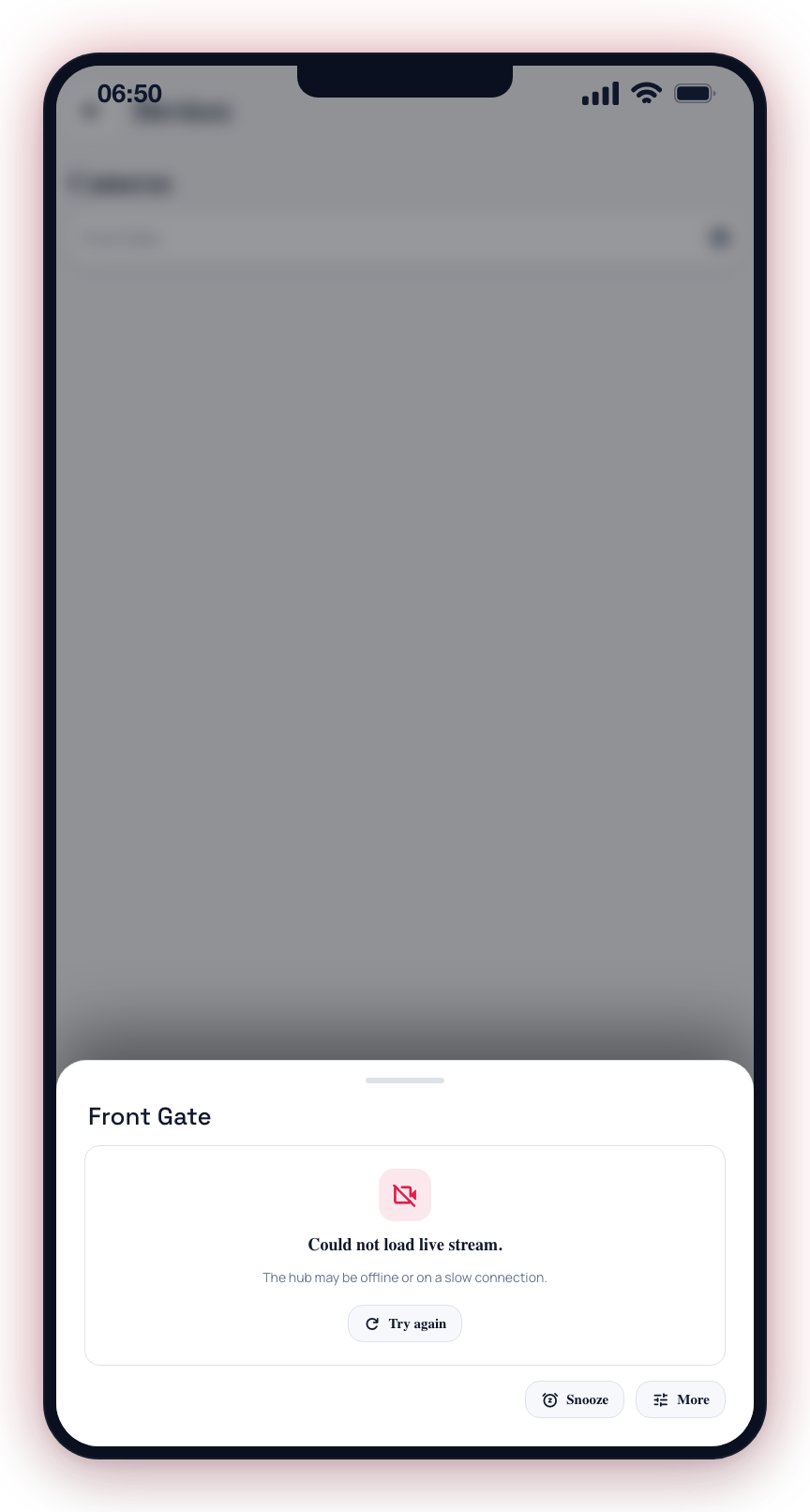
- Check hub connectivity -- If the live view fails to load, verify that the hub at your site has an active internet connection with sufficient upload bandwidth.
Troubleshooting Live View
When a stream cannot start, the player frame shows an error with a Try again button so you can retry without closing the sheet.
| Issue | Possible Cause | Solution |
|---|---|---|
| Stream does not load | Camera or hub offline | Check the device status in the Devices tab |
| Constant buffering | Slow internet connection | Move to a stronger Wi-Fi signal or wait for better connectivity |
| Low quality / blurry | Bandwidth limitation | Close other apps using bandwidth; check camera resolution settings |
| Stream freezes | Connection interruption | Close and reopen the live view; check your internet connection |
| Black screen | Camera obstruction or settings issue | Verify the camera lens is not covered; check camera settings |
Live View requires that both your phone and the hub at your site have active internet connections. The video stream travels from the camera to the hub, then from the hub to the cloud, and finally from the cloud to your phone.
Live streaming uses significant data. If you are on a metered mobile data plan, be mindful of how long you keep the live view open. A single camera stream can use 300 MB to 1 GB per hour depending on resolution and quality settings.