Pending Sites
Pending sites are locations that have requested a connection to your monitoring centre but have not yet been approved. Approving a request needs the Create sites capability and declining one needs Cancel & reinstate sites — owners and admins have both, other members get them through the Sites admin and Account closures roles (see Roles and Permissions). This queue lets you review incoming site requests, inspect the details of each requesting site, and decide whether to accept or decline the connection. Managing this queue promptly ensures that new customers get connected quickly and start receiving monitoring services.
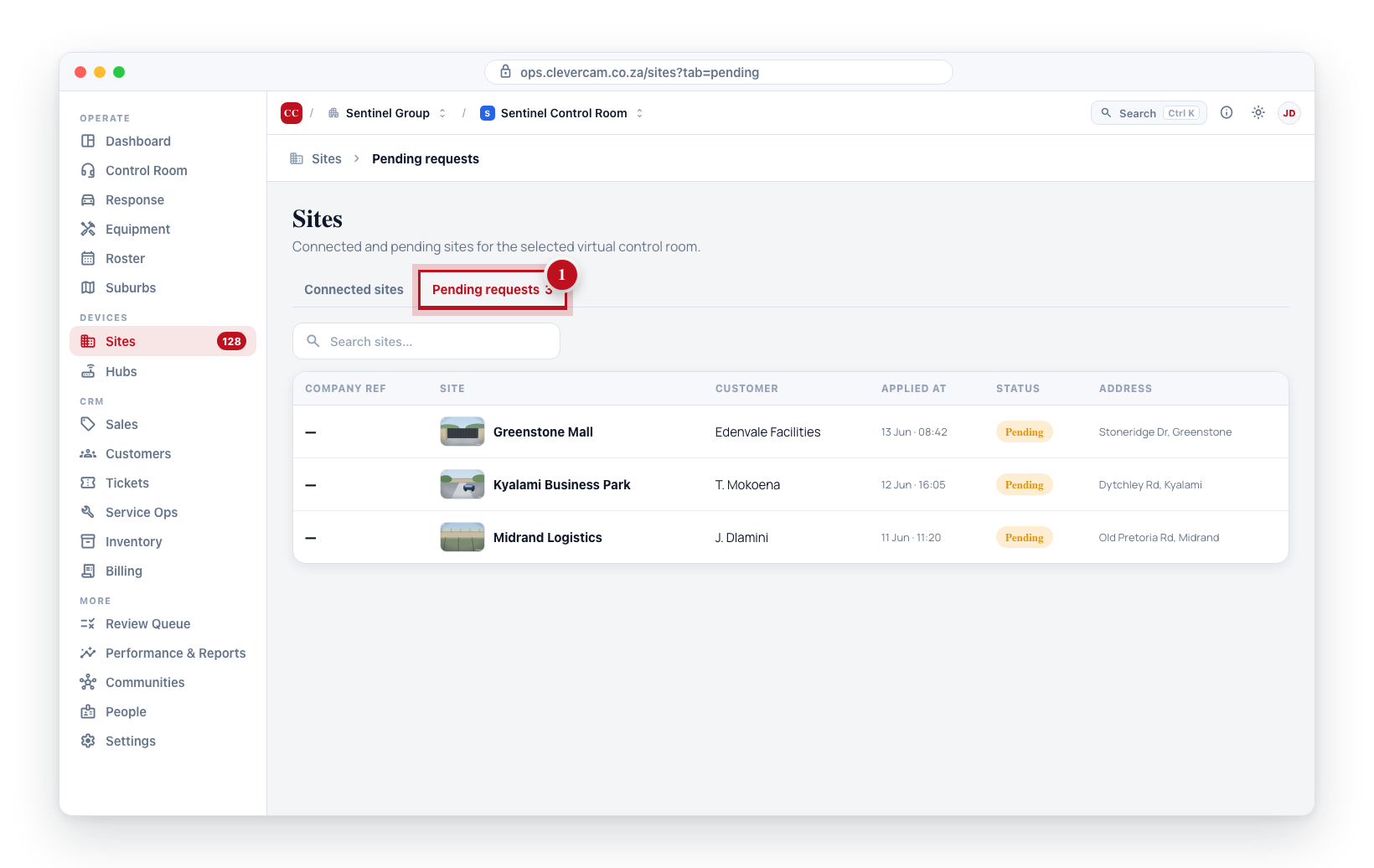
Viewing Pending Sites
- Navigate to Sites in the sidebar.
- Click the Pending requests tab.
- The table shows all sites currently waiting for your approval with the same columns as the connected sites table (Company Ref, Site, Area, Monitoring, Status, Address).
The dashboard also shows a Pending count on the Sites card, so you can see at a glance if there are sites waiting for action.
Reviewing a Pending Site
To review a pending site:
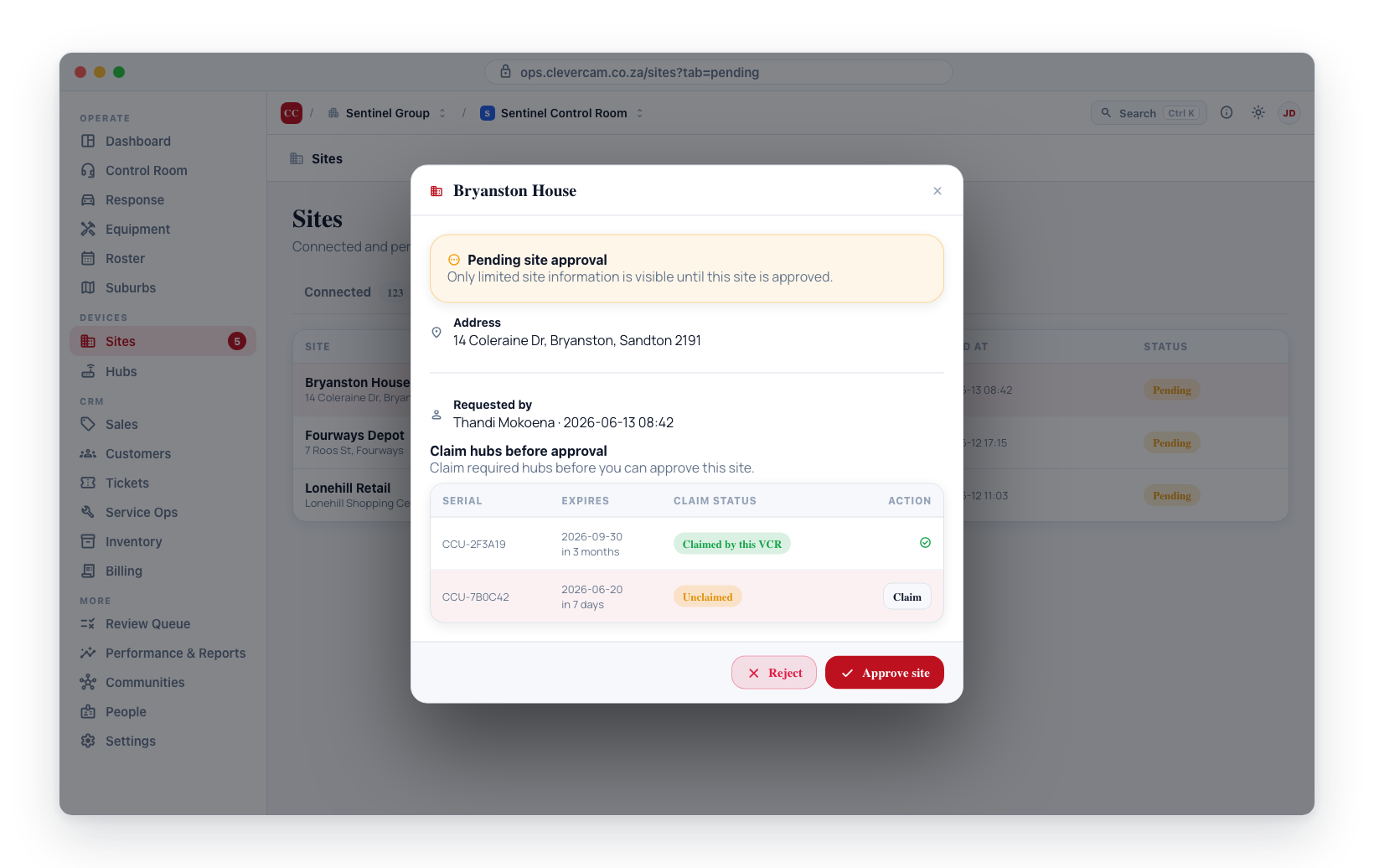
- Click on the pending site row in the table.
- The site details page opens with a Pending site approval banner and limited information visible.
- You can review the site name, address, and linked Clever Hubs before making a decision.
Once a site is accepted, you should configure its monitoring mode and assign it to an appropriate area so that events from the site are routed correctly to your response teams.
Sites Monitored by Another Control Room
Occasionally a hub appears in your Hubs list because your control room holds its billing or ownership, even though the site itself is approved and monitored by a different control room. When you open such a site, instead of the Pending site approval banner you will see a Monitored by another control room banner naming the control room that monitors it.
In this state there is nothing for you to approve — there is no approval request directed at your control room, so the Claim hubs before approval step and the Approve site button are not shown. To change the hub's billing or ownership, use the Hubs page rather than the site approval screen.
Sites that were folded into another site
When one alarm panel had been loaded as several sites (one per partition, as some legacy systems model a farm's cottages or a granny flat) and those sites are folded into premises of a single site, the folded sites are archived: they are renamed [Merged] …, marked inactive, and their link to your control room is left unapproved so the events that landed on them before the fold stay readable.
An archived site is not a request. It does not appear in Pending requests, and the dashboard's Pending count does not include it. Everything that was on the folded site — its premises name, pin, photo, directions, zones and people — lives on the surviving site's premises (see Alarm zones). There is nothing to approve or decline; open the surviving site instead.
Best Practices
- Review pending sites daily to avoid keeping potential customers waiting.
- Verify site details before accepting, especially if you do not recognise the requesting party.
- Communicate with site owners if you need additional information before making a decision — this can be done outside CleverOps through your normal customer channels.
- Check your capacity before accepting new sites. Make sure you have enough operators and response units to handle additional monitoring load.