CleverCam subscription
The CleverCam subscription tab in CleverOps Settings (previously called Billing) shows the breakdown of what your Virtual Control Room (VCR) is being charged by CleverCam: the hubs you have claimed, the cameras connected to them, any GPS trackers CleverCam has issued to you, and the members of any communities your VCR runs. Only the VCR that claimed a hub is billed for it — sharing a hub with other VCRs does not duplicate the charge.
This page is what you pay CleverCam. Invoicing your customers — plans, subscriptions, invoices, and payments — lives on the Billing page in the sidebar's CRM section.
Who can see this
This tab shows negotiated unit pricing, so it is not visible to everyone in the workspace. It needs the CleverCam charges capability:
- Owners and super admins always have it.
- Anyone else — including company admins — needs it granted, most easily with the Manager role preset on the roles and permissions editor.
Without it the tab does not appear in the Settings navigation, and opening it by URL shows a "You don't have access to this area" notice. This is enforced in the database as well as the interface, so the figures cannot be read by other means.
Billing & invoices governs invoicing your own customers. CleverCam charges governs seeing what your company pays CleverCam. Someone can hold either without the other.
Accessing your subscription breakdown
- Navigate to Settings in the sidebar.
- Click CleverCam subscription under Workspace in the Settings navigation.
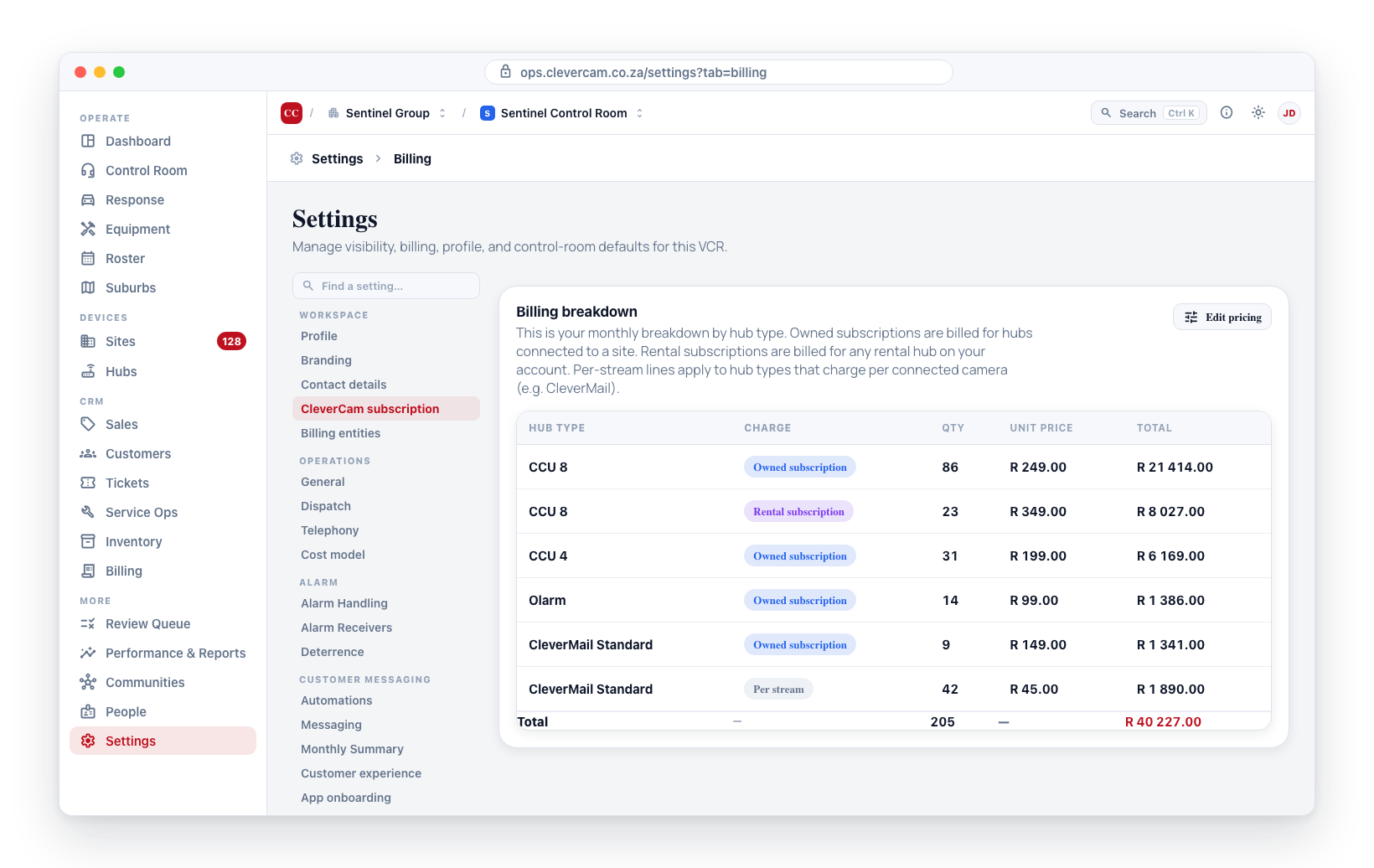
Billing Breakdown Table
The breakdown is grouped into sections, each with its own section total, and a Monthly total at the bottom:
- CleverCam — control units and camera streams, billed per device.
- CleverOS site monitoring — only on the Enterprise package. Alarm panels, communicators and fence hubs, billed per monitored site.
- Other services — trackers, communities and standalone panic users.
Within a section there is one row per billable item — by hub type and charge type for hardware, one row per tracker category, and one row per community:
| Column | Description |
|---|---|
| Item | The billed item: a hub type (e.g. CCU 8, Olarm, CleverMail Standard) for hardware rows, Tracker — Fleet / Tracker — Resale for tracker rows, or the community name for community-member rows. A negotiated price tag appears next to any item priced under a per-VCR agreement rather than the standard rate. |
| Charge | One of: Owned subscription (hubs you own), Rental subscription (hubs you rent), Per stream (charged per camera connected to a hub type that bills by stream, like CleverMail), Fleet tracker / Resale tracker (GPS trackers CleverCam issued to your VCR, billed per category), Community member (charged per approved member of a community your VCR runs), or Panic user (charged per app user on a Panic App / panic-only site). |
| Qty | Hubs of this type and ownership for subscription rows; number of connected cameras for per-stream rows; number of active trackers for tracker rows; number of approved members for community rows. |
| Unit price | The price per unit in ZAR. |
| Total | Quantity × unit price. |
A Monthly total at the bottom sums every section.
Exporting the breakdown (PDF / Excel)
The table shows one line per hub type — it tells you 36 CCU 8 rentals, not which 36. Two buttons at the top of the Billing breakdown card, next to the package badge, export the same numbers hub by hub so you (or the customer whose sites they sit on) can see exactly what is being paid for:
- Export PDF — a branded Subscription breakdown document: a Monthly summary table (the same lines and total as the page) followed by Hubs on this account — every claimed hub with its Site, Serial, Hub type (and the hub's own label, if it has one), Billing (Owned / Rental / Per stream — or, on Enterprise, the site-monitoring outcome such as 1st hub on site or 2nd hub on site — free), Qty, Unit price and Total. Hubs are listed by site, A–Z, with hubs not linked to a site last. It is issued by CleverCam to your control room — CleverCam's mark and name in the masthead, your control room as the Subscriber — and is marked A breakdown, not an invoice.
- Export Excel — an
.xlsxworkbook with two sheets. Hubs has one row per hub per charge: Site, Site address, Serial, Hub label, Hub type, Ownership (Owned / Rental), Billing, Qty, Unit price (R), Total (R), Online (Yes/No) and Negotiated price (Yes/No), with a Hub charges total row at the bottom. Summary repeats the page's lines with the monthly total, package, control room name and generation time. Amounts are numbers (rands, two decimals), so they sum in Excel.
The buttons show Exporting… while the file is prepared and are hidden when there is nothing to bill. Both files are named subscription-breakdown-<date>-<control room>.
The per-hub lines are drawn from the same pricing and the same rules as the table above (owned hubs only bill while linked to a site, rentals always bill, per-stream hubs bill per connected camera). Added up by hub type and charge, the hub rows equal the summary lines exactly — the PDF's Monthly total is the page's Monthly total.
Trackers, community members, standalone panic users and any Enterprise minimum-spend top-up are not hubs, so they appear only in the summary (on both exports), not in the hub roster.
Each hub type may have up to three charges: owned subscription, rental subscription, and per-stream. Hub types that don't apply (e.g. communicators don't charge per stream) simply omit that row.
What gets billed
| Charge | Billed when |
|---|---|
| Owned subscription | The hub is claimed by your VCR and linked to a site. Hubs that aren't on a site yet do not bill. |
| Rental subscription | The hub is claimed by your VCR. Linked to a site or not, rentals always bill. |
| Per stream | Hubs claimed by your VCR and linked to a site, billed per camera connected to the hub. |
| Fleet tracker | A GPS tracker CleverCam issued to your VCR for your own response vehicles. Billed per active tracker at the Fleet price. |
| Resale tracker | A GPS tracker CleverCam issued for one of your monitored sites (resold to the consumer). Billed to your VCR per active tracker at the Resale price. |
| Community member | Each approved member of a community your VCR runs. Billed per member per month at the community's per-member price (default R5). A person who belongs to several communities is billed once per community — there is no de-duplication. Communities with no approved members or a R0 per-member price don't appear. |
| Panic user | Each app user on a Panic App site — a panic-button-only site with no cameras or detection. Billed per app user per month (default R5). Members already billed as community members above are not double-counted. The panic button on normal camera/alarm sites stays free. |
Whether a hub bills as Owned or Rental is a single setting on the hub. It's chosen when the hub is claimed (the Rental option in the claim dialog) and can be changed later by a super admin with Mark as rental / Mark as owned on the Hubs page. The hub's billing package follows this setting automatically — the two can't disagree — so the breakdown always reflects the hub's current owned/rental state. The only catch worth remembering: an Owned hub only bills once it's linked to a site, while a Rental bills as soon as it's claimed (site or not), so a rental allocated but not yet installed still appears here.
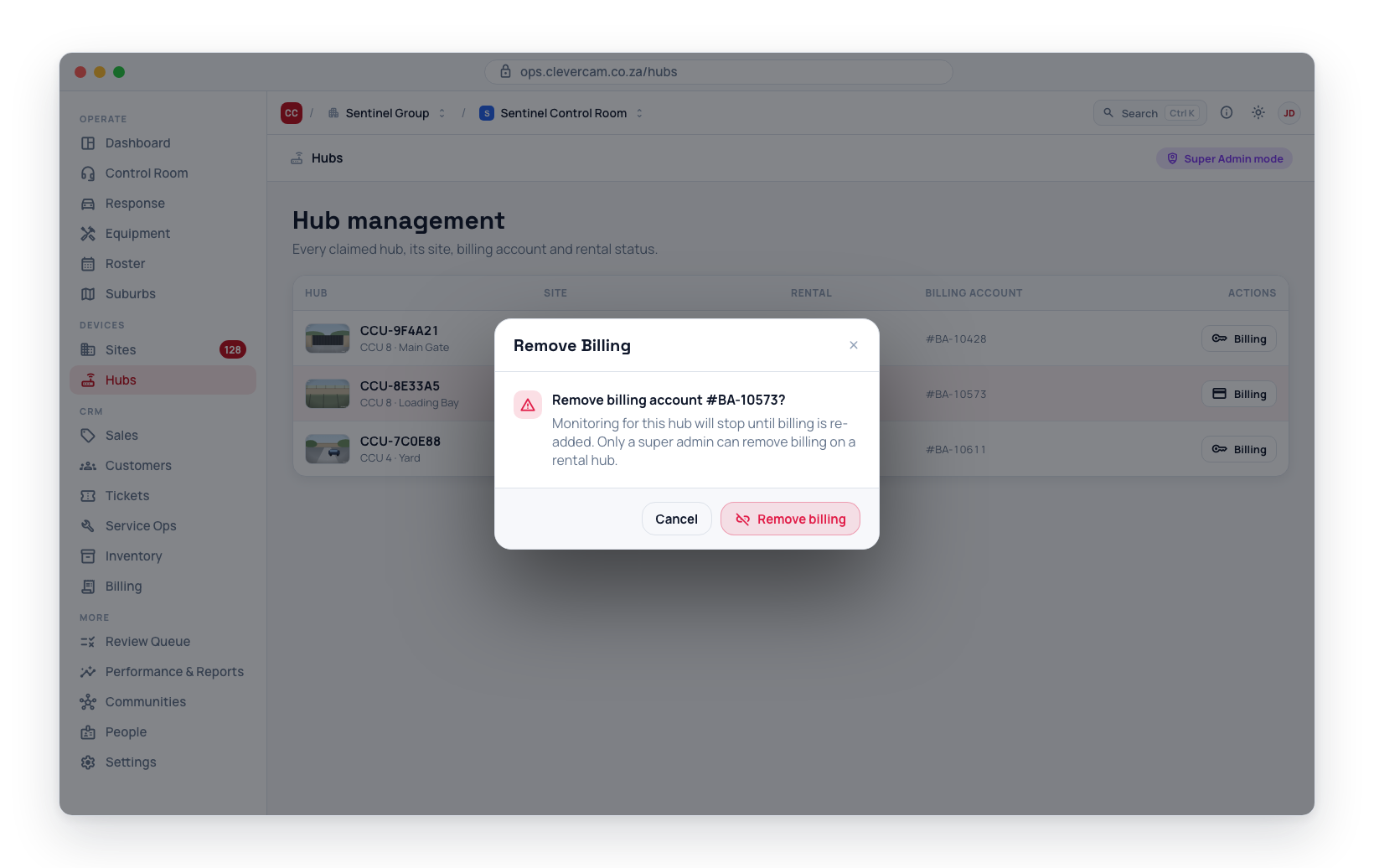
Rental hubs are billed for as long as your VCR has them claimed. To stop the rental, you must first remove billing on the Hubs page. Only super admins (in Super Admin mode) can remove billing on a rental hub. Owned and per-stream hubs can be unclaimed by any company team member.
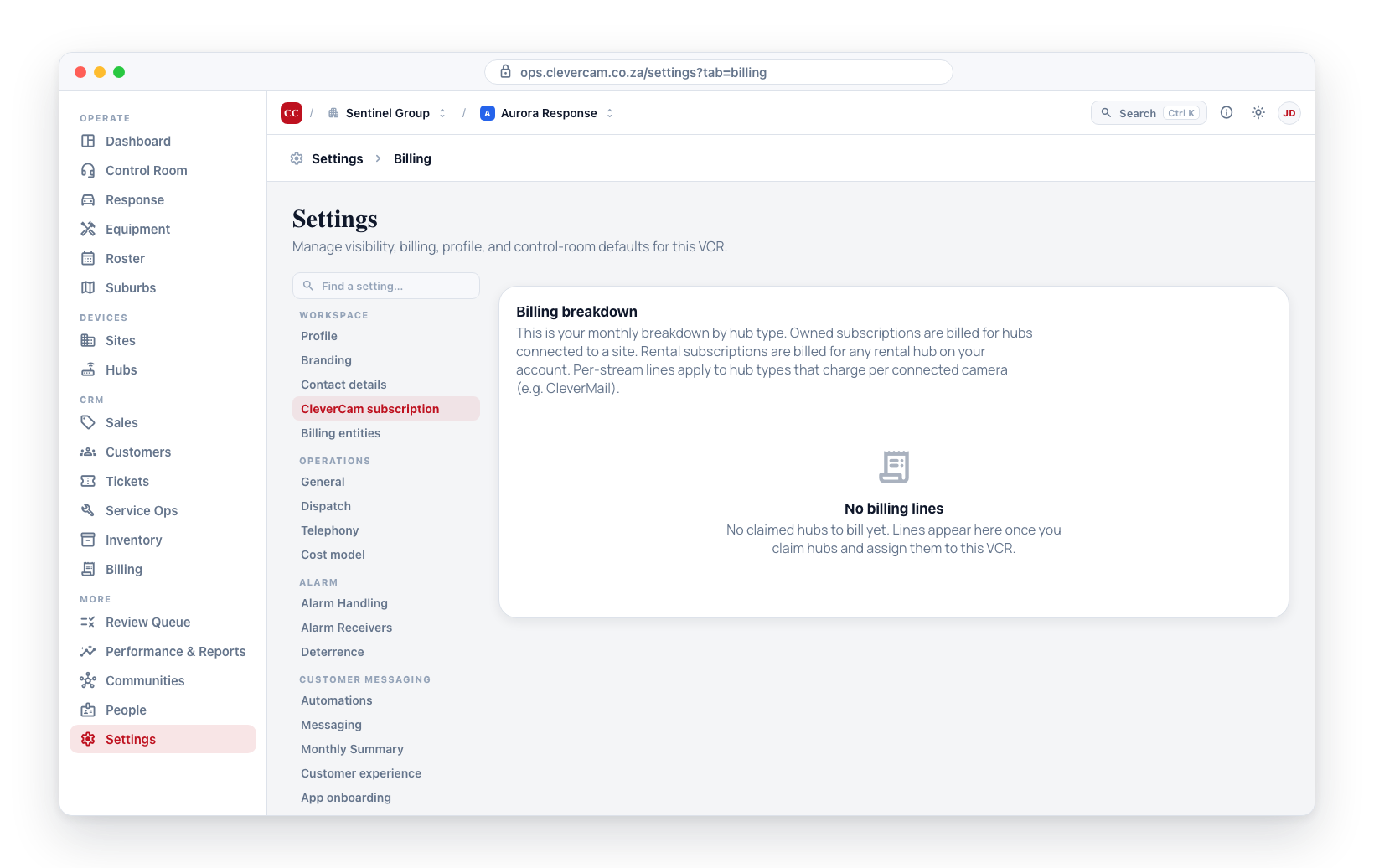
If no claimed hubs exist for your VCR yet, an empty state is shown. Lines only appear once you have claimed hubs assigned to this VCR.
Enterprise package
Most control rooms are on the Standard package, where every claimed hub is priced individually as described above. A badge next to the Billing breakdown heading shows which package your VCR is on.
On the Enterprise package, control units keep their per-hub price but every other hardware hub — alarm panels, communicators, fence hubs — moves into the CleverOS site monitoring section and is billed per monitored site instead of per hub:
- Each CCU on the site covers the site fee and absorbs one hardware hub — the cheapest one. Rental CCUs count too. Two CCUs on a site therefore carry two hardware hubs.
- Of the hardware hubs left over, sorted most expensive first: the first bills in full, the second is free, and every one from the third onwards is half its own price.
For a site whose hardware hubs are all the same price, that works out as pay-for-one-get-one-free, then the same rate for every further pair:
| Hardware hubs on the site | Charged |
|---|---|
| 1 | Full price |
| 2 (e.g. a panel plus a backup radio) | Full price — the second is free |
| 3 | 1.5 × price |
| 8 (e.g. eight electric-fence energisers) | 4 × price |
A site with only a CCU pays nothing in this section — the CCU covers it.
Which hubs are billed, and which aren't
The section is a handful of site-level line items — click any line to expand the site-by-site breakdown behind it:
| Line item | What it counts |
|---|---|
| Sites with hub monitoring | Sites paying the site fee — up to 2 hubs included. Quantity is sites, and the total is the sum of each site's priciest hub. |
| Site hub surcharge | The 3rd hub onwards on any site, each at half its own price. Quantity is hubs. Only appears when a site actually has three or more. |
| Sites at no cost — CleverCam CCU on site | Sites where every hardware hub is carried by the site's CCU. R0. |
| Hubs not billed | Claimed hardware hubs billing nothing — not linked, site not monitored, or no price configured. R0, but never silently absent. |
The expanded view lists every hub with its serial, type, and a status:
| Status | Meaning |
|---|---|
| Billed | The most expensive hub on the site — charged in full. |
| Half price | The third hub on the site and beyond. |
| Free — 2nd on site | The second hub on the site rides free. |
| Free — CCU cover | Absorbed by a CCU on the same site. |
| CCU | A control unit — billed in the CleverCam section above, shown here because it is what grants the free slots. |
| Not linked / Site not monitored | Claimed but not billed. A hub only bills once it is linked to a site your VCR actively monitors. |
| No price configured | The hub type has no price set. Not billed, but listed so it is never silently missed. |
Rentals of any kind stay in the CleverCam section and are never part of the per-site calculation. If the per-hub breakdown fails to load, the section falls back to a flat per-hub-type table with the same totals.
Minimum monthly spend
An Enterprise agreement carries a minimum monthly spend (R10 000 by default). It is compared against the whole bill — hubs, streams, trackers, communities and panic users together. If usage falls short, a single Minimum monthly spend adjustment line closes the gap, and the note beneath it states what usage actually came to.
The package and its minimum spend are part of your commercial agreement with CleverCam, so only CleverCam super admins can change them. Speak to your account manager rather than expecting to set it yourself.
Understanding Your Bill
- Each subscription row reflects how many hubs of that type you've claimed and whether they're owned or rental.
- A per-stream row appears only for hub types that bill by camera (currently CleverMail variants); the quantity is the number of cameras linked to those hubs.
- A tracker row appears per category (Fleet or Resale) for the GPS trackers CleverCam has issued to your VCR; the quantity is the number of active trackers in that category.
- A community row appears per community your VCR runs, with the quantity being its approved members; the unit price is that community's per-member price.
- A panic-user row appears only for Panic App sites (panic-button-only); the quantity is the number of app users on those sites. Regular camera/alarm sites are never charged for the panic button.
- To reduce costs, review the Hubs page for hubs that are no longer needed and can be unclaimed or removed.